Instagram Story Size 2026: Dimensions & Safe Zones
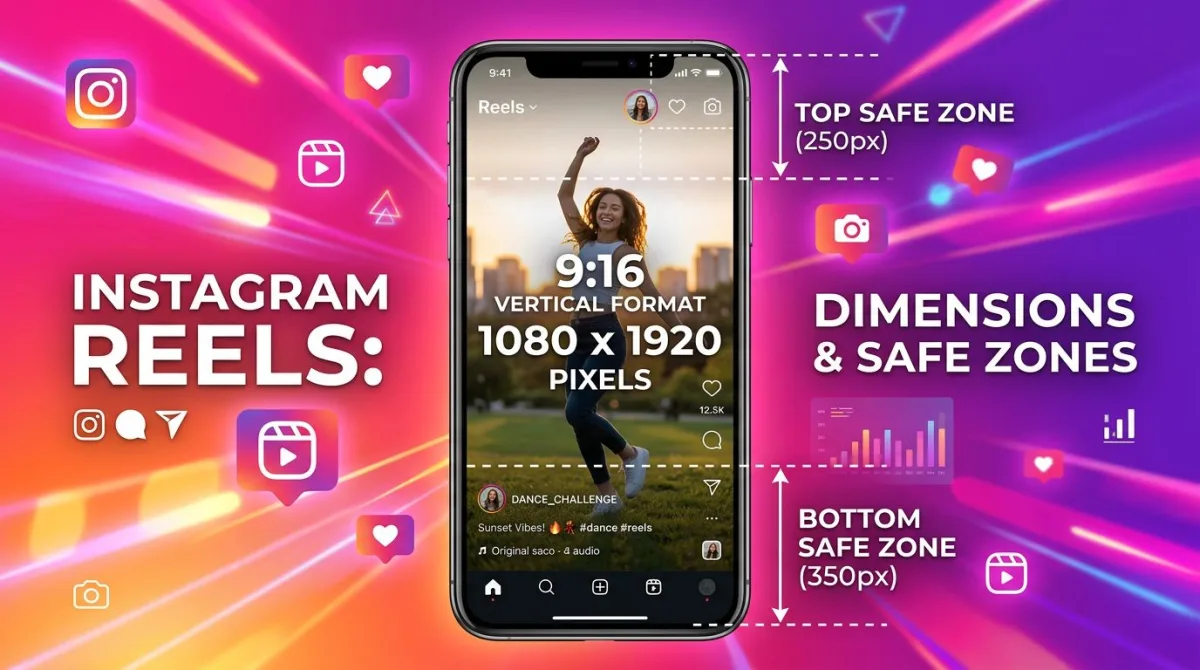
The Instagram Story size is 1080×1920 pixels at a 9:16 aspect ratio. Max file size is 30MB for images and 4GB for videos. Accepted formats are JPG, PNG, MP4, and MOV. Stories run up to 60 seconds per segment. Reels share the same 1080×1920 frame but cap at 90 seconds. This guide covers every Story format, the safe zones that keep your text readable, and how to fix the most common sizing mistakes, including how to repurpose desktop screenshots from ScreenSnap Pro without ugly crops.
If you post Stories every day, bookmark this page. The wrong Instagram story dimensions turn a sharp photo into a blurry, letter-boxed mess. The right ones get full-screen impact and more taps on your link sticker.
Quick answer: every Instagram Story size at a glance
Use this table as your master reference. Every cell reflects Meta's latest 2026 specs for both organic Stories and Story-style ads.
| Format | Dimensions | Max Length | Max File Size | Accepted Files | Safe Zone Notes |
|---|---|---|---|---|---|
| Photo Story | 1080×1920 px | n/a | 30 MB | JPG, PNG | Top 250px, bottom 250px reserved |
| Video Story | 1080×1920 px | 60 sec/segment | 4 GB | MP4, MOV | Same as photo |
| Boomerang | 1080×1920 px | ~3 sec loop | 4 GB | MP4 (in-app) | Same as photo |
| Story Ad | 1080×1920 px | 60 sec | 4 GB | MP4, MOV, JPG, PNG | Keep CTA centered |
| Reel | 1080×1920 px | 90 sec | 4 GB | MP4, MOV | Top 220px, bottom 410px reserved |
| Reel Ad | 1080×1920 px | 60 sec | 4 GB | MP4, MOV | Same as Reel |
| Story Sticker (link) | 1080×1920 canvas | n/a | n/a | n/a | Place in middle 60% only |
For specs across other platforms, see our full social media image sizes cheat sheet. It covers every platform you post to in one place.
Why 1080×1920 is the magic number
Instagram serves Stories full-screen on phones in portrait mode. The Instagram story aspect ratio of 9:16 matches the screen ratio of nearly every modern smartphone, from iPhone 15 to Pixel 8 to Galaxy S24.
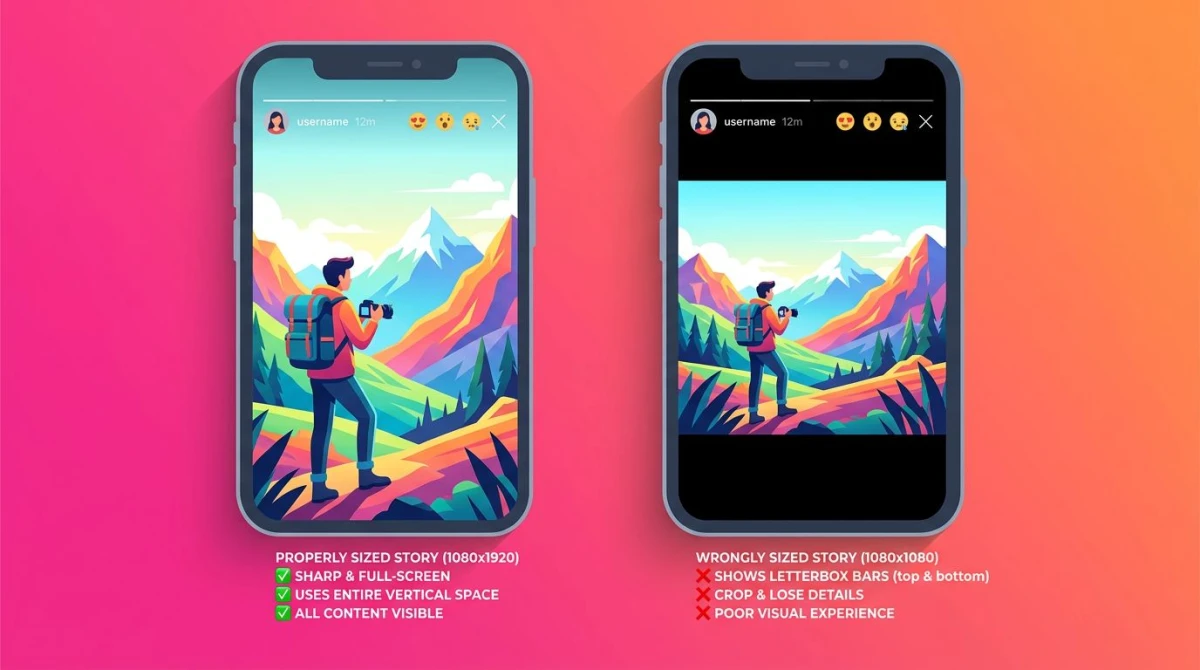
When you upload anything other than 1080×1920, Instagram does one of two things. It either crops your image to fit, or it adds black or blurred bars on the sides to pad it. Neither looks pro.
There's a second reason this size matters. Instagram's CDN re-compresses every upload. Starting from a true 1080×1920 file gives the compressor more headroom, so your final Story stays sharp. Smaller source files compound the loss.
Pro tip: export at 1080×1920 in sRGB color space with quality 85-95%. Going higher than 1080 wide is wasted bandwidth, because Instagram down-samples anything bigger.
Instagram Story formats and what makes each different
Stories aren't just one thing. The Stories tray hosts seven distinct formats, and each has its own quirks.
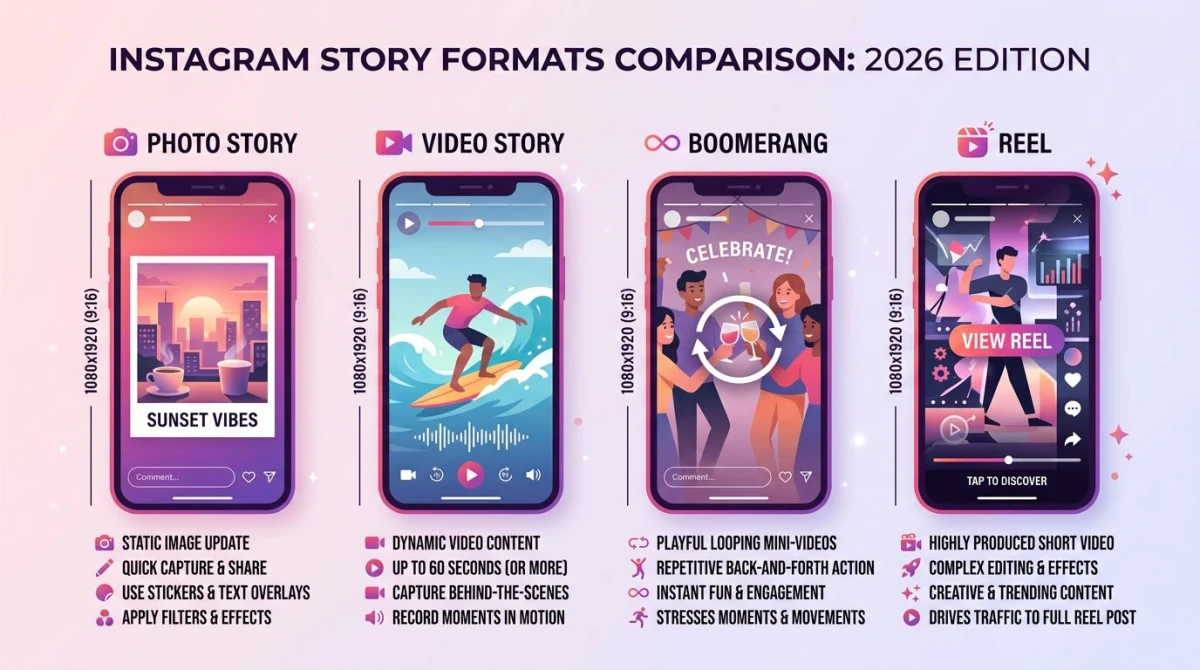
Photo Stories
Single-image Stories. Upload a 1080×1920 JPG or PNG. They display for 5 seconds before auto-advancing, and viewers can tap-to-pause. Photo Stories are the easiest format to get right because there's no length to manage.
Video Stories
Up to 60 seconds per segment. Upload as MP4 or MOV with H.264 video and AAC audio. Anything longer than 60 seconds gets split into multiple Story cards automatically. Frame rate should be 30fps minimum, and 60fps is supported.
Boomerangs
Short looping clips, usually 1-3 seconds, captured in-app. You don't really design these. You record them. They render at 1080×1920 like everything else.
Story Ads
Same dimensions as organic Stories, with one extra rule: the bottom 20% of your frame must stay clear for Meta's "Sponsored" label and the swipe-up CTA. Design your CTA in the middle third instead.
Reels
Reels live in a separate tab but share the 1080×1920 frame. Two key differences from Stories:
- Length: up to 90 seconds (Stories cap at 60).
- Algorithm: Reels are pushed to non-followers, so reach is much higher. Stories show only to existing followers by default.
- Safe zone: Reels reserve more space at the bottom (410px) for the CTA bar, caption, and audio attribution.
If you're repurposing a Story as a Reel, redesign for the bigger bottom safe zone. Don't just re-upload.
Layout (multi-image Stories)
Layout combines 2-6 photos in a grid inside one Story card. The final canvas is still 1080×1920. Each grid cell gets cropped, so design for the cell rather than the full frame.
AR Stories
Filter-based Stories shot through Instagram's camera. You can't upload these as files, since they're created in-app or via Meta Spark. Output is always 1080×1920.
The Instagram Story safe zone (don't skip this)
This is where most Stories fall apart. Your full canvas is 1080×1920, but you only get to design in the middle ~1420 pixels vertically.
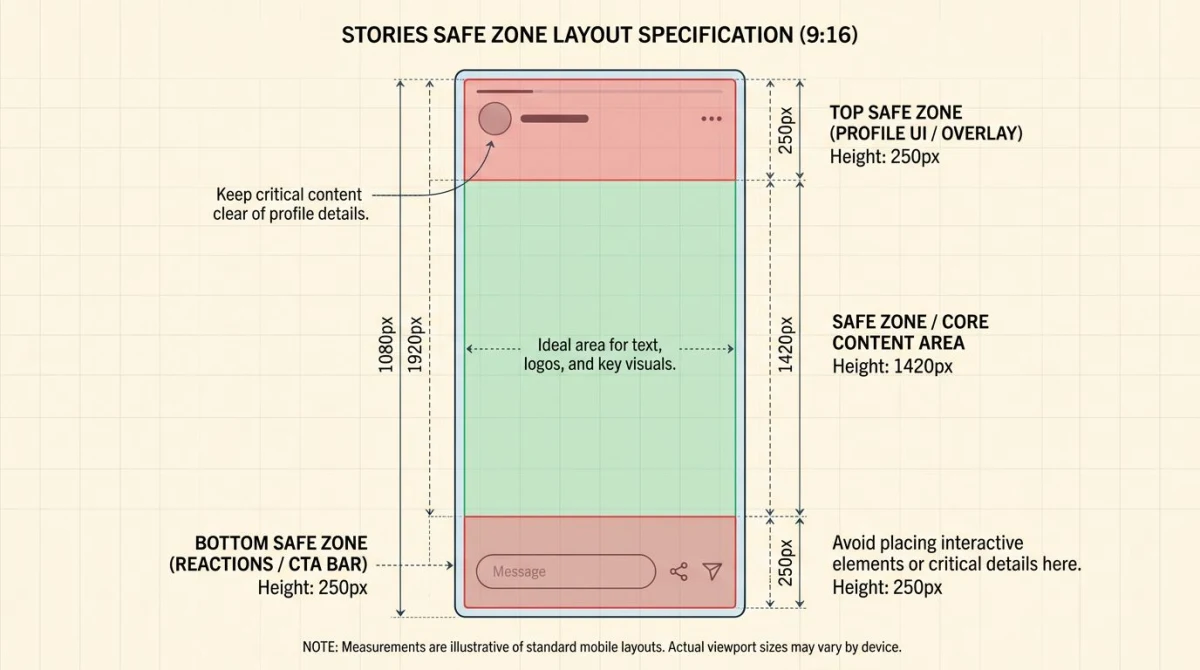
Here's the breakdown:
- Top 250px: covered by the profile picture, username, timestamp, and the three-dot menu. Anything you put here gets hidden behind UI.
- Bottom 250px: covered by the message bar, reactions panel, and link sticker chrome. On Reels, this dead zone grows to ~410px.
- Middle 1420px: your actual usable canvas for headlines, faces, CTAs, and stickers.
For Reels, the safe zone shrinks further to about 1290px of clear vertical space.
Action items:
- Center your most important content (face, headline, product shot) in the middle 60% of the frame.
- Push CTAs and link stickers into the middle third, not the bottom.
- Test designs on a real phone before posting. The Instagram preview in desktop tools doesn't always show the actual UI overlay.
- If you design in Figma or Canva, create a frame at 1080×1920 with two non-printing rectangles marking the dead zones.
Instagram Story file size and format limits
Pushing too big a file is the second-most-common Story mistake (after wrong aspect ratio). Here's what Instagram actually accepts:
| Type | Max File Size | Recommended | Format |
|---|---|---|---|
| Photo | 30 MB | Under 8 MB | JPG, PNG |
| Video | 4 GB | Under 50 MB | MP4, MOV |
| Reel | 4 GB | Under 100 MB | MP4, MOV |
If your file is too big, the Instagram app will reject the upload with a generic "couldn't post" error and no detail. The fix is to compress before you upload.
For images, our free image compressor gets a 1080×1920 PNG down to under 1 MB without visible quality loss. For videos, render at H.264 with a 5-8 Mbps bitrate, which keeps a 60-second clip well under 50 MB.
A note on compression: Instagram always re-compresses your upload, no matter how clean your source is. There's no way around this. The trick is to start with a high-quality source so the re-compression has room to work with.
How to repurpose desktop content for Instagram Stories
Marketers often have great content trapped on desktop: product screenshots, app demos, dashboard captures, team photos shot on a webcam. Repurposing this for Stories needs a vertical-first workflow.
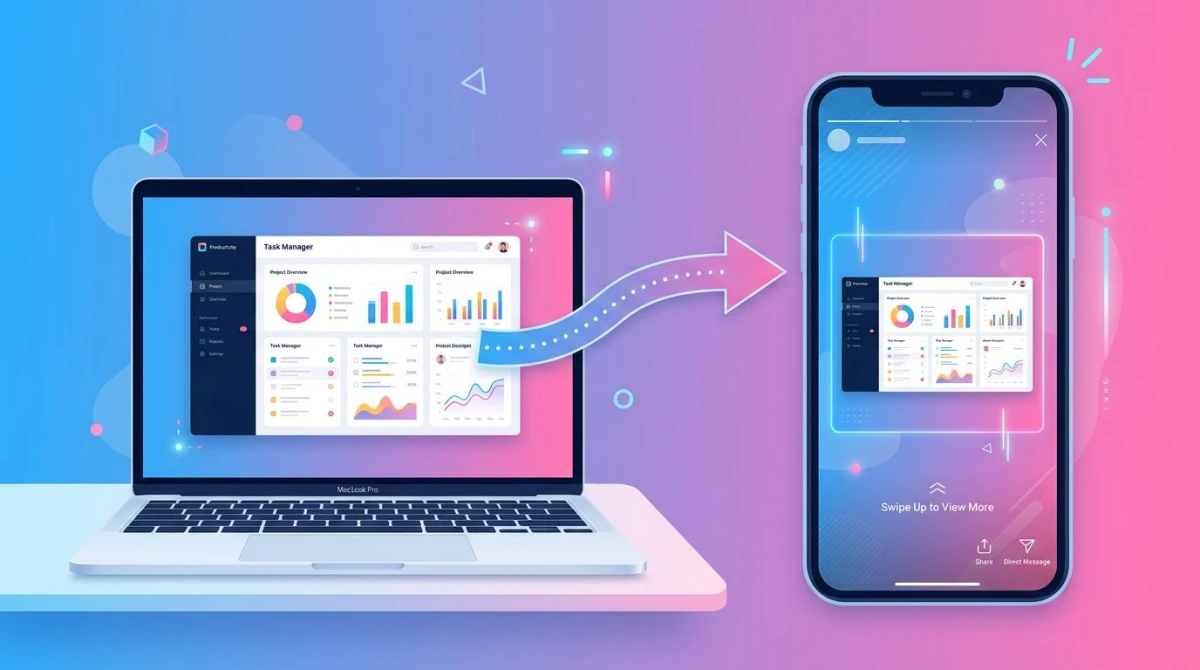
The workflow:
- Capture the desktop content. A region screenshot or screen recording works.
- Resize to a 9:16 canvas. Don't stretch. Place the source in the middle and add brand background or padding.
- Annotate the parts that matter. Highlight a feature, point an arrow, blur a sensitive field.
- Export as 1080×1920 JPG (for stills) or MP4 (for clips).
- Upload to Stories or save to Drafts for batch posting.
The fastest way to size desktop content for Stories is our social media image resizer. It has a one-click 1080×1920 preset that handles padding and centering. For clip-level resizing, our image cropper and aspect ratio calculator cover the rest.
Capture and annotate Story drafts with ScreenSnap Pro
If you create Stories from desktop content often, ScreenSnap Pro handles the full pipeline in one app. It captures your screen, webcam, mic, and system audio, then lets you annotate the result with arrows, blurs, callouts, and counters before you export.
A few features worth flagging for Story creators:
- GIF + video recording. Turn a desktop demo into a 30-second clip ready for Stories.
- 15 annotation tools. Arrows, shapes, blur, pixelate, highlighter, emojis, step counters. Mark up Story drafts before posting.
- 500+ gradient backgrounds. Wrap a screenshot in a brand-colored backdrop sized for 9:16.
- Cross-platform. Same app on Mac and Windows. Same license.
- One-time $39. Pay once, own forever. License covers two computers.
- No watermarks. Clean output for client work.
It's not a replacement for Instagram itself. It's the desk tool that gets your raw capture polished and sized correctly before it lands in the Stories tab.

Tired of plain screenshots? Try ScreenSnap Pro.
Beautiful backgrounds, pro annotations, GIF recording, and instant cloud sharing, all in one app. Pay $39 once, own it forever.
See pricing and featuresBest practices for designing 1080×1920 Stories
Hitting the right pixels is step one. Designing for the format is step two. A few things experienced Story creators get right:
Design vertical-first. Don't reformat horizontal content. Start in a 1080×1920 frame, even on desktop. Your eye composes differently when the canvas matches the output.
Contrast for text overlays. Mobile screens get viewed in bright sun, dim bedrooms, on the bus. White text on a busy background disappears. Either drop a 60% black gradient behind your text, or use a solid color block.
Size text for readability. Minimum 24pt for body copy, 48pt+ for headlines. Smaller text vanishes on a 5.5-inch screen.
Sound on AND sound off. 60% of Stories play with sound off (especially in offices). Add captions to videos. Make sure your hook reads visually in the first 2 seconds.
Place CTAs correctly. Link stickers should sit in the middle 60% of the frame, not at the bottom. The bottom is reserved for Instagram's UI.
Test on a real phone. The desktop preview in Buffer, Later, or Hootsuite hides the live UI overlay. Send yourself a draft via DM to see how it actually renders.
"Why does my Story look stretched or blurry?" troubleshooting
The five most common Story sizing problems and the fixes:
Problem: My Story is letter-boxed (black bars on the sides)
Cause: you uploaded a 1080×1080 square or 1200×630 landscape file. Instagram pads to fit the 9:16 frame.
Fix: resize to 1080×1920 before uploading. Add a brand-colored background instead of relying on Instagram's default black.
Problem: My Story is stretched vertically
Cause: you uploaded a portrait file with the wrong aspect ratio (e.g., 1080×1440 at 3:4). Instagram stretches it to 9:16.
Fix: redesign the canvas at 9:16. Don't try to scale a 4:5 portrait. Letterbox it instead.
Problem: My Story is blurry
Cause: source file was too small (under 1080px wide), or Instagram's compression was aggressive on a high-detail image.
Fix: export at exactly 1080×1920. Avoid noisy patterns and gradients with banding. Use PNG for graphics with text, because JPG compresses text edges into mush.
Problem: My text is hidden behind the username or message bar
Cause: you designed in the dead zones.
Fix: redo the layout with text inside the middle 1420px. Use the safe zone overlay shown earlier as a guide.
Problem: Instagram won't let me upload my video
Cause: file is over 4 GB, or codec isn't H.264.
Fix: re-encode to MP4 (H.264 video, AAC audio) and compress to under 100 MB. A 60-second clip at 1080×1920 with 8 Mbps bitrate lands around 60 MB, well within Instagram's limit.
Stories vs Reels: when to use which
The dimensions are identical. The strategy isn't.
| Factor | Stories | Reels |
|---|---|---|
| Length | Up to 60 sec/segment | Up to 90 sec |
| Audience | Existing followers | Followers + non-followers |
| Lifespan | 24 hours | Permanent |
| Discovery | Low (your followers tap in) | High (algorithm pushes it) |
| Use for | Behind-the-scenes, polls, link drops | Tutorials, hooks, viral content |
| Editing | Light (stickers, text) | Heavy (transitions, audio sync) |
Use Stories for daily, time-sensitive posts. Use Reels for evergreen, discovery-focused content. If a piece works well as a Story, repackage it for Reels, but redesign for the bigger bottom safe zone first.
Common Instagram Story sizing mistakes
The same five mistakes show up in nearly every Story audit:
- Uploading 1080×1080 squares. Instagram letter-boxes them. Always export at 9:16.
- Stretched 4:5 portraits. A 1080×1350 portrait gets distorted when forced into 9:16. Redesign instead.
- Text in the dead zones. Username and reaction bar cover the top and bottom 250px each.
- Over-compressed source files. Instagram re-compresses anything you upload. Starting at 200 KB makes the final image look like it's from 2012.
- Ignoring the Reel safe zone. Reels reserve more space for UI than Stories. A Story design pushed straight to Reels usually has the CTA chopped.
If you also design app store screenshots, our App Store screenshot sizes guide breaks down every iOS and macOS spec for 2026.
Instagram Story ads: what's different
Story ads use the same 1080×1920 canvas but follow stricter rules:
- Bottom 20% must stay clear for Meta's "Sponsored" label and CTA button.
- First 3 seconds matter most. That's when most viewers decide to skip or stay.
- Caption text appears under your video automatically, so keep your overlay text in the middle.
- Link stickers are replaced by tappable CTA buttons (Shop Now, Learn More, etc.).
Per Meta's Business Help docs, creative that follows the safe zones converts 25-30% better than full-canvas designs. The math is simple: your CTA shows up below the fold of UI noise.
Tools to nail your Instagram Story size
A short toolkit for getting Stories right:
- Social media image resizer. One-click 1080×1920 preset. Free.
- Image cropper. Manual 9:16 crops with grid overlays.
- Image resizer. Bulk resize for batches.
- Aspect ratio calculator. Sanity-check any output before exporting.
- Figma/Sketch. For layered designs with safe zone guides.
- ScreenSnap Pro. For capturing and annotating desktop content for Stories.
Frequently Asked Questions
Wrapping up
Stories live and die on three numbers: 1080, 1920, and 9:16. Hit those, respect the safe zones, and keep your source files high-quality before Instagram's compressor gets its hands on them.
If you create Stories from desktop content (product demos, screenshots, dashboards, team photos), pair the right export size with a capture-and-annotate tool that's vertical-aware. ScreenSnap Pro covers that part of the workflow on both Mac and Windows for $39 once. No subscription, no watermark.
Now go ship some Stories that actually fit the frame.

Morgan
Indie DeveloperIndie developer, founder of ScreenSnap Pro. A decade of shipping consumer Mac apps and developer tools. Read full bio
@m_0_r_g_a_n_