How to Compress Images Without Losing Quality (2026)
Large images slow down websites, fill up inboxes, and waste storage. When you learn how to compress images the right way, you can reduce image file size by 50 to 80%. The best part? Nobody can tell the difference. If you produce screenshots in a tool like ScreenSnap Pro, the same compression rules apply before you ship them to docs or the web.
This guide walks you through six easy methods. You'll find free browser tools, built-in Mac apps, and more. Pick what works best for you.
Why Image Compression Matters
Page speed hits your bottom line. Google uses Core Web Vitals as a ranking signal. Images are often the biggest files on any page.
Here's what big images cost you:
- Slow load times. One raw photo can be 5 to 10 MB. Add a dozen per page and mobile users wait 30+ seconds.
- Lost visitors. 53% of mobile users leave if a site takes more than 3 seconds to load.
- Email problems. Most email apps cap file size at 20 to 25 MB.
- Storage waste. Every image at 3× its needed size adds up fast.
The fix is simple. Compress JPG, PNG, and WebP files before you upload them. With the right settings, files shrink to a fraction of their size. You won't see any quality loss.
Understanding Lossy vs. Lossless Compression
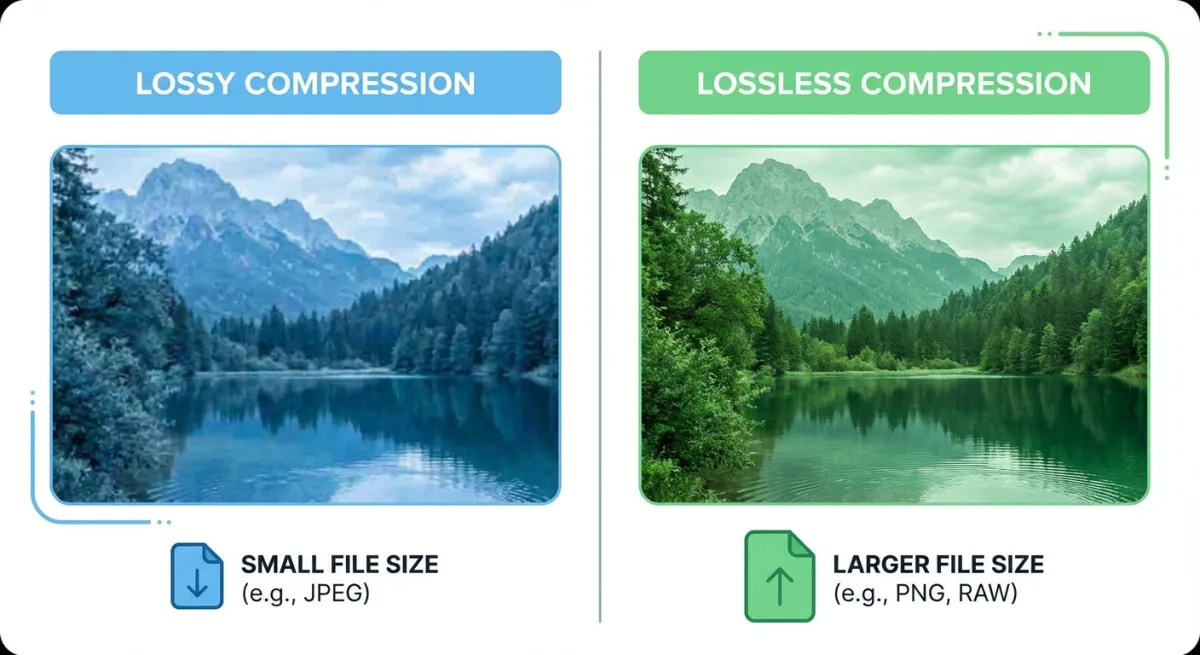
Before you pick a tool, it helps to know the two types of compression. This affects how much you can shrink files, and whether quality changes at all.
Lossy Compression
Lossy compression throws away some image data to make files smaller. It cuts the parts your eyes won't miss: tiny color shifts, fine textures, and faint noise.
Best for: Photos, blog images, social media posts, email attachments.
At 75 to 85% quality, most people can't spot the difference from the original. Go below 60% and you'll see blocky patches and color banding.
Lossless Compression
Lossless compression shrinks file size without removing any data. It finds smarter ways to store the same info, like shorthand for patterns that repeat.
Best for: Logos, icons, screenshots with text, sharp-edged graphics, and images you'll edit later.
You'll save 10 to 30% on file size. That's less than lossy, but you lose zero quality.
| Feature | Lossy | Lossless |
|---|---|---|
| File size reduction | 50 to 90% | 10 to 30% |
| Quality loss | Slight (often invisible) | None |
| Best formats | JPG, WebP | PNG, WebP, TIFF |
| Re-compression safe? | No (degrades further) | Yes |
| Best use case | Photos, web images | Screenshots, logos, archives |
Method 1: Free Online Image Compressor (Fastest)
A browser-based tool is the fastest way to compress images without losing quality. No downloads. No signups. Just drag, drop, and save.
Our free Image Compressor lets you batch compress right in your browser. It runs locally, so your images never leave your device.
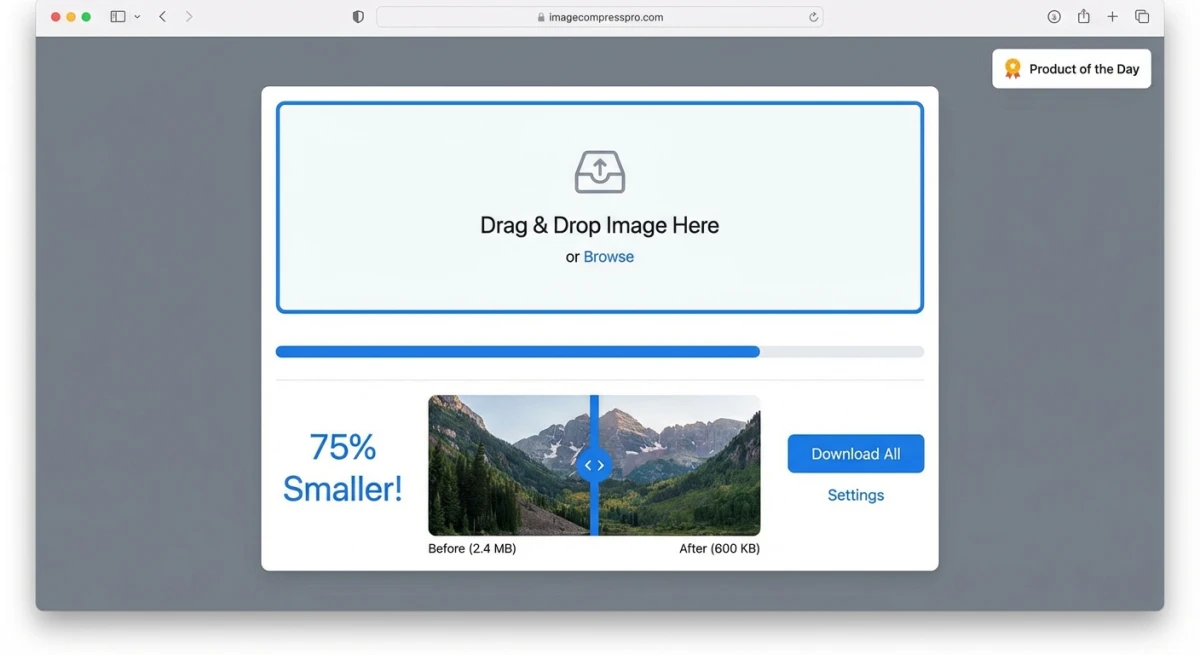
How to use it:
- Open the Image Compressor tool
- Drag and drop your images (supports JPG, PNG, WebP, and more)
- Adjust the quality slider to around 80%, the sweet spot for most photos
- Download compressed files individually or as a ZIP
Why this works well: Your images stay private since nothing gets uploaded. You can also bulk compress images: drop a whole batch and shrink them all at once.
Method 2: TinyPNG / TinyJPG
TinyPNG is one of the most popular online image compressors. Despite the name, it handles both PNG and JPG files.
How it works:
- Go to tinypng.com
- Upload up to 20 images (5 MB max each on free tier)
- Download compressed versions
Pros:
- Smart lossy compression with excellent quality preservation
- Supports PNG and JPG
- WordPress plugin available
Cons:
- 20-image limit per batch (free tier)
- 5 MB file size cap without a paid plan
- Files are uploaded to their servers
TinyPNG cuts the number of colors in PNG files while keeping transparency intact. For JPGs, it tweaks the compression tables. You'll see 40 to 70% savings on most files.
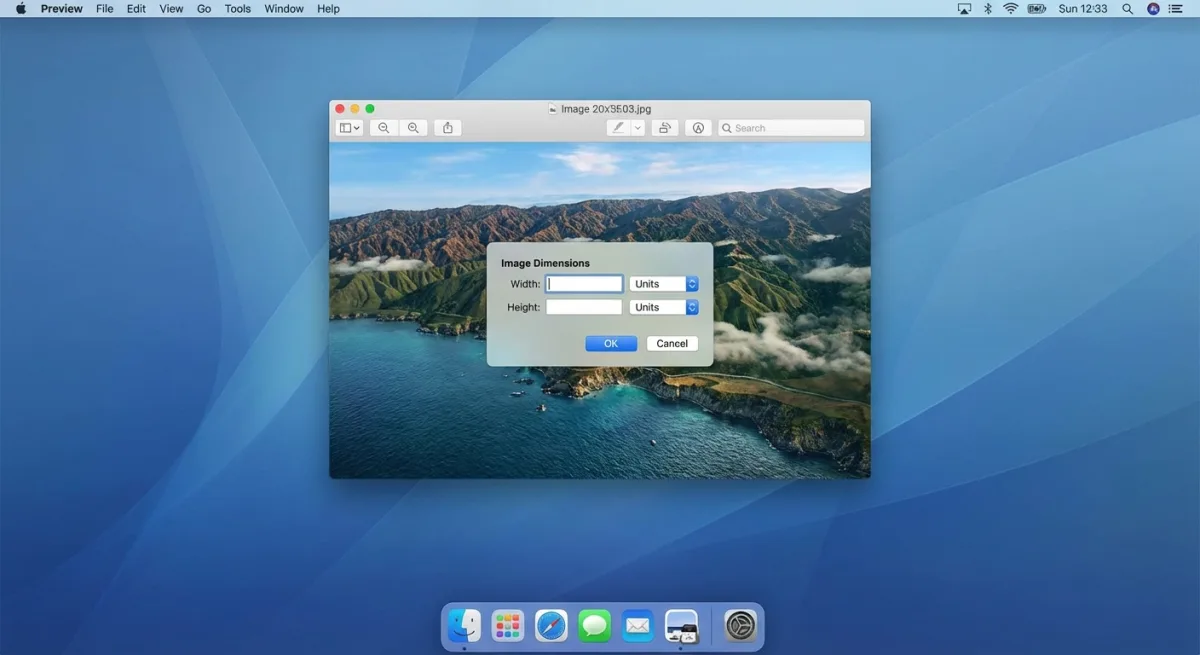
Method 3: Preview App on Mac (No Downloads Needed)
Every Mac has Preview built in. It includes a simple export tool that lets you compress a photo without installing anything extra.
Steps to compress with Preview:
- Open your image in Preview (double-click usually works)
- Go to File → Export
- Choose JPEG as the format
- Drag the Quality slider to the left, since around 70 to 80% gives great results
- Click Save
Tip: Preview shows the estimated file size as you adjust the quality slider. This lets you find the exact balance between size and quality.
This works great for single images. For batch jobs, use one of the other methods. Working with screenshots? Check our guide on how to edit screenshots on Mac for more built-in tools.
Method 4: Photoshop "Save for Web"
Adobe Photoshop's Export → Save for Web (Legacy) is a common choice for pros. It gives you full control over compression with a live preview. Don't have a subscription? Several free Photoshop alternatives, including Photopea and GIMP, offer the same export-with-preview workflow.
How to use Save for Web:
- Open your image in Photoshop
- Go to File → Export → Save for Web (Legacy) (or press
⌘+⌥+Shift+S) - Choose your format:
- JPEG for photos, with quality set to 60 to 80%
- PNG-8 for graphics with few colors
- PNG-24 for graphics needing transparency
- Check "Optimized" for additional savings
- Compare the 2-Up or 4-Up preview to check quality
- Click Save
Why it's great: The 2-Up view shows original and compressed side by side with file sizes. You can see the exact point where quality starts to drop.
The catch: You need a Creative Cloud plan ($22.99/month). For most people, the free tools above do the job just as well.

Tired of plain screenshots? Try ScreenSnap Pro.
Beautiful backgrounds, pro annotations, GIF recording, and instant cloud sharing, all in one app. Pay $39 once, own it forever.
See pricing and featuresMethod 5: ImageOptim for Mac
ImageOptim is a free Mac app that strips metadata and applies smart compression. It runs on your Mac and handles files in bulk.
How to use ImageOptim:
- Download from imageoptim.com/mac
- Drag images into the app window
- ImageOptim automatically compresses and overwrites the originals
Important: ImageOptim replaces your original files by default. Make copies first if you want to keep the uncompressed versions.
What makes it good:
- Removes EXIF data (camera info, GPS, thumbnails)
- Tries several compression methods and picks the smallest result
- Works with PNG, JPEG, GIF, and SVG
- Free and open source
You'll save 20 to 60% based on file type and how much metadata was stored.
Method 6: Convert to WebP Format
Sometimes the best move is switching formats rather than tweaking quality. WebP makes files 25 to 35% smaller than JPEG at the same quality, per Google's own data.
WebP handles both lossy and lossless modes. It also supports transparency, which JPEG can't do. Every major browser works with WebP in 2026.
How to convert to WebP:
You can use our free Image Format Converter to batch-convert images to WebP right in your browser. Upload your JPGs or PNGs, select WebP as the output format, and download.
For command-line users on Mac:
# Install cwebp via Homebrew
brew install webp

# Convert a single file
cwebp -q 80 input.jpg -o output.webp

# Batch convert all JPGs in a folder
for f in *.jpg; do cwebp -q 80 "$f" -o "${f%.jpg}.webp"; done
When to use WebP:
- Website images (blog posts, product photos, backgrounds)
- Any image served to modern browsers
When to stick with JPEG/PNG:
- Email attachments (some clients don't preview WebP)
- Print materials
- Compatibility with older software
Best Compression Settings by Use Case
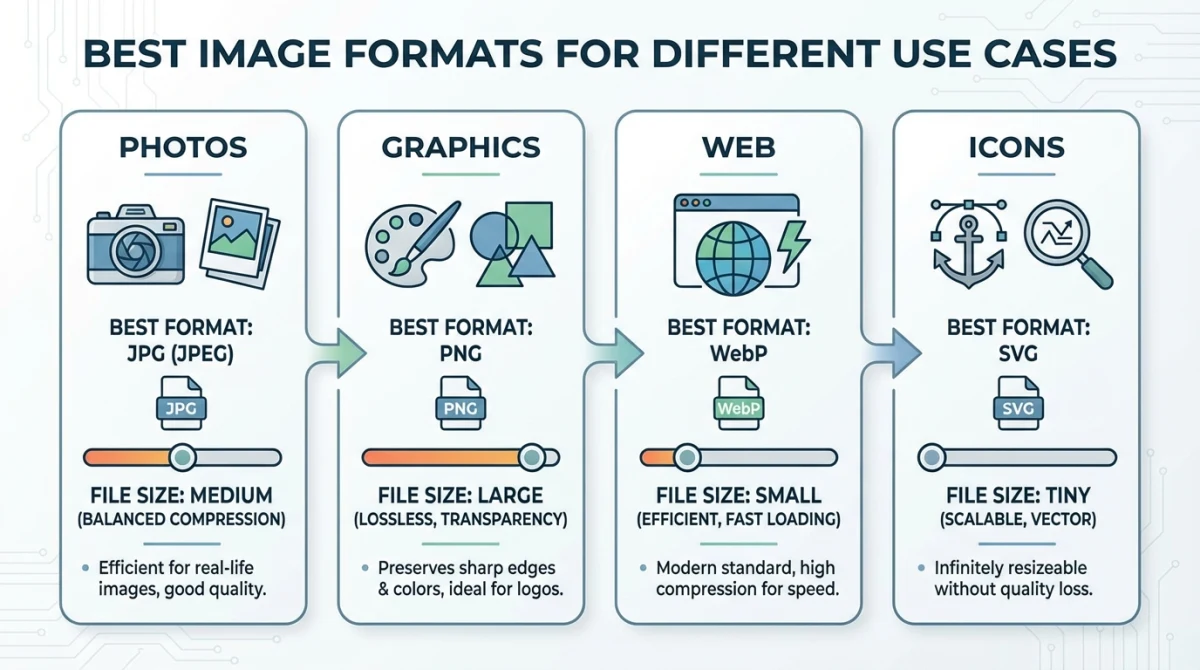
Different images need different settings. Here's a quick cheat sheet:
| Use Case | Format | Quality | Target Size |
|---|---|---|---|
| Blog post photos | WebP or JPG | 75 to 85% | Under 200 KB |
| Product photos (e-commerce) | JPG | 80 to 90% | Under 300 KB |
| Social media images | JPG | 80% | Under 500 KB |
| Email attachments | JPG | 70 to 80% | Under 1 MB |
| Screenshots with text | PNG (lossless) | 100% | Varies |
| Logos and icons | SVG or PNG | 100% | Under 50 KB |
| Thumbnails | WebP or JPG | 70% | Under 50 KB |
Pro tip: For screenshots with text, code, or UI elements, stick with PNG. Sharp edges look bad with lossy compression. You can also crop out extra whitespace before compressing to cut file size even more.
Batch Compression Tips
When you have dozens or hundreds of images, doing them one by one won't work. Here are ways to bulk compress images fast:
- Use drag-and-drop tools: Our Image Compressor and ImageOptim both handle batches natively
- Set up automations: Mac's Automator can create a Quick Action that compresses images on right-click
- Use command-line tools:
cwebp,jpegoptim, andpngquantall support glob patterns for batch processing - Compress on upload: CDNs like Cloudinary and imgix can auto-optimize images at delivery time
If you take lots of screenshots for docs or tutorials, ScreenSnap Pro saves time by capturing clean images from the start. It has built-in markup tools too, so you can annotate without a separate app.
How Image Compression Actually Works
A quick look at the science helps you choose the right settings.
JPEG splits images into tiny 8×8 pixel blocks. It then removes details your eyes won't notice. More compression means more data removed. That's why over-compressed JPEGs look blocky: you're seeing those pixel blocks.
PNG works like a ZIP file. It finds patterns in the image and uses shorthand to store them. Screenshots compress well because they have large blocks of the same color. Photos don't, since every pixel differs slightly.
WebP borrows from video compression. Each block is predicted from the blocks around it. Only the differences get stored. This is why WebP beats JPEG on file size.
What this means for you: Photos (landscapes, food, portraits) do great with lossy compression. Your eyes skip the lost details. But screenshots, logos, and text need lossless, because any artifacts along sharp edges are easy to spot.
If you capture Mac screenshots for docs, try adding annotations before you compress. It's faster than the other way around.
Common Mistakes to Avoid
- Compressing JPEGs twice. Each round makes quality worse. Always start from the original file.
- Using PNG for photos. PNG keeps every pixel, so photo files stay huge. Use JPEG or WebP instead.
- Skipping the resize step. A 4000×3000 image at 200 KB still makes browsers work hard. Resize first, then compress. Going the other way and enlarging a small image instead? An AI image upscaler rebuilds detail as it scales up, so you avoid the blur that plain resizing adds.
- One size for all screens. Use
srcsetto serve smaller images on phones. Mobile users don't need the full desktop version. - Leaving metadata in. Camera data (GPS, model, settings) can add 50 to 100 KB. Strip it for web use. You can check what's stored with our Image Metadata Viewer.
Quick Comparison: All 6 Methods
Here's how the six methods stack up so you can pick the right one:
| Method | Cost | Batch Support | Best For | Typical Savings |
|---|---|---|---|---|
| Online Image Compressor | Free | ✅ Yes | Quick batch jobs, privacy-conscious users | 50 to 80% |
| TinyPNG | Free (limited) | ✅ Up to 20 | PNG-heavy workflows, WordPress users | 40 to 70% |
| Preview (Mac) | Free | ❌ One at a time | Quick single-image compression | 30 to 60% |
| Photoshop Save for Web | $22.99/mo | ❌ One at a time | Designers needing precise control | 50 to 80% |
| ImageOptim (Mac) | Free | ✅ Yes | Developers, automated workflows | 20 to 60% |
| WebP Conversion | Free | ✅ Yes | Web-first projects, maximum savings | 60 to 85% |
Our pick: Start with the free Image Compressor for most tasks. Switch to WebP when every kilobyte counts. Use ImageOptim if you want a Mac app that runs in the background.
If you take lots of Mac screenshots, pairing a good capture tool with compression saves tons of time. See our best screenshot apps for Mac roundup to find the right fit. You might also want to learn how to take a screenshot on Mac if you're new to macOS.
Frequently Asked Questions

Morgan
Indie DeveloperIndie developer, founder of ScreenSnap Pro. A decade of shipping consumer Mac apps and developer tools. Read full bio
@m_0_r_g_a_n_