Convert SVG to JPG Without Quality Loss (2026)
Need to convert SVG to JPG? Our free SVG to JPG converter turns vector graphics into high-quality JPG images right in your browser. No uploads to external servers, no sign-ups, no limits. Your files stay private on your device. (Pair the converter with a screenshot app like ScreenSnap Pro when the JPG is destined for a doc, slide, or marketing image.)
TL;DR: Drop your SVG into our free SVG to JPG converter online, pick a quality level and background color, then download your JPG. No servers: everything runs locally.
Unlike CloudConvert or Convertio that send files to remote servers, this tool uses the Canvas API client-side. Faster results, zero privacy concerns, and no daily limits.
How to Convert SVG to JPG
- Upload your SVG: drag and drop or click to browse. Batch upload works for multiple files.
- Adjust settings: set a background color (white by default, since JPG doesn't support transparency), tweak quality, and set custom dimensions.
- Download your JPG: save individual files or grab everything as a ZIP.
The converter reads your SVG's viewBox automatically. Override with custom width and height for a specific output size. Need PNG instead? Use our SVG to PNG converter for lossless output with transparency.

Tired of plain screenshots? Try ScreenSnap Pro.
Beautiful backgrounds, pro annotations, GIF recording, and instant cloud sharing, all in one app. Pay $39 once, own it forever.
See pricing and featuresWhen to Convert SVG to JPG
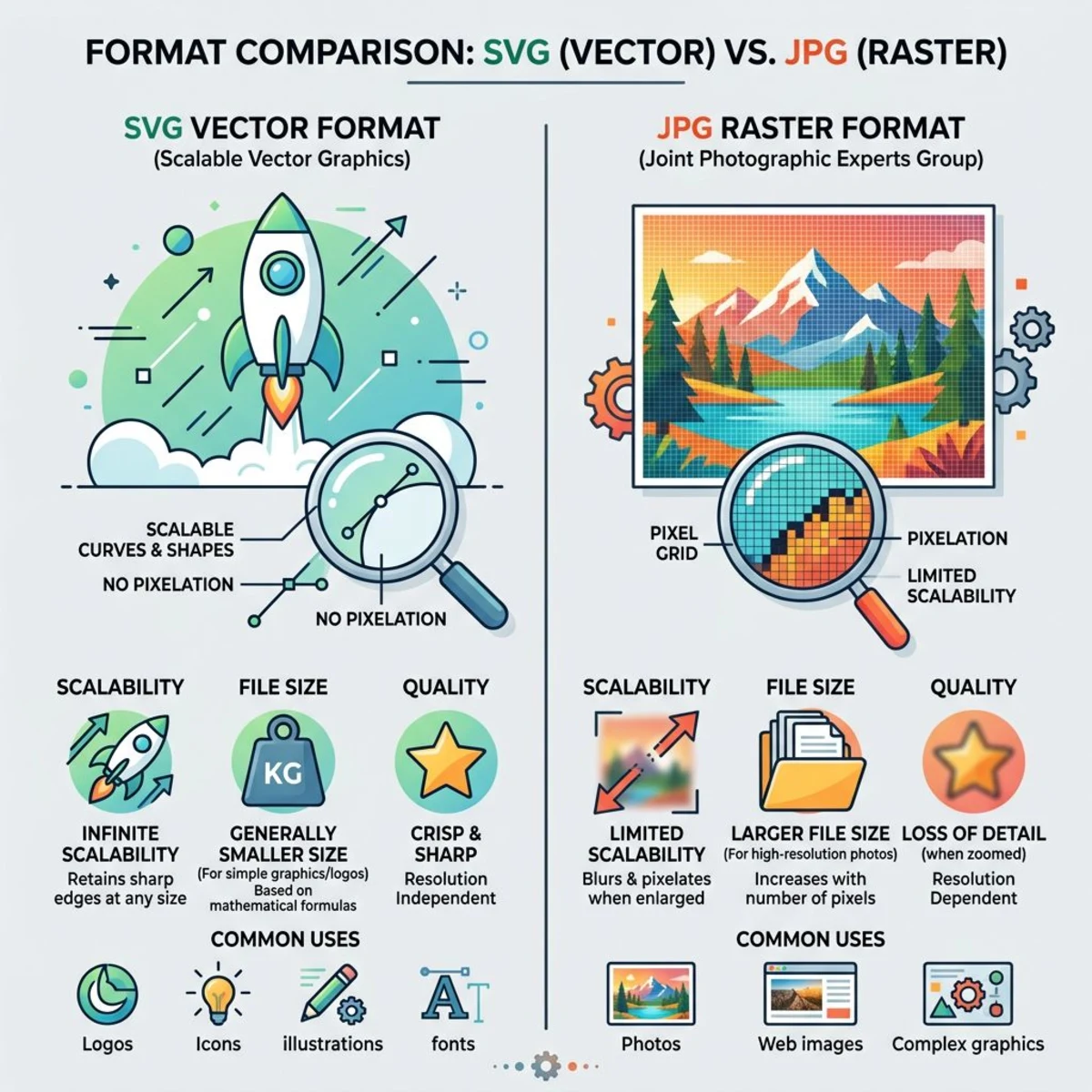
SVG is a vector format built from paths and shapes. JPG is raster, made of pixels. Convert SVG to JPEG when you need to:
- Share where SVG isn't supported. Email clients, older CMS platforms, and some social networks reject SVG uploads.
- Reduce file size. Complex SVGs with thousands of paths can be larger than a compressed JPG.
- Use in print or documents. Word, PowerPoint, and some print services handle JPG better than SVG.
Keep your SVG when you need infinite scaling, CSS styling, or tiny file sizes for simple icons.
Tips for High-Quality Conversion
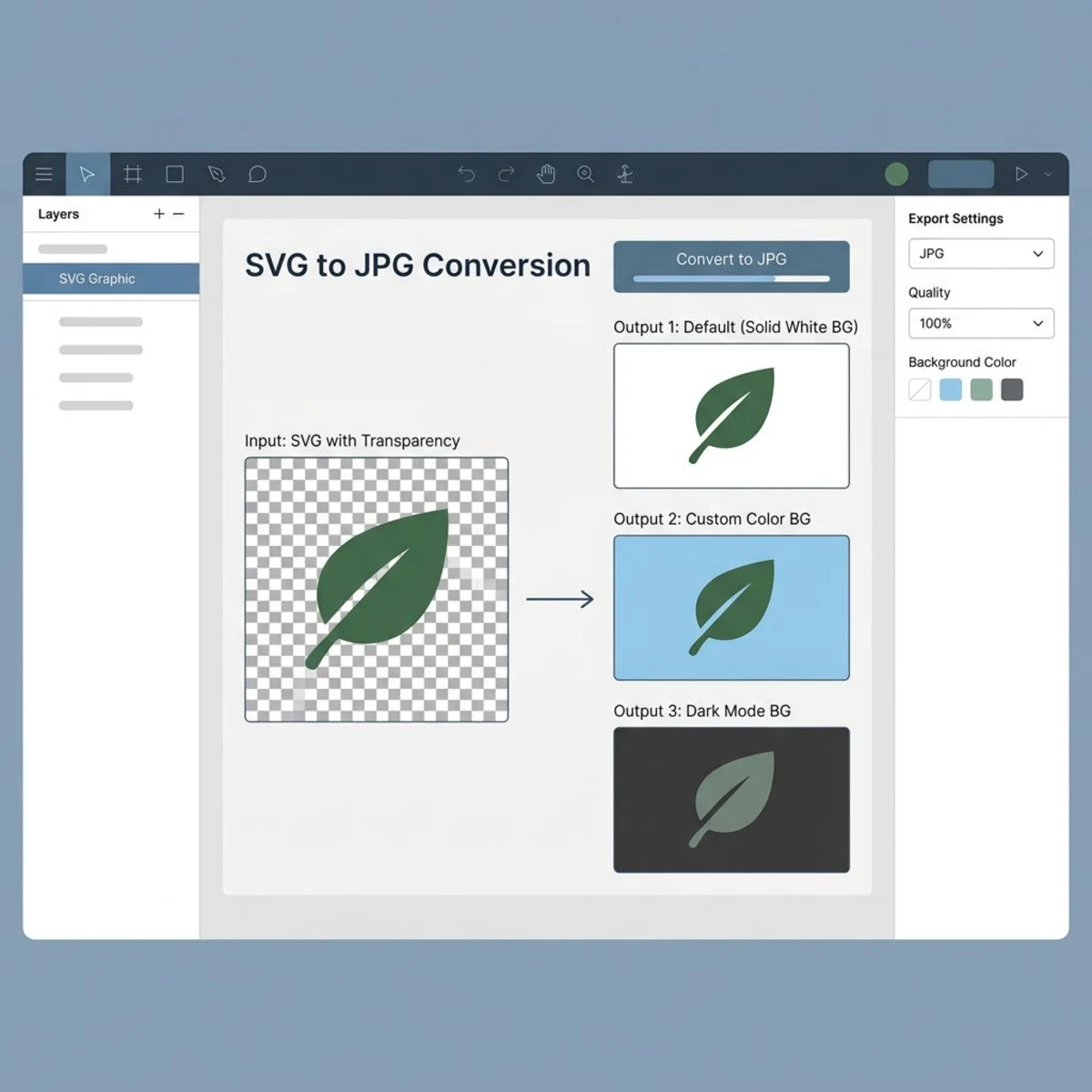
Choose the right background color
SVG supports transparency, JPG doesn't. Transparent areas get filled with your chosen color during conversion. White is safe, though you can pick something that matches your design.
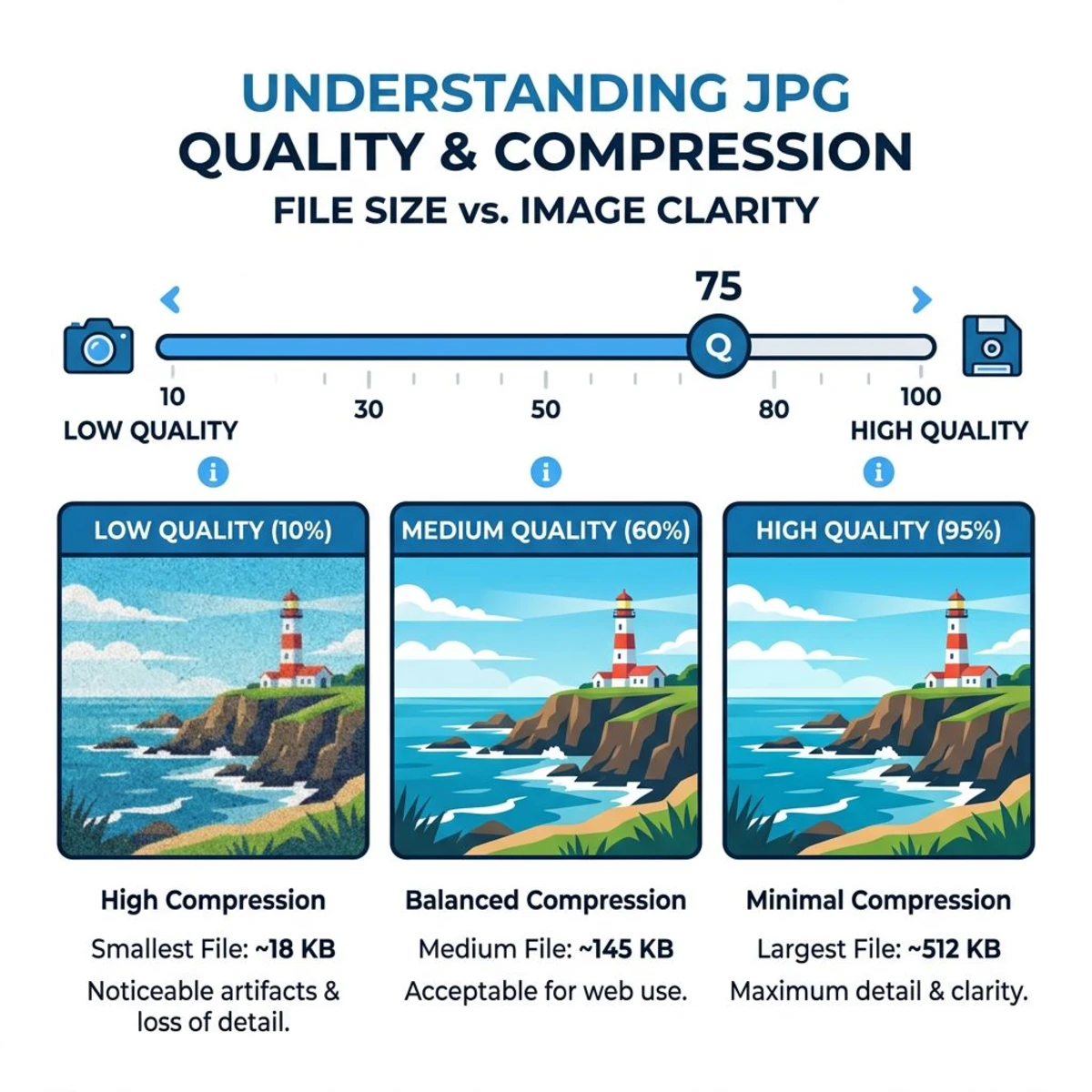
Set quality for your use case
- 90-100% for print: minimal compression artifacts
- 70-85% for web: good quality-to-size balance
- Below 60% for thumbnails only
After converting, compress your JPG further if you need a smaller file.
Render at the right size
If your SVG is a 16px icon but you need a 512px JPG, set custom dimensions in the converter. Rendering at target size beats upscaling a small export. For batch resizing, try the image resizer.
For broader format swaps, our image format converter handles PNG, WebP, HEIC, and more. And for screenshots, ScreenSnap Pro captures, annotates, and exports in your preferred format from one app.
Frequently Asked Questions

Morgan
Indie DeveloperIndie developer, founder of ScreenSnap Pro. A decade of shipping consumer Mac apps and developer tools. Read full bio
@m_0_r_g_a_n_