FireShot for Mac Review 2026 | Pros, Cons & Alternatives
FireShot is a browser add-on that captures full webpage screenshots. Click once and save an entire page. It's great for articles, landing pages, or receipts. But Mac users face some limits with this browser-only tool. For system-wide capture, native apps like ScreenSnap Pro cover what FireShot can't reach.
This review covers FireShot's features, pricing, and real pros and cons. We'll also look at native Mac apps that work across your whole system, not just in your browser.
TL;DR: FireShot is a solid browser add-on for full page screenshots ($60 lifetime for Pro). It excels at webpage capture, PDF export, and privacy. But it can't capture anything outside your browser: no desktop apps, no menus, no system dialogs. Most Mac users are better off with a native app like ScreenSnap Pro for system-wide capture with cloud sharing and GIF recording, or CleanShot X if scroll capture is your top need.
What is FireShot?
FireShot is a screenshot add-on for Chrome, Firefox, Edge, and Opera. It captures full pages, meaning those long, scrolling webpages that don't fit on one screen.
The tool has been around for over a decade. On the Chrome Web Store, it has 5+ million users and 48,000+ reviews with a 5-star rating.
The main idea: capture any webpage, add notes if needed, then save or share. No tricky setup. No extra apps.
FireShot runs inside your browser. This means it can grab webpage content well. But it can't touch anything outside the browser window.
FireShot Features
Full Page Capture
This is the main feature. FireShot scrolls through a webpage and stitches screenshots together. It works well for:
- Long articles and docs
- Product pages
- Social media feeds
- Terms of service pages
You can also grab just what's on screen or pick a region. FireShot handles most modern websites, even ones with sticky menus that trip up other tools.
For Mac users, this scroll capture is the big draw. The built-in ⌘ + Shift + 3 shortcut only grabs what you see on screen.
Editing Tools
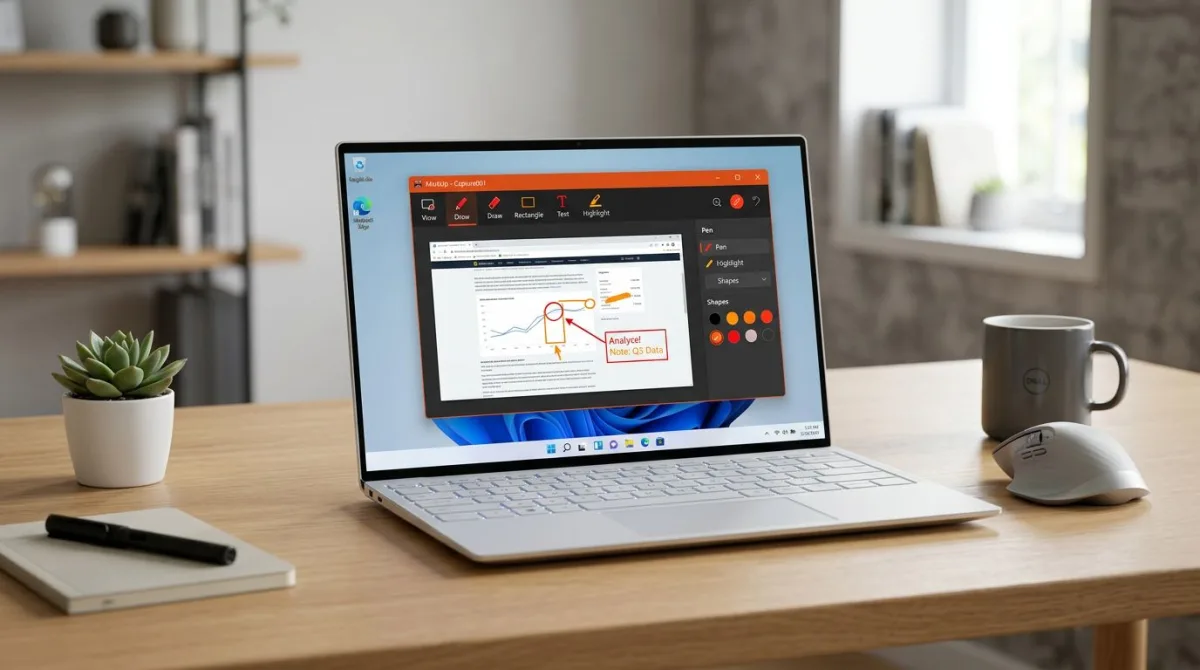
FireShot Pro has a basic editor. You can:
- Add arrows and shapes
- Put in text labels
- Crop and resize
- Blur private info
The tools are basic. They work, but they're not as good as full screenshot apps for Mac. Don't expect fancy callouts or gradients.
Export Options
FireShot saves to many formats:
- PDF (with clickable links and searchable text)
- PNG, JPEG, GIF, BMP
- Email attachment
- Clipboard copy
- OneNote (Pro only)
The PDF export is handy for saving web content with working links. This saves time versus retyping URLs later.
FireShot Pro can also batch capture. Give it a list of URLs and it screenshots each one. This helps marketers track competitor pages.
Cloud Options
FireShot focuses on local storage. Your screenshots stay on your computer. They don't upload to a server by default.
For sharing, you can upload to Twitter, Flickr, or FTP. But there's no built-in link feature like other screenshot tools have.
FireShot Free vs Pro Pricing
FireShot has two tiers:
| Feature | Free | Pro ($60 lifetime) |
|---|---|---|
| Full page capture | ✓ | ✓ |
| Visible area capture | ✓ | ✓ |
| Save as PNG/JPEG | Limited | ✓ |
| Save as PDF | Basic | Full (with links) |
| Built-in editor | ✗ | ✓ |
| Capture all tabs | ✗ | ✓ |
| Batch URL capture | ✗ | ✓ |
| OneNote export | ✗ | ✓ |
The free version works for quick captures. But editing and full PDF need Pro. At $60 for life, the price is fair.
FireShot Pros
Good Full Page Capture
FireShot handles tricky webpages well. It works with lazy-loaded content and sticky headers. The scroll capture is solid for most sites.
Works Offline
FireShot does everything on your computer. You don't need the internet to capture and save. Your data stays on your machine.
Privacy First
No account needed. No cloud sync. No tracking. If you care about privacy, FireShot keeps things simple.
Cross-Browser Support
FireShot works on Chrome, Firefox, Edge, and Opera. If you switch browsers, your workflow stays the same.

Tired of plain screenshots? Try ScreenSnap Pro.
Beautiful backgrounds, pro annotations, GIF recording, and instant cloud sharing, all in one app. Pay $39 once, own it forever.
See pricing and featuresFireShot Cons
Browser-Only
Here's the main problem for Mac users: FireShot only works in your browser.
Need to capture a desktop app? Can't do it. Want to grab a Slack chat, email app, or Figma design? You need a different tool.
This matters more on Mac. Many apps like Notion, Figma, and Slack have desktop versions people prefer over web versions.
No System-Wide Capture
You can't use FireShot for:
- Menu bar screenshots
- System dialogs
- Native Mac apps
- Multiple monitors
If you capture outside the browser often, you'll need more than one tool. Many Mac users end up with FireShot for web plus another app for everything else. That's messy.
For one tool that does both, see our best screen capture tools for Mac guide.
Basic Editing Tools
The Pro editor covers basics. But power users will miss:
- Numbered step markers
- Gradient backgrounds
- Blur brush (only box blur)
- GIF recording
For pro-level annotations, you'll need another tool.
No Cloud Links
Modern workflows often mean sharing a link, not a file. FireShot needs you to upload to other services. There's no "copy link" button for quick sharing.
Does FireShot Work on Safari?
Yes, but with limits.
A FireShot Safari add-on exists on the Mac App Store. But it's a separate purchase with fewer features than the Chrome version.
Safari users report:
- Slower capture times than Chrome
- Issues with some website layouts
- Fewer export options
- Missing batch capture
- No OneNote export
The Safari add-on costs extra on top of the Chrome Pro license. You can't use one license for both. This trips up many people who switch between browsers.
FireShot's Safari version also struggles with lazy-loaded content more than the Chrome version. Sites like Twitter or Instagram may not capture fully. For these pages, you may need to switch to Chrome just for captures.
If Safari is your main browser, FireShot works okay for simple pages. But Chrome or Firefox give you the full experience. Mac users who prefer Safari might be better served by a native screenshot app that works with every browser and app on their system.
For more Safari options, see our guide on how to take full page screenshots on Mac.
Who Should Use FireShot?
FireShot works best for certain people:
Digital marketers saving competitor pages, ad creative, or campaign pages. The batch capture helps with research.
Researchers grabbing long articles or docs that might disappear. The PDF export with searchable text makes finding things easier.
QA testers who document browser bugs with full page context. When a bug shows up at a certain scroll spot, full capture gives complete proof.
Anyone who needs PDF saves of web content with working links. Great for receipts, contracts, or policy docs.
Privacy-minded users who don't want screenshots on third-party servers. FireShot keeps data on your machine.
If your screenshots stay in the browser and you want a private, solid tool, FireShot Pro at $60 lifetime is good value.
Native Mac Options Better Than FireShot
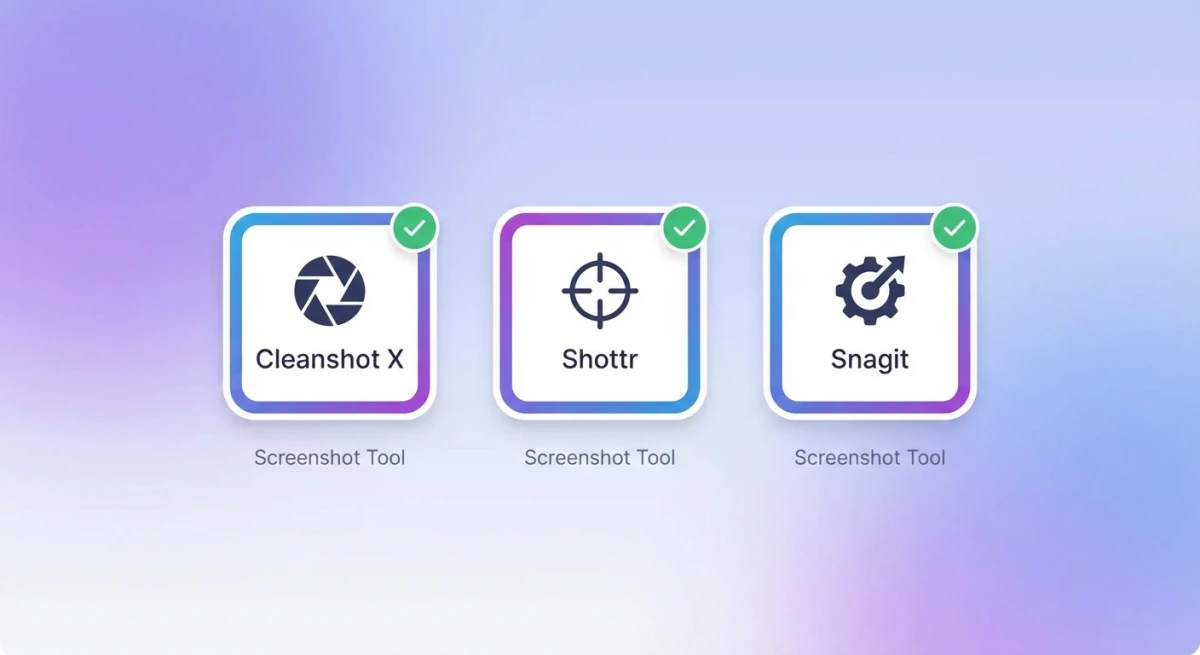
For Mac users who need system-wide capture, these native apps go beyond what FireShot can do:
FireShot alternatives comparison table
| Feature | FireShot Pro | ScreenSnap Pro | CleanShot X | Shottr | macOS Built-In |
|---|---|---|---|---|---|
| Price | $60 lifetime | $39 one-time | $39 one-time | Free | Free |
| Full page scroll | ✓ (browser only) | ✗ | ✓ (system-wide) | ✓ | ✗ |
| System-wide capture | ✗ | ✓ | ✓ | ✓ | ✓ |
| GIF recording | ✗ | ✓ | ✓ | ✗ | ✗ |
| Cloud sharing | ✗ | ✓ | ✓ (paid add-on) | ✗ | ✗ |
| Annotations | Basic | 15 tools | Full suite | Basic | ✗ |
| Backgrounds | ✗ | 22 gradients | ✓ | ✗ | ✗ |
| OCR text grab | ✗ | ✓ | ✓ | ✓ | ✗ |
| Pin to screen | ✗ | ✓ | ✓ | ✓ | ✗ |
| Offline use | ✓ | ✓ | ✓ | ✓ | ✓ |
ScreenSnap Pro
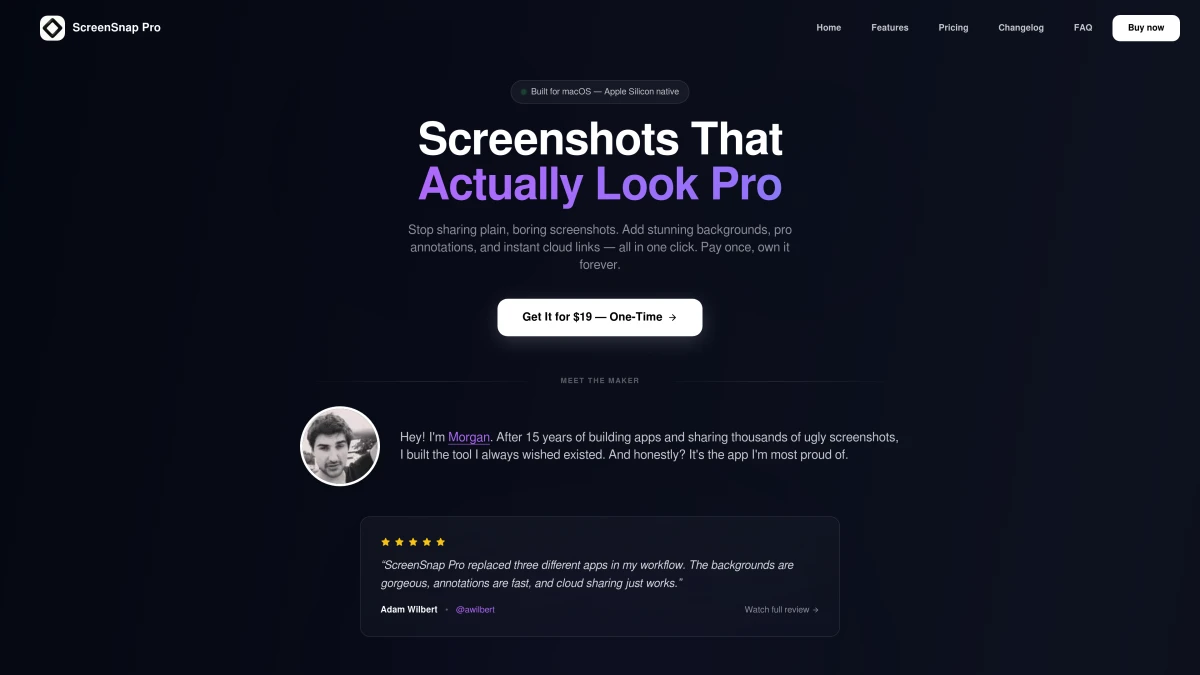
Best for: Pros who want screenshots, GIF recording, screen recording, and cloud sharing in one app.
ScreenSnap Pro works across your whole Mac, covering browsers, apps, system dialogs, everything. Key perks over FireShot:
- GIF recording for quick demos
- 22 gradient backgrounds to make screenshots pop
- Instant cloud links for easy sharing
- 15 annotation tools including numbered counters
- One-time purchase with no subscriptions
If you share screenshots in Slack, email, or docs, the cloud link feature alone saves lots of time.
CleanShot X
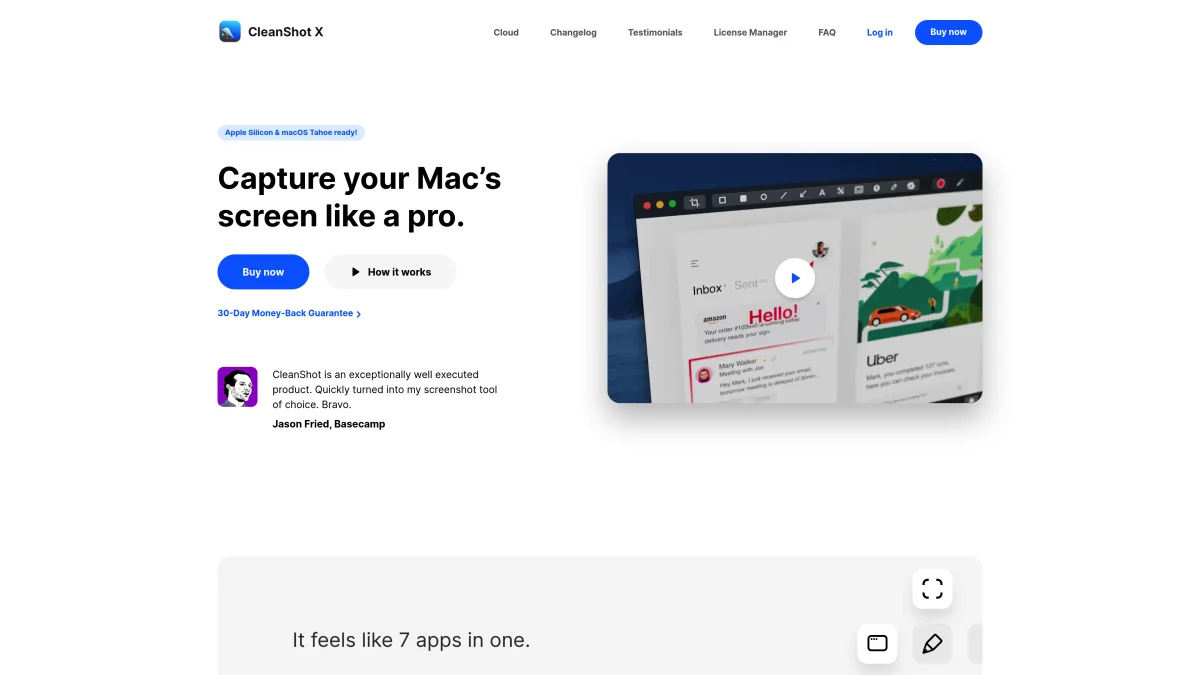
Best for: Power users who want max capture options.
CleanShot X offers scroll capture (like FireShot) plus system-wide shots, annotations, and optional cloud. At $29 one-time, it's cheaper than FireShot Pro. The scroll capture works across browsers and native apps, not just webpages.
CleanShot X also has a built-in cloud with shareable links. You don't need to upload to third-party services. The annotation tools are more polished than FireShot's editor, with options like numbered steps, callout bubbles, and highlight markers.
The main trade-off: it requires a separate cloud subscription for unlimited uploads. But the free tier covers most needs.
Learn more in our CleanShot X alternatives guide.
Shottr
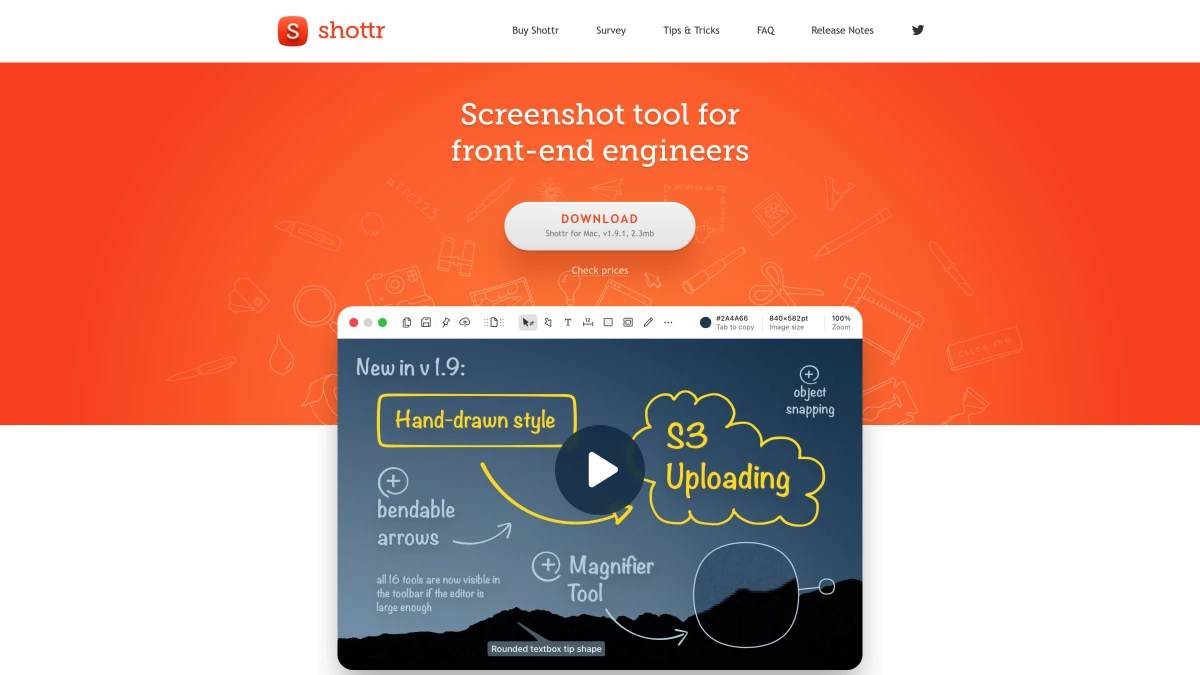
Best for: Developers who want a fast, free option.
Shottr is light and free with OCR text reading, color picking, and measurement tools. Developers love it for grabbing text from images and measuring UI elements. It also supports scrolling capture for long content.
Shottr lacks cloud features and GIF recording. But the speed is hard to beat, since it launches in under a second and captures with zero lag. For people who just need fast, clean screenshots without the extras, it's a strong free choice.
Compare more options in our Lightshot alternatives guide.
macOS Built-In Screenshot
Best for: Basic needs with no setup.
Press ⌘ + Shift + 5 for the native Screenshot app. It captures screens and records video. But it lacks annotations, cloud sharing, and scroll capture.
Per Apple's support docs, the built-in tool covers region, window, and full screen captures. It's on every Mac and works offline. But it won't scroll through long content like FireShot.
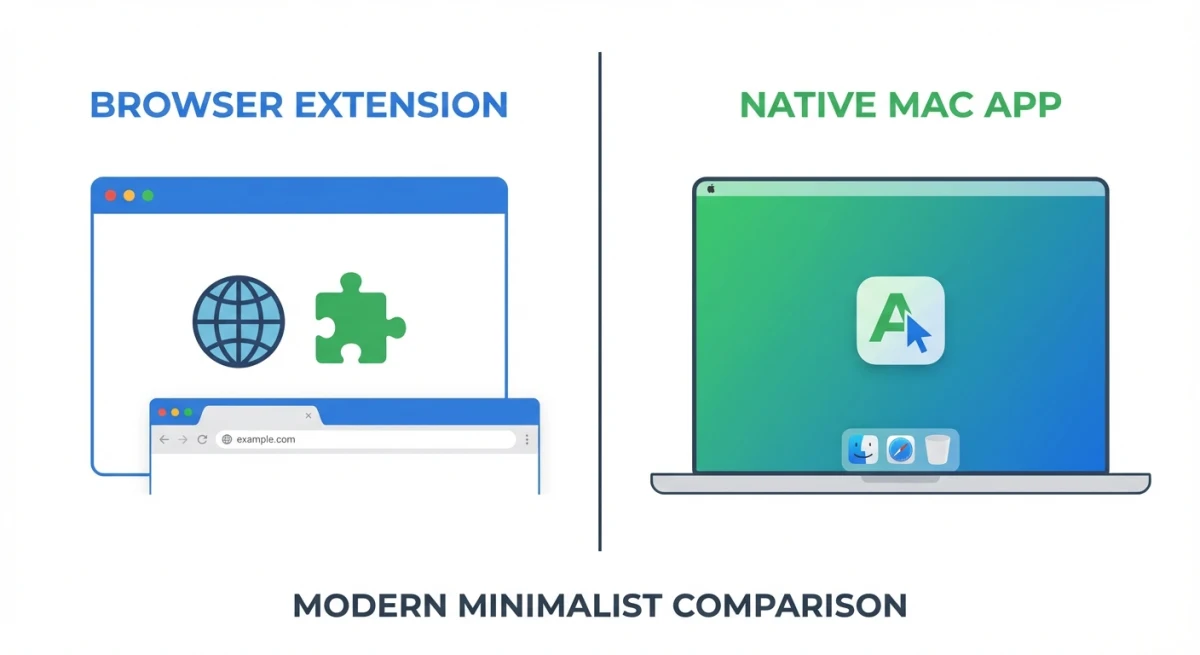
The Bottom Line: Extension vs Native App
Here's how to choose:
Pick FireShot if:
- Most of your screenshots are webpages
- You value privacy and offline use
- You don't need GIF recording or cloud links
- You're okay with basic editing
- You use Chrome or Firefox (best support)
Pick a native Mac app if:
- You capture across browsers AND apps
- You need quick shareable links
- You make tutorials or docs with GIFs
- You want pro-looking screenshots with backgrounds
- You're tired of using multiple capture tools
For most Mac users, a native app gives more freedom. FireShot's browser-only limit means you'll need a second tool. Managing two screenshot apps gets old fast.
The real question isn't whether FireShot is good (it is, for webpages). It's whether browser-only meets your needs. If you keep switching between FireShot and something else, one native app saves time and hassle.
ScreenSnap Pro offers the best mix: one-time pricing like FireShot Pro, but with system-wide capture, GIF recording, and cloud sharing. Worth a try if you hit FireShot's limits.
Frequently Asked Questions

Morgan
Indie DeveloperIndie developer, founder of ScreenSnap Pro. A decade of shipping consumer Mac apps and developer tools. Read full bio
@m_0_r_g_a_n_