PNG to SVG Converter: Free Online Tool (2026)
Need to convert a PNG to SVG? Our free tool turns your images into clean vector graphics right in your browser. No uploads, no sign-ups, and no limits. Your files stay fully private on your device. (Pair it with our screenshot app ScreenSnap Pro when you want to vectorize captured UI elements.)
TL;DR: Drop a PNG into our free browser-based tool, adjust color and smoothness settings, and download a clean SVG in seconds. No uploads, no servers: everything runs locally on your device.
Tools like FreeConvert or Convertio send your files to remote servers. Our PNG to SVG converter runs fully in your browser using fast WASM-based tracing. Your images never leave your computer, which means faster results and total privacy.
How to Convert PNG to SVG
Turning your PNG into a vector format takes three steps:
- Upload your PNG. Drag and drop or click to select your image file.
- Adjust settings. Pick color or black & white mode. Use the smoothness slider to control detail in your output.
- Download your SVG. Hit convert and save your new SVG file instantly.
The whole process runs in your browser. No waiting for servers or upload limits. Even large PNGs convert in seconds.
For quick format swaps without tracing, try our image format converter to switch between PNG, JPG, WebP, and more.

Tired of plain screenshots? Try ScreenSnap Pro.
Beautiful backgrounds, pro annotations, GIF recording, and instant cloud sharing, all in one app. Pay $39 once, own it forever.
See pricing and featuresWhen to Use SVG vs PNG
The best format depends on your use case. Here's when each one works best:
Choose SVG when you need:
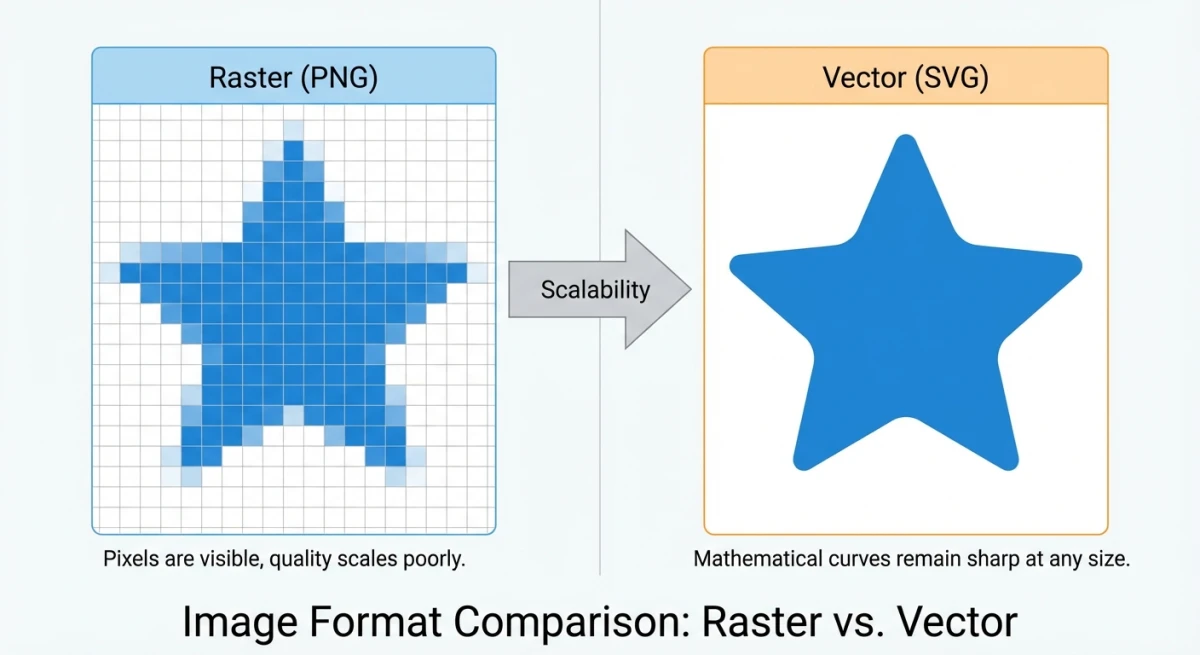
- Logos and icons. They scale to any size without getting blurry, from tiny favicons to large banners.
- Web graphics. SVGs load faster than PNGs for simple shapes. You can style them with CSS too.
- Print files. Vectors stay sharp at any size, from cards to posters.
- Animations. SVG has built-in motion support, no extra code needed.
Stick with PNG when you have:
- Photos. Images with millions of colors don't trace well into vectors.
- Screenshots. Tracing can't keep pixel-perfect UI details. If you need to mark up screenshots, keep them as PNGs.
- Textures and gradients. Soft patterns create bloated SVG files with too many paths.
The key difference? PNG stores color data for every pixel. SVG stores shapes and paths as code. Tracing works best with simple, bold images like logos, icons, and line art.
Tips for Better Vectorization Results
Not every PNG traces cleanly to SVG. These tips help you get the best output from any image to SVG tool:
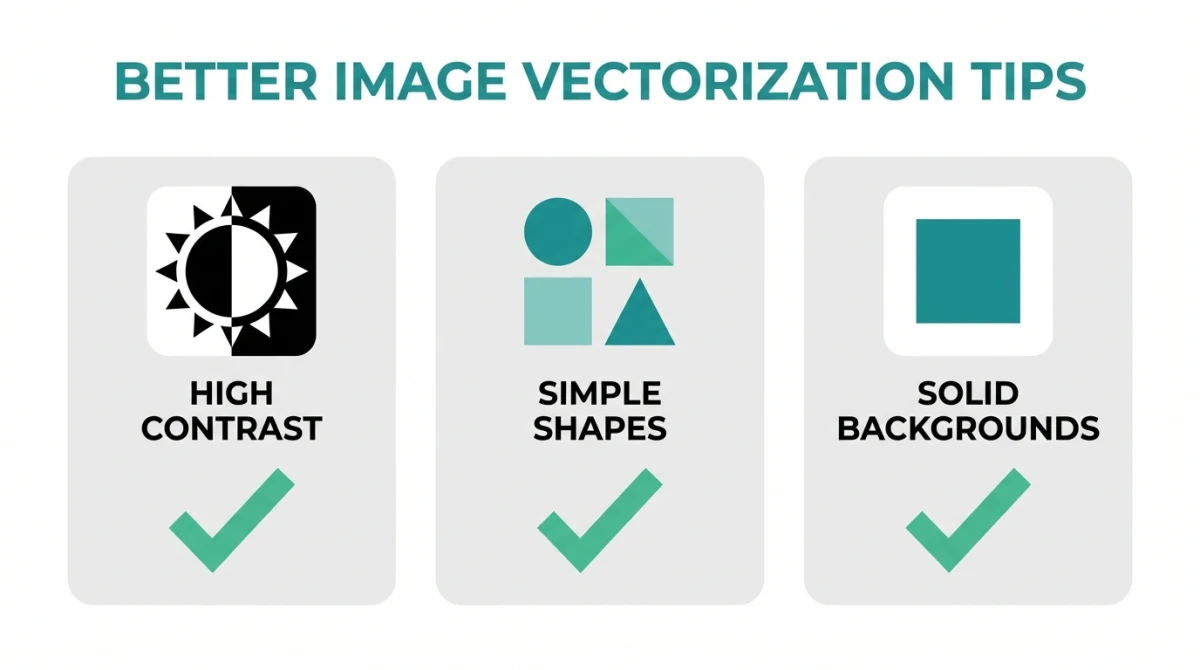
Start With a Clean Source Image
- Use high contrast. Dark shapes on light backgrounds trace much better than low-contrast images.
- Remove noise first. Grainy PNGs create thousands of tiny paths in SVG. Clean up the source before tracing.
- Prefer solid colors. Flat-color art traces almost perfectly. Gradients make large, messy files.
Adjust Your Converter Settings
- Black & white mode works best for line art, logos, and simple icons. It gives the cleanest SVG output.
- Color mode keeps more colors but makes bigger files. Use it for art with clear color blocks.
- Raise smoothness if the output looks rough. Lower it if small details are getting lost.
Optimize After Converting
Your SVG might need a quick cleanup. Crop out extra space from the source before tracing. Or use our SVG to PNG tool if you need to go back to a raster format.
For the web, run your SVG through SVGO to strip extra data and shrink file size. This can cut SVG files by 20 to 50% with no visual change.
SVG also shines for logo tracing, turning icon sets into CSS-stylable web graphics, prepping files for cutting machines like Cricut, and digitizing hand-drawn sketches. Need social media assets? A vector gives you one file that works from tiny thumbnails to large banners.
Working with screenshots instead? ScreenSnap Pro captures and marks up images on the spot, with no tracing needed.
Frequently Asked Questions

Morgan
Indie DeveloperIndie developer, founder of ScreenSnap Pro. A decade of shipping consumer Mac apps and developer tools. Read full bio
@m_0_r_g_a_n_