PDF to PNG Converter: Free Online Tool
A PDF to PNG converter turns each page of a PDF into a separate, high-quality PNG image file. This is useful when you need to share single pages on social media, embed them in slides, or upload to platforms that don't accept PDFs, for example alongside screenshots captured with ScreenSnap Pro.
Why convert PDF to PNG?
PNGs work everywhere: websites, social media, messaging apps, design tools. PDFs don't. Here are the most common reasons to convert:
- Social sharing: Facebook, Instagram, and Twitter accept images but not PDFs
- Slides: Drop single pages into Keynote or Google Slides
- Web content: Embed specific pages in blog posts or docs, and you can also convert images to other formats as needed
- Quick previews: Send one page instead of an entire file
If you work with screenshots on Mac, tools like ScreenSnap Pro let you annotate and share captures directly.
PDF vs PNG: key differences
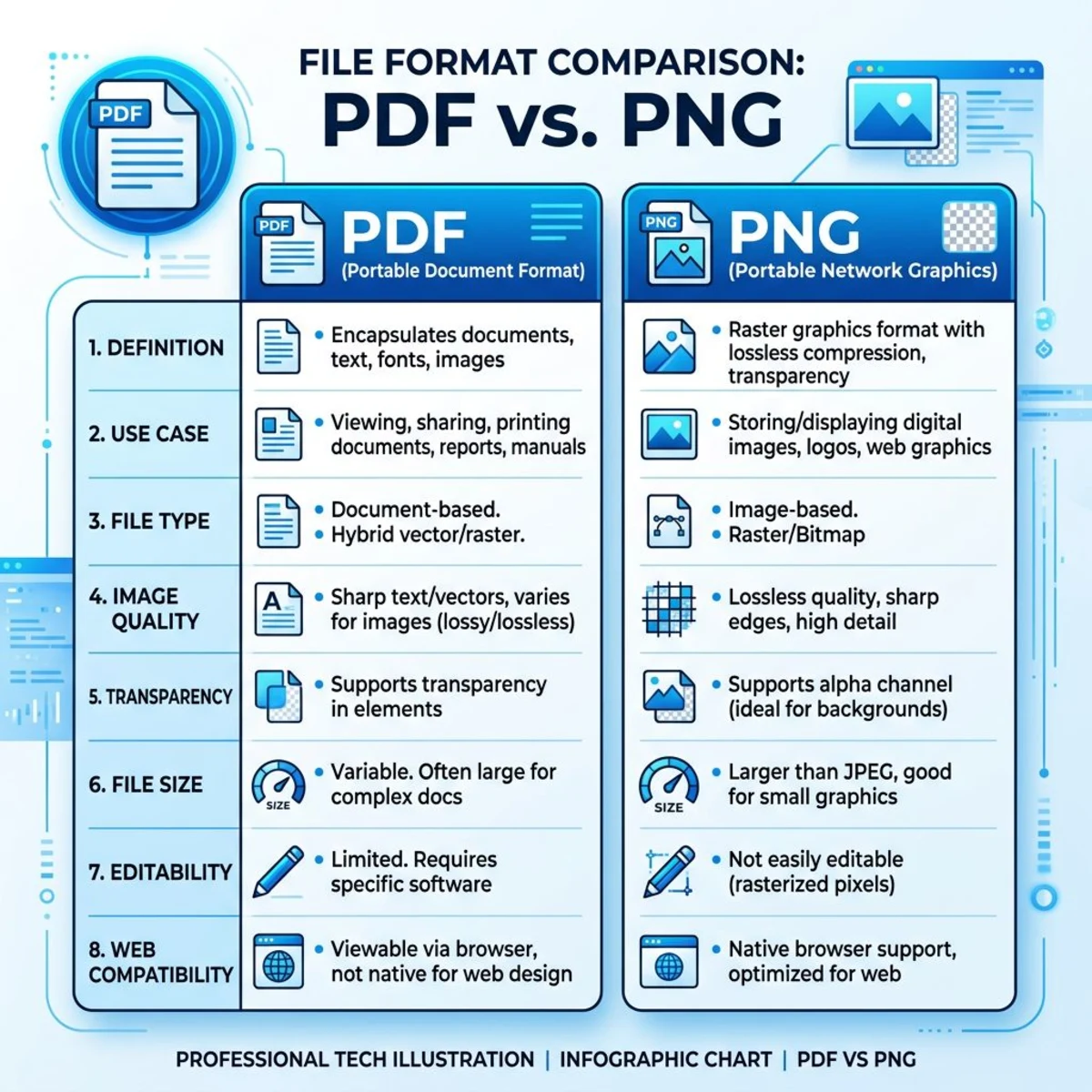
| Feature | PNG | |
|---|---|---|
| Multi-page | ✅ Yes | ❌ One image per file |
| Editable text | ✅ Yes | ❌ Rasterized |
| Universal display | ✅ Most devices | ✅ All devices and browsers |
| Social media upload | ❌ Not supported | ✅ Supported everywhere |
| Transparency | ❌ No | ✅ Yes |
| File size | Smaller for text-heavy docs | Larger (pixel data) |
Once you have your PNGs, you might want to compress them to cut file size before sharing.
Pro tip: Choose a higher DPI (300) when you need print-quality PNGs. For web use, 150 DPI keeps file sizes small while staying sharp on retina screens.

Tired of plain screenshots? Try ScreenSnap Pro.
Beautiful backgrounds, pro annotations, GIF recording, and instant cloud sharing, all in one app. Pay $39 once, own it forever.
See pricing and featuresHow to convert PDF to PNG online (free)
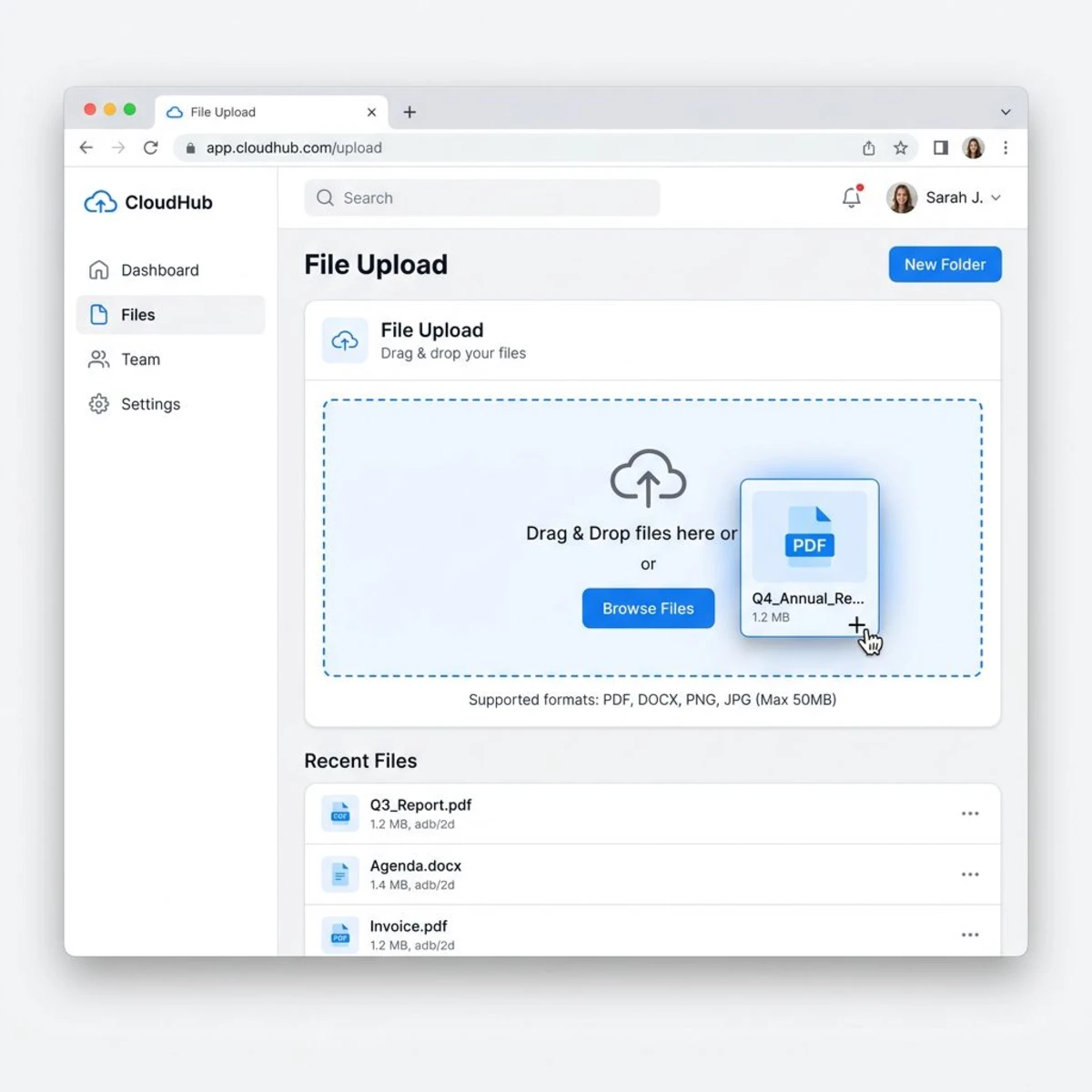
Our free PDF to Image converter does this in three steps:
- Upload your PDF: drag and drop or click to browse
- Choose your settings: select DPI (72, 150, or 300) and which pages to convert
- Download your PNGs: grab individual images or a ZIP of all pages
The entire process runs in your browser. Your files never leave your device.
What about multi-page PDFs?
Each page becomes its own PNG file. A 10-page PDF gives you 10 separate PNGs, numbered in order. Download them one by one or grab them all as a single ZIP.
Privacy: your files stay on your device
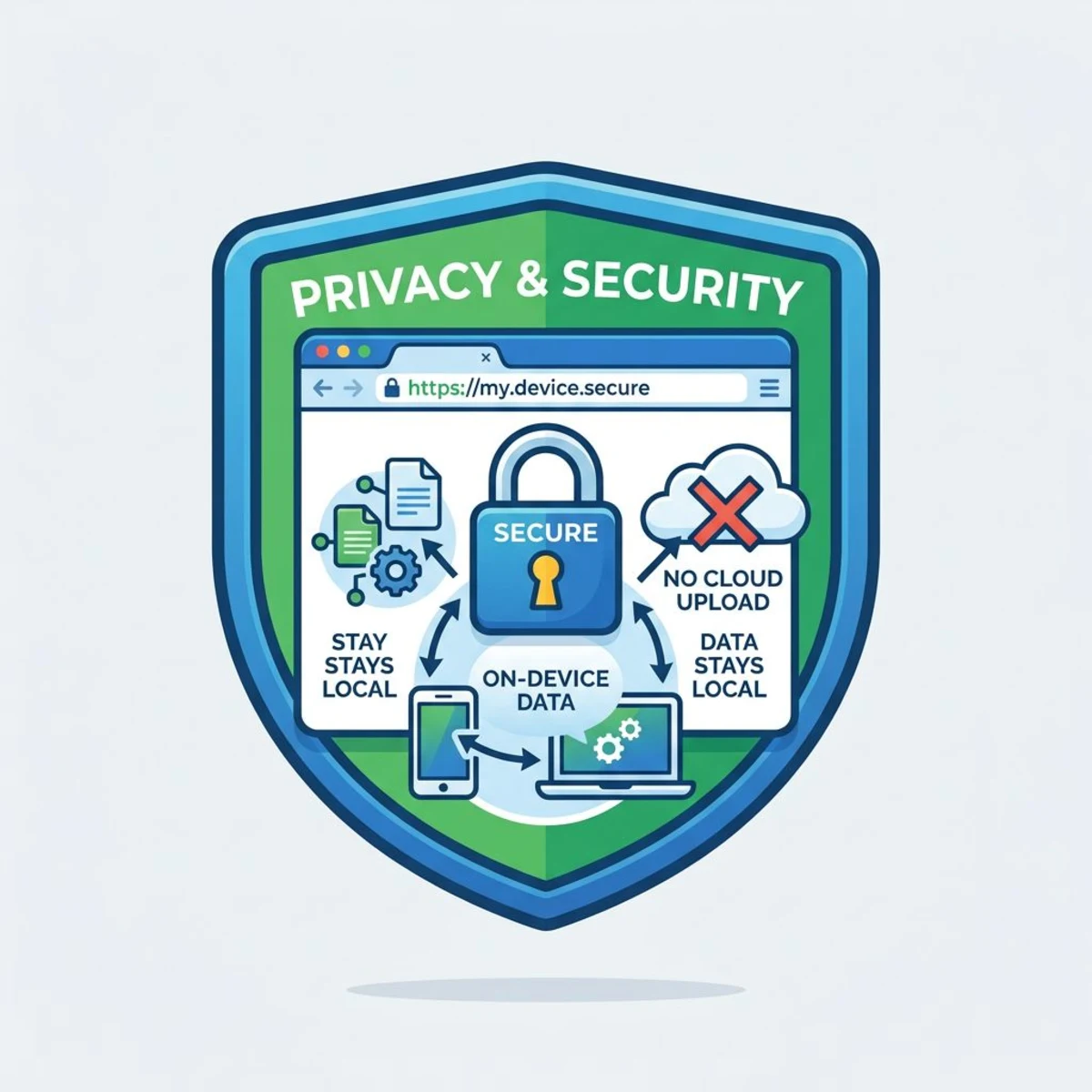
Most PDF to PNG converters (iLovePDF, SmallPDF, pdf2png.com) upload your files to their servers. That's a problem for private files.
Our converter uses Mozilla's pdf.js to render everything in your browser. Zero server uploads, zero file size limits, zero data stored. Your files never leave your computer.
DPI settings explained
DPI (dots per inch) sets the output quality:
- 72 DPI. Screen-only, smallest file size
- 150 DPI. Good balance for web and presentations
- 300 DPI. Print quality, largest files
For most uses, 150 DPI hits the sweet spot. Only go 300 if you're printing.
Already exported a PNG at the wrong setting? You do not have to redo the conversion. Our free DPI converter reads the DPI stored in the file, shows the print size it works out to in inches, and writes a new value, all in the browser.
Need to change screenshot formats or convert HEIC to JPG? We have free tools for those too.
Frequently Asked Questions

Morgan
Indie DeveloperIndie developer, founder of ScreenSnap Pro. A decade of shipping consumer Mac apps and developer tools. Read full bio
@m_0_r_g_a_n_