LinkedIn Post Size 2026: Image, Video, Document Specs
The recommended LinkedIn post image size is 1200×627 pixels (1.91:1 landscape) for single-image posts. Square posts are 1200×1200, vertical posts are 1200×1500, and native videos work best at 1920×1080 (16:9). Document carousels accept PDFs up to 100MB and 300 pages. Keep image files under 5MB and videos under 5GB.
That paragraph answers the search. The rest of this guide goes deeper. LinkedIn uses a different shape for almost every post format. Pick the wrong one and your image gets cropped on mobile. Your video shows black bars. Your carousel slides look squashed in the feed.
Quick reference: every LinkedIn post size in 2026
If you only came for the numbers, here they are. Save this section.
| Post type | Recommended size | Aspect ratio | Max file size | Format | Best for |
|---|---|---|---|---|---|
| Single image (landscape) | 1200×627 | 1.91:1 | 5MB | JPG, PNG, GIF | Articles, link previews, news |
| Single image (square) | 1200×1200 | 1:1 | 5MB | JPG, PNG, GIF | Quote graphics, announcements |
| Single image (vertical) | 1200×1500 | 4:5 | 5MB | JPG, PNG, GIF | Mobile-first storytelling |
| Multi-image carousel | 1200×1200 (each) | 1:1 | 5MB each | JPG, PNG | Up to 9 images, before/after |
| Native video | 1920×1080 | 16:9 | 5GB | MP4, MOV, WMV, AVI | Demos, talking-head clips |
| Vertical video | 1080×1920 | 9:16 | 5GB | MP4, MOV | Mobile-first, Reels-style |
| Square video | 1080×1080 | 1:1 | 5GB | MP4, MOV | Feed-friendly thumbnails |
| Document post (PDF) | 1200×1500 per page | 4:5 ideal | 100MB | Carousels, slide decks, reports | |
| Article hero image | 1200×627 | 1.91:1 | 5MB | JPG, PNG | LinkedIn articles (long-form) |
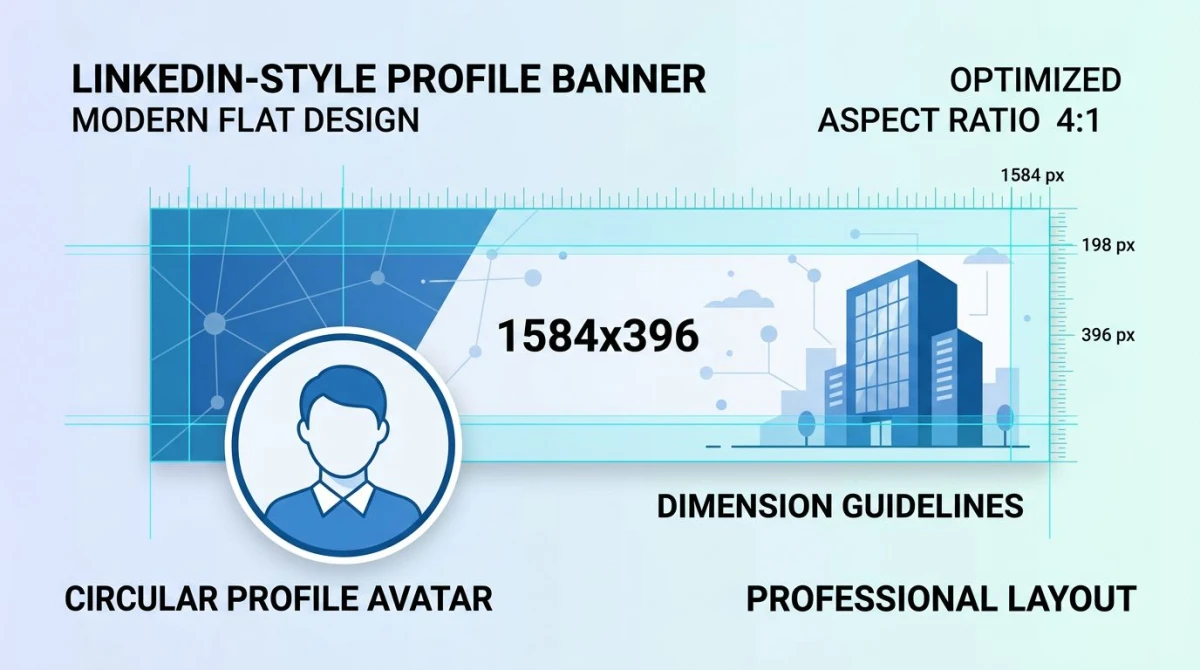
| Personal banner | 1584×396 | 4:1 | 8MB | JPG, PNG | Profile cover photo |
| Company banner | 1128×191 | 5.91:1 | 8MB | JPG, PNG | Company page cover |
For a full cross-platform reference, the social media image sizes cheat sheet covers every other network in one table.
LinkedIn single-image post size
A single-image post is the workhorse of the LinkedIn feed. Most marketers use 1200×627 pixels. It matches LinkedIn's preferred Open Graph size, the same shape used when a link is shared. It looks crisp on desktop and fills the feed without cropping.
Three sizes work well, depending on your goal:
- 1200×627 (landscape, 1.91:1). Best for link previews and articles. Maximum desktop real estate.
- 1200×1200 (square, 1:1). Great for announcement graphics and quote cards. Looks the same on desktop and mobile.
- 1200×1500 (vertical, 4:5). Wins on mobile. Takes up more screen, which means longer dwell time as users scroll past.
Vertical 4:5 has quietly become the LinkedIn power-user choice. Mobile traffic on LinkedIn now beats desktop. A tall image pushes the caption further down. That makes readers slow their scroll.
File rules for every image post:
- Maximum file size: 5MB per image
- Accepted formats: JPG, PNG, GIF (animated GIFs play in feed)
- Color profile: sRGB (LinkedIn ignores CMYK)
- Minimum width: 552 pixels (anything smaller looks blurry on retina displays)
If your file is over 5MB, run it through an image compressor before you upload. JPG quality 85 cuts the file size in half with no visible loss.
LinkedIn carousel image post (multi-image)
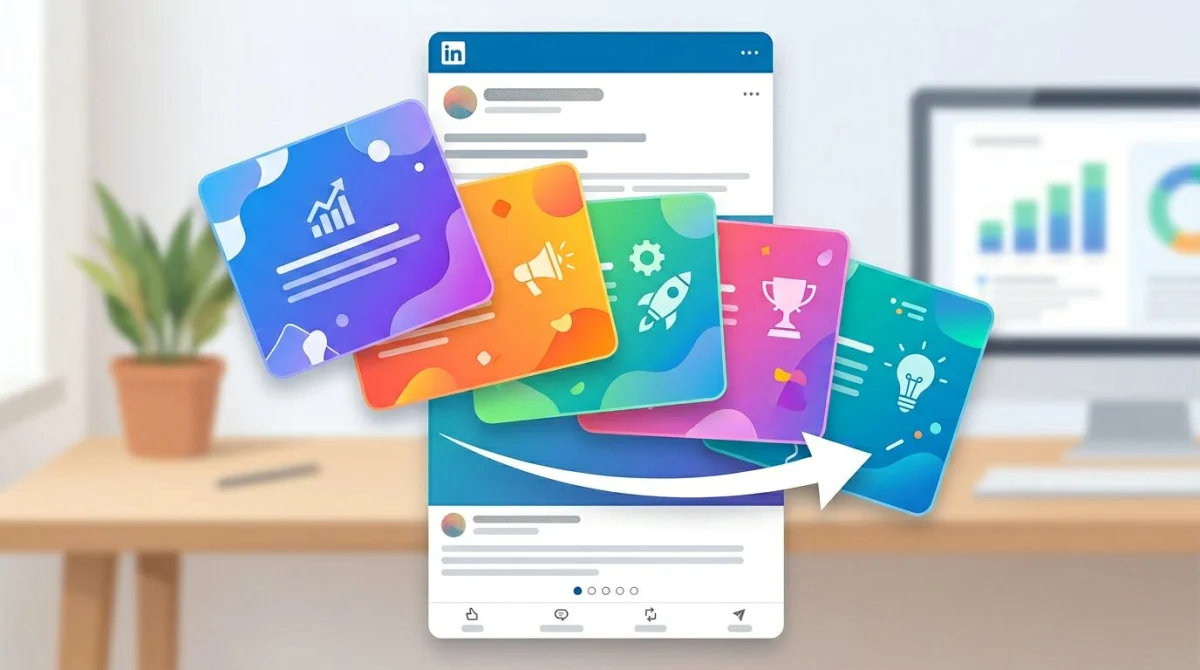
LinkedIn lets you upload up to 9 images in a single post. The platform stitches them into a swipeable carousel. This is different from a document carousel, which we cover next.
Recommended specs:
- Size: 1200×1200 (1:1) or 1080×1080 for each image
- Aspect ratio: keep all images the same ratio, because mixing landscape and square triggers awkward letterboxing
- File size: 5MB max per image
- Format: JPG or PNG
Square is the safe bet. LinkedIn renders the first image as the preview, and squares look the same on desktop and mobile. The best carousel posts follow a simple pattern: a strong cover slide, 5 to 7 content slides, and a CTA slide.
LinkedIn document post (PDF carousel)
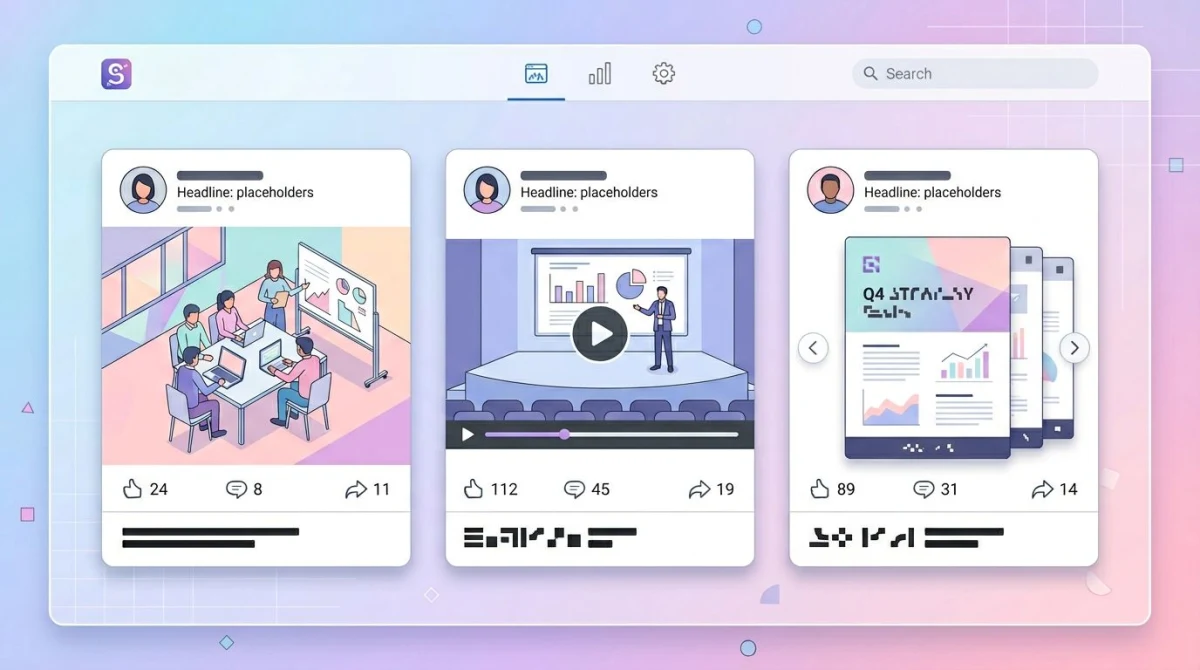
This format is a quiet B2B reach hack. Agencies and marketers use it for higher reach than any other post type. You upload a PDF, and LinkedIn renders it as a swipeable slide deck right inside the feed.
Specs:
- Format: PDF (LinkedIn also accepts DOCX and PPTX, but PDF is most reliable)
- Maximum file size: 100MB
- Maximum pages: 300
- Recommended slide ratio: 4:5 (1080×1350) for mobile, or 1:1 (1080×1080) for desktop-first
- Minimum readable font: 24pt for body, 40pt+ for headlines
LinkedIn renders document posts at 1080 pixels wide on desktop and tighter on mobile. Anything smaller than 24pt body text is hard to read on a phone. That's the top reason a document carousel flops: readers can't read it.
How to design a document carousel that gets reach
- Cover slide: big headline, single benefit, no logo dump. Treat it like a magazine cover.
- One idea per slide: the swipe is your paragraph break. Don't cram.
- Use 4:5 ratio: 1080×1350. It dominates mobile screens and pushes the next post out of frame.
- Set 24pt minimum body text: test by viewing on your phone before uploading.
- End with a soft CTA: "Save this post" or "Comment X for the template" outperforms "Buy now".
- Number your slides: "1/9" in the corner tells people there's more, and completion rate jumps.
Once you have your slides, export as PDF. Keynote, Google Slides, Figma, and Canva all do this. Upload to LinkedIn through "Add a document" in the post composer. The platform turns each page into a swipeable card on its own.
If you work from screenshots (say, charts pulled from a dashboard), you can resize them for LinkedIn in one click before you drop them into your slide deck.
LinkedIn video post size
LinkedIn native video plays inline in the feed. It almost always beats a YouTube link. The platform accepts a wide range of sizes, but most creators stick to two:
- 1920×1080 (16:9 horizontal). Standard widescreen. Good for talking-head clips, demos, and webinar replays.
- 1080×1920 (9:16 vertical). Mobile-first. Takes up the whole phone screen and gets the highest watch-through rate.
- 1080×1080 (1:1 square). Feed-friendly compromise. Works on both mobile and desktop without cropping.
File rules:
- Maximum dimensions: 4096×2304
- Minimum dimensions: 256×144
- Maximum file size: 5GB
- Maximum duration: 10 minutes
- Minimum duration: 3 seconds
- Frame rate: 10 to 60 fps
- Accepted formats: MP4, AVI, MOV, MPEG-1, WMV, WebM, FLV, MKV
- Recommended bitrate: 5 to 10 Mbps for 1080p
MP4 with H.264 video and AAC audio is the safest mix. It plays everywhere LinkedIn renders video, including the mobile player. WMV and AVI work but compress poorly.
Caption everything. LinkedIn videos autoplay muted by default. Over 80% of views happen with no sound. Burn captions in, or upload an SRT file when you publish.
LinkedIn article hero image
LinkedIn articles (the long-form tool, not feed posts) use a different cover image size. The hero image at the top of an article is 1200×627 pixels at a 1.91:1 ratio.
This is the same shape as a feed post link preview. When someone shares your article, the hero image becomes the preview thumbnail. Use a JPG or PNG under 5MB.
For company-published articles, the hero image also shows up in the "Featured" section of your page. Keep the focal point in the center. Edges can get cropped on smaller card layouts.

Tired of plain screenshots? Try ScreenSnap Pro.
Beautiful backgrounds, pro annotations, GIF recording, and instant cloud sharing, all in one app. Pay $34 once, own it forever.
See pricing and featuresMobile crop versus desktop crop
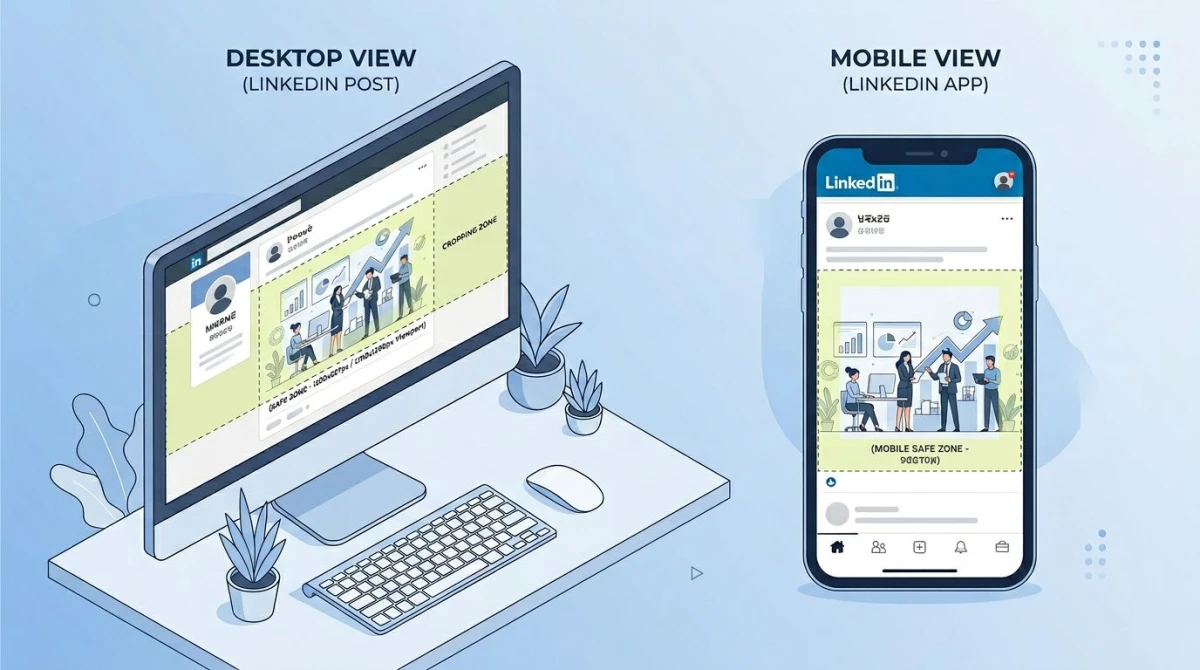
LinkedIn shows a different slice of your image on each device. That's where most posts fall apart.
Desktop feed:
- Single image landscape (1.91:1) shows the full image at roughly 552×289.
- Square (1:1) shows the full image at roughly 552×552.
- Vertical (4:5) caps at 552×690, because the platform never renders taller than 4:5 on desktop.
Mobile feed:
- Landscape shows full width but at half the height, so text near the edges shrinks.
- Square fills the screen edge to edge.
- Vertical (4:5) wins biggest, taking 80%+ of a phone screen.
- Aspect ratios beyond 4:5 (taller than 1080×1350) get center-cropped to 4:5.
The practical rule: keep critical text and logos in the center 80% of the frame. The corners are not safe.
Best practices for posts that actually perform
Hitting the right pixel size is needed, but not enough. The LinkedIn algorithm rewards engagement in the first 60 minutes. And engagement starts with the first line.
- Hook in the first 140 characters. LinkedIn truncates captions at the "see more" cutoff. Front-load the value.
- One idea per post. Posts with a single clear takeaway outperform multi-topic posts by a wide margin.
- Native uploads beat external links. A native video or document post stays in the feed. An external link gets buried.
- Post when your audience is online. B2B peaks at 8 to 10am Tuesday through Thursday in the local timezone.
- Reply to comments within an hour. Comment speed in the first hour is the top reach signal.
- Avoid link-in-comment hacks. The algorithm caught up. Put the link in the post or skip it.
How to capture and prepare visuals for LinkedIn
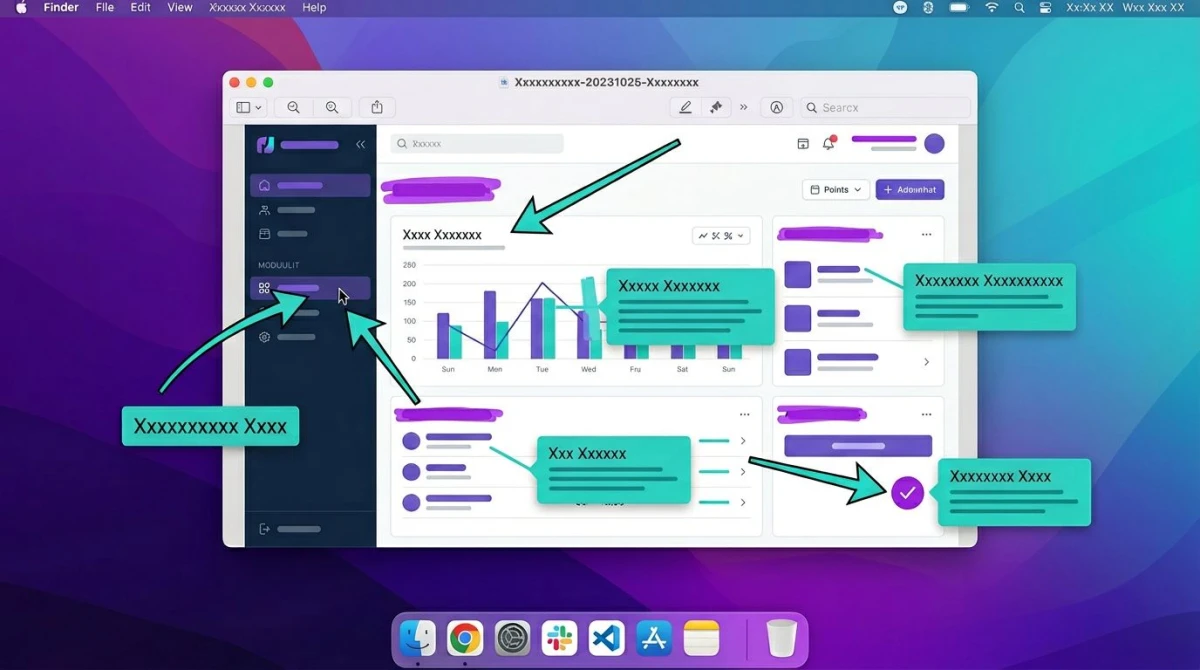
Most LinkedIn posts that win combine a clean visual with a sharp caption. The visual is often a screenshot (a chart, a product UI, a dashboard, a quote) that you have cropped and marked up.
If you do this often, a screenshot tool saves more time than you'd expect. ScreenSnap Pro is a one-time $34 buy for Mac and Windows. It handles the full capture-to-share flow: full-screen, region, or window capture; 500+ gradient backgrounds to make a screenshot pop; 17 annotation tools like arrows, blur for sensitive data, and a step counter for tutorials; and instant cloud sharing without leaving the app.
For document carousels, the flow is even tighter. Capture the source data, drop the screenshot on a wallpaper background, mark up the key bit, then drag it into your slide deck. No editor pivot. No file swap.
The same kit doubles for native video: screen recording with system audio, mic, and webcam picture-in-picture for the talking-head clips LinkedIn rewards. No subscription, no watermark, no cloud lock-in.
Troubleshooting common LinkedIn image problems
Image looks blurry after upload. LinkedIn re-compresses every image. Upload at exactly 1200×627 (or 1200×1200). Bigger is not better. The platform just compresses harder. Save at JPG quality 85 with an sRGB color profile.
Top or bottom got cut off. You used a ratio taller than 4:5. LinkedIn center-crops anything past 1080×1350 on desktop. Crop to 4:5 yourself, or use a square 1:1 layout.
Document carousel won't upload. Three usual causes: file is over 100MB, password on the PDF, or more than 300 pages. Strip the password and split long decks across two posts.
Video shows black bars. Your ratio does not match LinkedIn's renderer. Re-export at 16:9 (horizontal), 1:1 (square), or 9:16 (vertical). Anything in between gets letterboxed.
Looks fine on desktop but cramped on mobile. Text or logos sit too close to the edges. Re-crop so all key items sit inside the center 80%.
File-size error on upload. Strip metadata and re-export. iPhone HEIC photos can balloon past 8MB. Convert them with a HEIC to JPG converter first.
How LinkedIn post sizes compare to other platforms
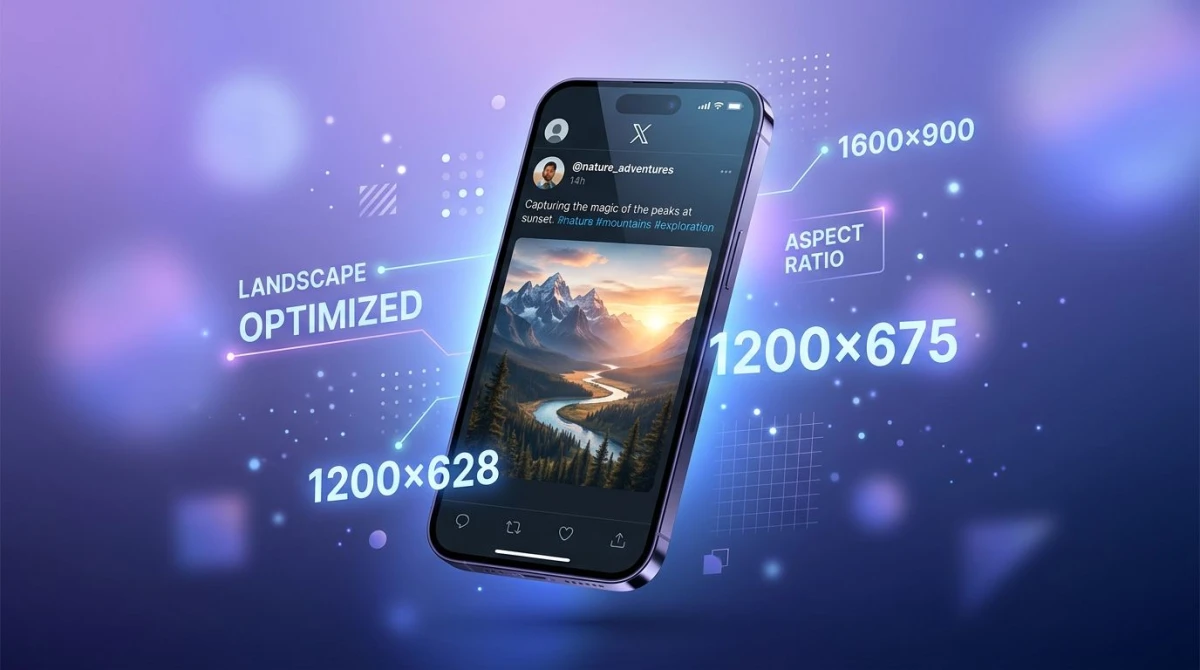
LinkedIn lives in its own pixel world. Square 1:1 works almost anywhere. But landscape 1.91:1 is unique to LinkedIn and Facebook link previews. Instagram and X both prefer other ratios.
If you publish across many networks, design once at 1200×1200 (square) and re-export to each platform's size. The square crop reuses cleanly on Instagram, X, and LinkedIn carousels with zero crop pain.
For multi-platform launches, also see our LinkedIn banner size guide (sister article on profile and company page covers) and the app store screenshot sizes reference if your launch ships app store assets too.
Frequently Asked Questions
Wrap-up
LinkedIn rewards posts that match the platform's exact pixel sizes. Memorize three: 1200×627 for landscape, 1200×1200 for square, and 1080×1350 for vertical and document slides. Cap files at 5MB for images, 5GB for video, and 100MB for PDF carousels.
If a clean visual flow matters to your job (agency work, content marketing, founder posts), a screenshot and recording tool earns its $34 back the first week. ScreenSnap Pro handles capture, markup, backgrounds, and instant sharing across Mac and Windows, with no subscription tax.
For the official reference, sizing is in LinkedIn Help.
One last note on file prep
A few small habits keep your posts looking sharp every time. Save image exports as JPG at quality 85 with an sRGB color profile. Use PNG only when you need a transparent background (LinkedIn flattens it on a white card anyway). Keep file names short and lowercase. Long names sometimes break upload on slow networks.
For video, run a final preview at full screen on your phone before you publish. The mobile player is the toughest test. If captions look small there, they look small to 80% of your audience. Bump the font size and re-export.
For PDF carousels, open the file on a phone before you upload. If you have to pinch-zoom to read a slide, your viewers will swipe past. Bigger text always wins. The most-shared document posts read like billboards, not whitepapers.

Morgan
Indie DeveloperIndie developer, founder of ScreenSnap Pro. A decade of shipping consumer Mac apps and developer tools. Read full bio
@m_0_r_g_a_n_