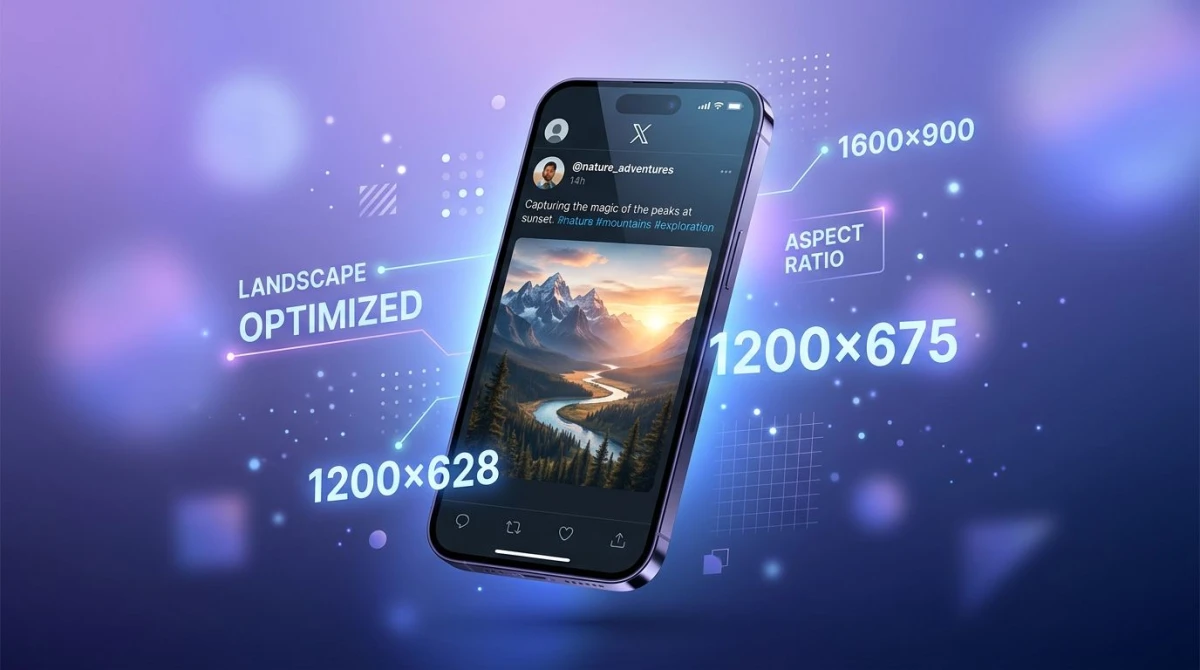
Shopify Product Image Size 2026: Specs Guide
# Shopify Product Image Size: The Complete 2026 Specs Guide
Shopify recommends 2048×2048 pixel square product images with a max file size of 20MB in JPEG, PNG, or WebP format. For best zoom quality and Retina display sharpness, use 2048×2048 minimum, because Shopify automatically generates smaller responsive variants for thumbnails, mobile, and collection grids.
That one paragraph is the answer most store owners need. But "what size should my Shopify product image be?" hides a stack of follow-up questions. Aspect ratio for your theme. File size budget for page speed. Format choice. How Shopify's CDN serves images. This guide covers all of it, with no 5,000-word fluff.
If you came here looking for social media image sizes instead, that parent guide covers Instagram, TikTok, and Pinterest specs. For Shopify-specific dimensions, read on.
Quick Shopify image size cheat sheet
Here's every Shopify image surface and its recommended size in one table. Save this: it's the spec list your designer keeps asking for.
| Surface | Recommended size | Aspect ratio | File size target | Format |
|---|---|---|---|---|
| Product image (master) | 2048×2048 px | 1:1 | ≤200 KB | WebP or JPEG |
| Product image (Retina-perfect) | 2400×2400 px | 1:1 | ≤300 KB | WebP or JPEG |
| Product image (minimum) | 800×800 px | 1:1 | ≤100 KB | JPEG |
| Collection thumbnail | 1024×1024 px | 1:1 | ≤120 KB | WebP |
| Featured product (homepage) | 2048×2048 px | 1:1 | ≤200 KB | WebP |
| Hero banner / slideshow | 1920×1080 px | 16:9 | ≤300 KB | WebP |
| Cart preview thumbnail | 400×400 px | 1:1 | ≤50 KB | WebP |
| Logo (header) | 500×200 px | 5:2 | ≤30 KB | PNG (transparent) |
| Favicon | 32×32 px | 1:1 | ≤5 KB | PNG or ICO |
| Background / lifestyle | 1920×1080 px | 16:9 | ≤350 KB | WebP |
Rule of thumb: upload your product master at 2048×2048, let Shopify do the responsive resizing, and target under 200 KB per file. Everything below is the why.
Why 2048×2048 is the right master size
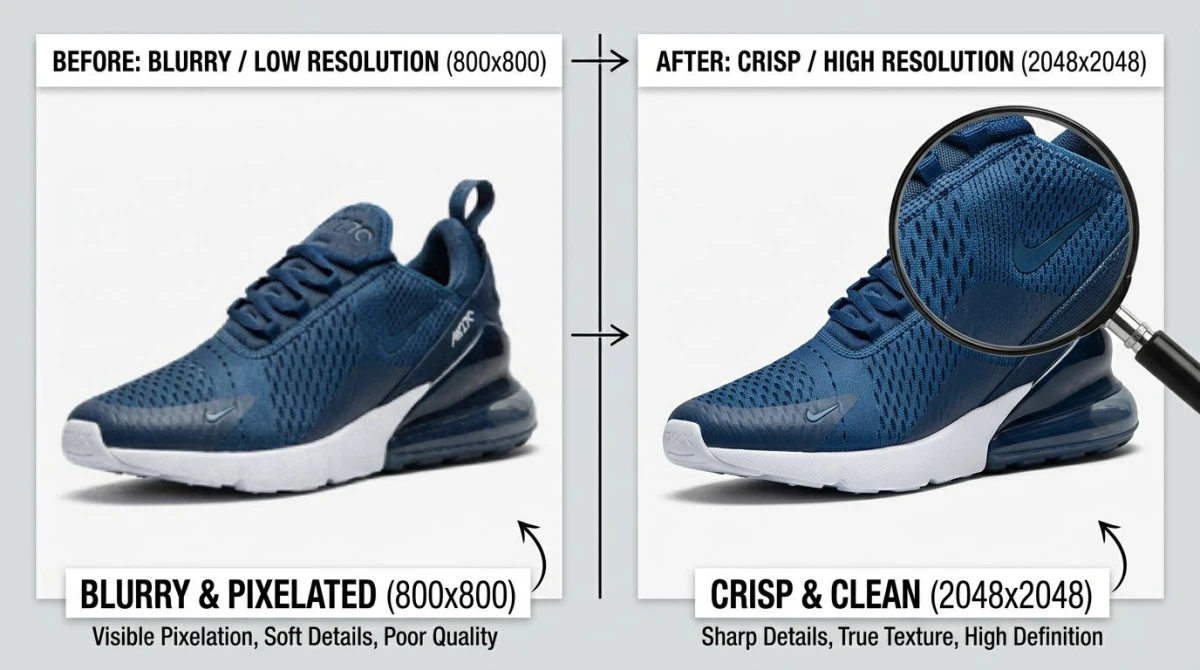
Shopify's zoom feature kicks in at 800×800 pixels, but "kicks in" doesn't mean "looks good." A shopper hovering over a 1024-pixel image on a 5K display sees a soft, blurry zoom. That kills sales on high-ticket products.
At 2048×2048, zoom looks crisp on most screens. At 2400×2400, zoom looks sharp even on Retina and 4K displays. The trade-off is file size.
Here's what happens behind the scenes when you upload a 2048-pixel master:
- Shopify stores your original on its CDN.
- The
image_urlLiquid filter generates resized variants at 100, 200, 400, 600, 800, 1024, and 2048 pixels. - The browser uses
srcsetto pick the right size for the device. - Mobile users get a 600-pixel version. Desktop gets 1024 or 2048. Zoom uses the full 2048.
You upload one file, Shopify serves seven. That's why uploading too small hurts you everywhere: there's no source data to scale up from.
What 800×800 actually means
Shopify lists 800×800 as the minimum for zoom. Treat that as the floor for low-stakes products such as clearance, accessories, and anything you don't care much about. For your hero products, never go below 2048.
File format: JPEG vs PNG vs WebP
Shopify supports JPEG, PNG, GIF, and WebP, with AVIF now available through Shopify's CDN. Here's how to pick.
| Format | Best for | File size | Quality |
|---|---|---|---|
| WebP | All product photos in 2026 | Smallest | High |
| JPEG | Photos, fallback for old browsers | Medium | High |
| PNG | Logos, icons, transparent backgrounds | Large | Lossless |
| GIF | Short looping animations only | Huge | Limited colors |
| HEIC | Not supported, convert first | n/a | n/a |
Use WebP for new uploads. It's 25-35% smaller than JPEG at the same quality. Shopify auto-converts JPEG and PNG to WebP on the CDN anyway. Why not start with WebP and keep more control?
If you've got a folder of JPEGs from a recent product shoot, our JPG to WebP converter handles batch conversion in the browser, with no upload and no signup, just drag and drop. It's free.
When to keep PNG: logos, brand marks, anything with a transparent background. PNG is lossless and handles transparency well. WebP handles transparency too, but some marketing tools choke on it. PNG is still the safe pick for header logos.
HEIC users: if you shoot product photos on an iPhone, your default format is HEIC. Shopify won't accept HEIC uploads. Convert with our HEIC to JPG tool before uploading.
File size: the 200KB rule
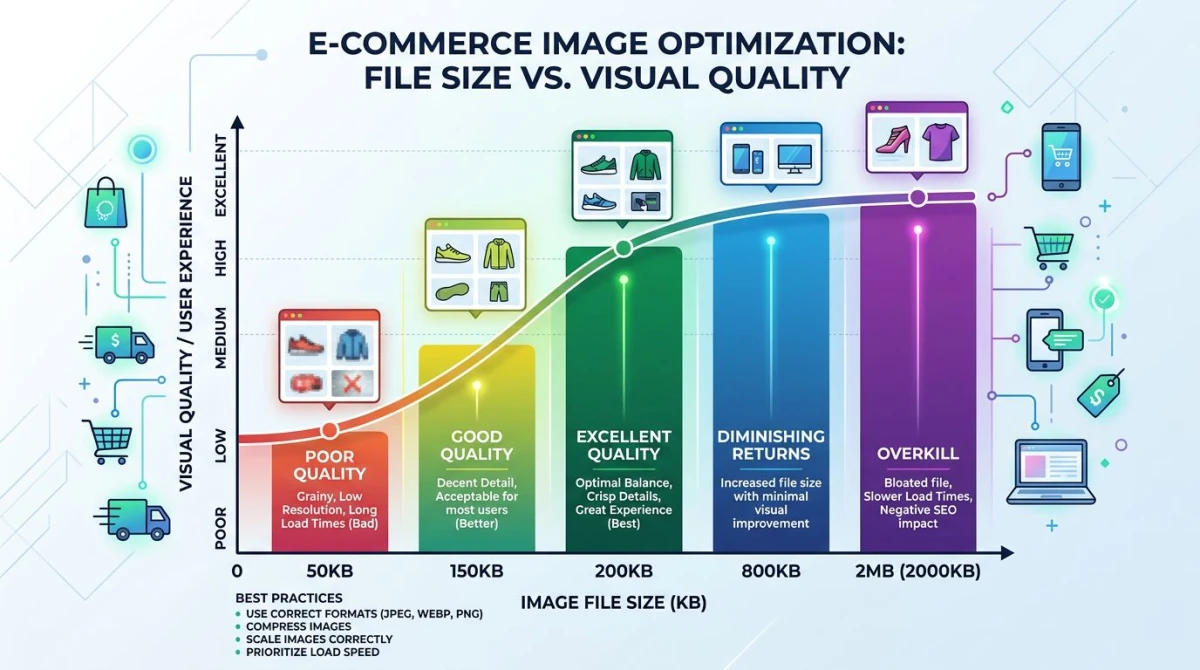
Shopify's hard limit is 20MB per image. Don't get anywhere near that. For page speed and Core Web Vitals, target under 200 KB per image, and under 100 KB is even better.
Why does this matter so much?
- LCP (Largest Contentful Paint) is usually your hero image. Google scores it as a Core Web Vital. Big images = slow LCP = lower rankings.
- Mobile users on cellular load your store byte by byte. A 5MB hero on 4G feels broken.
- Shopify auto-compresses, but it works from your source. A 4MB JPEG compresses worse than a 400KB JPEG that's already clean.
The 200KB target is the sweet spot. It looks the same as a 2MB original to most shoppers, but loads 10× faster. Use our image compressor before upload to lock in the gains.
Hitting the 20MB cap
If a product photo is over 20MB, Shopify rejects the upload. This usually happens with:
- Raw scans or DSLR exports saved as TIFF
- Flat-exported PSDs at full resolution
- 8K or 16K rendered product mockups
Resize the long edge to 2400 pixels and re-export as JPEG quality 85 or WebP quality 80. You'll come in well under 20MB and look great.
Aspect ratios: square is safe, but you have options
Shopify's default themes expect square 1:1 product images. Collection pages auto-crop everything to squares, so any non-square image gets sliced.

That said, modern themes (Dawn, Refresh, Sense, Studio) let you pick:
- 1:1 square. Universal default, safest pick, works everywhere
- 4:5 portrait. Popular for fashion and apparel, more "lifestyle" feel
- 16:9 landscape. Used for furniture, wide products, photo-style stores
- 3:4 portrait. Classic catalog look
The catch: whichever ratio you pick, every product needs to match. Mixed ratios make collection pages look broken. Pick one and stick to it.
Switching ratios mid-catalog means re-cropping every image. Our image cropper lets you set a fixed ratio and batch-crop a folder.
Theme-by-theme defaults
| Theme | Default product ratio | Hero/slideshow size |
|---|---|---|
| Dawn (free) | 1:1 | 1920×1080 |
| Refresh | Adapts to image | 1920×1080 |
| Sense | 1:1 | 1920×1080 |
| Studio | 4:5 | 1920×1200 |
| Crave | 1:1 | 2000×1125 |
Premium themes from the Shopify Theme Store often default to 4:5 or 5:4 for a fashion-editorial look. Always check your theme's docs. Settings live under Online Store → Themes → Customize → Theme settings → Product images.
Hero banners and homepage slideshow
The hero is the biggest image on most Shopify stores. Get it wrong and your homepage feels off.
Recommended size: 1920×1080 pixels (16:9). This is the safe default across themes. Some premium themes go ultra-wide (2560×1080), so check before exporting.
File size target: under 300 KB. The hero is your LCP image, so this matters more than anywhere else.
Format: WebP. Always.
Mobile crop: Shopify themes center-crop the hero on mobile, chopping the left and right edges. Keep your subject and any text in the middle 60% of the frame. If your hero has a model on the left and a "SHOP NOW" button on the right, mobile users see the model and miss the button.
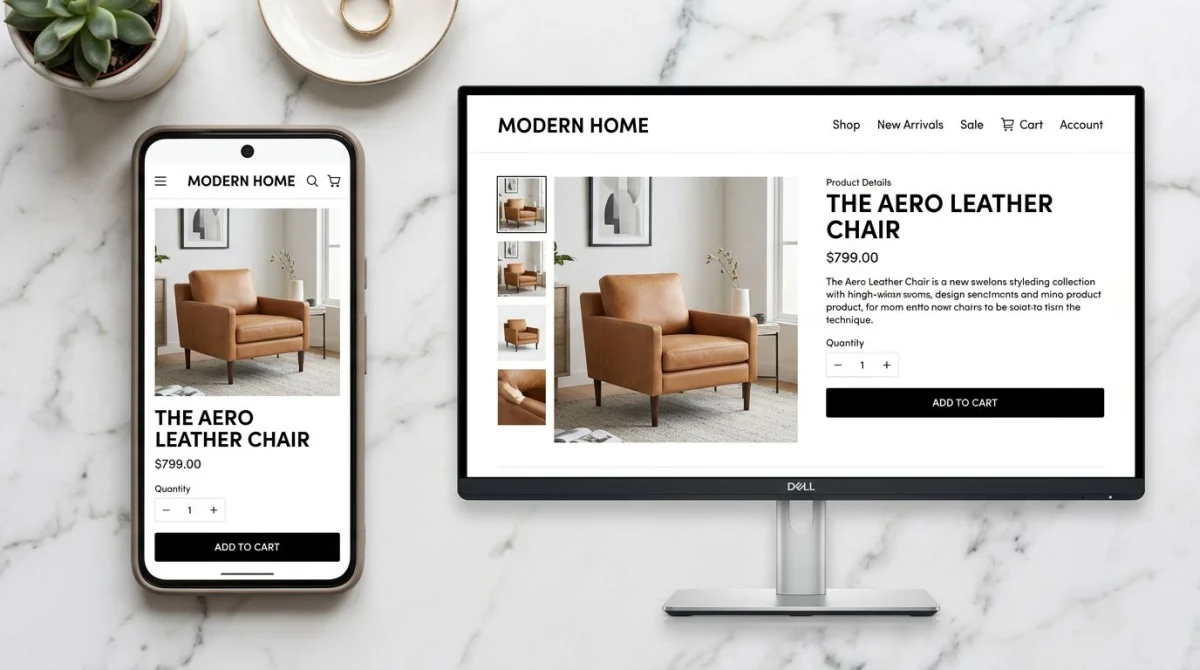
For seasonal hero swaps, plan a "mobile-safe" zone in your master file before exporting. Drop a guide layer at 1080×1080 in the center. Anything outside that gets cropped on phones.
Alt text: 125 characters that earn you SEO
Every product image needs alt text. It's not optional in 2026. Google uses it for image search. Screen readers depend on it. And Shopify's accessibility audit flags missing alts.
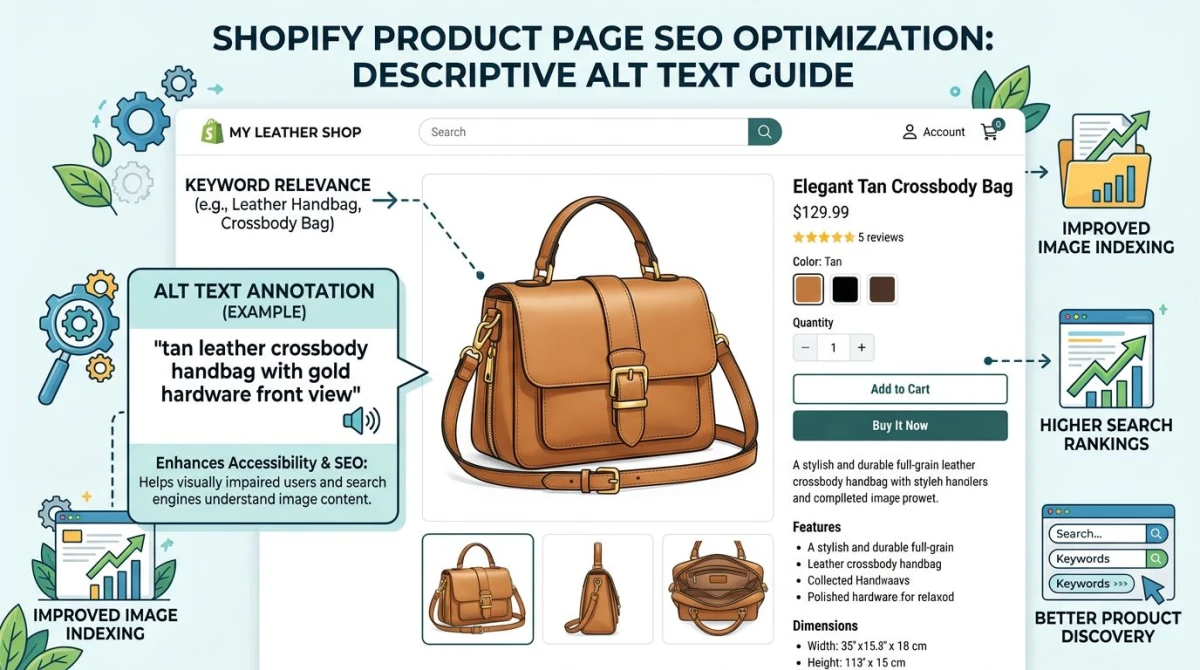
Length: 125 characters max. Screen readers truncate after that, and Shopify's product editor caps the field around the same length.
Formula: [color] [material] [product] [angle/context]
Good: Tan leather crossbody handbag with gold hardware, front view
Bad: Bag or image_42.jpg or BUY OUR HANDBAGS NOW BEST PRICE
Pro tip: vary alt text across a product's gallery. If a product has six photos, write six different alts: front view, back view, side view, lifestyle on model, detail of strap, packaging. Each one is an SEO signal Google can match against different searches.
Shopify lets you set alt text in two places:
- Per image: click the image in the product editor, scroll to "Alt text"
- Bulk via CSV import: column header
Image Alt Text
For stores with hundreds of products, do this in bulk. A weekend of CSV editing pays off in long-tail SEO traffic.
How Shopify's CDN serves images
Once you see the pipeline, image work makes sense. Here's what happens when a shopper visits your product page:
- Browser requests the page. Shopify renders the Liquid template.
- Liquid generates
srcset. Theimage_urlfilter outputs URLs at 100, 200, 400, 600, 800, 1024, and 2048 pixels. - CDN serves the right size. Based on screen size and pixel density, the browser picks one variant.
- Format swap. If the browser supports WebP (Chrome, Edge, Safari 14+, Firefox), Shopify serves WebP. Otherwise JPEG.
- Lazy loading. Below-the-fold images get
loading="lazy"and only load on scroll.
You don't set any of this up. Shopify does it for you. Your job is to upload a clean, 2048-pixel master and write good alt text. The CDN handles the rest.
What you can break
- Uploading too small breaks scaling. A 500×500 source can't fill a 1024-pixel slot.
- Uploading low-quality JPEGs stacks artifacts when Shopify re-compresses to WebP.
- Using PNG for photos wastes bandwidth. A 4MB photo PNG could be a 200KB WebP.
JPEG artifacts compound. Every time you save a JPEG, quality drops. Always compress from your best source, never from an already-compressed file.

Tired of plain screenshots? Try ScreenSnap Pro.
Beautiful backgrounds, pro annotations, GIF recording, and instant cloud sharing, all in one app. Pay $39 once, own it forever.
See pricing and featuresWhite-background photography is still the standard
The biggest visual choice for a Shopify catalog isn't size or format. It's whether your products sit on a clean white background.
Why white wins:
- Works on any theme, any season, any sale banner
- Pure white compresses to nothing in JPEG and WebP
- Your collection page looks like a catalog, not a yard sale
- Amazon, eBay, and Google Shopping all require white for listings
When to break the rule: lifestyle shots for hero banners, social ads, or "how it's used" galleries. Even then, your first product image should be white-background. That's the one collections, cart previews, and search results show.
If you've got a folder of product photos on cluttered backgrounds, our transparent background maker removes them for you. Useful when you can't reshoot.
Color profile: stick with sRGB
Save every product image in the sRGB color profile. Always.
Adobe RGB and ProPhoto RGB look great in Photoshop on a calibrated monitor. They look washed out in every web browser. Browsers assume sRGB unless told otherwise, and Shopify strips color profiles from its compressed variants.
In Photoshop: Edit → Convert to Profile → sRGB IEC61966-2.1. Then export.
In Figma, Affinity, Pixelmator: sRGB is the default. You're fine.
In Lightroom: set the export color space to sRGB.
This one setting fixes 90% of "my photos look great in Photoshop but dull on my store" complaints.
Common Shopify image problems and fixes
Five issues account for most "my product images look wrong" support tickets.
"My images look blurry"
Cause: the source you uploaded was too small. Shopify can't make up detail that wasn't there.
Fix: re-upload at 2048×2048. If you only have a 1000-pixel source, ask your photographer for the original or try AI upscaling (it adds artifacts, so use with care).
"My images load slowly"
Cause: upload file size is over 1MB.
Fix: compress to under 200KB before uploading. Don't trust Shopify to fix bad sources. It can't.
"My collection page crops images weird"
Cause: mixed aspect ratios across the catalog.
Fix: crop everything to 1:1 (or whatever your theme uses) before upload. Use our image cropper for batch work.
"My photos look dull on the live site"
Cause: color profile is Adobe RGB, not sRGB.
Fix: convert to sRGB in your image editor and re-export.
"Mobile users see a different image than desktop"
Cause: subject placed near edges, mobile center-cropped them out.
Fix: keep subject and CTAs in the center 60% of hero banners.
Tools that speed up Shopify image work
Beyond Shopify's built-in editor, a few free tools cover the gaps in the Shopify workflow:
- Image compressor. Get under 200KB before uploading
- Image resizer. Batch resize folders of product shots to 2048×2048
- Image cropper. Fix aspect ratios across the catalog
- JPG to WebP converter. Convert legacy JPEGs to WebP
- HEIC to JPG converter. Convert iPhone photos for upload
All of these run in your browser. No signup, no upload to a server. They handle the routine prep work so you can spend time on photography, not file conversion.
For documenting your store setup, capturing competitor pages for research, or annotating product mockups for your design team, ScreenSnap Pro is worth a look. It's a $39 one-time purchase (no subscription) for Mac and Windows, with 15 annotation tools and 500+ gradient backgrounds. Handy when you need to mark up a product photo for marketing or grab polished store screenshots for press kits and case studies.
Mobile-first checklist
Over 70% of Shopify sessions happen on mobile. Optimize for the small screen first.
- [ ] Master image is 2048×2048 minimum
- [ ] File size under 200 KB
- [ ] Format is WebP (or JPEG if WebP not available)
- [ ] Subject is in center 60% of frame
- [ ] Color profile is sRGB
- [ ] Alt text under 125 characters, descriptive
- [ ] Aspect ratio matches the rest of your catalog
- [ ] No text rendered into the image (use overlays in theme instead)
- [ ] Lazy loading is on (Shopify default, so don't disable it)
- [ ] First image in product gallery is white-background
If every product passes this checklist, your store is in the top 10% of Shopify performance.
Image SEO: small wins that compound
Beyond alt text, three more SEO moves matter for product images:
1. Filename matters. tan-leather-handbag-front.jpg ranks better than IMG_0042.jpg. Shopify uses the filename in the image URL by default. Rename before upload.
2. Nearby text counts. Google's image search reads the heading and paragraph near each image. A product image labeled "Front view of tan leather handbag" near an saying "Italian leather construction" gets stronger SEO than the same image alone.
3. Sitemap. Shopify auto-includes product images in image_sitemap.xml. Check it loads at yourstore.com/sitemap.xml and submit to Google Search Console.
For more on SEO for visuals, our YouTube thumbnail size guide covers thumbnail SEO in a similar style. The same ideas apply.
When to refresh existing images
If you've been running your store for 2+ years, your product images probably need a refresh. Signs it's time:
- Your photos were exported when "high res" meant 1024 pixels
- You're still serving JPEGs while Shopify pushes WebP
- Your hero banner has 2019 fashion or copy
- Your colors look washed out (sRGB profile is wrong)
- Your catalog has mixed aspect ratios from different photographers
Minimum viable refresh: pick your top 20 products by revenue. Re-upload at 2048×2048 WebP with new alt text. That alone moves the needle on conversion and SEO.
For a full refresh, you'll want a compression workflow. Our guide to compressing images without losing quality walks through the JPEG/WebP/PNG choice in more depth.
Frequently asked questions
The short version
If you skipped to the bottom, here's the whole guide in 30 seconds:
- Upload product masters at 2048×2048 pixels, WebP format, under 200 KB
- Stick to 1:1 square unless your theme says otherwise, and match every product in your catalog
- Hero banners: 1920×1080 WebP, subject in center 60% for mobile
- Color profile: sRGB always
- Alt text: 125 characters, descriptive, varied across each product's gallery
- File size matters more than dimensions, and 200 KB is the magic number
Get those six things right and your product images won't be the bottleneck on conversion or SEO. Everything else is theme-specific polish.
Need help getting your existing catalog to those specs? Start with the image compressor and the JPG to WebP converter. Between them, they handle 90% of Shopify image prep work, free.

Morgan
Indie DeveloperIndie developer, founder of ScreenSnap Pro. A decade of shipping consumer Mac apps and developer tools. Read full bio
@m_0_r_g_a_n_