ASCII Art Generator: Free Online Tools, Character Sets & Workflows (2026)
TL;DR: Upload a photo or type text to generate ASCII art instantly, right in your browser. Choose width, characters, and color output. Free, no signup, 100% private.
An ASCII art generator converts images or text into visual art made from keyboard characters. Need a retro portrait for a GitHub README or a FIGlet banner for terminal output? Tools like ASCIIFY and patorjk's TAAG handle both without uploading anything to a server. If your source is a screenshot, capture it cleanly first with ScreenSnap Pro before feeding it into the generator.
How to create ASCII art from images
Tools like ASCIIFY make image-to-ASCII conversion straightforward. Here's the general workflow:
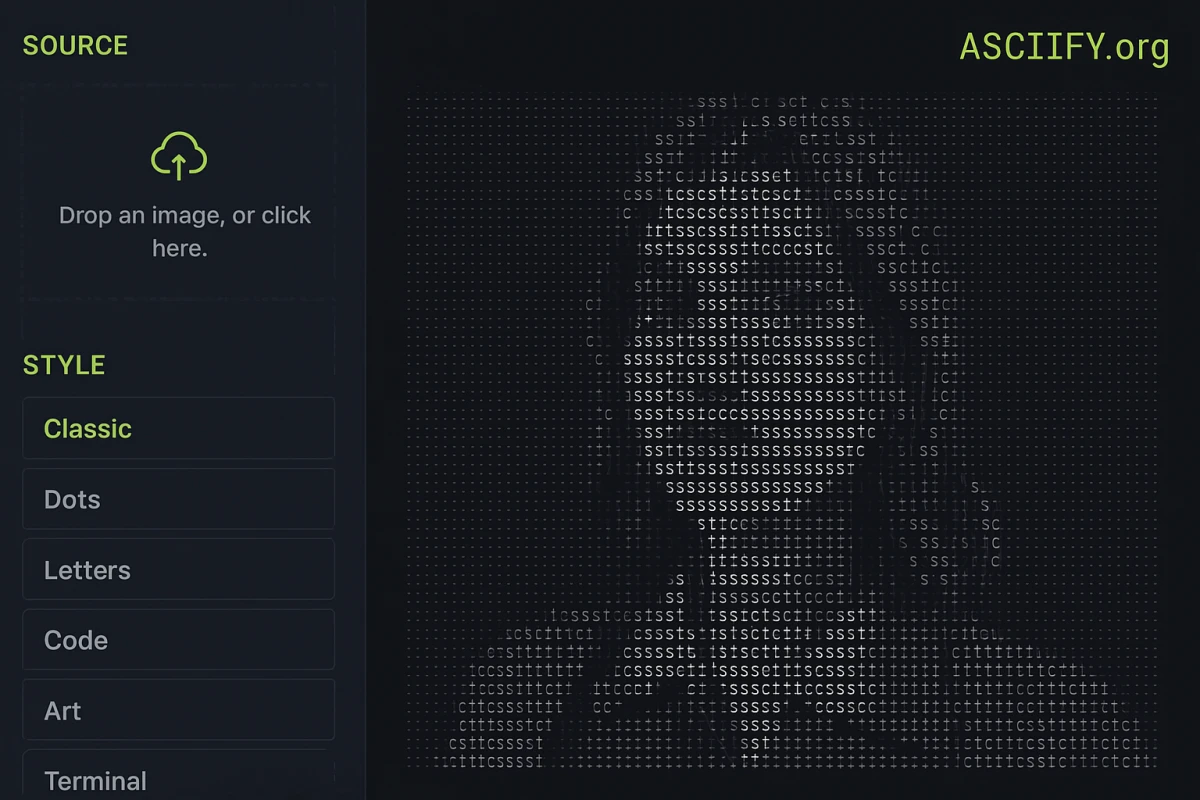
- Open ASCIIFY. Head to the editor. No signup needed.
- Upload your image. Drop, paste, or browse for a JPG, PNG, or HEIC file (up to 25 MB). You can also paste from clipboard or use your webcam.
- Pick a style. Choose from Classic, Dots, Letters, Code, Art, Terminal, or Braille modes.
- Adjust settings. Tweak width, contrast, and character density. More characters = more detail.
- Export. Copy the output as text or grab the code view for HTML embedding.
High-contrast images work best: portraits, logos, and silhouettes produce the sharpest output. If your source needs cleanup, our image annotation tool can help.
Text to ASCII art banners
The text to ASCII art mode creates FIGlet-style banners. They're great for terminals, code comments, and READMEs.
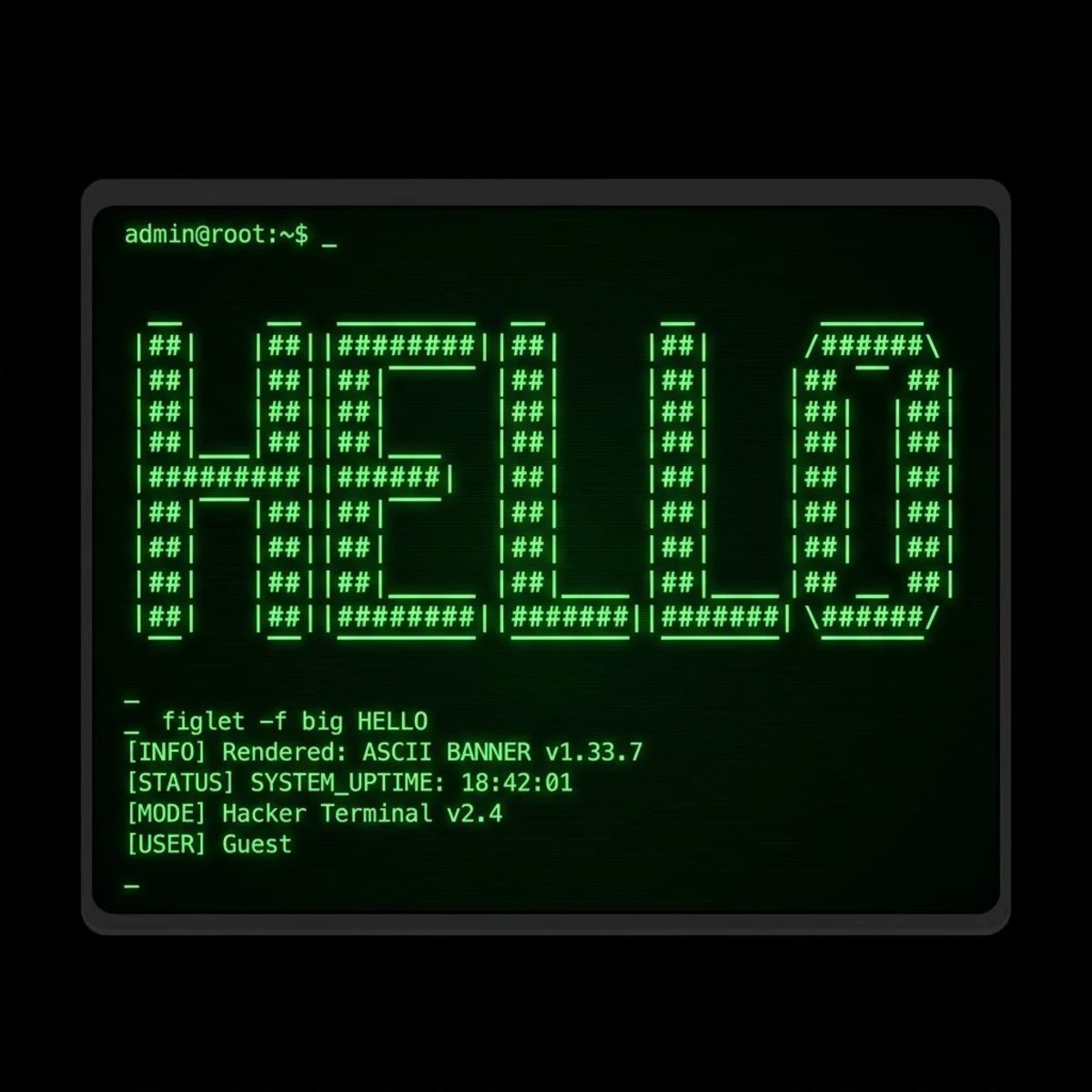
Type your text, pick a font, and get output like:
  _   _      _ _
 | | | | ___| | | ___
 | |_| |/ _ \ | |/ _ \
 |  _  |  __/ | | (_) |
 |_| |_|\___|_|_|\___/
The tool includes 50+ FIGlet fonts, and Standard, Big, Slant, and Banner are popular picks. These banners work well in code comments and tech docs as visual dividers.

Tired of plain screenshots? Try ScreenSnap Pro.
Beautiful backgrounds, pro annotations, GIF recording, and instant cloud sharing, all in one app. Pay $39 once, own it forever.
See pricing and featuresASCII art generator tips for better results
- Match width to context. Terminals are 80 chars wide. Slack clips around 70. GitHub READMEs handle 120.
- Use monospace fonts. ASCII art only lines up in monospace (Courier, Consolas, SF Mono). Regular fonts will break it.
- Try color output for web. The HTML mode maps pixel colors to
tags. - Crop first. Tighter framing = sharper art. Our image cropper makes this quick.
- Try different characters. Use dense ones (
@#W) for dark areas and sparse ones (.) for light. Custom sets give your output a unique feel. - Keep images simple. Clear outlines convert better than busy scenes. If the subject blends in, remove the background first with our transparent background maker.
For README projects, pair ASCII art with a code-to-image tool for clean, polished docs.
Where ASCII art gets used
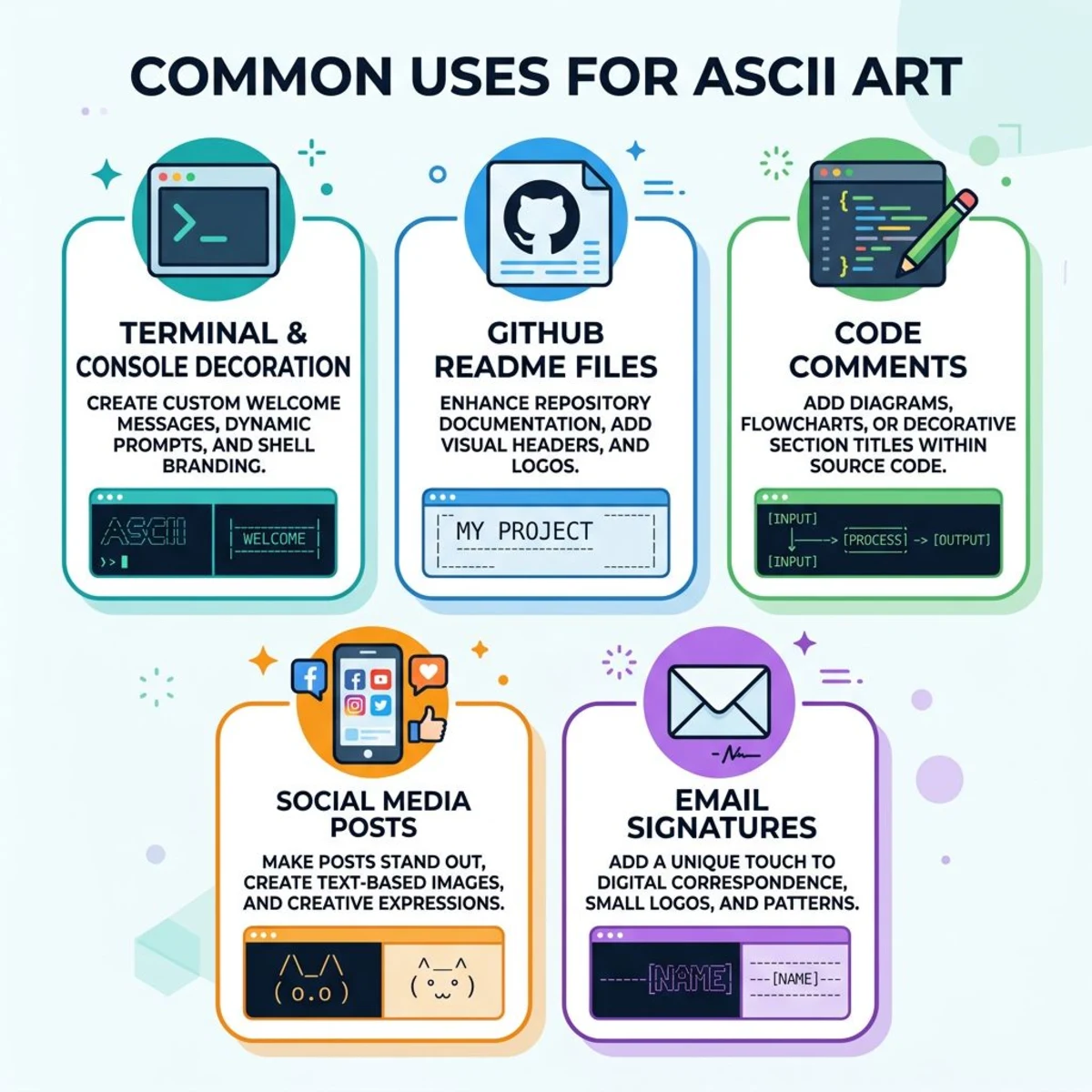
ASCII art is more common than you'd think. Here's where people use it:
- Terminal scripts. Add branded banners to
.bashrcor.zshrcstartup files. A custom FIGlet greeting shows up each time you open a new window. - README headers. Project titles on GitHub stand out with ASCII banners. They look perfect in GitHub's code blocks.
- Code comments. Big ASCII headers help devs find their way through large files. They beat a plain
// ------every time. - Social media. Photo to ASCII content stands out in text-heavy feeds. Devs on Twitter/X share ASCII selfies, and they always get likes.
- Email signatures. Small ASCII logos in plain-text emails add flair. No HTML needed.
- Slack and Discord. Paste ASCII art in code blocks for updates, fun messages, or team inside jokes.
Need to extract text from an image instead? Different workflow, same idea: reading pixels.
Ready to try it? Our ASCII Art Generator runs 100% in your browser, so upload a photo or type text and get instant results. No signup, no uploads, completely free.
Frequently Asked Questions

Morgan
Indie DeveloperIndie developer, founder of ScreenSnap Pro. A decade of shipping consumer Mac apps and developer tools. Read full bio
@m_0_r_g_a_n_