How to Convert GIF to MP4: 5 Free Methods Compared (Mac, Windows, CLI · 2026)
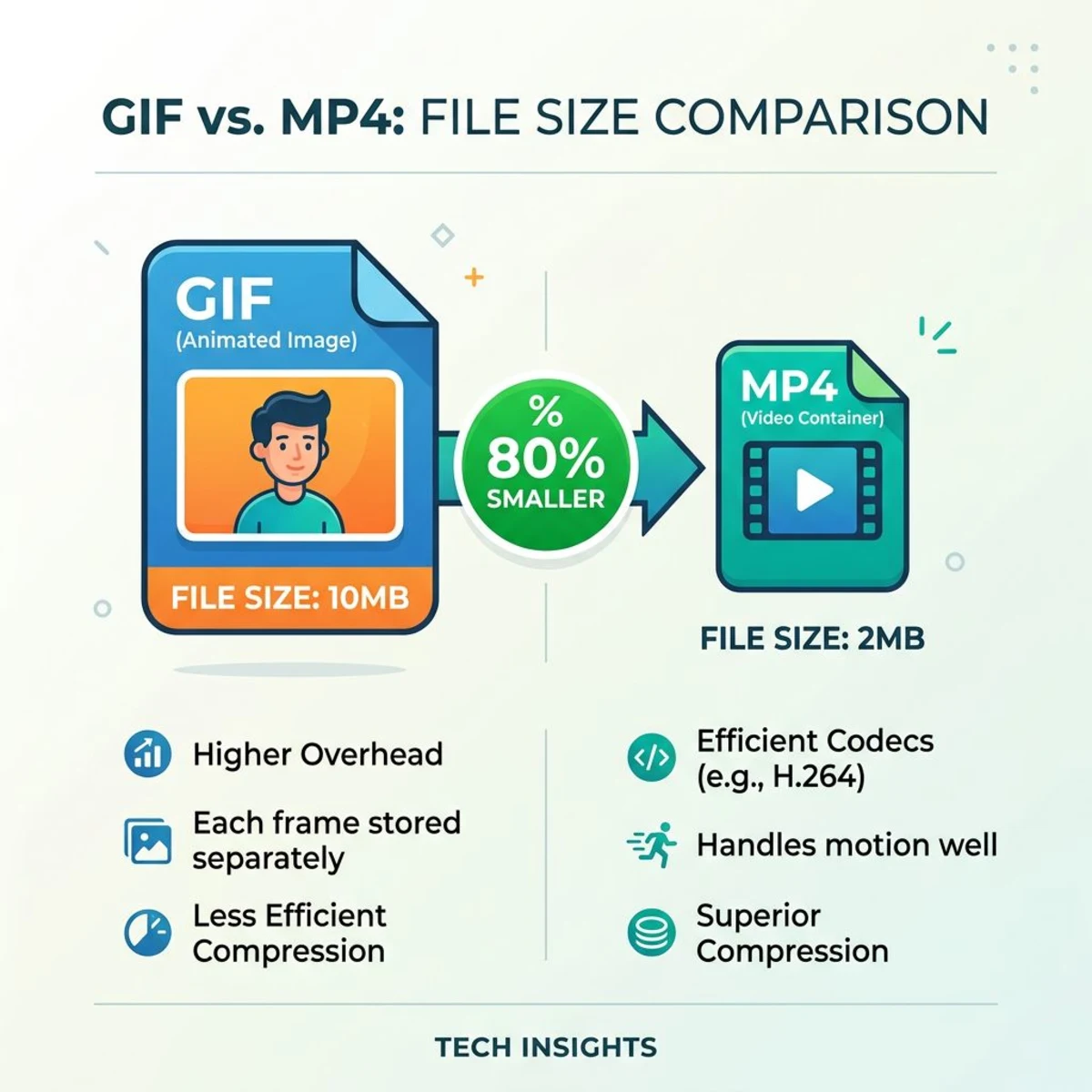
GIF to MP4 conversion turns animated GIF files into standard video format, reducing file size by up to 80% while improving playback quality. Whether you're embedding animations on a website, sharing clips on social media, or optimizing file storage, converting your GIFs to MP4 is almost always the smarter choice. If you're starting from a screen recording made in ScreenSnap Pro, you can skip the GIF middle step entirely.
GIFs have been around since 1987, and they're showing their age. Limited to 256 colors, no audio support, and surprisingly large file sizes: a 10-second GIF can easily hit 20MB while the same clip as an MP4 might be 2MB.
Here are five free methods to convert GIF to MP4, from browser-based tools to command-line solutions.
Why convert GIF to MP4?
Before jumping into methods, here's why you'd want to convert GIF to video in the first place:
- File size reduction. MP4 uses modern compression (H.264/H.265) that's dramatically more efficient than GIF's LZW compression. Expect 60-90% smaller files.
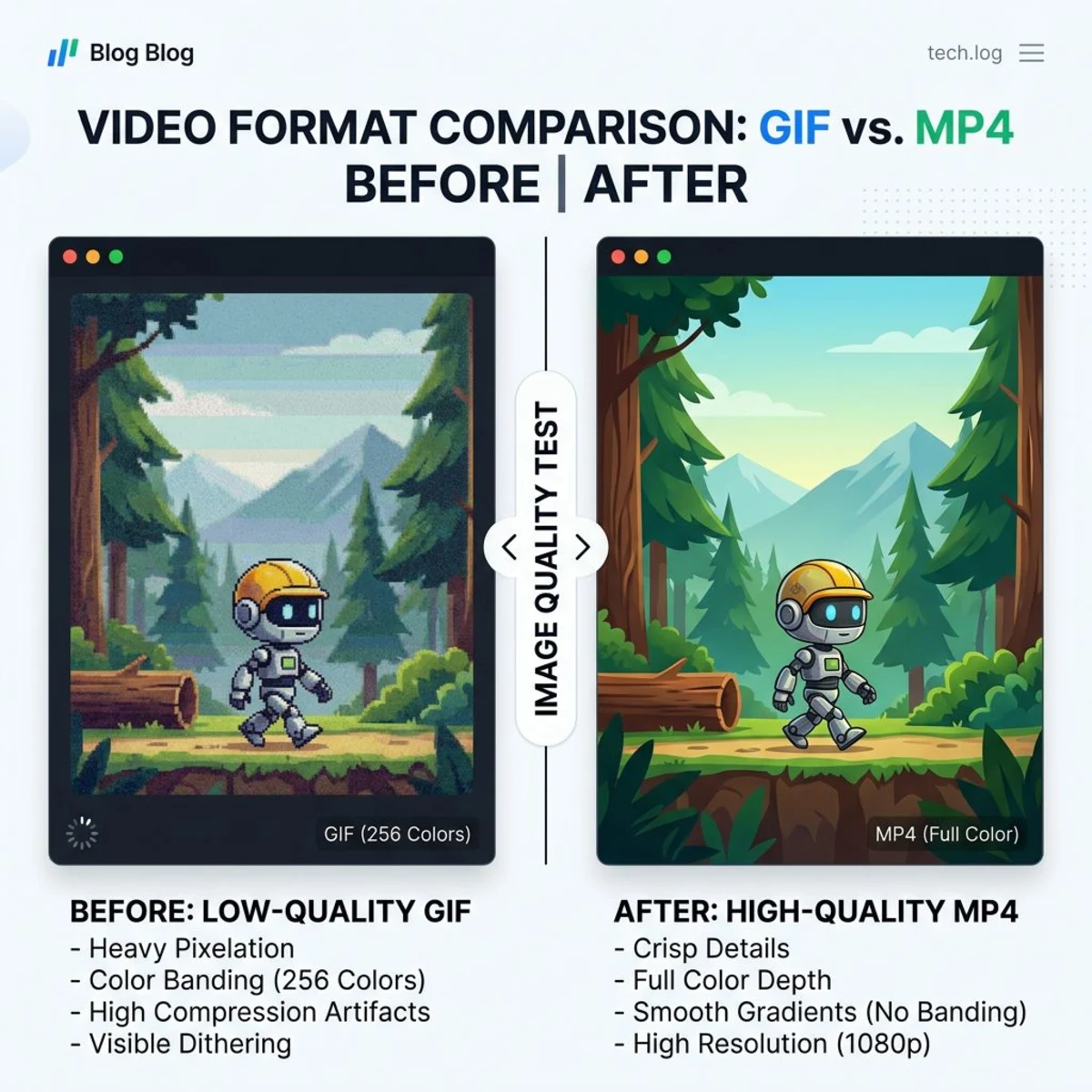
- Better color depth. GIFs are limited to 256 colors per frame. MP4 supports millions of colors, so gradients look smooth instead of banded.
- Faster web loading. Smaller files mean faster page loads. Google's Core Web Vitals penalize heavy GIFs, and switching to MP4 can improve your Largest Contentful Paint score.
- Social media compatibility. Twitter, LinkedIn, and many platforms auto-play MP4 but may struggle with large GIFs. Some platforms even convert GIFs to video behind the scenes.
- Hardware acceleration. Modern devices decode MP4 video using dedicated hardware, meaning smoother playback and less battery drain compared to GIFs.
The only real advantage GIFs still have? Universal support. Every browser, email client, and messaging app handles GIFs without question. But for most use cases, MP4 is the better format.
Method 1: Free online converter (browser-based)
The quickest way to convert a GIF to MP4 is with our free GIF to MP4 converter. It runs entirely in your browser, with no uploads, no signups, and no watermarks.
How to use it
- Open the GIF to MP4 tool.
- Drag and drop your GIF file onto the upload area (or click to browse).
- Wait for the conversion to complete (usually under 5 seconds).
- Click Download MP4 to save the converted video.
Why this method works best
- Privacy-first. Your files never leave your device. The conversion happens locally in your browser using WebAssembly.
- No limits. Convert as many GIFs as you want without daily caps or watermarks.
- No account needed. No email and no signup. Just convert and go.
This is ideal for quick one-off conversions. If you need batch processing or more control over output settings, keep reading.
Method 2: FFmpeg (command line)
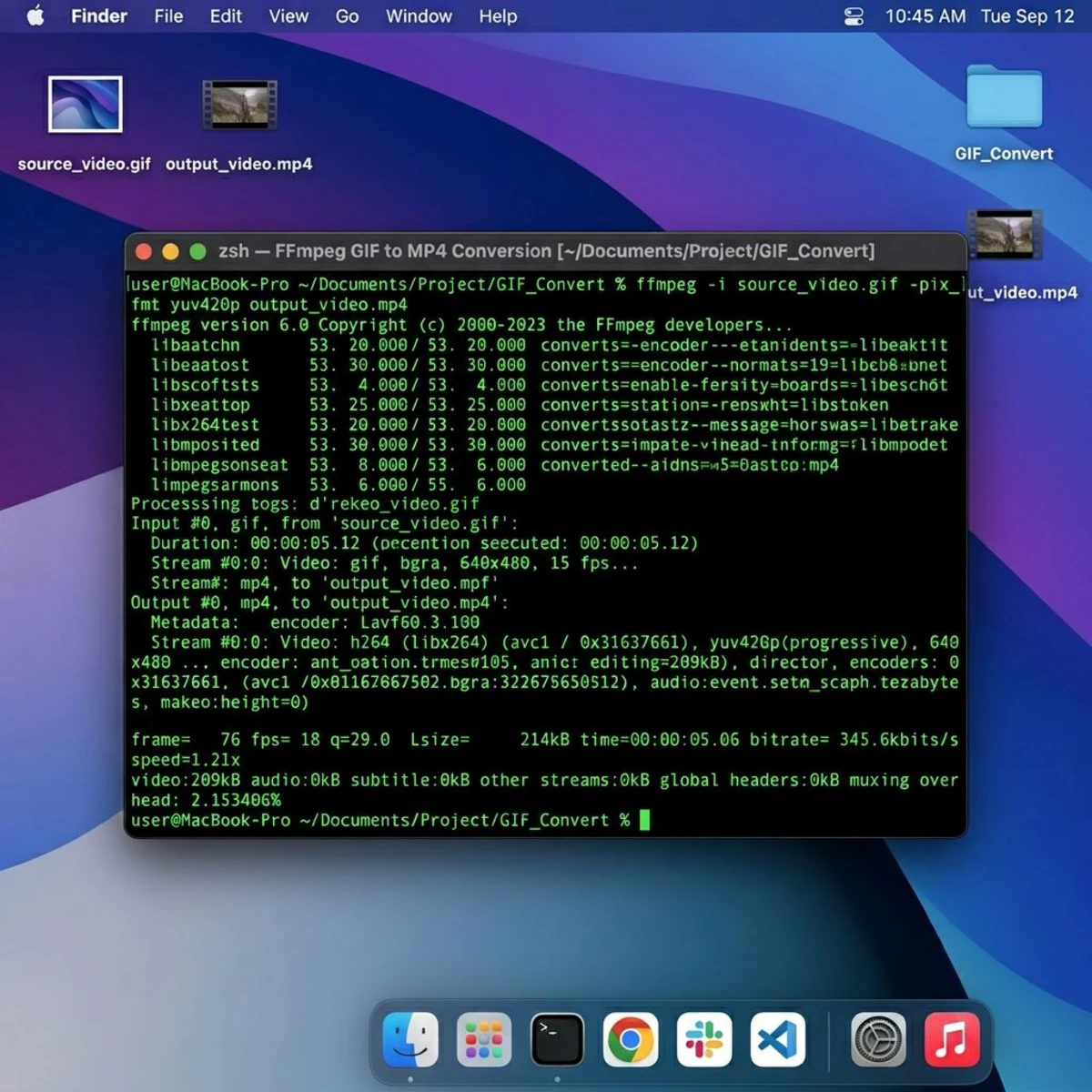
FFmpeg is a free, open-source command-line video converter. It gives you full control over every aspect of the output. If you're a developer or comfortable with Terminal, it offers the most flexibility of the methods here.
Install FFmpeg
On Mac, the easiest way is through Homebrew:
brew install ffmpegOn Windows, download from ffmpeg.org and add it to your PATH. On Linux, use your package manager (apt install ffmpeg on Ubuntu/Debian).
Basic conversion
ffmpeg -i input.gif output.mp4This works, but the default settings aren't optimal. Here's a better command:
Optimized conversion
ffmpeg -i input.gif -movflags faststart -pix_fmt yuv420p -vf "scale=trunc(iw/2)*2:trunc(ih/2)*2" output.mp4Here's what each flag does:
-movflags faststart: Moves metadata to the beginning of the file so the video can start playing before it fully downloads. Essential for web playback.-pix_fmt yuv420p: Uses the most compatible pixel format. Without this, some players (especially on mobile) won't play the video.-vf "scale=trunc(iw/2)2:trunc(ih/2)2": Ensures the output dimensions are even numbers. H.264 requires even dimensions, and some GIFs have odd pixel counts.
Batch conversion
To convert all GIFs in a folder:
for f in *.gif; do
  ffmpeg -i "$f" -movflags faststart -pix_fmt yuv420p \
    -vf "scale=trunc(iw/2)*2:trunc(ih/2)*2" "${f%.gif}.mp4"
done
FFmpeg is overkill for casual use, but if you regularly process GIFs or need specific codec settings, it handles the job well. It's also great for developers who want to automate screen recording workflows with scripts.
Method 3: Mac Shortcuts app
If you're on macOS, the built-in Shortcuts app can create a reusable GIF to MP4 converter without installing anything.
Set up the shortcut
- Open Shortcuts (search in Spotlight with
⌘ + Space). - Click + to create a new shortcut.
- Search for the Encode Media action and add it.
- Set the format to MP4 in the action settings.
- Add a Save File action after it.
- Name your shortcut "GIF to MP4."
Use it
Right-click any GIF file in Finder → Quick Actions → GIF to MP4. The converted MP4 saves wherever you choose.
You can also add it to your menu bar for quick access. This method is native to macOS, meaning no third-party software and zero privacy concerns.
If you're already using Shortcuts for other Mac automation, this fits right into your workflow. Paired with the QuickTime screen recording workflow, you can record, convert, and share all within macOS.

Tired of plain screenshots? Try ScreenSnap Pro.
Beautiful backgrounds, pro annotations, GIF recording, and instant cloud sharing, all in one app. Pay $39 once, own it forever.
See pricing and featuresMethod 4: EzGIF (online)
EzGIF is one of the most popular online GIF tools. It's been around for years and handles GIF to MP4 conversion reliably.
How to use it
- Go to ezgif.com/gif-to-mp4.
- Upload your GIF (up to 50MB) or paste a URL.
- Click Convert to MP4.
- Download the result.
Pros and cons
Pros:
- Simple interface with no learning curve.
- Supports URL-based conversion (paste a GIF link directly).
- Also offers GIF editing tools (crop, resize, optimize) on the same site.
Cons:
- Files are uploaded to their servers (privacy consideration).
- 50MB file size limit.
- Ads on the page can be distracting.
- Server-side processing means it's slower than local tools.
EzGIF is a solid choice when you need quick conversion and don't mind uploading your files. If you'd rather keep files local, use Method 1 instead.
Method 5: CloudConvert (batch processing)
CloudConvert is a professional-grade conversion platform that supports over 200 file formats. Its strength is batch processing: converting multiple GIFs at once.
How to use it
- Go to cloudconvert.com/gif-to-mp4.
- Upload one or more GIF files.
- Optionally adjust settings (resolution, codec, quality).
- Click Convert and download the results.
When to use CloudConvert
- You have multiple GIFs to convert at once.
- You need specific output settings (custom resolution, bitrate, codec).
- You want to integrate with cloud storage (Google Drive, Dropbox, OneDrive).
CloudConvert offers 25 free conversions per day. Beyond that, you'll need a paid plan. For occasional batch jobs, the free tier is plenty.
GIF vs MP4: size and quality comparison
The difference between GIF and MP4 isn't subtle. Here's how they compare across real-world files:
| Metric | GIF | MP4 |
|---|---|---|
| Colors | 256 per frame | 16.7 million |
| Compression | LZW (lossless) | H.264/H.265 (lossy) |
| Audio | Not supported | Full audio support |
| Typical 10s clip | 10-30 MB | 1-5 MB |
| Browser support | Universal | Universal (HTML5 video) |
| Transparency | Supported (1-bit) | Not supported (use WebM) |
| Loop playback | Native | Requires player/code |
In practical terms, a typical screen recording GIF at 1080p resolution can easily exceed 20MB. The same clip as an MP4 with H.264 compression? Usually under 3MB.
That's why most social platforms convert uploaded GIFs to video format internally. Twitter, for example, serves all "GIFs" as MP4 videos, and you just don't notice because the player mimics GIF behavior (autoplay, loop, muted).
If you're recording GIFs on your Mac for sharing, consider whether MP4 might be the better output format from the start. Tools like ScreenSnap Pro let you record GIFs directly from your screen, which you can then convert to MP4 for sharing where video is more efficient.
How to preserve quality during conversion
Converting GIF to MP4 can actually improve visual quality since you're moving from 256 colors to millions. But there are some pitfalls to avoid.
Keep the original frame rate
GIFs can have variable frame delays. Some tools default to 30fps output regardless of the source, which can speed up or slow down the animation. FFmpeg handles this correctly by default, but online tools may not.
Don't upscale
If your GIF is 480px wide, don't convert it to a 1080p MP4. Upscaling doesn't add detail. It just makes the file bigger. Keep the output resolution the same as the input, or let the tool handle it automatically.
Use the right codec
H.264 (AVC) is the safest choice for compatibility. H.265 (HEVC) produces smaller files but isn't supported everywhere yet. If the video is destined for the web, stick with H.264.
Watch for transparency
GIFs support transparency (1-bit alpha). MP4 does not. If your GIF uses a transparent background, it'll be replaced with black in the MP4 output. For transparency, convert to WebM (VP9 with alpha) instead.
Handle looping correctly
GIFs loop infinitely by default. MP4 files don't have a loop flag, so they play once and stop. If you need looping behavior (like on a webpage), use the HTML loop attribute:
<video autoplay loop muted playsinline>
  <source src="animation.mp4" type="video/mp4">
</video>
This mimics GIF behavior while keeping all the benefits of MP4 compression.
If you're working with GIF files that are already too large, you might want to compress them first before converting. And if you need to go the other direction (video to GIF), check out our guide on converting MOV to GIF on Mac.
Which method should you choose?
Here's a quick decision guide:
| Situation | Best method |
|---|---|
| Quick single conversion | Method 1 (our online tool) |
| Developer / automation | Method 2 (FFmpeg) |
| Mac user, no installs | Method 3 (Shortcuts) |
| Need URL-based conversion | Method 4 (EzGIF) |
| Multiple files at once | Method 5 (CloudConvert) |
| Privacy-sensitive files | Method 1 or Method 2 |
For most people, the free online converter handles everything you need. Developers and power users will appreciate FFmpeg's flexibility. And if you're regularly working with screen captures and GIFs, a dedicated Mac tool can streamline the entire capture-to-share workflow.
Frequently Asked Questions

Morgan
Indie DeveloperIndie developer, founder of ScreenSnap Pro. A decade of shipping consumer Mac apps and developer tools. Read full bio
@m_0_r_g_a_n_