GIF to PNG: Convert & Extract Frames (2026 Guide)
Need to convert a GIF to PNG? This guide covers five free methods for getting it done, from browser tools to command-line automation. Whether you want a single static image or every frame from an animated GIF, there's an option here for you. If the GIF started as a screen recording, capturing it directly to PNG with ScreenSnap Pro skips the conversion altogether.
Quick answer: use a free online converter
The fastest way to convert GIF to PNG is with a browser-based tool. Our free image format converter handles GIF to PNG conversion instantly, with no signup and no install. Upload your GIF, choose PNG as the output format, and download.
For animated GIFs, you'll get the first frame as a static PNG. If you need every frame extracted, keep reading for methods that handle frame-by-frame extraction.
GIF vs PNG: when and why to convert
Before converting, it helps to understand what you gain (and lose) by switching formats.
| Feature | GIF | PNG |
|---|---|---|
| Colors | 256 max | 16.7 million |
| Transparency | Binary (on/off) | Full alpha channel |
| Animation | Yes | No (static only) |
| File size (static) | Larger | Smaller |
| Compression | Lossless (LZW) | Lossless (deflate) |
| Best for | Simple animations, memes | Screenshots, graphics, photos |
When to convert GIF to PNG:
- You need a static thumbnail from an animated GIF
- You want better color depth and image quality
- You need smooth transparency (semi-transparent edges)
- You're extracting frames for sprite sheets or documentation
- The GIF isn't animated and PNG would be smaller
When to keep the GIF:
- You need the animation to play
- You're sharing on platforms that don't support APNG
- File size is already small enough
Method 1: online converter (any browser)
Online converters work on any device with a browser: Mac, Windows, Linux, even phones. Here's how:
- Open your browser and go to a converter tool like our image format converter
- Upload your GIF file (drag and drop or click to browse)
- Select PNG as the output format
- Click Convert
- Download the resulting PNG file
Pros: No installation needed. Works everywhere. Fast for single files.
Cons: Requires internet. Not ideal for batch processing. Most tools only export the first frame of animated GIFs.
Want to extract all frames from an animated GIF online? ezgif.com has a GIF splitter that exports each frame as a separate PNG.
Method 2: Preview on Mac (built-in)
Mac users already have everything they need. Preview (the default image viewer) handles GIF to PNG conversion natively.
- Right-click your GIF file and select Open With > Preview
- Click File > Export in the menu bar
- In the Format dropdown, select PNG
- Choose your save location
- Click Save
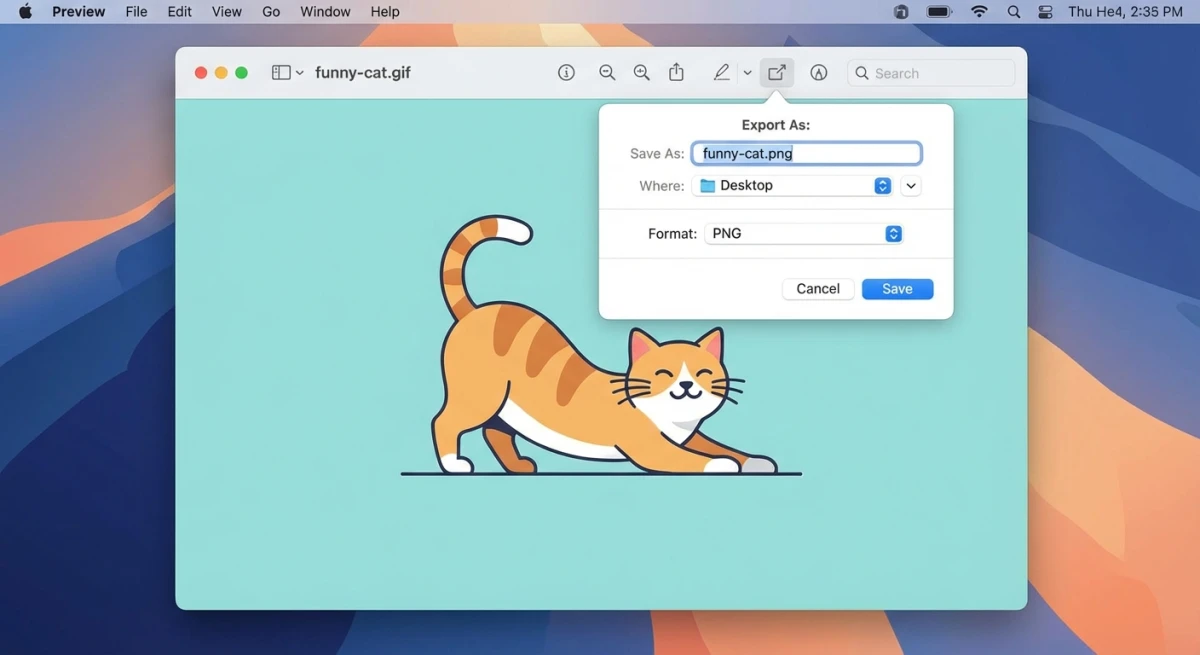
This converts the first frame of an animated GIF to a static PNG. Preview preserves transparency, so any transparent areas in your GIF carry over to the PNG.
Pro tip: If you need to crop the image before exporting, use Preview's selection tool (⌘ + K to crop) before choosing Export.
For a deeper dive into Preview's capabilities, check out our Mac Preview app guide.
Method 3: GIMP (free, cross-platform)
GIMP gives you more control, especially with animated GIFs. You can pick specific frames or export them all.
Convert a static GIF to PNG
- Open GIMP and go to File > Open to load your GIF
- Go to File > Export As
- Change the file extension to
.png - Click Export and confirm settings
Extract a specific frame from an animated GIF
- Open the animated GIF in GIMP, where each frame loads as a separate layer
- In the Layers panel, find the frame you want
- Right-click the layer and select Flatten Image (or hide other layers)
- Export as PNG
Export all frames
- Open the animated GIF in GIMP
- Go to File > Export As
- Name the file with a frame number pattern (e.g.,
frame.png) - GIMP will ask if you want to export layers as separate files
GIMP is free and available from gimp.org for Mac, Windows, and Linux.
Method 4: FFmpeg (extract all frames via CLI)
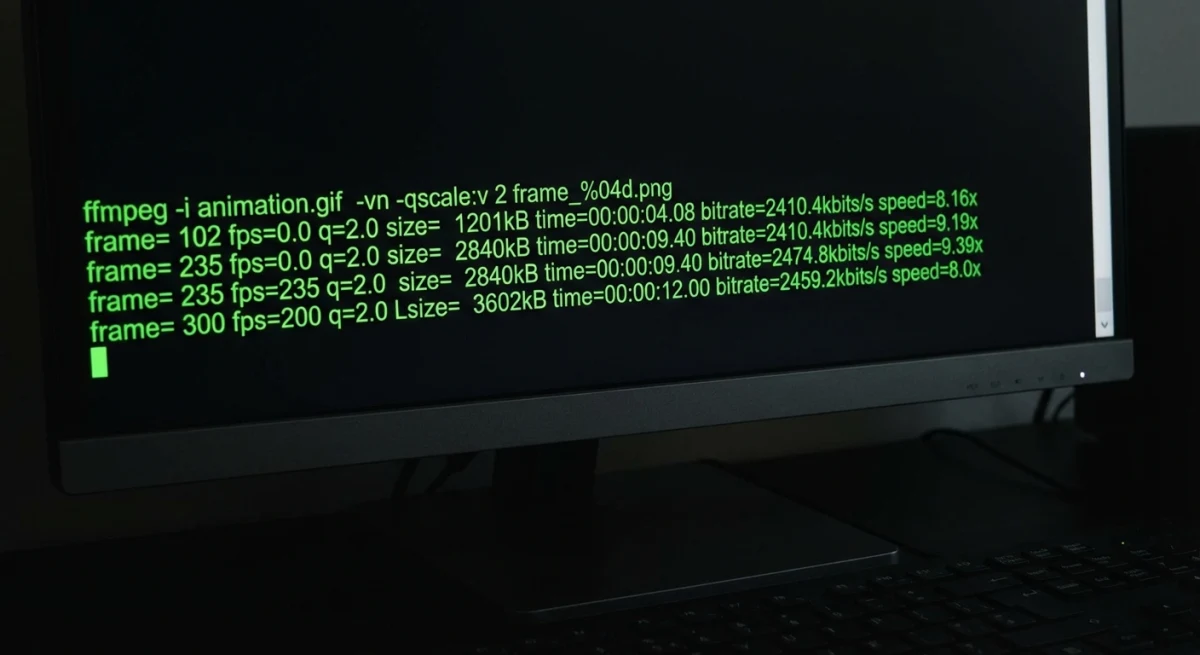
FFmpeg is a common tool for extracting every frame from an animated GIF. One command gives you numbered PNG files for the entire animation.
Install FFmpeg
Mac (Homebrew):
brew install ffmpegWindows (Chocolatey):
choco install ffmpegLinux:
sudo apt install ffmpegExtract all frames
ffmpeg -i animation.gif -vsync vfr frame_%04d.pngThis creates frame_0001.png, frame_0002.png, and so on. You get one PNG per frame. The -vsync vfr flag handles frames with different durations correctly.
Extract a specific frame
Want only the 10th frame?
ffmpeg -i animation.gif -vf "select=eq(n\,9)" -vframes 1 frame10.pngFrame counting starts at 0, so n\,9 grabs the 10th frame.
Extract at a specific time
ffmpeg -i animation.gif -ss 00:00:02 -vframes 1 at_two_seconds.pngThis grabs a single frame at the 2-second mark.

Tired of plain screenshots? Try ScreenSnap Pro.
Beautiful backgrounds, pro annotations, GIF recording, and instant cloud sharing, all in one app. Pay $39 once, own it forever.
See pricing and featuresMethod 5: Python script (batch automation)
For converting multiple GIFs at once, a Python script with Pillow handles it efficiently.
Install Pillow
pip install PillowConvert all GIFs in a folder
from PIL import Image
import os

input_folder = "gifs"
output_folder = "pngs"
os.makedirs(output_folder, exist_ok=True)

for filename in os.listdir(input_folder):
    if filename.lower().endswith(".gif"):
        try:
            img = Image.open(os.path.join(input_folder, filename))
            png_name = filename.rsplit(".", 1)[0] + ".png"
            img.save(os.path.join(output_folder, png_name), "PNG")
            print(f"Converted: {filename} → {png_name}")
        except Exception as e:
            print(f"Skipped {filename}: {e}")
The try/except block catches corrupted or unreadable files. The script logs which files failed so you can check them manually.
Extract every frame from an animated GIF
from PIL import Image
import os

def extract_frames(gif_path, output_dir):
    try:
        img = Image.open(gif_path)
    except FileNotFoundError:
        print(f"File not found: {gif_path}")
        return
    except Exception as e:
        print(f"Cannot open {gif_path}: {e}")
        return

    os.makedirs(output_dir, exist_ok=True)

    frame = 0
    while True:
        try:
            img.seek(frame)
            # Convert to RGBA to preserve transparency
            rgba = img.convert("RGBA")
            rgba.save(os.path.join(output_dir, f"frame_{frame:04d}.png"), "PNG")
            frame += 1
        except EOFError:
            break

    print(f"Extracted {frame} frames from {gif_path}")

extract_frames("animation.gif", "frames")
This version includes error handling for missing or corrupted files. The convert("RGBA") call makes sure each frame keeps its transparency data intact.
Process an entire folder of animated GIFs
If you have multiple animated GIFs and want every frame from each one:
from PIL import Image
import os

gif_folder = "gifs"
output_base = "all_frames"

for filename in os.listdir(gif_folder):
    if not filename.lower().endswith(".gif"):
        continue

    gif_path = os.path.join(gif_folder, filename)
    gif_name = filename.rsplit(".", 1)[0]
    output_dir = os.path.join(output_base, gif_name)
    os.makedirs(output_dir, exist_ok=True)

    try:
        img = Image.open(gif_path)
        frame = 0
        while True:
            try:
                img.seek(frame)
                img.convert("RGBA").save(
                    os.path.join(output_dir, f"frame_{frame:04d}.png"), "PNG"
                )
                frame += 1
            except EOFError:
                break
        print(f"{filename}: {frame} frames → {output_dir}/")
    except Exception as e:
        print(f"Skipped {filename}: {e}")
Each GIF gets its own subfolder under all_frames/. This keeps thousands of frames organized instead of dumping everything into one directory.
Extracting individual frames from animated GIFs
Frame extraction is the top reason people convert animated GIF to PNG. Here's a quick guide to picking the right method:
| Need | Best method |
|---|---|
| One specific frame | Preview (Mac) or GIMP |
| All frames quickly | FFmpeg CLI |
| All frames + processing | Python + Pillow |
| Quick single frame (any OS) | Online tool |
| Batch from multiple GIFs | Python script |
Working on documentation or tutorials? You can annotate each frame with arrows and labels to make your content clearer, then rebuild the edited frames into a GIF once the markup is done.
Preserving transparency when converting
GIF and PNG handle transparency differently. This can cause unexpected results if you're not prepared.
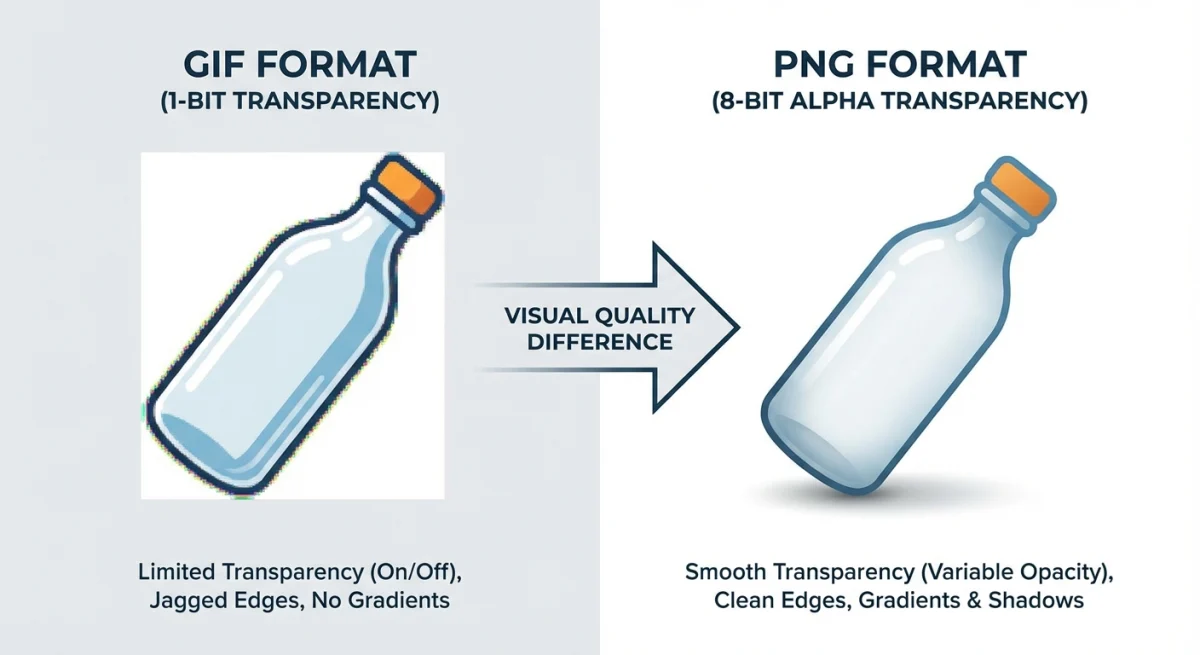
GIF transparency is binary. Each pixel is either fully transparent or fully opaque. There's no middle ground and no partial see-through effects.
PNG transparency uses an alpha channel. It supports 256 levels of opacity, giving you smooth edges and semi-transparent effects.
When converting GIF to PNG:
- Transparency carries over automatically in all methods above
- You won't lose any transparent areas
- The binary transparency from the GIF stays binary in the PNG, so edges won't magically become smooth
- To get smooth transparency, edit the PNG afterward in GIMP or Photoshop
If you work with transparent images often, our transparent background maker can help clean up rough edges.
Batch converting multiple GIFs
Manual methods don't scale when you have dozens or hundreds of GIFs. Here are faster options:
macOS: Automator Quick Action
- Open Automator and create a new Quick Action
- Add a Run Shell Script action
- Set "Pass input" to as arguments
- Use this script:
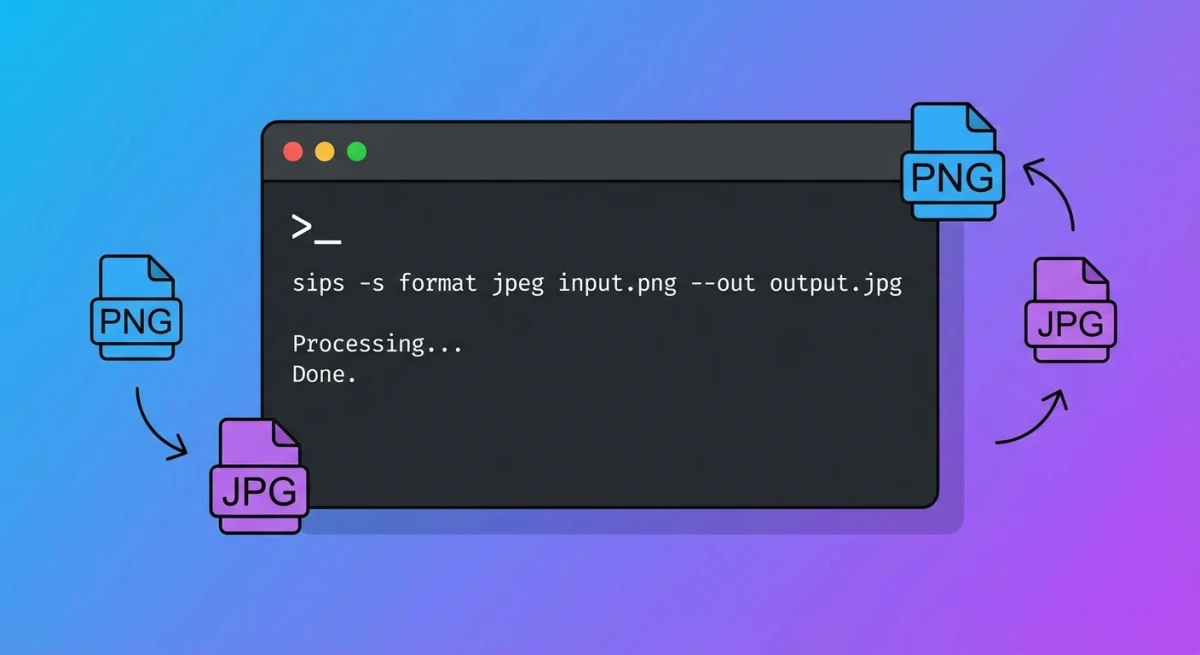
for f in "$@"; do
    sips -s format png "$f" --out "${f%.gif}.png"
done- Save as "Convert to PNG"
Now you can right-click any GIF (or selection of GIFs) in Finder and run the conversion from the Quick Actions menu.
Cross-platform: FFmpeg batch
for f in *.gif; do
    ffmpeg -i "$f" -vframes 1 "${f%.gif}.png"
done
This grabs the first frame of each GIF. Remove -vframes 1 to extract all frames instead. Each GIF produces its own set of numbered outputs.
If you need to compress the resulting PNGs, our free image compressor can reduce file sizes without visible quality loss.
GIF to PNG vs GIF to JPG: which to choose
Both PNG and JPG are common static image formats, but they serve different purposes.
| Factor | GIF → PNG | GIF → JPG |
|---|---|---|
| Transparency | ✅ Preserved | ❌ Lost (white background) |
| Quality | Lossless | Lossy (some degradation) |
| File size | Larger | Smaller |
| Best for | Graphics, screenshots, logos | Photos, thumbnails |
| Color accuracy | Exact match | Slight shifts possible |
Choose PNG when: You need transparency, exact colors, or sharp edges (text, UI elements, logos).
Choose JPG when: You're converting photos or don't need transparency, and smaller file size matters more than perfect quality.
Need to convert between PNG and JPG? Our PNG to JPG converter handles that in seconds.
Troubleshooting common GIF to PNG issues
Converting GIF to PNG is usually straightforward. But a few problems come up often enough to address.
Wrong colors in the output PNG
GIFs are limited to 256 colors per frame. When you convert to PNG, the image keeps that same limited palette. It doesn't magically gain more colors.
If the output looks washed out or off, the original GIF had a reduced color table. Open the PNG in GIMP and convert the color mode to RGB (Image > Mode > RGB) if it's still in Indexed mode.
Black background instead of transparency
Some older GIFs use a specific color (often magenta or lime green) as a transparency stand-in instead of actual transparency data. When you convert to PNG, that color stays visible.
The fix: open the PNG in GIMP, use the Select by Color tool to select the background color, then delete it. This gives you true alpha transparency.
Output PNG files are too large
PNG files can be larger than the source GIF, especially for images with gradients or many colors. A few ways to shrink them:
- Run the files through our image compressor for lossless optimization
- Use
pngquanton the command line for aggressive compression:pngquant --quality=65-80 output.png - If transparency isn't needed, convert to JPG instead for much smaller files
Corrupted or incomplete frame extraction
If FFmpeg or Python only extracts some frames, the GIF file itself may be damaged. Try these steps:
- Open the GIF in a browser to confirm it plays correctly
- Re-download the GIF if the file seems truncated
- Use
gifsicle --info animation.gifto inspect the frame count and check for errors
Extracted frames look different from the animation
Some animated GIFs use frame disposal methods and partial frames to save space. Each frame only stores the pixels that changed from the previous one.
FFmpeg handles this correctly by default. Python's Pillow sometimes doesn't. If your extracted frames look fragmented, add img.convert("RGBA") before saving (as shown in the Python examples above).
Frequently Asked Questions

Morgan
Indie DeveloperIndie developer, founder of ScreenSnap Pro. A decade of shipping consumer Mac apps and developer tools. Read full bio
@m_0_r_g_a_n_