How to Pick Color from Screen on Mac (2026 Guide)
A screen color picker on Mac grabs the exact color of any pixel on your display. Need a hex code for CSS? An RGB value for Figma? An HSL value for your design system? macOS has two built-in tools for this. Third-party apps like ScreenSnap Pro bundle a color picker alongside their screenshot tools for extra speed.
Whether you're matching brand colors, pulling inspiration from a website, or debugging UI inconsistencies, here are five reliable ways to pick any color from your Mac screen.
Method 1: Digital Color Meter (built-in)
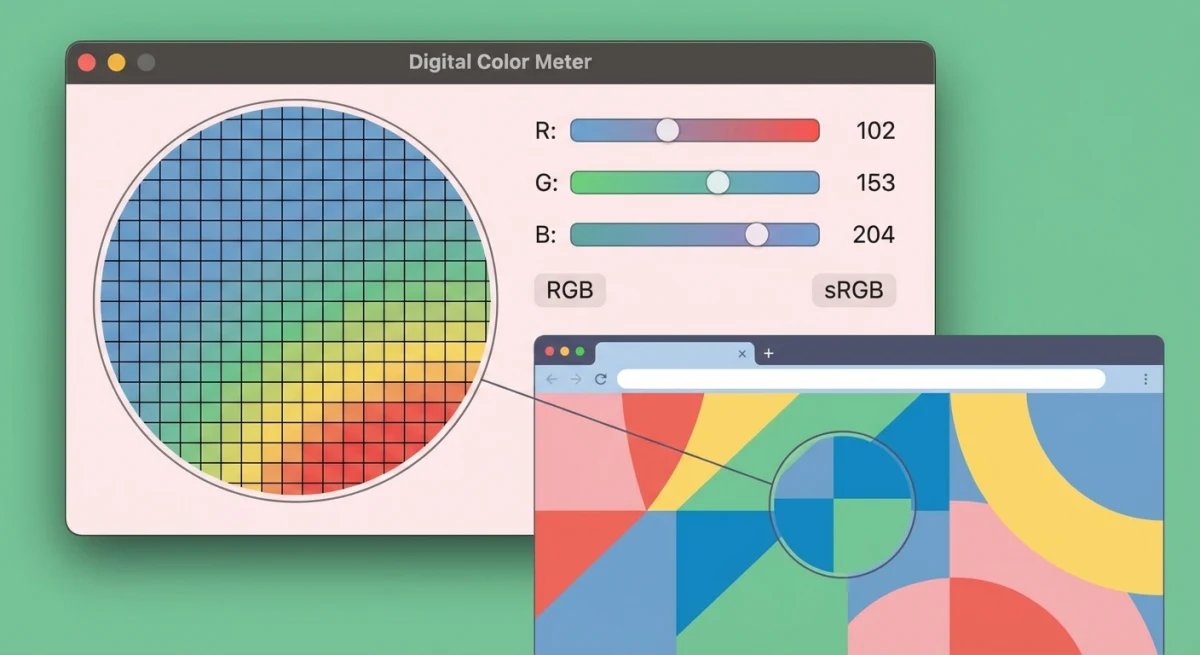
Every Mac ships with Digital Color Meter. This small app shows the color value under your cursor in real time. It's the fastest way to grab a pixel's color. No installs needed.
How to open Digital Color Meter
- Press
⌘ + Spaceto open Spotlight - Type "Digital Color Meter"
- Hit
Returnand the app opens immediately
You'll see a small magnified preview of the area around your cursor, along with live RGB values.
Using the aperture for precision
The aperture size sets how many pixels get sampled at once. Smaller means more exact. Larger means it blends nearby colors together.
- 1×1 pixel: The exact color of one pixel. Best for UI work.
- Larger aperture: Blends the area into one color. Great for photos or gradients.
Drag the slider to the far left for single-pixel mode.
Copying color values
Digital Color Meter supports several copy shortcuts:
⌘ + Shift + C: Copy the color value as text (RGB numbers)⌘ + Option + C: Copy a 74×74 color swatch to clipboard⌘ + L: Lock the current position (so you can move your mouse away)
Pro tip: Want hex values instead? Go to View → Display Values → as Hexadecimal. This swaps the readout from plain RGB numbers to hex codes. Much more handy for web work.
Method 2: System color picker (in-app eyedropper)
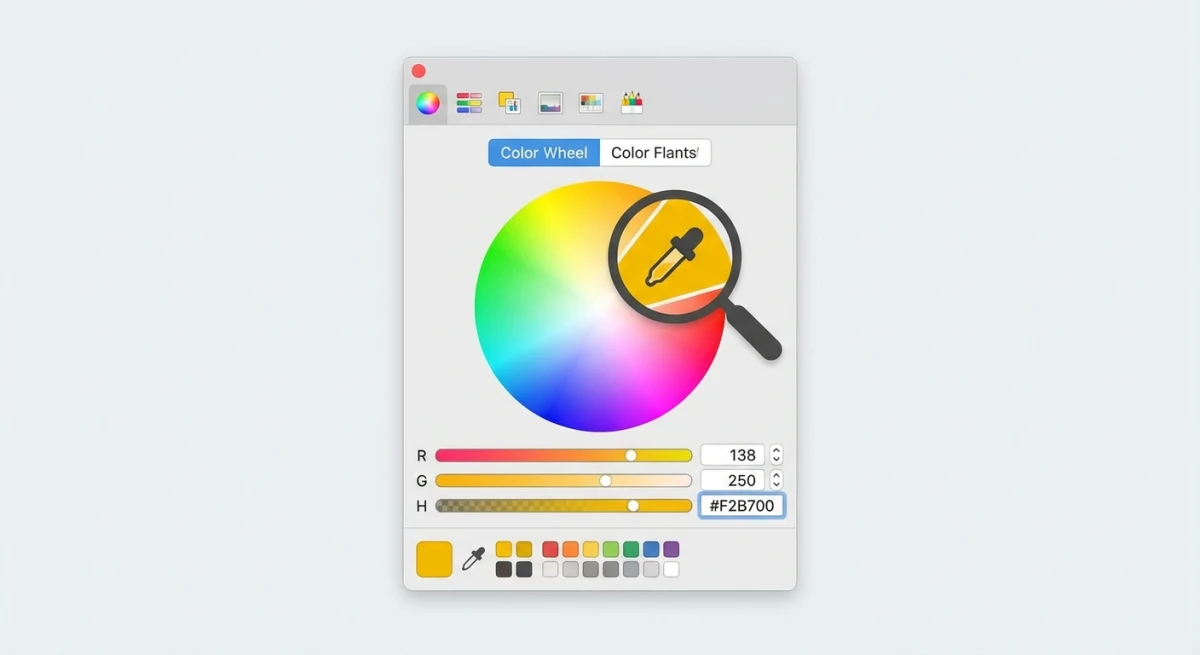
The macOS system color picker pops up when you click a color well in any native app. This includes Pages, Keynote, Notes, and TextEdit. It has a built-in eyedropper that works across your whole screen.
How to use the eyedropper
- Open any app with a color well (TextEdit works great for quick tests)
- Click the color well to open the color picker panel
- Click the eyedropper icon (magnifying glass) next to the main color swatch
- Your cursor turns into a loupe, so click anywhere on screen to sample
Getting hex color values
The system picker doesn't show hex by default. But it's easy to turn on:
- Click the Color Sliders tab (second icon from left)
- Select RGB Sliders from the dropdown
- The Hex Color # field appears below the sliders
- Copy the hex value directly
You can also paste a hex code into this field to set a color. Handy when you have a brand color and want to find shades that go with it.
Method 3: Third-party color picker apps
The built-in tools handle the basics well. But dedicated mac color picker tools give you faster workflows and more output formats. Here are the top picks:
ColorSlurp (free + pro)
ColorSlurp sits in your menu bar. It picks colors in dozens of formats: hex, RGB, HSL, Swift UIColor, CSS, and more. The free version covers most needs. Pro adds palettes and color combos.
Best for: Developers who need colors in code-ready formats.
ColorSnapper 2
ColorSnapper focuses on being exact. It has a sharp magnifier and custom hotkeys. It also lives in the menu bar for quick access.
Best for: Designers who pick colors frequently throughout the day.
System Color Picker (standalone)
System Color Picker by Sindre Sorhus turns the built-in macOS color panel into its own app. It sits in your dock. It adds quick-copy features that the default panel is missing.
Best for: Anyone who wants the familiar macOS picker without opening another app first.
Method 4: Browser developer tools
Picking colors from a website? Your browser has a built-in eyedropper tool for Mac that works great.
Chrome DevTools
- Right-click the element → Inspect
- Find the
colororbackground-colorproperty in the Styles panel - Click the colored square to open the color picker
- Click the eyedropper icon to sample any color on screen
Firefox eyedropper
Firefox has its own eyedropper tool. Go to Tools → Browser Tools → Eyedropper. It works across the full page. One click copies the hex value to your clipboard.
Safari Web Inspector
Open Develop → Show Web Inspector, then click any color swatch in the Styles sidebar to activate Safari's built-in color picker.
Method 5: Screenshot-first workflow
Sometimes it's easier to grab a screenshot first, then pick colors from it at your own pace. This works best when:
- The color is in a video or animation (can't hover on it)
- You need to sample multiple colors from the same design
- The source content is behind a popup or tooltip
Take a screenshot on your Mac. Open it in Preview or any image editor. Then use Digital Color Meter or the system picker to sample colors from the still image.
Tools like ScreenSnap Pro make this even faster. Capture the screen, pin the screenshot to keep it visible, and sample colors as you work. The markup tools also help you tag which colors you've already grabbed.
Converting between color formats
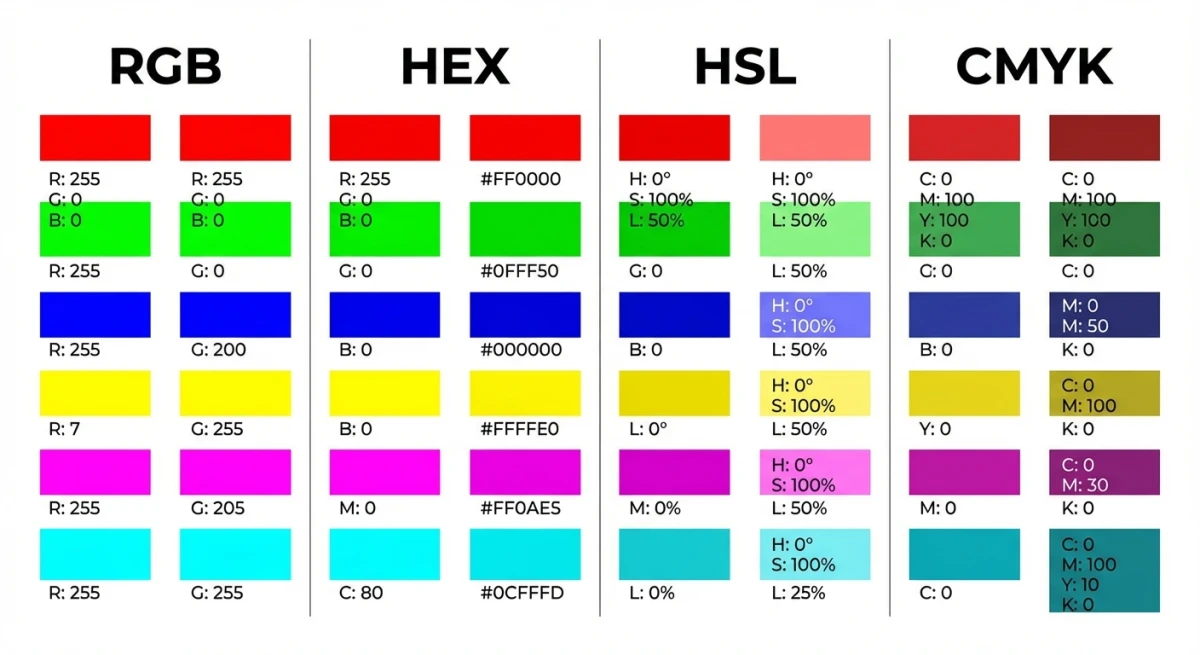
Once you've picked a color, you'll often need it in another format. Here's a quick guide:
| Format | Example | Best for |
|---|---|---|
| Hex | #3B82F6 | CSS, web development |
| RGB | rgb(59, 130, 246) | CSS, general design |
| HSL | hsl(217, 91%, 60%) | Adjusting saturation/lightness |
| CMYK | 76, 47, 0, 4 | Print design |
You can swap between these formats with our free color picker tool. Paste any format and get all the others right away. Need to convert a hex value to RGB quickly? Our hex to RGB converter handles that in one step. Want to check if your colors are easy to read? Try the color contrast checker.

Tired of plain screenshots? Try ScreenSnap Pro.
Beautiful backgrounds, pro annotations, GIF recording, and instant cloud sharing, all in one app. Pay $39 once, own it forever.
See pricing and featuresBuilding color palettes from screen captures
Often you need more than one color. You want the whole palette from a design. Here's a fast way to do it:
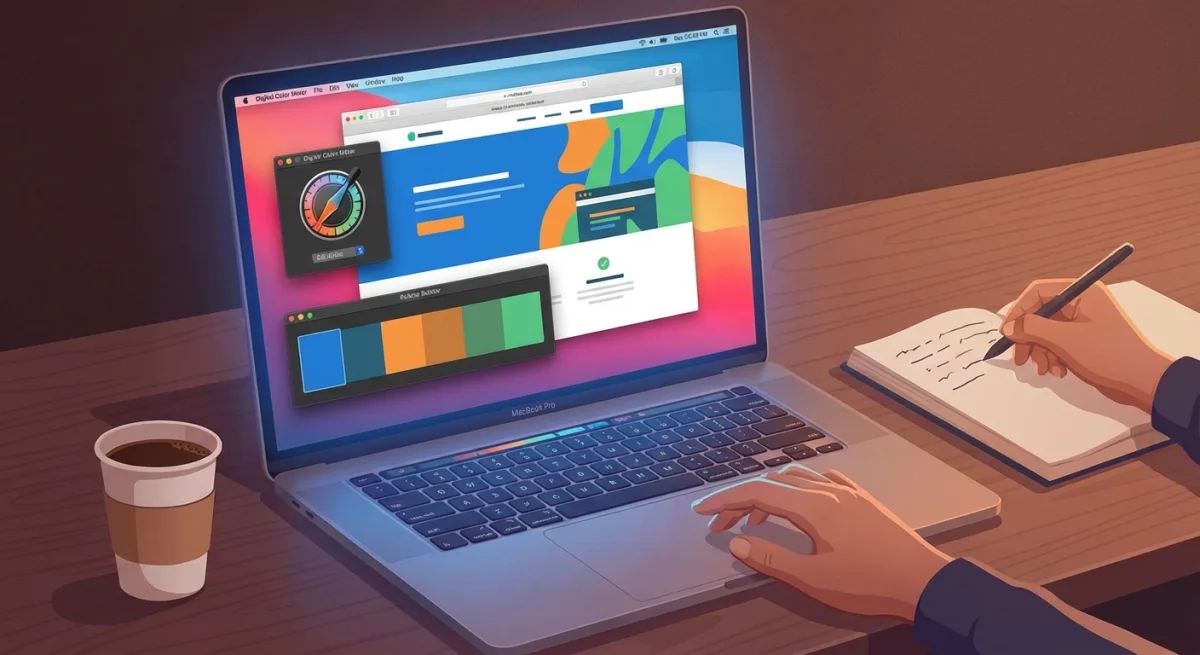
- Capture the reference: screenshot the website, app, or image you want to sample
- Open in Preview: use the magnifier for precision
- Sample 5 to 8 colors: pick primary, secondary, accent, and neutral tones
- Record values: note hex codes in a text file or design tool
- Test combinations: check contrast ratios for accessibility
You can also use our color palette extractor to pull the main colors from any image in one step, or go the other direction and use the image color changer to try a different shade inside the capture itself.
Pro tip: Watch out for color spaces when building palettes. Your Mac display uses Display P3 by default. P3 is wider than sRGB, which most websites use. Colors may shift a bit when you move them to the web. In Digital Color Meter, switch color spaces with the dropdown menu. Pick sRGB for web-safe values.
Keyboard shortcuts cheat sheet
Here's every shortcut you need for fast color picking on Mac:
| Shortcut | Action | Tool |
|---|---|---|
⌘ + Space → "Digital Color Meter" | Open Digital Color Meter | Spotlight |
⌘ + Shift + C | Copy color value as text | Digital Color Meter |
⌘ + Option + C | Copy color swatch | Digital Color Meter |
⌘ + L | Lock cursor position | Digital Color Meter |
⌘ + X | Lock horizontal position | Digital Color Meter |
⌘ + Y | Lock vertical position | Digital Color Meter |
⌘ + Shift + 5 | Open screenshot toolbar | macOS |
Option + ⌘ + I | Open DevTools | Chrome/Safari |
Common color picking mistakes (and how to avoid them)
Even experienced designers run into issues when picking colors from screen. Here are the most common pitfalls:
Wrong color space
Your Mac likely uses Display P3. This is a wider color range than sRGB, which most websites use. A color that looks perfect on your screen might shift in a browser. Set Digital Color Meter to "Display in sRGB" when picking colors for the web.
Picking from a compressed image
JPEG files lose some color data when saved. If you sample from a saved image, the color might be slightly off. When you can, pick from the live source: the website, app, or Figma file. A still image is a copy, and copies drift.
Forgetting about dark mode
macOS shifts colors based on your display mode. A color picked in Light Mode may look very different in Dark Mode. If you're building a design system, sample colors in both modes. Write down the differences.
Not accounting for display calibration
Outside monitors may not match your MacBook's built-in screen. If a color looks right on one display but wrong on the other, it's a setup issue. Go to System Settings → Displays → Color Profile to check. You can set each screen to the same profile for more even results.
Tips for a faster color picking workflow
Speed counts when you're deep in a design session. These small habits save real time:
- Pin Digital Color Meter to your Dock. Right-click its Dock icon and select "Options → Keep in Dock" so it's always one click away
- Learn the keyboard shortcuts.
⌘ + Shift + Cin Digital Color Meter is faster than any menu - Use hex mode by default. Most designers and developers think in hex, so set it once and forget it
- Keep a scratchpad. Paste color values into a Notes document as you work, organized by project
- Combine with screenshots. capture the reference design first, then sample at your own pace without worrying about dynamic content
Working with code screenshots? The right syntax colors make code much easier to read. Sample from your favorite themes and build a custom set.
Saving and organizing your picked colors
Picking colors is only half the job. You also need to store them so you can find them later. Here are a few ways to stay organized:
Use the macOS color picker's built-in swatches
The system color picker has a row of small squares at the bottom. Drag any color into an empty square to save it. These swatches stay across all apps. Great for storing brand colors you use often.
Create a color doc
Open a new file in Notes, Apple Pages, or a plain text editor. Each time you pick a color, paste the hex code and a short label. For example:
- Primary Blue:
#3B82F6 - Dark Text:
#1E293B - Accent Green:
#10B981
This takes seconds and gives you a go-to list. Save it in your project folder so it's always close by.
Export to design tools
If you work in Figma, Sketch, or Adobe XD, add your picked colors as named styles. This keeps the whole team on the same page. You only need to pick the color once. After that, it's a style you can reuse in every file.
Use a color manager app
Apps like ColorSlurp and Swatches let you build named palettes. You can group colors by project, tag them, and export in any format. This is worth it if you juggle many clients or brands.
Quick tip: name your colors
Don't just save hex codes. Give each color a clear name like "CTA Orange" or "Footer Gray." Six months from now, #F97316 means nothing. "CTA Orange" tells you exactly what it's for.
Which method should you use?
The best hex color picker for Mac depends on how you work:
- Quick one-off color check → Digital Color Meter (already installed)
- Designing in a native app → System color picker eyedropper
- Daily design/development work → ColorSlurp or ColorSnapper
- Web-specific colors → Browser DevTools
- Multiple colors from a reference → Screenshot first, then sample
Most designers mix and match. Digital Color Meter for quick checks. A third-party app for daily work. Browser tools for web pages.
Frequently Asked Questions

Morgan
Indie DeveloperIndie developer, founder of ScreenSnap Pro. A decade of shipping consumer Mac apps and developer tools. Read full bio
@m_0_r_g_a_n_