How to Convert Images to GIF on Mac (2026 Guide)
Want to convert images to GIF on your Mac? Whether you're turning a set of screenshots into a quick animation or making a fun loop from photos, there are several ways to do it, and most don't need extra software. If the screenshots come from ScreenSnap Pro, you can record straight to GIF in the first place.
A GIF made from images is just a series of frames played in order, like a flipbook. You can make one from two photos or two hundred. The key is picking the right tool for your needs.
Here are five methods ranked from easiest to most flexible. No paid software needed for most of them.
Why turn images into a GIF?
Before we jump into the how, here's why you might want to make a GIF from images:
- Step-by-step demos. Show a process in action. Screenshot each step, combine into an animated GIF. Better than walls of text.
- Social media posts. Animated GIFs grab more attention than static images on X, Slack, and Discord.
- Product showcases. Cycle through features or UI states in a single file.
- Presentations. Drop a GIF into Keynote or Google Slides for a looping visual.
- Bug reports. Show a UI glitch frame by frame. Way clearer than trying to describe it.
- Fun. Turn vacation photos or pet pictures into a silly animation.
GIFs are lightweight, play everywhere, and don't need a video player. That's why they're still popular in 2026.
Method 1: Use Preview to export as GIF (single frame)
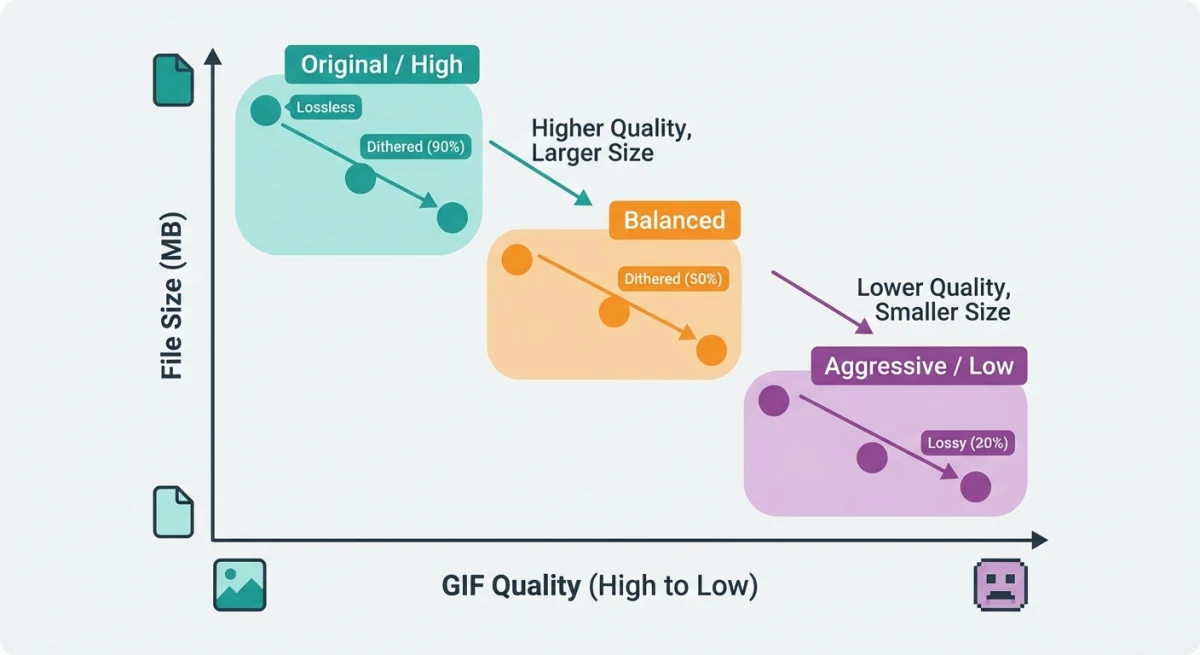
The Mac Preview app can save any image as a GIF file. This is useful when you need to change the format, say from PNG or JPG to GIF, but it only handles one frame at a time.
Steps
- Open your image in Preview (double-click or right-click → Open With → Preview).
- Go to File → Export.
- Click the Format dropdown and select GIF.
- Adjust quality if needed.
- Click Save.
This converts a single image to GIF format. It won't create an animation. For that, keep reading.
When to use this: When someone asks for a GIF file and you only have a PNG or JPG. Also works for batch conversion: open multiple files in Preview, select all in the sidebar (⌘ + A), then File → Export Selected Images and pick GIF.
For more format tricks, check our guide on how to change screenshot format on Mac.
Method 2: Use the Shortcuts app to create animated GIFs
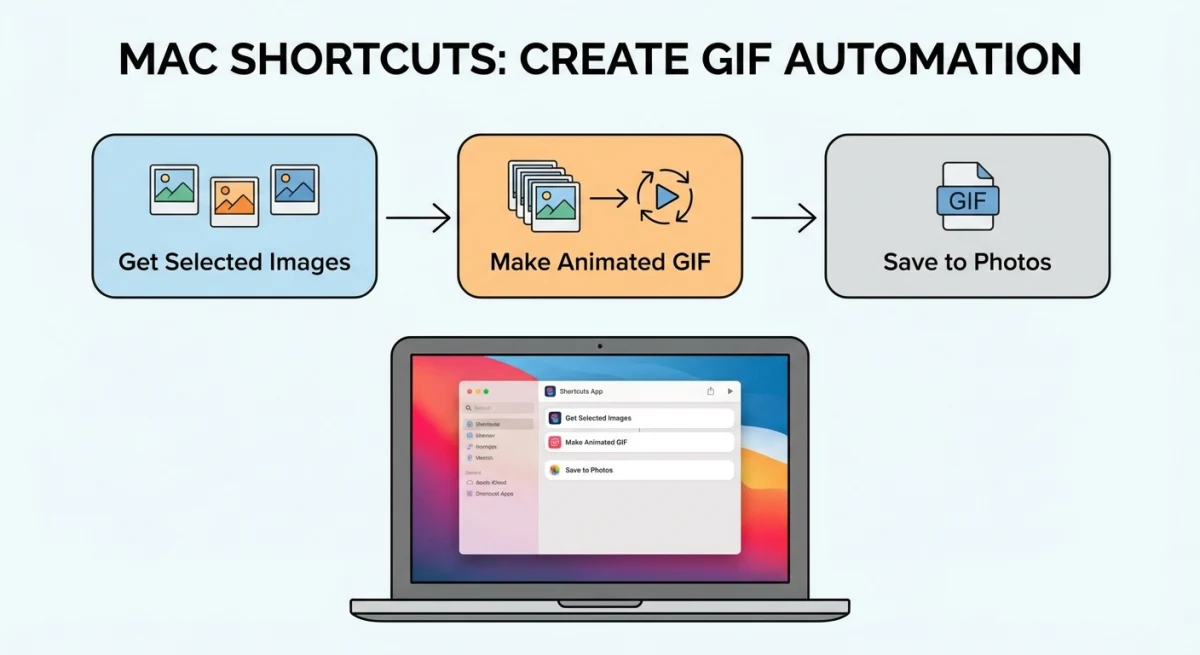
Apple's Shortcuts app can combine a set of images into an animated GIF with no third-party tools. This is the best free native method on Mac.
Build the shortcut
- Open Shortcuts (search in Spotlight or find it in Applications).
- Click + to create a new shortcut.
- Search for and add these actions in order:
- Select Photos. Turn on "Select Multiple"
- Make GIF from [Photos]. Set seconds per photo (0.3 to 0.5 works well for most uses)
- Save to Photo Album (or Quick Look to preview first)
- Name your shortcut something like "Photos to GIF."
- Click the run button ▶️ to test it.
Use it
- Run the shortcut from the Shortcuts app or the menu bar.
- Pick the images you want (in the order you want them to play).
- The shortcut builds the GIF and saves it.
Pro tip: Add a Resize Image action before the GIF step to keep file sizes down. A 500px wide GIF loads much faster than a full-resolution one.
You can also add this shortcut to your right-click menu. In Shortcuts, go to the shortcut's settings and turn on Use as Quick Action and Finder. Then you can select images in Finder, right-click, and pick your shortcut from Quick Actions.
Adjust the speed
The "Seconds Per Photo" setting controls how fast frames play:
- 0.1 to 0.2 seconds. Very fast. Good for smooth animations with many frames.
- 0.3 to 0.5 seconds. Medium. Works for most step-by-step demos.
- 1.0+ seconds. Slow slideshow. Good for photo comparisons.
Method 3: Use online tools (Ezgif, Canva)
If you don't want to set up anything, online GIF maker tools work right in your browser.
Our own image to GIF converter is the shortest version of this route: drop the images in, drag them into order, set the frame delay, and download. It runs entirely in the browser, so nothing is uploaded to a server and there is no account step.
Ezgif
Ezgif is free, fast, and doesn't add watermarks.
- Go to ezgif.com/maker.
- Click Choose Files and select your images.
- Click Upload and make a GIF!
- Set frame delay (in hundredths of a second, so 20 = 0.2s per frame).
- Adjust the order by dragging if needed.
- Click Make a GIF.
- Download the result.
Ezgif also lets you resize, crop, and optimize the GIF before downloading. It handles up to 2000 files at once.
Canva
Canva can also create GIFs, but it's more suited for designed graphics than photo sequences. Upload your images, place them on separate pages, and download as GIF. The free tier works fine for this.
When to use online tools: Quick one-off GIFs when you don't want to install anything or build a shortcut. The downside: you're uploading images to a server. Don't use this for private or sensitive screenshots.

Tired of plain screenshots? Try ScreenSnap Pro.
Beautiful backgrounds, pro annotations, GIF recording, and instant cloud sharing, all in one app. Pay $39 once, own it forever.
See pricing and featuresMethod 4: Capture and create GIFs with ScreenSnap Pro
If you're making GIFs from your screen, like capturing a UI walkthrough or a quick demo, ScreenSnap Pro handles the whole flow natively.
Instead of taking screenshots one by one and stitching them together, you can:
- Start a GIF recording with one shortcut.
- Perform the action on screen.
- Stop recording, and ScreenSnap Pro saves the GIF directly.
No conversion step. No stitching. The result is a smooth animated GIF of whatever happened on your screen.
This is the fastest path from "I want to show this" to "here's a GIF." For more on this workflow, see our full guide on how to record GIFs on Mac.
You can also use ScreenSnap Pro alongside other methods. Take screenshots with its annotation tools, then combine them into a GIF using the Shortcuts method above. Add backgrounds to your screenshots first for a polished result.
ScreenSnap Pro costs $39 one-time. No subscription. It also handles regular screenshots, annotations, cloud sharing, and more.
Method 5: Use Terminal with ImageMagick (developer option)
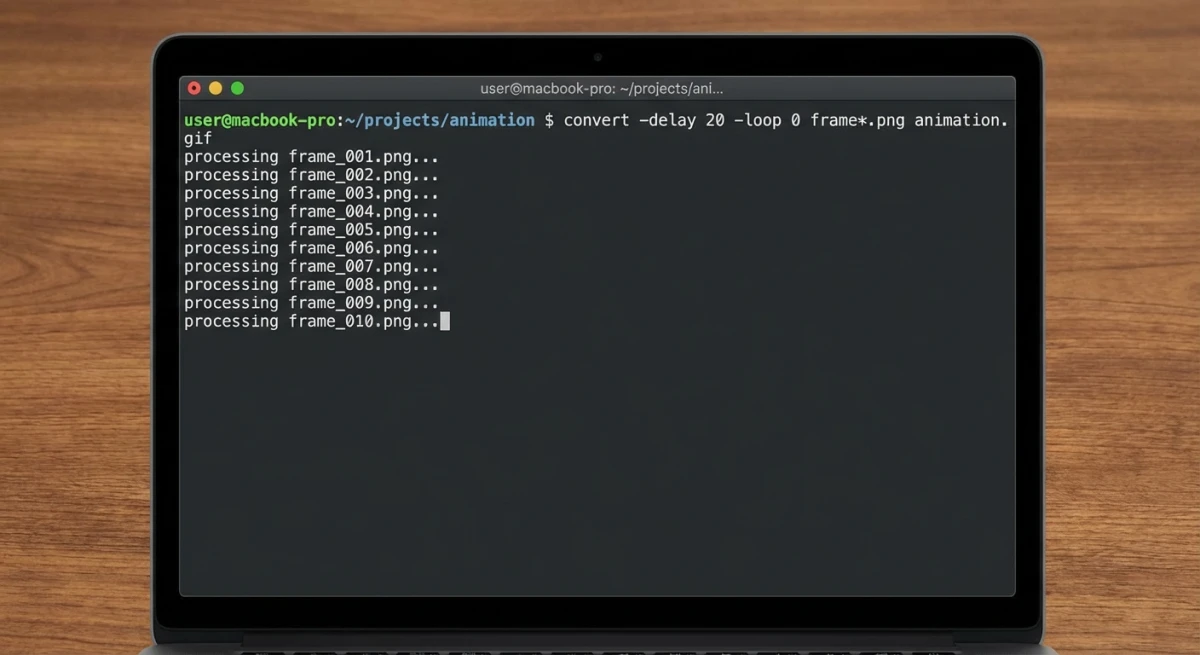
For developers and power users, ImageMagick creates GIFs from the command line with full control over every setting.
Install ImageMagick
brew install imagemagickIf you don't have Homebrew, install it first from brew.sh.
Create a GIF from images
magick frame1.png frame2.png frame3.png -delay 30 -loop 0 output.gifWhat each flag does:
-delay 30: 30 hundredths of a second between frames (0.3s)-loop 0: loop forever (use-loop 1for play-once)- Images are listed in the order they should play
Batch from a folder
magick /path/to/frames/*.png -delay 20 -loop 0 animation.gifThis grabs all PNGs in the folder, sorted by filename. Name your files with numbers (001.png, 002.png, etc.) to control the order.
Advanced options
# Resize frames to 500px wide
magick *.png -resize 500x -delay 25 -loop 0 output.gif

# Optimize file size
magick *.png -delay 25 -loop 0 -layers Optimize output.gif

# Set different delays per frame
magick \( frame1.png -delay 100 \) \( frame2.png -delay 20 \) \( frame3.png -delay 20 \) -loop 0 output.gif
ImageMagick is the most powerful option. But it needs comfort with the terminal. For most people, the Shortcuts app or an online tool is easier.
Tips for better GIF quality and smaller files
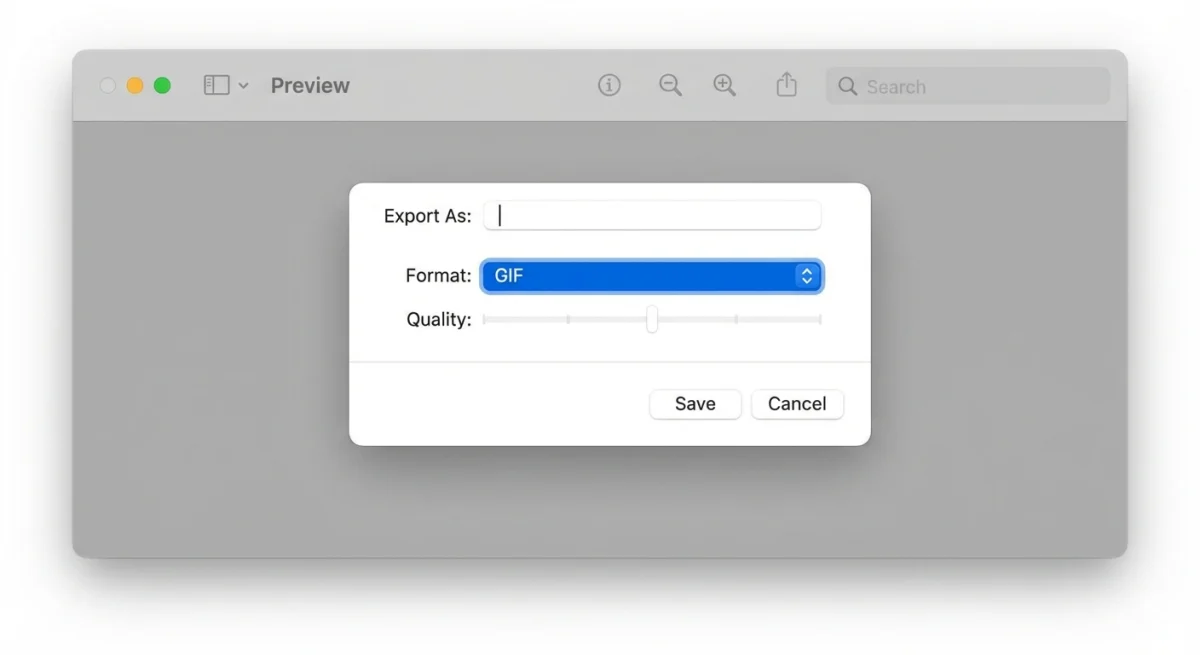
GIFs can get huge fast. A 10-frame full-resolution GIF might be 20MB+. Here's how to keep them sharp and small:
Resize before converting
Don't make GIFs at full screen resolution. For web use, 600 to 800px wide is plenty. For Slack or chat, 400 to 500px is fine. Resize your source images first, or use a resize step in your Shortcuts workflow.
Use fewer colors
GIFs support up to 256 colors per frame. If your images use lots of gradients, the GIF format will look grainy. Screenshots with flat UI elements convert much better than photos with smooth gradients.
In ImageMagick, you can limit colors:
magick *.png -colors 128 -delay 25 -loop 0 output.gifPick the right frame delay
- Too fast (under 0.1s) and the animation looks frantic.
- Too slow (over 1s) and viewers lose interest.
- Sweet spot for most uses: 0.2 to 0.5 seconds per frame.
Optimize after creating
Online tools like Ezgif have a GIF optimizer that strips unnecessary data and reduces file size. Our GIF compressor tool does the same thing right in your browser.
Consider alternatives to GIF
For longer animations, GIF isn't always the best choice:
- WebP supports animation with smaller files. Use our image format converter to try it.
- MP4 is much smaller for the same content. See our guide on converting GIF to MP4.
- APNG (animated PNG) supports more colors than GIF but isn't as widely supported.
For short loops under 30 frames, GIF is still the easiest and most compatible option.
Which method should you use?
| Method | Best for | Animated? | Free? | Skill level |
|---|---|---|---|---|
| Preview export | Format conversion | ❌ Single frame | ✅ | Beginner |
| Shortcuts app | Quick animations | ✅ | ✅ | Beginner |
| Online tools | One-off GIFs | ✅ | ✅ | Beginner |
| ScreenSnap Pro | Screen recordings | ✅ | $39 once | Beginner |
| ImageMagick | Full control, batch | ✅ | ✅ | Advanced |
Most people should start with the Shortcuts app. It's free, native, and handles 90% of use cases. If you're recording your screen, ScreenSnap Pro is the fastest path. If you need full control or are automating GIF creation in scripts, go with ImageMagick.
For related workflows, check out how to combine screenshots on Mac or convert screenshots to PDF.
Common problems and fixes
GIF plays too fast or too slow
This usually means the frame delay is wrong. Most tools default to very fast playback. Set it to 0.3 to 0.5 seconds per frame for a natural speed. If you've already made the GIF, upload it to Ezgif and use the speed tool to fix it without remaking the whole thing.
Frames are out of order
If your images have random names, the tool may sort them wrong. Rename your files with numbers first: 01.png, 02.png, 03.png, and so on. In ImageMagick, list files in the exact order you want on the command line. In the Shortcuts app, select photos in the right order, because they play in the order you picked.
GIF looks grainy or has banding
GIF only supports 256 colors. Photos with smooth gradients (like skies or shadows) will show color banding. This is a limit of the format, not the tool. For better quality on complex images, consider animated WebP or short MP4 videos instead. For screenshots and UI captures, GIF looks great because they use flat colors.
GIF won't loop
Make sure the loop setting is correct. In ImageMagick, use -loop 0 for endless looping. In the Shortcuts app, GIFs loop by default. Some tools let you pick play-once or loop, so double-check the export settings.
Frequently Asked Questions

Morgan
Indie DeveloperIndie developer, founder of ScreenSnap Pro. A decade of shipping consumer Mac apps and developer tools. Read full bio
@m_0_r_g_a_n_