How to Stop Screen Recording on Mac (2026) | 5 Methods
Need to stop screen recording on Mac quickly? Press ⌃ Control + ⌘ Command + Esc to end your recording right away. This shortcut works with both the Screenshot app and QuickTime screen recording, as well as third-party recorders like ScreenSnap Pro. Your video saves to your desktop automatically.
That's the quick answer. But what if that shortcut isn't working? Or maybe you want to know all your options. Keep reading for five reliable ways to end your Mac screen recordings.
Why Knowing How to Stop Recording Matters
When you're capturing your screen, there's no obvious "Stop" button on the display. That would end up in your recording! This leads to a common problem. Users accidentally record too long, creating massive video files they don't need.
Knowing the different stop methods helps you:
- End recordings cleanly without losing footage
- Fix frozen apps when the normal stop doesn't work
- Save storage space by stopping right away
Method 1: The Universal Keyboard Shortcut
The fastest way to stop any screen recording on Mac? Use ⌃ Control + ⌘ Command + Esc.
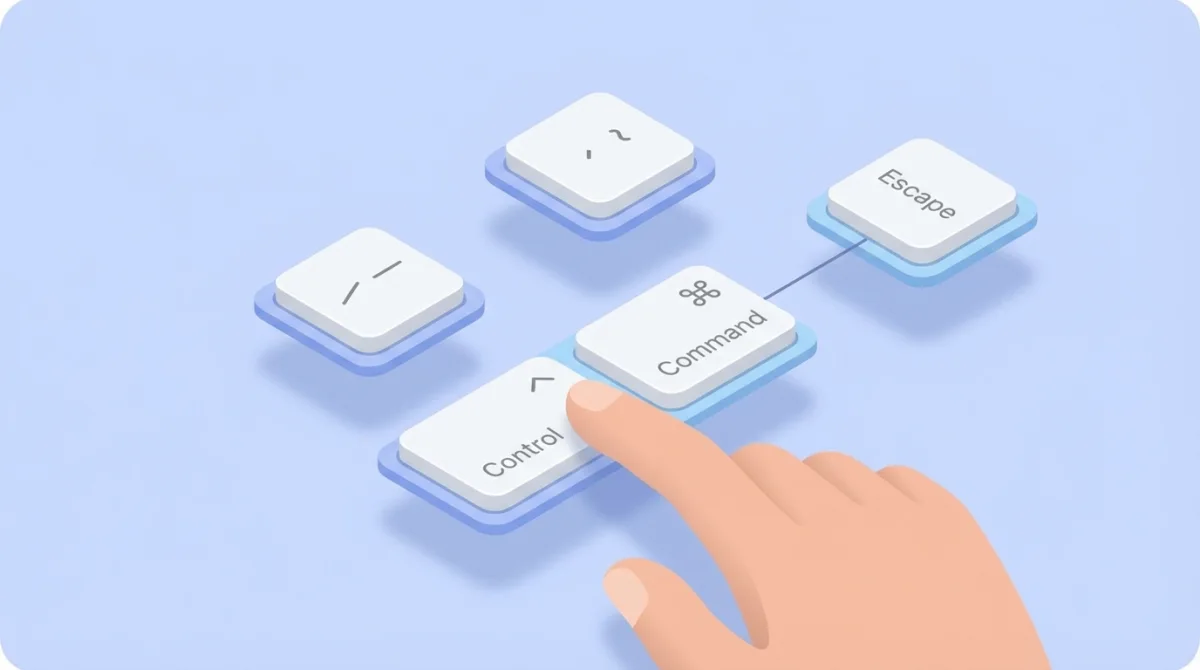
How to use it:
- While recording, press and hold
Control+Command - Then press
Esc(Escape) - Your recording stops right away and saves to your chosen location
This shortcut works whether you started recording with:
- The Screenshot app (
⌘ + Shift + 5) - QuickTime Player's screen recording
- Most third-party screen recording software
Pro tip: Can't remember this shortcut? Just think "Control-Command-Escape." It's like telling your Mac to escape from recording mode.
Method 2: Click the Menu Bar Stop Button
When you're recording your screen, a small stop icon appears in your menu bar. Look for it at the top right of your screen.
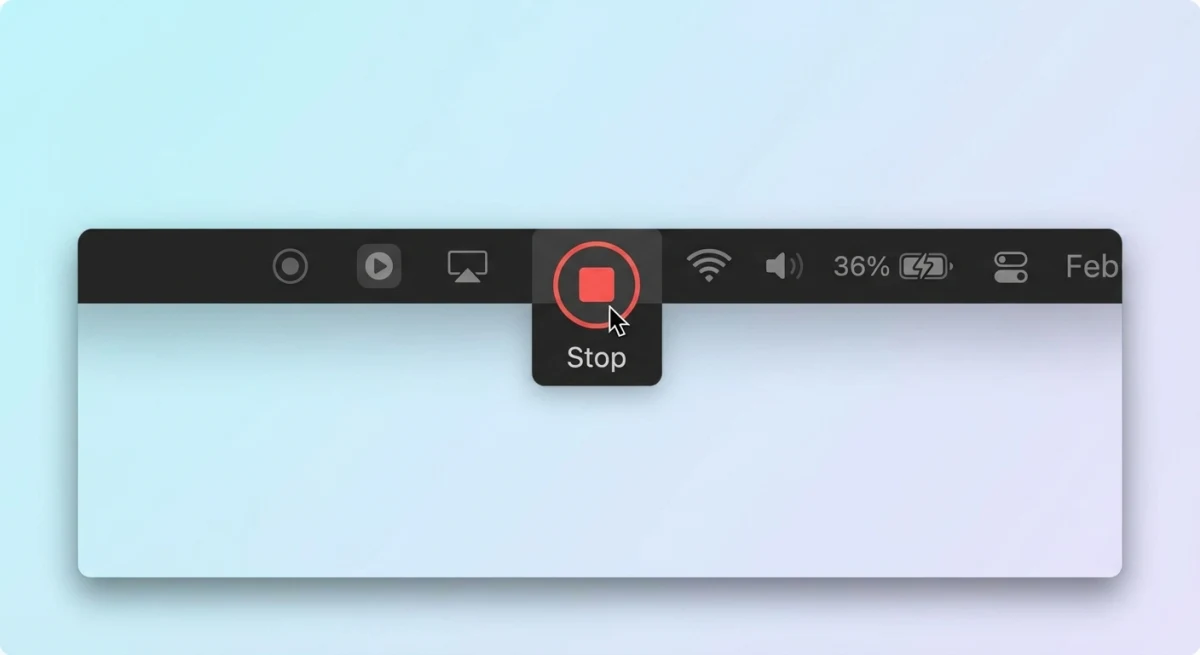
How to use it:
- Look for the small circle with a square inside (⏹) in your menu bar
- Click it once
- Your recording ends and saves automatically
This method's perfect when you're already using your mouse. You get visual confirmation that you've stopped recording. The button only shows during active recordings. If you don't see it, you might not be recording.
Note for macOS Sequoia users: Apple redesigned the menu bar indicator in macOS 15. It now shows a more prominent orange dot next to the stop button. This makes it easier to notice when you're recording. For more details, see Apple's official screen recording guide.
Method 3: Touch Bar Stop Button (MacBook Pro)
Got a MacBook Pro with Touch Bar (2016-2020 models)? You'll see a dedicated red stop button on the Touch Bar during screen recordings.
How to use it:
- Look at your Touch Bar while recording
- Tap the red stop button
- Recording ends right away
Apple discontinued the Touch Bar in newer MacBook Pros. But this method's still the most convenient for those who have these machines.
Method 4: Force Quit When QuickTime Freezes
Sometimes QuickTime Player freezes during long recordings. If the keyboard shortcut and menu bar button don't work, you'll need to force quit.
When to use force quit:
- QuickTime freezes or won't respond
- The stop button doesn't react to clicks
- Your Mac's running slowly from the recording
- You've been recording for hours and things aren't working
How to force quit:
Method A: Using the Apple Menu
- Click the Apple () menu in the top-left corner
- Select "Force Quit..." (or press
⌘ + Option + Esc) - Find QuickTime Player in the list
- Click "Force Quit"
Method B: From the Dock
- Right-click (or Control-click) the QuickTime icon in your Dock
- Hold the
Optionkey so "Quit" changes to "Force Quit" - Click "Force Quit"
⚠️ Important: Force quitting may cause you to lose your current recording. The video file might not save properly. QuickTime needs a chance to finalize it. Only use this method as a last resort.

Tired of plain screenshots? Try ScreenSnap Pro.
Beautiful backgrounds, pro annotations, GIF recording, and instant cloud sharing, all in one app. Pay $39 once, own it forever.
See pricing and featuresMethod 5: Activity Monitor (Last Resort)
Activity Monitor is macOS's task manager. Use it only when everything else fails. For example, when QuickTime has completely crashed. It might not even show in the Force Quit menu.
How to use Activity Monitor:
- Open Finder and go to Applications > Utilities > Activity Monitor
- Or press
⌘ + Spaceand search "Activity Monitor"
- In the CPU tab, look for "QuickTime Player" or "screencaptureui"
- Select the process
- Click the X (Stop) button in the toolbar
- Choose "Quit" or "Force Quit"
Using the Screenshot app (⌘ + Shift + 5)? Search for "screencaptureui" in Activity Monitor. That's the background process that handles these recordings.
Pro tip: After using Activity Monitor, check your Desktop for partially saved files. You might recover some footage.
Bonus: Skip the Stop Button with GIF Recording
Here's something most guides don't mention. If you're recording short demos or tutorials, try GIF recording instead of video.
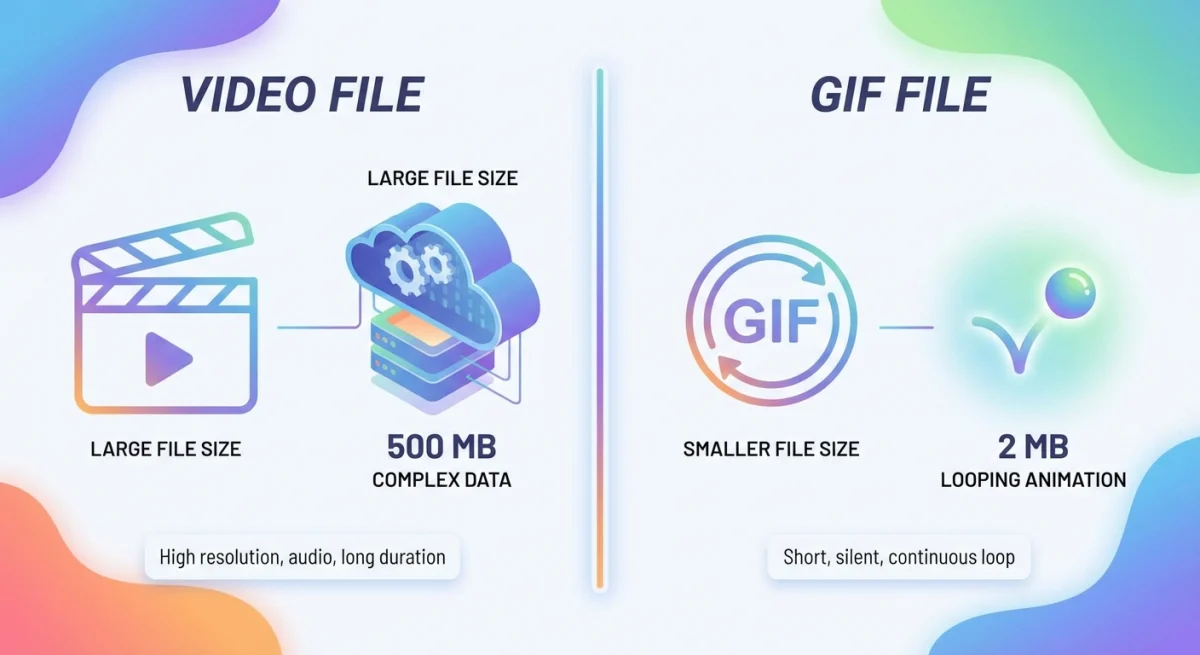
Why GIFs can be better:
- Smaller file sizes. No massive .mov files eating your storage
- Auto-looping. Perfect for demos that need to repeat
- Easier sharing. Works everywhere, no video player needed
Tools like ScreenSnap Pro let you record GIFs directly. Set the duration before you start. The recording stops on its own, so there are no shortcuts to remember.
This works great for:
- Bug reports showing a UI glitch
- Quick tutorials under 30 seconds
- Social media content
- Documentation and help guides
Troubleshooting: Recording Won't Stop?
If none of the methods above work, try these fixes:
Problem: Keyboard shortcut doesn't work
Solution: Go to System Preferences > Keyboard > Shortcuts. Make sure no other app has taken Control + Command + Esc.
Problem: Menu bar stop button is missing
Solution: The button only shows during active recordings. If you don't see it, your recording may have already stopped. Or it never started properly.
Problem: Force quit didn't save the recording
Solution: Check your Desktop and Downloads folder for partial files. Also check where you told it to save (Screenshot app: Options > Save to).
Problem: Mac is extremely slow during recording
Solution: Long screen recordings with audio use lots of resources. Force quit the recording. Restart your Mac. Try recording shorter segments.
Problem: Screenshots and recordings aren't working at all
Solution: Both screenshots and screen recording have stopped working? Check out our Mac screenshot not working guide. Many fixes apply to screen recording too.
Where Do Mac Screen Recordings Save?
By default, your recordings save to:
- Screenshot app: Desktop (you can change this via Options menu)
- QuickTime Player: Asks you to pick a location when you stop
To change the default save location in the Screenshot app:
- Press
⌘ + Shift + 5 - Click "Options"
- Under "Save to," pick your preferred location
Want more control over where files go? Check our guide on how to change screenshot location on Mac. The same ideas apply to screen recordings.
Frequently Asked Questions
Wrapping Up
Stopping a screen recording on Mac is easy once you know your options. For everyday use, ⌃ Control + ⌘ Command + Esc is your best friend. It's universal, quick, and reliable.
Do you record short clips often for work or social media? Try a dedicated tool that gives you more control. ScreenSnap Pro makes capturing and sharing screenshots and GIFs effortless. It offers instant cloud uploads and no fussing with file management.
Need to start a new recording? Check out our guide on how to record GIFs on Mac. It's a lighter-weight alternative to video capture.

Morgan
Indie DeveloperIndie developer, founder of ScreenSnap Pro. A decade of shipping consumer Mac apps and developer tools. Read full bio
@m_0_r_g_a_n_