Best Study Notes App 2026: 11 Tools for Students Compared
# Best Study Notes App for Students in 2026 (with Screenshots, OCR & Audio)
Picking a study notes app used to mean choosing between a text editor and a sticker book. In 2026, it means choosing how you learn.
A good study notes app has to handle four things: typed notes, screenshots from textbooks and slides, OCR so you can search handwritten or scanned text, and audio recording so you can replay lectures. The best ones sync across laptop, phone, and iPad.
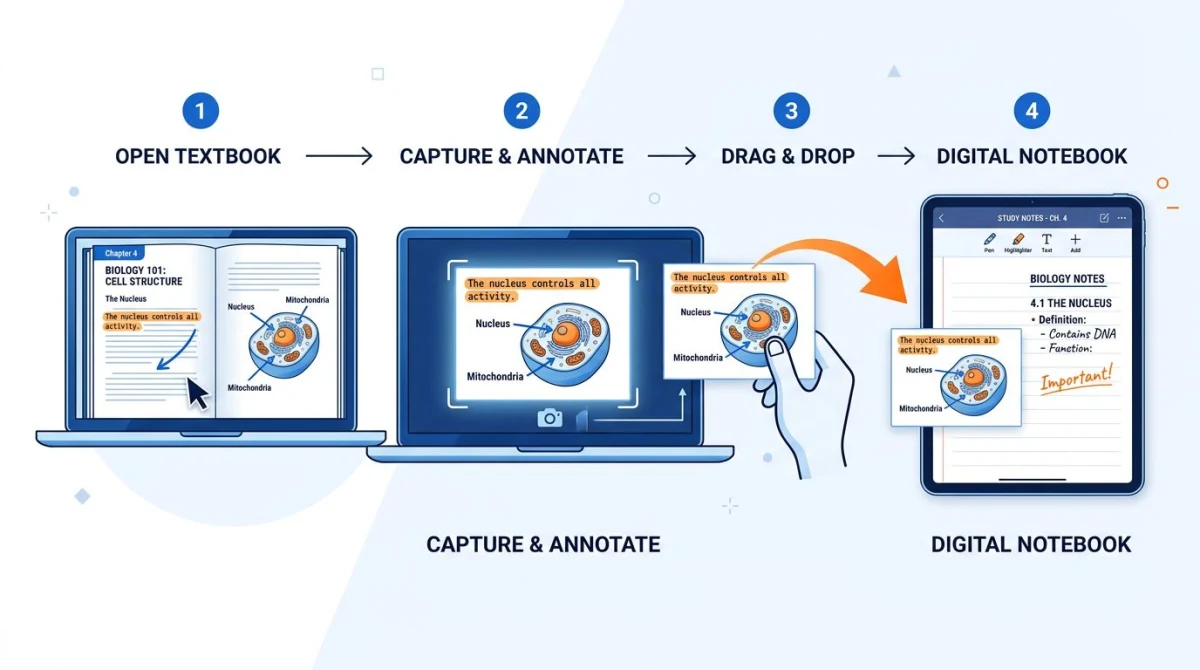
This guide ranks the 11 best study notes apps for 2026 across four buyer profiles:
- Visual notetaker who lives in screenshots, diagrams, and color-coded blocks.
- Text notetaker who writes long-form and links ideas.
- iPad + stylus user who writes by hand and needs handwriting search.
- Spaced-repetition learner who turns notes into flashcards for exams.
We'll also cover the screenshot workflow that makes any of these apps better, because half your study material starts as a screenshot.
Quick comparison: 11 best study notes apps for 2026
| App | Platform | Free tier | OCR | Audio recording | Flashcards | Best for |
|---|---|---|---|---|---|---|
| Studocu | Web, iOS, Android | Yes (freemium) | Yes (AI text extraction) | Yes (lecture recording) | Yes (AI-generated) | AI notes & peer resources |
| Notion | Web, Mac, Win, iOS, Android | Yes (free for students) | Limited | No | Via templates | All-in-one workspace |
| Obsidian | Mac, Win, Linux, iOS, Android | Yes | Plugin | Plugin | Plugin (spaced rep) | Markdown + linked thinking |
| Apple Notes | Mac, iOS, iPadOS, web | Yes | Yes (built-in) | No (Voice Memos linked) | No | Apple ecosystem users |
| OneNote | Web, Mac, Win, iOS, Android | Yes | Yes | Yes | No | Notebook structure + ink |
| Google Keep | Web, iOS, Android | Yes | Limited | Voice memos | No | Quick capture, lightweight |
| Evernote | Web, Mac, Win, iOS, Android | Limited | Yes (strong) | Yes | No | Search-heavy archives |
| GoodNotes | iPad, Mac, Win, iOS, Android | Limited (3 notebooks) | Yes | Yes | Yes (built-in) | iPad handwriting |
| Notability | iPad, Mac, iOS | Limited | Yes | Yes (synced to ink) | No | Audio-synced lectures |
| RemNote | Web, Mac, Win, iOS, Android | Yes | Limited | No | Yes (native) | Notes + spaced repetition |
| Anki | Mac, Win, Linux, iOS (paid), Android | Yes (desktop) | Add-on | Add-on | Yes (spaced repetition) | Flashcards for exams |
The rest of this guide breaks each app down: pricing, what it does well, where it falls short, and which student profile it actually fits.
What makes a good study notes app in 2026?
Here's the short list of features worth caring about. If an app misses two or more, skip it for serious coursework.
Cross-device sync. You'll write on a laptop and review on your phone before the exam. Sync has to be fast and free.
OCR. Turns handwritten and scanned content into searchable text. Apple Notes, OneNote, Evernote, and GoodNotes lead; others lag.
Audio recording. Lets you replay the exact moment the professor explained a concept. Notability and OneNote are best here.
Search across notes. A semester is hundreds of pages. Search has to cover text, OCR'd images, and PDFs.
Flashcards. The best learning loop captures notes, then quizzes you. RemNote and Anki build this in.
For more on OCR, see our guide on how to extract text from screenshots on Mac. For lecture audio, the best lecture recording software guide covers dedicated tools.
1. Studocu: great for peer-shared materials & AI-generated notes
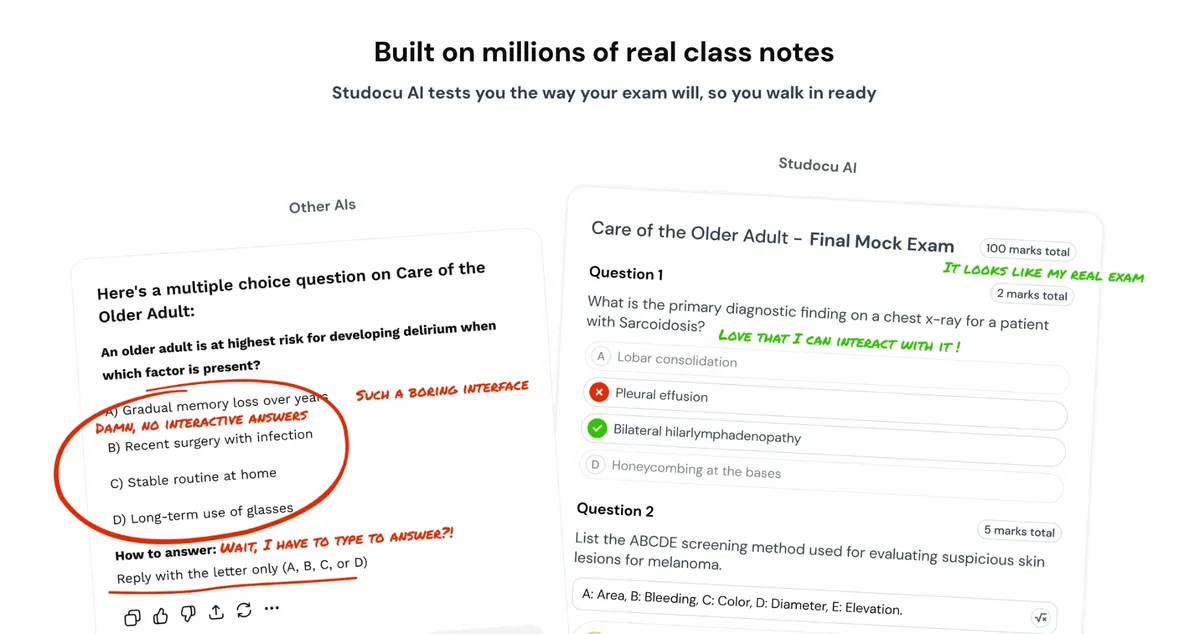
Studocu is a peer-shared resource and AI-generated notes platform. It links 35 million learners each month to a library of over 65 million shared documents, lecture notes and past exams.
Students can upload the course slides or a chapter from the textbook instead of starting from a blank page. Then the integrated Studocu AI uses those uploads to create notes, summaries, mock exams, quizzes and flashcards. The platform offers a Study Assistant AI Chat that can provide step-by-step solutions and simple explanations of difficult topics.
Price: Free to access most documents and AI tools. Premium subscriptions provide unlimited access to the library. You can get free Premium access days if you upload your own study materials.
Rating: (4.8/5)
What it does well:
- The platform converts the uploaded documents into notes, summaries, quizzes, mock exams, flashcards and explanations for tough concepts.
- It also gives students access to past exams, summaries and lecture notes.
- Students can learn from materials that other students have uploaded to the site, so they don't have to start from scratch.
Where it falls short:
- Because Studocu is a collaborative database, it needs an internet connection.
- It is intended for sharing and reviewing material, not for creating original essays like a typical offline word processor.
Who it fits: Students who want to save time studying, use existing peer-reviewed content and utilize AI tools to quickly summarize complex ideas instead of starting from scratch with notes.
2. Notion: best all-in-one workspace
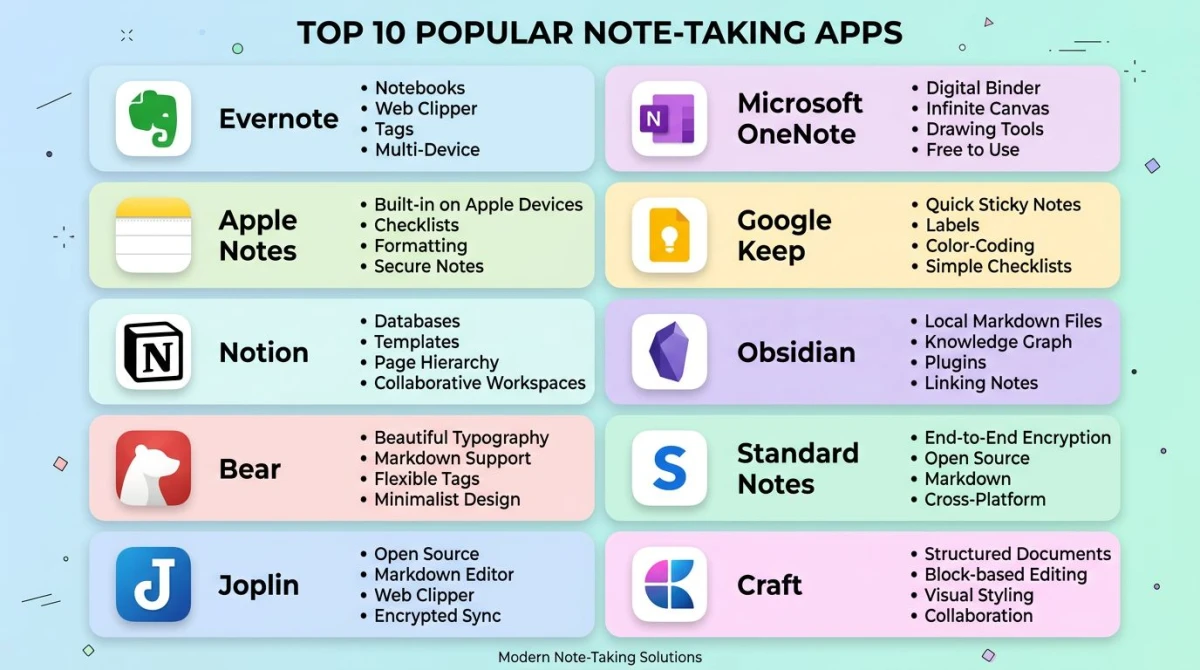
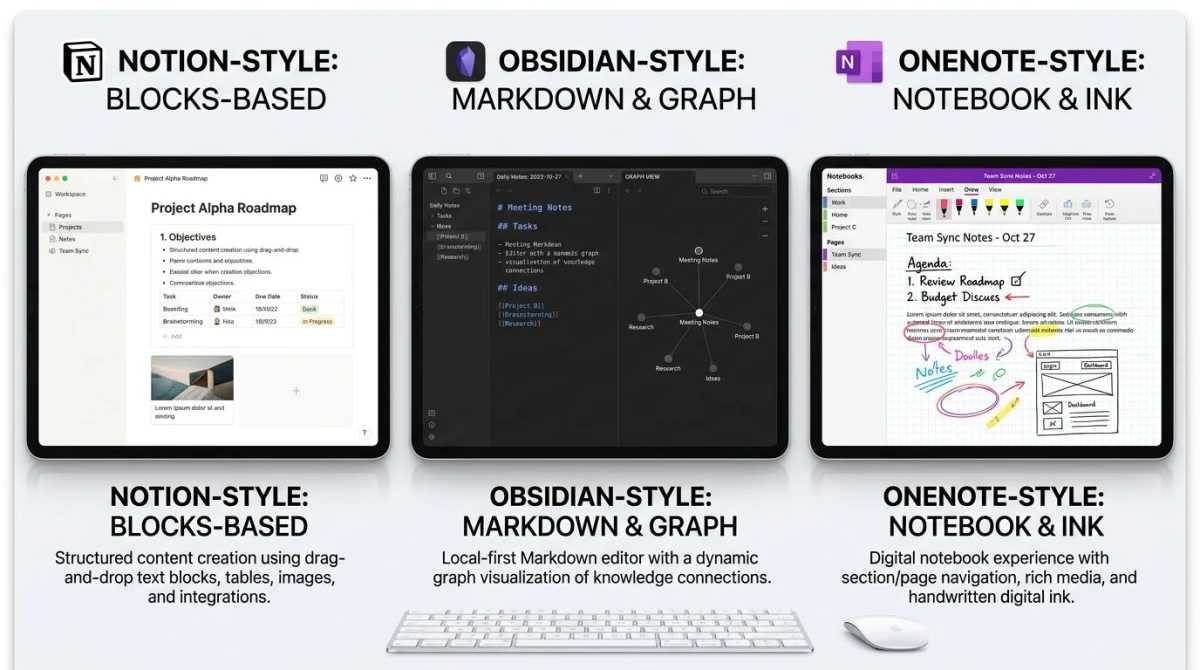
Notion is the all-in-one workspace that ate every Google Doc on campus. It uses block-based editing, so each paragraph, image, or table is its own moveable unit. Build databases, link pages, embed PDFs, and turn your semester into a connected wiki.
Price: Free. Notion offers a free Plus plan for verified students with a .edu email.
Rating: (4.7/5)
What it does well:
- Page-as-database lets you build a "Courses" page with a row per class.
- Embedding works for PDFs, YouTube, and Google Drive.
- Community templates cover Cornell notes, lecture trackers, and exam prep.
- Web clipper saves articles into your workspace.
Where it falls short:
- No native audio recording, so you upload audio from another app.
- OCR is limited; search inside images is hit-or-miss.
- Offline mode is not as solid as Obsidian or Apple Notes.
Who it fits: Visual notetakers who love structure and want one place that holds notes, tasks, and readings.
3. Obsidian: best for markdown and linked thinking
Obsidian is a local-first, markdown-based notes app that treats your knowledge as a graph. Each note is a plain .md file on disk. You link notes with [[double brackets]], and Obsidian draws a graph view of how ideas connect.
Price: Free for personal and educational use. Sync is $4/month, or use iCloud, Dropbox, or Git for free.
Rating: (4.6/5)
What it does well:
- Plain markdown means your notes are yours forever.
- Backlinks and graph view help you see how concepts connect.
- Plugin ecosystem covers spaced-repetition, OCR, calendar, kanban, and audio.
- Works completely offline.
Where it falls short:
- Steep learning curve. The first week feels overwhelming.
- No built-in OCR or audio, so you add plugins.
- Sync requires either a paid subscription or technical setup.
Who it fits: Text-heavy students in essay-driven majors who want a future-proof system. Pre-meds and law students love it for connecting concepts.
4. Apple Notes: best free option for Apple users
Apple Notes is the most underrated app on this list. Free, syncs through iCloud, surprisingly strong OCR, and supports handwriting, sketches, and shared notes. macOS Sequoia and iOS 18 added live audio transcription.
Price: Free with any Apple device. iCloud starts free at 5 GB.
Rating: (4.5/5)
What it does well:
- Built-in OCR reads printed and handwritten text in scanned documents and photos.
- Live audio transcription generates a searchable transcript while you record.
- Document scanner auto-crops and deskews textbook pages from your iPhone.
- Pencil support on iPad is fluid and pressure-sensitive.
Where it falls short:
- Apple-only. If you switch to Windows, your notes are stuck.
- No flashcards or spaced repetition.
- Formatting options are basic.
Who it fits: Students inside the Apple ecosystem who want the simplest setup. If you have an iPhone, iPad, and MacBook, Apple Notes is often enough on its own.
5. Microsoft OneNote: best free notebook with ink and audio
Microsoft OneNote is the closest digital match to a three-ring binder. It uses Notebooks → Sections → Pages, supports stylus ink and audio recording, and runs on every Microsoft platform.
Price: Free with a Microsoft account. Syncs through OneDrive.
Rating: (4.4/5)
What it does well:
- Audio recording is built in, and OneNote timestamps your typing to the audio.
- Free-form pages let you place text, ink, and screenshots anywhere.
- Strong OCR on inserted images.
- Ink-to-text conversion works for most handwriting.
Where it falls short:
- Interface is busy, especially on Windows.
- Search across many notebooks is slower than Evernote or Notion.
- No native flashcards.
Who it fits: Students at universities that issue Microsoft 365, iPad users who want notebook structure plus ink, and anyone who liked the binder system in high school.
6. Google Keep: best lightweight capture tool
Google Keep is the sticky-note app you forgot you had. Not a primary notes app for serious courses, but for quick captures and "remember this" moments, it's the fastest tool here.
Price: Free with any Google account.
Rating: (3.8/5)
What it does well:
- Voice memos auto-transcribe to text.
- Color-coded notes are scannable at a glance.
- Built into Google Drive, Docs, and Calendar.
- Image OCR via "Grab image text" is surprisingly accurate.
Where it falls short:
- No nesting or folders, just labels.
- No long-form formatting.
- No flashcards or PDF support.
Who it fits: Students in Google Workspace who want a fast capture buffer. Pair it with Notion or Obsidian for long-form work.

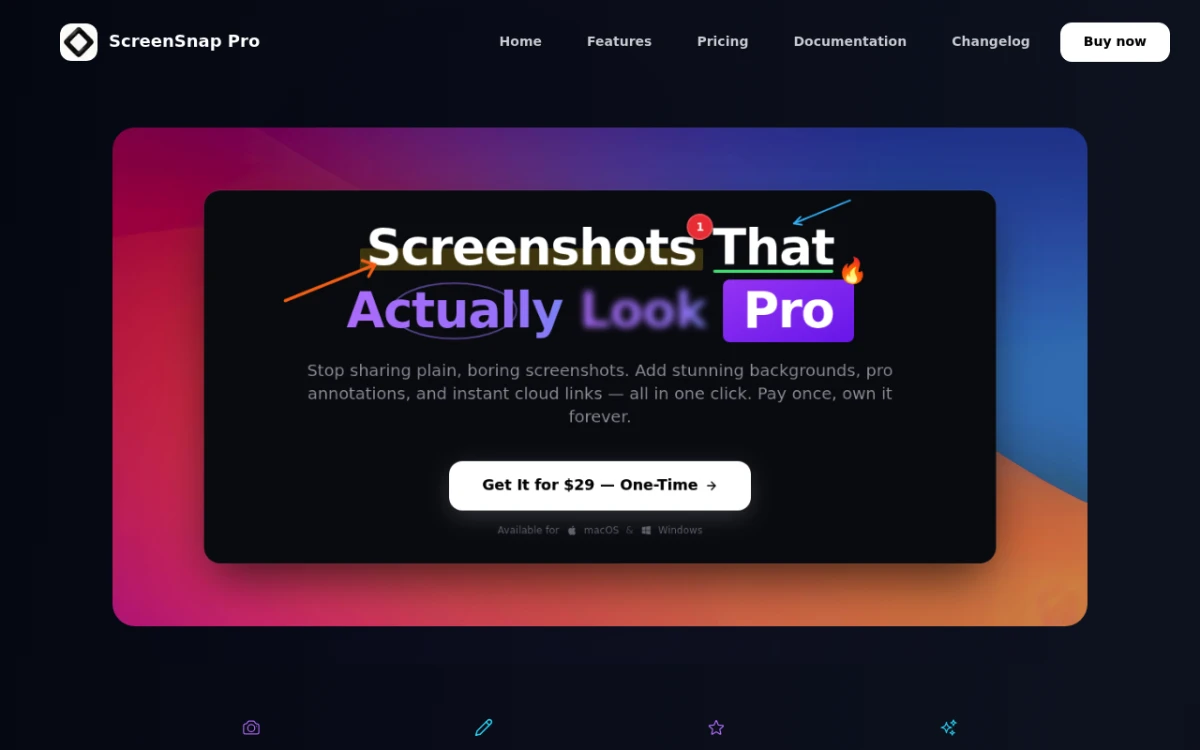
Tired of plain screenshots? Try ScreenSnap Pro.
Beautiful backgrounds, pro annotations, GIF recording, and instant cloud sharing, all in one app. Pay $39 once, own it forever.
See pricing and features7. Evernote: best for OCR and searchable archives
Evernote was the original everything-bucket. It lost shine to Notion and Obsidian, but for one superpower (searching text inside images) it's still ahead of most rivals.
Price: Free tier limits you to 50 notes and 1 device. Personal plan $14.99/month, Professional $17.99/month.
Rating: (3.9/5)
What it does well:
- OCR on images and PDFs is excellent. Photograph a whiteboard and the words become searchable.
- Web clipper is the best in the category.
- Handwriting recognition works on scanned and Pencil notes.
Where it falls short:
- Free tier is too limited for a full semester.
- Pricing is steep compared to free Notion or OneNote.
- No flashcards.
Who it fits: Students drowning in scanned material (pre-med images, law case PDFs, art history slides) who value OCR search above all else.
8. GoodNotes: best for iPad handwriting
GoodNotes is the iPad notes app most students download first. It mimics paper notebooks, supports Apple Pencil with low latency, and added native AI flashcards in 2024 that turned it into a real study tool.
Price: Free for up to 3 notebooks. $9.99 one-time unlock or $6.99/year for AI features.
Rating: (4.6/5)
What it does well:
- Handwriting feels natural with Apple Pencil.
- Searchable handwriting: write by hand, search like typed text.
- AI study aids: turn a notebook into flashcards or summarize a page.
- PDF annotation is excellent.
Where it falls short:
- iPad-first; Mac and Windows feel like ports.
- No audio synced to handwriting (Notability wins here).
- AI features are gated behind subscription.
Who it fits: Students with iPad and Apple Pencil who write by hand and want flashcards from their own notes. Med, law, and STEM students who diagram.
9. Notability: best for audio-synced lecture notes
Notability is GoodNotes' biggest rival on iPad, and where it pulls ahead is audio. Hit record, take notes, and Notability syncs the audio to every line you write. Tap a sentence later and it plays back the exact moment of the lecture.
Price: Free with limits. Notability Plus is around $14.99/year for unlimited audio and handwriting recognition.
Rating: (4.5/5)
What it does well:
- Audio replay synced to your handwriting is transformative for lectures.
- Math conversion turns handwritten equations into typed LaTeX.
- Multi-note view lets you reference one notebook while writing in another.
Where it falls short:
- Subscription model upset users when it switched from one-time pricing.
- Mac and Windows versions are weaker than iPad.
- No flashcards.
Who it fits: Students in lecture-heavy programs (law, medicine, humanities) who want to replay specific lecture moments later.
10. RemNote: best for spaced-repetition built into your notes
RemNote is the rare app that treats notes and flashcards as the same thing. Write a note, mark certain phrases as "rems", and they automatically become flashcards in a spaced-repetition queue. It's like Notion and Anki had a baby.
Price: Free with limits. Pro is $8/month or $6/month annually. Students get a discount.
Rating: (4.3/5)
What it does well:
- Inline flashcards: write a question and answer in your notes, and it becomes a flashcard.
- Backlinks and graph view, similar to Obsidian.
- PDF annotation creates flashcards directly from highlights.
- Daily review queue uses the FSRS algorithm.
Where it falls short:
- Niche audience: if you're not into spaced repetition, you'll fight the app.
- Less polished than Notion or Obsidian.
- OCR is basic.
Who it fits: Pre-med, language learners, law students, and anyone prepping for high-stakes exams (MCAT, LSAT, USMLE, bar).
11. Anki: best dedicated flashcard app
Anki isn't a notes app at all. It's a flashcard app. But no list of study tools is honest without it. Anki is a widely used spaced-repetition system, popular with med students, language learners, and anyone with a serious memory load.
Price: Free on Mac, Windows, Linux, Android, and web. iOS is $24.99 one-time.
Rating: (4.7/5)
What it does well:
- The FSRS scheduler decides when to show each card so you barely forget anything.
- Built-in Anki image occlusion turns diagrams and slides into cards, and add-ons cover cloze variants, OCR, and audio import.
- Massive community deck library: MCAT, LSAT, language vocab, history dates.
- Syncs free across all platforms via AnkiWeb.
Where it falls short:
- Interface looks like 2007 because it was.
- Steep learning curve for power features.
- Not a notes app, so you still need somewhere to take the notes.
Who it fits: Anyone studying memory-heavy material. Pair with Notion or RemNote for notes, use Anki for cramming.
The screenshot-to-notes workflow
Here's the part most students miss: regardless of which app you pick, you'll spend a lot of time screenshotting. Textbook pages. Lecture slides. PDF readings. Stack Overflow answers. YouTube frames. Wikipedia diagrams.
Every one of those screenshots needs the same treatment:
- Capture cleanly (no sidebar, no browser chrome).
- Crop to just the relevant part.
- Highlight the key concept or add an arrow.
- Drop it into Notion / Obsidian / GoodNotes.
Built-in tools on Mac and Windows do step 1. Steps 2 to 4 waste 30 seconds per capture, and over a semester that adds up.
This is where a dedicated screenshot tool earns its keep. ScreenSnap Pro is a one-time $39 purchase that pairs with any note app on this list. It captures regions, windows, or full screens; offers 15 annotation tools (arrows, highlights, blur, numbered counters); 500+ gradient backgrounds for clean exports; and runs on Mac and Windows. The Quick Access overlay lets you edit and drag straight into Notion or GoodNotes without breaking flow.
Compare that to subscription screenshot tools at $8 to 10/month over four years of college and the math is uncomfortable.
A few free ScreenSnap Pro web tools cover the rest:
- OCR / Extract text from image. Paste a textbook screenshot and pull the text. Perfect when your note app's OCR is weak.
- Image annotation tool. Quick highlights and arrows in your browser.
- HEIC to JPG converter. IPhone screenshots save as HEIC, which most note apps reject. Convert before importing.
For a deeper look at marking up captures, see our best image annotation tools roundup.
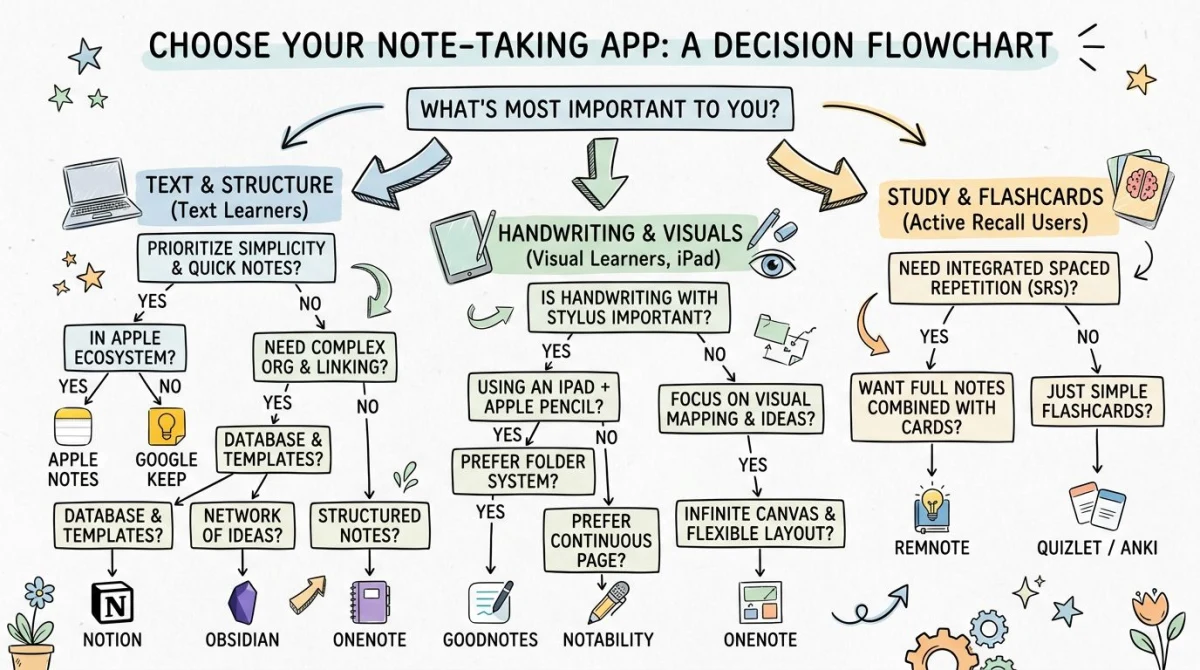
How to choose: a decision framework
Skip the long list and pick by use case.
If you write essays and connect ideas → Obsidian or Notion. Obsidian wins on markdown and graph view. Notion wins if you want a project manager built in.
If you live in the Apple ecosystem → Apple Notes for free, GoodNotes if you also use an iPad.
If you record lectures → Notability (best audio sync) or OneNote (free, more platforms).
If you study by flashcards for high-stakes exams → Anki is non-negotiable. Add RemNote to keep notes and flashcards together.
If you need a free notebook on a Microsoft laptop → OneNote.
If you handle a lot of scanned PDFs → Evernote (best OCR) or GoodNotes (best annotation).
If you want a fast capture buffer → Google Keep alongside whatever you pick above.

A common mistake: trying to use one app for everything. Most top students stack two or three. A typical setup is Notion (notes) + Anki (flashcards) + a screenshot tool. Or GoodNotes (handwriting) + Notion (essays) + Anki (cramming). Pick a primary, then layer.
If you'd rather talk than type, the dictation app VoiceSnap Pro is a $39 one-time layer that puts your spoken words straight at your cursor in Notion, Obsidian, or any other Mac or Windows app, punctuation and paragraphs included.
Frequently Asked Questions
The bottom line
There's no single best study notes app. There's the one that fits how you think, what hardware you own, and which exams you're prepping for.
If you write essays and connect ideas, Obsidian or Notion are the workhorses. If you live on an iPad with an Apple Pencil, GoodNotes or Notability turn handwriting into a real digital workflow. If your degree depends on memorization, Anki or RemNote layer spaced repetition on top of whatever notes app you use. And if you want a free option that just works on any laptop in your dorm, OneNote and Apple Notes are both genuinely good, so don't underrate them just because they're free.
The bigger lesson, though, is that picking the right note app is only half the work. The other half is the workflow around it: how fast you can capture a slide, annotate a textbook page, or convert an image to searchable text. Get that pipeline tight and any note app on this list will serve you well for four years.
If you want to make the screenshot half of your workflow faster, ScreenSnap Pro is $39 once and pairs with every app on this list. Good luck with the semester.

Morgan
Indie DeveloperIndie developer, founder of ScreenSnap Pro. A decade of shipping consumer Mac apps and developer tools. Read full bio
@m_0_r_g_a_n_