Image Color Picker: Extract Colors from Any Image (2026)
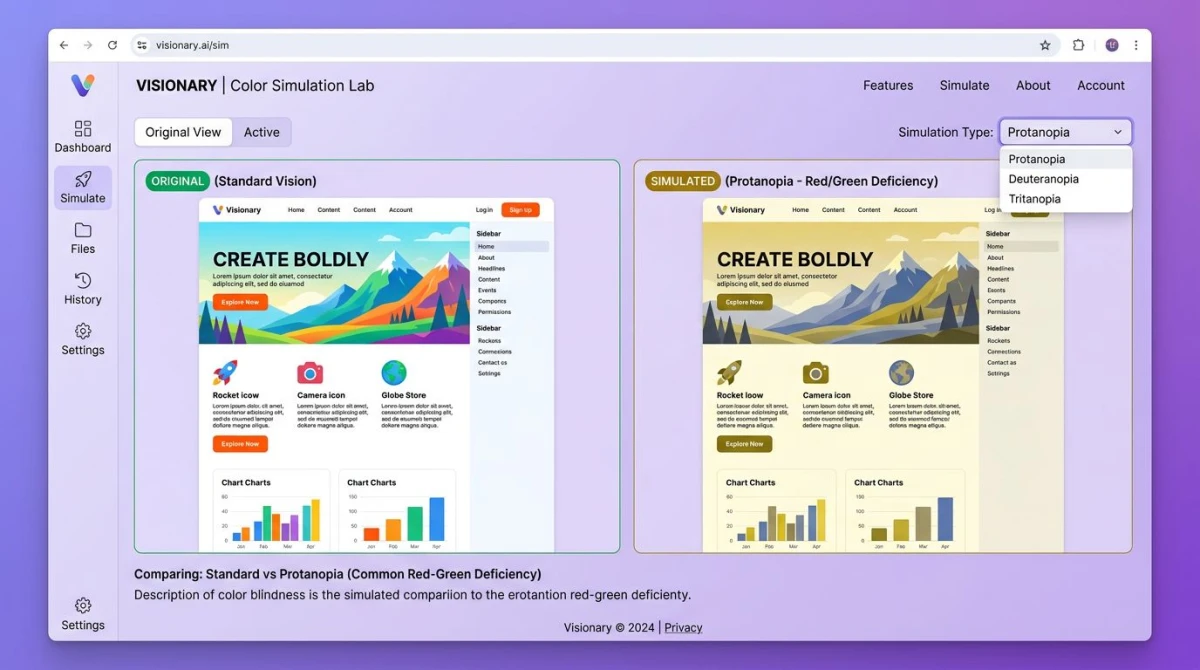
An image color picker lets you click any pixel in an image and get its exact color code. You get the value in HEX, RGB, or HSL format instantly. Designers use them to match brand colors. Developers use them to copy UI elements. Marketers use them to keep visuals consistent.
Whether you need a quick hex color picker or a full palette from a photo, this guide covers every method. You'll learn how to use a color picker from image uploads, grab colors from your screen, and choose the right format for your project.
What is an image color picker (and why you need one)
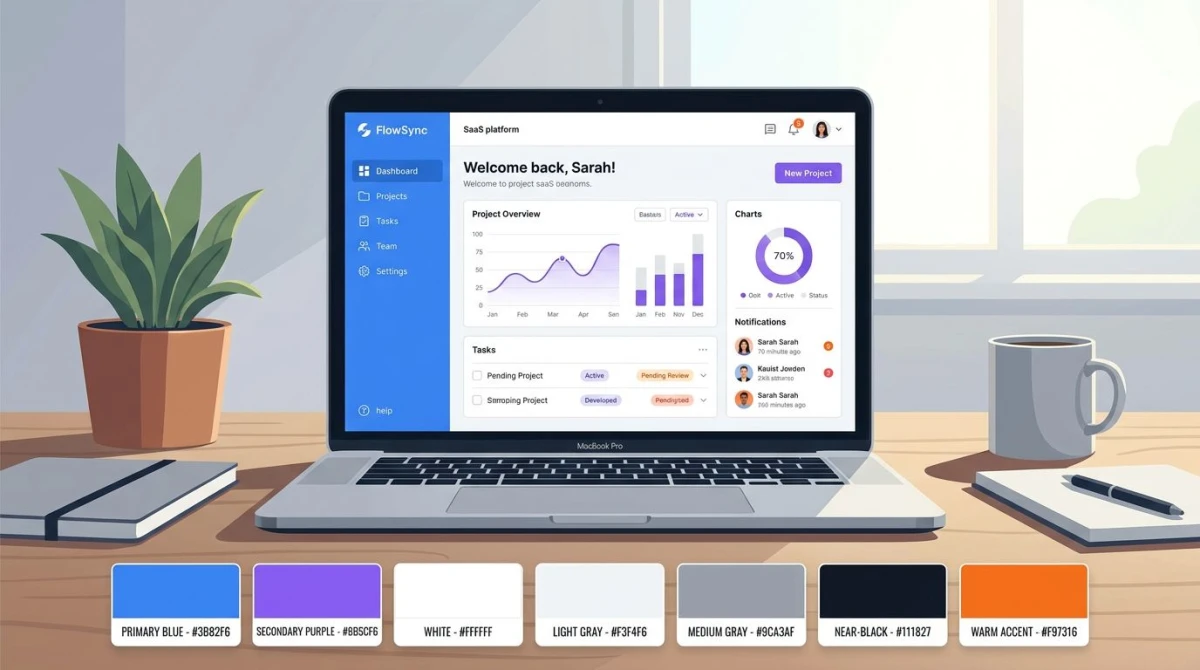
An image color picker reads the exact color value of any pixel you click. You might also hear it called a color identifier tool or color code picker. Instead of guessing that a button is "some shade of blue," you get a precise code like #3B82F6. Paste it straight into your CSS, design tool, or brand guide.
Here's when you'll reach for one:
- Matching brand colors from a client's logo or website screenshot
- Recreating a UI you saw in a competitor's app
- Building a color palette from a mood board or photograph
- Checking accessibility by comparing foreground and background contrast
- Identifying colors in print materials for digital copying
The best part? Most color picker tools are free and run in your browser. No software to install.
Use our free online color picker
The fastest way to extract color from an image is with a browser-based tool. Our free Color Picker lets you upload any image and click to grab exact color codes.
How it works:
- Open the Color Picker tool
- Upload your image (drag-and-drop or click to browse)
- Click any pixel to get its HEX, RGB, and HSL values
- Copy the code you need
No signup. No watermarks. Your images stay in your browser and never get sent to a server.
Need more than one color? Use the Color Palette Extractor to pull the main colors from any image. It's great for mood boards or grabbing a brand's full color scheme from a single screenshot, and when you want to replace one of those shades rather than just record it, the image color changer does the swap in the same browser tab.
Pro tip: Take a screenshot of any app or website with ScreenSnap Pro, then drop it into the color picker. You'll go from "I like that shade" to a usable HEX code in under 10 seconds.
How to pick colors from images on Mac
Mac has a built-in color picker from screen called Digital Color Meter. It's surprisingly good for quick color grabs.
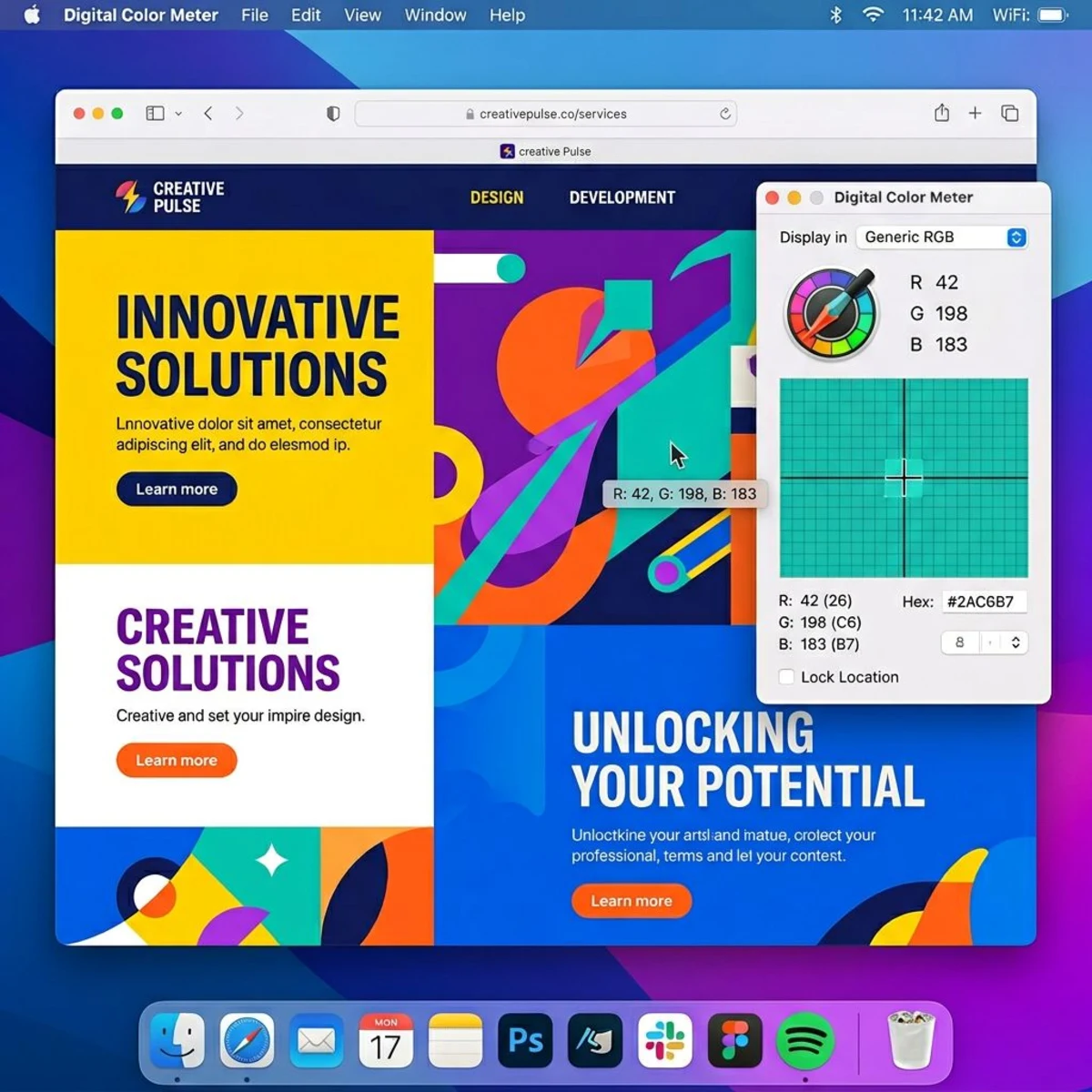
Using Digital Color Meter
- Open Digital Color Meter (search in Spotlight with
⌘ + Space) - Hover your cursor over any pixel on screen
- The app shows real-time RGB values as you move
- Press
⌘ + Shift + Cto copy the color value
Customizing the output format
Digital Color Meter defaults to RGB, but you can change it:
- Click the dropdown at the top of the window
- Switch between Display in sRGB, Generic RGB, or Display native values
- For HEX codes, select Display in sRGB as Hexadecimal
Limitations
Digital Color Meter works on anything on your screen, not just images. That makes it great for picking colors from apps, websites, and menu bars. But it can only read what's on display right now. If you need colors from a closed file, open it first or use an online tool.
For saved screenshots, open them in Preview and hover with Digital Color Meter. If you need to annotate the screenshot with color info, a dedicated tool saves time.
Pick colors in Chrome DevTools
Developers often need to grab colors from live websites. Chrome's built-in color picker Chrome DevTools is perfect for this.
Method 1: Inspect element
The color picker Chrome DevTools offers is one of the most powerful available:
- Right-click any element on a webpage → Inspect
- In the Styles panel, click any color swatch (the small colored square)
- Chrome opens a full rgb color picker with HEX, RGB, HSL, and HWB formats
- Use the eyedropper icon to pick any color visible on the page
The eyedropper works on any pixel in the browser window. That includes images, gradients, and videos. It's the fastest way to extract color from image elements on a live page without saving anything.
Method 2: CSS Overview
- Open DevTools (
⌘ + Option + Ion Mac) - Press
⌘ + Shift + Pto open the command menu - Type "CSS Overview" and select Show CSS Overview
- Click Capture overview
- Scroll to the Colors section for every color used on the page
This acts as an image color analyzer for entire websites. It shows every unique color used in backgrounds, text, borders, and fills. It's useful when you're trying to map out a design system.
For a deeper dive into extracting content from screens, check out our guide on how to copy text from screenshots with OCR.
Color picker browser extensions
If you grab colors from websites often, a browser extension saves you from opening DevTools every time. Two extensions dominate this space.
ColorZilla
ColorZilla is the most popular color picker Chrome extension with over 4 million users. Click the eyedropper icon in your toolbar, hover over any element, and click to copy the code. It supports HEX, RGB, and HSL.
Key features:
- Page Color Analyzer lists every color on a page, sorted by frequency
- Color history saves recent picks for easy comparison
- Gradient generator builds CSS gradients from your picks
- Works in both Chrome and Firefox
Eye Dropper
Eye Dropper is a lighter alternative that does one thing well: pick colors with a single click. You get HEX, RGB, and HSL values plus a history of recent picks.
Choose Eye Dropper for fast color grabs. Choose ColorZilla when you need page analysis and gradient tools.
Note: Browser extensions only work on web pages. They can't sample from your desktop or other apps. For those tasks, use Digital Color Meter or an online upload tool.

Tired of plain screenshots? Try ScreenSnap Pro.
Beautiful backgrounds, pro annotations, GIF recording, and instant cloud sharing, all in one app. Pay $34 once, own it forever.
See pricing and featuresColor pickers in design tools
Most design apps ship with a built-in eyedropper. If you already work in Figma, Photoshop, or Sketch, you don't need a separate tool.
Figma
Select any layer and click the fill color swatch. Then click the eyedropper icon (or press I for the shortcut). Figma's picker works on anything visible in the canvas, including images, gradients, and components. It shows HEX by default but you can switch to RGB, HSL, or CSS.
Paste a screenshot into any frame, hit I, and click any pixel to grab its value directly.
Adobe Photoshop
Photoshop's Eyedropper Tool (I) is one of the most precise color identifier tools available. It reads single pixels, 3×3 averages, 5×5 averages, and larger sample areas. The averaged modes filter out JPEG noise and give you cleaner results from compressed images.
For batch extraction, use Image → Mode → Indexed Color and set a fixed number of palette colors. Photoshop reduces the image and shows each color in the Color Table.
Sketch
Press Control + C to activate the color picker in Sketch. It works on anything visible on screen, including elements outside your artboards. Sketch shows HEX values by default.
When to use a design tool vs. a standalone picker
Use your design tool's eyedropper when you're already editing. Use a standalone picker when you need to sample from a random image, a different app, or don't have design software installed.
Best online image color pickers compared
Not all color picker tools are equal. Here's how the most popular options stack up:
| Tool | Formats | Palette Extract | Privacy | Free Tier |
|---|---|---|---|---|
| ScreenSnap Color Picker | HEX, RGB, HSL | Yes (separate tool) | Browser-only | Unlimited |
| ImageColorPicker.com | HEX, RGB, HSL | Basic | Browser-only | Unlimited |
| HTML Color Codes | HEX, RGB, HSL, OKLCH | Yes | Browser-only | Unlimited |
| ColorPickerFromImage.com | HEX, RGB, HSL, CMYK | Yes (3-24 colors) | Browser-only | Unlimited |
| Coolors.co | HEX, RGB, HSL | Yes (advanced) | Server-side | Limited |
| Figma | HEX, RGB, HSL | Built into editor | Cloud | Free plan |
What to look for
- Color format support. At a minimum, you want HEX and RGB. HSL is useful for adjusting lightness or saturation. Some tools also support CMYK for print work.
- Palette extraction. Single-color picking is fine for quick tasks. But palette extraction saves time when you need a full color scheme.
- Privacy. Browser-based tools that never upload your images are safest. This matters for client work or unreleased designs.
- Keyboard support. Arrow-key navigation for pixel-level selection makes a big difference.
How to extract a full color palette from an image
Picking one color at a time works for small tasks. But when you need a full palette for a brand redesign or a slide theme, automated extraction is much faster.
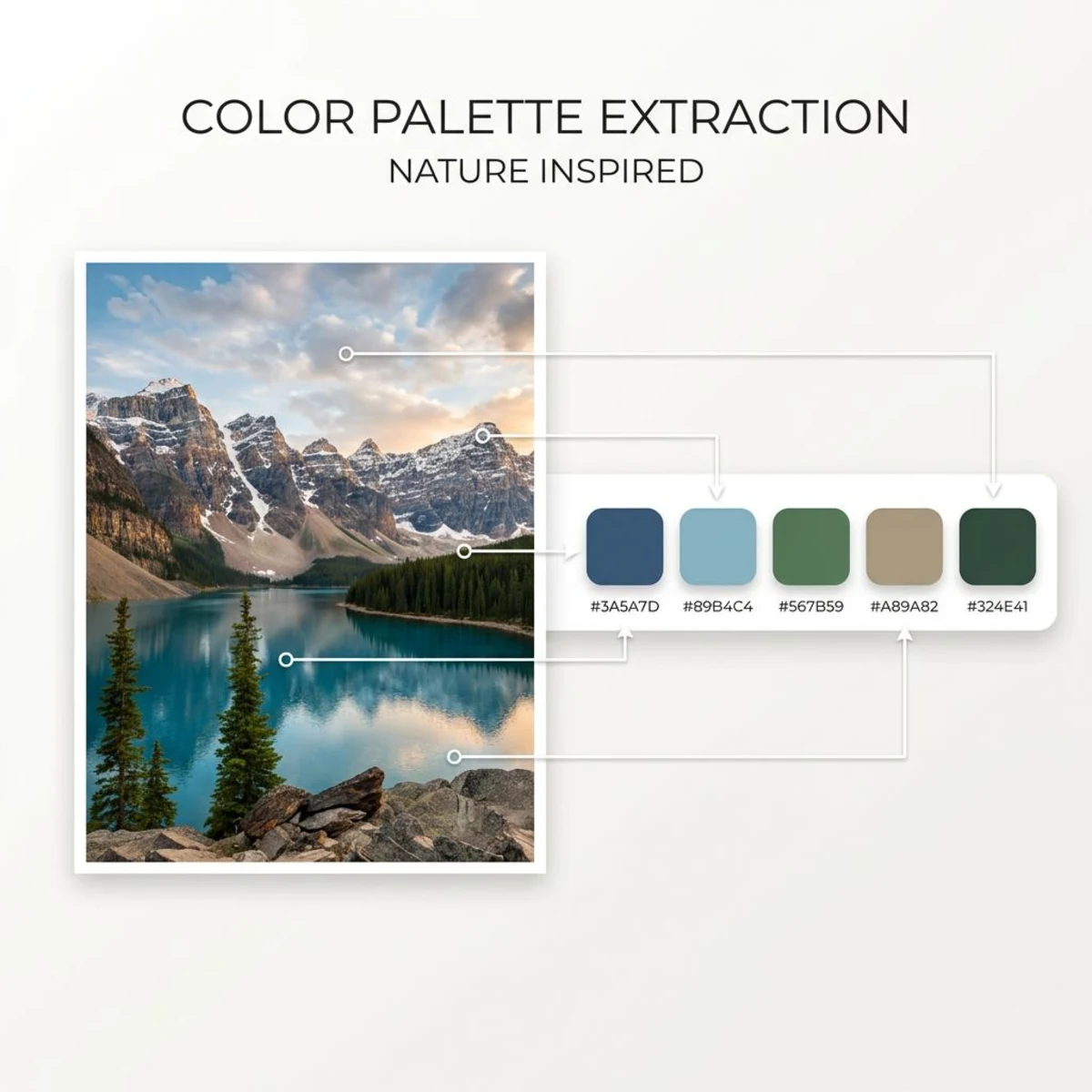
Step-by-step palette extraction
- Open the Color Palette Extractor
- Upload your reference image (a photo, screenshot, or logo)
- The tool analyzes the image and extracts dominant colors
- Adjust the number of colors (typically 5-8 works best)
- Copy the palette in your preferred format
Tips for better palette results
Start with high-quality source images. Low-res or compressed photos add color noise that skews results. If you're working from a website screenshot, take a high-quality capture first.
Crop to the area that matters. If you only care about the hero image colors, crop out the nav and footer first. Tools scan every pixel, so extra areas water down the palette.
Try different images of the same brand. One screenshot might not show the full color range. Pull palettes from 2-3 sources to build a more complete picture.
Color formats explained: HEX vs RGB vs HSL
Every color picker gives you codes. But which format should you use? Here's a quick look at the three most common ones.
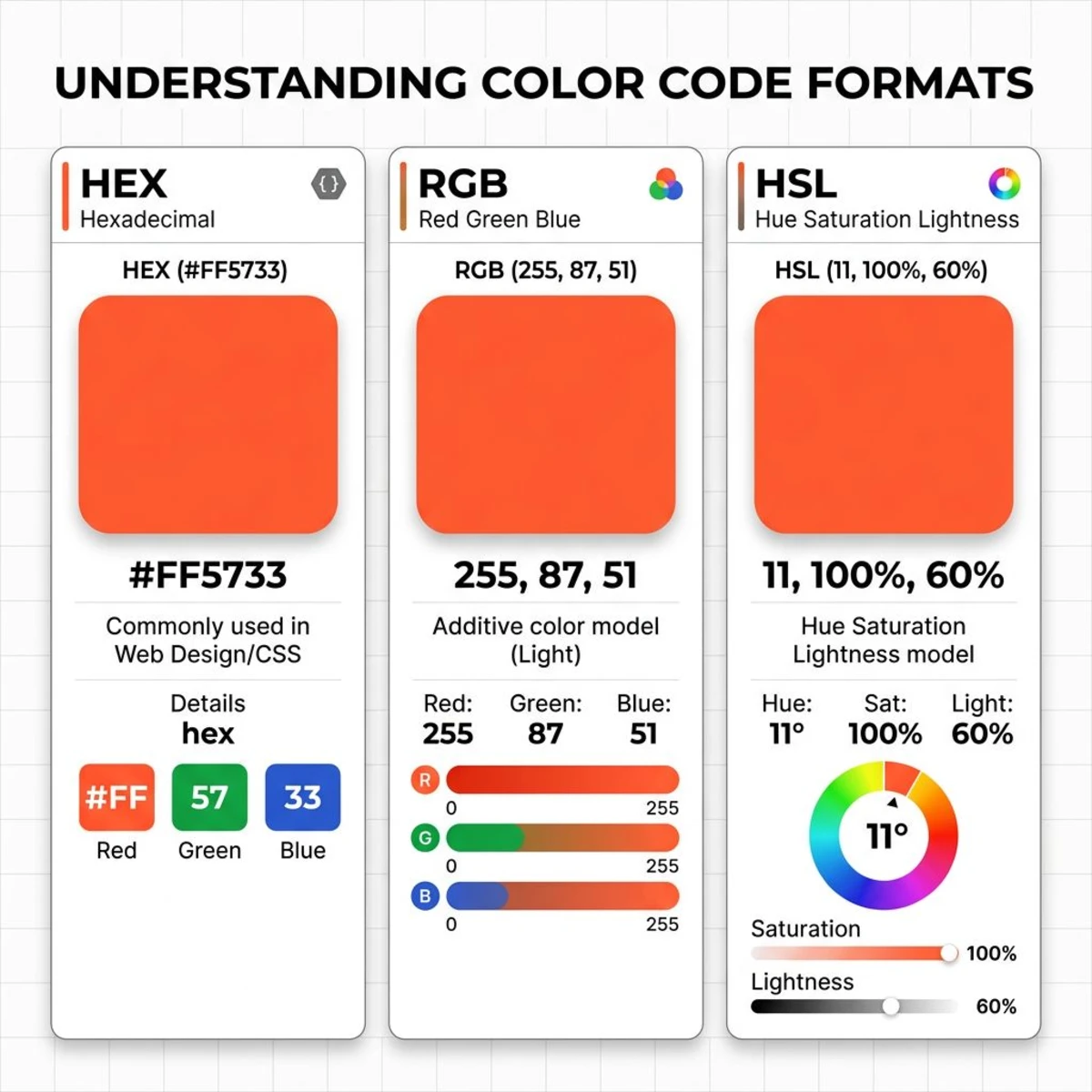
HEX (Hexadecimal)
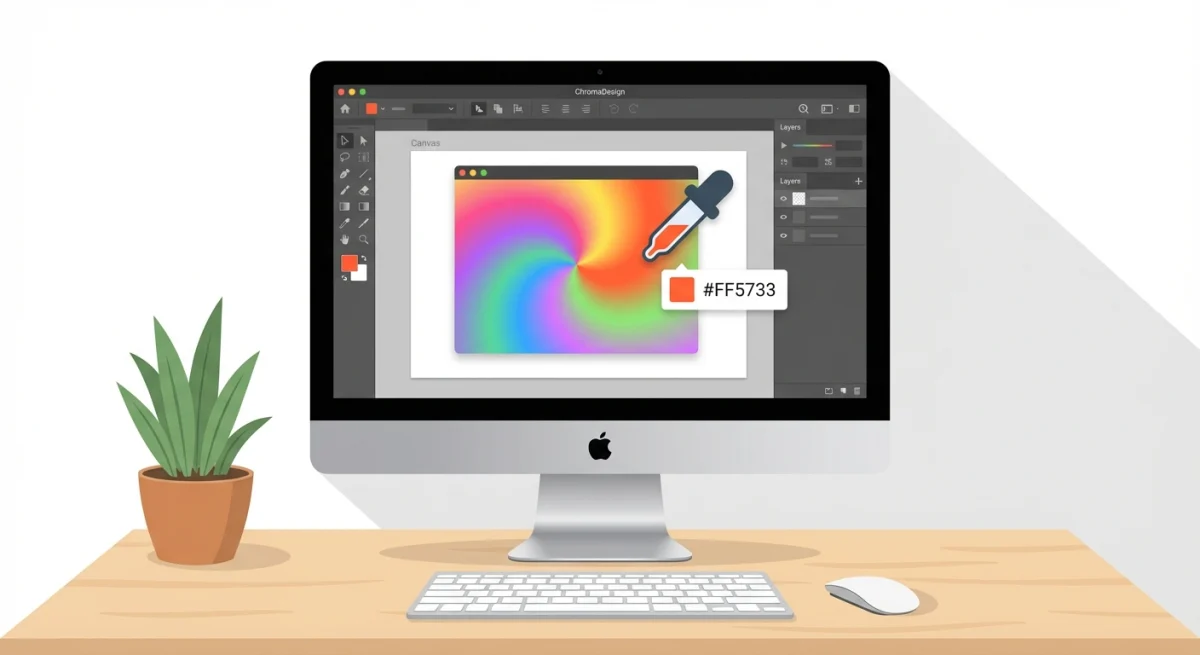
Format: #FF5733
HEX is the most common format on the web. It's a six-character code (plus the #) that stands for red, green, and blue values. You'll use HEX in CSS, design tools like Figma, and brand guides.
Best for: Web design, CSS, brand docs.
Need to convert between formats? Our HEX to RGB converter handles it instantly.
RGB (Red, Green, Blue)
Format: rgb(255, 87, 51)
RGB sets colors by their red, green, and blue light values on a 0-255 scale. It's the default format for screens. CSS supports rgb() out of the box, and most coding languages use RGB for color work.
Best for: CSS variables, color changes in code, data charts.
HSL (Hue, Saturation, Lightness)
Format: hsl(11, 100%, 60%)
HSL shows color in a way that feels natural. Hue is the color (0-360°). Saturation is how vivid it is (0-100%). Lightness controls how bright or dark it looks (0-100%). Want a darker shade? Just lower the lightness value.
Best for: Building palettes, CSS themes, tweaking for access needs.
Quick comparison
| Feature | HEX | RGB | HSL |
|---|---|---|---|
| Readability | Medium | High | Highest |
| CSS support | ✅ | ✅ | ✅ |
| Easy to modify | ❌ | Somewhat | ✅ |
| Print-ready | ❌ | ❌ | ❌ |
| Most common | ✅ | Common | Growing |
Rule of thumb: Use HEX for fixed values like brand colors. Use HSL when you need to create variants like hover states or dark mode themes automatically.
Tips for matching colors accurately
Getting the right color code is only half the job. Here's how to make sure your colors look right in practice.
Account for screen differences
The same HEX code can look different on two screens. If color accuracy matters, calibrate your display. On Mac, go to System Settings → Displays → Color Profile.
Watch for compression artifacts
JPEG compression shifts colors slightly near edges. If you're picking colors from a screenshot, use PNG for pixel-perfect results. You can change your Mac's default screenshot format to PNG if it isn't already.
Sample multiple pixels
Don't rely on a single click. Zoom in and sample 3-5 nearby pixels. Small shifts are normal. Pick the most common value or average them. Photos are rarely uniform at the pixel level.
Check in context
A color that looks great on white might feel off on dark gray. Always test your picked colors on the real backgrounds where you'll use them. For access needs, check that your contrast ratio meets WCAG AA (4.5:1 for normal text).
Use the right color space
If you're working across devices, stick to sRGB. It's the standard for the web and most screens. Figma uses sRGB by default, and so does CSS. Only use Display P3 or Adobe RGB if you're targeting wide-gamut displays.
Test across light and dark modes
Many websites and apps use different palettes for light and dark themes. If you pick a color from light mode, it won't match the dark mode variant. Sample both versions and document each palette separately.
Verify with a contrast checker
After picking your colors, run the foreground and background pair through a contrast checker. WCAG AA requires a 4.5:1 ratio for normal text and 3:1 for large text. Picking a beautiful color means nothing if your text becomes unreadable.
Combine screenshots with color picking
Here's a reliable workflow for designers. Capture the screen with a tool like ScreenSnap Pro. Then run the screenshot through a color picker from image tool. You get a reusable reference file plus exact color codes. This is great for apps that don't show their color values, like native iOS or macOS interfaces.
If you need to combine multiple screenshots for a comprehensive color reference, do that before extracting the palette.
Frequently Asked Questions

Morgan
Indie DeveloperIndie developer, founder of ScreenSnap Pro. A decade of shipping consumer Mac apps and developer tools. Read full bio
@m_0_r_g_a_n_