JPG vs JPEG: What's the Difference? (2026)
They're the same format. No difference in quality, compression, or features. One extension has three letters, the other has four. That's it. They work identically in every app, browser, and operating system. (If you're saving screenshots from a tool like ScreenSnap Pro, either extension will produce the same file.)
That's the short answer. But there's a reason both exist, and understanding image formats helps you make better choices. Here's everything you need to know.
The short answer
| Feature | .jpg | .jpeg |
|---|---|---|
| Full name | Joint Photographic Experts Group | Joint Photographic Experts Group |
| Format | Identical | Identical |
| Compression | Lossy | Lossy |
| Quality | Same | Same |
| Max colors | 16.7 million | 16.7 million |
| Transparency | ❌ No | ❌ No |
| Extension | 3 letters | 4 letters |
| Browser support | All | All |
Every image editor, browser, and operating system treats both extensions exactly the same. Rename photo.jpg to photo.jpeg (or vice versa) and nothing changes, because the image data inside is identical.
Why do both extensions exist?
The answer is a piece of computing history.
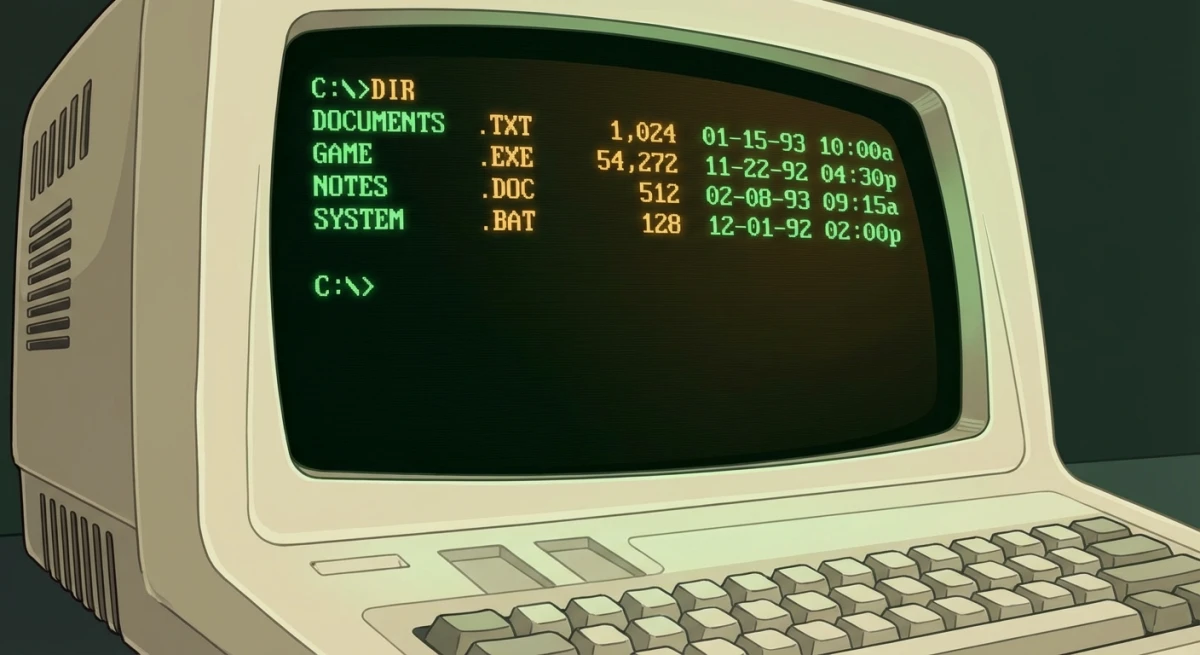
The DOS 8.3 filename limit
Early versions of MS-DOS and Windows (before Windows 95) limited file extensions to three characters. This was called the "8.3 format": eight characters for the name, three for the extension.
The JPEG standard was created in 1992 by the Joint Photographic Experts Group. The natural extension was .jpeg, which is four characters. But DOS couldn't handle that. So Windows shortened it to three letters.
Mac and Linux had no such limitation and used the full four-letter extension from the start. The JPEG committee itself uses .jpeg in their documentation, but they've never declared one extension "correct" over the other.
The result
Two extensions for the same format:
- Windows defaulted to the shorter version (three letters)
- Mac and Linux used the full-length extension
- The web used both interchangeably
When Windows dropped the 8.3 restriction (Windows 95 and later), the four-letter extension started working everywhere. But the shorter version was already the standard. Most cameras, apps, and websites stuck with it.
Today, the three-letter version is more common. But both are equally valid.
Which should you use?
It genuinely doesn't matter. But if you want a recommendation:
The shorter .jpg extension is the safer bet:
- Shorter to type
- Most widely used
- Default on most cameras and phones
- Default in most image editors
The longer .jpeg extension makes sense if:
- Your system or API expects four-letter extensions
- You prefer matching the format's full name
- Personal preference
One thing to watch: Stay consistent within a project. If your website uses one extension for image URLs, don't mix in the other. Search engines treat them as different URLs: /images/photo.jpg and /images/photo.jpeg are two separate pages to Google, even if the image is the same.
For web projects, pick one and stick with it.
What about .jfif, .jpe, and .jif?
You might occasionally see these extensions too. They're all the same format:
- .jfif. JPEG File Interchange Format. Common on older Windows systems.
- .jpe. Another shortened variant. Rare today.
- .jif. JPEG Interchange Format. Almost never used.
All of these open and display identically. If you receive a file with one of these extensions, just rename it and it works perfectly.

Tired of plain screenshots? Try ScreenSnap Pro.
Beautiful backgrounds, pro annotations, GIF recording, and instant cloud sharing, all in one app. Pay $39 once, own it forever.
See pricing and featuresComparing JPEG to other image formats
The real question isn't about the extension. It's when to use this format at all versus PNG, WebP, or newer alternatives.
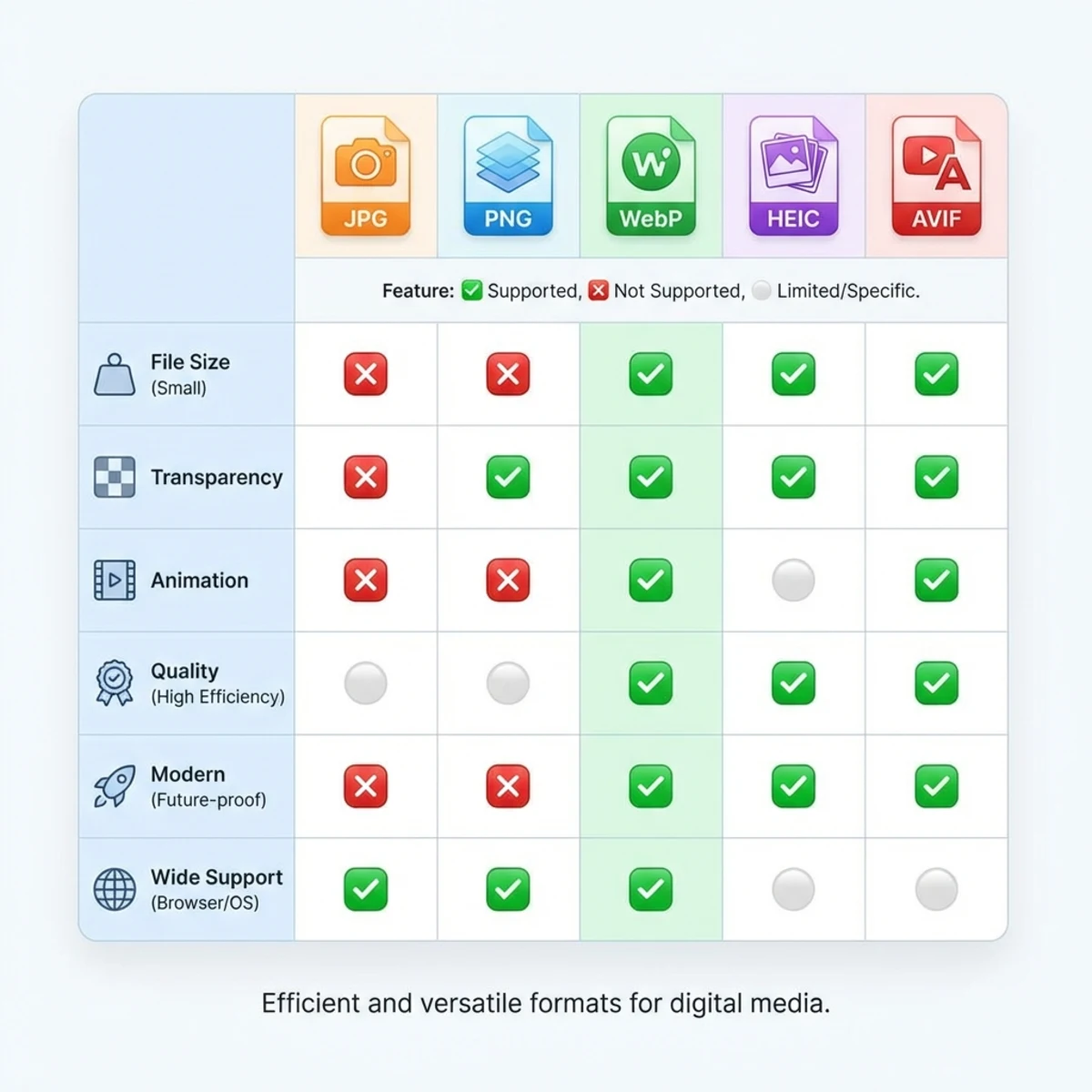
| Format | Compression | Transparency | Best for | File size |
|---|---|---|---|---|
| JPEG | Lossy | ❌ | Photos, complex images | Small |
| PNG | Lossless | ✅ | Screenshots, logos, text | Medium-Large |
| WebP | Both | ✅ | Web images (all types) | Smallest |
| HEIC | Lossy | ❌ | iPhone photos | Very small |
| AVIF | Both | ✅ | Next-gen web images | Smallest |
| GIF | Lossless | ✅ (1-bit) | Simple animations | Varies |
When JPEG is the right choice
- Photos for sharing. Universally compatible. Everyone can open it: email clients, messaging apps, and social platforms all handle it without issues.
- Large photo collections. Compression keeps storage manageable. A folder of 1,000 vacation photos might be 5 GB. The same folder in PNG could be 50 GB.
- Print. Professional print shops accept this format. Most support CMYK for color-accurate printing.
When to choose PNG instead
- Screenshots. Mac saves screenshots as PNG by default. Lossy compression blurs text and UI elements. If you take screenshots on Mac, keep them as PNG for the sharpest results.
- Logos and icons. Anything that needs transparency or crisp edges belongs in PNG.
- Images you'll edit repeatedly. PNG doesn't lose quality when you re-save. JPEG does.
For a deep dive into these differences, our PNG vs JPG guide covers everything.
When to choose WebP
WebP produces files 25-35% smaller at similar quality. If you're optimizing a website, it's the better choice. All modern browsers support it. According to MDN Web Docs, WebP has over 97% browser support globally.
The downside? Older software and some platforms don't support it yet. If you need to convert, our WebP to JPG converter handles it.
When to choose HEIC
HEIC is Apple's preferred format for iPhone photos. It produces files roughly half the size at similar quality. But it has limited support outside the Apple ecosystem, where Windows needs a codec extension and most web browsers don't display it natively.
If you receive HEIC files and need broader compatibility, converting to a universal format is the easiest solution. Our PNG vs JPG guide covers HEIC and other modern formats in more detail.
How JPEG compression works
Understanding compression helps you save better images.
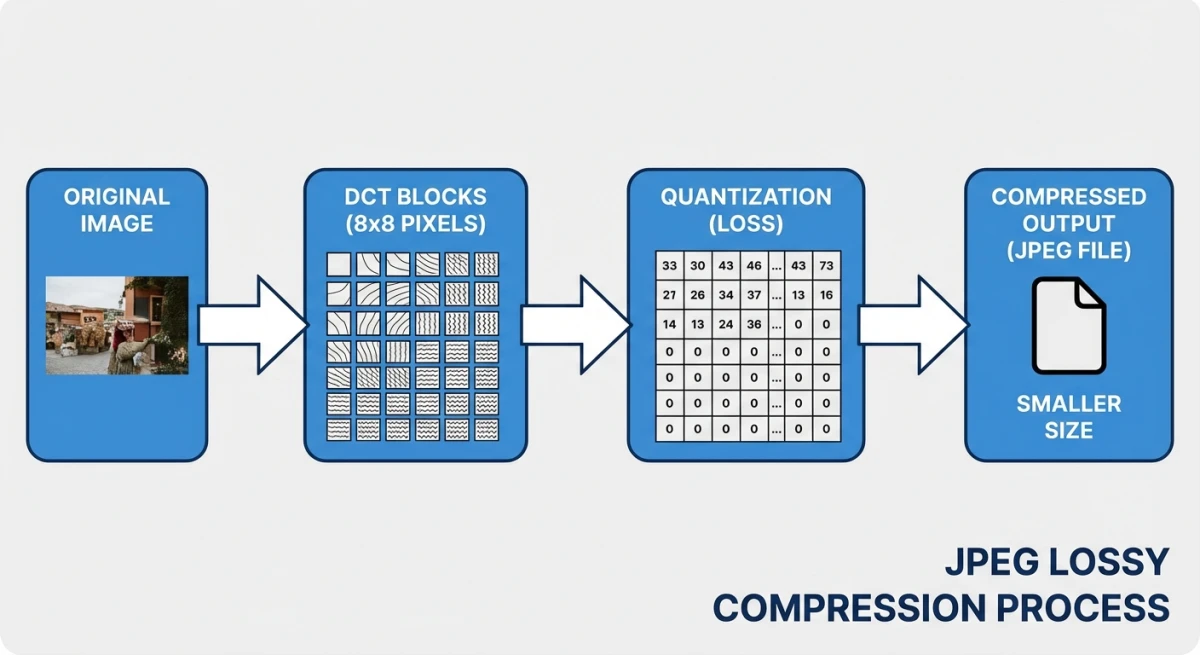
JPEG uses lossy compression. Here's what happens when you save:
- Color conversion. The image converts from RGB to YCbCr color space, separating brightness from color data.
- Block splitting. The image divides into 8×8 pixel blocks.
- DCT transform. Each block gets analyzed for patterns using a mathematical formula (Discrete Cosine Transform).
- Quantization. This is where data gets thrown away. High-frequency details (sharp edges, fine textures) are reduced or removed. The quality slider controls how aggressively this happens.
- Encoding. The remaining data compresses using Huffman coding, producing the final file.
Quality settings explained
Most apps let you set quality from 0 to 100:
- 90-100: Nearly identical to original. Large files. Best for archival copies.
- 80-90: Excellent quality. Compression artifacts are invisible to most people. Best for web and sharing.
- 60-80: Good quality. Minor artifacts visible on close inspection. Good for thumbnails and previews.
- Below 60: Noticeable quality loss. Blocky artifacts around edges. Only use when file size is critical.
The sweet spot is 80-85. You get roughly 80% file size reduction with imperceptible quality loss. Most web optimization tools target this range.
Try it yourself: save the same photo at 100, 85, and 60 quality. Compare them side by side. At 85, you'll struggle to spot the difference from the original. At 60, artifacts appear around text and sharp edges.
Generation loss
Every time you open and re-save, the file re-compresses. Each cycle loses a bit more quality. After 10-20 cycles, the degradation becomes visible: blocky patches, color banding, and blurry text.
Best practice: Keep your original in PNG or RAW. Export to the final format only as the last step. This way you always have a lossless source to go back to.
Best practices for saving images
Choose the right quality. For web: 80-85. For email: 70-80. For print: 90-95. For archival: use PNG instead.
Resize before saving. A 4000×3000 photo at quality 85 is around 2 MB. Resize to 1920×1080 first and it drops to 300-400 KB. Resizing has a bigger impact on file size than quality settings.
Strip metadata. Image files contain EXIF data: camera model, GPS coordinates, date taken. For web use, strip this data to reduce file size by 10-30 KB and protect privacy. Our image metadata viewer shows what's embedded in your files.
Use progressive encoding. Progressive files load in stages, so a blurry preview appears first and then sharpens. This feels faster on slow connections. Most image editors offer this as a save option, and for web delivery it's almost always the better choice.
Name files consistently. Use lowercase extensions. Use hyphens instead of spaces. Good: product-photo.jpg. Bad: Product Photo.JPEG. Consistent naming prevents issues on case-sensitive servers and makes URLs cleaner.
Don't convert screenshots. If the image contains text, UI elements, or graphics, keep it as PNG. Converting introduces artifacts that make text fuzzy. Only convert actual photographs.
Use the right color space. For web, save in sRGB. For print, save in CMYK if required. Using the wrong color space can make colors look washed out or shifted.
Compress after saving. Even after choosing a quality level, you can squeeze out 10-20% more savings with our image compressor, which removes unnecessary data without visible quality loss.
For screenshots on Mac, the default PNG format is the right choice. If you need to change formats, check our guide on Mac screenshot settings. You can also convert between formats or use our free image format converter for quick conversions.
Frequently Asked Questions

Morgan
Indie DeveloperIndie developer, founder of ScreenSnap Pro. A decade of shipping consumer Mac apps and developer tools. Read full bio
@m_0_r_g_a_n_