Best Camtasia Alternatives for Windows (2026)
Camtasia is a great product. It is also $299.99 one-time or $179 per year, and for most Windows users, that is simply too much. If you just need to record your screen, add a few callouts, and share the result, you are paying for a full video editor you will barely use.
This is the honest guide to the best Camtasia alternative options for Windows in 2026. Eight tools, grouped by what they are actually good for. Some are free. Some cost $39. None of them will bill you $300 to start.
Why look for a Camtasia alternative
Camtasia has earned its reputation. The timeline editor is solid. The callouts look clean. Courses built in it feel polished. But in 2026, three problems keep pushing people toward something else.
The price keeps climbing. Camtasia 2026 starts at $299.99 one-time or $179 per year for the Create plan. Five years ago you could get a perpetual license for under $200. TechSmith's move toward subscription billing has left a lot of long-time users unhappy.
It is bloated for simple jobs. If you record two tutorials a month and trim a few seconds off each one, you do not need a full non-linear editor with transitions, quizzes, and SCORM export. You need a fast recorder and a trim tool.
The learning curve is real. Camtasia is not hard, but it is not quick either. For a new user, picking it up for a five-minute tutorial is overkill.
If any of those hit home, the list below has a better fit. For a wider roundup of capture tools, our free screen recorders for Windows guide covers the no-cost options in depth.
What Camtasia still does well
Let us be fair. Before we talk alternatives, here is where Camtasia is genuinely hard to beat.
- Timeline editor built in. Record and edit in one app, no handoff.
- Callouts and animations. Pre-built highlight boxes, zoom effects, cursor smoothing.
- Quiz and SCORM export. Drop in knowledge checks, ship to any learning management system.
- Polished output. Courses that look professional out of the box.
If you build full video lessons, and you need all four of those things, stay with Camtasia. Nothing on this list will match it feature-for-feature. The tools below are for people who need a subset, not the whole stack.
Camtasia alternatives for Windows: quick comparison
| Tool | Price | Editor | Windows | Best for |
|---|---|---|---|---|
| OBS Studio | Free | No | Yes | Streamers and power users |
| ShareX | Free | No | Yes | Captures plus workflow automation |
| ActivePresenter | Free or $199 | Yes | Yes | E-learning with quizzes |
| CamStudio | Free | No | Yes | Legacy, no-frills recording |
| ScreenSnap Pro | $39 one-time | No | Yes + Mac | Capture, record, annotate, share |
| Movavi | $44.95/yr | Yes | Yes | Simple editing with a timeline |
| ScreenPal | $4 to $15/mo | Light | Yes | Cloud hosting and quizzes |
| Snagit | $39/yr | Light | Yes | Screenshots with short video |
| Descript | $12 to $24/mo | Yes (text) | Yes | Transcript-based editing |
Free Camtasia alternatives
These cost nothing. That is the good news. The trade-off is they either lack an editor, look dated, or ask you to learn a slightly harder tool.
1. OBS Studio: best free power option
Price: Free, open-source
Editor: None
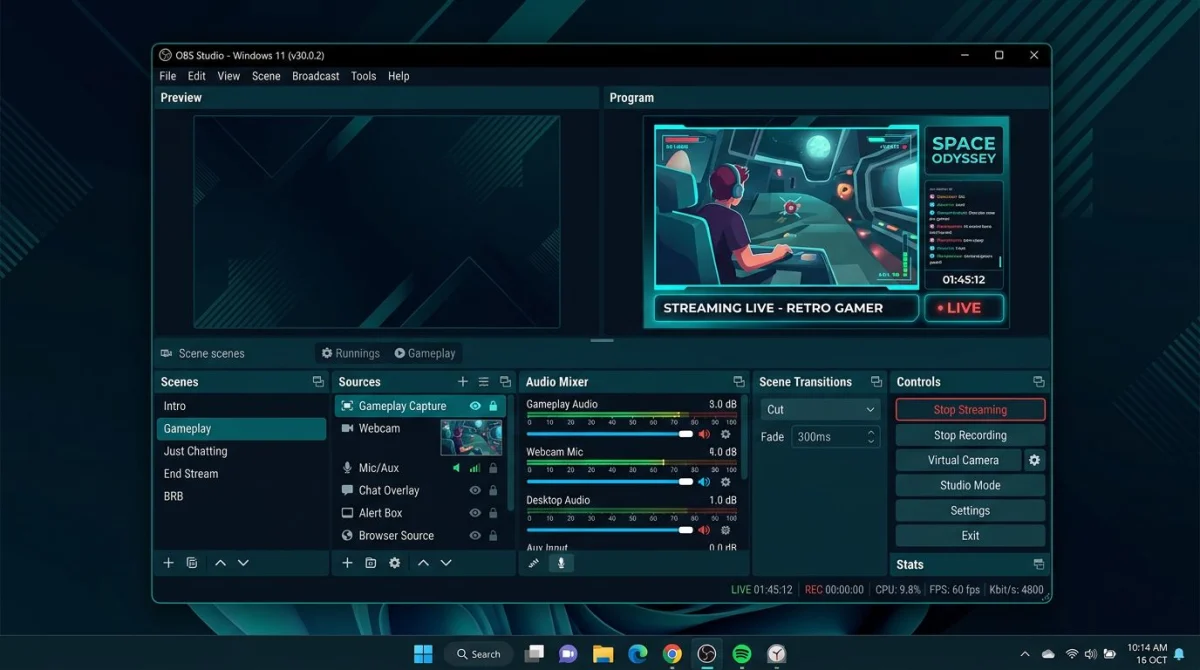
OBS Studio is a free, open-source recorder. It captures full screen, windows, or custom regions at any frame rate your PC can handle. It supports webcam overlays, multiple audio tracks, and scene switching. You can find a plugin for almost anything.
The catch: there is no editor. You record, then you have to trim and cut in another app (Clipchamp works fine and ships with Windows 11). OBS also has a learning curve. The first time you open it, the layout looks confusing. Stick with it for an hour and it clicks.
Best for: Anyone who wants pro recording quality and does not mind editing in a second tool. Also the right pick if you stream.
2. ActivePresenter Free: best free option with an editor
Price: Free (no watermark, unlimited use) or $199 one-time for Standard
Editor: Yes, full timeline
ActivePresenter is the closest free match to Camtasia's feature set. The free tier includes a real timeline editor, callouts, cursor effects, and basic quiz blocks. The paid tier adds SCORM export and advanced e-learning features. If you build courses, this is the one to try first.
The interface is a little dense. The help docs are OK but not great. Expect a weekend of learning before you are fast with it. If you are shipping tutorials to a school or LMS, that time pays off.
Best for: Educators, trainers, and anyone building interactive lessons.
3. ShareX: best free for capture plus workflow
Price: Free, open-source
Editor: None
ShareX is mostly known as a screenshot tool, but it records screen video too. It outputs MP4 or GIF, captures specific regions, and chains actions together so you can auto-upload every capture to a service you pick.
The video side is basic. There is no webcam support, no overlay, no editor. For quick bug-report recordings or short demos, it does the job. For a polished tutorial, it will not.
Best for: Developers and power users who want one tool for captures plus automation.
4. CamStudio: legacy free option
Price: Free, open-source
Editor: None
CamStudio is the old guard. It has been around since the early 2000s and it still runs on modern Windows. It records screen, cursor, and audio to AVI or SWF. That is it.
The UI looks like it was built in 2005 because it was. There is no active development to speak of. If you need something lightweight on an older PC and nothing on this list works, it is worth a try. Otherwise, pick OBS Studio or ShareX.
Best for: Users on older hardware who need minimal overhead.

Tired of plain screenshots? Try ScreenSnap Pro.
Beautiful backgrounds, pro annotations, GIF recording, and instant cloud sharing, all in one app. Pay $39 once, own it forever.
See pricing and featuresAffordable paid Camtasia alternatives
These cost money, but nowhere near $299. Each one fills a different gap.
5. ScreenSnap Pro: best for capture, record, and share
Price: $39 one-time (lifetime updates, license for 2 computers)
Editor: No timeline editor
Here is the honest pitch: ScreenSnap Pro is not a Camtasia replacement if you need a timeline editor with transitions, zoom keyframes, and scene cuts. It does not do those things. What it does do is every other part of Camtasia's workflow, and it does it better.
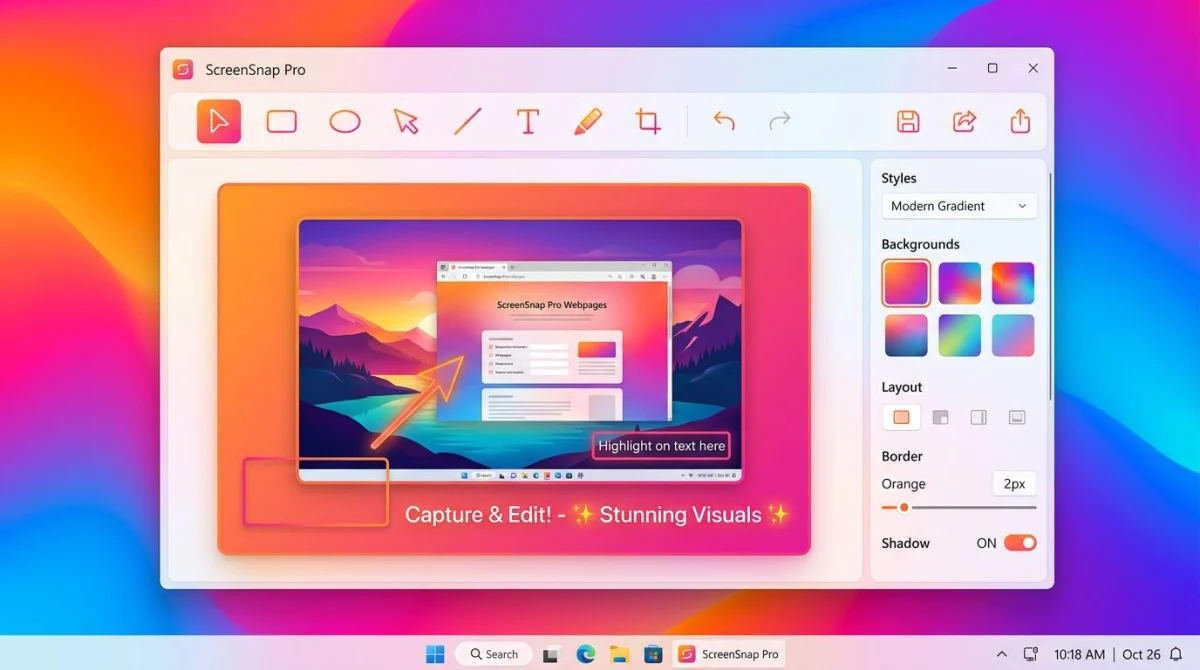
You get screenshot capture (region, window, full screen), screen recording to MP4, screen recording with audio (mic and system), webcam recording, and direct GIF capture. You also get 500+ gradient backgrounds, 15 annotation tools, one-click cloud sharing, and zero watermarks. Pay once, own forever.
If your Camtasia workflow is "record, trim, add an arrow or two, share," ScreenSnap Pro does that for a fraction of the price ($39 vs $299). If your workflow needs a full video editor, it does not, and that is OK, because the next two tools cover that.
Best for: Marketers, developers, educators, and support teams who record short clips, annotate them, and share fast. No editor, no bloat.
6. Movavi Screen Recorder: best cheap option with a timeline
Price: Roughly $44.95 per year or $169 one-time for the Video Suite bundle
Editor: Yes, separate app bundled in the suite
Movavi is the middle ground. The recorder handles screen, webcam, and audio. Pair it with Movavi Video Editor (included in the suite) and you get a timeline with transitions, titles, and basic effects. The interface is much friendlier than Camtasia.
It will not match Camtasia's polish on advanced features, but for 80 percent of tutorial work, it is enough. The one-time Video Suite license runs about $169, still half of Camtasia.
Best for: Users who want a light timeline editor without learning a pro tool.
7. ScreenPal: best cheap cloud option
Price: Free with limits, or $4 to $15 per month
Editor: Light, browser-based
ScreenPal (formerly Screencast-O-Matic) is subscription-based but cheap. Free tier gets you 15-minute recordings with a watermark. Paid tiers unlock a light editor, cloud hosting, captions, and quiz features. Everything runs in the browser or a slim desktop app.
If you need cloud hosting built in, want to embed clips on a site, or care about quick captions, it is a solid pick. If you prefer to own your files and skip subscriptions, the next section is better.
Best for: Teachers and trainers who want cloud hosting and light editing without a big up-front buy.
Premium Camtasia alternatives
When Camtasia is too expensive but your job demands real editing, these are worth a look.
8. Snagit: best for screenshots plus short video
Price: $39 per year (or $62.99 perpetual for older versions)
Editor: Light, trim and callouts only
Snagit is the classic TechSmith sibling to Camtasia. It is screenshot-first, but version 2026 adds short video capture, scrolling capture, and a solid annotation library. You cannot cut mid-clip, add transitions, or stack multiple tracks.
If your work is 90 percent screenshots and 10 percent short screen recordings, Snagit is a good fit. If you tilt the other way, look at ScreenSnap Pro (one-time $39) or Movavi (timeline included).
Best for: Support teams and tech writers who live in screenshots first.
9. Descript: best for transcript-based editing
Price: $12 per month Hobbyist, $24 per month Creator
Editor: Yes, text-based
Descript is the odd one out. Instead of dragging clips on a timeline, you edit by editing a transcript. Delete a word in the text, the video cuts that word. It sounds strange, it works great for talking-head tutorials.
It also includes AI voice cloning, filler word removal, and auto-generated captions. The trade-off is subscription pricing, with no one-time license. For course creators who hate timeline editing, it is a different way to work.
Best for: Podcasters, trainers, and creators who prefer words over timelines.
How to pick the right Camtasia alternative
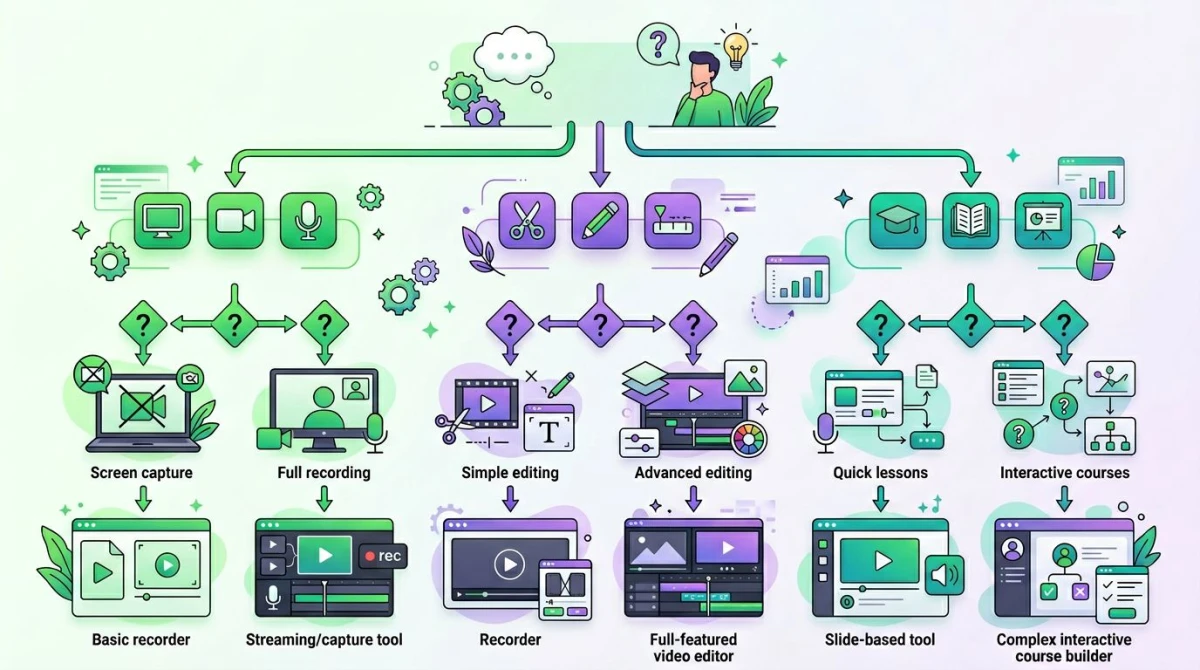
Skip the feature checklist for a second. Answer this question: what do I actually need to ship?
If you need a timeline editor with transitions and effects:
Look at ActivePresenter (free, steeper learning curve) or Movavi (paid, friendlier interface). These are the closest feature matches to Camtasia's editor.
If you need to record, annotate, and share with no editor required:
ScreenSnap Pro at $39 one-time covers screen, webcam, audio, GIFs, and annotation. Or use OBS Studio (free) with Clipchamp for simple cuts.
If you need full e-learning with quizzes and SCORM:
ActivePresenter Standard ($199 one-time) is the real contender. Or, if your courses are mostly talking-head, Descript at $24 per month.
If you mostly shoot screenshots with the occasional clip:
Snagit ($39 per year) or, for a one-time buy, ScreenSnap Pro at $39.
If you need to embed videos on a site with hosting built in:
ScreenPal ($4 to $15 per month) handles that end-to-end.
And if what you really want is to capture as GIF for docs or Slack, most of the tools on this list cannot do that directly. ScreenSnap Pro records to GIF natively. OBS Studio and ShareX require an extra conversion step.
So which one should you actually install?
If we had to pick one recommendation for each reader:
- On a tight budget, do not mind learning curves: OBS Studio.
- Need a timeline editor for free: ActivePresenter Free.
- Want capture plus annotation plus sharing for one price: ScreenSnap Pro.
- Need course features and can pay once: ActivePresenter Standard.
- Building polished videos and have $200 spare: Movavi Video Suite.
- Still want Camtasia-level polish, willing to pay: just stay with Camtasia. There is no shame in it.
For users who find themselves using Camtasia mostly to record a screen and annotate it, ScreenSnap Pro does that specific job for $39 one-time with lifetime updates. No timeline and no SCORM: just a fast recorder, a clean annotation toolkit, and one-click cloud sharing. If you are curious how it compares against TechSmith's other product, our best screenshot tools for Windows roundup digs in further.
You can also read the official Camtasia system requirements on TechSmith's site if you want to check exactly what version you would be giving up.
Frequently Asked Questions

Morgan
Indie DeveloperIndie developer, founder of ScreenSnap Pro. A decade of shipping consumer Mac apps and developer tools. Read full bio
@m_0_r_g_a_n_