Record WhatsApp Video Call on Windows (2026)
TL;DR: WhatsApp does not record calls on its own. To record a WhatsApp video call on Windows, use Xbox Game Bar (Win + Alt + R) for a quick capture with both sides of the audio, OBS Studio for full control, or ScreenSnap Pro ($39 one-time) for a simple paid option with mic, system audio, and webcam. Always tell the other person you are recording.Wondering how to record a WhatsApp video call on your PC? WhatsApp has no record button, so you need a screen recorder on your Windows desktop.
This guide covers five ways to record a WhatsApp video call on Windows 10 and 11. All work with the WhatsApp Desktop app from the Microsoft Store. For a general overview, see our Windows screen recording guide.
Can WhatsApp record calls itself?
No. WhatsApp has no built-in call recorder on any platform. There is no record button in the desktop app, no option in settings, no hidden shortcut. WhatsApp uses end-to-end encryption for calls, and the team has not built the consent flows a record feature would need.
So every method below is a screen recorder. It captures what your screen shows and what your sound card plays. That means you need to capture system audio to get the other person's voice.
One note: WhatsApp Web cannot make video calls. You must use the WhatsApp Desktop app from the Microsoft Store.
Quick comparison: which method to pick
Here is a side-by-side look at the five methods. Pick based on what you have installed and how much setup you want.
| Method | System audio | Mic | Cost | Best for |
|---|---|---|---|---|
| Xbox Game Bar | Yes | Yes | Free (built-in) | Quick one-off calls |
| OBS Studio | Yes (full) | Yes | Free | Long calls, podcasts |
| ScreenSnap Pro | Yes | Yes | $39 once | Simple workflow + webcam |
| ShareX | Yes (with setup) | Yes | Free | Tinkerers, power users |
| PowerPoint | Yes | Yes | Microsoft 365 | People who have Office |
Method 1: Xbox Game Bar
Xbox Game Bar is the hidden screen recorder built into Windows 10 and 11. It was made for games, but it records most desktop apps, including WhatsApp Desktop. Free, pre-installed, fast.
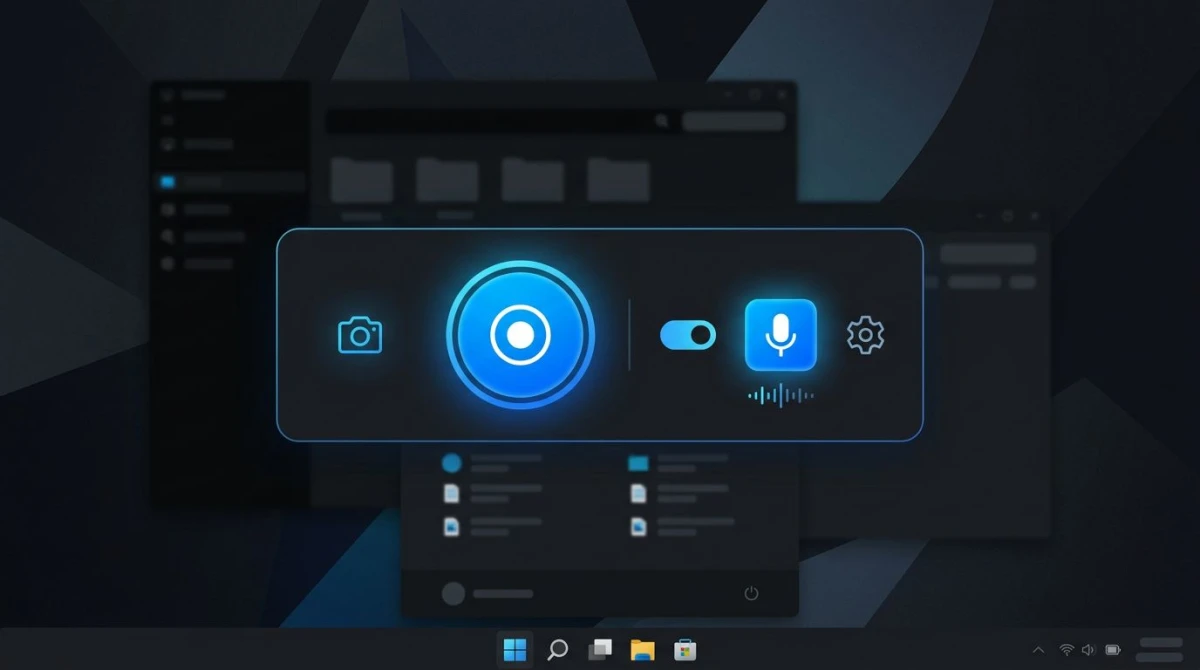
How to record a WhatsApp call with Game Bar
- Open WhatsApp Desktop and start (or answer) the video call.
- Press
Win + Gto open Game Bar. If Windows asks "Is this a game?" click Yes, this is a game. - In the Capture widget, click the microphone icon if you want to record your own voice too.
- Click the round Record button, or press
Win + Alt + Rto start. - A small timer shows in the corner. Press
Win + Alt + Ragain to stop. - Open File Explorer → Videos → Captures to find your MP4.
Limits to know
- Game Bar only records the active window. Do not click another app mid-call or recording stops.
- Some older PCs show a "Gaming features aren't available" error. Check Settings → Gaming → Xbox Game Bar is on.
If Game Bar fits your needs, our full Windows screen recording tutorial shows more tips, including how to change quality and frame rate.
Method 2: OBS Studio
OBS Studio is free, open source, and gives you total control. It is widely used by streamers, but it works for call recording too. Setup takes five minutes.
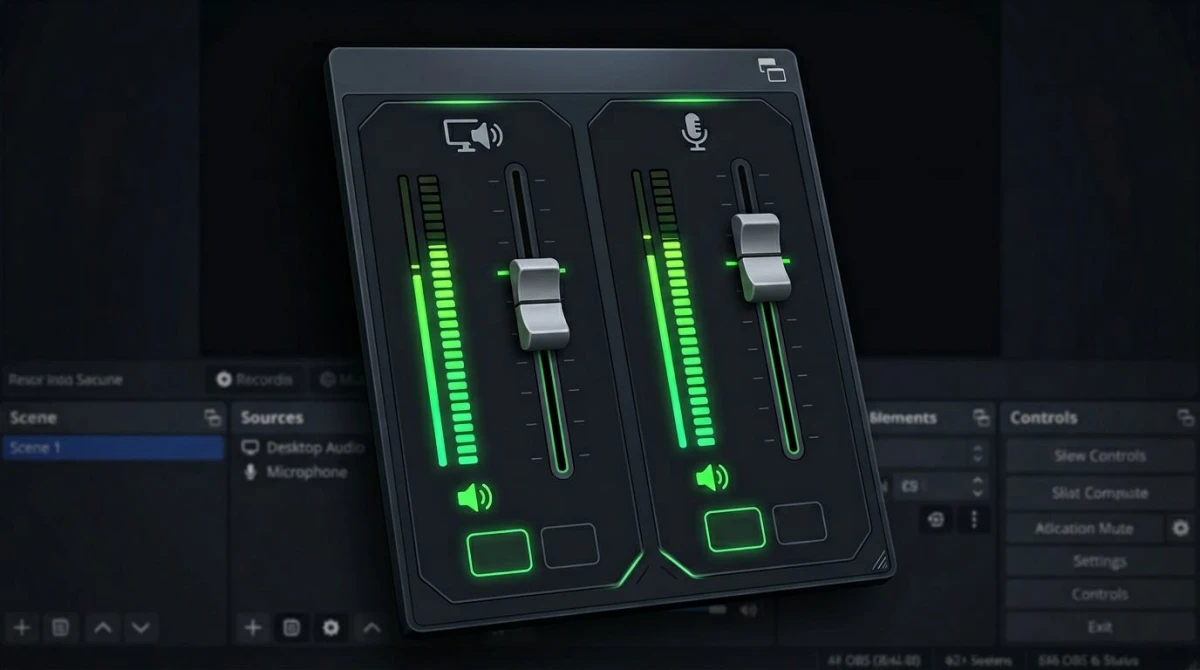
Setup steps
- Download and install OBS Studio from the official site.
- Open OBS. In the Sources panel, click
+→ Window Capture. - Pick WhatsApp from the window list and click OK.
- In the Audio Mixer, make sure Desktop Audio is on. That is how you capture the other person's voice.
- Add your mic under Audio Input Capture if it is not there already.
- Click Start Recording before the call, then Stop Recording when done.
- Find your file under File → Show Recordings. Default format is MKV.
Why OBS is great for calls
- No time limit, unlike many free tools.
- Records both sides of the audio on separate tracks if you want.
- Works fine on older hardware with the right encoder settings.
The catch: OBS is not pretty. Stick with the default scene and the steps above and you will be fine.
Method 3: ScreenSnap Pro
If you want something as easy as Game Bar but without the window-only limit, ScreenSnap Pro is a solid pick. It is a one-time $39 app that records your screen with mic and system audio, plus a webcam overlay if you want one. No subscription, no watermark, no time cap.
How to record a WhatsApp call
- Open ScreenSnap Pro and start your WhatsApp call.
- Click Record Video and pick Region (drag over the call window) or Full Screen.
- Turn on System Audio and Microphone in the toolbar.
- Click Start. A small timer shows in the corner.
- Click Stop when the call ends. The file saves as MP4, ready to share.
You can also flip on the webcam overlay to record your own face in the corner. Handy for podcast-style calls. ScreenSnap Pro has 15 annotation tools for marking up a screenshot too.
Pricing: $39 one-time, two computers per license, 30-day refund.
Method 4: ShareX
ShareX is the power user's free tool. Open source, Windows only, with a huge feature list. Call recording works, but setup is less beginner-friendly than Game Bar.
Steps
- Install ShareX from the official site or the Microsoft Store.
- First run only: go to Task settings → Screen recorder → Screen recording options.
- Click Install recorder devices-helper to pull in FFmpeg. ShareX uses FFmpeg to record.
- In the same settings, set Audio source to your speakers (look for
virtual-audio-captureror your mic). - Close settings. Start your WhatsApp call.
- Press
Ctrl + Print Screento draw a region over the call window. Recording starts. - Press the stop button in the tray, or
Shift + Print Screenby default. - Files save to your configured folder as MP4.
ShareX has steep options. For a guided walkthrough, see our ShareX review. If you want less tinkering, check our free screen recorder picks.

Tired of plain screenshots? Try ScreenSnap Pro.
Beautiful backgrounds, pro annotations, GIF recording, and instant cloud sharing, all in one app. Pay $39 once, own it forever.
See pricing and featuresMethod 5: PowerPoint screen recorder
Microsoft PowerPoint has a built-in screen recorder most folks have never used. If you pay for Microsoft 365, you have it.
How to record a call
- Open PowerPoint on any slide.
- Click Insert → Screen Recording.
- PowerPoint minimizes and shows a small control bar at the top.
- Click Select Area, drag over the WhatsApp call window.
- Make sure Audio and Record Pointer are on.
- Click Record. A three-second countdown starts.
- Press
Win + Shift + Qto stop. The clip drops into your slide. - Right-click the video in PowerPoint → Save Media as → choose MP4.
It works, but has rough edges. Frame rate is capped, and you need PowerPoint open the whole time. Fine for a one-off. For heavier needs, see our Camtasia alternatives on Windows.
Recording both sides of the audio (system + mic)
This is the step that trips people up. A screen recorder captures what the sound card plays out. So to get the other person's voice, you need system audio (sometimes called desktop audio or stereo mix) turned on. Your own voice goes through the mic.
Here is a quick checklist for each tool:
- Xbox Game Bar: Open Settings → Gaming → Captures → Audio to record → All. That grabs system + mic.
- OBS Studio: In the Audio Mixer, both Desktop Audio and Mic/Aux should show green bars when sound plays.
- ScreenSnap Pro: Toggle System Audio and Microphone on before you hit record.
- ShareX: In the screen recorder settings, pick both your speakers and your mic under audio source.
- PowerPoint: Just make sure the Audio button in the capture bar is enabled.
If the other person sounds muffled or echoed, you probably have both system and mic picking up the same speaker. Use headphones. That cleanly separates the two inputs.
Legal and ethical reminder: tell the other person
Recording a call without telling the other person can be illegal. Laws vary:
- Two-party consent states in the U.S. (California, Florida, Illinois) need everyone on the call to agree.
- One-party consent states only need one person to know.
- Many EU countries need consent.
- UK: Personal use is fine, but sharing needs consent.
The short answer: just ask. A quick "mind if I record this?" at the start saves you from trouble. For a podcast or interview, get the verbal yes on the recording itself.
Storage, file size, and where recordings save
Screen recordings eat disk space fast. A rough rule: 1 minute of 1080p recording ≈ 150 MB with Game Bar defaults. OBS with the right codec can halve that.
Default save folders
| Tool | Default folder |
|---|---|
| Xbox Game Bar | C:\Users\YOU\Videos\Captures |
| OBS Studio | C:\Users\YOU\Videos |
| ScreenSnap Pro | C:\Users\YOU\Videos\ScreenSnap |
| ShareX | C:\Users\YOU\Documents\ShareX\Screenshots\YYYY-MM |
| PowerPoint | Embedded in the slide until you export |
Lost track of a file? Our guide on where screenshots go on Windows covers default folder logic for most Windows capture tools.
Shrinking the file
For a 30-minute call, you can drop a 4 GB MKV to under 1 GB with a quick re-encode:
- OBS: Switch to MP4 with H.264 and a CRF of 23-ish.
- HandBrake: Free, cross-platform. Drop in the file, pick "Fast 1080p30", export.
- ScreenSnap Pro: Records as MP4 with sensible defaults.
Quick tips before your next WhatsApp call
- Close browser tabs that play sound. The recording picks up everything.
- Use a wired headset to keep mic and speaker audio separate.
- Do a 10-second test first. Make sure both voices show up.
- Keep the window in focus for Xbox Game Bar, which stops if you click away.
Frequently Asked Questions
Wrap-up
You have five solid ways to record a WhatsApp video call on Windows. For most people, Xbox Game Bar handles quick calls and OBS Studio handles anything longer. For less friction and a cleaner interface, ScreenSnap Pro fits in the middle: $39 once, no subscription, mic + system audio + webcam with one click.
Whichever tool you pick, test it before the real call. Ten seconds of setup saves a lost recording. And always tell the other person you are recording.

Morgan
Indie DeveloperIndie developer, founder of ScreenSnap Pro. A decade of shipping consumer Mac apps and developer tools. Read full bio
@m_0_r_g_a_n_