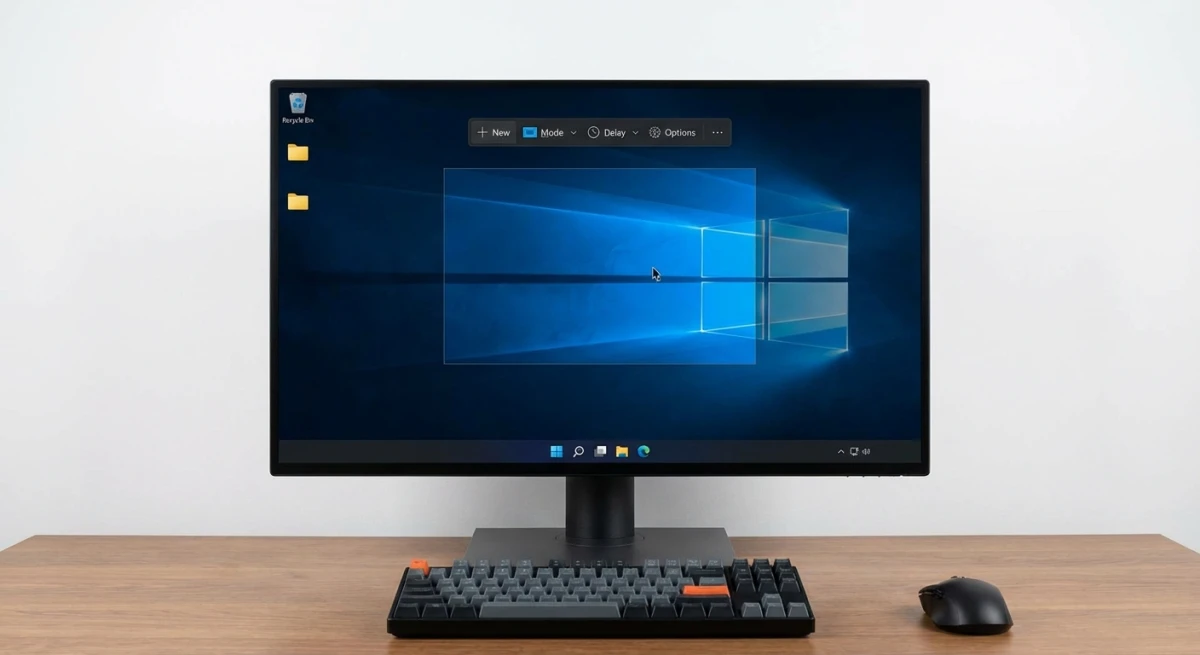
How to Screenshot Tweets on Mac (X Posts) 2026
Need to screenshot a tweet before it gets deleted? Want to turn a great X post into a polished image for your landing page or Instagram story? Whether you're saving social proof, archiving threads, or building a testimonial wall, this guide covers every way to capture tweets on Mac, including how a dedicated app like ScreenSnap Pro gives you cleaner, branded results.
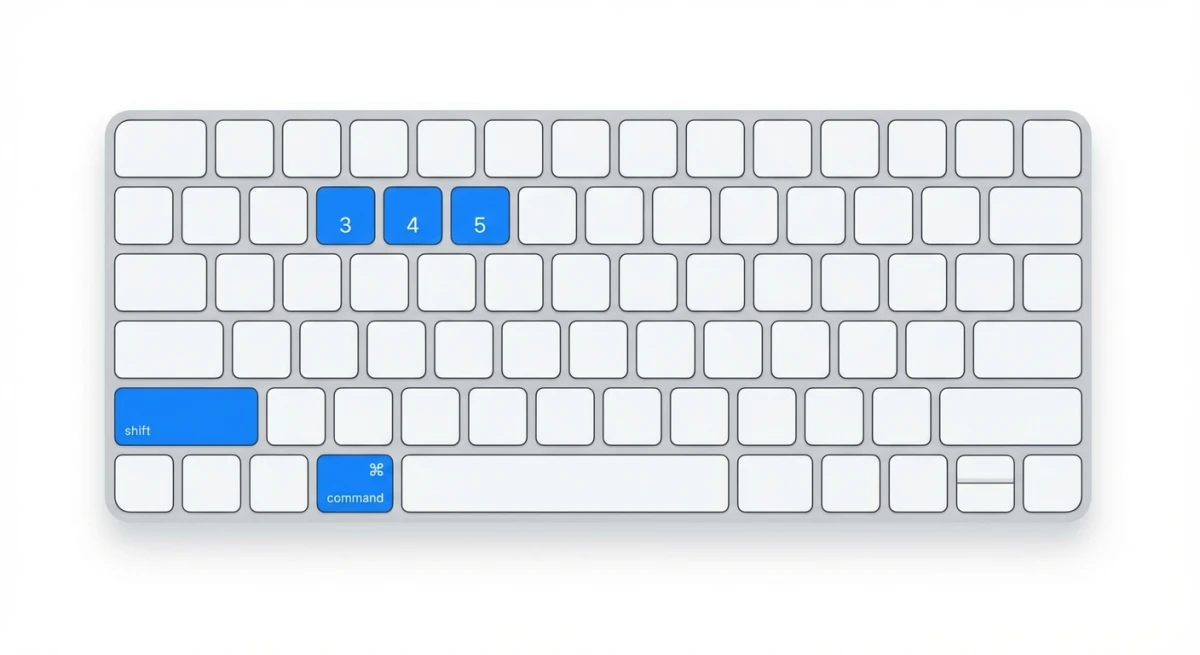
The quick answer: press ⌘ + Shift + 4 and drag over the tweet. For prettier results, use a tool that adds backgrounds and strips the clutter. Read on for all your options.
Why screenshot tweets?
People screenshot Twitter posts for lots of reasons:
- Social proof. Show customer praise on your website, pitch deck, or ads. A screenshot of a real tweet feels more genuine than a quote.
- Content repurposing. Turn great tweets into Instagram posts, LinkedIn carousels, or blog graphics.
- Archiving. Tweets get deleted all the time. A screenshot is your backup.
- Thread saving. Long threads are hard to bookmark and re-read. Capture them as images for easy reference.
- Receipts. Need proof of what someone said? A screenshot with the date and handle is hard to argue with.
- Sharing outside X. Not everyone uses Twitter/X. A screenshot lets you share posts anywhere.
Now let's look at how to actually capture them.
How to screenshot a tweet on Mac (3 methods)
Method 1: Mac keyboard shortcut (fastest)
The quickest way to grab any tweet:
- Open the tweet in your browser.
- Press
⌘ + Shift + 4. - Your cursor turns into a crosshair.
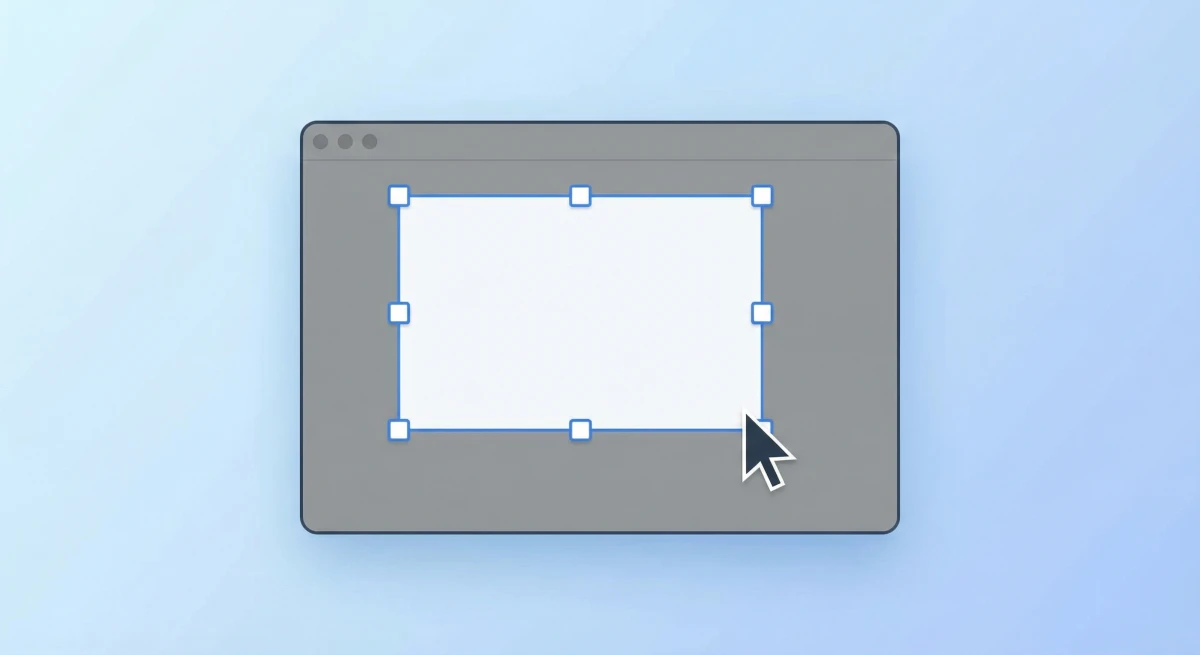
- Click and drag to select just the tweet, skipping the sidebar, ads, and other noise.
- Release to save the screenshot.
The image lands on your Desktop by default. You can change where screenshots save if you'd like a different folder.
Tips for cleaner captures:
- Zoom in with
⌘ + +so the tweet fills more of the screen. Bigger text looks better in the final image. - Use
⌘ + Shift + 4, then pressSpacebarto capture the entire browser window. Crop later if needed. - For a partial screenshot of just the tweet text, drag tightly around the content.
This method is free and works right now. The downside: you get a raw screenshot with no styling. For polished results, see Method 2.
Method 2: ScreenSnap Pro (beautiful results)
If you're a marketer or creator who shares tweet screenshots often, ScreenSnap Pro turns raw captures into share-ready images in seconds.
Here's the workflow:
- Capture the tweet with your shortcut.
- ScreenSnap Pro's editor opens right away.
- Pick a gradient background from 150+ options, which makes the tweet pop.
- Add annotations if needed: arrows to highlight key text, blur to hide usernames, or text callouts.
- Share via cloud link or save locally.
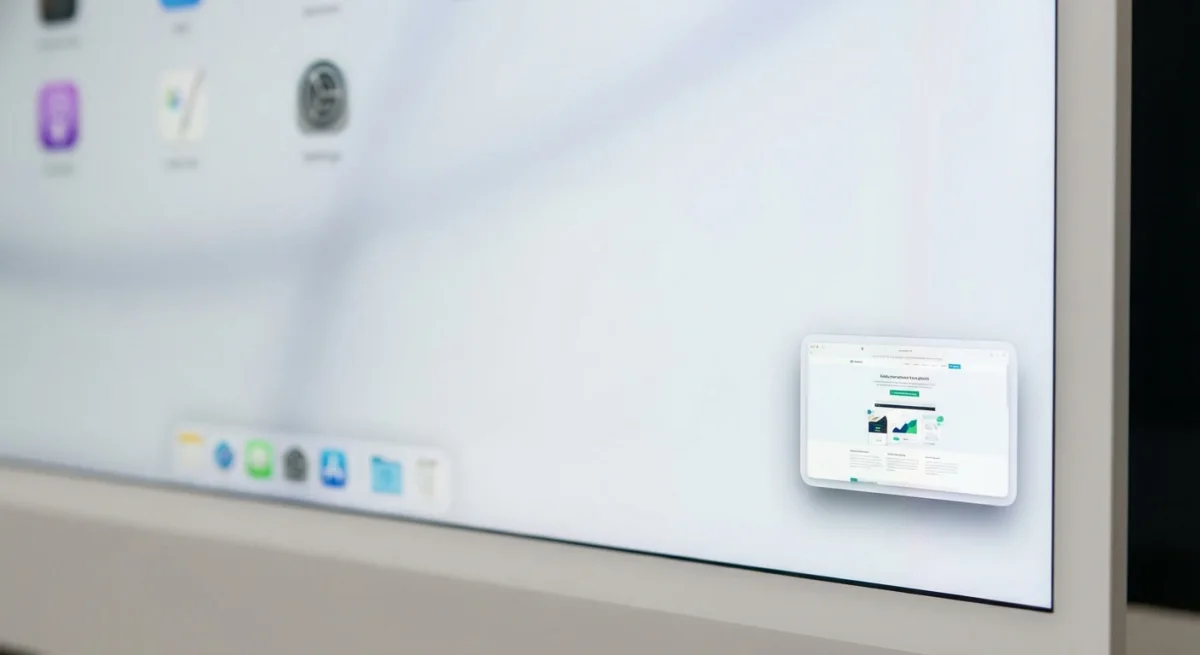
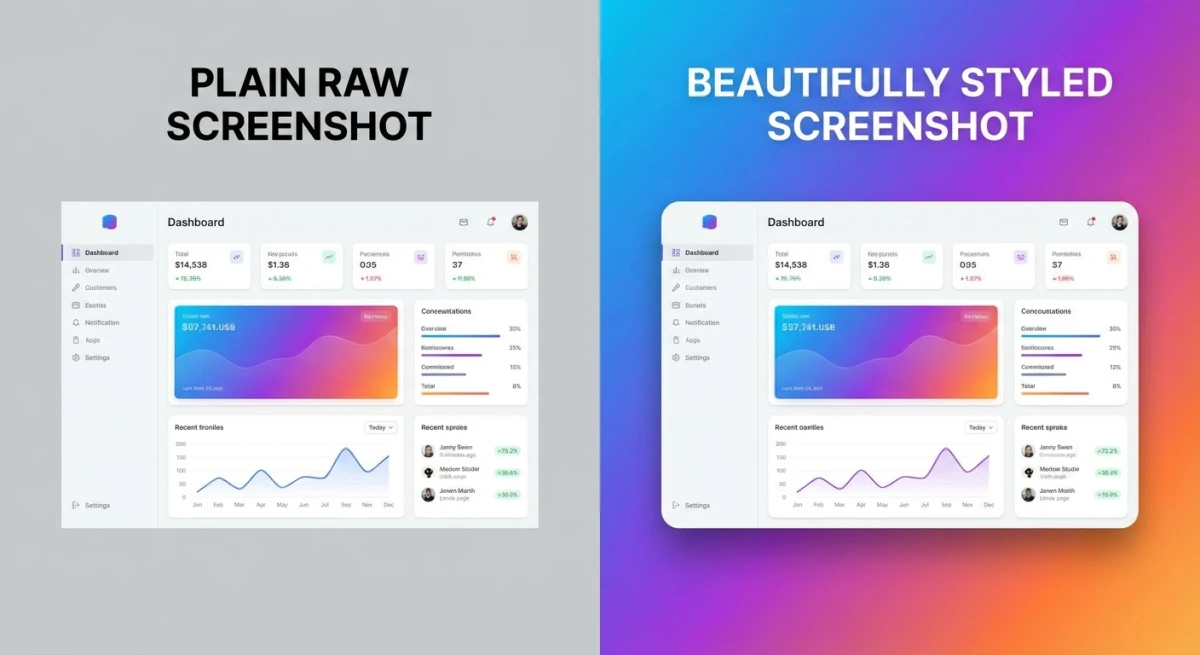
The gradient backgrounds are the key feature here. A tweet on a white background looks plain. The same tweet on a purple-to-blue gradient looks like a designed graphic. No Figma or Canva needed.
You can also add backgrounds to any screenshot, not just tweets. Great for product screenshots, testimonials, and feature highlights.
Pricing: $39 one-time. No subscription. No watermarks on your images.
Method 3: Web-based tweet screenshot tools
Several free web tools turn a tweet URL into a styled image:
Pikaso (@pikaso_me)
Pikaso is a Twitter bot. Tag @pikaso_me in a reply to any tweet, and it sends back a clean screenshot. You can also use their website.
- ✅ Simple: just tag the bot
- ✅ Fast: replies in seconds
- ❌ Limited styling options
- ❌ Others see your reply (not ideal for quiet archiving)
PostSpark
PostSpark turns a tweet URL into a polished image with custom backgrounds, fonts, and themes.
- ✅ Beautiful output with many themes
- ✅ Works with X, LinkedIn, Reddit posts
- ❌ Watermark on free tier
- ❌ Limited exports without paying
Pika.style
Pika.style is a general screenshot beautifier that works with tweets and other content.
- ✅ Lots of background and layout options
- ✅ Browser-based, no install
- ❌ Free tier has limits
- ❌ Requires pasting the URL
When to use web tools vs. a Mac app:
Web tools are great for one-off captures. But if you screenshot tweets often, a native app is faster: no switching to a website, no URL copying, no watermarks. You capture, style, and share from one place.
How to screenshot Twitter threads
Long threads need a different approach than single tweets. Here are your options:
Option 1: Scrolling screenshot
Some Mac tools can capture a full scrolling page. Open the thread, start a scrolling screenshot, and the tool grabs the entire thing top to bottom. CleanShot X and Snagit both support this.
Option 2: Capture each tweet and combine
For more control:
- Screenshot each tweet in the thread with
⌘ + Shift + 4. - Open all images in Preview.
- Use our guide on combining screenshots on Mac to stitch them into one image.
This takes longer but lets you skip boring tweets and keep only the good parts.
Option 3: Thread-to-image web tools
Tools like ThreadReaderApp "unroll" threads into a single page. Then screenshot that page. This is the easiest method for very long threads (20+ tweets).

Tired of plain screenshots? Try ScreenSnap Pro.
Beautiful backgrounds, pro annotations, GIF recording, and instant cloud sharing, all in one app. Pay $39 once, own it forever.
See pricing and featuresMake your tweet screenshots look great
A raw screenshot works. A styled one gets shared. Here's how to make your captures stand out:
Add a gradient background
Plain screenshots on white backgrounds blend in with the page. A gradient or colored background makes the tweet pop, especially on social media where everything fights for attention.
ScreenSnap Pro offers 500+ wallpapers. Pick one, and it wraps your screenshot in a beautiful frame. No design skills needed.
Crop out the clutter
Before sharing, remove parts that don't matter:
- The X sidebar and nav bar
- Reply counts and bookmark buttons (unless relevant)
- Other tweets in the timeline above or below
Use ⌘ + Shift + 4 to select only the tweet, or crop the screenshot after capture.
Highlight key text
Got a tweet with one great line buried in a paragraph? Use annotation tools to:
- Draw a box or underline around the key sentence
- Add an arrow pointing to the important part
- Use a highlight color over the text
This guides the reader's eye to what matters. Much better than posting the full tweet and hoping people read it all.
Blur private info
If the tweet shows email addresses, phone numbers, or other private details, blur them out before sharing. This takes two seconds in ScreenSnap Pro.
Size for the right platform
Different platforms want different sizes:
- Instagram feed: 1080 × 1080px (square)
- Instagram Story: 1080 × 1920px (vertical)
- LinkedIn post: 1200 × 627px
- Twitter/X: 1600 × 900px
- Blog: 1200px wide
For more details, see our social media image sizes guide.
Tweet screenshot tips for marketers
If you collect tweet screenshots as social proof or content, these habits will save time:
- Create a "testimonials" folder. Save all positive tweets in one place. When you need social proof for a landing page or pitch, it's all there.
- Capture the date and handle. Always include the timestamp and username in your screenshot. This proves the tweet is real.
- Batch your captures. Set aside 10 minutes once a week to screenshot new praise, product mentions, and reviews. Don't try to catch them in real time.
- Use cloud sharing for team access. ScreenSnap Pro's cloud sharing lets you grab a link and drop it into Slack or a shared doc. No file attachments needed.
- Keep originals and styled versions. Save the raw screenshot and the beautified version. You might need the original for a different layout later.
- Check tweet embed rules. Screenshotting public tweets for editorial use is generally fine. For ads or commercial use, check X's terms of service. When in doubt, ask the author for permission.
Does Twitter notify when you screenshot?
No. X (Twitter) does not send any notification when you take a screenshot of a tweet, profile, or DM. The poster has no way to know you captured their content.
This is different from Snapchat, which alerts users to screenshots. X has never had this feature, and there's no sign they plan to add it.
You can also screen record tweets without any notification. For making quick demos or animations from tweet interactions, check our guide on recording GIFs on Mac.
When to use screenshots vs. tweet embeds
If you're putting tweets on a website, you have two choices: embed or screenshot. Here's when each makes sense:
Use an embed when:
- The tweet is from a major account that won't delete it
- You want the content to update if the tweet is edited
- You need the like/retweet buttons to work
- SEO matters (embeds include text that search engines can read)
Use a screenshot when:
- The tweet might get deleted (archived proof)
- You want consistent styling (gradient backgrounds, brand colors)
- The embed code breaks your page layout
- You're sharing on a platform that doesn't support embeds (email, PDF, print)
- You need to crop, annotate, or highlight parts of the tweet
For marketing pages and testimonial walls, screenshots almost always look better. Embeds look different on every device and can break over time.
Frequently Asked Questions

Morgan
Indie DeveloperIndie developer, founder of ScreenSnap Pro. A decade of shipping consumer Mac apps and developer tools. Read full bio
@m_0_r_g_a_n_