Best Way to Edit Screen Recordings on Windows (2026)
You hit stop on your screen recording. Now what? You need to cut the dead air at the start. Snip out that tab switch you forgot about. Maybe add a caption or zoom in on a click. The recording is the easy part. The edit video windows free step is where most people get stuck.
This guide fixes that. Seven editors ranked for screen recordings on Windows in 2026. Six are free. One is paid but worth it. We also cover the simple workflow most creators use: record with a fast capture tool, edit in a lightweight editor like Clipchamp.
TL;DR: The best way to edit screen recordings on Windows in 2026 is Clipchamp, free and built into Windows 11. Drag the clip in, trim the edges, split out mistakes, auto-caption, and export to MP4 in under five minutes. For pro color work, use free DaVinci Resolve. For polished tutorials, pay for Camtasia.
What screen recording edits actually need
Most screen recordings need the same few fixes. You do not need a Hollywood suite. You need these basics:
- Trim the start and end. Cut the "is it recording?" pause and the final click away.
- Split and delete. Remove a mistake in the middle without re-recording.
- Crop or resize. Pick a 16:9, 9:16, or 1:1 frame for the platform.
- Zoom in on clicks. Draw the viewer's eye to the action.
- Add captions. Boost retention and help silent viewers.
- Speed up boring parts. 2x through long installs or loading screens.
- Export clean MP4. No watermark, the right frame rate, small file size.
That is it. If a tool does those seven things well, it is enough. Most of the picks below cover the full list. A few specialize in speed. Let us get into it.
Quick comparison: 7 tools to edit video Windows free (and one paid pick)
| Tool | Price | Editor Type | Best For |
|---|---|---|---|
| Clipchamp | Free (built-in Win 11) | Timeline | Most users, start here |
| DaVinci Resolve | Free | Pro NLE | Color, polish, long projects |
| Shotcut | Free, open source | Timeline | Open-source fans, offline edits |
| CapCut Desktop | Free | Timeline | Social clips, captions, effects |
| Camtasia | $299 one-time | Timeline + callouts | Tutorial pros, e-learning |
| ScreenPal | Free tier / $4 to 15 mo | Light online | Quick cloud edits and hosting |
| VLC | Free | Convert only | Fast trim via file conversion |
All seven run on Windows 10 or 11. We tested each one on a short screen recording from a real workflow. Here is what we found.
Option 1: Clipchamp (free, built into Windows 11)
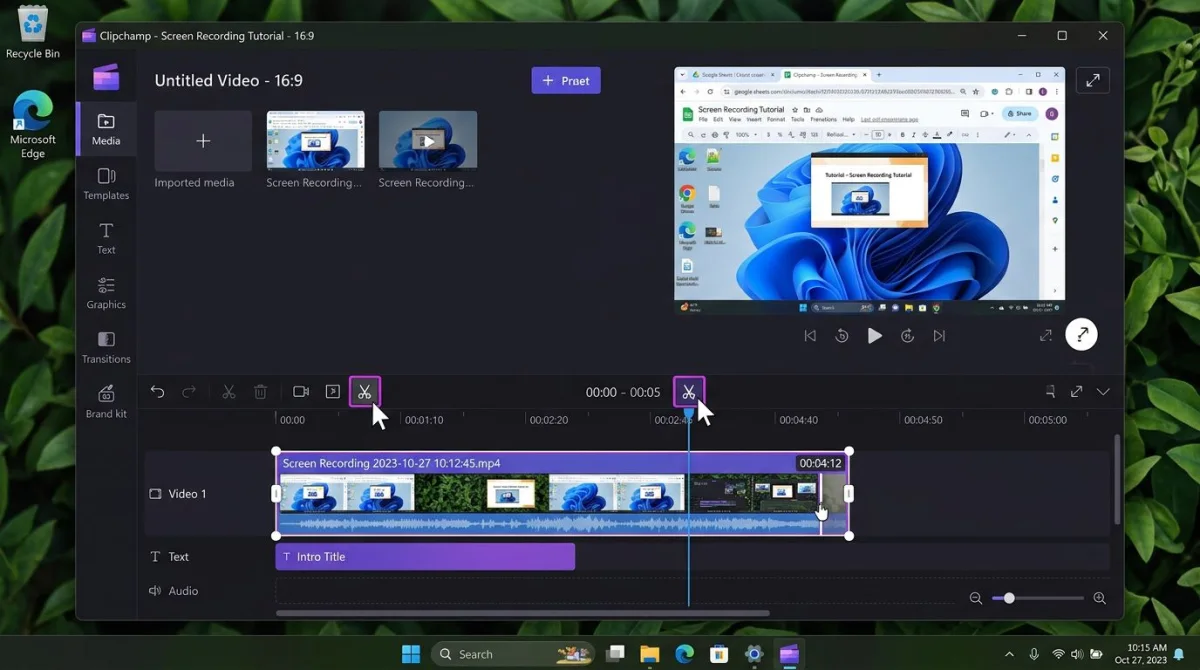
Clipchamp ships with Windows 11 by default. Microsoft bought it in 2021 and now treats it as the native video editor for the OS. For most people reading this, it is the right first pick.
What it does well:
- Drag-and-drop timeline that a new user can learn in 10 minutes.
- Trim, split, crop, speed, and fade, all one-click.
- Built-in text, titles, and auto-captions (with a free Microsoft account).
- Exports clean MP4 at up to 1080p on the free tier, no watermark.
- Stock music, stock video, and royalty-free sound effects.
What to watch out for:
- 4K export and some premium stock are behind a paid plan.
- It runs in a browser window (even the "app" is an Edge wrapper). Big projects feel sluggish.
- Captions rely on cloud processing, so offline users are out.
Start here if: You run Windows 11, your clip is under 15 minutes, and you want to be editing in five minutes flat. Search "Clipchamp" in the Start menu. If it is not there, install it free from the Microsoft Store.
Option 2: DaVinci Resolve (free, pro-tier)
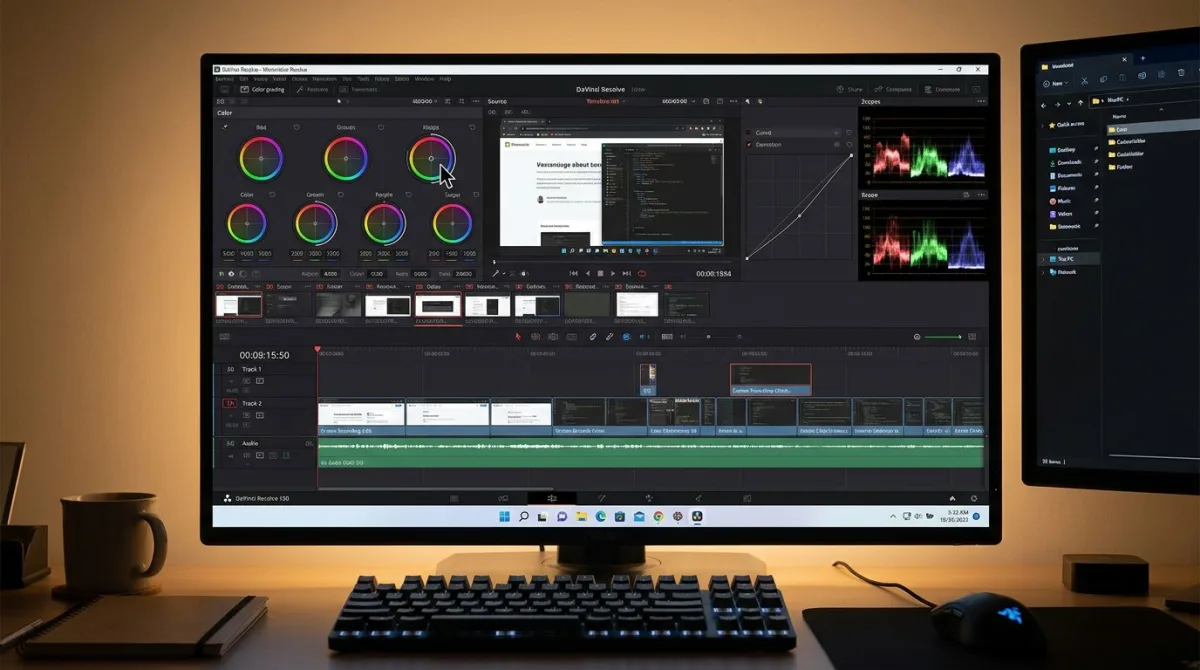
DaVinci Resolve is the tool Hollywood colorists use. Blackmagic Design gives the full version away for free. Yes, free. The paid "Studio" tier adds extras most screen-recording editors will never touch.
What it does well:
- Pro-grade color grading and audio tools, no watermark, no time limit.
- Multi-cam and multi-track timeline that scales to long videos.
- Fairlight audio page cleans up mic hiss and room noise.
- Fusion page for motion graphics and title cards.
What to watch out for:
- The learning curve is steep. First-time users bounce off the UI.
- Heavy on RAM. A mid-range laptop will fight you on 4K timelines.
- Overkill for a 90-second bug report clip.
Pick this if: You already edit video, or you plan to post weekly tutorials and want one tool that grows with you. It is not the right tool for someone's first trim.
Option 3: Shotcut (free, open-source)
Shotcut is the classic free, open-source pick. It runs local, offline, with no account. The look is plain. The feature list is deep.
What it does well:
- Full timeline with video, audio, and filter tracks.
- Wide format support: almost any codec or container loads.
- Works offline with no sign-in or cloud requirement.
- Keyframes, filters, and 4K export on the free tier.
What to watch out for:
- The UI feels dated, and the docking system confuses new users.
- Render times are slower than Clipchamp or CapCut.
- No auto-captions. You type them by hand or paste from another tool.
Pick this if: You prefer open-source, you work offline, or you want to own your files without a Microsoft account. Old-school and reliable.
Option 4: CapCut Desktop
CapCut is huge on mobile. The desktop version for Windows is just as capable and still free. It leans into social-first edits: vertical clips, captions, punchy effects.
What it does well:
- Auto-captions in more than 10 languages, free and fast.
- One-click zoom, speed ramps, and trending effects.
- Clean 1080p export with no watermark on the desktop app.
- Vertical (9:16) and square (1:1) presets built in.
What to watch out for:
- Some AI features require a sign-in and cloud uploads.
- ByteDance owns CapCut. If you avoid their apps for work reasons, skip it.
- The stock library skews toward TikTok-style content.
Pick this if: You post screen recordings to YouTube Shorts, Reels, or TikTok. Great for turning a 5-minute tutorial into a 60-second teaser.

Tired of plain screenshots? Try ScreenSnap Pro.
Beautiful backgrounds, pro annotations, GIF recording, and instant cloud sharing, all in one app. Pay $39 once, own it forever.
See pricing and featuresOption 5: Camtasia (paid)
Camtasia is the long-time king of tutorial edits on Windows. It costs $299 one-time in 2026, or $179 per year. Yes, that is a lot. But it earns the price in one spot: it is the fastest tool for polished tutorial videos with callouts.
What it does well:
- Pre-built callouts, zoom-and-pan, and cursor highlights.
- Quiz blocks and SCORM export for e-learning teams.
- Record and edit in one app, no handoff.
- Polished, professional output with little effort.
What to watch out for:
- The price. $299 is a big ask if you record twice a month.
- Slower launch time than any free option on this list.
- Overkill if you only need trim and crop.
Pick this if: You ship tutorials for a job or a course, and the polish pays you back. Otherwise, our Camtasia alternatives for Windows guide has six cheaper picks that cover 90% of the work.
Option 6: ScreenPal (online editor)
ScreenPal (the old Screencast-O-Matic) runs in the browser. The free tier edits up to 15 minutes per clip with a watermark. The $4 per month Solo Deluxe tier kills the watermark and unlocks most tools.
What it does well:
- No install: works in Chrome or Edge.
- Records, edits, and hosts in one place.
- Simple interface that new users pick up fast.
- Built-in quizzes and viewer analytics on paid tiers.
What to watch out for:
- The free tier adds a small watermark to every export.
- Cloud-only edits mean big files upload slowly on bad Wi-Fi.
- Less precise than a local timeline editor for frame-by-frame cuts.
Pick this if: You teach, you want one login for record-edit-host, and you do not mind a monthly fee. Not the pick for heavy editing.
Option 7: VLC for simple trim
VLC is not an editor. But it can trim a video in 30 seconds, and it is already on most Windows PCs. For fast cuts, it is faster than opening any timeline tool.
How to trim a screen recording in VLC:
- Open VLC and load your clip (
Media→Open File). - Click
View→Advanced Controlsto show the red record button. - Play the clip and pause at the start of the part you want.
- Click the red record button. VLC starts saving from that point.
- Let it play to the end of the part you want, then click record again to stop.
- Find the trimmed clip in your
Videosfolder, saved as a new file.
What to watch out for:
- No timeline, no split, no crop.
- Trim only: anything more and you need a real editor.
- Quality can drop slightly on re-encode.
Pick this if: You just need to chop the first 20 seconds off a recording and move on. For anything more, use Clipchamp. If your clip is too big to share, our guide on how to reduce video file size on Windows walks through VLC compression too.
Screen Studio vs ScreenSnap Pro: what they are for
Let us clear up a common mix-up. People ask us if ScreenSnap Pro can edit screen recordings. Short answer: no, it is a capture tool, not a video editor. We want to be up front about that.
ScreenSnap Pro captures crisp screenshots, short videos, and GIFs. It adds annotations, pretty backgrounds, and fast sharing. It saves clean MP4 files. Those files then need a real editor like Clipchamp or DaVinci Resolve to trim and polish.
Screen Studio (Mac only, so skip it if you are on Windows) does both in one app. It records and edits. If you are on a Mac and want one app for everything, look at Screen Studio. On Windows in 2026, the pattern most creators use is two tools: a fast recorder and a lightweight editor.
Here is the honest breakdown:
| Need | Right tool |
|---|---|
| Quick screenshot or 30-second GIF | ScreenSnap Pro ($39 one-time) |
| Clean screen recording to edit later | Xbox Game Bar, OBS, or ScreenSnap Pro |
| Trim, split, add captions, export | Clipchamp or DaVinci Resolve |
| Full tutorial with callouts, polished | Camtasia (paid) |
No single Windows tool nails capture + edit at a pro level yet. That is why the workflow below works so well.
Workflow: record with a capture tool, edit in Clipchamp
Here is the fastest path from idea to shareable video. Most of our readers use this exact stack.
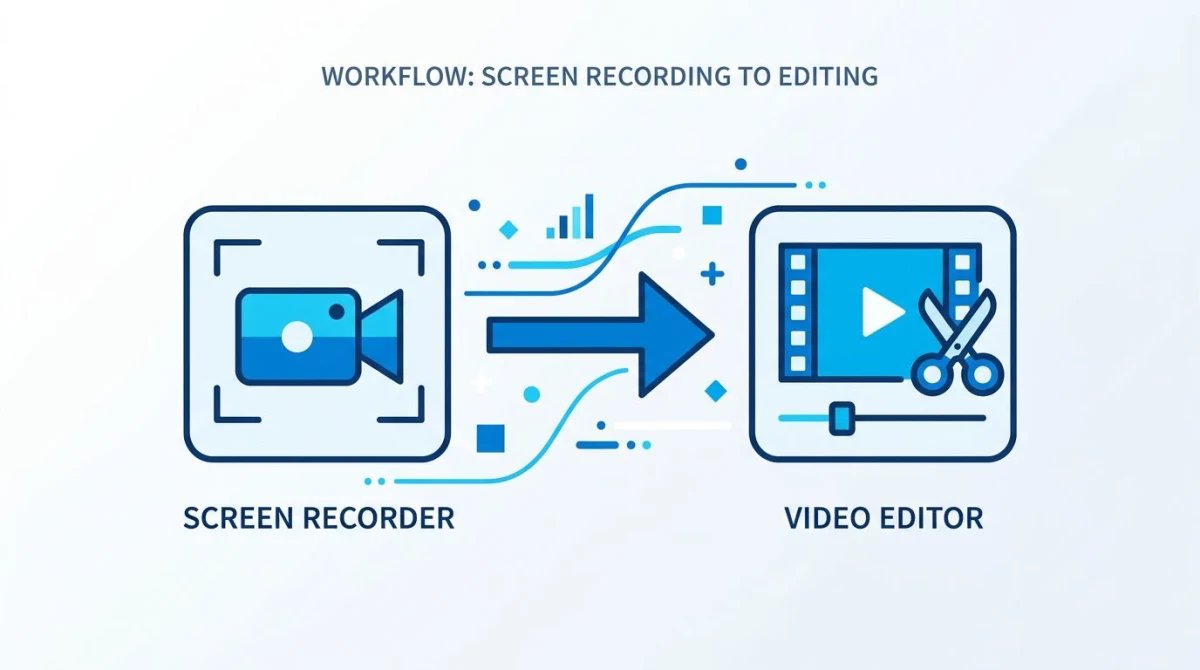
Step 1: Record with a fast capture tool.
Use Xbox Game Bar for a no-install option, OBS Studio for pro quality, or ScreenSnap Pro ($39 one-time) for quick captures with polished output and annotations baked in. Our free screen recorder for Windows guide compares all the top picks. Save the file as MP4.
Step 2: Drag the file into Clipchamp.
Hit the Windows key, type "Clipchamp," and open it. Click Create a new video. Drag your MP4 onto the timeline.
Step 3: Trim the dead air.
Click the clip. Drag the left edge to the right to cut the start. Drag the right edge to the left to cut the end. Done in 10 seconds.
Step 4: Split and delete mistakes.
Park the playhead where the mistake starts. Click the scissors icon. Park again at the end. Split again. Click the bad chunk. Press Delete. The timeline stitches itself back.
Step 5: Add captions and a title card.
Click Text in the sidebar. Drop a title in the first two seconds. Click the clip, then Captions to auto-generate subtitles (free Microsoft account required).
Step 6: Export.
Click Export top right. Pick 1080p. Save the MP4. That is it. You just went from raw recording to polished clip in under 10 minutes.
If your final export is too big for Slack or email, run it through a free reduce video file size on Windows pass before sharing. Or, if you wrapped up with a single frame you want to share as a still, our free image compressor can shrink it in your browser.
A quick tip on file size
Screen recordings get big, fast. A 10-minute 1080p clip can hit 1 GB if the codec is wrong. Clipchamp exports in H.264, which is a solid default. DaVinci Resolve lets you pick H.265 for half the size at the same quality. Stick with MP4 as the container. Slack, Gmail, and most CMS platforms prefer it.
For clips under a minute that you want to paste into chat or a bug report, turn the recording into a GIF instead. We have a guide for GIF screen capture on Windows that walks through the tools. GIFs are bigger than MP4 in raw bytes, but they loop in Slack and email with no player needed.
FAQ
The bottom line
For most Windows users in 2026, the best way to edit screen recordings is a simple two-tool stack. Record with a fast capture tool. Edit in Clipchamp. Done.
If you record often and want cleaner captures from the start, ScreenSnap Pro is $39 one-time on Windows and Mac. It is not a video editor but a capture tool. It pairs well with any of the editors above. No subscription, no watermark, no bloat. If you also grab a lot of screenshots, our roundup of the best Snipping Tool alternatives for Windows is worth a look.
Pick the workflow that matches how you actually work. One great recording and a five-minute trim will always beat a polished tool you never open.

Morgan
Indie DeveloperIndie developer, founder of ScreenSnap Pro. A decade of shipping consumer Mac apps and developer tools. Read full bio
@m_0_r_g_a_n_