Font Identifier: What Font Is This? 6 Tools Tested (2026)
TL;DR: For printed fonts, start your free font identifier search with WhatTheFont; for web and OpenType faces, try Fontspring Matcherator; for the largest catalog, WhatFontIs; Identifont works from a description alone. For a font in a live web page, skip them all and press F12.You saw a typeface on a poster or a competitor's site. Now you want to know what it is. The short answer: screenshot the text, upload it to a free tool like WhatTheFont, and read the matches. Several font finder from image tools are free, fast, and very accurate. The trick is picking the right one for the job.
How to identify a font from an image
The fastest way to identify a font from an image takes three steps:
- Capture the text. Screenshot the poster, page, or app and crop tight to a few clean characters. A single word of 4 to 6 letters is ideal.
- Upload the image to a font identifier. Start with WhatTheFont; if it misses, run the same crop through Fontspring Matcherator.
- Review the matches. Compare the letterforms glyph by glyph. The name that shows up in both result lists is almost always right.
That is the entire find font from image workflow: a tight crop in, a shortlist of candidates out. The rest of this guide covers which tool to pick for each job.
How to choose a font identifier
Before you upload anything, decide what you are dealing with. The right tool depends on the source.
- Live web page? Open dev tools (
F12→ Inspect → Computed →font-family). You get the exact font name in seconds. No upload needed. - Image, poster, or PDF? Use one of the image-based tools below. Start with WhatTheFont, then run the same crop through Fontspring Matcherator.
- No image, just a memory? Try Identifont. It walks you through a visual quiz.
- Handwritten or script font? Lower your hopes. Try a few tools. Treat the results as starting points, not answers.
One note before the list: this guide is an honest roundup, and we do not run a font ID tool ourselves. The six tools below are ranked by accuracy, catalog size, and how easy they are to use. Each section has a real homepage shot, what the tool does well, where it falls short, and a link.
A screenshot tool like ScreenSnap Pro is handy when the font lives in a desktop app. Grab the text, crop it tight, then drop the PNG into one of the tools below. If you also need the words themselves and not just the typeface, see how to extract text from an image on Mac. And if the type you are chasing sits inside a YouTube video, capture the frame at the video's real resolution first, because a screen-resolution grab usually blurs the letterforms past the point any matcher can read them.
1. WhatTheFont (MyFonts): for clean printed text
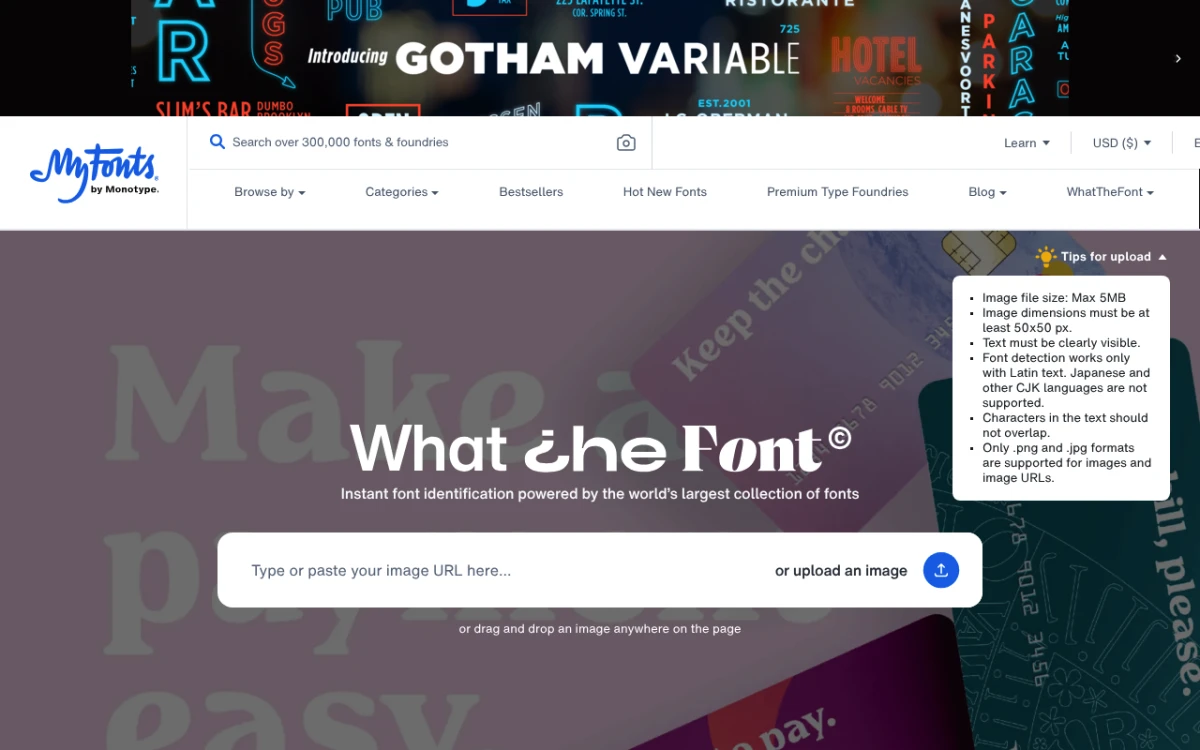
WhatTheFont is run by MyFonts. It uses one of the largest font libraries in the world. The tool uses deep learning to match letterforms. It returns solid results for most printed, sans-serif, and serif fonts.
Pros
- Huge font catalog, including many commercial foundries
- Accurate ML matching for standard typefaces
- Free to use, no signup required
- Mobile app available (iOS and Android)
Cons
- Results lean toward paid MyFonts inventory
- Struggles with script, handwritten, and heavily stylized fonts
- The cropping interface can over-tighten and trim ascenders
Best for: clean printed text, magazine layouts, logos, and anything sans-serif. Start here first.
Try it: myfonts.com/pages/whatthefont
2. Fontspring Matcherator: strong on OpenType features
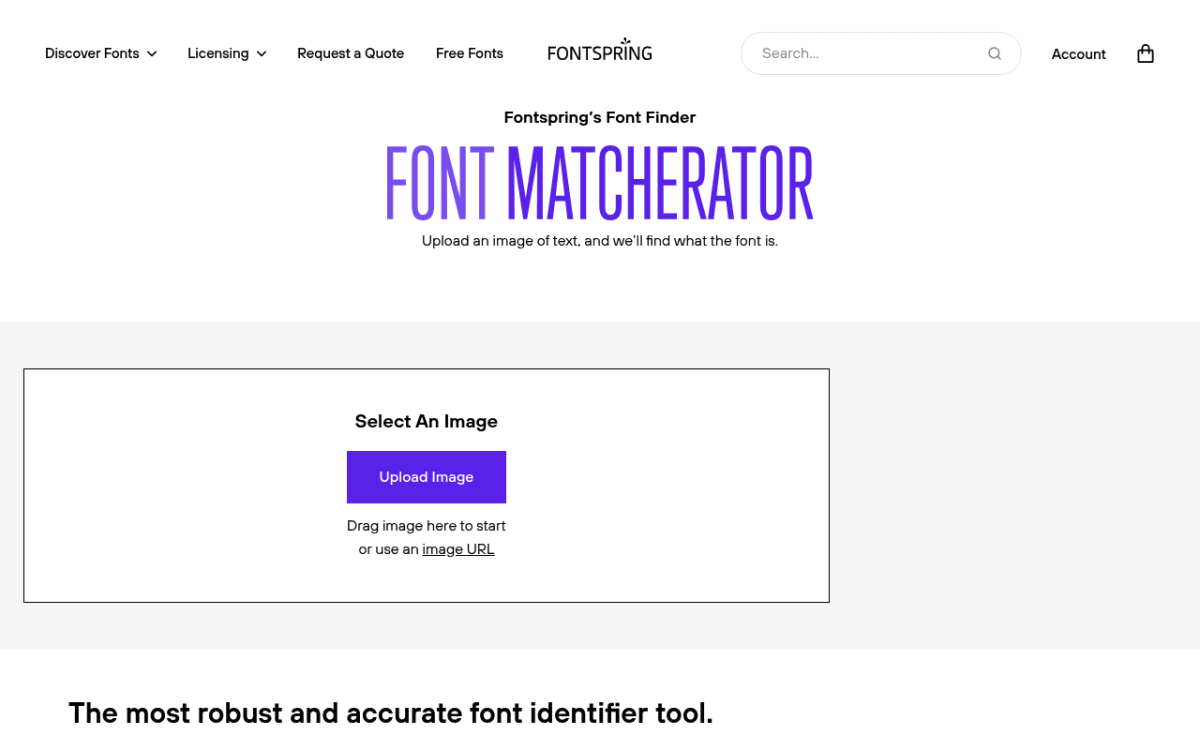
Fontspring Matcherator is the indie favorite. WhatTheFont leans on the MyFonts catalog. Fontspring pulls from a wider range of indie foundries. It gives strong results on display and web type.
Pros
- Free, no signup, no upload limit
- Detects OpenType features like ligatures and alternates
- Excellent for web fonts and display faces
- Shows multiple matches side by side for comparison
Cons
- Smaller catalog than MyFonts
- Sensitive to image quality, so it needs cleaner inputs
- UI feels a little dated
Best for: modern web typography, display fonts, anything indie-foundry. Always worth a second-pass attempt after WhatTheFont.
Try it: fontspring.com/matcherator
3. WhatFontIs: the biggest database
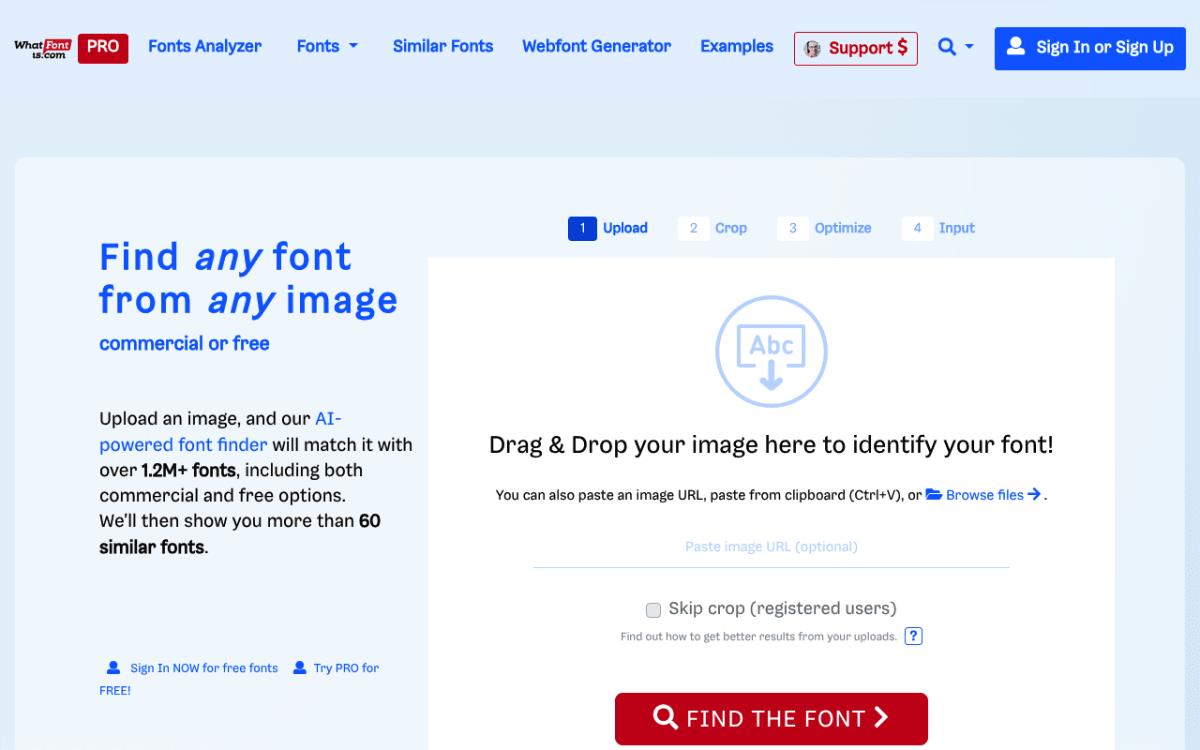
WhatFontIs claims a catalog of over 900,000 fonts. That includes both free and paid. Its engine returns dozens of similar fonts per query. This is great for finding free swaps for a paid typeface.
Pros
- Largest font index of any free identifier
- Suggests free Google Fonts alternatives next to paid matches
- Works on stylized and decorative fonts where others fail
- Browser extension available
Cons
- Free tier is ad-heavy
- Requires you to manually identify and label characters before matching
- Pro plan needed for filter-by-license and high-volume use
Best for: when WhatTheFont and Fontspring both come up empty, and especially when you want a free alternative to a paid font.
Try it: whatfontis.com
4. Font Squirrel Matcherator: clean and simple
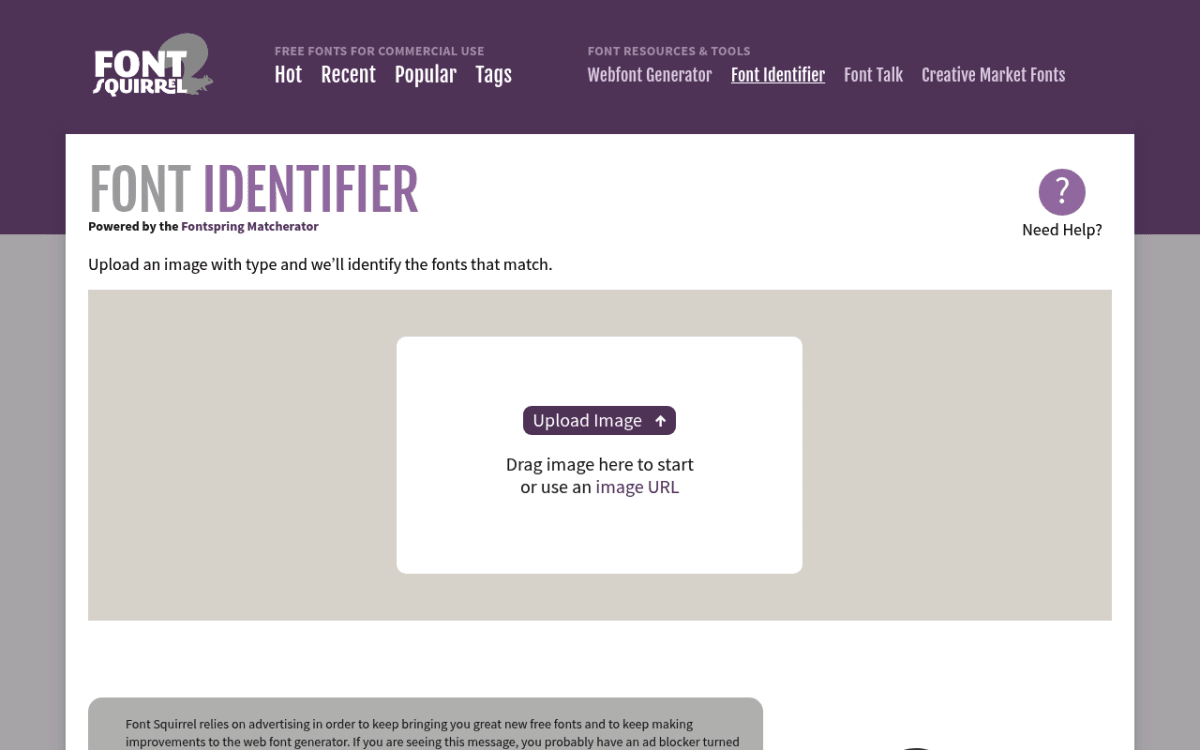
Font Squirrel built its name on curating free-for-commercial-use fonts. The Matcherator follows the same line. It is the most minimal tool on this list. Upload, crop, get matches. No ads, no pop-ups, no upsell.
Pros
- Clean, no-friction interface
- Optimized for free, web-safe fonts
- Surfaces glyph-by-glyph alternatives if you need them
- Fast results
Cons
- Database is smaller than the top three
- Misses obscure commercial fonts entirely
- No mobile app
Best for: quick checks where you want a free web font for a side project rather than a definitive answer.
Try it: fontsquirrel.com/matcherator

Tired of plain screenshots? Try ScreenSnap Pro.
Beautiful backgrounds, pro annotations, GIF recording, and instant cloud sharing, all in one app. Pay $39 once, own it forever.
See pricing and features5. Adobe Fonts (visual search): Creative Cloud subscribers only
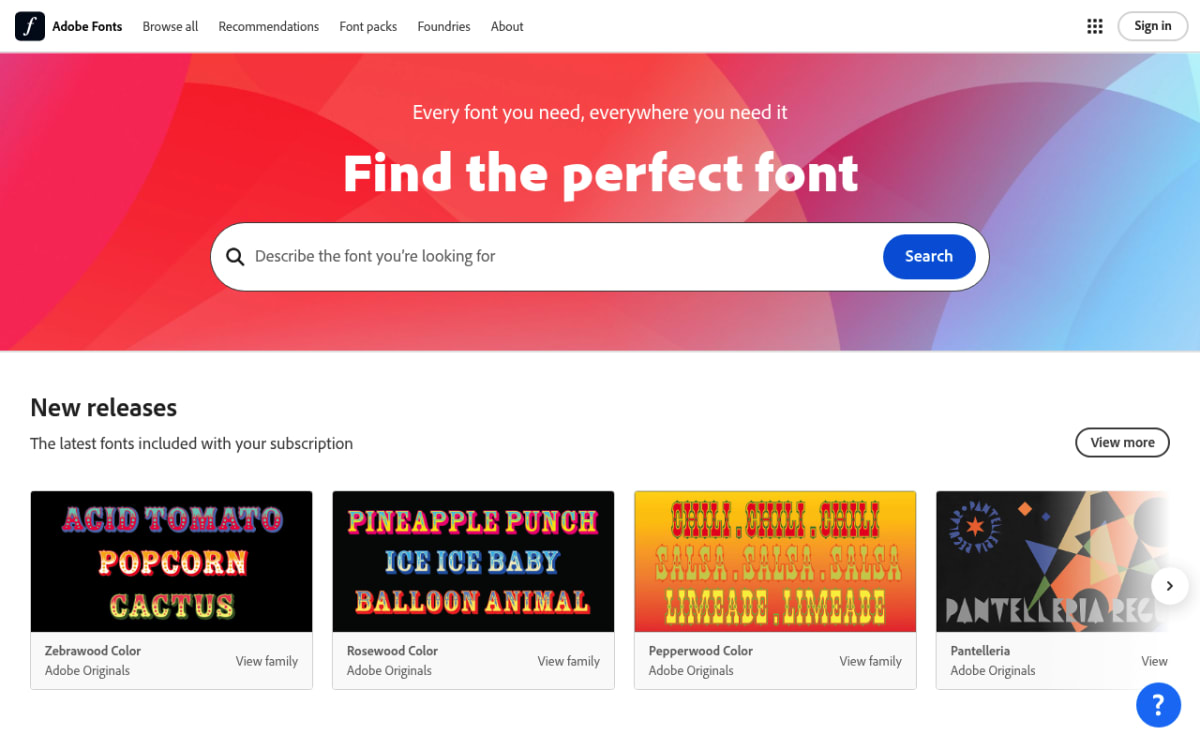
If you already pay for Creative Cloud, this one is for you. Adobe added visual font search to Adobe Fonts in 2024. Upload an image and it returns matches from the Adobe Fonts library. The catalog is high quality but paid-only.
Pros
- Excellent typography database (curated, not crowdsourced)
- One-click activation into Photoshop, Illustrator, and InDesign
- High accuracy on premium typefaces
Cons
- Requires an active Creative Cloud subscription
- Matches are limited to the Adobe Fonts library, with no third-party foundries
- Not useful if you cannot afford or do not need Adobe's stack
Best for: designers already inside the Adobe ecosystem who want a one-click path from image to working font in their tool of choice.
Try it: fonts.adobe.com
6. Identifont: no image required
Identifont has been online since 2000. It is the outlier in this list. The site does not take image uploads. Instead, it asks you yes/no questions about the letterforms. Does the "Q" have a curl tail? Are the lowercase "g" loops connected? And so on.
Reach for this tool when your image is too poor for visual matching. Or when you can describe the font but have no clean reference image.
Pros
- Works when image upload tools fail
- Educational, since you learn typographic vocabulary as you go
- Free, no signup
- Useful for partially-remembered fonts
Cons
- Slow compared to image-based tools (5+ minutes of questions)
- Site design has not been updated this decade
- HTTP only, no HTTPS
- Database is smaller and more dated
Best for: fallback identification when you have no usable image but a clear memory of the font.
Try it: identifont.com
Watch the workflow in action
The video below walks through the WhatTheFont workflow end to end. You see how to capture a font from a screenshot and identify it in under a minute. Useful if you are new to image-based font matching. It shows the cropping calls a designer makes.
Honest comparison table
Here is how the six tools stack up across the criteria that actually matter:
| Tool | Free? | Image upload? | Best for | Accuracy |
|---|---|---|---|---|
| WhatTheFont | Yes | Yes | Printed and standard fonts | High |
| Fontspring Matcherator | Yes | Yes | Web typography, OpenType | High |
| WhatFontIs | Free tier | Yes | Free alternatives to paid fonts | Medium-High |
| Font Squirrel Matcherator | Yes | Yes | Free web fonts, quick checks | Medium |
| Adobe Fonts | Paid (CC) | Yes | Designers inside the Adobe stack | High |
| Identifont | Yes | No (questionnaire) | When you have no usable image | Medium |
No single tool wins every time. The pro move is to run an image through two or three of them. See which font name keeps showing up in the results. That overlap is usually right.
Tips for better font recognition
Garbage in, garbage out. The biggest factor in match accuracy is the quality of the image you upload. Use these rules before you upload.
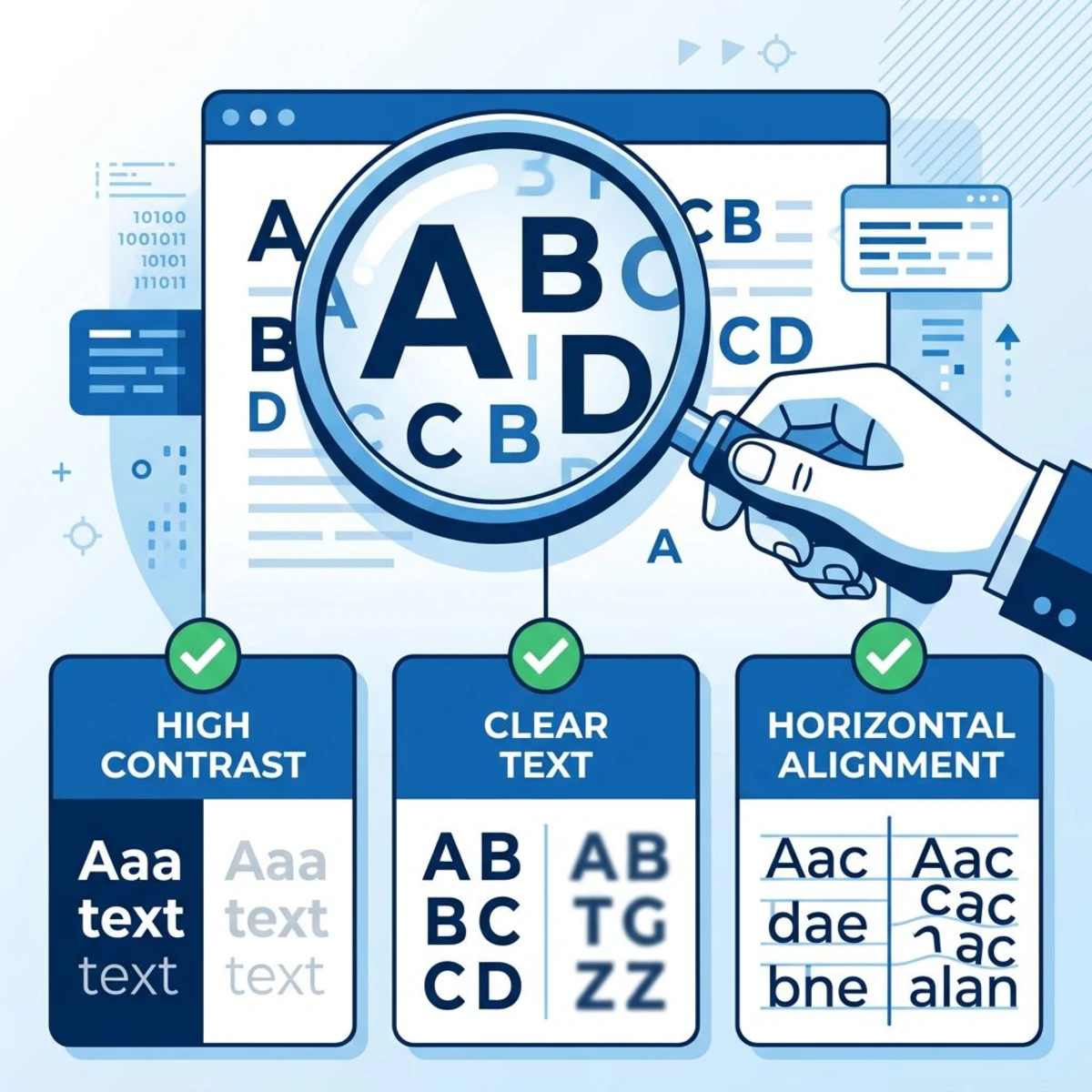
- Use high-contrast images. Dark text on a light background works best. Pale text on a busy photo will fail.
- Keep text horizontal. Crop the screenshot so the baseline is flat. Rotated text breaks every tool on this list.
- Use a full word. A word with mixed letters beats a single capital. Aim for 4 to 6 characters.
- Skip decorative effects. Drop shadows, gradients, outlines, and 3D effects throw off the tools. Flat, clean text wins.
- Go bigger. Zoom in or capture at native size. Tiny text loses the details that set similar fonts apart.
- Pick the right glyphs. Letters like "g", "a", "Q", "&", and "R" carry the most info. Include them when you can.
- Check both weights. A bold sample may match a different family than the regular weight. If results look odd, try a lighter sample.
Free vs premium fonts: what to expect
Most font ID results come back as a mix of free and paid typefaces. Which one to grab depends on the project.
| Free (Google Fonts and similar) | Premium | |
|---|---|---|
| Best for | Web projects, personal use, prototyping | Branding, print, commercial design |
| Licensing | Open source, use anywhere | Per-seat or per-project licenses |
| Quality | Excellent (1,500+ font families) | Wider selection, unique designs |
| Example | Inter, Roboto, Poppins, Manrope | Proxima Nova, Futura, Avenir |
For a quick social media graphic or a blog hero, a free Google Fonts match is almost always good enough. For paid client work, brand systems, and print, do the licensing right. Buy the commercial font you identified.
What if no tool finds your font?
It happens. Custom logos, hand-lettered designs, and one-off display fonts can beat every tool on this list. When they do, these fallbacks tend to work.
- Browser dev tools (live web pages). Press
F12(or right-click → Inspect). Select the text element. Check thefont-familyvalue in the Computed panel. You get the exact name the site uses. No guessing. - Identifont's questionnaire. When image upload fails or your sample is too messy, Identifont can still narrow it down. It uses visual answers about the letterforms.
- r/identifythisfont (Reddit). The subreddit is a goldmine. Real designers will name your font in minutes, often with sources. Note that Reddit rate-limits non-logged-in users in 2026, so sign in to post.
- AI vision models. GPT-4o, Claude, and Gemini can name fonts straight from screenshots with great accuracy in 2026. Paste the image and ask "what font is this?" You often get a confident, correct answer with a short reason. This is the fastest path for hand-lettered or custom fonts that defeat the matchers.
- Reverse image search. Google Lens or TinEye will sometimes find the original source of the design. The font is often credited there.
- Ask the designer. If the font is on a brand asset, the brand's style guide or design lead knows. A short polite email beats hours of guessing.
If you often need to grab font samples from desktop apps, a fast screenshot tool helps. ScreenSnap Pro captures, crops, and lets you drop the PNG into any of the tools above. No round trip through your downloads folder.
Frequently asked questions

Morgan
Indie DeveloperIndie developer, founder of ScreenSnap Pro. A decade of shipping consumer Mac apps and developer tools. Read full bio
@m_0_r_g_a_n_