Best Free Watermark Removers: 8 AI Tools Tested (2026)
Need to remove a watermark from a photo? Maybe you bought a stock image and want to clean up the preview, or you need to strip old branding from your own work. The right watermark remover saves hours of tedious hand editing.
To remove a watermark from a photo: upload the image to an AI watermark remover, let it detect the overlay, then download the cleaned file. Most take under 30 seconds and need no signup. Results depend on what sits under the mark, so a watermark over flat sky vanishes cleanly while one over detailed texture usually leaves faint traces.
We tested eight popular AI watermark remover tools on the same test image to see which ones produce the cleanest output. Here's what we found, with real screenshots of each tool, real results, and honest limits.
Who Needs a Watermark Remover?
You might think watermark removal is shady, but there are plenty of good reasons to use these tools:
- Stock photo buyers. You paid for the license but only have the preview saved. The AI can strip the overlay in seconds so you don't have to re-download.
- Brand updates. Your company changed its logo. Now you need to remove the old mark from hundreds of product shots.
- Social media managers. A client sent photos with their old watermark baked in. You need clean versions for the new campaign.
- Students and teachers. Class slides often have watermarks from free image sites. After buying the proper license, you need a fast way to clean them up.
- Personal photos. Some photo apps add their own text to your shots. You just want your memories without "Shot on XYZ" stamped across them.
In short, any time you have the right to use an image but the file itself has marks on it, a good remover tool is worth its weight in gold. Just make sure you own the rights first (more on that below).
What is a watermark remover?
A watermark remover is a tool that erases text or logo overlays from images. It keeps the main photo intact while stripping the extra layer on top. Modern tools use AI to spot watermark patterns and fill in the hidden pixels.
Most AI watermark removers work in three steps. Upload your image. Let the tool find the watermark. Download the clean result. The best ones handle see-through marks without leaving traces behind.
How to remove a watermark from an image (3 steps)
The workflow is nearly identical across every AI watermark remover on this page:
- Upload the image. Most accept JPG, PNG and WebP. If your file is huge, compress it first so the upload does not time out.
- Mark or auto-detect the watermark. Automatic tools find text and logo overlays on their own. Brush-based tools like Cleanup.pictures want you to paint over the mark, which gives better control on busy backgrounds.
- Download and inspect at 100%. Zoom in on the area the watermark covered. AI fills those pixels by guessing, so smudging shows up at full size even when the thumbnail looks perfect.
If the result is not clean enough, the usual fix is to crop the watermark out entirely rather than fight it. That works whenever the mark sits near an edge, and it never introduces invented pixels.
How we tested these watermark removers
We ran the same test on all eight tools to keep things fair. Here's what we did:
Test image: A 3000×2000px photo with a large, semi-see-through text watermark across the center. The watermark sat on top of both flat colors and busy textures: skin tones, fabric, sky, and foliage.
What we looked for:
- Clean removal. Does the tool leave ghost marks, blur, or color shifts?
- Detail kept. Are fine textures (hair, fabric) still sharp after removal?
- Speed. How long does it take from upload to download?
- Ease of use. Can a first-time user figure it out in under a minute?
- Free tier limits. How many images can you process without paying?
We also tested each tool with a second image that had a small logo watermark in the corner. Corner logos are easier to remove, so we weighted the center watermark test more heavily.
Key finding: AI tools have gotten much better in the past year. Most handled the corner logo with no issues. The center watermark was the real test, and that's where quality gaps showed up.
Best free watermark removers (quick comparison)
| Tool | Best For | AI-Powered | Batch | Free Tier | Platform |
|---|---|---|---|---|---|
| WatermarkRemover.io | Overall quality | ✅ | Premium | 2/day (no account) | Web, Android, iOS |
| Pixelbin.io | No signup needed | ✅ | ✅ (up to 50) | 3 images (no signup) | Web |
| Cleanup.pictures | Simple, brush-based | ✅ | ❌ | Limited (low-res free) | Web |
| Dewatermark.ai | Complex watermarks | ✅ | Pro (up to 50) | 3/day | Web, mobile, desktop |
| Unwatermark.ai | Video + photo | ✅ | ✅ (up to 10) | 3 auto/day | Web |
| EzRemove.ai | Batch processing | ✅ | ✅ | 5/day (daily login) | Web |
| Adobe Photoshop | Manual control | Partial | ✅ | Limited ($22.99/mo for full) | Desktop, web, mobile |
| GIMP | Free desktop option | ❌ | ❌ | Unlimited | Desktop |
1. WatermarkRemover.io (Best Overall)
Best for: Quick, high-quality removal with minimal effort
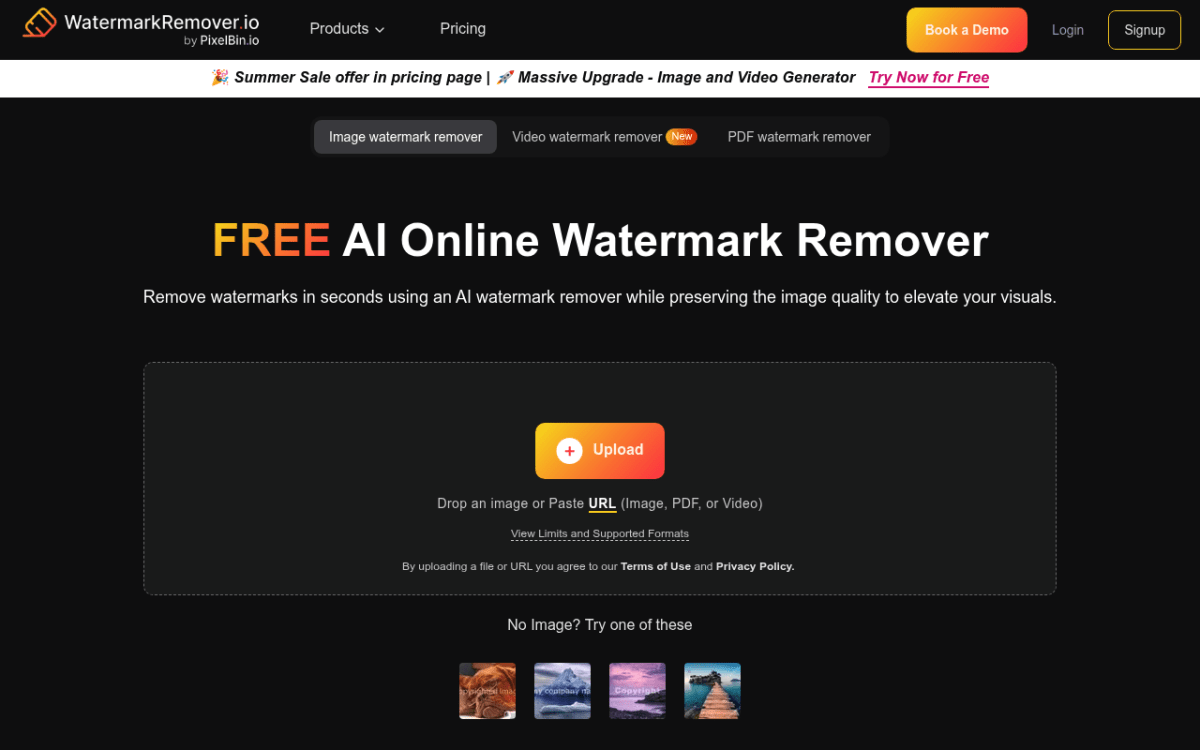
WatermarkRemover.io is the most polished tool we tested. Upload your image, and the AI finds and removes the watermark in under 10 seconds. Results were clean across all types: text, logos, and even diagonal patterns that repeat across the image.
What stood out:
- Automatic watermark detection (no manual selection needed)
- Handles semi-transparent watermarks well
- Clean interface with drag-and-drop upload
- Supports JPG, PNG, WebP, and HEIC formats, plus PDF and video files
Limitations:
- Free use is tight: 2 images a day without an account, then 3 free credits a month once you sign up
- Batch removal needs a paid plan
- No refunds on paid plans
- Rare marks left on complex background textures
Verdict: The best free watermark remover for one-off use. If you need to clean up more than one image, the paid plan is worth a look.
2. Pixelbin.io (Best No-Signup Option)
Best for: Quick removal without creating an account
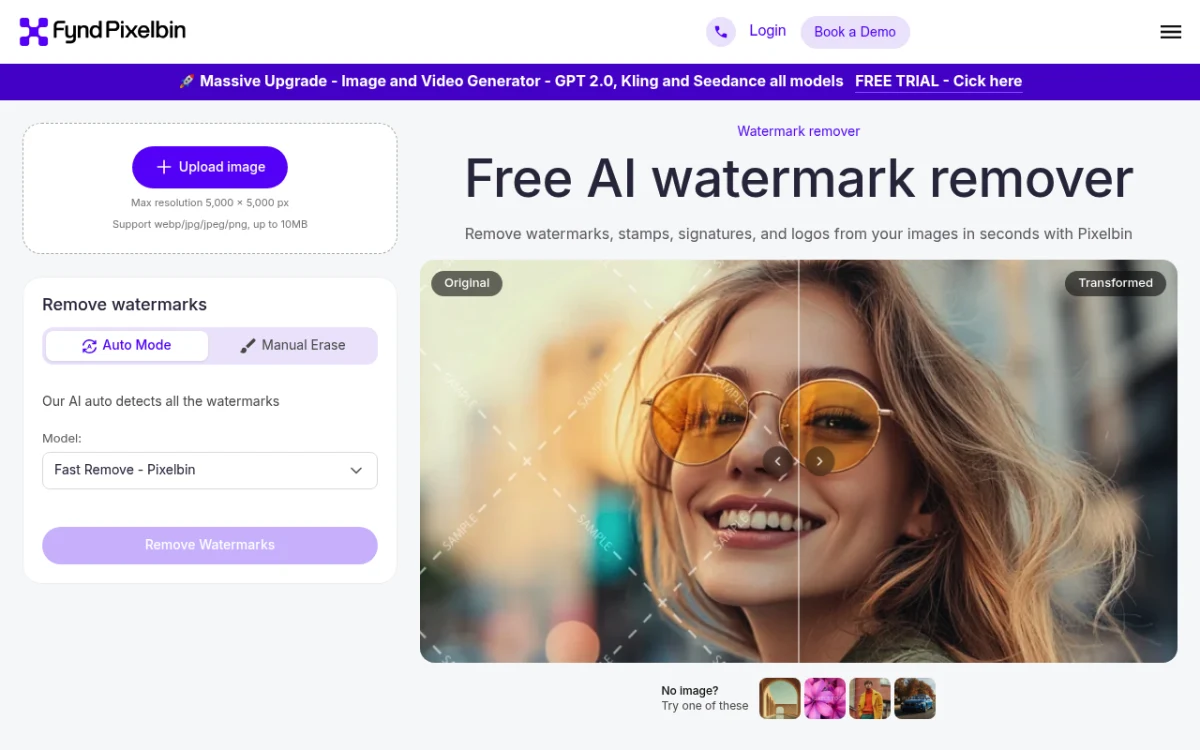
Pixelbin.io lets you remove watermarks without signing up. Drop your photo in, and the AI cleans it up in seconds. It uses the same tech as WatermarkRemover.io (same parent company), so quality is on par.
What stood out:
- No account required for basic use
- Fast processing times
- Clean output on simple watermarks
- Auto mode plus a manual erase brush
- Part of a larger image transformation toolkit
Limitations:
- Only 3 free images before it asks you to sign up (a free account adds a few more credits)
- The batch editor (up to 50 images) burns through free credits fast
- Output slightly less clean on complex marks than WatermarkRemover.io
Verdict: Perfect for one-off removals when you don't want to create yet another account.
3. Cleanup.pictures (Best for Brush-Based Removal)
Best for: Brush-painting over the exact area you want gone
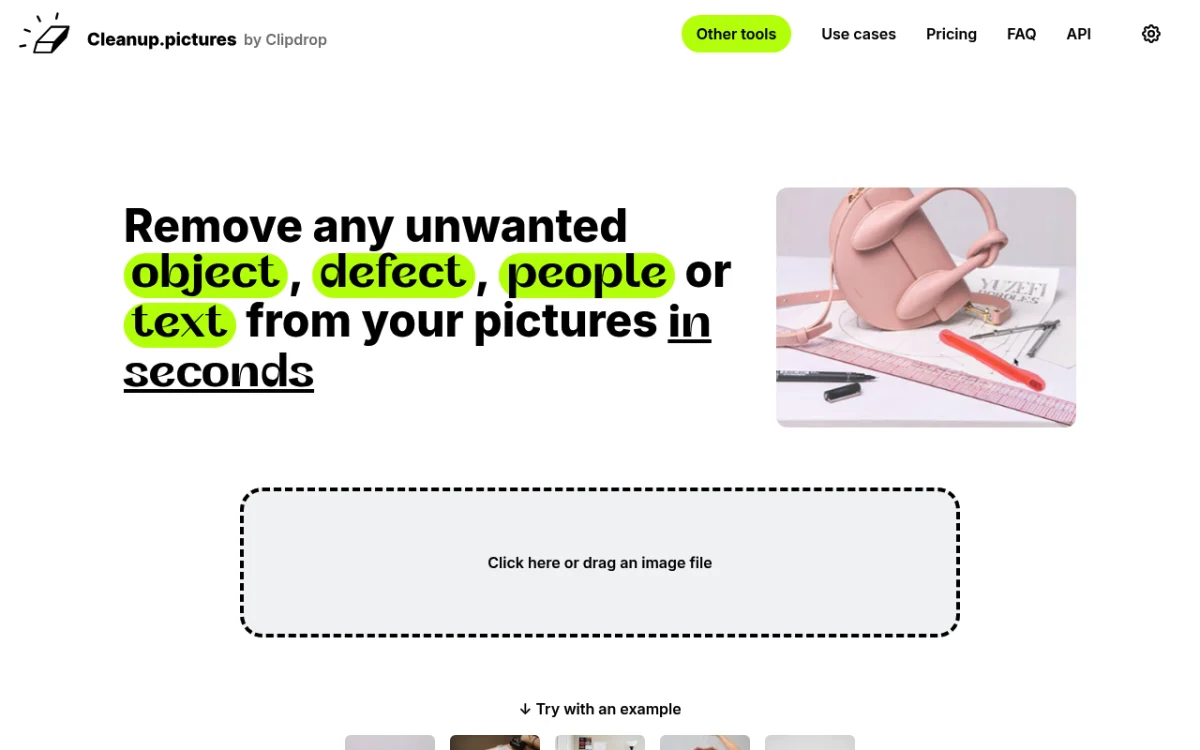
Cleanup.pictures takes a different angle from the auto-detect tools. You brush over the watermark with your mouse or finger, and the AI fills the area cleanly. It's also useful for removing other unwanted objects from photos: strangers in the background, power lines, trash bins.
What stood out:
- Brush control means you remove exactly what you want, with no surprise edits
- Works in the browser with no signup for the free tier
- Doubles as a general object remover (not just watermarks)
- Clean output on simple backgrounds
Limitations:
- Free tier downsizes output to 720p
- HD-quality output costs $5/month (or $36/year)
- Slower than auto-detect tools because you do the selecting
- Less effective on busy textures than purpose-built watermark tools
Verdict: Good fit when you want manual control without learning Photoshop. The brush approach beats auto-detect when a watermark sits across two different background textures. If you want that manual control for free, the clone and healing tools in the free Photoshop alternatives we tested do the same job.

Tired of plain screenshots? Try ScreenSnap Pro.
Beautiful backgrounds, pro annotations, GIF recording, and instant cloud sharing, all in one app. Pay $34 once, own it forever.
See pricing and features4. Dewatermark.ai (Best for Complex Watermarks)
Best for: Stubborn, multi-layer watermarks
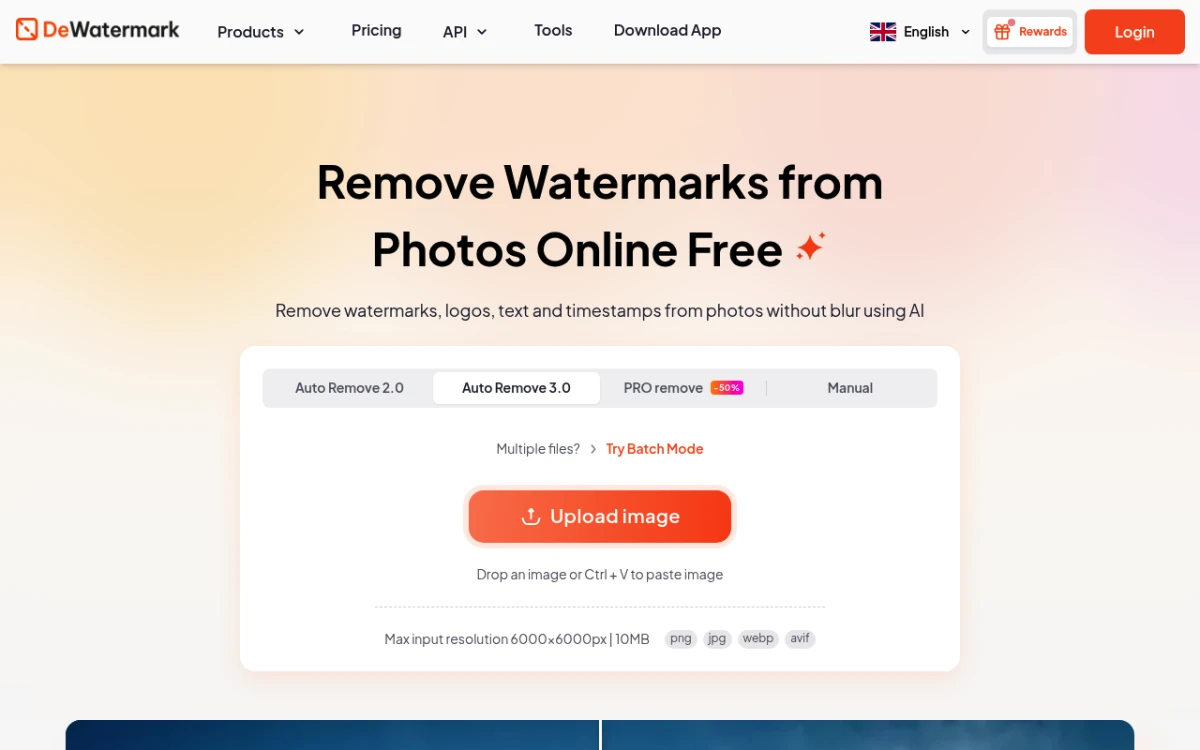
Dewatermark.ai stood out with tough watermarks. Other tools left marks when dealing with text that overlaps or sits on busy backgrounds. Dewatermark.ai gave cleaner results each time.
What stood out:
- Superior handling of complex, repeating watermark patterns
- Good at preserving fine image details
- Three free removals per day
- Supports high-resolution images
- Also removes watermarks from videos and PDFs
Limitations:
- Daily limit of 3 free images
- Batch mode (up to 50 images) is Pro only
- Can be slower than other tools
- Some color shifts in heavy watermark areas
Verdict: Your go-to when other tools can't get the job done. Three free uses per day is plenty for most people.
5. Unwatermark.ai (Best for Video + Photo)
Best for: Removing watermarks from both videos and photos

Unwatermark.ai works with both photos and videos, and video is its main focus. If you have screen recordings or video clips with text overlays, this is your best bet. The site now runs under the LinoCut AI brand.
What stood out:
- Frame by frame video watermark removal
- Decent photo watermark removal
- Batch mode for up to 10 images at a time
- Simple, no-frills interface
- Fast processing for standard images
Limitations:
- Video takes much longer to process
- Photo quality slightly behind WatermarkRemover.io
- Free tier is tight: 3 auto removals a day and 6 videos a week
- Results vary depending on video complexity
Verdict: The video feature makes it worth saving, even if photo-only users have better picks.
6. EzRemove.ai (Best for Batch Processing)
Best for: Processing multiple images at once
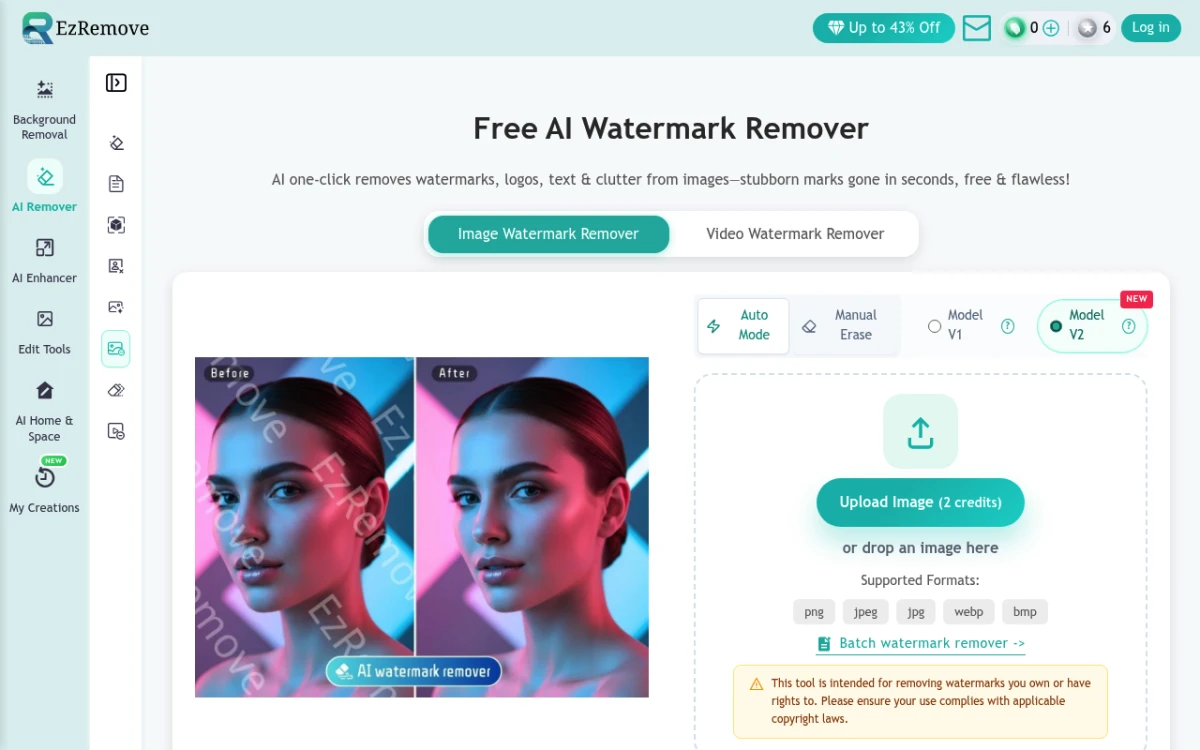
EzRemove.ai stands out with batch mode on its free tier, which allows up to five images per day. You get 10 free credits each day you log in, and each image costs 2. If you often need to remove logos from photos or clean up stock previews in bulk, this saves a lot of time.
What stood out:
- Batch upload of up to 50 files per run (about 5 free images a day)
- Consistent quality across multiple images
- Quick processing even in batch mode
- Straightforward interface
Limitations:
- Quality slightly behind top-tier options
- Five daily free images may not be enough for heavy users
- Watermark detection can miss subtle overlays
Verdict: Best free pick for cleaning up many images at once. The batch mode is a real time-saver.
7. Adobe Photoshop (Best Manual Control)
Best for: Precision editing when AI tools fall short

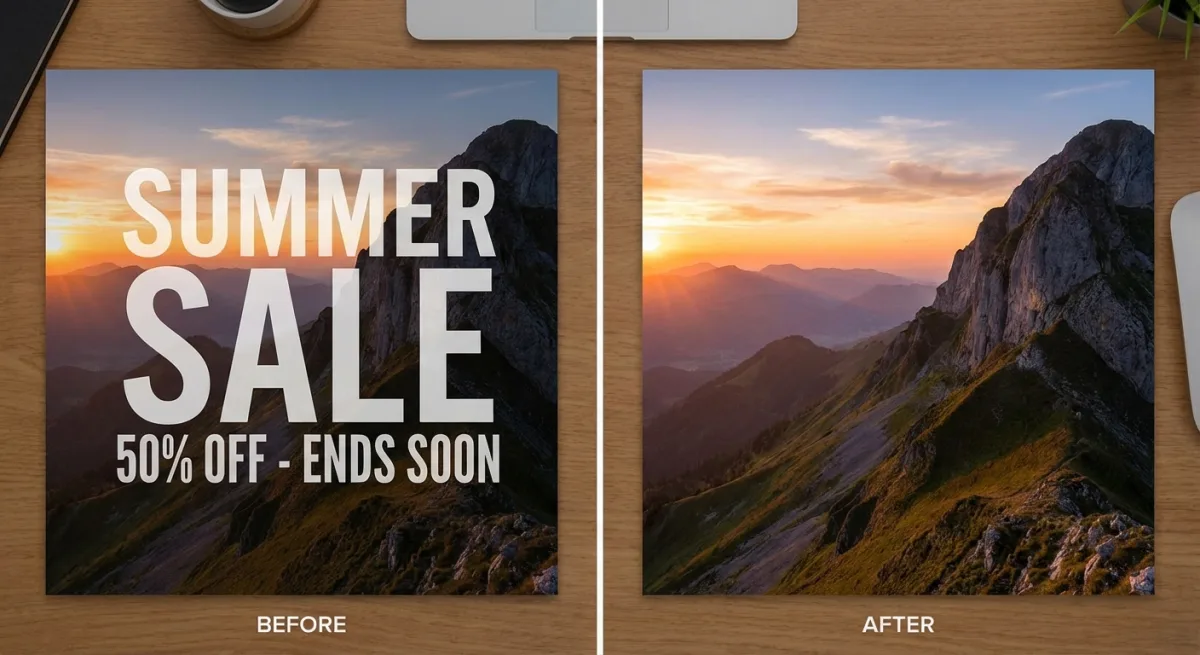
Photoshop isn't an auto remover, but its Content-Aware Fill and Clone Stamp tools give you full control. If you already pay for Creative Cloud, it's the most powerful option by far.
How to remove watermarks in Photoshop:
- Open your image and select the Lasso Tool (
L) - Carefully select around the watermark area
- Go to Edit → Content-Aware Fill
- Adjust the sampling area if needed
- Click OK and clean up any remaining artifacts with the Clone Stamp Tool (
S)
What stood out:
- Complete control over the removal process
- Best results on complex backgrounds (with skill)
- Works with any image format
- No file size or usage limits
Limitations:
- Full access needs a paid plan ($22.99/month for Photoshop alone, on an annual plan)
- A free tier added in September 2026 needs only an email, but caps free AI generations each day
- Steep learning curve for new users
- Manual work takes much longer
- Too much for simple watermark jobs
Verdict: Capable of very clean results, but only worth it if you already use Photoshop. For quick jobs, AI tools are much faster.
8. GIMP (Best Free Desktop Option)
Best for: Budget-conscious users who want desktop control

GIMP is the free, open-source answer to Photoshop. It has the same core tools (Clone, Healing, and smart select) but costs nothing. The trade-off? A clunkier interface and no AI help.
How to remove watermarks in GIMP:
- Open your image in GIMP
- Select the Clone Tool from the toolbox
- Hold
Ctrland click a clean area near the watermark to set the source - Paint over the watermark, sampling from the clean source area
- Use the Healing Tool to blend edges smoothly
What stood out:
- Completely free and open-source
- Available on Mac, Windows, and Linux
- No usage limits or file restrictions
- Good enough results with patience
Limitations:
- No automatic watermark detection
- Slower, manual process
- Interface is less polished than Photoshop
- Steep learning curve for new users
Verdict: The best free desktop option if you don't mind hands-on work. Try AI first for the rough pass, then use GIMP to clean up any leftover marks.
How to Remove Watermarks on Mac with Preview
Mac users have a basic option built right in. While Preview won't magically erase watermarks, you can crop out watermarks positioned along edges:
- Open the image in Preview
- Click the Markup Toolbar button (pencil icon)
- Select the Rectangular Selection tool
- Draw a selection around the area you want to keep (excluding the watermark)
- Go to Tools → Crop (or press
⌘K) - Save the cropped image
This only works for watermarks near the edges. For overlays in the center of your image, you'll need one of the AI tools above.
You can also use Preview to add your own marks. Open the Markup toolbar and use the text tool to add your name or brand. This is a quick way to protect your own work without buying extra software. If you want more control over opacity, batch processing, or logo overlays, our guide on how to watermark photos on Mac compares five methods from Preview to dedicated apps.
Pro tip: If you take a lot of screenshots on Mac, the built-in ⌘ + Shift + 3 shortcut saves files that are already watermark-free. No removal needed when you start clean. Check out our full guide on Mac screenshot shortcuts to speed up your workflow.
If you work with screenshots a lot, consider using a tool that produces clean output from the start. ScreenSnap Pro, a screenshot app for Mac and Windows, captures screenshots without any watermarks and includes 17 annotation tools so you can add your own branding instead.
For sensitive content in your screenshots, you might want to blur or pixelate specific areas rather than adding watermarks that need removing later. ScreenSnap Pro has blur and pixelate tools built in for this.
Legal Considerations for Removing Watermarks
Before you use any watermark remover online, know the rules:
When it's OK to remove watermarks:
- Removing watermarks from your own photos or content
- Cleaning up stock photo previews after purchasing the full license
- Removing outdated branding from your own business assets
- Editing personal photos with unwanted text overlays
When it's NOT OK:
- Removing watermarks to use copyrighted images without paying
- Stripping photographer credits from others' work
- Using watermark-free versions of stock photos without a license
- Bypassing DRM or copyright protection measures
Under the DMCA, removing marks from content you don't own can lead to legal trouble. Always check that you have the right to edit an image before you erase its watermark.
Pro tip: Instead of watermarking screenshots you want to protect, take cleaner captures from the start. Tools like ScreenSnap Pro let you capture specific windows or areas without any overlays, and you can annotate them before sharing.
Which watermark remover should you actually pick?
If you only want one answer: use WatermarkRemover.io as your default watermark remover, and switch to Cleanup.pictures when the mark sits over busy texture. The first is automatic and needs no account for 2 images a day, the second lets you brush the exact area so the AI does not repaint pixels you wanted to keep. Those two cover almost every job between them.
The rest of this list exists because "which one" depends on the file in front of you. Use this to skip straight to the right tool:
| If your file is... | Reach for | Why |
|---|---|---|
| A photo with a text mark over sky, wall, or blurred background | WatermarkRemover.io | Auto-detects and fills cleanly in one pass |
| An image with a logo over detailed texture | Cleanup.pictures | Brush control beats auto-detection on busy areas |
| A batch of files that all carry the same mark | EzRemove.ai | Handles up to 50 at once, five free per day |
| A screenshot or flat graphic | Any of the above | Flat colour is the easiest case for every tool |
| A file you need pixel-perfect | Photoshop or GIMP | Content-Aware Fill and the Clone tool, by hand |
| A video rather than a still | Unwatermark.ai | Built around video, with frame by frame AI |
Removing a watermark from an image versus a photo
People search for both phrasings, and the tools do not care which word you use, but the file does. A photo (a camera JPG, a stock shot) carries noise and gradients, so an AI fill blends in easily and small errors hide in the grain. A flat image (a logo, a diagram, a UI screenshot, a poster) has hard edges and areas of solid colour, and any AI guess that is one shade off is visible immediately.
The practical rule: on photos, let the automatic tools run and check the result at 100%. On flat images, brush the mark manually and expect to finish the last few pixels yourself. If a flat image has the mark near an edge, cropping beats every removal tool because it invents nothing.
Tips for better watermark removal results
Here's how to get the best output from any remove watermark from image tool:
- Use the highest file size you have. AI tools work better with more pixels. A 3000px image gives much better output than a 600px thumbnail.
- Try more than one tool. Each AI model handles marks in its own way. If one tool leaves traces, try the next. We often got clean results on the second try with a new service.
- Do a hand pass after AI removal. Let the AI do the hard work first. Then open the result in GIMP or Photoshop and fix any small marks with the Clone or Heal tool.
- Crop instead of removing. If the mark sits near an edge, a quick crop might be all you need. This is the fastest fix and leaves zero traces.
- Check at full zoom. AI tools can leave faint marks that look fine at small sizes but show up at 100% zoom. Always check before you share.
- Match the area around it. When using hand tools, sample from a spot close to the mark. Color and texture shift across an image, so a nearby source gives the most natural blend.
- Work in layers. If you're using Photoshop or GIMP, do your cleanup on a new layer. That way you can undo any step without starting over.
- Save as PNG. Don't save your cleaned image as a low-quality JPEG. Each save adds more blur. Use PNG to keep things sharp, then change the format later if you need a smaller file.
If the patched area still looks soft after cleanup, run the finished file through an AI image upscaler to sharpen edges and recover detail before you publish.
If you need to pull text from a watermarked image rather than erase the mark, OCR tools can often read through see-through overlays without any editing.
Frequently Asked Questions

Morgan
Indie DeveloperIndie developer, founder of ScreenSnap Pro. A decade of shipping consumer Mac apps and developer tools. Read full bio
@m_0_r_g_a_n_