8 Best OBS Alternatives for Windows (Free & Paid, 2026)
# 8 Best OBS Alternatives for Windows (Free & Paid, 2026)
Looking for a solid OBS alternative on Windows? You are not alone. OBS Studio is free, open source, and genuinely powerful. It is also a lot. The scenes and sources model, encoder settings, and missing timeline editor turn away a lot of people who just want to record a tutorial or go live on Twitch without a three-hour setup.
We tested eight of the most popular OBS Studio alternatives for Windows in 2026. Some are free. Some are paid. A few are built for live streaming. Others are built for quick screen recording. This guide groups them by use case so you can pick the right one in under five minutes. No fluff. No "top 20" padding.
If you only want the short version: pick Streamlabs, XSplit, or Meld Studio if you stream live. Pick ScreenSnap Pro, Camtasia, or ShareX if you record tutorials or bug reports. Pick Bandicam if you capture games at high FPS. The rest of this guide explains why.
Why people look for OBS alternatives
OBS Studio is the default pick for a reason. It is free forever, runs on Windows 10 and Windows 11, and handles almost any streaming or recording job. But the same traits that make it powerful also make it hard to use.
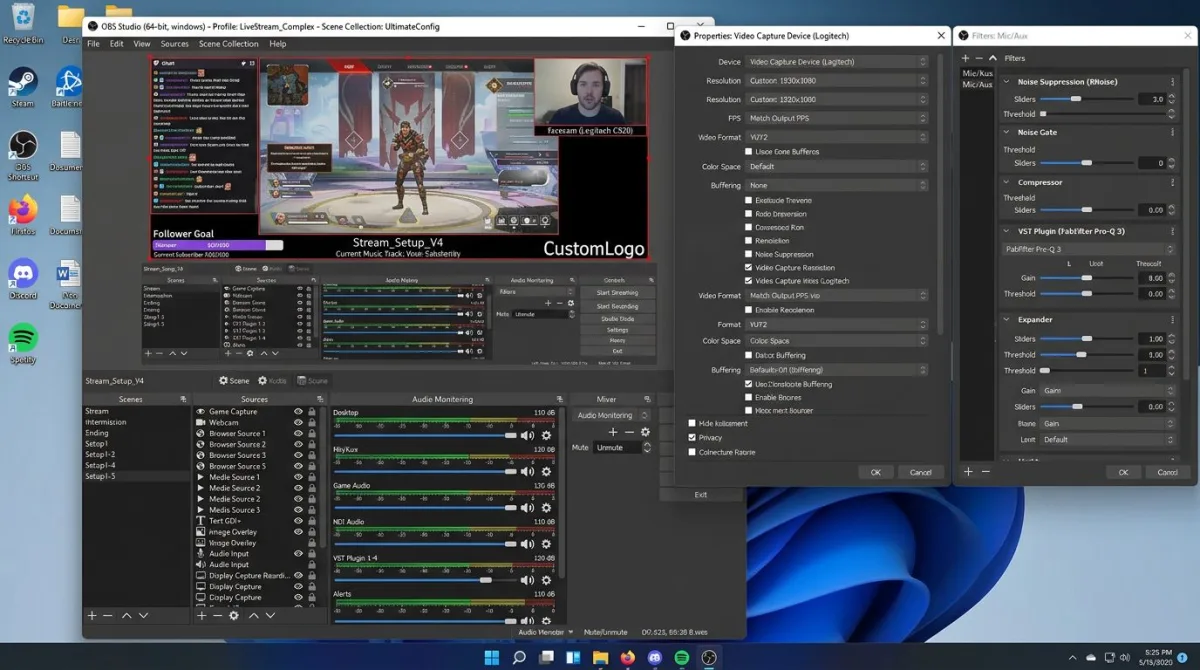
- Scenes and sources feel confusing. New users see an empty window with no "just record my screen" button. You have to add a Display Capture source, pick a monitor, set up audio, and save a scene. Miss one step and you get a black screen or no audio.
- Encoder settings are a rabbit hole. CBR vs VBR. x264 vs NVENC vs QuickSync. Keyframe intervals. Bitrate tuning. Most creators just want "looks good, file is not huge."
- No built-in editor. OBS records the raw file. To trim or cut a pause, you need a second app like DaVinci Resolve or Clipchamp.
- Crashes on low-end GPUs. OBS is smooth on modern cards. On older laptops, the encoder can stutter, drop frames, or freeze mid-stream.
- The 2-minute job turns into 30 minutes of setup. That is the real reason people switch.
None of this means OBS is bad. For advanced multi-scene streams with custom plugins, it is still the best free tool on Windows. But for tutorials, meetings, or bug reports, there are simpler paths.
Before you switch, check our guide to free screen recorders for Windows to see what ships for zero dollars. You can also learn how to record screen with audio on Windows using built-in tools. Sometimes you do not need OBS at all.
What to look for in an OBS alternative
Not every "OBS alternative" fits every job. Use these five questions to narrow the list before you download anything.
- Do you stream live or record only? Live streaming needs RTMP support, bitrate control, and platform presets. Pure recording does not.
- Do you want a built-in editor? If yes, pick a tool like Camtasia or ScreenPal. If no, a lightweight recorder saves disk space and RAM.
- What is your budget model? One-time purchases cost more up front but save money long term. Subscriptions feel cheaper each month but add up fast.
- How much hardware do you have? Bandicam and ShareX run on almost anything. Streamlabs and Camtasia want a decent GPU and 8 GB of RAM minimum.
- Do you need a webcam overlay or just the screen? Most tools support both. A few (like older Fraps) do not.
Answer these five and the list below shrinks fast.
Quick comparison table
Here is a side-by-side look at the eight OBS alternatives for Windows covered in this guide.
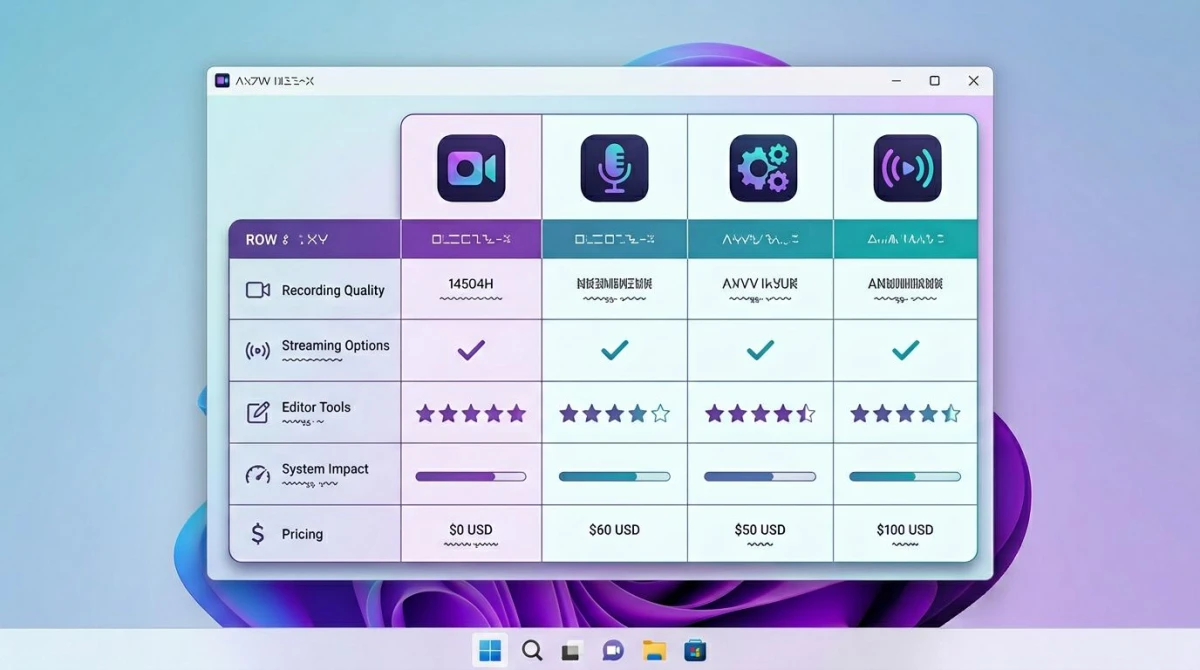
| Tool | Best for | Price | Streaming | Built-in editor |
|---|---|---|---|---|
| Streamlabs Desktop | Streaming beginners | Free (Prime $19/mo) | Yes | No |
| XSplit Broadcaster | Paid streaming polish | $2.50 to $15/mo | Yes | Basic |
| ShareX | Power-user capture | Free | No | Basic |
| Bandicam | High-FPS game capture | $39 one-time | No | No |
| Camtasia | Record and edit in one | $179.88/year | No | Yes (full) |
| ScreenPal | Cloud-based recording | Free to $4/mo | Light | Yes (basic) |
| ScreenSnap Pro | Async recording + GIFs | $39 one-time | No | Basic trim |
| Meld Studio | Modern streaming UI | Free / Pro $10/mo | Yes | No |
Now let us walk through each tool in detail.

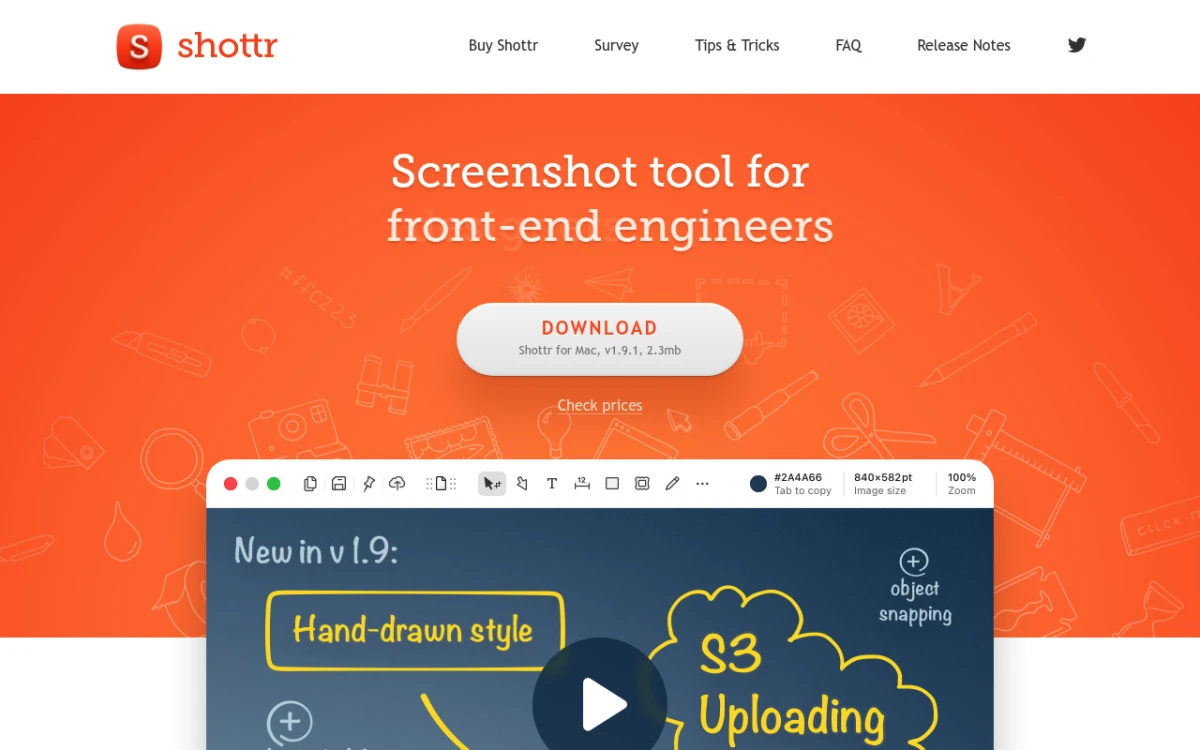
Tired of plain screenshots? Try ScreenSnap Pro.
Beautiful backgrounds, pro annotations, GIF recording, and instant cloud sharing, all in one app. Pay $39 once, own it forever.
See pricing and features1. Streamlabs Desktop: OBS with a friendlier face
Price: Free. Streamlabs Ultra is $19/month or $149/year.
Best for: Twitch and YouTube streamers who want OBS power without the setup.
Streamlabs Desktop is built on the OBS core: it forks the OBS source code and wraps it in a cleaner interface. You get the same scene and source model, but with themed overlays, alert widgets, and one-click tipping jars baked in.
The big win is onboarding. Streamlabs detects your PC specs, picks a sensible encoder, and sets your bitrate based on your internet speed. That gets you streaming in five minutes instead of five hours.
Pros:
- Same engine as OBS, so scenes and plugins transfer
- Built-in alerts, overlays, and chat widgets
- Multistream to Twitch, YouTube, and TikTok at once (Ultra tier)
- Huge library of free stream themes
Cons:
- Heavier on CPU and RAM than vanilla OBS
- Some users report audio desync on long streams
- Best features require the Ultra subscription
Pick this if: You want to stream on Twitch or YouTube and the OBS interface made you quit on day one.
2. XSplit Broadcaster: polished paid streaming
Price: Free with watermark. Premium from $2.50/month (annual) to $15/month (monthly).
Best for: Serious streamers who do not mind paying for polish.
XSplit has been around since 2009 and it shows. The interface feels more like a pro broadcast app than a hobby tool. You get chroma key, scene transitions, remote guest support, and 4K streaming without any plugin installs.
The paid tier is what makes XSplit worth it. The free version has a watermark and caps output at 720p. Premium removes both. Compared to Streamlabs Ultra at $19/month, XSplit Premium on an annual plan is cheaper.
Pros:
- Clean, stable interface built for Windows
- High-quality 4K and 60 FPS support out of the box
- Built-in multi-camera and chroma key
- Less GPU load than OBS in our tests
Cons:
- Free tier has a watermark
- Windows only (no Mac or Linux)
- Smaller plugin ecosystem than OBS
Pick this if: You stream for a living or want a paid tool that feels professional from day one.
3. ShareX: the free Windows power-user pick
Price: Free. Open source.
Best for: Developers and power users who love hotkeys.
ShareX is the most feature-packed free screenshot and recording tool on Windows. It captures regions, windows, full screen, and scrolling content. It records video and GIFs. It has OCR, a color picker, image effects, and over 70 upload destinations. All for zero dollars and no ads.
The catch? ShareX is not a streaming tool. It records to file, and that is it. No RTMP output, no scene switcher, no live overlay. For the full breakdown of setup and features, see our ShareX review.
Pros:
- Totally free, no watermark, no limits
- Huge feature set for zero dollars
- Scriptable with custom workflows
- Active open-source community
Cons:
- No live streaming support
- Dated interface that takes time to learn
- Windows only
Pick this if: You want a free tool that does almost everything and you enjoy tweaking settings.
4. Bandicam: lightweight high-FPS recording
Price: $39.95 one-time (single license), free trial with 10-minute limit and watermark.
Best for: Gamers and anyone capturing high-FPS gameplay.
Bandicam has one job and does it well: record screen or game footage at high frame rates with minimal system load. It pushes up to 480 FPS on capable hardware and encodes with NVENC, QuickSync, or AMD VCE to keep CPU use low.
What Bandicam is not: a streaming tool or a full editor. You record, stop, and move the file into a separate editor. Fine for gameplay clips, a pain if you want record, trim, and upload in one place.
Pros:
- Very low CPU and RAM use
- Hardware-accelerated encoding for NVIDIA, Intel, AMD
- Game mode locks onto a specific app
- One-time price instead of subscription
Cons:
- Free trial has watermark and 10-minute cap
- Windows only
- No editor and no streaming
Pick this if: You record games, DirectX apps, or anything that needs high frame rates on modest hardware.
5. Camtasia: record and edit in one app
Price: $179.88/year (individual) or $299.99 one-time for the perpetual license.
Best for: Course creators, educators, and anyone who wants a full editor.
Camtasia combines screen recording with a full timeline editor. You record, trim, add transitions, drop in callouts, export, and share without leaving the app. For training videos, that is a huge time saver.
The price is the catch. At $180 a year, Camtasia is one of the priciest picks here. If you build courses for a living, the cost pays back fast. For a weekly tutorial, it is overkill.
Pros:
- Full timeline editor with transitions, callouts, music
- Large library of royalty-free assets
- Interactive quizzes for course creators
- Smooth learning curve compared to DaVinci
Cons:
- Pricey: $180/year or $300 one-time
- Editor is slower than standalone pro tools
- No live streaming
Pick this if: You build training videos or courses and want record-plus-edit in one app.
6. ScreenPal (formerly Screencast-O-Matic): cloud-first recording
Price: Free (15-minute cap). Solo plans from $4/month annual.
Best for: Teachers and marketers who want quick cloud recordings.
ScreenPal went through a rebrand, and old-timers still call it Screencast-O-Matic. It is a cloud-based screen recorder with basic editing and a Chrome extension. You record, trim, add captions, and share a public link in minutes.
The free tier handles single videos under 15 minutes. Paid tiers unlock longer recordings, stock music, and a hosting library. No live streaming, but the cloud hosting is nice for educators who want to skip YouTube.
Pros:
- Free tier works for most short videos
- Cloud hosting with shareable links
- Chrome extension for quick browser recordings
- Basic editor handles trim, text, and music
Cons:
- 15-minute cap on the free tier
- Subscription-only for full features
- Editing is basic compared to Camtasia
Pick this if: You need quick cloud-shareable recordings for training or marketing.
7. ScreenSnap Pro: OBS-level recording without the scenes rabbit hole
Price: $39 one-time. Lifetime updates. License for two computers (Windows or Mac).
Best for: Anyone who wants fast, clean async screen recording without streaming.
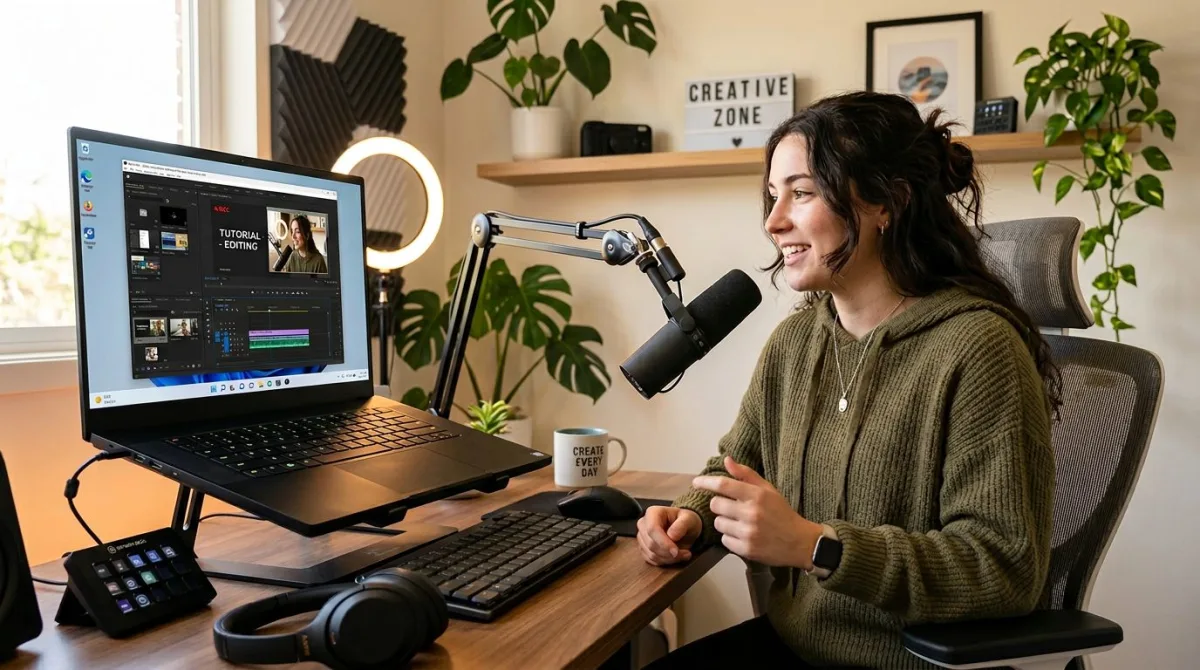
Let us be honest up front: ScreenSnap Pro is not an OBS replacement for live streaming. It does not push to RTMP. It does not do scene switching or multi-source compositing. If you go live on Twitch every week, stick with Streamlabs or XSplit.
What ScreenSnap Pro does well is the job most "OBS alternative" searchers actually want: record the screen, add a webcam overlay, capture mic and system audio, trim, and share. All without the scenes and sources maze. It is a clean, fast, no-setup recorder built for tutorials, bug reports, demo videos, and quick clips for Slack or Discord.
What you get for $39 one-time:
- Screen recording (MP4 or MOV) with webcam, mic, and system audio
- Direct GIF recording, no video-to-GIF conversion
- 15 annotation tools: arrows, shapes, blur, pixelate, step counter, and more
- 500+ gradient backgrounds for polished screenshots
- Optional cloud upload with instant share links
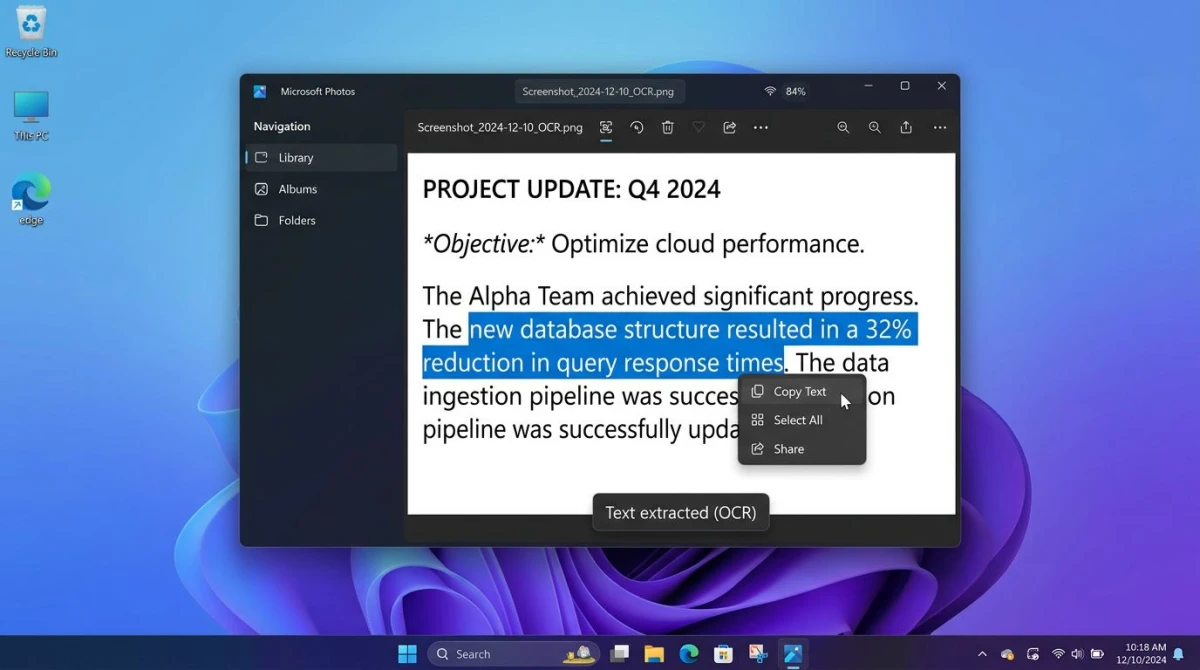
- OCR text extraction from any image
- Pin screenshots on top while you work
- Works on both Windows and Mac with one license
What it does not do: live streaming, scrolling screenshots, full video editing, Linux.
The honest pitch: you get OBS-level recording power without the complexity. For $39 once (no subscription), you skip the encoder settings and scene setup. You press record, you press stop, you share. That is it. If streaming is not on your roadmap, this is the shortest path to clean screen recordings on Windows. You can also record as GIF instead if you need a tiny shareable clip.
8. Meld Studio: the new drag-and-drop streaming tool
Price: Free tier. Meld Pro from $10/month.
Best for: Streamers who want a modern, clean OBS alternative.
Meld Studio is one of the newer picks here. It launched to fix "the OBS experience problem": too many panels, too many settings, too many ways to hit a black screen. Meld uses a drag-and-drop scene builder, GPU-accelerated rendering, and a cleaner alert system.
Meld is still young. The plugin library is smaller than OBS and Streamlabs. But for a clean streaming setup in under 10 minutes, it punches above its weight.
Pros:
- Modern, clean interface built for 2026
- GPU-accelerated rendering for smooth scenes
- Easy drag-and-drop scene builder
- Free tier is genuinely usable
Cons:
- Smaller plugin library than OBS
- Fewer advanced audio options
- Pro features require a subscription
Pick this if: You want a clean, modern streaming tool and do not need niche OBS plugins.
When OBS itself is still the right pick
Before you install anything, ask: is OBS actually the problem? It might still be the best tool for your job. OBS is the right pick when:
- You need custom plugins. OBS has the biggest plugin library by a mile. If you need a specific browser source, filter, or integration, it probably exists as a free plugin.
- You build complex multi-source scenes. Streaming a game plus a webcam plus a chat overlay plus a replay buffer? OBS handles it without breaking a sweat.
- You want zero ongoing cost. OBS is free forever, no subscriptions, no Pro tier. For long-term streamers, that adds up.
- You do not mind the setup time. If you already learned OBS and it works, switching tools is rarely worth the cost.
The TL;DR: OBS is perfect for advanced users and people who love to tinker. For everyone else, one of the eight tools above will save hours of setup.
For more context on official docs, the OBS Project website has setup guides and community forums. You can also check Microsoft Support for screen recording if you just need a quick capture without any third-party app.
How to pick: a 30-second decision tree
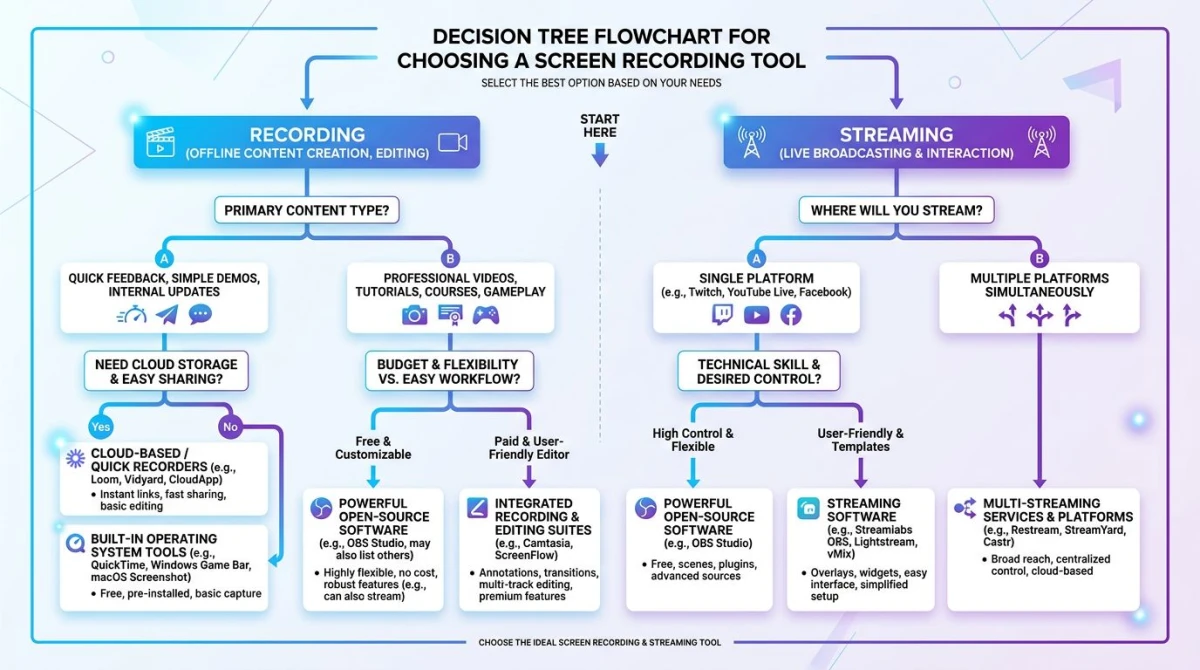
- Do you stream live? Pick Streamlabs (free or paid), XSplit (paid), or Meld Studio (modern).
- Do you record async tutorials or bug reports? Pick ScreenSnap Pro ($39), Camtasia (full editor), or ShareX (free).
- Do you capture high-FPS games? Pick Bandicam.
- Do you want a cloud-first workflow? Pick ScreenPal.
- Do you already know OBS and it works? Stick with OBS.
For a broader look at recording tools, see our list of free screen recorders for Windows or the full screen record on Windows guide. Both cover built-in options before you install anything.
Frequently Asked Questions
Wrapping up
There is no single best OBS alternative on Windows. The right pick depends on what you are doing. For live streaming, Streamlabs, XSplit, and Meld lead. For async recording, ScreenSnap Pro, Camtasia, and ShareX lead. For games, Bandicam rules high-FPS capture.
If you just want to press record, share a clip, and move on, ScreenSnap Pro is the shortest path. $39 once, no subscription, works on Windows and Mac with one license. OBS-level recording without the scenes and sources maze.
Still on the fence? Try the free tools first. ShareX costs nothing and will teach you what features you actually use. If you hit a wall, you know which paid tool to pick next.

Morgan
Indie DeveloperIndie developer, founder of ScreenSnap Pro. A decade of shipping consumer Mac apps and developer tools. Read full bio
@m_0_r_g_a_n_