Image Alt Text Guide: A11y + SEO + Screenshots (2026)
Image alt text is a short text description you add to an image so screen readers can read it to blind users and search engines can grasp what the image shows. Good alt text is brief (around 125 characters), specific, and skips filler like "image of." Decorative images use alt="" so screen readers skip them. The same alt attribute helps both accessibility (a WCAG 1.1.1 rule) and SEO (image rankings and page context).
This guide is the full reference: what alt text is, how to write it, the 7 rules, 20 good-vs-bad examples, common mistakes, and how to test. We also cover our niche: alt text for screenshots, where most guides fall short.
What Is Alt Text? A Plain-English Definition
Alt text (short for "alternative text") is the value of the HTML alt attribute on an
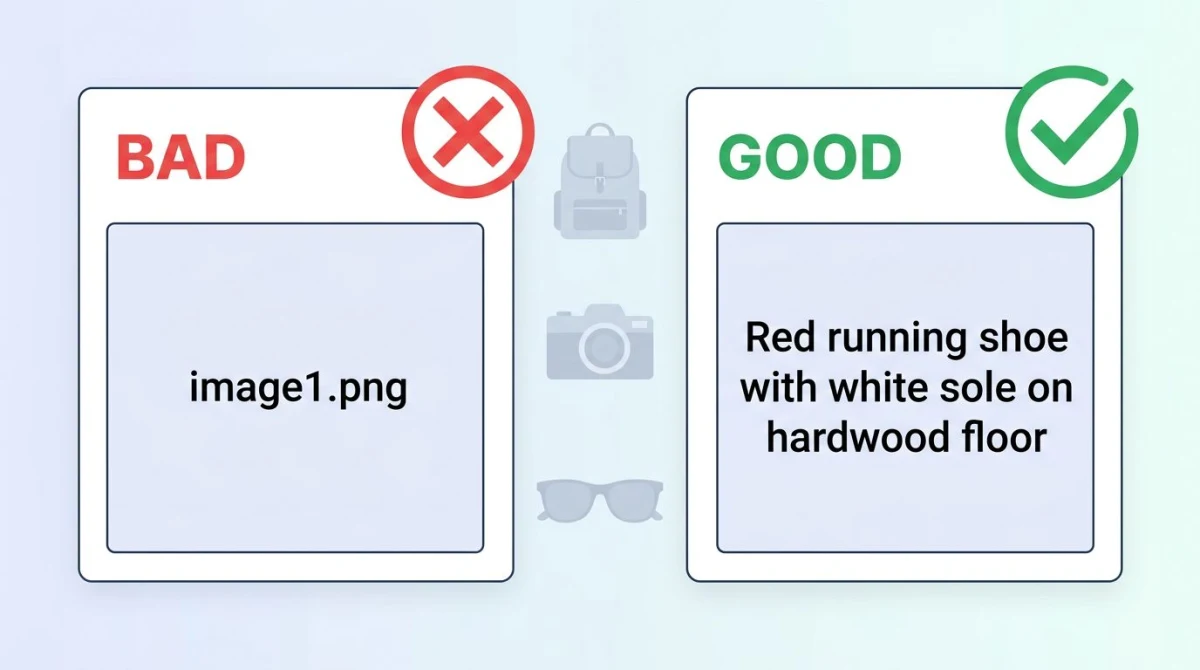
<img src="red-running-shoe.jpg" alt="Red running shoe with white sole on hardwood floor" />The alt attribute serves three real audiences:
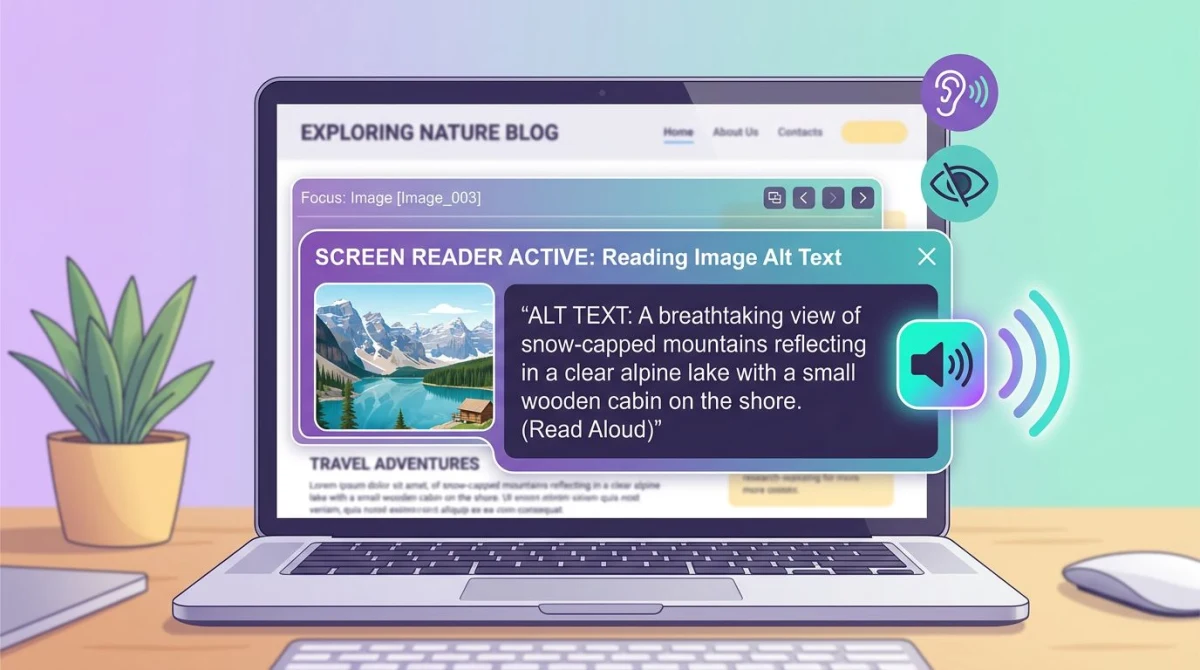
- Screen-reader users. Tools like VoiceOver, NVDA, and JAWS read the alt aloud so a blind or low-vision user knows what the image shows.
- Search engines. Google, Bing, and image crawlers use alt text to rank images and grasp page context.
- Anyone whose image fails to load. When the network drops, browsers show the alt text in place of the broken image.
A note on terms. "Alt tag" is common but wrong: alt is an attribute on the img tag, not a tag itself. "Alternative text" is the formal name used in WCAG 2.1 Success Criterion 1.1.1. The MDN page for the alt attribute on
How browsers use the alt attribute
A sighted user usually never sees the alt, because the image renders normally. Under the hood:
- Screen readers announce: "image, [alt content]." Empty alt (
alt="") means skip. - If
srcfails, browsers show the alt text inline. That is why "image of a sunset" reads oddly when an image breaks. - Voice-control tools (Dragon, macOS Voice Control) use alt text to target images by name.
That last point matters for users who are not blind. A user navigating by voice can only click an image if it has a label.
Why Alt Text Matters: The Dual-Purpose Framing
Most teams pick one camp. Designers see alt text as an accessibility chore. Marketers see it as an SEO lever. Both are right, and one good sentence can serve both jobs.
For accessibility, alt text is required by law in many places. WCAG 1.1.1 is cited by the ADA, the European Accessibility Act, Canada's ACA, and Section 508 in the U.S. Missing alt text is one of the most common audit failures at scale.
For SEO, alt text helps Google rank your images and gives the page extra topical context. Image traffic is real in product, recipe, and how-to niches.
The trick: one sentence often does both jobs. "Red running shoe with white sole on hardwood floor" works for a screen-reader user and for the query "red running shoe." You don't need two versions.
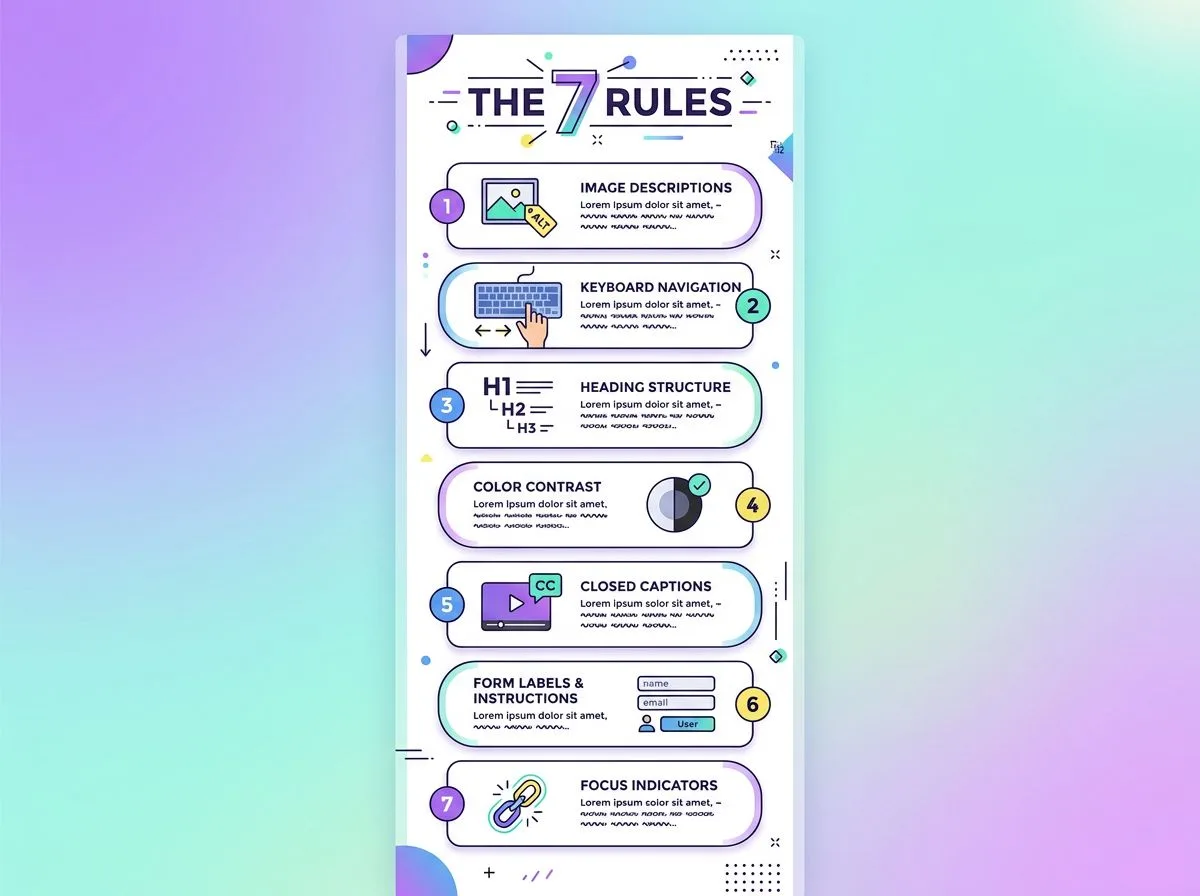
The 7 Rules of Writing Good Alt Text
These seven rules will get you 90% of the way there. The rest is judgment about context.
1. Be specific, not generic
"Image" or "photo" tells the reader nothing. Pick concrete nouns and adjectives. "Woman smiling at a desk in a sunny home office" beats "person."
2. Convey purpose, not just description
Ask "what is this image doing here?" not just "what is in it?" A photo of a chef on a restaurant homepage might be alt = "Chef plating spaghetti carbonara at Trattoria Lupo." The same photo on a recipe blog might be alt = "Plated spaghetti carbonara with parsley." Same pixels, different jobs.
3. Skip "image of" and "picture of"
Screen readers already say "image" before the alt. "Image of a sunset" reads as "image, image of a sunset." Just describe the content.
4. Aim for around 125 characters
There is no hard limit, but some older screen readers cut off long alt strings. Around 125 characters keeps it tight. If you need more space, use a caption or extra body text nearby.
5. Functional images describe the function
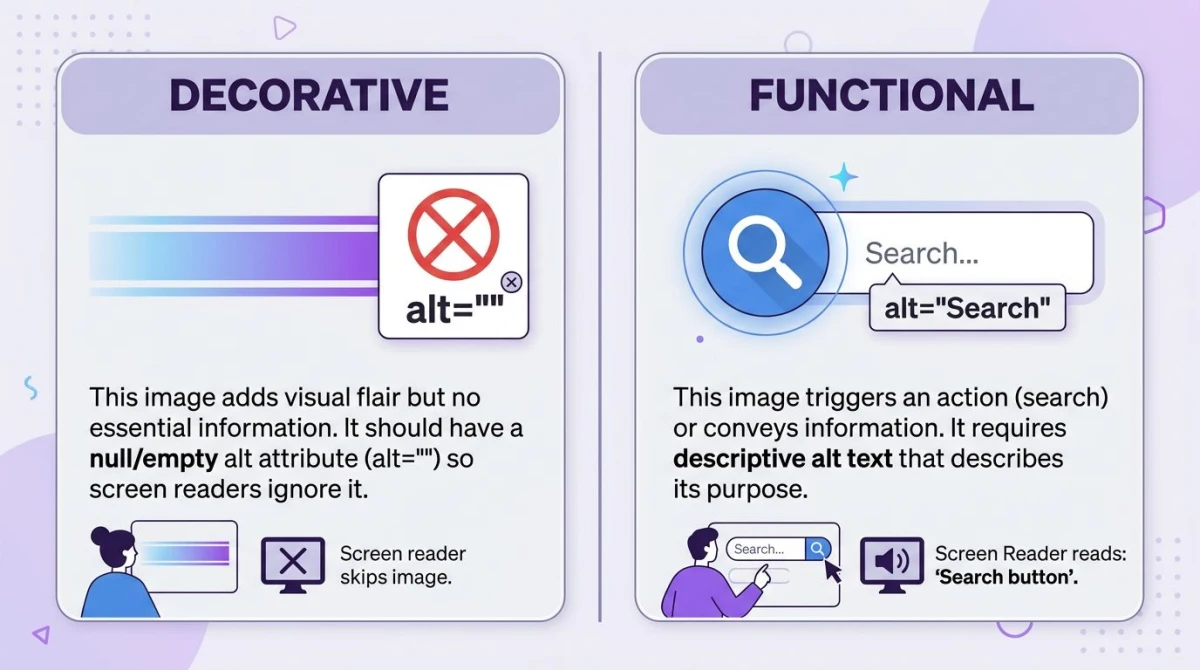
If an image acts as a button or link, describe what it does, not what it looks like. A search icon is alt="Search", not alt="Magnifying glass icon."
6. Decorative images get an empty alt
If the image is purely visual (a divider, a gradient, a hero pattern), use alt="". The empty attribute tells screen readers to skip it. Do not omit the attribute. That is worse, because some readers fall back to reading the filename.
7. Don't repeat the surrounding caption
If a
20 Examples: Good vs Bad Alt Text
The fastest way to internalize the rules is to see them applied. Here are 20 paired examples across 10 image categories.
Product photos
- Bad:
alt="shoe.jpg" - Good:
alt="Red Nike running shoe with white sole, side profile on white background"
- Bad:
alt="Image of a coffee maker" - Good:
alt="Stainless-steel drip coffee maker brewing into a glass carafe"
Instructional screenshots
- Bad:
alt="screenshot1" - Good:
alt="macOS System Settings showing the Privacy tab with Screen Recording highlighted"
- Bad:
alt="how to do it" - Good:
alt="Excel toolbar with the Insert Chart button circled in red"
Diagrams
- Bad:
alt="diagram" - Good:
alt="Three-tier system diagram with web server, app server, and database connected by arrows"
- Bad:
alt="flowchart" - Good:
alt="User login flowchart showing email entry, password check, and dashboard redirect"
Decorative images
- Bad:
alt="decorative gradient" - Good:
alt=""
- Bad: (no alt attribute at all)
- Good:
alt=""
Infographics
- Bad:
alt="infographic" - Good:
alt="Infographic showing 7 alt-text rules; full text below image"(then expand the rules in body text)
- Bad:
alt="stats" - Good:
alt="Bar chart showing 67% of users abandon sites with broken images, 2024 survey"
Button icons
- Bad:
alt="trash icon" - Good:
alt="Delete"
- Bad:
alt="three dots" - Good:
alt="More options"
Profile photos
- Bad:
alt="headshot" - Good:
alt="Maya Chen, lead designer at Acme, smiling in front of a blue wall"
- Bad:
alt="author" - Good:
alt="Jordan Park, author of this article"
Hero illustrations
- Bad:
alt="hero image" - Good:
alt="Illustrated workspace with laptop, plant, and coffee cup on a wooden desk"
- Bad:
alt="background" - Good:
alt=""(if purely decorative) oralt="Team of remote workers collaborating on video call"(if it carries meaning)
Charts and graphs
- Bad:
alt="chart" - Good:
alt="Line chart of monthly active users from Jan to Dec 2025, growing from 12k to 38k"
- Bad:
alt="bar graph" - Good:
alt="Bar chart comparing Q1 sales across 4 regions; West leads at $1.2M"
Brand logos
- Bad:
alt="logo" - Good:
alt="ScreenSnap Pro logo"
- Bad:
alt="our logo image" - Good:
alt="Acme Corporation"(when the logo functions as a link to the homepage)
Alt Text for Screenshots: Our Niche
Most generic guides skip screenshots, but screenshots are where docs teams, marketers, and bloggers spend the most effort. The rule is simple: describe the UI state, not the pixels.
A screenshot of a Mac Finder window with a file picked should not be alt = "rectangular screenshot." It should be alt = "macOS Finder window with budget.xlsx selected in the Documents folder." The reader needs to know what to see and do, not the shape of the rectangle.
Three quick rules for screenshot alt text:
- Name the app and the screen. "Slack settings, Notifications tab" beats "settings page."
- Call out the highlighted element. If you drew an arrow or box, say so: "Excel toolbar with the Format Cells button highlighted in red."
- State the action if relevant. "After clicking Save, the success banner appears at the top" turns a static image into a useful step.
If you build documentation, capture and annotate in ScreenSnap Pro. The annotation layer makes alt text easier to write, because you've already labeled what's important. Pair it with our step-by-step screenshot tutorial guide or our technical documentation screenshots guide for the full workflow.
SEO Benefits of Alt Text
Alt text is one of the oldest and most stable on-page SEO signals.
Image search ranking. Google Images is a top-five search property. Alt text is the main text signal Google uses to rank an image. If your image is well-described, on a relevant page, and a sensible size, it has a real shot at ranking.
Page keyword context. Search engines read the words around an image as a relevance signal. If your page targets "red running shoes," images of red shoes with descriptive alt reinforce the topic.
Featured-snippet hooks. Google often pulls images from a page for snippets and image carousels. Well-described images get picked more often.
What alt text does not do: it does not give you a ranking boost when stuffed with keywords. Google downrates over-optimized alt that reads as repeated terms.

Tired of plain screenshots? Try ScreenSnap Pro.
Beautiful backgrounds, pro annotations, GIF recording, and instant cloud sharing, all in one app. Pay $34 once, own it forever.
See pricing and featuresAccessibility Benefits of Alt Text
The accessibility case is older and stronger than the SEO case.
WCAG 1.1.1 (Non-text Content) requires that all non-text content have a text alternative. The W3C WAI alt-text tutorial has the canonical decision tree. Harvard's guide for content images is one of the clearest practical references.
Screen-reader UX. A blind user on a recipe site without alt text hears "graphic, graphic, graphic" and gets no information. With alt text, they hear "Plated spaghetti carbonara, Recipe of the Week" and decide whether to read on.
Voice control. Users on Dragon, macOS Voice Control, or Windows Speech Recognition target images by name. Without alt text, the image does not exist for them.
Cognitive and bandwidth. Alt text helps users with reading difficulties or slow connections (where images load late or never). It is one of the cheapest, highest-impact fixes you can ship.
The 4 Image Categories (And How to Treat Each)
The W3C groups images into four practical categories. Knowing the bucket tells you how to write the alt.
Informative images
Images that carry meaning not already in the text: a photo of a person, a product, an icon with meaning.
Rule: describe the meaning briefly. Around 125 characters.
Functional images
Images that act as buttons or links: a search icon, a logo that links home.
Rule: describe the function, not the look. alt="Search", alt="Acme Corporation home".
Decorative images
Images that are purely visual: gradients, dividers, background patterns.
Rule: alt="". Empty, not omitted.
Complex images
Charts, graphs, infographics, maps. Information too dense for one sentence.
Rule: short alt to identify, plus a longer description nearby (body text, longdesc attribute is deprecated.
Common Mistakes to Avoid
Most bad alt text falls into one of these five buckets.
1. Keyword stuffing. alt="red shoe red running shoe red Nike shoe red sneakers buy red shoe online" reads as spam to readers and search engines.
2. Skipping alt entirely. Worse than empty alt. With no alt, many screen readers read the file URL aloud. Try listening to "uploads-2024-IMG-4521-final-v3-FINAL-real.jpg" and you'll see why.
3. Using filenames as alt. "screenshot.png" or "DSC_0492" is the most common bad alt in the wild. Most CMSes default to this. Always rewrite.
4. Generic placeholders. "image", "photo", "picture", "graphic" add zero info.
5. Repeating the caption. If a caption already covers the image, alt = caption is noise. Trim the alt or set it empty.
How to Test Alt Text
You don't have to ship blind. Three layers of testing catch most issues.
Browser DevTools
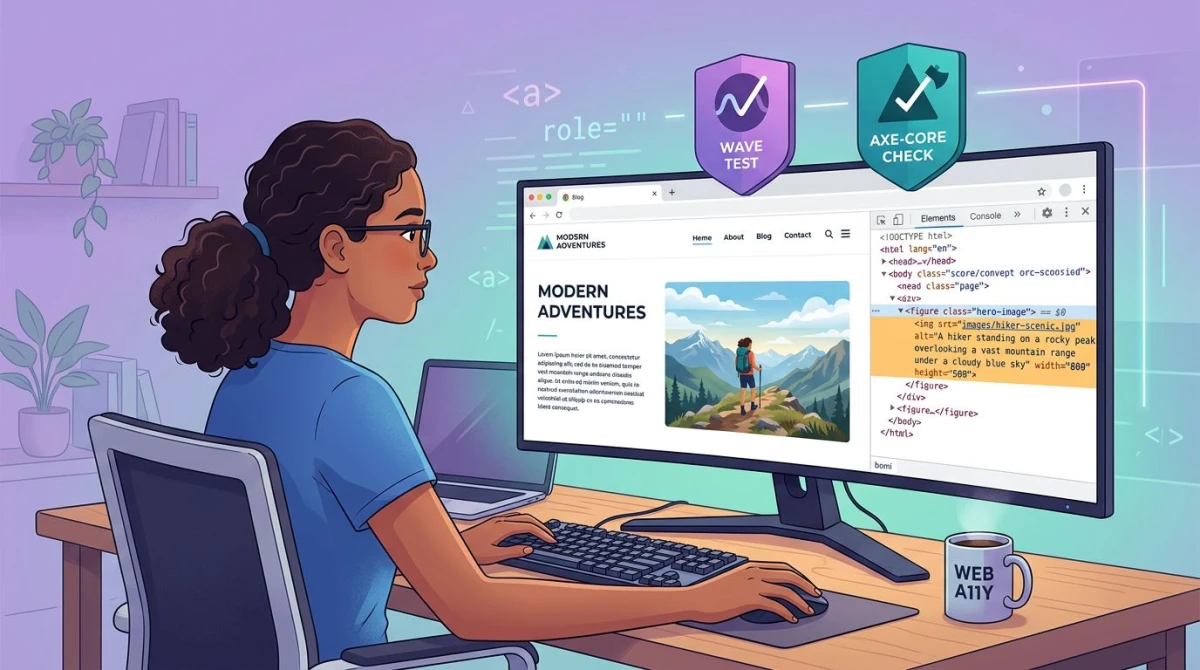
Right-click any image and pick Inspect in Chrome, Edge, Firefox, or Safari. The Elements panel shows the alt. The fastest spot-check is scrolling the DOM for missing or empty alt on content images.
Screen-reader testing
The real test is what a screen reader says. Run through your page with one of these:
- VoiceOver on macOS (Cmd+F5 to toggle) and iOS. Built in.
- NVDA on Windows. Free, open source, the most popular screen reader.
- JAWS on Windows. Paid, common in enterprise.
- TalkBack on Android.
Listen for "graphic" or "image" with no description. That's missing alt. Listen for filenames being read. That's a missing alt attribute (worse than empty alt).
Automated tools
Automation catches obvious failures fast: missing attributes, generic strings, decorative images that aren't marked. The Deque team's intro to great alt text covers what automation can and can't do. The big three:
- axe DevTools: browser extension from Deque, the dev standard.
- WAVE: WebAIM's free extension, great for non-developers.
- Lighthouse: built into Chrome DevTools, includes an a11y audit.
These tools catch missing alt but cannot judge quality. "image" passes axe; it fails review. Pair automation with manual screen-reader testing.
Reverse-checking what's in an image
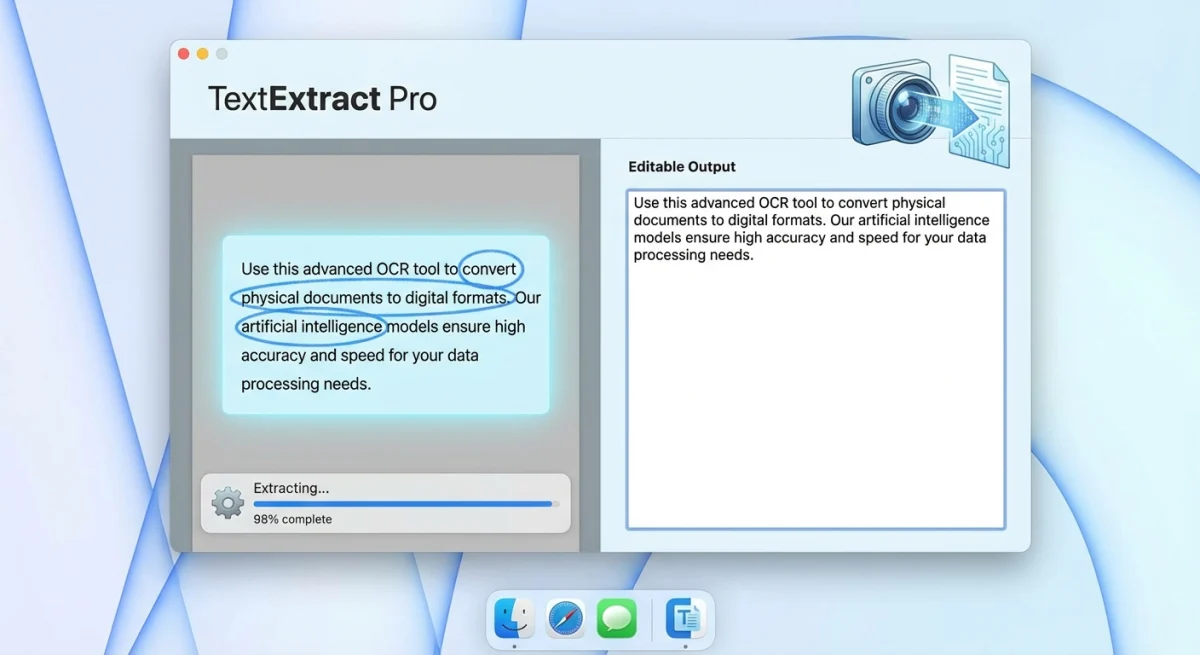
Sometimes you inherit a folder of images with no idea what's in them: a marketing handoff, a CMS migration, a folder of screenshots from a colleague. Our free extract text from image tool runs OCR on any image so you can pull out visible text as a starting point for the alt. For screenshots full of UI labels, it gives you a head start. Our image annotation tool is useful for marking up images so the highlighted region matches what you describe.
How to Add Alt Text in Different Platforms
Raw HTML: 

Markdown: !Your alt text. Decorative: .
WordPress: the media library shows an Alt text field on upload. The block editor also has one in the sidebar when an image block is selected.
Other CMS platforms: Webflow, Squarespace, Shopify, Wix, and Ghost all show an alt field on upload, usually labeled "Alt text" or "Alternative text."
Social media: Twitter/X, LinkedIn, Facebook, Instagram, and Bluesky all support alt via an "Add description" or "ALT" button after upload. Always fill it in.
Alt Text vs Title Attribute vs Caption
These three are often confused.
| Attribute | Purpose | Visible? | Read by screen readers? |
|---|---|---|---|
alt | Text alternative when image cannot be seen | Only if image fails to load | Yes (always) |
title | Tooltip on hover | Yes (on hover, mouse-only) | Inconsistent |
| Visible caption below image | Yes | Yes |
Use alt for the description. Always. Skip title unless you have a specific reason. It's mouse-only, ignored on touch devices, and inconsistently read by screen readers. Use
Frequently Asked Questions
Wrap-Up: Ship It Today
Alt text is one of the highest-leverage fixes on any site. It costs minutes per image, helps real users daily, and gives image search a quiet boost.
The short version:
- Describe the image specifically and in context.
- Skip "image of."
- Around 125 characters.
- Decorative images get
alt="". - Functional images describe the function.
- Test with a real screen reader, not just a tool.
If you write screenshots for a living (docs, tutorials, marketing), pair good alt with good capture and annotation tools. ScreenSnap Pro is our $34 one-time-purchase screenshot and recording app for Mac and Windows. The 17-tool annotation layer makes alt easier to write, because you've already labeled what's important. For capture quality, see our guide to high-quality screenshots on Mac.

Morgan
Indie DeveloperIndie developer, founder of ScreenSnap Pro. A decade of shipping consumer Mac apps and developer tools. Read full bio
@m_0_r_g_a_n_