Pinterest Pin Size 2026: Dimensions & Specs
The standard Pinterest pin size in 2026 is 1000 x 1500 pixels with a 2:3 aspect ratio. Idea Pins use 1080 x 1920 pixels (9:16), and video pins follow the 2:3 ratio at 1000 x 1500 as the recommended target. Use JPG or PNG under 32 MB for images, or MP4 or MOV under 2 GB for video. Anything wider than 2:3 gets cropped, and anything taller than 2:3 gets cut off in the feed.
That short answer covers the spec sheet. The real story is how Pinterest's algorithm treats vertical content. Square pins look fine but underperform. Long pins used to rank well and now get truncated. Idea Pins shifted from a separate format to the default. This guide walks you through every pinterest pin dimensions target, the pinterest aspect ratio rules that the algorithm rewards, and the design choices that turn a pin from invisible to viral.
Quick reference: every Pinterest pin size in 2026
| Pin type | Dimensions | Aspect ratio | Max file size | Format | Algorithm treatment |
|---|---|---|---|---|---|
| Standard pin | 1000 x 1500 px | 2:3 | 32 MB | JPG, PNG, GIF | Best - sweet spot |
| Long pin (legacy) | 1000 x 2100 px | 1:2.1 | 32 MB | JPG, PNG | Penalized - cut off |
| Square pin | 1000 x 1000 px | 1:1 | 32 MB | JPG, PNG | Underperforms - cropped |
| Idea Pin (now Pin) | 1080 x 1920 px | 9:16 | 2 GB | MP4, MOV | Promoted heavily |
| Video pin | 1000 x 1500 px | 2:3 | 2 GB | MP4, MOV | Strong reach |
| Profile cover | 800 x 450 px | 16:9 | 32 MB | JPG, PNG | Display only |
| Minimum standard | 600 x 900 px | 2:3 | 32 MB | JPG, PNG | Acceptable but soft |
Stick with 1000 x 1500 px at 2:3 for almost every pin you create. That is the best pinterest pin size for organic reach. Need to convert horizontal or square images? A free social media image resizer handles the math in one click.
Why 2:3 is the only ratio that wins the feed
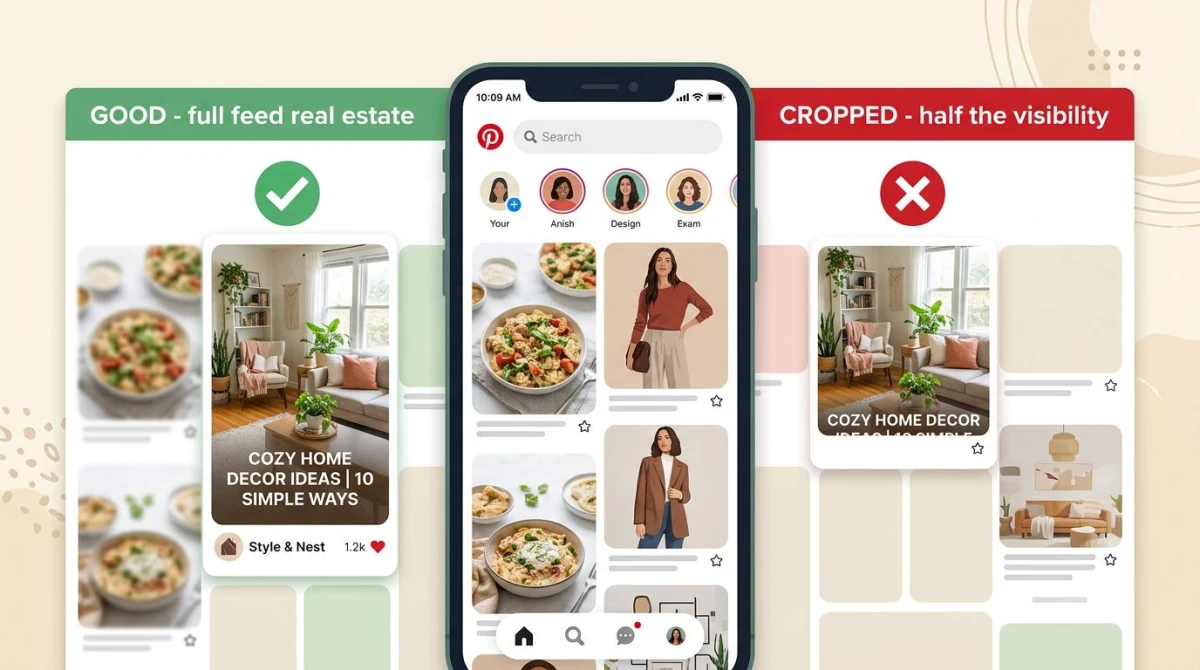
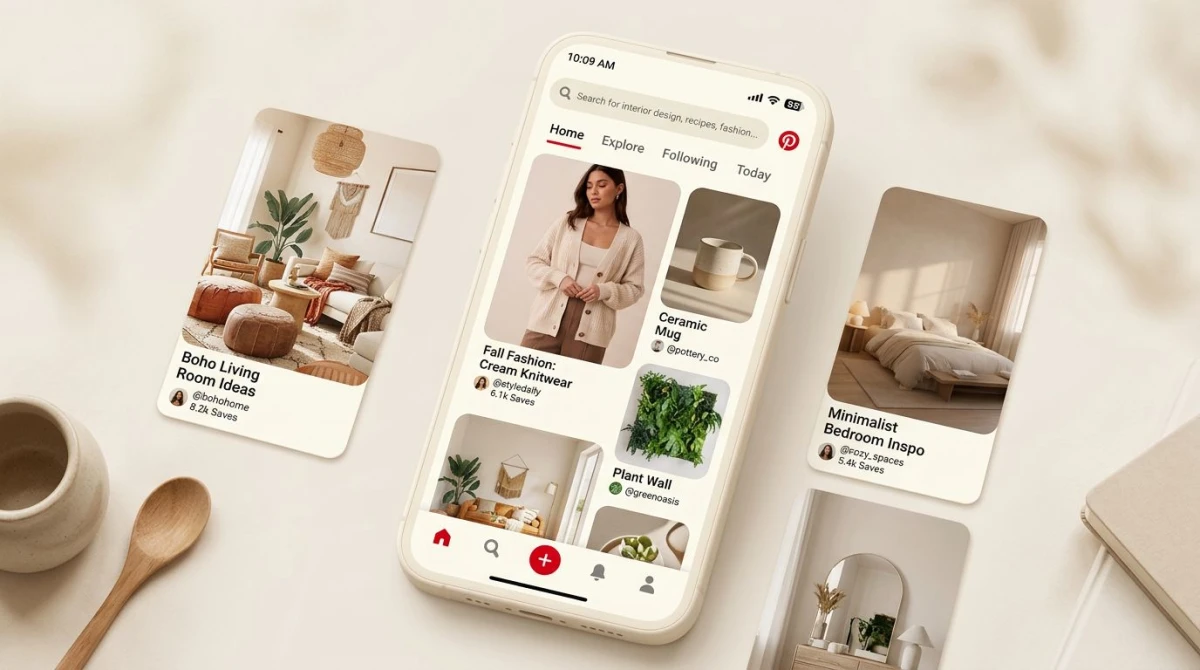
Pinterest's feed renders in vertical columns on both desktop and mobile. Each column is roughly the same width, so taller pins simply take up more screen space. A 2:3 pin fills the column from edge to edge. A square pin fills only the top half, leaving room for a competitor's pin underneath.
The math: 1000 / 1500 = 0.667. Pinterest's internal renderer is tuned to that exact ratio. Drift outside it and one of three things happens:
- Wider than 2:3 (square, 4:5, landscape): the platform crops the sides or scales the pin smaller in the feed
- Taller than 2:3 (long pins at 1:2.1 or above): the platform cuts off the bottom in the home feed and only shows the full pin on click
- Off by a few pixels (1001 x 1499 or similar): no penalty, the renderer rounds to the nearest bucket
The cropping issue is the biggest. A square pin at 1000 x 1000 still appears in the feed, but it occupies less vertical space, so the eye scrolls past it faster. Tracking data from third-party Pinterest schedulers consistently shows 2:3 pins get 2x to 3x more impressions than 1:1 pins of the same content.
Standard pin size: 1000 x 1500 is the safe bet
The pinterest image size target for 99% of creators is 1000 x 1500 pixels. This is the size every official Pinterest tutorial recommends, every template service ships with, and every analytics dashboard ranks at the top.
You can go larger - 2000 x 3000 still works as long as the file stays under 32 MB. Going larger does not help your reach (Pinterest downscales for the feed anyway), but it does keep the pin sharp on Retina screens when someone clicks to expand. The minimum is 600 x 900, which is the floor where Pinterest stops accepting uploads.
A few rules to keep in mind:
- Stay under 32 MB. Most JPGs at 1000 x 1500 weigh 200 to 500 KB, so this only matters for transparent PNGs with heavy detail.
- JPG for photo-heavy pins, PNG for text and graphics. PNG keeps text crisp, JPG compresses photos better.
- Avoid WebP. Pinterest still does not accept WebP uploads in 2026. Convert with our free WebP to PNG tool first.
- GIF is allowed but capped at 32 MB. Most animated pins should be MP4 video pins instead - they get more reach and have a 2 GB cap.
Idea Pins: the 9:16 format Pinterest pushes hardest
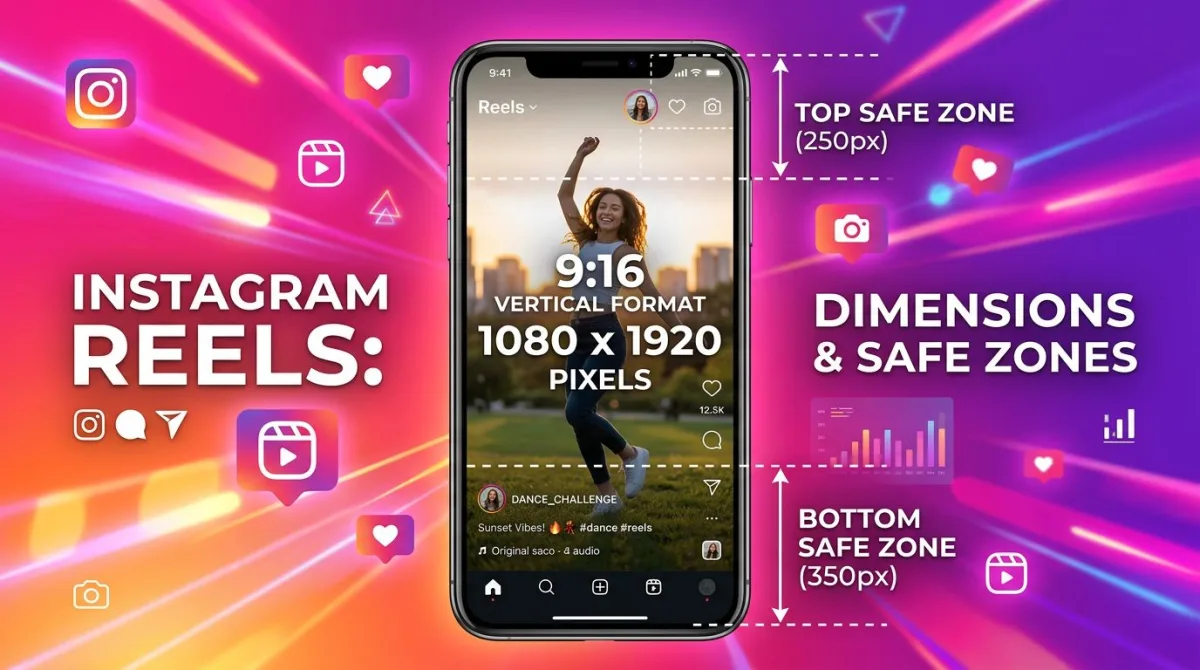
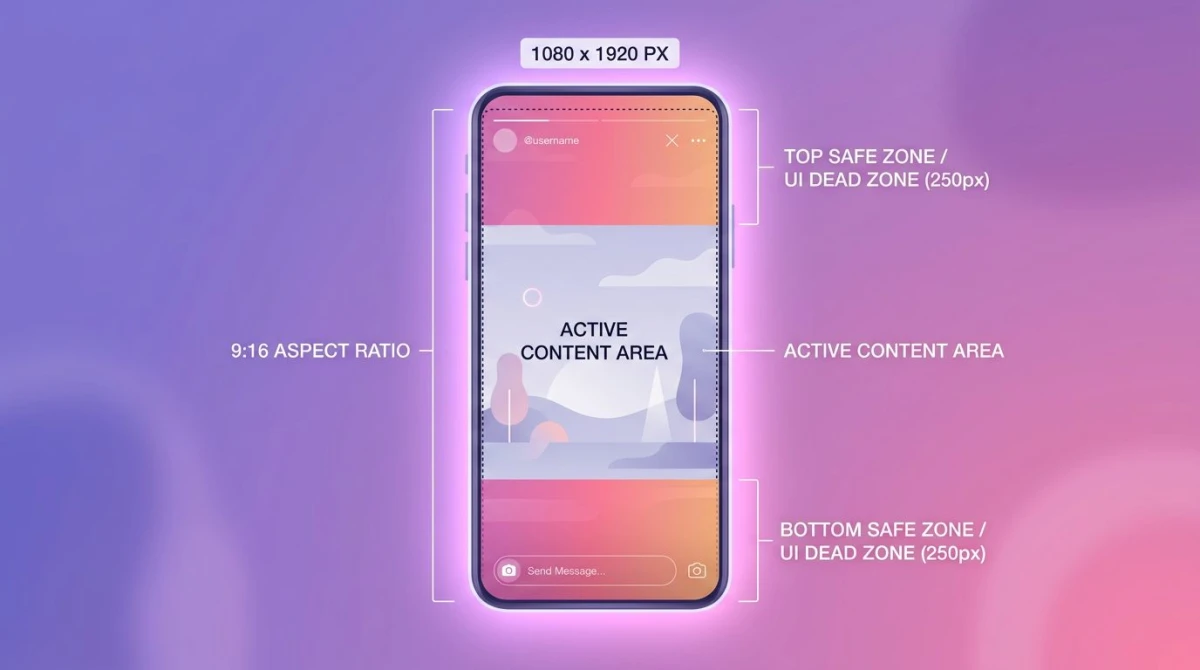
Pinterest renamed Idea Pins to just "Pin" in late 2024, but the spec is still distinct. Idea Pins are 1080 x 1920 pixels at 9:16 aspect ratio - the same vertical format as Instagram Reels and TikTok. They support up to 60 seconds of video and can include multiple slides, music, text overlays, and stickers.
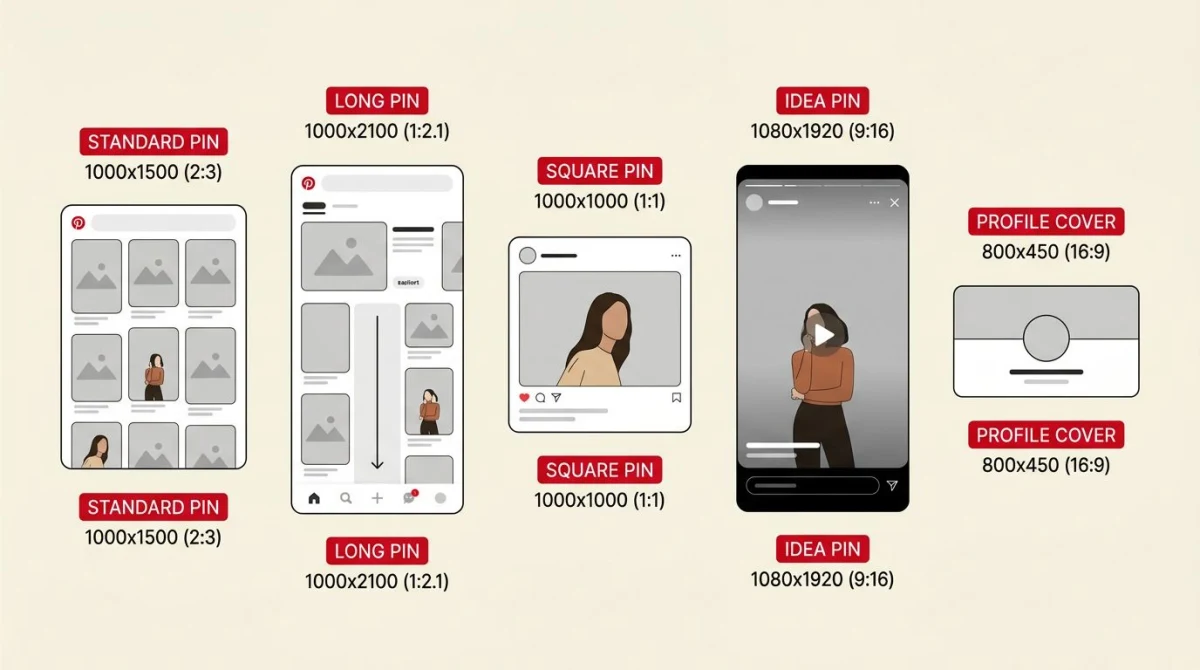
The algorithm leans on Idea Pins because they keep users inside the app instead of clicking out to a blog or shop. If your goal is brand discovery and follower growth, Idea Pins are the priority. If your goal is traffic to a website, standard 2:3 pins still drive more clicks - Idea Pins do not link out as effectively.
For Idea Pin creation, design at 1080 x 1920 and keep your hook in the top 250 px and any caption or CTA above the bottom 400 px safe zone (Pinterest's UI eats the same space as Instagram Reels). The full-screen 9:16 frame matches a phone screen exactly, so what you see in your design tool is what users see.
If you create vertical content for multiple platforms, the math overlaps with our Instagram Reels size guide and TikTok video size guide. One 1080 x 1920 master file works for all three networks.
Video pin specs: 2:3 vertical, MP4 or MOV, 2 GB cap
Video pins are the second-best performer after Idea Pins. Pinterest treats them like standard pins (they appear in the home feed and search results) but rewards them with extra impressions because video keeps users on Pinterest longer.
The recommended video pin size is 1000 x 1500 pixels at 2:3 aspect ratio, the same as a standard image pin. Specs:
- Format: MP4 or MOV (no WebM, AVI, or MKV)
- Codec: H.264 video, AAC audio
- Length: 4 seconds minimum, 15 minutes maximum (most successful pins run 6 to 15 seconds)
- File size: 2 GB hard cap
- Frame rate: 24, 25, or 30 fps recommended
You can also upload at 9:16 (1080 x 1920) for a more vertical feel - Pinterest accepts both ratios for video pins. The 2:3 frame still wins for static-with-motion content (think recipe loops, before-and-after reveals, product demos). The 9:16 frame works better for face-to-camera content.
Need to compress a video pin under 2 GB? Most phone exports already fit. For longer pins, a free GIF compressor or any standard video editor can drop the bitrate.
The long pin debate: 1:2.1 used to win, now it loses
If you read a Pinterest guide written before 2023, you will see "long pins" recommended at 1000 x 2100 pixels (1:2.1 ratio). Long pins used to dominate because they took up more vertical space than anyone else's pins. Pinterest cracked down in 2023 by truncating anything taller than 2:3 in the home feed.
Today, a 1000 x 2100 long pin shows up cropped to 2:3 in the feed (the bottom 600 pixels get cut off). Users only see the full pin if they click. That click rate is brutal - most users do not click pins they cannot see fully, so long pins now underperform standard 2:3 pins by a wide margin.
The exception: infographic pins that are clearly tall by design. If your pin is an obvious infographic (numbered steps, vertical timeline, recipe card), some creators still go to 1000 x 1800 (1:1.8). That is the maximum height we recommend in 2026, and only for content where the tall format adds genuine value.

Tired of plain screenshots? Try ScreenSnap Pro.
Beautiful backgrounds, pro annotations, GIF recording, and instant cloud sharing, all in one app. Pay $34 once, own it forever.
See pricing and featuresSquare pins: when 1:1 actually makes sense
Square pins at 1000 x 1000 pixels (1:1) underperform on Pinterest, but there are two cases where they still work:
- Cross-posting from Instagram. If you publish to Instagram first and Pinterest second, a square pin saves you from re-cropping. The reach hit is real but small.
- Profile covers and board covers. Pinterest displays board covers as squares regardless of upload ratio, so designing at 1:1 prevents surprise crops.
For everything else, do not use square pins. The visual real estate loss in the feed is too large. Convert your square content to 2:3 before publishing - our free image cropper makes this fast.
Profile cover and board cover sizes
Two more sizes worth knowing:
- Profile cover (banner): 800 x 450 px at 16:9. Displayed at the top of your Pinterest profile on desktop.
- Board cover: any size, but Pinterest crops to 600 x 600 px square. Design at 600 x 600 to avoid surprises.
- Profile picture: 165 x 165 px (displayed circular - keep your face or logo centered).
These are display-only sizes - they do not appear in the feed and have no algorithm impact. They matter for branding only.
Design tips: what makes a pin actually get saves
Specs only get you in the door. The pins that go viral on Pinterest follow a few design rules that have nothing to do with pixel dimensions:
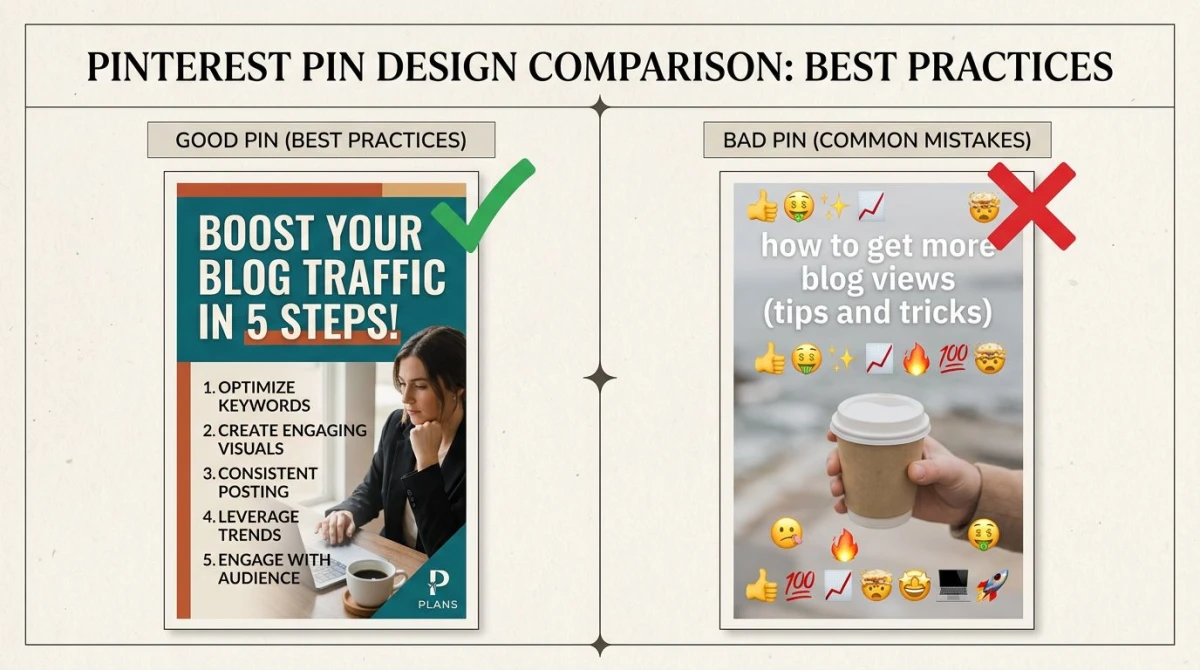
Use large, readable text overlay. Pinterest is unique among social platforms in rewarding text-on-image. Headlines should be 60 to 100 px tall on a 1500 px tall pin (think 24 to 40 pt in Canva). Keep font weight bold or extra-bold so the title reads at thumbnail size.
Build vertical hierarchy. The top third should hook the reader, the middle should pay it off, the bottom should brand it. Users scroll fast, and they scan top-to-bottom on tall pins.
High contrast wins. Dark text on light background or light text on dark background. Pinterest's feed renders pins at thumbnail size first, and low-contrast designs disappear at small sizes.
Add a small logo or watermark. Bottom-right corner, 80 to 120 px wide. This builds brand recognition as users save your pin to multiple boards and re-encounter it later.
Stick to 2 to 3 brand colors. Consistent color across pins helps users recognize your brand in a crowded feed.
What NOT to do on pins:
- Avoid emoji as primary visual elements - they look amateurish and don't translate across cultures
- Skip stock photos with words slapped on top - looks generic, loses to original photography
- Don't use thin or script fonts at small sizes - they break up at 200 px wide thumbnail
- Avoid red call-to-action buttons - red blends into Pinterest's UI
For more detail on social media branding, our social media image sizes guide covers cross-platform consistency.
Why isn't my pin getting impressions? Common fixes
If your pins are getting fewer than 50 impressions in the first 24 hours, the cause is almost always one of these:
Wrong aspect ratio. Square or landscape pins get a smaller feed slot. Republish at 1000 x 1500 and watch impressions climb.
Pin is too tall. If you uploaded at 1000 x 2100 or taller, the bottom is cut off in the feed. Resize to 1000 x 1500 or 1000 x 1800 max.
No text overlay. Image-only pins (especially photographs) underperform pins with a clear headline. Add a 5- to 8-word title in the top third.
Low resolution. Pins below 600 x 900 look blurry on Retina screens. Re-export at 1000 x 1500 minimum.
File too large. Pins over 32 MB get rejected silently. Compress with a free image compressor and re-upload.
Repeat content. Pinterest's algorithm penalizes near-duplicate pins (same image, same text). Make at least three variations per piece of content.
Brand new account. Pinterest's algorithm needs 100 to 200 pins of history before it pushes your content widely. Stay consistent for 30 days before judging performance.
Free Pinterest pin templates
You don't need a template service to make great pins, but they save time. The most-used options:
- Canva Pinterest templates - free tier includes 1000+ Pinterest-sized templates at 1000 x 1500
- Figma community - search "Pinterest pin" for free designer-made templates
- Adobe Express - includes free Pinterest templates with brand kit support
- Pinterest's own template tool - inside the create flow, Pinterest provides basic Idea Pin templates
For one-off custom pins, designing at 1000 x 1500 in any tool works. The official Pinterest Business help center keeps an updated spec sheet if anything in this guide ever changes.
Pinterest pin size for ScreenSnap Pro users
If you publish blog content or product screenshots to Pinterest, the workflow looks like this: capture the screenshot, annotate the key details, frame it on a 1000 x 1500 canvas, add a headline, and publish.
ScreenSnap Pro handles the capture-and-annotate half of that workflow on Mac and Windows. Snap a region or full window, mark up the important parts with arrows or highlights, and export at high resolution. Drop the export into your Pinterest template, add the headline, and you have a pin that scans clean even at thumbnail size. It's a one-time $34 purchase with no subscription, which makes it a fit if you're churning out a lot of pins per month and don't want recurring software costs eating your margin.
For pin design specifically, you'll still want a layout tool like Canva or Figma - ScreenSnap Pro is for the screenshot and annotation step, not the full pin layout.
FAQ

Morgan
Indie DeveloperIndie developer, founder of ScreenSnap Pro. A decade of shipping consumer Mac apps and developer tools. Read full bio
@m_0_r_g_a_n_