Does LinkedIn Notify Screenshots? No, It Doesn't (2026)
No, LinkedIn does not notify anyone when you screenshot a profile, post, or message. (Screenshots are silent. That's different from 'Who viewed your profile', which tracks views, not screenshots.)
This is the part that trips people up. LinkedIn does tell you when someone visits your profile (unless they hide it), but that feature has nothing to do with screenshots. You can grab a picture of anyone's profile, post, or chat, and they get no alert and no log. Here's what LinkedIn tracks, what it doesn't, and why the two get confused.
At a glance: what LinkedIn does (and doesn't) notify
| What you screenshot or do | Does LinkedIn notify the other person? |
|---|---|
| Someone's profile | ❌ No |
| A post or article | ❌ No |
| A direct message (DM) | ❌ No |
| A comment or reaction | ❌ No |
| A screen recording of any of the above | ❌ No |
| Viewing a profile (not a screenshot) | ✅ Yes, via "Who's viewed your profile" (unless you're in private mode) |
See the difference in that last row? Viewing a profile can show up in the other person's "Who's viewed your profile" list. Screenshotting never does. People search "does LinkedIn notify screenshots" because they mix these two up, so let's clear it up for good.
Does LinkedIn notify when you screenshot a profile?
No. When you take a screenshot of someone's LinkedIn profile (their headline, photo, work history, skills, or connections), the profile owner gets no notification. There's no alert, no email, and no entry in any log on LinkedIn's side.
This works the same everywhere:
- The LinkedIn mobile app on iPhone or Android
- LinkedIn in a web browser on Mac or Windows
- Using your phone's built-in screenshot shortcut
- Using a Mac screenshot shortcut on linkedin.com
Recruiters, sales teams, and job seekers screenshot profiles all the time, whether to save a candidate's background or to keep a record before someone updates their page. None of it is flagged.
The reason is technical. Screenshots are handled by your device's operating system, not by LinkedIn. Browsers and phone screenshot tools don't report capture activity back to the website you're viewing, so LinkedIn has no way to know a screenshot happened.
Does LinkedIn notify when you screenshot a post or article?
No. Posts, articles, newsletters, and your home feed are public-facing content built to be shared. Screenshotting any of it sends zero notification to the author.
You can capture:
- A post in your feed
- A long-form LinkedIn article
- A poll, document, or carousel
- The comments under a post
The author can see public engagement: likes, comments, reposts, and impression counts. None of those numbers are tied to screenshots. If you quietly screenshot a post to share in a Slack channel or save for later, the author has no idea.
Does LinkedIn notify screenshots of messages (DMs)?
No. As of 2026, LinkedIn does not send any alert when you screenshot a direct message. This is one of the most-asked versions of the question, and the answer is the same as the rest: screenshots in LinkedIn messaging are silent.
You can screenshot a chat, a shared link, an InMail, or a recruiter's offer without the other person knowing. Many people save DMs to keep a record of an agreement, a referral, or a job lead.
This is a key difference from Snapchat, which famously alerts users the moment you screenshot a chat. LinkedIn has never had that feature in messaging, and there's no sign it's coming. Your DM screenshots stay between you and your screenshot folder.
Profile views vs screenshots: the confusion explained
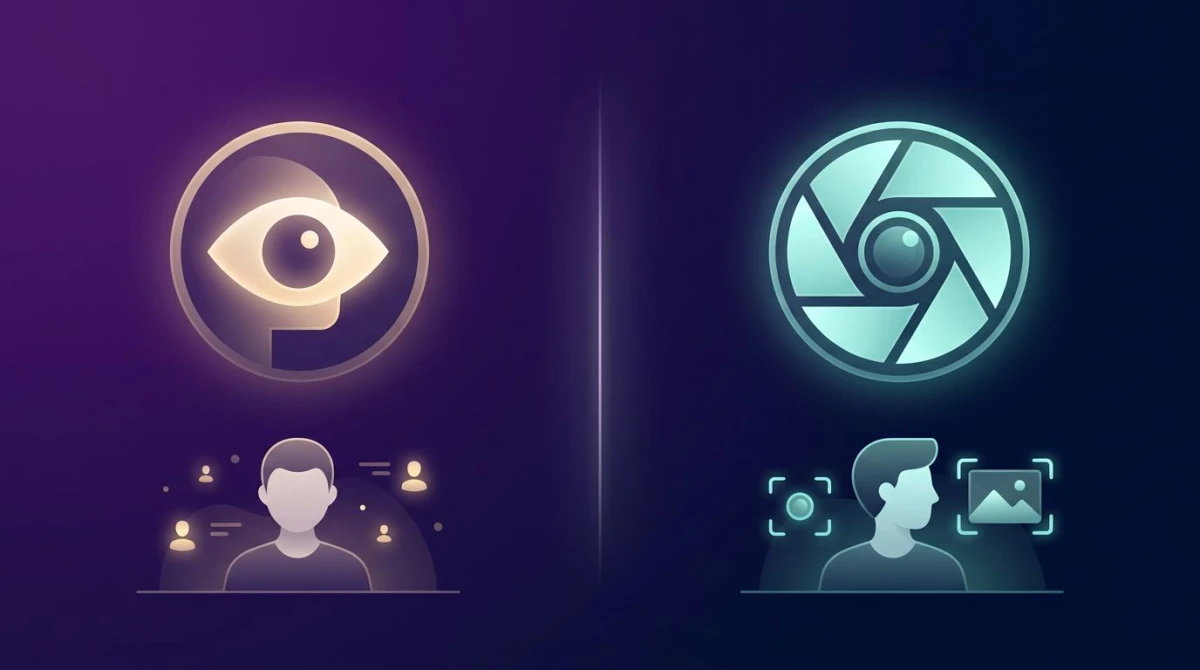
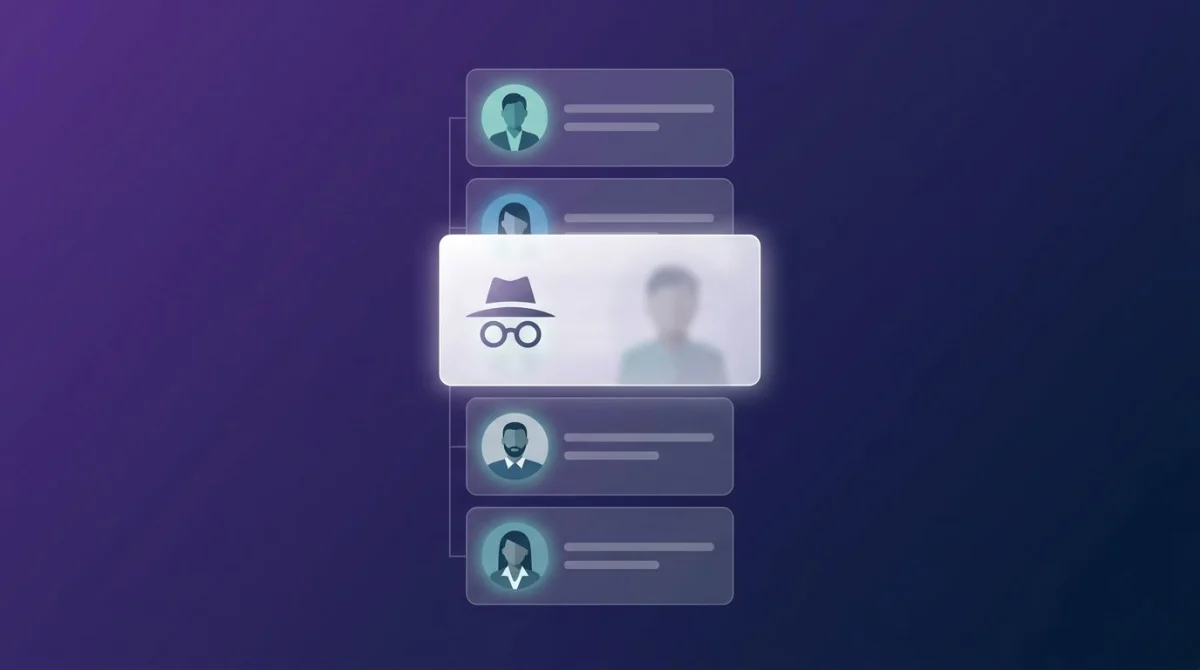
Here's the heart of why people ask this question. LinkedIn has a feature called "Who's viewed your profile." It is easy to assume this also catches screenshots. It does not.
Let's separate the two clearly:
- A profile view happens when someone opens your profile page. This can show up in your "Who's viewed your profile" list.
- A screenshot is a picture your device takes of the screen. This never shows up anywhere on LinkedIn.
So if someone visits your profile and then screenshots it, you might see that they viewed your profile, but only because of the visit, not the screenshot. The screenshot itself is invisible. And if they viewed your profile in private mode, you won't even see the visit.
Think of it like a shop with a visitor counter at the door. The counter logs that someone walked in. It has no idea whether that person took a photo while inside. LinkedIn's view tracking is the door counter. Screenshots are the silent photo.
According to LinkedIn's official Help Center, the "Who's viewed your profile" feature uses profile visitor data, meaning who opened your page in the last 90 days. Screenshot activity is never mentioned, because LinkedIn can't see it.
How "Who's viewed your profile" actually works
Since this feature causes the confusion, it's worth understanding what it really shows. It tracks views, and how much you see depends on the viewer's privacy setting and your own account type.
When someone opens your profile, LinkedIn records it. What you can see about that visitor depends on the mode they were browsing in, per LinkedIn's private and semi-private mode rules:
- Public (default): You see their name, photo, and headline.
- Semi-private mode: You see partial info, like their job title and company, but not their name.
- Private mode: You see only "LinkedIn Member" and "This person is viewing profiles in private mode." No name, no photo.
There's a trade-off built in. If a viewer turns on private mode to browse anonymously, LinkedIn also hides their own "Who's viewed your profile" list, unless they have a Premium account. So most people who want to stay anonymous give up seeing their own visitors in return.
On a free account, you can see a limited list of recent viewers. The full list and the 90-day trends are part of LinkedIn Premium. But again, every name on that list got there by viewing your profile, never by screenshotting it.

Tired of plain screenshots? Try ScreenSnap Pro.
Beautiful backgrounds, pro annotations, GIF recording, and instant cloud sharing, all in one app. Pay $39 once, own it forever.
See pricing and featuresDoes LinkedIn detect screen recording?
No. Screen recording a LinkedIn profile, post, or message does not send any alert to the other person. Whether you use your iPhone's built-in screen recorder, Android's screen capture, or QuickTime on Mac, LinkedIn does not flag it.
This covers:
- iOS screen recording from Control Center
- Android's built-in screen recorder
- Mac screen recording with QuickTime or keyboard shortcuts
- Third-party capture tools
LinkedIn does not use DRM or screen-recording blocks like streaming apps such as Netflix do. Your recording captures the full screen with no black-outs and no notification to the person whose content you recorded.
The "LinkedIn detected this screenshot" notification, explained
Here's a real nuance that fuels the rumor. Some Android users see a small popup that says "LinkedIn detected this screenshot" when they screenshot inside the app. That sounds alarming, but it does not mean LinkedIn told the other person anything.
Here's what's actually happening:
- The popup comes from Android (version 14 and up), not from a LinkedIn alert sent to anyone else.
- Android added a privacy feature that lets apps detect screenshots taken inside their own app. When an app uses it, Android shows you a transparency notice.
- The notice is telling you that LinkedIn has the ability to detect screenshots within its app. The recipient is you, not the person whose profile or post you captured.
- iPhone users and people on desktop never see this popup at all.
So the profile owner still gets nothing. The Android message is a heads-up to the person taking the screenshot, similar to how some phones flash an app name when you capture. It is not a Snapchat-style "someone screenshotted your chat" alert. LinkedIn may use this in-app signal for its own product analytics (like how many people save job posts), but it does not notify the content owner.
If you don't want the popup, take the screenshot on desktop or on an iPhone, or capture the LinkedIn page in a web browser instead of the app.
How to save LinkedIn content the right way
A raw phone screenshot of a profile or post is often blurry, cropped, or cluttered with the LinkedIn interface. Here are cleaner ways to save what you need.
Save posts and profiles inside LinkedIn
LinkedIn has built-in saving for content you want to revisit:
- On a post, tap the three-dot menu in the top corner.
- Select Save to add it to your saved items.
- Find saved posts later under My Items in the left sidebar (desktop) or your profile menu (mobile).
For people, you can follow or connect to keep their updates in your feed without screenshotting anything. To keep a record of your own profile or connections, LinkedIn lets you download a data archive from Settings → Data Privacy → Get a copy of your data.
Capture clean screenshots on a computer
When you do need a screenshot for a slide, a candidate file, or a report, your Mac or PC gives you sharper captures than a phone. On a Mac, use ⌘ + Shift + 4 to grab just the area you need, or ⌘ + Shift + 3 for the full screen.
For more control, a tool like ScreenSnap Pro makes the whole flow faster: crop out the LinkedIn sidebar, add annotations to highlight a key line, or share the result as a link right away. You can grab, edit, and share without switching apps, with a one-time $39 license, 500+ backgrounds, and 15 annotation tools.
LinkedIn vs other apps: screenshot notification comparison
Wondering how LinkedIn stacks up against the apps that do send screenshot alerts? Here's the 2026 breakdown:
| Platform | Screenshots notified? | What it tracks instead |
|---|---|---|
| ❌ No | Profile views (not screenshots) | |
| Snapchat | ✅ Yes (always) | Screenshots of snaps, chats, and stories |
| ❌ No (posts, stories, DMs) | View counts on stories | |
| ❌ No | Story views, post engagement |
Snapchat is still the only major platform that alerts users about screenshots in regular chats. LinkedIn, Instagram, and Facebook all stay silent on screenshots and track views and engagement instead. If you want the deeper dive on the others, see whether Instagram notifies screenshots and how TikTok handles screenshots.
The pattern is clear: professional and public platforms are built for sharing, so screenshot alerts would work against them. LinkedIn wants your content seen and saved, not locked down.
LinkedIn screenshot etiquette: dos and don'ts
Just because LinkedIn won't tell anyone about your screenshots doesn't mean anything goes. A few ground rules keep you professional.
Do:
- Save profiles and posts for your own work. Candidate research, lead tracking, and saving useful posts are all normal.
- Credit the author if you reshare their post or quote their words publicly. A tag goes a long way.
- Blur sensitive details before sharing externally. If a screenshot shows someone's contact info, blur or pixelate it first.
Don't:
- Share private DMs publicly. Even with no alert, posting someone's private message can damage trust and reputation.
- Repost someone's content as your own. Passing off another person's writing is bad form and may break LinkedIn's rules.
- Screenshot to mock or shame. Capturing a profile or post to ridicule someone is harmful, even if they never find out.
The golden rule on a professional network: treat other people's content the way you'd want yours treated. No alert doesn't mean no impact.
Tips for screenshotting LinkedIn content
If you grab LinkedIn content often for reference or reports, these tips help:
- Use the desktop site at linkedin.com for sharper, wider captures than a phone screen allows.
- Pull text instead of retyping. OCR tools can extract text from a screenshot, handy for saving a headline or job description.
- Crop out the interface so only the content you need is left. On Mac,
⌘ + Shift + 4lets you pick just the area. - Compress before you share. converting screenshots to WebP keeps file sizes small with no visible quality loss.
Will LinkedIn ever add screenshot alerts?
There's no announcement from LinkedIn about adding screenshot notifications. The whole platform is built around visibility: being found by recruiters, sharing posts widely, and growing a professional audience. Screenshot alerts would add friction to that and discourage saving and resharing.
LinkedIn's privacy controls focus on views and visibility, not capture. As its privacy policy describes, the data it collects centers on profile activity, messaging, and usage, not screenshot tracking, which it has no technical way to do for screenshots taken outside the app.
For now, and for the foreseeable future, screenshots on LinkedIn stay silent. The only thing that might show up is a profile view, and that's a feature you can turn off in your settings.
Frequently Asked Questions

Morgan
Indie DeveloperIndie developer, founder of ScreenSnap Pro. A decade of shipping consumer Mac apps and developer tools. Read full bio
@m_0_r_g_a_n_