8 Best AI Video Summarizers (2026): How They Actually Work
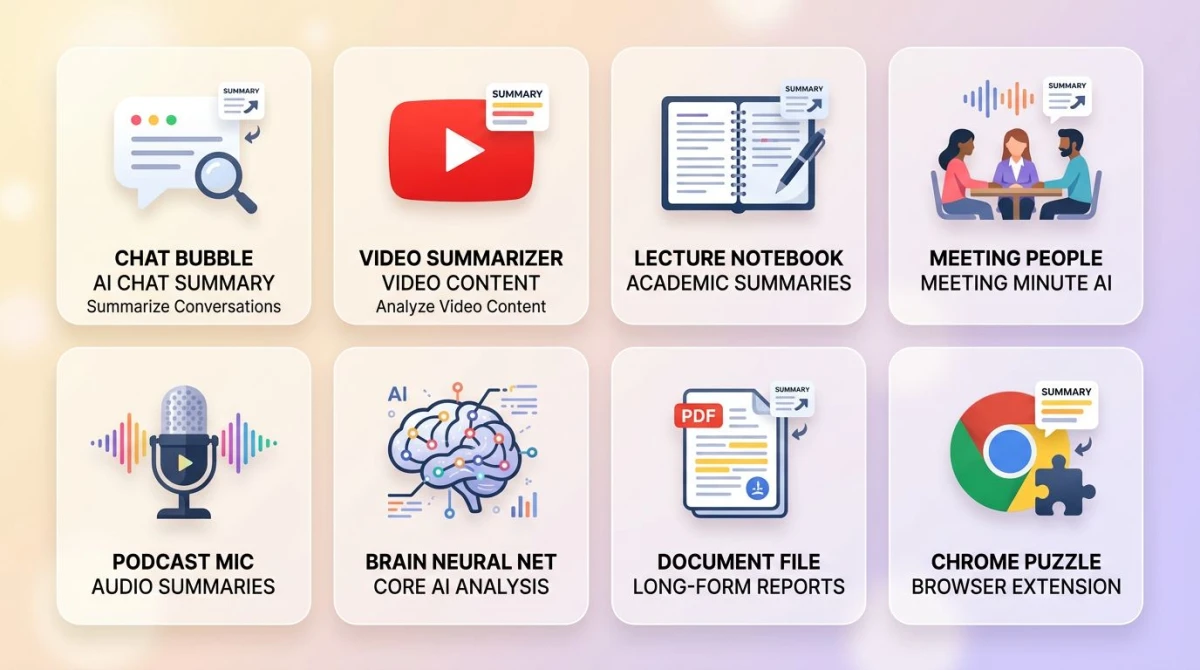
An AI video summarizer is a tool that turns a video into a short text summary. It first transcribes the audio. Then it uses an AI model to pull the key points into bullets, chapter timestamps, or action items. People use them to skim hour-long lectures in five minutes. Or to recap meetings they missed. Or to pull notes from YouTube. Or to turn podcasts into shareable highlights.
The category took off in 2025. That's when GPT-4-class models got cheap enough to run over 90-minute transcripts in one pass. In 2026, you have real choices. Some tools join live meetings. Some work on YouTube URLs only. Some handle PDFs and audio too. And some are light Chrome extensions that pipe a transcript through ChatGPT in the background.
This guide explains how the pipeline works (audio → text → summary → output). Then it reviews the eight tools worth knowing in 2026, with honest limits for each.
How AI video summarizers work
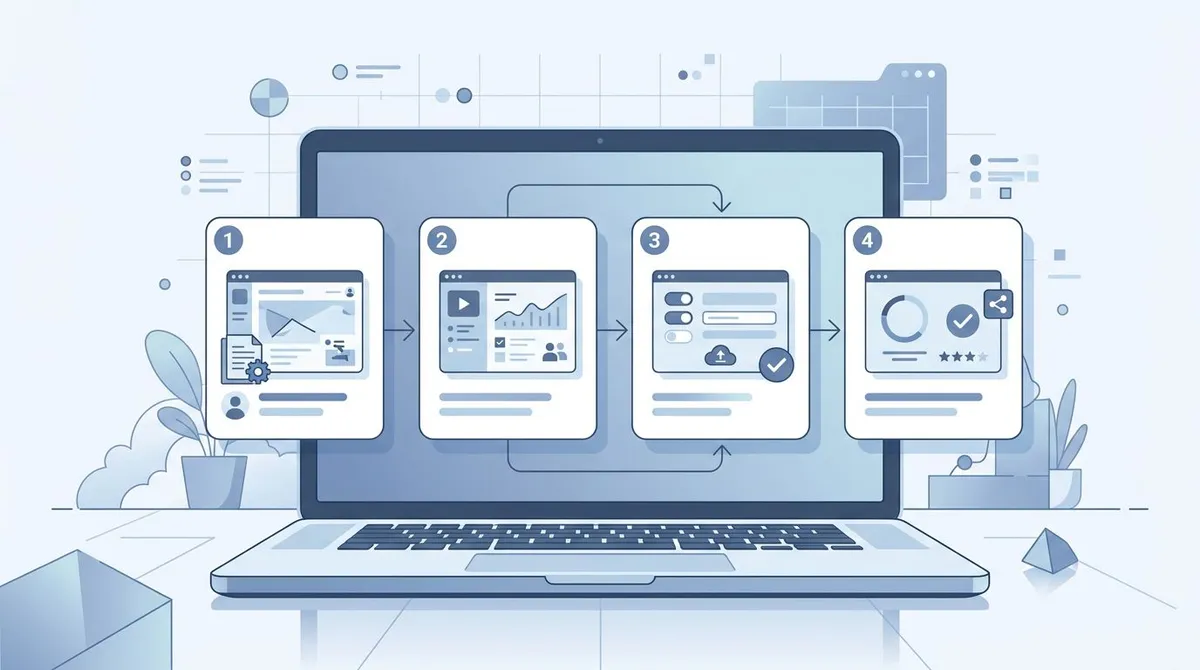
Every tool in this guide runs the same four-stage pipeline under the hood. What differs is the model they use, where the work happens (your device or the cloud), and how they format the output.
Stage 1: Audio extraction
If you upload an MP4 or paste a YouTube URL, the tool first pulls the audio track out of the video. Audio is much smaller than video. And it's the only thing the next stage cares about.
Stage 2: Speech-to-text
The audio gets turned into text by a speech recognition model. Most tools in 2026 use OpenAI's Whisper or a similar model. Quality is now very good for clean English audio. Accents, jargon, and overlapping speakers still trip these models up. More on that later.
The output of this stage is a timestamped transcript. Each phrase has a start and end time. Some tools add speaker labels too.
Stage 3: AI summarization
The transcript goes to an AI model (usually GPT-4 or Claude) with a prompt that asks for the format you want. Common prompts include:
- "Summarize this video in five bullet points."
- "Pull out action items, decisions, and questions."
- "Make chapter markers with timestamps."
- "Find every quote where someone defines a key term."
The AI doesn't watch the video. It only reads the transcript. That matters when the visual matters (a chart, a code demo, a slide) because the AI may miss it.
Stage 4: Output formatting
The raw model output gets cleaned up. You get bullet points, headings, and clickable timestamps. Some tools export to Notion, Slack, or a markdown file. Better tools also link each bullet back to the exact moment in the video so you can check a claim.
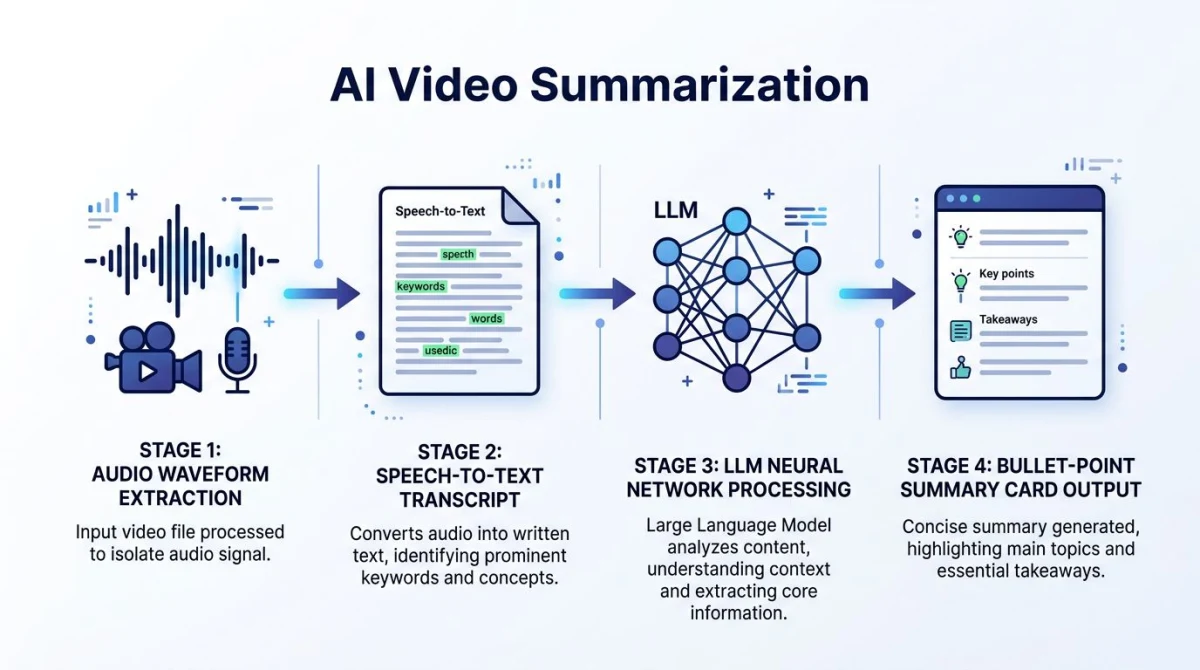
That's the whole pipeline. Tools differ on which models they use, whether they run live in a meeting or on uploaded files, what kinds of input they accept (YouTube URL, file, live call), and how the output is laid out.
Quick comparison: 8 AI video summarizers at a glance
Prices and free tiers verified April 2026.
| Tool | Best for | Input types | Output format | Price | Free tier |
|---|---|---|---|---|---|
| Notta | Lectures + meetings, multi-language | Live, file upload, YouTube | Bullets, action items, transcript | From $9/mo | 120 min/mo |
| Tactiq | Live meeting transcription on Chrome | Live (Zoom, Meet, Teams) | Action items, follow-ups | From $12/mo | 10 meetings/mo |
| Otter.ai | Live meeting recap with speaker tags | Live, file upload | Bullets, summary, action items | From $10/mo | 300 min/mo |
| Eightify | YouTube research and learning | YouTube URL | Bullet summary, key insights | From $10/mo | 3 videos free |
| Mindgrasp | Mixed media (video, PDF, audio) | YouTube, file, PDF, audio | Notes, flashcards, Q&A | From $10/mo | Limited free tier |
| Summarize.tech | Quick free YouTube TL;DR | YouTube URL | Chapter summary | $10/mo | Yes (rate-limited) |
| Glasp | YouTube highlights with ChatGPT | YouTube URL | Bullet transcript summary | Free (uses your ChatGPT) | Free extension |
| Fireflies.ai | Sales calls + CRM integration | Live, file upload | Notes, action items, CRM sync | From $10/mo | 800 min/mo (limited) |
1. Notta: broad-coverage transcription with strong AI summaries
Price: From $9/mo (Pro), free tier 120 min/mo | Rating: (4.5/5)
Notta started as a Korean-Japanese transcription tool. It's now one of the most flexible AI video summarizers on the market. It handles 58 languages. It joins live meetings. It takes file uploads. And it pulls transcripts from YouTube URLs.
Key features:
- 58-language transcription (very strong on Asian languages)
- AI summary templates: meeting recap, lecture notes, podcast highlights
- Joins Zoom, Google Meet, and Microsoft Teams as a meeting bot
- Exports to Notion, Slack, Google Docs, and TXT/SRT/PDF
- Live transcription with speaker tags
Who it's for: anyone who works across languages. Students taking notes from foreign lectures. Multilingual teams. And journalists who run interviews in more than one language.
Limits:
- The free tier caps you at 120 minutes per month, which goes fast
- Speaker labels are right only when audio is clean and voices differ
- Summary quality is good but not the best in any single area
2. Tactiq: Chrome extension for live meeting capture
Price: From $12/mo (Pro), free tier 10 meetings/mo | Rating: (4.3/5)
Tactiq is a Chrome extension. It captures live transcripts from Google Meet, Zoom, and Microsoft Teams without a bot joining the call. It runs in your browser. So it reads the captions the meeting platform already makes. Then it layers AI summary on top.
Key features:
- Live transcript that updates as people speak
- AI summary, action items, and follow-up email
- Custom prompt library: ask Tactiq to pull out decisions, risks, or quotes
- Exports to Google Docs, Notion, Slack, Confluence
- No bot joins your meeting (lower friction, less awkward)
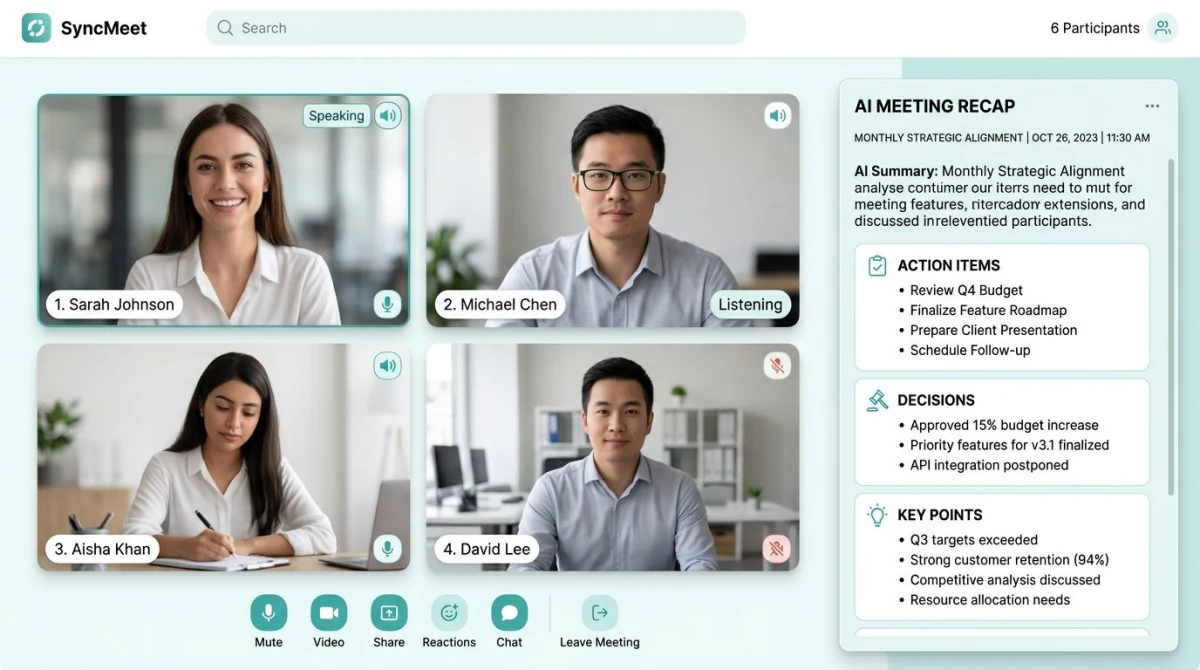
Who it's for: sales reps, consultants, and remote workers. Anyone who runs several Google Meet or Zoom calls a day and wants a clean recap without a third-party bot in the participant list.
Limits:
- Chrome only: no Safari or Firefox support
- Relies on the meeting platform's caption stream, so quality drops if captions are off
- The free 10-meetings cap is tight if you have daily standups
3. Otter.ai: meeting transcription with speaker tags
Price: From $10/mo (Pro), free tier 300 min/mo | Rating: (4.4/5)
Otter.ai is the brand most people think of first for meeting transcripts. The free tier is useful (300 minutes per month, up to 30 minutes per recording). And the Otter bot has been refined over years of meetings.
Key features:
- Live transcription with strong speaker tags
- Otter AI Chat: ask questions about any past meeting transcript
- Auto-summary with action items and key takeaways
- Calendar links so it auto-joins recurring meetings
- Mobile app records voice memos and transcribes them on the fly
Who it's for: teams that live in Google Calendar and want a transcription bot that just works. Plus solo pros who do client calls or interviews.
Limits:
- Pricing tiers can feel confusing: many features sit on Business or Enterprise
- The bot's presence in the meeting can feel awkward to clients
- Speaker labels mix up two voices that sound alike, mainly over phone audio
4. Eightify: YouTube-first AI summarizer
Price: From $10/mo, 3 free summaries to try | Rating: (4.2/5)
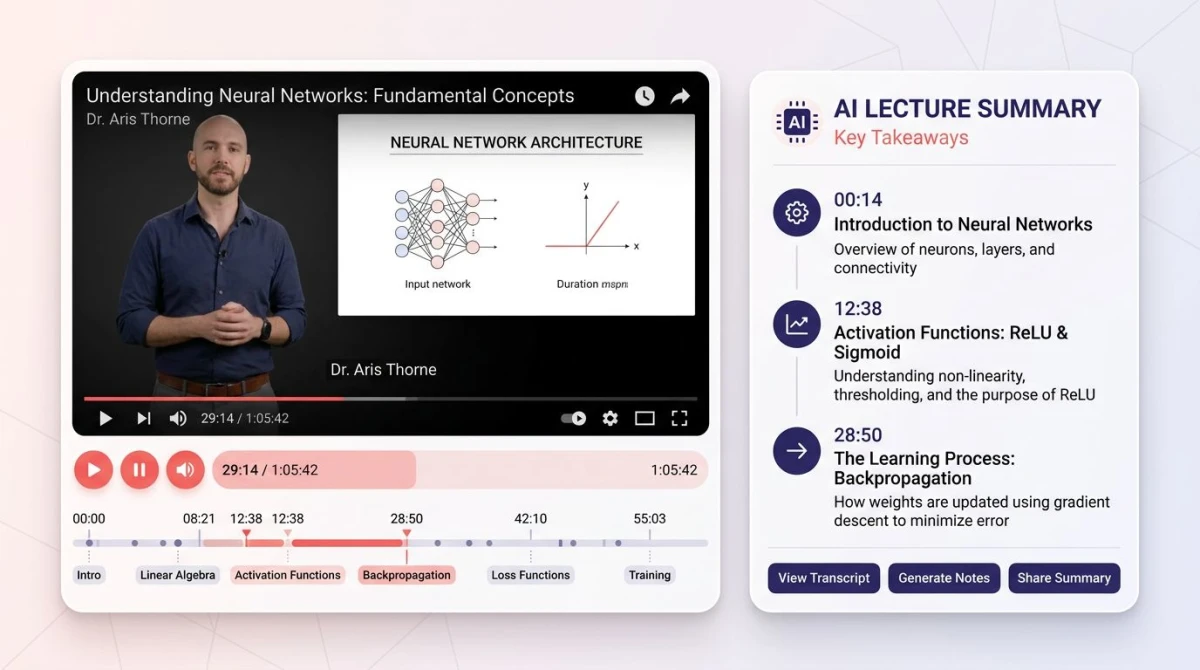
Eightify does one thing well: it summarizes YouTube videos. Drop a URL. Get bullet points and key takeaways in about 30 seconds. It has a Chrome extension that adds a "Summarize" button next to YouTube's own controls.
Key features:
- 30-second summaries of any public YouTube video
- Eight key takeaways pulled from long videos
- Timestamped breakdown so you can jump to the moment a topic comes up
- Browser extension and web app
- Works on lectures, podcasts, interviews, and tutorials
Who it's for: students, researchers, and creators. Anyone who uses YouTube as a study or research tool and needs to triage what's worth a full watch.
Limits:
- YouTube only: won't summarize Vimeo, uploaded files, or live meetings
- Quality drops on videos with poor auto-captions
- Free tier is just three videos; you hit the wall fast if you research daily
5. Mindgrasp: multi-format AI summarizer
Price: From $10/mo, limited free tier | Rating: (4.3/5)
Mindgrasp is the Swiss-army-knife pick. It summarizes videos, YouTube URLs, podcasts, PDFs, and live lectures in the same workspace. The output goes beyond a bullet summary. It also makes flashcards, study notes, and a chat where you can ask follow-up questions about the source.
Key features:
- Takes video files, YouTube URLs, audio, PDFs, and Word docs
- AI study notes with headings and sub-points
- Auto-flashcards for quiz-style review
- Q&A chat tied to the source so answers cite a timestamp or page
- Class notes, research papers, and meeting recordings in one tool
Who it's for: students prepping for exams, researchers building lit reviews, and anyone who needs to pull notes from many formats into one place.
Limits:
- The UI tries to do a lot, which can feel cluttered the first week
- Free tier is tight on file size and number of summaries
- Flashcards sometimes pull trivia instead of the core idea

Tired of plain screenshots? Try ScreenSnap Pro.
Beautiful backgrounds, pro annotations, GIF recording, and instant cloud sharing, all in one app. Pay $34 once, own it forever.
See pricing and features6. Summarize.tech: the lightweight free option
Price: $10/mo for unlimited, free tier with rate limits | Rating: (4/5)
Summarize.tech is the simplest tool here. Paste a YouTube URL. Get a chapter-by-chapter summary. No login for short videos. No extension. No bot. It's the tool to reach for when you want a quick TL;DR and don't care about Notion exports or speaker labels.
Key features:
- Free for short videos (under about an hour)
- Chapter summaries with rough timestamps
- No account needed for one-off use
- Works on any public YouTube video
- Clean web UI: paste a URL and you're done
Who it's for: people who summarize a YouTube video once a week and don't want to install an extension or sign up for anything.
Limits:
- YouTube only
- Long videos and high traffic can hit a paywall or queue
- No speaker tags, no action items, no export
- Summary depth is shallower than paid tools like Eightify or Mindgrasp
7. Glasp: Chrome extension powered by your own ChatGPT
Price: Free (uses your ChatGPT account) | Rating: (4.1/5)
Glasp is a free Chrome extension built around social highlighting. But the YouTube summarizer is the most popular feature. It pulls a YouTube transcript, opens ChatGPT in a new tab, and pre-fills a summary prompt. You run it through your own ChatGPT (free or paid). So Glasp never charges you.
Key features:
- Free forever: no Glasp plan needed
- Uses your own ChatGPT account, so summary quality matches whichever model you have
- Highlights and saves quotes from videos to a personal library
- Social layer where you can see what others highlighted
- Browser extension, no separate app to install
Who it's for: ChatGPT Plus users who already pay for the model and want a free way to feed YouTube transcripts into it.
Limits:
- Needs a ChatGPT account (free works, but Plus gives better summaries)
- The hand-off to ChatGPT is a manual click, not as smooth as a one-button tool
- YouTube only, no live meeting support
- Privacy depends on whatever you've set in ChatGPT
8. Fireflies.ai: meeting recap with CRM integration
Price: From $10/mo (Pro), free tier 800 min/mo (storage-limited) | Rating: (4.4/5)
Fireflies.ai joins your meetings as a bot. It makes a polished recap, action items, and a sentiment readout. What sets it apart is the CRM angle. It pushes notes into Salesforce, HubSpot, and Pipedrive on its own. That's why sales teams love it.
Key features:
- Joins Zoom, Google Meet, Microsoft Teams, and Webex
- Auto-summary, action items, key questions, and sentiment readout
- CRM sync (Salesforce, HubSpot, Pipedrive, Zoho)
- AskFred AI helper: query past meetings in plain English
- Smart search across every transcript your team has recorded
Who it's for: sales reps, customer success teams, and anyone whose job is "talk to people on calls and update the CRM after."
Limits:
- Free tier has a big time cap but stores transcripts only briefly
- The bot showing up in client calls can feel awkward without warning
- CRM-style features are wasted on solo creators or students
How to pick: a quick decision framework
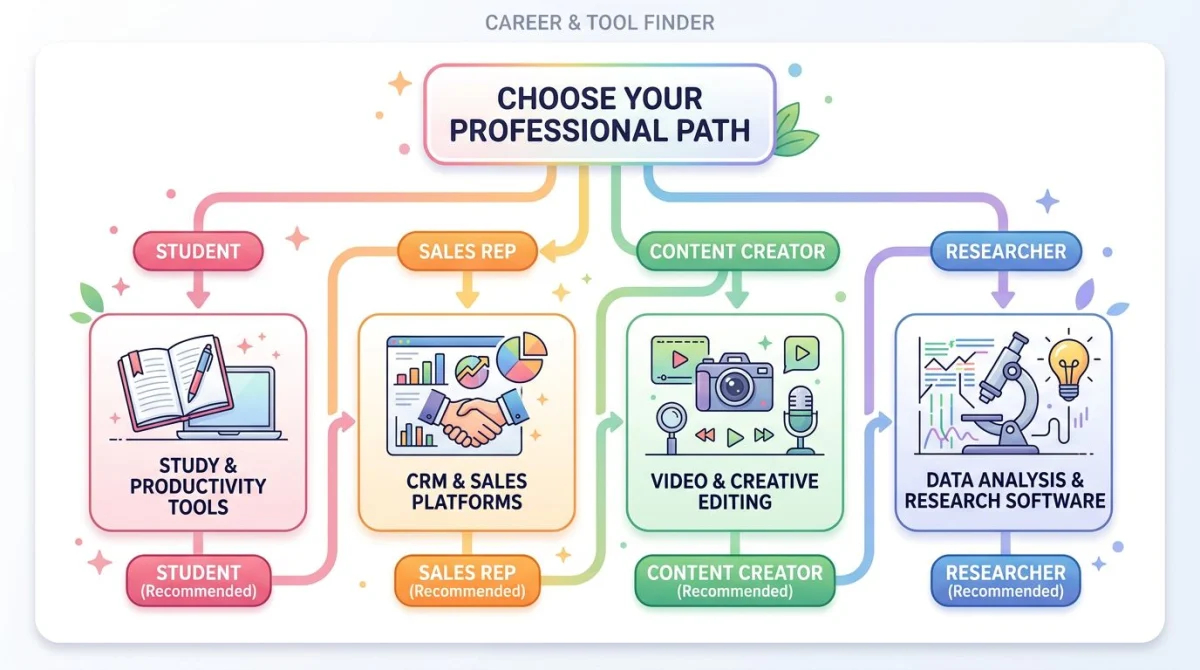
Most people overthink this. Match your job to one of these four buckets and start with the recommended pick:
- You're a student taking notes from lectures or YouTube tutorials → Mindgrasp (multi-format plus flashcards) or Eightify (YouTube-only, faster).
- You're a sales rep or consultant running calls all day → Fireflies.ai (CRM sync) or Tactiq (no bot, lower friction).
- You're a content creator researching a topic across YouTube and podcasts → Eightify for fast YouTube triage, Notta for the deeper transcript work.
- You're a researcher or journalist who needs full transcripts plus summaries in many languages → Notta (58 languages) or Otter.ai (English-first, deeper speaker tagging).
If you don't know yet, start with the free tier of Otter.ai (meetings) or Summarize.tech (YouTube). Both work without a credit card. They'll tell you within a week if you really need this category at all.
Where AI video summarizers fail
This part is the one nobody wants to write. Every tool above sells itself with a clean demo on a clean podcast. Reality is messier. Here's where AI video summaries break, in the order you'll hit problems.
Jargon and technical terms
Speech models trained on general English will mangle medical terms, legal citations, code, and brand names. "Postgres" becomes "post grass." "GPT-4o" becomes "GPT four oh." Then the AI summarizes the wrong word with full confidence. Always check a summary against the source if the topic is technical.
Accents and non-native English
Whisper is much better than older models on accented English. But quality still varies. A clear American or British speaker gets near-perfect transcription. Strong accents, second-language speakers, and noisy rooms all push error rates up. And every transcript error compounds in the summary.
Multiple speakers
Speaker labels (Speaker 1, Speaker 2) are a guess. Two people with close voices get merged. Someone joining late gets labeled as the host. When the summary says "Sarah agreed to ship the feature," it may have been Tom. Now you've got the wrong action item in your CRM.
Paywalled and private content
YouTube-only summarizers fail on private videos, members-only content, and platforms like Vimeo Pro, Wistia, or Loom. Some tools work around this by asking you to upload the file. But you'll need to download the video first. That raises copyright questions on third-party content.
Hallucinated facts
This is the worst failure mode. AI models will sometimes invent a quote, a number, or a decision that wasn't in the transcript. It happens less often than people think. But more often than tool marketing admits: around 1 to 5 percent of bullets on long, low-quality transcripts. Cross-check anything important against the source.
Visual content the audio doesn't describe
Charts, slides, code demos, and product walk-throughs are invisible to the AI. If a presenter says "as you can see on this slide," and 90 percent of the meaning is on the slide, the summary will be hollow.
Privacy: where your video and voice end up
Every meeting summarizer transcribes what people say. That means your voice (and the voices of your clients, co-workers, and customers) leaves your computer.
What actually happens: the audio gets uploaded to the tool's cloud. It's transcribed by a third-party model (often OpenAI Whisper). Then summarized by another third-party model (often GPT-4 or Claude). And stored on the tool's servers. Some tools train on your data unless you opt out. Some keep transcripts for years. Some share with subprocessors you've never heard of.
Before you record a confidential call:
- Get consent. Most US states need single-party consent (you, the recorder). But several need all parties to agree. The EU under GDPR needs a clear lawful basis. Just tell people the call is being summarized.
- Read the data policy. Look for "we do not train on customer data" and a retention window you're OK with. Otter.ai, Fireflies, and Notta have clear enterprise data policies. Smaller tools often don't.
- Skip cloud tools for sensitive calls. Doctor-patient, lawyer-client, HR firings, M&A talks, and anything covered by HIPAA or attorney-client privilege should not go through a third-party AI summarizer. Use a tool that runs locally (Whisper on your own machine, MacWhisper, or similar) if you must summarize at all.
- Watch the bot. If a meeting bot is present, every person on the call should see it. Quietly recording without telling people is illegal in most places. And it breaks trust even where it isn't.
A note on free tools that pipe to ChatGPT. Tools like Glasp send your transcript to ChatGPT under your account. Whatever data settings you have in ChatGPT (training opt-out, history off) apply here. If you haven't checked those settings, your meeting transcripts may be feeding model training.
Workflow tip: clean recordings make better summaries
Workflow tip: AI summaries are only as good as the audio they get. If you're recording a meeting, lecture, or podcast you plan to summarize later, a tool like ScreenSnap Pro ($34 one-time, screen plus webcam plus mic plus system audio in one capture) gives you a clean source file. You can then pipe it through any of the summarizers above. Bad input audio is the single biggest reason summaries come out wrong.
For the summary step, pair the recording with one of the eight tools above based on your job. Most take MP4 or M4A uploads. So the flow is: capture the recording, upload to your summarizer, review the bullets, then export to Notion or your CRM.
If you record a lot of meetings, our Loom alternatives and Vidyard alternatives guides cover the recording side in more depth. For specific platforms, see our walk-throughs on recording a Zoom meeting, recording a Microsoft Teams call, and the best lecture recording software for students.
Frequently Asked Questions
The bottom line
AI video summarizers are a real productivity win in 2026. But they're not magic. They work great on clean audio with clear speakers and info content. They struggle with jargon, accents, multi-speaker confusion, paywalled videos, and visual material the audio doesn't describe. And they raise real privacy questions for any confidential call.
Pick based on your actual job. Notta or Otter.ai for general meetings. Fireflies.ai if you live in a CRM. Tactiq if you hate meeting bots. Eightify for YouTube research. Mindgrasp for studying. Summarize.tech for the odd one-off. And Glasp if you already pay for ChatGPT.
Whichever you pick, remember the input matters more than the model. A clean recording with crisp audio gives you a clean summary. Garbage in, garbage out. That hasn't changed even with GPT-4-class models doing the work.

Morgan
Indie DeveloperIndie developer, founder of ScreenSnap Pro. A decade of shipping consumer Mac apps and developer tools. Read full bio
@m_0_r_g_a_n_