Screenshot Productivity Workflow: Ship Faster in 2026
A good screenshot productivity workflow can save you 30 to 60 minutes a day. Marketers ship social posts faster, developers file better bug reports, designers close feedback loops, and support teams answer tickets in seconds. They all treat the screenshot as a first-class tool, not a one-off keypress. Below is the playbook we use and recommend in 2026.
We work with creators, devs, and small product teams, so the patterns here come from real desks. We list the use cases, the tools that fit each one, and a short routine you can copy today. Honest framing, including which tools cost money and which ones don't.
Why screenshots speed up work more than people think
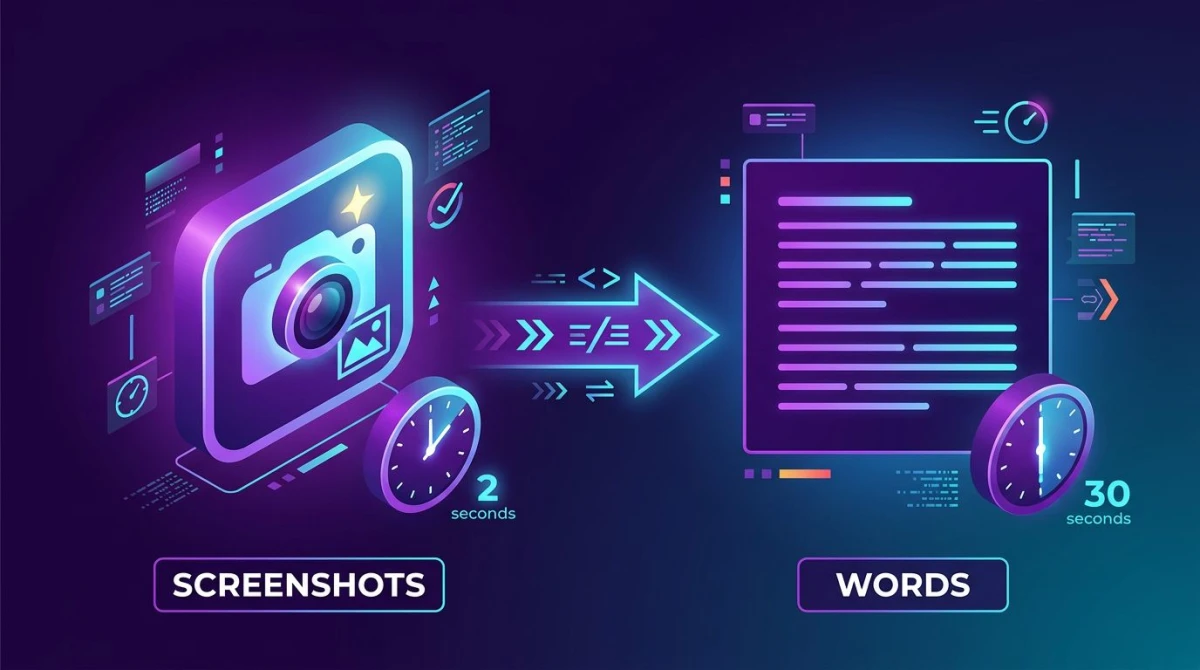
A screenshot moves a thought from your head to someone else's screen in two seconds. Compare that to writing a paragraph that describes the same UI. The screenshot wins on speed every time, and it usually wins on accuracy too, because the other person sees the exact pixels you saw, not your description of them.
That single shift changes whole workflows:
- Async beats sync. A clear annotated screenshot in a Slack thread often replaces a 30-minute call.
- Reviewers stop guessing. Designers, PMs, and developers can react to a real frame instead of mental images.
- Documentation actually gets read. Pages with screenshots get 2-3x the engagement of pure-text guides in our analytics.
- Support tickets close faster. A one-screenshot reply ("click here, then here") beats six lines of text.
The catch is that a sloppy screenshot is worse than no screenshot. Blurry, uncropped, unannotated, or buried in a Downloads folder: all of those slow people down. The point of a good screenshot workflow is to make the clean screenshot the default, with no extra mental load.
Below are the five use cases where screenshot workflows compound the most.
The five-step screenshot productivity setup
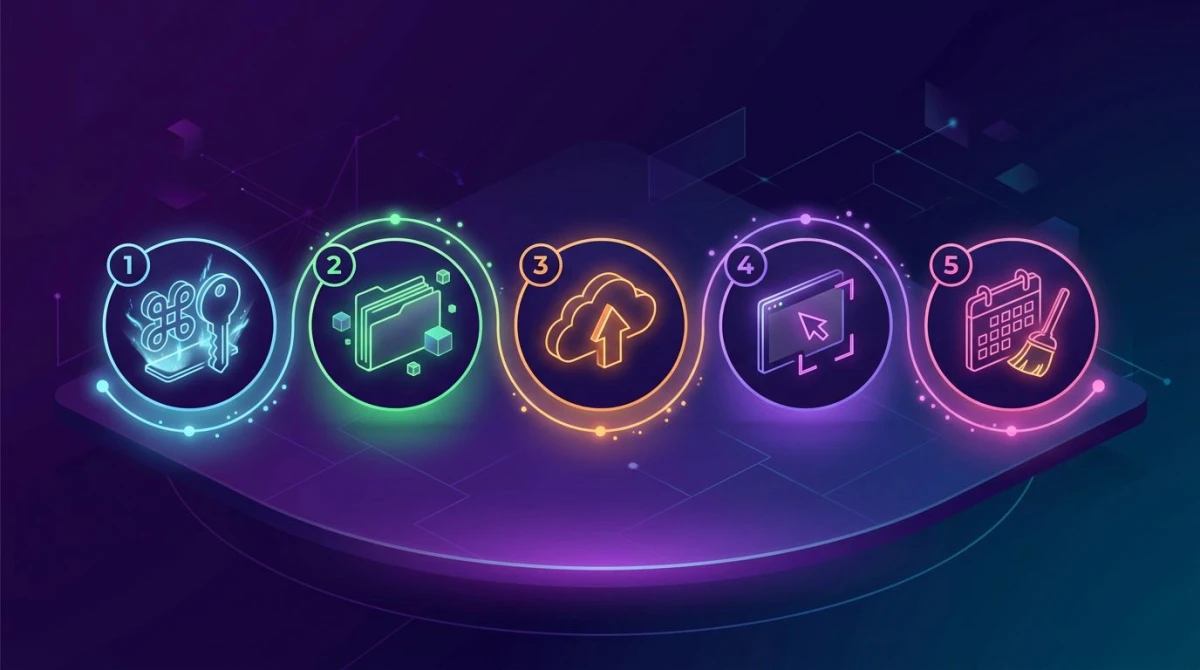
Before the use cases, here's the baseline setup we run on every new machine. It takes ten minutes and pays for itself the first day.
- Pick a default tool and learn three shortcuts. Full screen, region, and window. Just three. Anything more advanced can wait.
- Set a clean save location. A single dated folder for raw captures, separate from your Desktop. Cloud-sync it if you work across devices.
- Enable cloud upload with a copyable link. This is the highest-leverage setting. One shortcut, one clipboard URL, paste anywhere.
- Save two or three annotation presets. Red arrow, blur box, and a text label preset cover 80% of real use.
- Wire a weekly cleanup. Every Friday, archive what you used, delete what you didn't. The cleanup keeps the folder from turning into a graveyard.
That's the whole setup. With those five pieces in place, every use case below runs at near-zero friction.
Use case 1: Marketing and social media

If you run social, your phone screenshot folder is probably your most-used asset library. Twitter/X posts with images get more engagement than text-only. LinkedIn carousels are screenshot-driven. Instagram Reels covers are still images with text on top. TikTok hooks rely on screen captures from apps, dashboards, or chat threads.
The workflow that works for marketers:
- Capture once, reuse five times. A single product screenshot can become a Reel cover, an X post, a LinkedIn carousel page, an in-blog inline image, and an email banner. Save the raw capture in a single shared folder.
- Annotate inside the screenshot tool. Don't open Photoshop to draw an arrow. Modern screenshot apps let you box, arrow, blur, and text-on-image in seconds.
- Always export at retina (2x) resolution. Social platforms compress aggressively. Going in at 2x means the final post still looks sharp.
- Match every screenshot to your brand. A subtle device frame or a single background color makes a feed look intentional. Random raw screenshots make a feed look messy.
Tools that fit the SMM workflow: ScreenSnap Pro (background generator + device frames + one-time price), CleanShot X, or any tool with a fast crop + annotate + export pipeline. Check our roundup of social media image sizes when you're picking export dimensions.
Use case 2: Developers and engineers
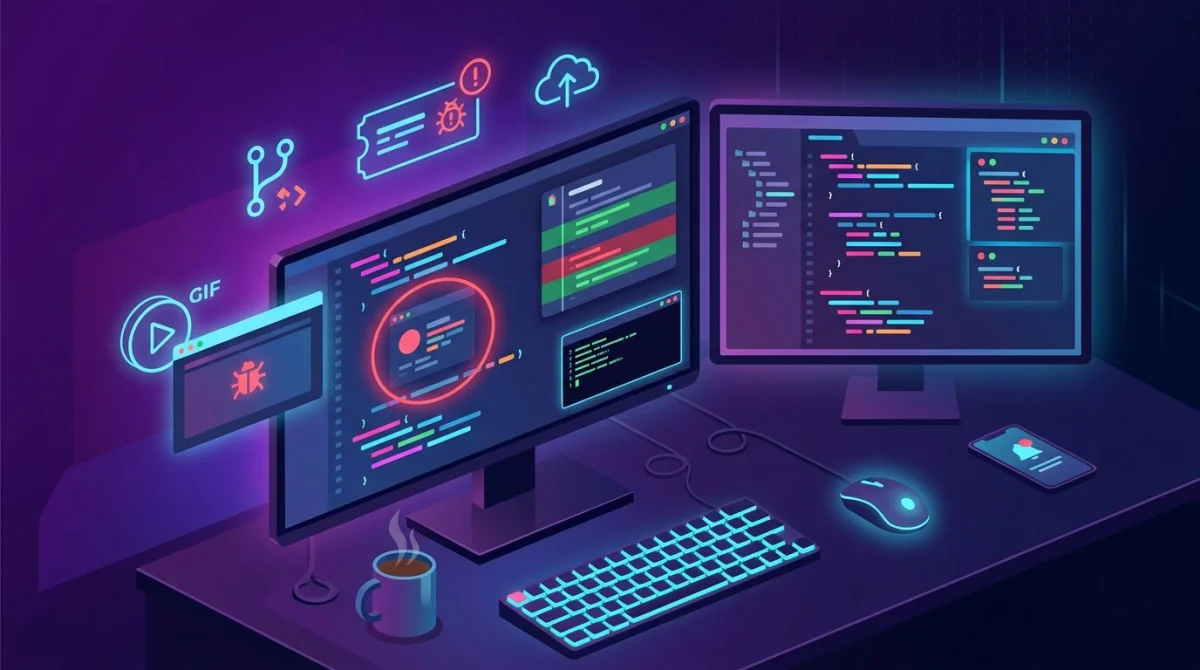
For developers, screenshots replace a lot of writing. They land in three places: bug reports, code reviews, and documentation.
Bug reports. A screenshot with the broken state circled is worth ten lines of "steps to reproduce." If you can attach a short GIF showing the bug happening, even better, because the reviewer doesn't have to spin up the same environment. Our bug report template walks through the exact fields.
Code review. Sometimes a diff isn't enough. You need to show what the UI looks like before and after the change. Two screenshots in the PR description close the loop for designers and PMs reviewing the PR.
Documentation. READMEs with screenshots get read. Pure-text READMEs get skimmed. For architecture diagrams, internal Wiki pages, or onboarding docs, a clean labeled screenshot beats a paragraph nearly every time.
What developers want from a screenshot tool:
- Keyboard shortcuts that don't conflict with IDEs
- Cloud upload with a copyable link (paste straight into a PR or Slack)
- GIF recording for "look, the bug happens like this" loops
- OCR so you can grab text out of an error dialog you can't select
That last feature (OCR) is criminally underused by developers. Stack traces, error dialogs, and tooltips often refuse to be copied. A good screenshot tool reads the text out of the image and gives it to you to paste into a search. See our extract text from screenshot guide for the workflow.
Use case 3: Documentation, SOPs, and internal training

Process documentation lives or dies on screenshots. A well-screenshotted SOP gets new hires productive in days. A wall-of-text SOP gets ignored.
The format that works best for internal docs:
- One short sentence describing the step
- One screenshot of the result
- A small red box or arrow on the click target
Repeat 10-30 times for a full process. That's it. The trick is making the screenshot step fast enough that the doc author doesn't skip it. If capture-annotate-paste takes 90 seconds per step, a 20-step SOP balloons to half an hour of friction. Get that down to 15 seconds per step and the same SOP takes 5 minutes.
Tools we recommend for SOP-heavy work: Snagit (widely used for long captures with auto-numbered step annotations), ScreenSnap Pro (for teams that want a $39 one-time alternative), and Scribe for fully automated step-by-step capture. The deeper trade-offs are in best process documentation tools and our step-by-step tutorial screenshots guide.

Tired of plain screenshots? Try ScreenSnap Pro.
Beautiful backgrounds, pro annotations, GIF recording, and instant cloud sharing, all in one app. Pay $39 once, own it forever.
See pricing and featuresUse case 4: Sales, support, and customer success
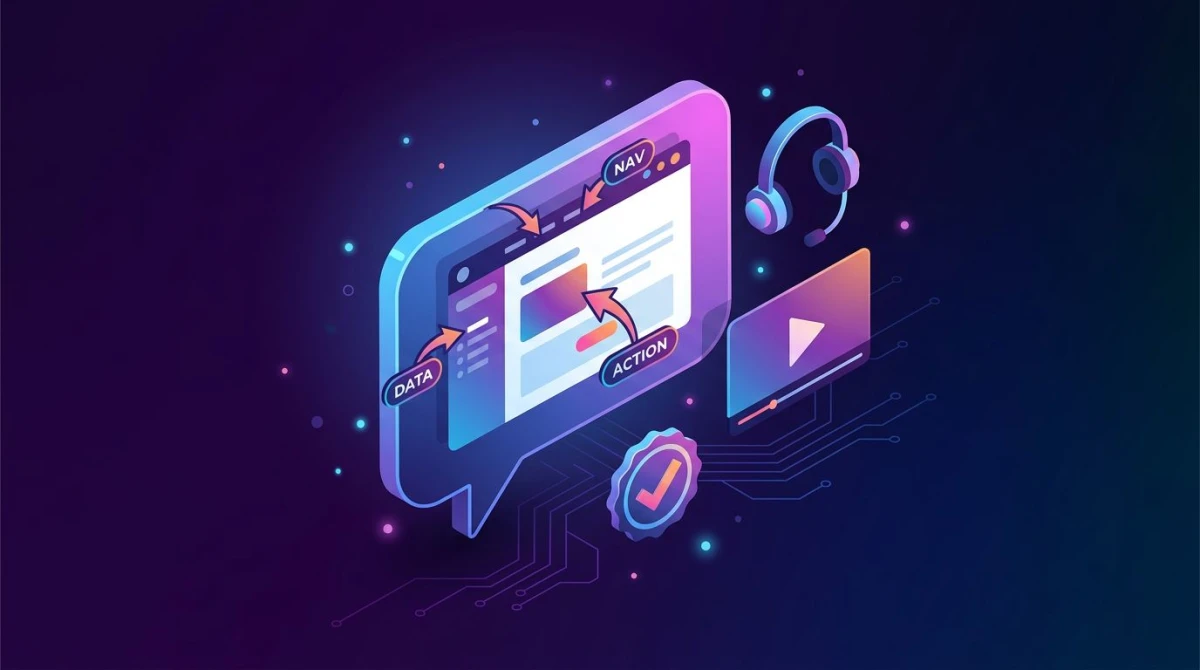
Support teams that lean on screenshots resolve tickets in roughly half the time of text-only teams. The pattern is simple: instead of writing "go to Settings, then click Billing, then scroll to Payment Methods," you paste a screenshot with three labeled arrows.
For sales, the same logic applies to prospect videos and outbound. A 60-second screen-recording with a static screenshot intro performs better than cold-email copy for high-ticket prospects. The screenshot at the start is the hook.
Specific patterns that work:
- Support replies. Keep a small library of pre-annotated "click here" screenshots for your top 20 support questions. Drop them into ticket replies. Customers close the loop without a back-and-forth.
- Sales prospect videos. Record a 60-90 second video walking through the prospect's website or a relevant feature with your tool. Lead with a screenshot in the thumbnail.
- Onboarding emails. A welcome email with one screenshot of the dashboard outperforms a welcome email with three paragraphs of text.
- Knowledge base articles. Public help center articles with screenshots cut deflection rates. Less ticket volume.
The tool requirement here is fast cloud sharing, meaning a link you can paste into a ticket or an email. That means whatever tool you use should upload the screenshot in one shortcut, copy the URL to the clipboard, and be done.
Use case 5: Designers and creative reviews

Designers live in a screenshot feedback loop. You ship a mockup, the team marks it up, you iterate, repeat. The faster that loop turns, the more design you ship.
What we see working:
- Annotated review screenshots over Figma comments for early sketches. Figma comments work but require everyone to be in the file. A quick screenshot with a red box in Slack collects more feedback faster from non-designers.
- Before/after captures for design refactors. Two side-by-side screenshots prove the change is real and shippable.
- Mood boards. A folder of screenshots from sites you admire is the fastest research tool there is. Cropped UI patterns, color palettes, microcopy: all of it is screenshot-collectable.
- Client deliverables. When you hand off a mockup, hand off framed screenshots, not raw exports. The device frame + background tells the client "this is the final, not a draft."
Designers also rely on consistent screenshot framing for portfolio shots. Keeping the frame, the background, and the resolution consistent across a portfolio makes the work look more polished than the work itself.
Common screenshot mistakes that quietly slow teams down
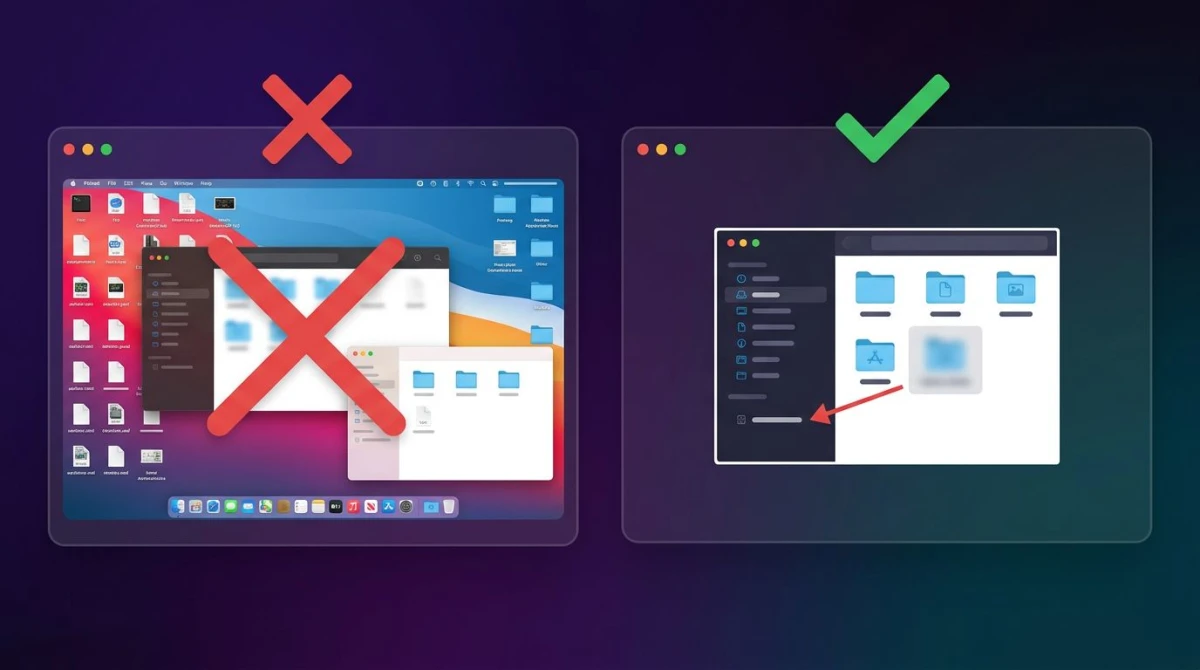
Most of the lost time inside a screenshot workflow isn't dramatic. It's a hundred small frictions per week. The fixes are usually obvious once they're named.
- Capturing the whole screen when you only need a region. A full-screen capture forces the viewer to hunt for the relevant part. Crop tight at capture time instead of later.
- No annotation. A red arrow takes three seconds and saves the reader twenty. Skip it and your screenshot becomes a guessing game.
- Sensitive data left visible. Account numbers, email addresses, internal URLs. Blur boxes are free. Use them.
- Saving to Desktop forever. A Desktop full of
Screen Shot 2026-05-17 at 3.14 PMfiles is a productivity tax. Move them on capture, not later. - Pasting blurry compressed images into docs. Always export at 2x retina, then let the platform compress down. Going in at 1x means the final image looks pixelated everywhere.
- Reinventing the format every time. Pick one frame, one background, one annotation color. Consistency beats novelty.
- No cloud link. If you can't share a screenshot in a single shortcut + paste, your tool is the wrong one. Reconfigure or replace.
Fix three of these and you'll feel the difference inside a week.
The screenshot toolkit: what we use and recommend
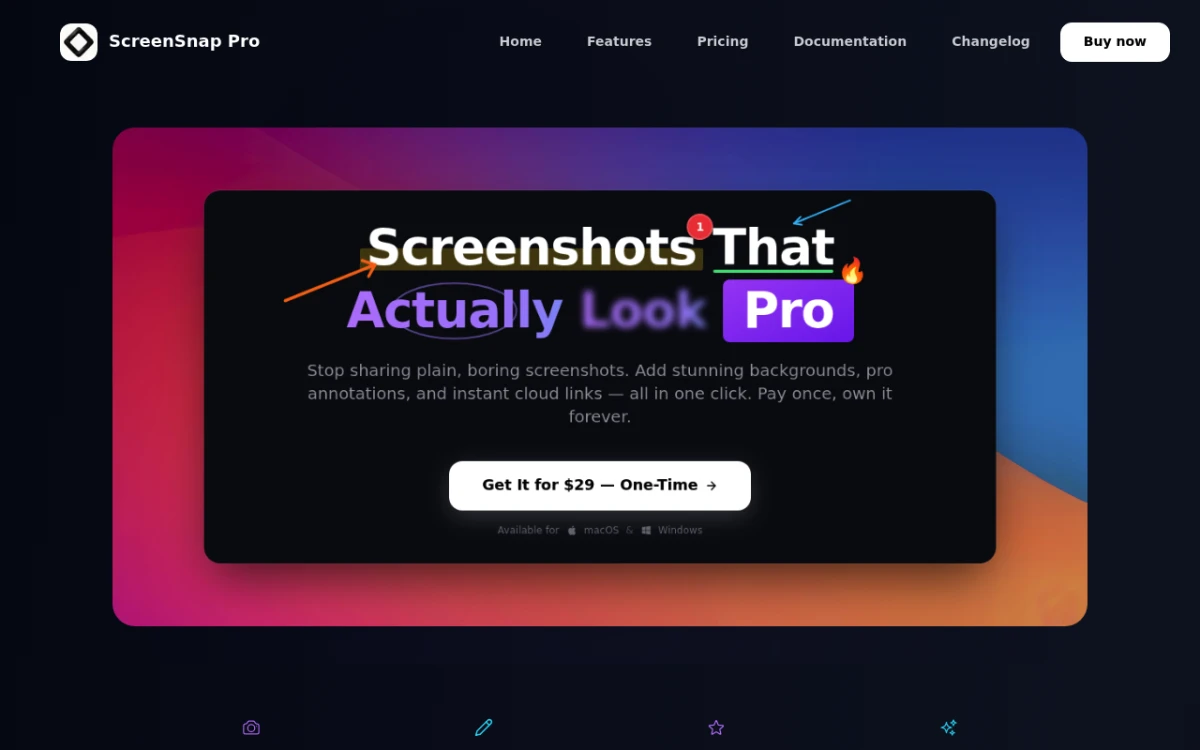
Here's the short version of which tool fits which job. We'll lead with the one we make, then cover the major alternatives honestly.
ScreenSnap Pro
ScreenSnap Pro is our daily-driver tool. It's a $39 one-time purchase, works on macOS and Windows, and covers the whole capture-annotate-share loop in one app.
What it does well:
- One-time pricing. $39, no subscription, no per-seat fee for small teams.
- Mac and Windows. Most premium screenshot tools are Mac-only. ScreenSnap Pro runs on both.
- Background generator and device frames for polished social and portfolio output.
- GIF screen recording for short bug clips and product demos.
- Cloud sharing with a copyable link for fast pastes into Slack, PRs, and tickets.
- Built-in OCR for grabbing text out of any image.
Honest limits: no iOS or Android apps yet, and the Linux build is community-supported only. If you're a Linux-first team or need a mobile capture-and-edit story, look at the alternatives below.
CleanShot X
CleanShot X is a polished Mac option. It's $29 one-time or $10/month with the Setapp bundle. Strong annotation, scrolling capture, and a clean UI. Mac only. If you live on macOS and want a single-platform experience, it's a solid pick. We compared the two in detail in ScreenSnap Pro vs Shottr.
Shottr
Shottr is the lightweight Mac option. Free with a paid pro tier. Fast scrolling capture, color picker, and OCR. Mac only and one-developer indie, so the update cadence is slower. Great if you want lean.
Snagit
Snagit is widely used in enterprises for SOPs and long-form documentation. Its step-by-step annotation flow with auto-numbered callouts is a highlight. It's subscription-only at $39/year per user and the UI feels older, but it covers serious documentation work. Read Snagit pricing and our Snagit for Mac review for the deeper take.
Built-in tools (macOS Screenshot, Windows Snipping Tool)
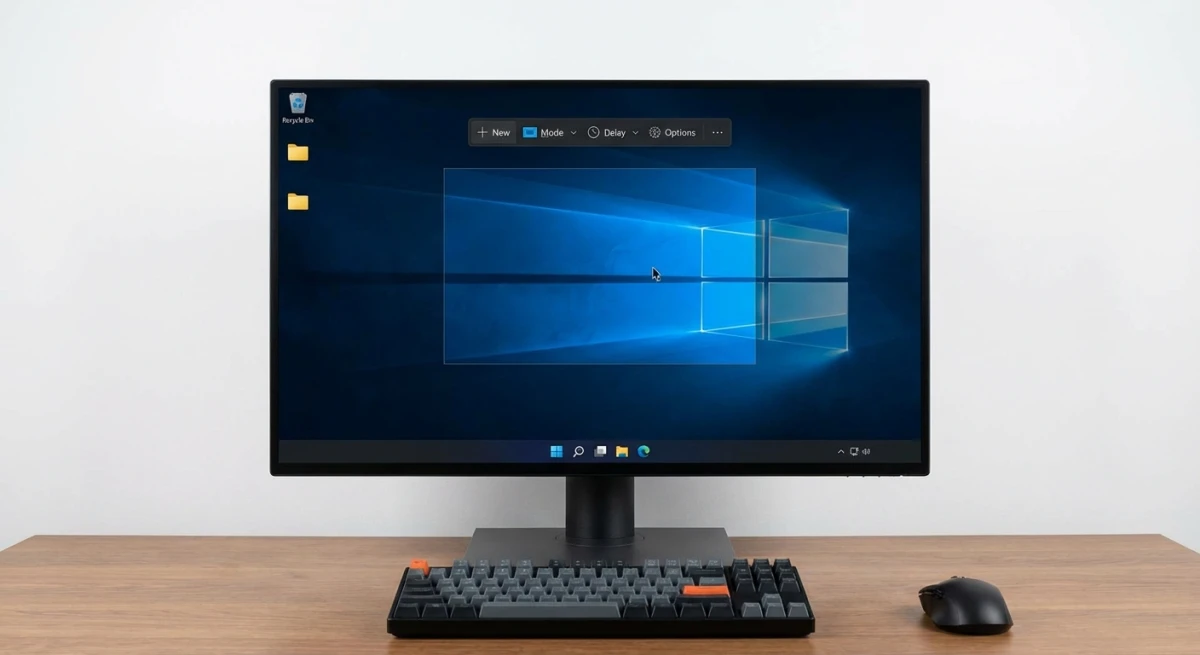
Free, always available, fine for one-off captures. They fall over once you need annotation, cloud sharing, or a consistent visual style. Use the built-in tool when you're not posting publicly. Use a real tool when the screenshot leaves your machine.
Make it a daily habit: pair your workflow with a tracker
A workflow only pays off if you actually use it. Daily reps are where the compounding happens, the same way deliberate writing every day beats sporadic bursts. If you struggle to keep a routine going, pair your screenshot workflow with a habit tracker.
Short list of trackers we like:
- HabitBox. Mobile-first iOS and Android tracker with a generous free tier. The differentiator: skip days don't nuke your streak, which means missing one day doesn't make you quit on day two. Good fit for creators who want gentle daily nudges.
- Streaks. $5.99 one-time, iOS and Mac, Apple Design Award winner. Tight Apple Health integration auto-completes fitness and mindfulness habits. The strict-streak logic is either motivating or stressful depending on your wiring.
- Habitica. Free, web/iOS/Android, full RPG with XP, gear, parties, and HP damage if you miss. Brilliant for people who play games. Setup takes an hour but the social pressure of a Habitica party with coworkers is real.
- Loop Habit Tracker. Free, open source, Android only. No accounts, no telemetry, smart habit-score formula that weights recent days. The privacy-first dev favorite.
- Way of Life. $4.99/year, iOS and Android. Yes/No/Skip color grid that shows trends over months rather than today's streak number. The most underrated long-term tracker on this list.
Pick one and use it for 30 days before evaluating. The app you choose matters less than whether you tap it tomorrow.
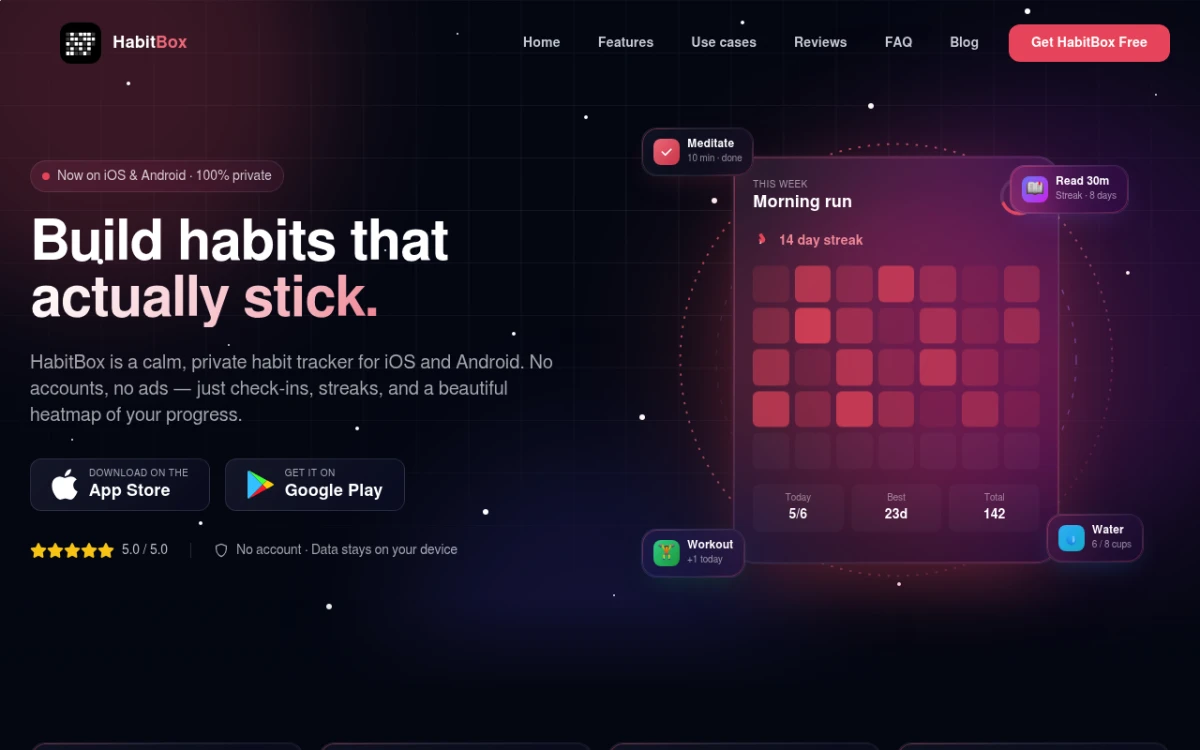
The pattern we see most often: track one daily creative input (a daily commit, a daily UI mockup, a daily caption) and share a weekly screenshot of the tracker grid in public. Private green grids are easy to skip. Public green grids on a Friday are much harder to walk away from.
If you want the full breakdown of how to pick a tracker that fits your style, our habit tracking deep-dive covers the trade-offs in more depth.
The James Clear talk above is worth half an hour if you want the theory side of why daily habits beat motivation. The 1% framing applies just as much to a screenshot workflow as it does to fitness.
Frequently asked questions
Bottom line: the cheat sheet
- Mostly social and marketing → ScreenSnap Pro or CleanShot X for the polished background-and-frame output, paired with social media image sizes on hand
- Developer-first → Whatever your team uses, plus a cloud-link shortcut and GIF capture
- Documentation-heavy → Snagit if budget allows, ScreenSnap Pro if you want a one-time price
- Cross-platform team (Mac + Windows) → ScreenSnap Pro or Snagit
- Mac-only solo creator → CleanShot X or Shottr
- Need a daily habit to keep the workflow consistent → Pair with HabitBox, Streaks, or Way of Life
Pick the tool that matches your most-frequent use case, set the keyboard shortcut, and run the workflow for two weeks. If it sticks, you'll save real hours every month, and the screenshots you ship will look like a team that knows what it's doing.

Morgan
Indie DeveloperIndie developer, founder of ScreenSnap Pro. A decade of shipping consumer Mac apps and developer tools. Read full bio
@m_0_r_g_a_n_