ShareX Review 2026: Complete Guide (Pros & Cons)
# ShareX Review 2026: The Complete Guide to This Free Windows Screenshot Tool
This ShareX review covers everything you need to know before you download it in 2026. ShareX is a free, open-source screenshot and recording tool for Windows. It packs more features than most paid apps. But the trade-off is a steep learning curve and a dated interface.
We have used ShareX for years. We have also tested it side-by-side with newer tools. This guide shares what works, what does not, and who should use it. If you want a quick take: ShareX is amazing if you enjoy tweaking settings. It can feel like too much if you just want to capture and share.
What Is ShareX?
ShareX is a free screenshot and screen recording app for Windows. It has been around since 2007. The current version is built on .NET and actively updated on GitHub. The official download lives at getsharex.com.
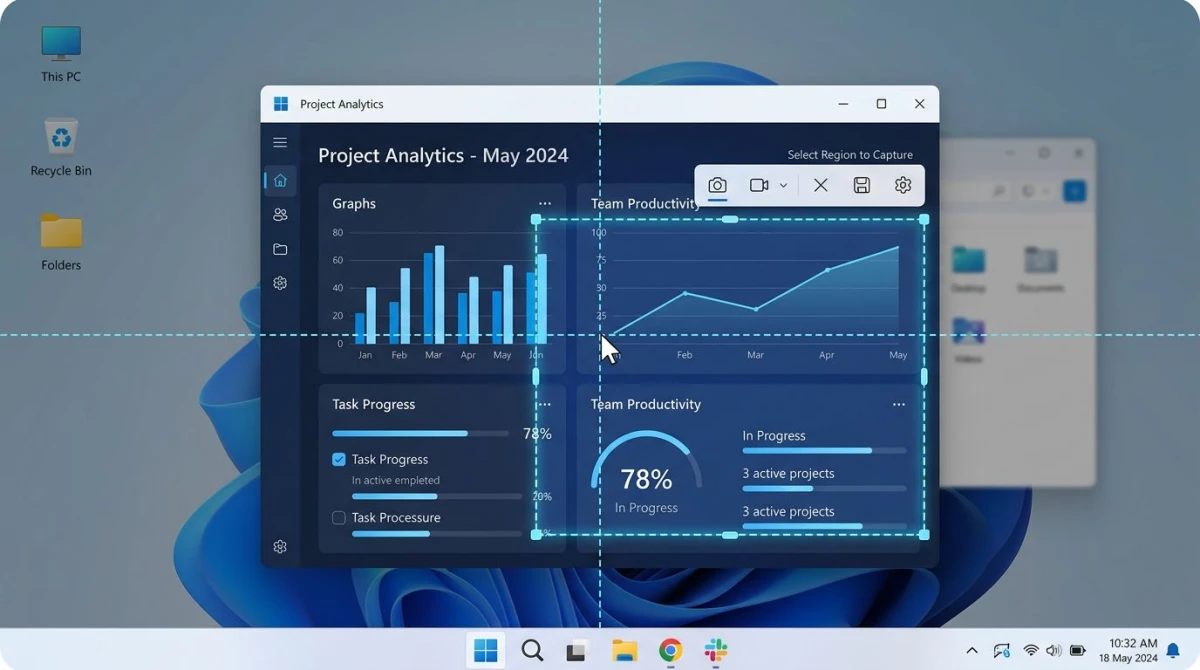
The app does a lot. You get region capture, window capture, full screen, and scrolling capture. You get video and GIF recording. You get an image editor, OCR, a color picker, and over 70 upload destinations. All for zero dollars. No ads. No watermarks. No account needed.
ShareX runs only on Windows 7 through Windows 11. There is no Mac version and no Linux version. If you are on a Mac, see our ShareX alternatives for Mac guide instead.
The short verdict: ShareX is the most powerful free screenshot tool on Windows. The interface is the weak spot. Power users love it. New users often feel lost.
How to Set Up ShareX on Windows
Setup is simple. Making ShareX feel natural takes a bit longer. Here is the path we recommend.
Step 1: Download and install
Head to getsharex.com and grab the installer. A portable version is also available. Portable means no install needed. That is handy for work PCs with lockdowns. The download is small, under 10 MB.
Run the installer and follow the prompts. It takes about 30 seconds.
Step 2: Set up your hotkeys
Hotkeys are the heart of ShareX. The app feels slow if you use the main window for every capture. Keyboard shortcuts flip the experience.
Open Hotkey settings from the left menu. You will see defaults like Print Screen for full screen and Ctrl+Print Screen for region. Change them to whatever feels right. Common picks are Ctrl+Shift+1 for region and Ctrl+Shift+2 for window.
Step 3: Set an after-capture task
This step alone saves hours. Go to After capture tasks and pick what happens once you grab a shot. Open the image editor. Copy to clipboard. Save to disk. Upload to a host. You can pick several at once.
Our default flow: save to disk, copy to clipboard, and show in the editor. That way the file is backed up and ready to paste right away.
Step 4: Pick your image folder
By default ShareX saves to Documents\ShareX\Screenshots. Change this in Application settings → Paths. A folder like C:\Users\You\Pictures\Screenshots is easier to find. You can also use a cloud folder like OneDrive or Dropbox for auto-backup.
Curious where Windows itself stores screenshots? See our guide on where screenshots go on Windows.
ShareX Features Deep Dive
ShareX has more features than any paid rival we have tested. Here is a tour of what matters most.
Screen capture modes
ShareX gives you seven capture modes. They cover every scenario we can think of.
- Fullscreen: Grabs all monitors or just the active one.
- Window: Captures one window, trimmed cleanly to its borders.
- Monitor: Picks a specific display on multi-screen setups.
- Region: A click-and-drag box, with pixel-perfect edges.
- Region (Freehand): Draw any shape, great for odd areas.
- Scrolling capture: Grabs a full webpage or long document.
- Auto capture: Takes shots at set intervals, useful for tutorials.
The scrolling capture is a rare feature. Most free tools skip it. ShareX does it well, though it can stumble on complex modern sites. Need a reliable option? Check our scrolling screenshot on Windows guide.
Screen recording and GIF
ShareX records your screen as MP4 video or animated GIF. It uses FFmpeg under the hood. That means solid quality and plenty of output options. Codec, bitrate, frame rate, and audio source are all adjustable.
The GIF export is handy for quick demos. Record a few seconds. Drop the GIF in Slack or a bug report. No video player needed.
One gotcha: recording settings are buried in the FFmpeg options panel. First-time users often end up with huge files. If you just want smooth GIFs and videos, our GIF screen capture on Windows guide walks through simpler methods.
Annotation and image editing
The built-in editor is called Greenshot Image Editor. Wait, Greenshot is a separate app? Yes, and ShareX licenses its editor. It is a capable tool. You get arrows, shapes, text, blur, pixelate, speech bubbles, and a numbered step counter.
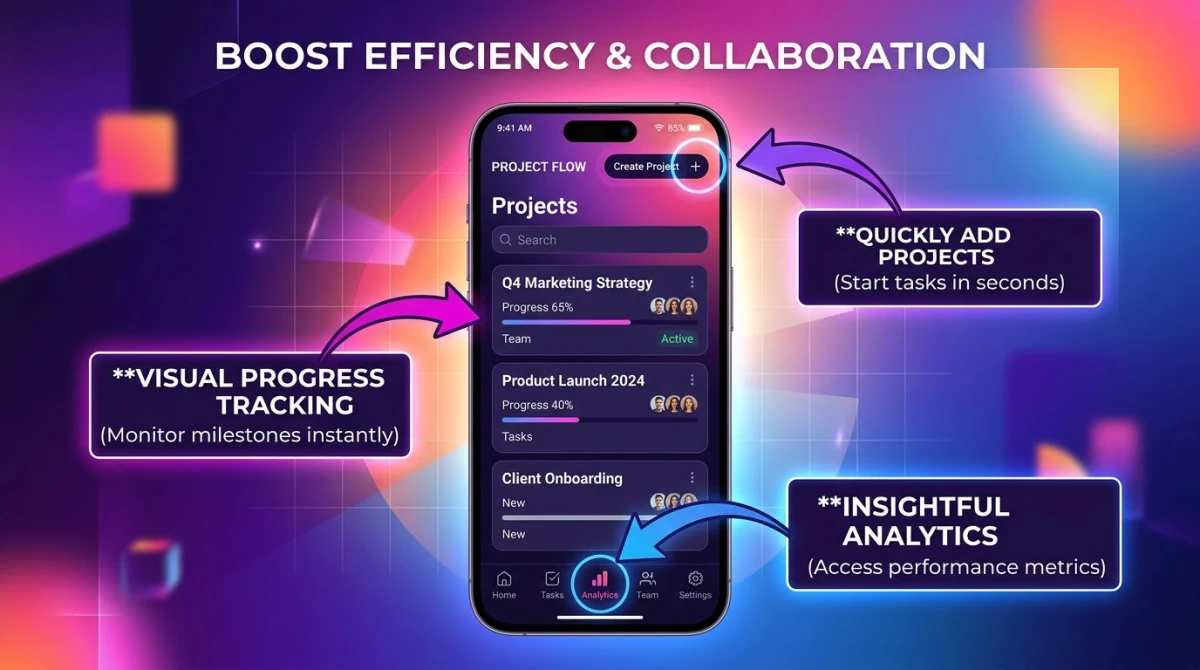
The editor opens in its own window. It feels older than modern tools. But it gets the job done. Most users will never need a separate image tool. For a deeper comparison of the editor, see our post on how to edit screenshots on Windows.
Upload destinations (70+ services)
ShareX can upload to over 70 services. Imgur, Dropbox, Google Drive, Amazon S3, FTP, custom servers. You name it. The app grabs a shareable link and drops it on your clipboard.
Setup takes work. Each service needs its own login or API key. Once set up though, you get a one-click pipeline: capture, upload, share link. No email attachments. No drag-and-drop into chat apps.
Automation and workflows
This is where ShareX shines. Every capture can trigger a chain of actions. Watermark the image. Rename it by date. Upload to a host. Copy the link. Play a sound. Log it to a file.
Advanced users write custom upload scripts. A graphic designer on our team uses ShareX to auto-watermark every screenshot with a client logo. Setup took an hour. It has saved hundreds since.
Is ShareX Safe?
Yes. ShareX is safe to use. Here is the short answer and the long one.
Short answer: ShareX is open source. The code lives on GitHub. Anyone can read it, audit it, or fork it. There is no hidden telemetry. No ads. No forced account. Millions of people have used it since 2007 without major issues.
Long answer: Always grab the installer from the official ShareX site or the Microsoft Store. Third-party download sites sometimes bundle adware with legit apps. That is a general Windows rule, not a ShareX flaw.
If you work at a company, check with IT first. Some firms block any app that can upload to external services. ShareX qualifies. Most IT teams will approve it or suggest a managed setup.

Tired of plain screenshots? Try ScreenSnap Pro.
Beautiful backgrounds, pro annotations, GIF recording, and instant cloud sharing, all in one app. Pay $39 once, own it forever.
See pricing and featuresShareX Limitations You Should Know
No tool is perfect. ShareX has real weak spots. We would be doing you a disservice to skip them.
The learning curve is steep
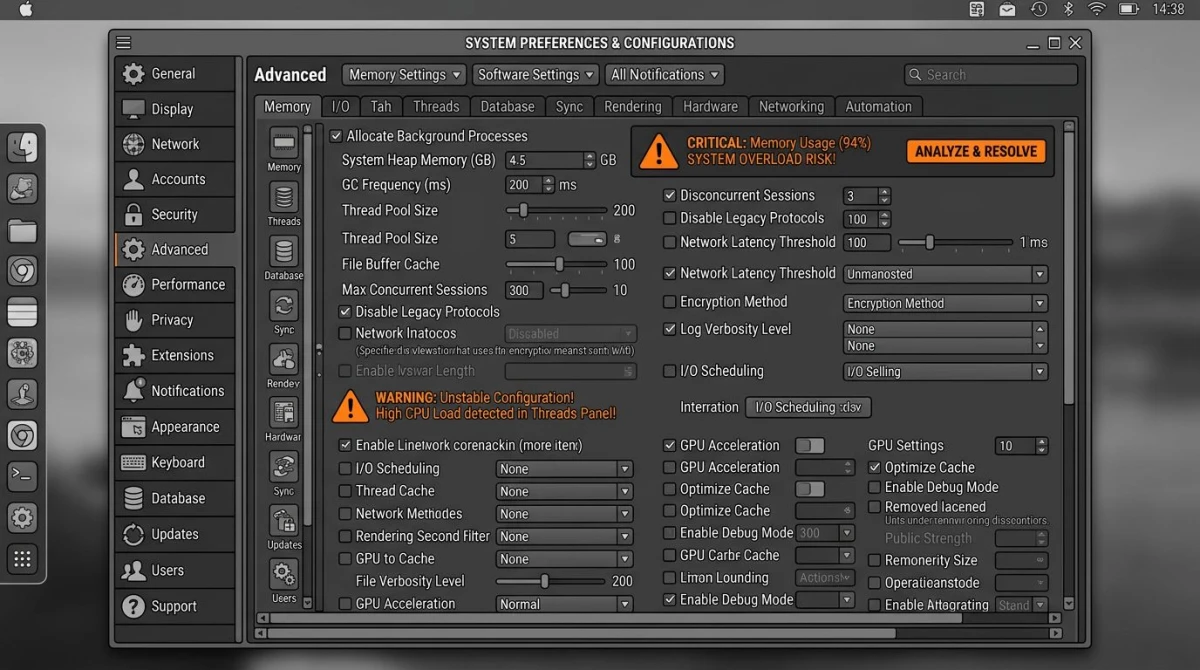
First-time users often feel lost. The main window shows dozens of settings, tabs, and options. No guided setup. No "getting started" wizard. You are expected to read the docs or watch a tutorial video. Many people bounce off within minutes.
If you love tweaking, this is heaven. If you just want to grab a screenshot and share it, it can feel like too much.
The interface looks dated
ShareX looks like a Windows XP app that never modernized. Gray panels, tiny fonts, crowded tabs. Function over form, very clearly. Newer tools like ScreenSnap Pro or CleanShot X feel fresh. ShareX does not.
This is not a dealbreaker for most users. But if design matters to you, you will notice it every time you open the app.
Scrolling capture can fail
ShareX can capture long pages. But modern websites with lazy loading, fixed headers, or fancy scroll effects often break it. You may get duplicate sections, missing pieces, or a choppy result.
For reliable scrolling shots, a browser extension or a dedicated tool works better. Our scrolling screenshot on Windows guide covers options that rarely fail.
Windows only
No Mac build. No Linux build. No web version. If your workflow moves across devices, this is a hard limit. You need a cross-platform tool for consistent habits.
No official support
ShareX has no paid support. No live chat. No email ticket. If you hit a bug, you post on GitHub or the community forum and wait. The devs are helpful but it is a volunteer effort. Urgent issues at work can be a problem.
Who Should Use ShareX?
ShareX is a great pick for specific users. It is the wrong pick for others. Here is our honest take.
Use ShareX if you are:
- A power user who loves custom hotkeys and workflows
- A developer who wants scripting, FTP upload, or custom servers
- A sysadmin or IT pro capturing server dashboards
- A Windows-only user on a tight budget
- Someone who cares about open-source tools and data control
Skip ShareX if you are:
- A beginner who wants the simplest possible capture tool
- A Mac or Linux user (it will not run)
- A designer who wants a polished, modern UI
- Someone who needs official support for work
- A person who just wants to share a screenshot fast
If you want the power without the cluttered setup, there are easier paths.
Alternatives Worth Considering
ShareX is not the only game in town. Three options are worth a look before you commit.
ScreenSnap Pro ($39 one-time)
ScreenSnap Pro is our pick for users who want ShareX power with a modern, clean UI. It runs on Windows and Mac, so you keep one tool across devices. The feature set covers most of what ShareX does. Region, window, and full-screen capture. Video recording. Native GIF recording. Webcam and system audio. 15 annotation tools. OCR text extraction. Instant cloud upload with shareable links.
What ScreenSnap Pro adds: 500+ gradient backgrounds for polished visuals, and a friendly UI that works out of the box. No hours tweaking FFmpeg. No reading docs to set up hotkeys.
The price is $39 one-time. No subscription. License covers two computers, Mac or Windows. A 30-day money-back guarantee is included. For a broader look at Windows tools, see our best screenshot tools for Windows roundup.
Snagit ($63 one-time + optional upgrades)
Snagit is the long-time leader in paid screenshot tools. It has a smooth UI, great docs, and true pro support. Features include templates, stamps, and a smart move tool that lets you rearrange parts of a screenshot.
The price is higher. It costs $63 for a license plus yearly upgrades for new versions. For teams that need official support and polished output, Snagit is a strong choice.
Greenshot (free, open source)
Greenshot is the classic lightweight option. It is also free and open source. The interface is simpler than ShareX. The feature set is smaller too. No video, no GIF, no cloud upload by default. Just screenshots and a clean editor.
Greenshot is great for users who want basic capture with a low learning curve. If you need more power, ShareX or ScreenSnap Pro beats it.
ShareX vs ScreenSnap Pro at a Glance
| Feature | ShareX | ScreenSnap Pro |
|---|---|---|
| Price | Free | $39 one-time |
| Platforms | Windows only | Mac + Windows |
| Screenshot capture | Yes (7 modes) | Yes (3 modes) |
| Screen recording | Yes | Yes |
| GIF recording | Yes | Yes (native) |
| OCR | Yes | Yes |
| Annotation tools | Yes (via Greenshot) | 15 tools built-in |
| Gradient backgrounds | No | 150+ |
| Cloud upload | 70+ services | Built-in, one-click |
| Learning curve | Steep | Easy |
| Modern UI | No | Yes |
| Official support | No | Yes |
Verdict: Is ShareX Worth It in 2026?
Yes, with a caveat. ShareX is still the best free screenshot tool on Windows. Nothing else matches its feature depth at zero cost. For power users who love customizing every step, it is a dream. For Windows-only workflows on a tight budget, it is hard to beat.
The caveat: if you just want a tool that works out of the box, ShareX may feel like work. The setup, the UI, and the learning curve all add up. Many users give up before they unlock the good stuff.
If that sounds like you, a paid tool like ScreenSnap Pro can save hours. The one-time $39 fee gets you the same core power, a clean UI, and features that ShareX skips. You will also get instant Mac support if you ever switch machines. For tools beyond ShareX, our guides on screen recording on Windows and Snipping Tool alternatives are worth a read.
Frequently Asked Questions

Morgan
Indie DeveloperIndie developer, founder of ScreenSnap Pro. A decade of shipping consumer Mac apps and developer tools. Read full bio
@m_0_r_g_a_n_