OBS Not Recording Audio on Windows: 7 Fixes
You hit record, play back the file, and hear silence. Or just your voice, no game sound. Or just the game, no mic. OBS not recording audio is one of the most common OBS problems on Windows, and most fixes take under a minute once you know where to look.
This guide walks through seven fixes, ordered from "most likely" to "last resort." Tested on Windows 11 with OBS Studio 30; the same steps work on Windows 10. Skip around, or start at Fix 1. Already given up on OBS? Our roundup of free screen recorders for Windows covers lighter tools.
Why OBS is not recording audio on Windows
OBS audio has three layers, and any one can break the signal chain:
- The Windows audio device. OBS reads from the system default input or output. If Windows switched your mic to a Bluetooth headset, OBS follows without asking.
- The OBS audio source. Each scene pulls from a specific input or output. If the source points at the wrong device or is muted in the Mixer, no sound is captured.
- The audio track mapping. OBS records up to six tracks. MP4 files save only track 1 by default, so a mic on track 2 vanishes on playback.
Most "OBS no audio" issues trace to one of those layers. Before you start, close OBS and reopen it. A clean restart fixes maybe one case in five on its own.
Fix 1: Check audio tracks in Output settings
This is the top cause in 2026. You recorded fine, the mixer showed green bars, but the saved file is silent. The culprit is track routing.
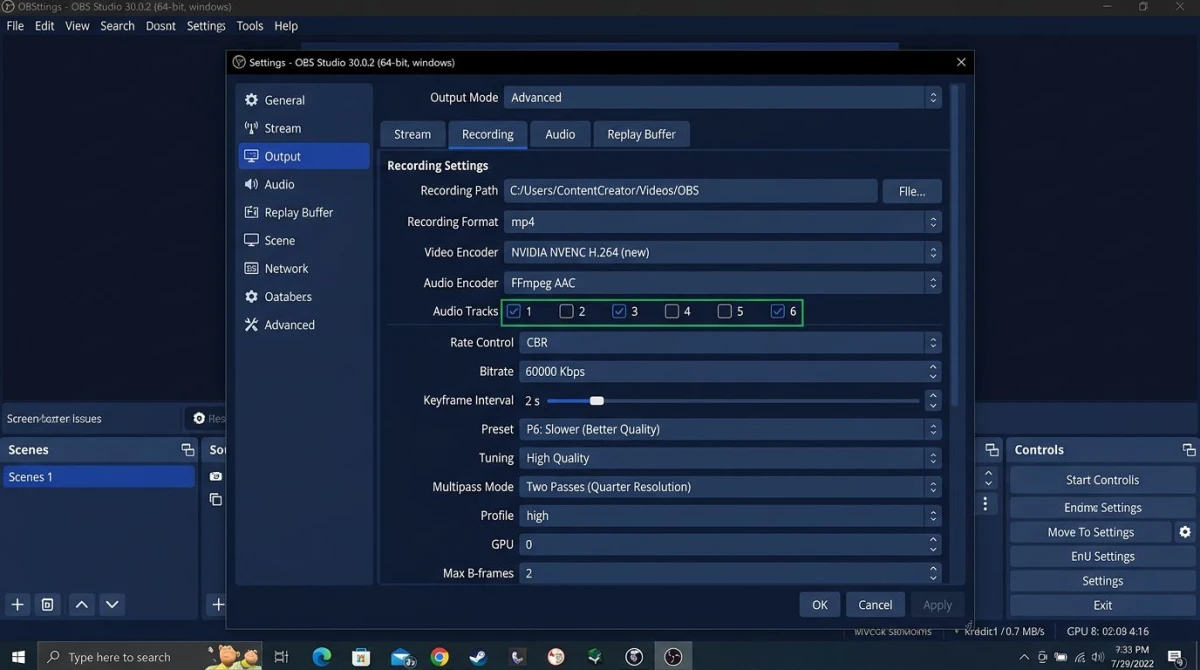
Open OBS and do this:
- Click Settings in the bottom right.
- Go to Output.
- Change Output Mode from Simple to Advanced.
- Click the Recording tab.
- Look at the Audio Track row. You should see six numbered checkboxes.
- Tick the boxes for every track you want saved. Track 1 is safe: it mixes all sources by default.
Then drop to the Audio tab. Each source (Mic/Aux, Desktop Audio) has its own track assignment. Make sure each one maps to a track you ticked in step 6.
If you use MP4, keep audio on Track 1 only. MP4 with multiple tracks is unreliable. For multi-track, switch the format to MKV. More on that in Fix 7.
Fix 2: Enable the right audio source in Mixer
Look at the bottom of the OBS main window. You should see an Audio Mixer panel with bars for Desktop Audio and Mic/Aux. If a bar is all gray, flat, or has a red speaker icon next to it, that source is muted or disabled.
Quick fixes:
- Click the speaker icon beside each source to unmute it.
- If a source shows "Desktop Audio: Disabled" on gray, right-click it and choose Properties. Set the Device dropdown to Default or to your actual speakers.
- If Mic/Aux is missing, right-click in the Mixer panel, pick Add Audio Input Capture, and choose your microphone.
Talk into the mic or play a song. If the green bars move, OBS is hearing the source. If they stay flat, the problem is at the Windows level. Jump to Fix 5 or Fix 6.
Fix 3: Set mic and desktop audio to separate tracks
Recording a tutorial or commentary? You probably want your voice on one track and app sound on another, so you can balance them later. Here is the setup most creators use:
- Open Settings → Audio → Global Audio Devices.
- Set Desktop Audio to your speakers, Mic/Aux to your mic.
- Go to Settings → Output → Recording and tick tracks 1, 2, and 3.
- In the Mixer, click the gear next to Desktop Audio, choose Advanced Audio Properties.
- Give Desktop Audio tracks 1 and 2. Give Mic/Aux tracks 1 and 3.
Track 1 is your mix, track 2 is clean desktop, track 3 is clean mic. This only works in MKV format: MP4 collapses multi-track audio. See Fix 7 for a quick remux.
Fix 4: Update audio drivers
Outdated drivers are a silent killer. OBS may show green bars but save a corrupted audio stream. This shows up most often after a big Windows Update, when older Realtek or USB audio drivers fall out of sync.
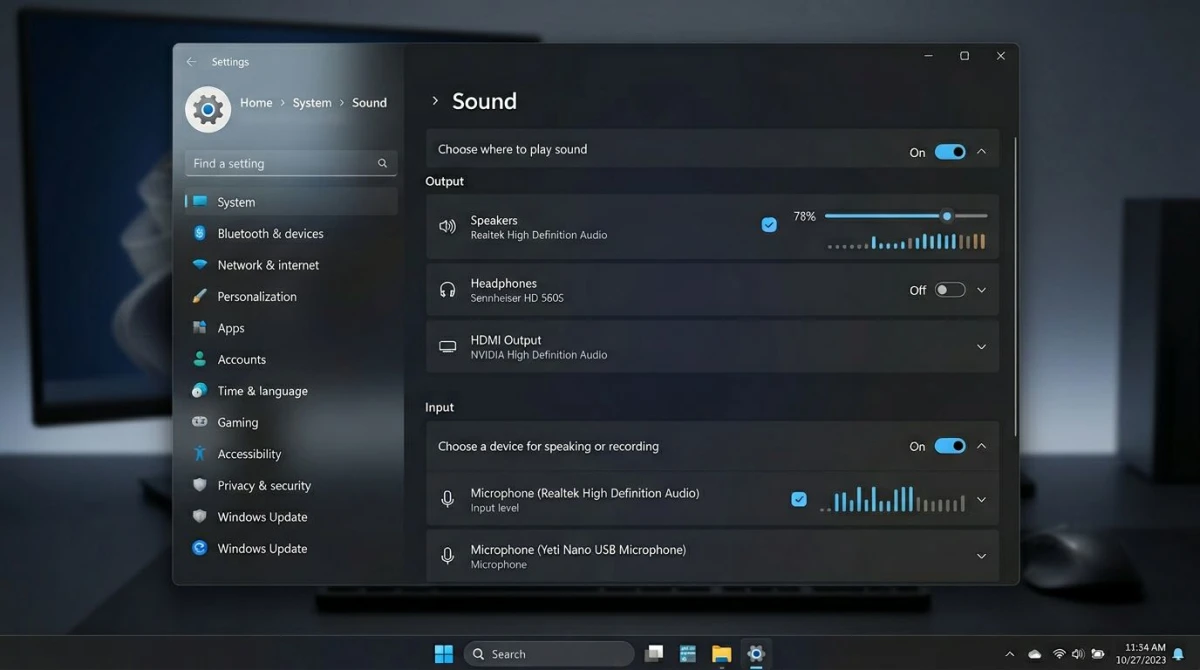
To update:
- Press Windows key + X and pick Device Manager.
- Expand Sound, video and game controllers.
- Right-click your audio device (Realtek, Intel, or your USB interface).
- Choose Update driver → Search automatically for drivers.
- Restart Windows.
If Device Manager says you already have the latest driver, go to the vendor's site directly. Realtek, Focusrite, and Elgato release newer builds than Windows Update ships. Microsoft's official guide to updating drivers walks through the full process if you hit a snag.
Bluetooth headset users: update the headset firmware too. Many Bluetooth audio issues on Windows trace back to the headset, not the PC.

Tired of plain screenshots? Try ScreenSnap Pro.
Beautiful backgrounds, pro annotations, GIF recording, and instant cloud sharing, all in one app. Pay $39 once, own it forever.
See pricing and featuresFix 5: Allow OBS mic access in Windows privacy settings
Windows 10 and 11 gate microphone access behind a privacy toggle. If the toggle is off, OBS picks up silence: no error, no warning. The mixer will look normal but record nothing.
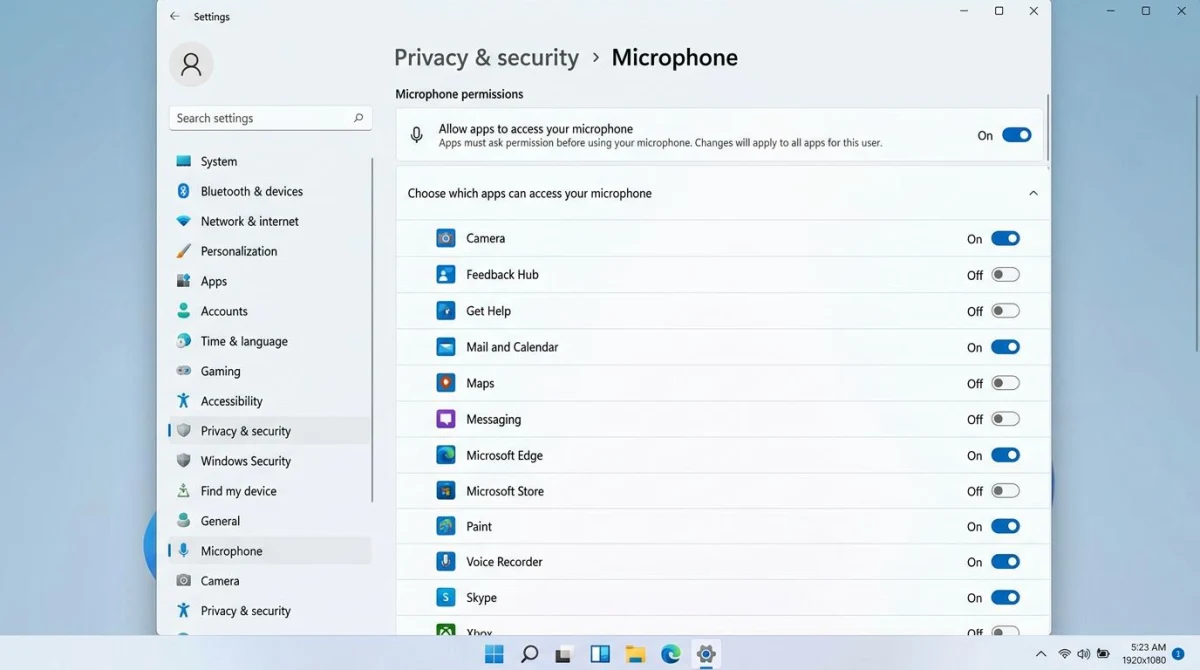
Flip the toggle:
- Open Settings (Windows key + I).
- Go to Privacy & security → Microphone.
- Make sure Microphone access at the top is On.
- Make sure Let apps access your microphone is On.
- Scroll to Let desktop apps access your microphone and turn it on.
- Restart OBS.
Step 5 is the one people miss. OBS is a classic desktop app, not a Store app, so the desktop toggle is what matters. If that switch is off, OBS hears nothing.
Fix 6: Disable exclusive mode in Sound settings
Some drivers let one app "lock" the audio device. When a game or call app grabs the mic in exclusive mode, OBS gets blocked out. The fix is a single checkbox.
- Right-click the speaker icon in your taskbar.
- Click Sound settings.
- Scroll to Advanced → More sound settings.
- Go to the Recording tab, double-click your microphone.
- Go to the Advanced tab.
- Untick Allow applications to take exclusive control of this device.
- Click Apply, then OK. Repeat on the Playback tab for speakers.
This also helps if you hear crackling or delayed audio. Exclusive mode is off by default, but gaming headsets often turn it back on.
Fix 7: Try a different recording format (MKV vs MP4)
MP4 is the default in OBS, and it's the wrong choice for most Windows recordings. Here is why:
- MP4 loses multi-track audio. Mic and desktop collapse into one mono mess, or one track goes silent.
- MP4 corrupts on crash. If OBS or Windows crashes mid-record, the MP4 file is often unreadable.
- MKV is safer. It's a container that survives crashes and preserves every audio track.
Switch like this:
- Open Settings → Output → Recording.
- Change Recording Format to MKV.
- Click OK and record as normal.
When you're done, use OBS's built-in remuxer: File → Remux Recordings. It converts MKV to MP4 in a few seconds, no re-encoding, no quality loss. You get the safety of MKV during capture and the compatibility of MP4 for editing or upload. The OBS Studio quickstart guide covers the basics if you want a broader reference.
Still silent? Quick checklist
If none of the seven fixes worked, try these in order:
- Unplug and replug your USB mic. Windows sometimes loses the handle.
- Try a different USB port. Front hubs can cause flaky audio.
- Test a wired mic instead of Bluetooth. Bluetooth drops to 16 kHz mono when the mic is active.
- Reinstall OBS from obsproject.com.
- Test in Windows Voice Recorder. If that's silent too, the problem is Windows, not OBS.
Simpler alternative: ScreenSnap Pro
OBS is free and powerful, but the audio routing model costs you time. If you mostly record tutorials, bug reports, or quick walkthroughs, a simpler tool gets you to "done" faster.
ScreenSnap Pro records screen, mic, webcam, and system audio on Windows 10 and 11 with a single click. No tracks to map, no mixer to balance. Pick your mic, tick "include system audio," and hit record. The output is a clean MP4 with both tracks mixed, ready to share.
It also captures screenshots, GIFs, and adds 500+ backgrounds and 17 annotation tools. $39 one-time, license for two PCs. For a side-by-side comparison see OBS Studio alternatives for Windows, or check our screen record with audio on Windows walkthrough for built-in tools. If the built-in overlay is the real issue, see Xbox Game Bar not working.
ScreenSnap Pro is not for live streaming. OBS still wins there. But for "record this tab and my voice for five minutes," the tradeoff is worth thinking about. If you need a basic screen recorder for Windows without audio routing headaches, that guide compares the main options too.
Frequently Asked Questions
Wrapping up
OBS audio issues almost always trace back to one of three spots: track mapping in Output settings, a muted source in the Mixer, or a Windows privacy toggle. Run through Fixes 1, 2, and 5 first: they catch about 80% of cases.
If you still get silence after all seven fixes, try a simpler tool. Not every recording needs OBS-level control. Good luck, and enjoy the sound.

Morgan
Indie DeveloperIndie developer, founder of ScreenSnap Pro. A decade of shipping consumer Mac apps and developer tools. Read full bio
@m_0_r_g_a_n_