How to Screenshot in Firefox (4 Methods, 2026)
Firefox has one of the best screenshot tools of any browser. You can grab a custom area, a page element, what you see on screen, or an entire long page, all without any add-ons. For captures outside the browser too, a system-wide app like ScreenSnap Pro covers the rest.
Here are four ways to take a screenshot in Firefox on Mac. We'll go from the fastest shortcut to more advanced options.
Use the Firefox screenshot shortcut on Mac
The fastest way to take a Firefox screenshot is with a shortcut. Press ⌘ + Shift + S and the tool pops up right away.
You get four options:
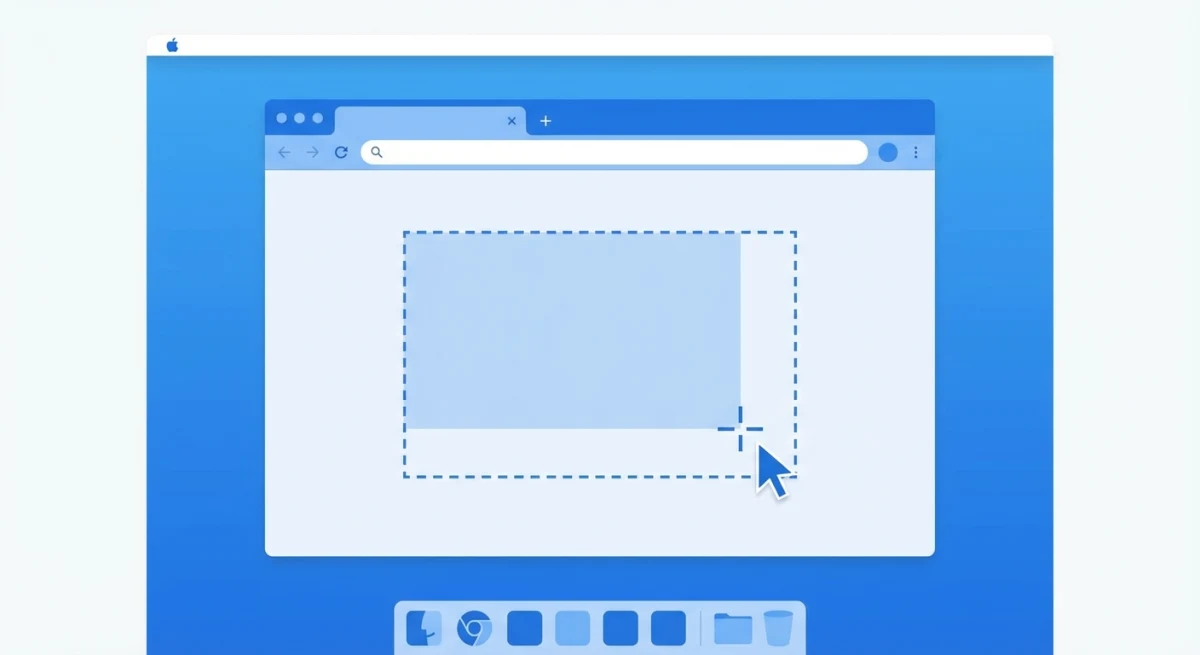
- Drag to select: click and drag to draw a box around what you want
- Hover to auto-select: move your mouse over parts of the page and Firefox highlights them for you
- Save visible: grabs what you see on screen right now
- Save full page: captures the whole page from top to bottom, even stuff you'd need to scroll to see
Once you pick an area, click Copy to put the image on your clipboard or Download to save it as a PNG. Press Esc to cancel.
This works on macOS, Windows (Ctrl + Shift + S), and Linux. It opens the same tool as the right-click menu, just faster. Mozilla's screenshot help page has more details.
Take a screenshot from the Firefox right-click menu
If you like using your mouse, the right-click menu is the easiest way to find the screenshot tool.
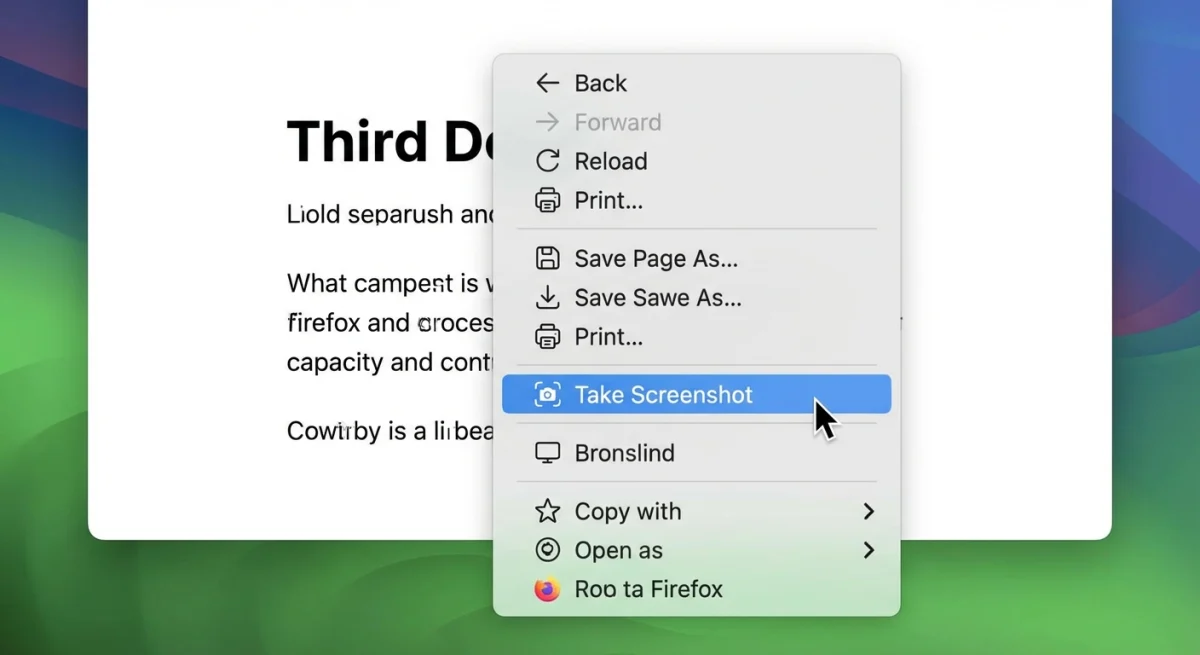
- Open the page you want to capture in Firefox
- Right-click (or Control-click on Mac) on an empty area of the page
- Select Take Screenshot from the context menu
- Choose your capture mode: drag a region, click an element, or use the full page / visible buttons in the top-right corner
- Click Download or Copy
This opens the same tool as the shortcut. The only difference is how you start it.
Tip: Don't see "Take Screenshot" in the menu? Make sure you're right-clicking on the page itself, not on a link, image, or the toolbar.
Capture a full-page screenshot in Firefox
One of Firefox's best tricks is full-page capture. The macOS screenshot tools can't do this. Firefox grabs a whole scrolling page as one tall image.
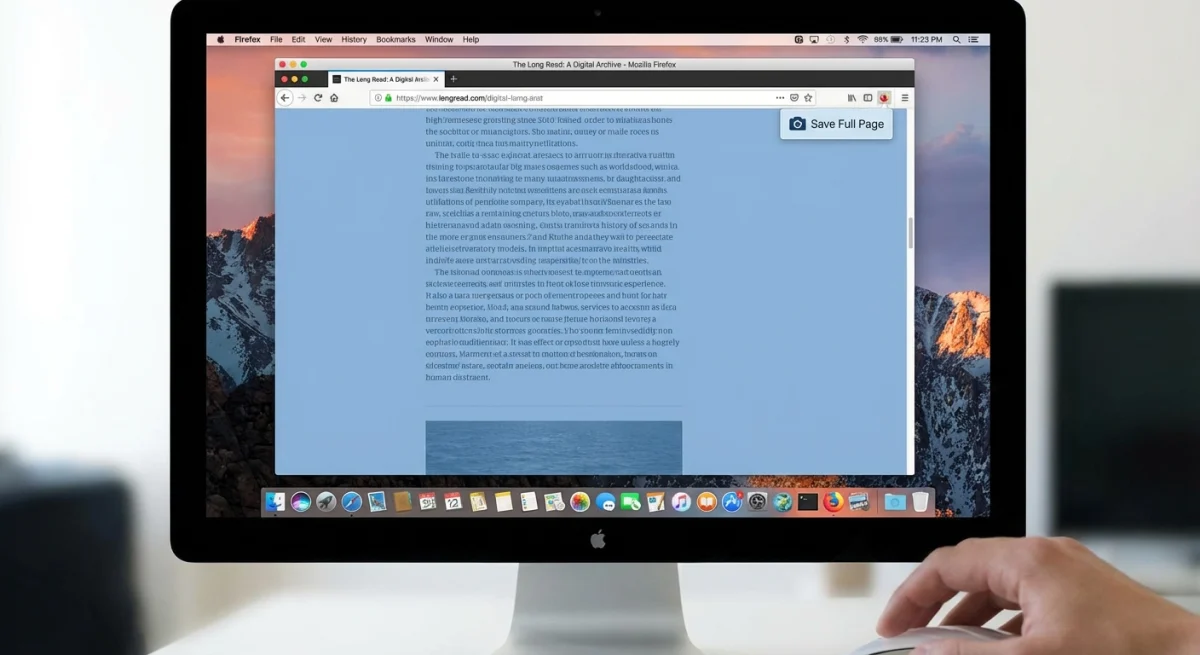
- Press
⌘ + Shift + Sto open the screenshot tool - Click Save full page in the top-right corner of the overlay
- Firefox stitches the entire page into one tall image
- Click Download to save or Copy to grab it to your clipboard
Full-page captures are great for saving long articles, keeping a record of web designs, or backing up pages before they change. The file is a PNG that you can open in Preview, mark up with tools, or share anywhere.
How big can a full-page screenshot be?
Firefox handles pages that are thousands of pixels tall. The only real limit is your RAM. Very long pages (10,000+ pixels) can make large files. You can shrink the image after if the file is too big.
Use Firefox Developer Tools for headless screenshots
Developers often need screenshots for testing or docs. Firefox's Developer Tools console lets you take captures from the command line.
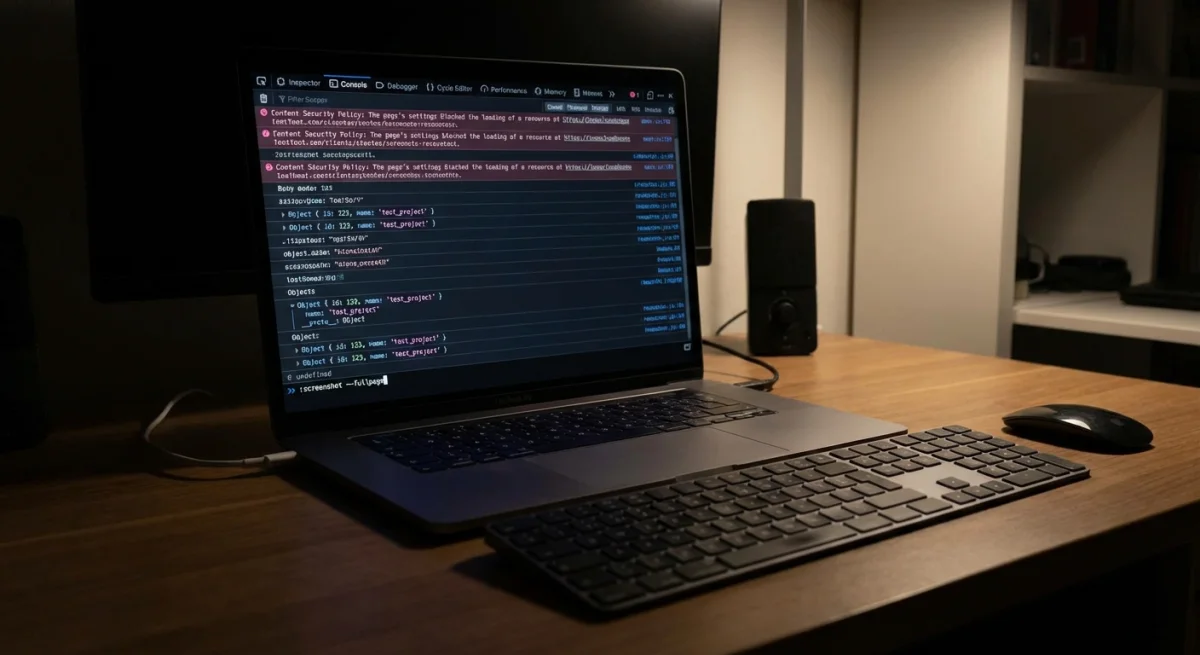
- Press
⌘ + Option + Ito open Developer Tools (or go to Tools → Browser Tools → Web Developer Tools) - Click the Console tab
- Type
:screenshotand press Enter
That saves a shot of what's on screen to your Downloads folder. You can add flags for more control:
| Command | What it does |
|---|---|
:screenshot | Captures visible area |
:screenshot --fullpage | Captures the full scrolling page |
:screenshot --selector .hero | Captures a specific CSS element |
:screenshot --dpr 2 | Captures at 2x resolution (Retina) |
:screenshot filename.png | Saves with a custom filename |
You can mix flags too. For example, :screenshot --fullpage --dpr 2 homepage.png saves a full-page Retina shot with a custom name.
When to use Developer Tools
The console method works best when you need:
- One element only. Grab a div, header, or button by its CSS class
- High-res output. Force 2x or 3x for crisp images in tech docs
- Same shot every time. Run the same command on many pages for consistent results
- Clean output. No overlay covers the page content
For daily use, the shortcut is faster. For precise work, the console wins.

Tired of plain screenshots? Try ScreenSnap Pro.
Beautiful backgrounds, pro annotations, GIF recording, and instant cloud sharing, all in one app. Pay $39 once, own it forever.
See pricing and featuresAdd a screenshot button to the Firefox toolbar
If you take screenshots a lot, add the tool to your toolbar so it's one click away.
- Click the hamburger menu (☰) in the top-right corner of Firefox
- Select More tools → Customize toolbar
- Find the Screenshot icon in the available items
- Drag it to your preferred spot on the toolbar
- Click Done
Now you can click the icon any time. No need to remember the shortcut or use the right-click menu.
Edit and annotate Firefox screenshots
Firefox saves screenshots as PNG files, but it has no editing tools. After you capture a shot, you'll need another app to crop, mark up, or add notes.
Here are good options on Mac:
- Preview. Free, built-in, handles basic cropping and markup
- ScreenSnap Pro. One-time purchase, adds instant annotation with arrows, text, blur, and beautiful backgrounds right after capture
- Image Annotation tool. Free online option for quick markup without installing anything
If you take a lot of Firefox screenshots for work (bug reports, Slack messages, or docs), a screenshot app saves time by letting you capture and edit in one step.
Firefox screenshot tips and tricks
Here are some handy tricks that aren't easy to spot:
Grab page elements on their own. When the tool is open, hover over any part of the page. Firefox finds and highlights items like headers, images, and paragraphs. Click to capture that piece with clean edges.
Use arrow keys for fine control. After you start a selection, press the arrow keys to move one pixel at a time. Hold Shift to jump 10 pixels. Great for lining things up.
Only captures the page. Firefox grabs the web content, not the toolbar, address bar, or tabs. If you need the full browser window, use macOS screenshot shortcuts (⌘ + Shift + 4 then Space).
Works in private mode. The tool works in private windows too. Your captures won't show up in your history.
Easy file names. Firefox names files like Screenshot YYYY-MM-DD at HH-MM-SS Page Title.png. The date and page title help you find files later in your screenshot folder.
Firefox screenshot vs macOS screenshot
Both are free, but they do different things. Here's a quick look:
| Feature | Firefox Screenshot | macOS Screenshot |
|---|---|---|
| Full-page capture | ✅ Yes | ❌ No |
| Element auto-detect | ✅ Yes | ❌ No |
| Custom region | ✅ Yes | ✅ Yes |
| Window capture | ❌ Browser content only | ✅ Any window |
| Menu capture | ❌ No | ✅ Yes (timed screenshots) |
| Copy to clipboard | ✅ Yes | ✅ Yes |
| Video/GIF recording | ❌ No | ❌ No (use GIF tools) |
| Built-in editing | ❌ No | ✅ Basic markup |
| Keyboard shortcut | ⌘ + Shift + S | ⌘ + Shift + 3/4/5 |
Bottom line: Use Firefox's tool for full-page captures or to grab one element. Use macOS screenshots for things outside the browser: other apps, menus, or the desktop.
Want both in one app? Tools like ScreenSnap Pro handle browser and system captures with built-in markup.
Common Firefox screenshot problems
The tool won't open
If ⌘ + Shift + S does nothing, another app may be using that shortcut. Check System Settings → Keyboard → Shortcuts on your Mac. You can also try the right-click menu or toolbar button instead.
Screenshot looks blurry
Firefox captures at your screen's default resolution. On a Retina Mac, the output should be sharp. If it looks blurry, you may have zoomed out on the page. Set zoom to 100% (⌘ + 0) before you capture. For extra sharp images, use the console command :screenshot --dpr 2.
Can't capture a dropdown menu
Firefox's tool hides open menus when it starts. To grab a dropdown or popup, use the macOS screenshot shortcut instead: press ⌘ + Shift + 4, then press Space and click the window. Or use a timed screenshot to give yourself time to open the menu first.
Full-page capture misses some content
Some pages load content as you scroll (called "lazy loading"). Firefox may miss these parts in a full-page shot. Try scrolling all the way down first, then back up, before you take the capture. This forces the page to load everything.
Frequently Asked Questions

Morgan
Indie DeveloperIndie developer, founder of ScreenSnap Pro. A decade of shipping consumer Mac apps and developer tools. Read full bio
@m_0_r_g_a_n_