Screenshot AI in 2026: OCR, Summarization & Smart Workflows
Screenshot AI is the wave of AI features now built into screen capture workflows. The big five are OCR (image-to-text), auto-annotation, summarization, visual search, and smart redaction. In 2026, these went from novelty to default. The way most people share, file, and search through screenshots looks different than it did two years ago.
The category is changing along three lines. First, AI tools that generate screenshots from a text prompt. These are handy for design mockups and marketing visuals. Second, AI that processes existing screenshots: pulling text out, describing the image, summing up a long article you captured, or translating a foreign UI. Third, classic screenshot apps adding AI features on top of capture: auto-redaction, smart cropping, and generated alt text. This guide covers all three. We sort the useful from the hype and point you to free tools that get the job done without sending your screenshots to a cloud you don't control.
What "screenshot AI" actually means in 2026
Two years ago, the phrase mostly meant OCR. "AI" was just a marketing word stuck onto plain text recognition. That's no longer true. Three things changed:
- Vision-language models became cheap and fast. GPT-4V, Claude 3, and Gemini can now look at any screenshot. They can describe it, sum it up, or answer questions about it in seconds.
- On-device AI caught up. Apple's Live Text, Visual Intelligence, and the Snipping Tool's built-in OCR all run locally. No upload needed.
- Screenshot tools shipped real features. It's no longer just "AI-powered" stickers on landing pages. CleanShot X added AI cleanup. Snagit added smart text recognition. A wave of mobile apps built screenshot-to-action workflows from scratch.
The result: a screenshot is no longer a flat image. It's structured input (text, UI elements, intent) that AI tools can act on.
The five AI capabilities transforming screenshot workflows
Almost every "AI screenshot" feature falls into one of these buckets:
- OCR / text extraction: pull selectable, searchable text out of any image.
- Summarization: paste a long screenshot, get the gist in three bullets.
- Auto-annotation and smart redaction: AI spots buttons, faces, and credit card numbers. It highlights or blurs them on its own.
- Visual search and lookup: point at an object or UI element and get context. What plant is this? What error code? What app?
- Description and Q&A: feed a screenshot into a chat model and ask questions about it.
The rest of this article walks through each layer, the tools that do them well, and where the limits are.
AI screenshot generators: making images from a prompt
This is the smallest of the three groups, but it's growing. These tools don't capture your screen. They make an image that looks like a screenshot, usually for marketing, mockups, or design work.
Generative design tools
- Galileo AI: describe a UI in plain English ("a settings page for a meditation app, dark mode"). Galileo makes a Figma-ready mockup that looks like a real product screenshot. Handy for early design and pitch decks.
- Visily: turns sketches, competitor screenshots, or text prompts into editable wireframes and high-fidelity mockups. Designers use it to skip the blank-canvas stage.
- DALL-E 3 and Midjourney: general image makers. With a careful prompt ("iPhone screen showing a fitness app dashboard, isometric view"), they can output stylized screenshot mockups. The result is decorative, not functional. But it works for blog hero images and ads.
When to reach for these tools: you need a visual that looks like product UI but the product doesn't exist yet. Or you want a polished hero image and don't want to capture and clean a real screenshot.
When not to: you need accurate docs. Made-up screenshots often invent UI parts that don't exist.
AI for processing screenshots: the post-capture pipeline
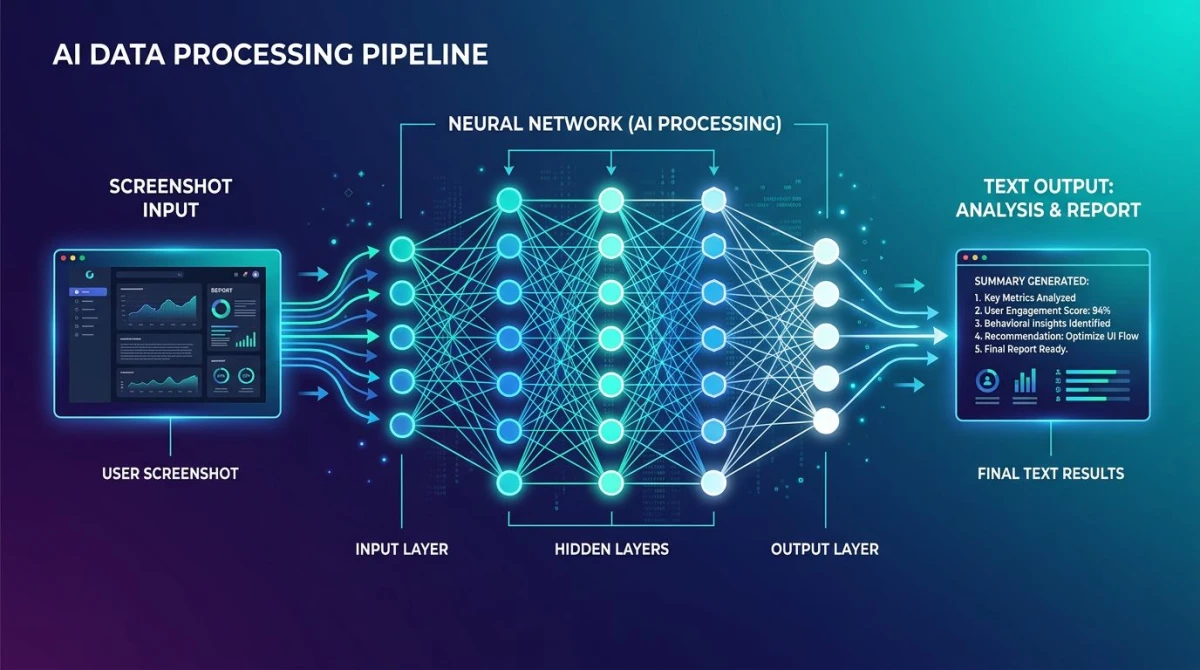
This is where most of the real work happens. You capture a screenshot the normal way: built-in OS tools, ScreenSnap Pro, whatever. Then you hand it to an AI service to do something useful with it.
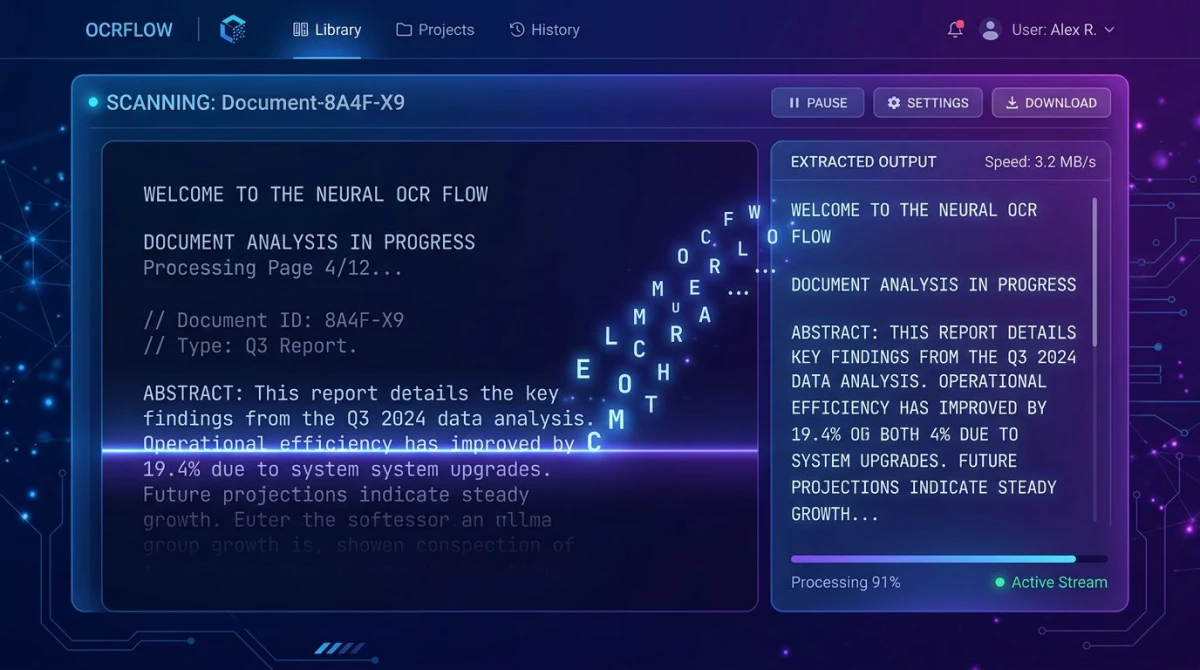
OCR and text extraction
OCR is the base layer of AI for screenshots. It's also the one that has gotten the cheapest and most accurate.
- Apple Live Text: built into macOS and iOS. Open any screenshot in Preview, hover over text, and you can select and copy it. Works on photos, video frames, and screen captures. Supported languages include English, Spanish, French, German, Japanese, Chinese, and more.
- Windows Snipping Tool OCR: Microsoft added text extraction right into the Snipping Tool. After you capture, click "Text actions" and select copy. Local processing. No upload.
- Google Lens: works on Android and via the Google app. Point it at a printed page, screenshot, or image. You get instant text extraction plus translation.
- Tesseract: the open-source OCR engine behind many third-party tools. Free, local, and supports more than 100 languages. You'll need to be comfortable with the command line or a wrapper app.
- Our free OCR tool: runs entirely in your browser. No upload, no account, no AI bill. Drop a screenshot in, get the text out. A good fallback when the OS tool can't read your image.
For a deeper walkthrough of OCR on a Mac, see our guide to extract text from images on Mac.
Image-to-text: AI that describes what's in your screenshot
This is the newer, more interesting feature. You feed a screenshot into a vision-language model and ask, "What's happening here?"
- GPT-4 Vision (now part of GPT-4o): paste a screenshot into ChatGPT and ask anything. "What does this error mean?" "Sum up this article." "Explain this dashboard." Strong at reading UI and charts. It sometimes makes up details that aren't there.
- Claude 3 and Claude 4: Anthropic's models accept images. They tend to be careful about not making up content. Good for reading docs, code screenshots, and tricky charts.
- Google Gemini: handles screenshots through the Gemini app and Workspace. Tightly tied to Google services, which helps if you're capturing inside Drive, Docs, or Sheets.
- Overchat AI: puts GPT, Claude, Gemini and other models in one chat, so you can upload the same screenshot and compare how each model reads it.
A typical flow: drag a screenshot of a 2,000-word article into Claude or ChatGPT, ask for a three-bullet summary, and skip reading the source. It's not perfect. These models miss context and sometimes make things up. But it's faster than reading.
Auto-annotation and smart redaction
This is where AI saves real time. Instead of blurring credit card numbers, faces, or API keys by hand, the model spots sensitive content and offers to redact it.
- CleanShot X "AI cleanup" auto-spots faces and ID text in screenshots and offers to blur them.
- Snagit's smart redaction finds sensitive patterns (emails, account numbers) and lets you redact them with one click.
- Apple Visual Intelligence flags objects and links them to actions (lookup, share, redact) right from the screenshot preview.
Smart redaction isn't bulletproof. Always double-check before sharing. But it catches 80% of obvious leaks faster than you ever would by hand.
Summarization
Long article? Long Slack thread? Capture, paste into Claude or ChatGPT, ask for a summary. The screenshot acts as a portable input that works with any model. Some apps now wrap this into a one-click flow:
- Fabric: a knowledge tool that takes in screenshots and turns them into searchable, summarized notes.
- Notion AI Q&A: drag a screenshot into a Notion page, then ask questions about your whole workspace, including the captured text.
Translation
Screenshot a foreign-language UI, get an instant translation. Apple Live Text and Google Lens both do this on-device for major languages. For rarer languages or technical text, hand the screenshot to GPT-4o or Claude and ask for a translation plus context. They tend to handle UI strings and tech jargon better than dedicated translation apps.
Traditional screenshot tools with AI features
Here's where the screenshot category itself is changing. The apps you already use to capture are picking up AI features one release at a time. This section is a fair, honest look at the leaders, including ours.
ScreenSnap Pro
Platforms: Mac, Windows
Price: $34 one-time | Rating: (4.5/5)
ScreenSnap Pro ships with built-in OCR. Point at any screenshot and copy the text. That covers the most common AI use case (text extraction) without sending anything to a cloud service. The 17 annotation tools include blur, pixelate, and highlight. They pair well with OCR for redaction: extract the text first, then blur the parts you don't want to share.
What's not here: vision-language description, auto-summarization, or smart auto-redaction. If you need those, pair ScreenSnap Pro with a tool like ChatGPT or Claude for now. The roadmap leans into local-first AI, which fits the "pay once, own forever" model. No surprise subscription tier for AI features later.
Best for: users who want OCR built in and don't want to subscribe to anything.
Limitation: no vision-language description or auto-redaction yet.
CleanShot X
Platforms: Mac
Price: $29 one-time + optional Cloud subscription | Rating: (4.5/5)
CleanShot X added AI cleanup in 2024 and has been refining it since. The standout feature is auto background object removal. Capture a screenshot with something distracting in it, and CleanShot can erase it cleanly. It also has solid OCR via macOS APIs. Cloud features (sharing, history) need a separate subscription.
Best for: Mac users who want polish and AI cleanup.
Limitation: Mac-only, and the cloud features cost extra on top of the one-time license.
Snagit
Platforms: Mac, Windows
Price: $39/year (subscription only) | Rating: (4/5)
Snagit has the deepest AI feature set among classic screenshot tools. Smart move recognition (spot, group, and reflow elements in a screenshot), text recognition with AI suggestions, and AI-assisted step-by-step doc generation. Since Snagit 2025, it's subscription only: $39 per year, with every new version included.
Best for: technical writers and documentation teams.
Limitation: subscription only, so you pay $39 again every year.
Shottr
Platforms: Mac
Price: Free / $8 Pro
Rating: (4/5)
A light indie capture tool that has quietly added OCR and a "scrolling capture" flow that uses pattern matching to stitch images. No vision-language features. But the price-to-value ratio is great.
Best for: Mac users who want minimal, fast capture with OCR.
Limitation: Mac-only and limited AI scope.
Fabric
Platforms: Web, Mac
Price: Freemium
Rating: (4/5)
Fabric isn't a classic screenshot tool. It's a knowledge tool. But it earns a spot here because it's built around screenshots as a key input. Capture, save, and Fabric runs OCR, sums up the content, and tags it. Then you can search across everything you've ever captured.
Best for: researchers and notetakers building a personal screenshot library.
Limitation: you give up local-only privacy in exchange for the cloud features.
For a fuller comparison of capture tools, see our roundups of the best screenshot apps for Mac and the best screenshot tools for Windows.

Tired of plain screenshots? Try ScreenSnap Pro.
Beautiful backgrounds, pro annotations, GIF recording, and instant cloud sharing, all in one app. Pay $34 once, own it forever.
See pricing and featuresWorkflows enabled by screenshot AI
The fun part isn't the tools. It's what you can do once they're glued together. Here are five workflows that were hard two years ago and now take seconds.
Bug reports that write themselves
Capture the broken screen, drag it into Claude or ChatGPT, and prompt: "Describe the visible bug, list the UI elements, and write a clear bug report including expected vs. actual behavior." The model gives you a draft to edit instead of writing from scratch. For dev teams that handle 50+ tickets a week, this saves hours.
Documentation generation
Take screenshots of every step of a flow. Drop them into a vision-language model in order. Ask: "Write a numbered tutorial based on these screenshots." The output isn't ready to ship as-is. You'll fix names, add screenshots, and tighten copy. But it gets you 70% there. Snagit and a few other tools have this baked in. You can DIY it with any chat model.
Multilingual UI testing
QA a localized app by capturing each screen. Then ask the model to flag cut-off strings, untranslated content, or wrong glyphs. Sounds niche. Saves huge time on i18n testing.
Accessibility alt text
Capture a screenshot, ask Claude or GPT-4o to "write descriptive alt text under 125 characters for a blind user." This is one of the flows where AI consistently beats manual writing. Humans get lazy. Models stay thorough.
Note-taking and study
Screenshot a lecture slide, paste into a vision-language model, ask for "key takeaways and three follow-up questions." Pair it with a notes app to build a personal study database. We cover this flow in detail in our roundup of the best study notes app for students.
Fast text extraction without the AI overhead
Sometimes you don't need a model. You need plain OCR. For one-off screenshots, our free extract text from image tool runs in your browser and never uploads. Great for grabbing a quote, a code snippet, or an error message without firing up ChatGPT. We also have a step-by-step guide for converting screenshot to text, a Mac walkthrough for copying text from a screenshot on Mac, and a ranked comparison of the best OCR software for Mac if you need something more capable than a browser tool.
Limitations and risks: where screenshot AI breaks
The hype is real, and so are the failure modes. If you're betting workflows on these tools, know where they fall over.
Hallucinated descriptions
Vision-language models still invent details. Ask Claude or GPT-4o to describe a chart and it may report numbers that aren't on the chart. Or label series that don't exist. The risk is highest when the model doesn't have enough resolution or context. Think fuzzy screenshots, complex dashboards, or unfamiliar UIs.
Mitigation: for anything where accuracy matters (legal, medical, financial), treat AI output as a draft and check it against the source.
Privacy: the elephant on every screenshot
Your screenshots hold things you'd never paste into a chat. API keys, internal dashboards, draft emails, customer data. Every time you upload a screenshot to a cloud AI service, you're sending that content to a third party.
Mitigation:
- Use on-device AI when you can (Apple Live Text, Snipping Tool OCR, Tesseract).
- Use our browser-based OCR for one-off text extraction. It runs locally and never uploads.
- For cloud AI, blur sensitive content first. Most apps have a blur tool.
- Read the AI provider's data policy. OpenAI and Anthropic both offer business tiers with no training on your data. Defaults differ.
Accuracy on diagrams, charts, and non-Latin text
Vision models are weakest on:
- Hand-drawn diagrams
- Dense data visualizations (heatmaps, multi-axis charts)
- Tables with merged cells
- Non-Latin scripts (Arabic, Thai, complex Chinese, Devanagari). Accuracy is rising but still trails English by 10 to 20%.
Mitigation: for charts and tables, screenshot the source data if you can, not the chart. For non-Latin text, prefer focused OCR engines (Tesseract has strong language packs) over general vision models.
Cost stacks up fast
Most of the headline AI features sit behind paid tiers. ChatGPT Plus is $20/month. Claude Pro is $20/month. Snagit is $39/year, subscription only. CleanShot X Cloud is $10/month. Stitch three of these together and you're at $50+/month before you do real work.
Mitigation: start with on-device or browser-based tools. Add a single cloud AI subscription only if your work needs it.
Workflow fragility
AI features get added, changed, and removed at the vendor's pace. A flow that worked with a specific GPT behavior in 2024 may not work the same way in 2026. Build flows around stable basics (capture, OCR, plain text). Treat advanced AI as a bonus layer.
Future outlook: where screenshot AI is going
A few trends are clear if you've watched the last 12 months.
On-device AI becomes the default. Apple Intelligence, Microsoft Copilot+ PC, and Google's Gemini Nano all run vision models locally. By the end of 2026, sending a screenshot to a cloud will feel old-school for most use cases. Privacy stops being a tradeoff.
OCR becomes universal and invisible. Every OS will treat text in images as selectable by default. The way we now expect text in PDFs to be selectable. Apps that don't do this will feel broken.
Cross-app AI workflows. Instead of capturing a screenshot, opening another app, pasting it, and prompting, the OS will send the screenshot to the right model based on intent. Apple's Visual Intelligence and Microsoft's Recall are early shapes of this. Both are debated. Both point in the same direction.
Smart redaction becomes table stakes. Every screenshot tool will spot faces, credit cards, and API keys on its own. Expect this to be required for compliance in regulated industries within two years.
The value moves up the stack. OCR and basic description will be free and built in. The exciting tools will be ones that do something specific with that. Bug reports, docs, accessibility, knowledge work. If you're building in the space, don't try to compete on OCR. Compete on the workflow.
If your work is technical and you'd like to wire screenshot capture into automation, our roundup of the best screenshot APIs covers the dev angle.
Putting it together: which AI screenshot tool should you actually use?
Here's a short decision tree:
- You need OCR and nothing more. Use your OS. Apple Live Text on Mac, Snipping Tool OCR on Windows. Or our free browser tool when the OS option falls short.
- You need to describe, summarize, or ask questions about a screenshot. ChatGPT or Claude. Pick one and stop comparing.
- You take screenshots all day and want a single tool that polishes them. ScreenSnap Pro on Mac/Windows or CleanShot X on Mac. Both are one-time buys.
- You're a technical writer or build docs. Snagit. The price is real, but the AI doc features pay back the cost.
- You want a personal screenshot knowledge base. Fabric or Notion AI.
- You're building software and want screenshots in a pipeline. APIs (ScreenshotOne, Browserless) plus a vision model. Skim our best screenshot APIs guide.
The honest summary: most people don't need a new "AI screenshot app." They need their current tool plus one cloud AI subscription, used with care. The category is moving fast. Every six months, the right answer changes. Pick something local-first for the 80% of work that's text extraction. Use cloud AI for the 20% that needs real reasoning.
Frequently Asked Questions
Wrapping up
Screenshot AI in 2026 is less about flashy new apps and more about every existing tool getting smarter. OCR is everywhere. Vision models are cheap. Smart redaction is shipping. The right move for most people: keep using your favorite capture tool, add one cloud AI for moments that need reasoning, and use on-device or browser tools for anything sensitive.
If you want a capture tool with OCR built in, no subscription, and no watermark, ScreenSnap Pro covers the basics for $34 once. And if you just need to pull text out of a single image right now, our free extract text from image tool handles it in your browser without uploading anything.

Morgan
Indie DeveloperIndie developer, founder of ScreenSnap Pro. A decade of shipping consumer Mac apps and developer tools. Read full bio
@m_0_r_g_a_n_