7 Best Gyazo Alternatives for Mac (2026)
A Gyazo alternative is a screenshot or GIF tool that does more than Gyazo's free tier. Think faster sharing, better editing, or more privacy, such as our screenshot app ScreenSnap Pro. If watermarks, forced uploads, or missing features bug you, you're not alone. Many Mac users want something better.
Here are 7 great Gyazo alternatives for Mac. Some are free. Others cost a one-time fee, with no subscriptions.
What is Gyazo?
Gyazo is a free screenshot and GIF tool. It uploads every capture to Gyazo's cloud. You get a shareable link to paste anywhere: Slack, Discord, GitHub, or social media.
The appeal of Gyazo capture is simple. Take a screenshot. Get a link. Share it. No file attachments. No manual upload. If you've ever searched for a Gyazo Mac download, you know how it works.
Why people use Gyazo:
- Quick screenshots with keyboard shortcuts
- GIF recording for fast demos
- Instant shareable links
- Works on Mac, Windows, iOS, and Android
But the free tier has real limits. That's why many users look for something else.
Why look for a Gyazo alternative?
Gyazo works for basic sharing. But several issues push Mac users away.
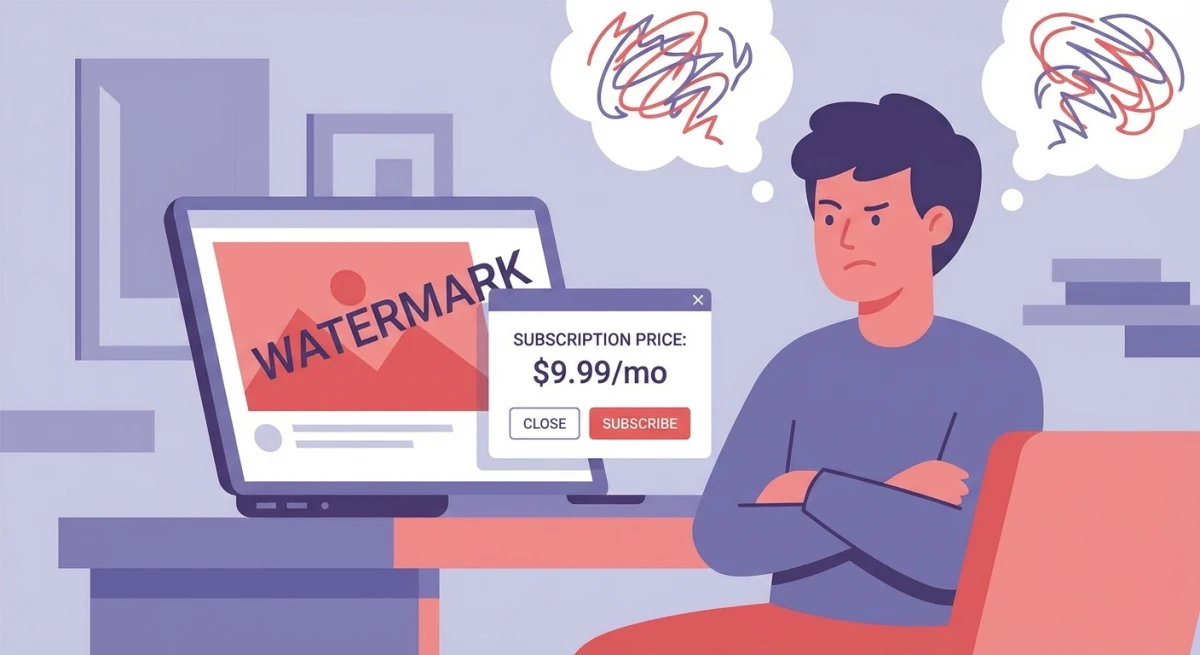
Watermarks on free tier
Free Gyazo adds a small watermark to screenshots. It's subtle, but looks bad in bug reports, client work, or portfolios. If you share screenshots with clients or paste them into documentation, that tiny Gyazo badge screams "free tool." Most alternatives on this list have zero watermarks, even on free tiers.
Pro costs extra for basic features
Want to mark up your screenshots? Edit them? Record longer GIFs? You need Gyazo Pro at $3.99/month. Other tools offer these features for free, or for a one-time fee.
Every screenshot auto-uploads
Every capture goes straight to Gyazo's cloud. You can't keep files local. For devs working with private code, API keys, or internal dashboards, that's a real problem. Your screenshots live on Gyazo's servers, and their privacy policy gives them broad rights to hosted content. If your company has data handling policies, forced cloud uploads may violate them outright.
Weak editing tools
Even with Pro, Gyazo's markup is basic. No blur tool for hiding sensitive info. No styled backgrounds for social sharing. No scrolling capture for long pages. If you want to annotate a bug report with arrows, blur out credentials, and add numbered steps, you need a different tool.
Gyazo GIF limits are tight
Free users get just 7-second GIF clips. Pro bumps that to 60 seconds. If you record UI flows, bug reproductions, or quick demos, 7 seconds isn't enough for most interactions. Other tools (including free ones) have no cap at all.
No Gyazo Chrome extension on its own
While there is a Gyazo Chrome extension, it only works with the desktop app installed. And even then, it just fires the same upload-only workflow. There's no in-browser annotation or local save option.
If any of these sound like you, the alternatives below fix every one of these issues.
How we tested these Gyazo alternatives
We installed each tool on a Mac running macOS Sequoia and tested day-to-day tasks: capturing regions, annotating bug reports, recording short GIF demos, and sharing links with teammates. We compared speed (time from shortcut to shareable link), editing features, privacy defaults, and pricing models.
Every tool on this list works natively on macOS. We excluded web-only tools and anything that hasn't been updated in the past year. Pricing was verified in January 2026.
Best Gyazo alternatives for Mac
1. ScreenSnap Pro: best overall
Pricing: One-time purchase (no subscription)
Best for: Devs, designers, and creators who want GIF recording + optional cloud
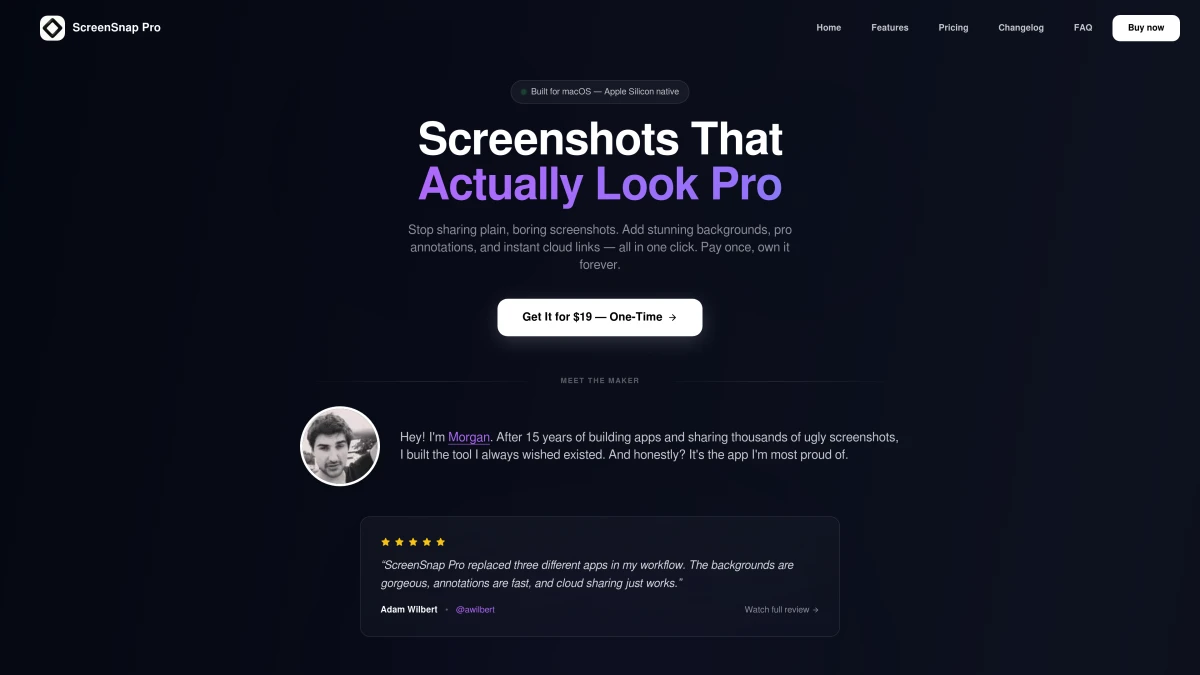
ScreenSnap Pro is my top Gyazo alternative for Mac. It does everything Gyazo does (screenshots, GIFs, instant sharing) and fixes every weak spot.
Key features:
- GIF recording with no time limit
- Optional cloud. Keep files local or share via link
- 500+ wallpapers for clean visuals
- 15 markup tools. Blur, arrows, text, counter, and more
- No watermarks ever
- OCR. Copy text from any image
- Pin screenshots to keep them on screen
Why it beats Gyazo:
The biggest win is control. Gyazo forces cloud uploads. ScreenSnap Pro lets you choose. Keep it local or share it. The choice is yours. And the one-time price means you own it for good. No monthly fees.
If you often record GIFs on Mac, ScreenSnap Pro's unlimited recording beats Gyazo's 7-second cap. For developers who share quick demos in Slack or Discord, the workflow is smoother: capture, annotate, copy the link, and you're done.
Ideal use case: You share screenshots daily, care about privacy, and want GIF recording without a subscription. Freelancers and indie devs get the most value here.
Pricing: Pay once, get lifetime updates.
2. Shottr: best free option
Pricing: Free
Best for: Users who want a fast, light screenshot tool
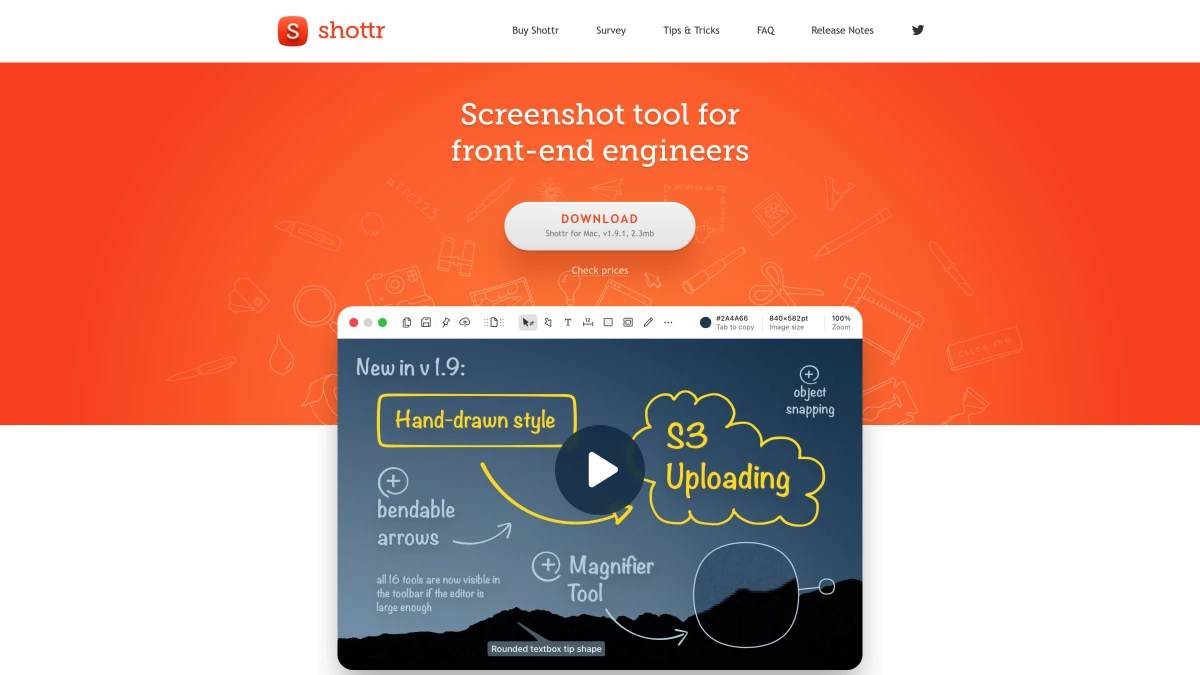
Shottr is a Mac-only screenshot app. It's free, fast, and packs features that some paid apps don't have.
Key features:
- Super-fast capture
- OCR text reading
- Scrolling screenshots
- Markup tools
- Pixel ruler for UI design
- No cloud needed
Limits:
- No GIF recording
- No cloud sharing
- Mac only
Ideal use case: You only need screenshots (no GIFs), prefer everything offline, and want a tool that launches in under a second. Great for UI designers who use the pixel ruler daily.
If you don't need GIFs and want to keep things local, Shottr is tough to beat at $0. See our full ScreenSnap Pro vs Shottr comparison for more details.
3. CleanShot X: feature-packed premium pick
Pricing: $29 one-time (cloud costs extra)
Best for: Power users who want every feature
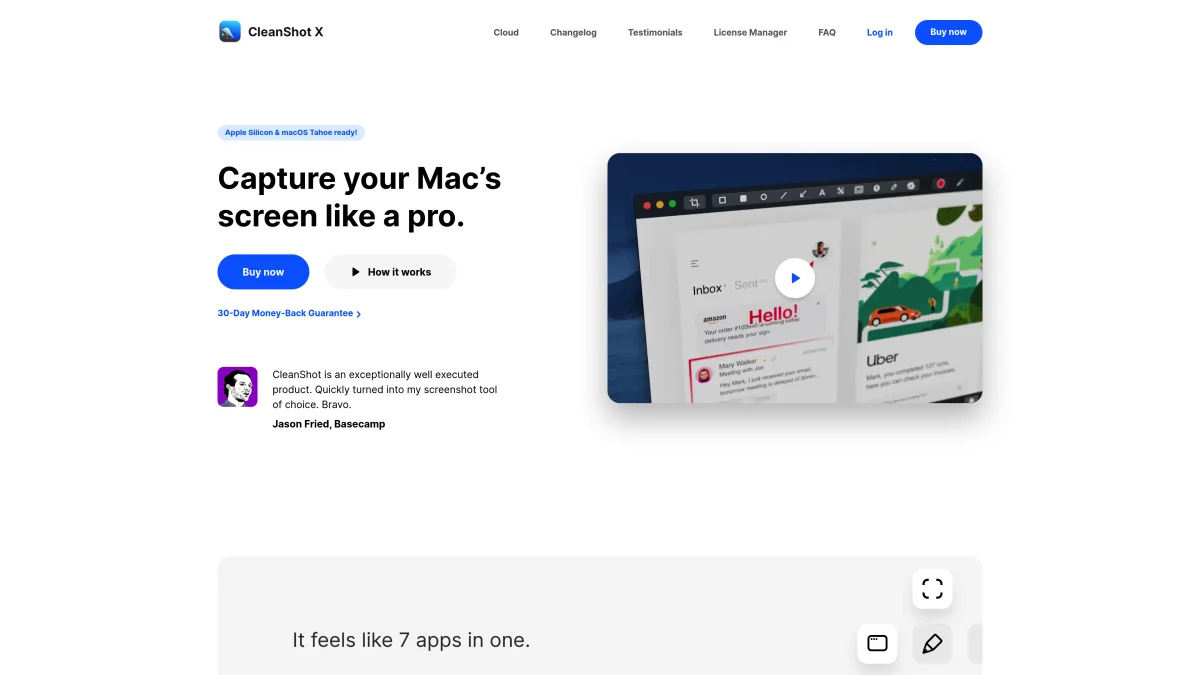
CleanShot X has the most features of any Mac screenshot tool. If you want it all and don't mind paying for cloud on top, it's great.
Key features:
- Screenshots, GIFs, and video capture
- Scrolling capture for long pages
- Hides desktop icons during capture
- Markup and drawing tools
- Quick access overlay
- Cloud sharing (extra cost)
Limits:
- Cloud needs a paid plan ($8/month)
- Can feel heavy with so many options
- Costs more than ScreenSnap Pro
Ideal use case: You record tutorials, write documentation with scrolling captures, and want one tool that does everything. Teams with a shared cloud plan benefit most.
CleanShot X is ideal if you need video, too. But if you mostly need screenshots and GIFs, our CleanShot X alternatives guide shows lighter picks.
4. Lightshot: simple and free
Pricing: Free
Best for: Quick, no-frills screenshot sharing
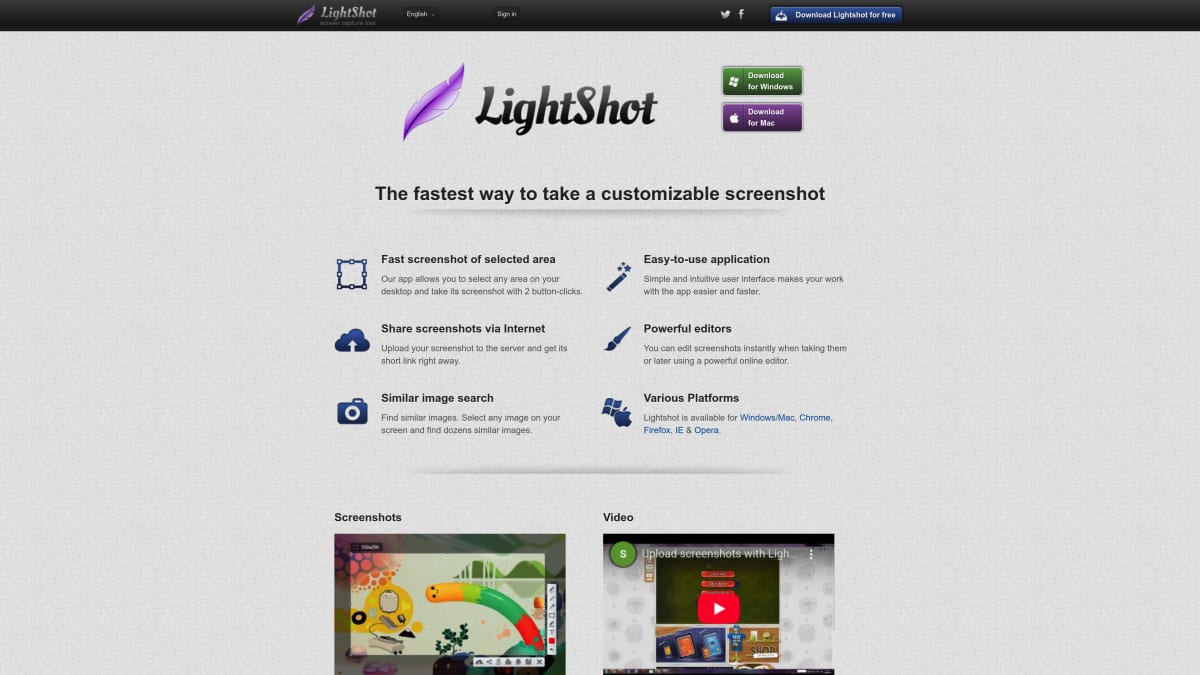
Lightshot is one of the oldest free screenshot tools. Pick a region, add basic notes, and upload for a link.
Key features:
- Region capture
- Basic markup (arrows, text, shapes)
- Instant cloud upload
- Works on Mac and Windows
- Browser add-ons
Limits:
- No GIF recording
- Basic editing only
- Uploads are public by default
- No local-only mode
- Old-looking UI
Ideal use case: You need a quick, no-install sharing tool for the odd screenshot. Fine for casual use, but not for anything sensitive or professional.
Lightshot works for simple, free sharing. But public uploads and no GIF support make it a weaker Gyazo alternative. We list more picks in our Lightshot alternatives guide.
5. ShareX: for Windows users switching to Mac
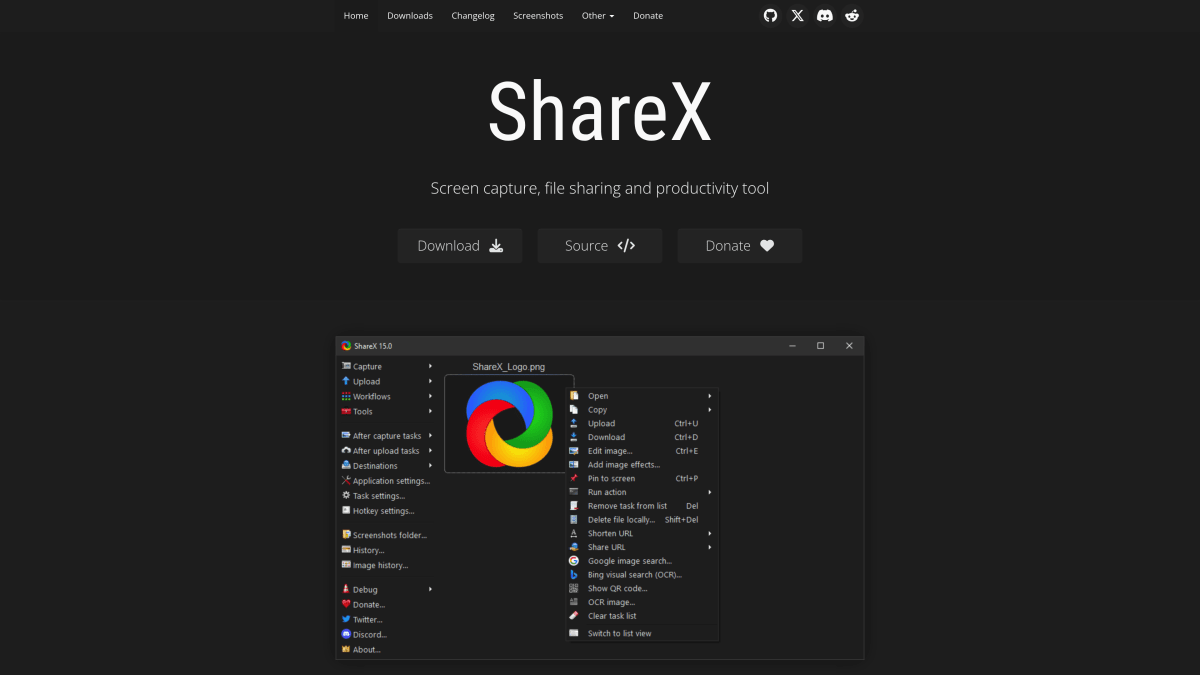
Pricing: Free (Windows only)
Best for: Windows users who want a Mac version of ShareX
Here's the catch: ShareX doesn't run on Mac. But many devs moving from Windows ask "what's the Mac version of ShareX?"
If you loved ShareX's power, custom workflows, and free price, these are the closest Mac matches:
- ScreenSnap Pro. GIF recording + optional cloud
- Shottr. Free, fast screenshots
- CleanShot X. Max features
Ideal use case: You just switched from Windows to Mac and need the same capture-annotate-share workflow that ShareX gave you. ScreenSnap Pro comes closest in terms of GIF support and optional cloud sharing.
ShareX fans should also check our Greenshot for Mac guide. Greenshot has the same Windows-only issue.
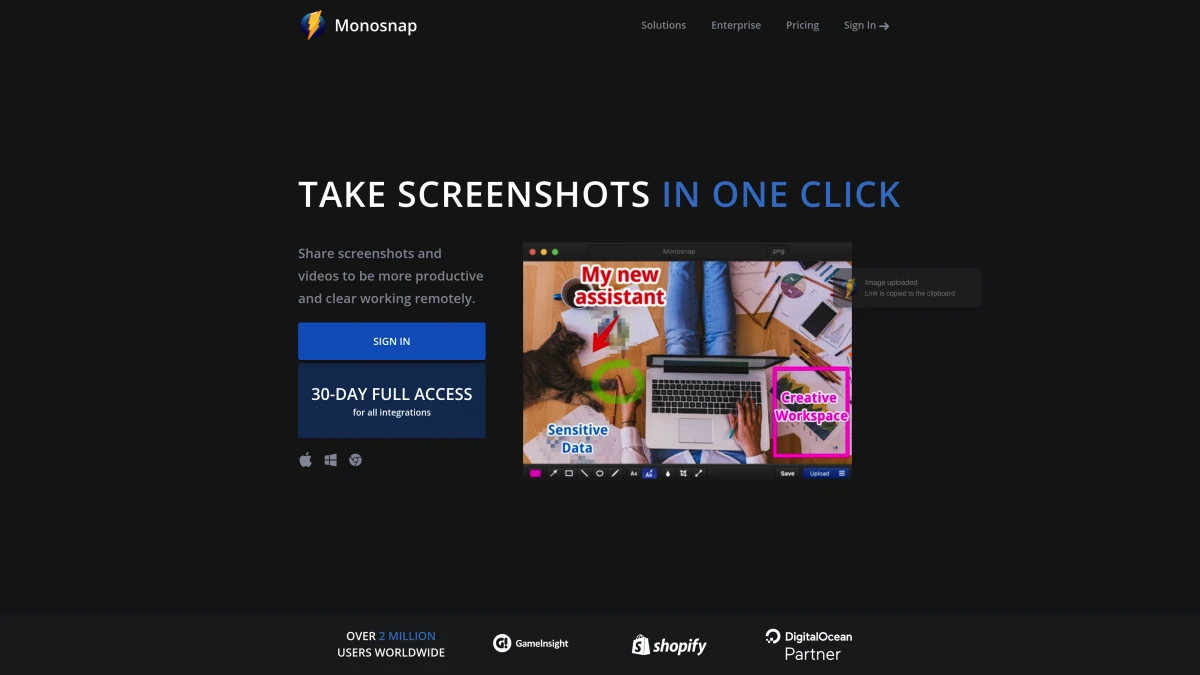
6. Monosnap: free tier with cloud
Pricing: Free tier, Pro at $5/month
Best for: Teams who need cloud sharing without paying upfront
Monosnap has a solid free tier with cloud storage. That makes it a good Gyazo alternative if you want shareable links at no cost.
Key features:
- Screenshots and video recording
- Free cloud storage
- Markup tools
- Plug into AWS, Google Drive, and more
- Works on Mac and Windows
Limits:
- Free tier has storage caps
- Pro needs a monthly fee
- Can lag on older Macs
- UI feels dated
Ideal use case: Small teams that need shared cloud storage for screenshots but aren't ready to pay upfront. The free tier handles most light workflows.
Monosnap's free tier gives you more than Gyazo's. But the Pro plan is a subscription. A one-time purchase tool saves more over time.
7. Built-in macOS Screenshot: native option
Pricing: Free (comes with macOS)
Best for: Users who only need basic captures
Before you install anything, macOS has built-in screenshot tools. They cover the basics well.
Built-in shortcuts:
⌘ + Shift + 3: Full screen⌘ + Shift + 4: Selected area⌘ + Shift + 5: Screenshot/recording toolbar
Apple's official screenshot guide covers all options.
What you get:
- Region, window, and full-screen capture
- Basic screen recording
- Timer option
- Custom save location
What's missing:
- No GIF recording (only video)
- No instant cloud links
- No markup tools
- No backgrounds or polish
- Only basic edits in Preview
Ideal use case: You take fewer than five screenshots a week and don't need to share links or record GIFs. The built-in tools handle simple captures well enough for occasional use.
Native tools work for the odd screenshot. But for daily use (especially if you share screenshots in Slack, Discord, or GitHub), a dedicated app saves real time. Learn how to change your screenshot save location to speed up your workflow.

Tired of plain screenshots? Try ScreenSnap Pro.
Beautiful backgrounds, pro annotations, GIF recording, and instant cloud sharing, all in one app. Pay $39 once, own it forever.
See pricing and featuresGyazo vs alternatives comparison table
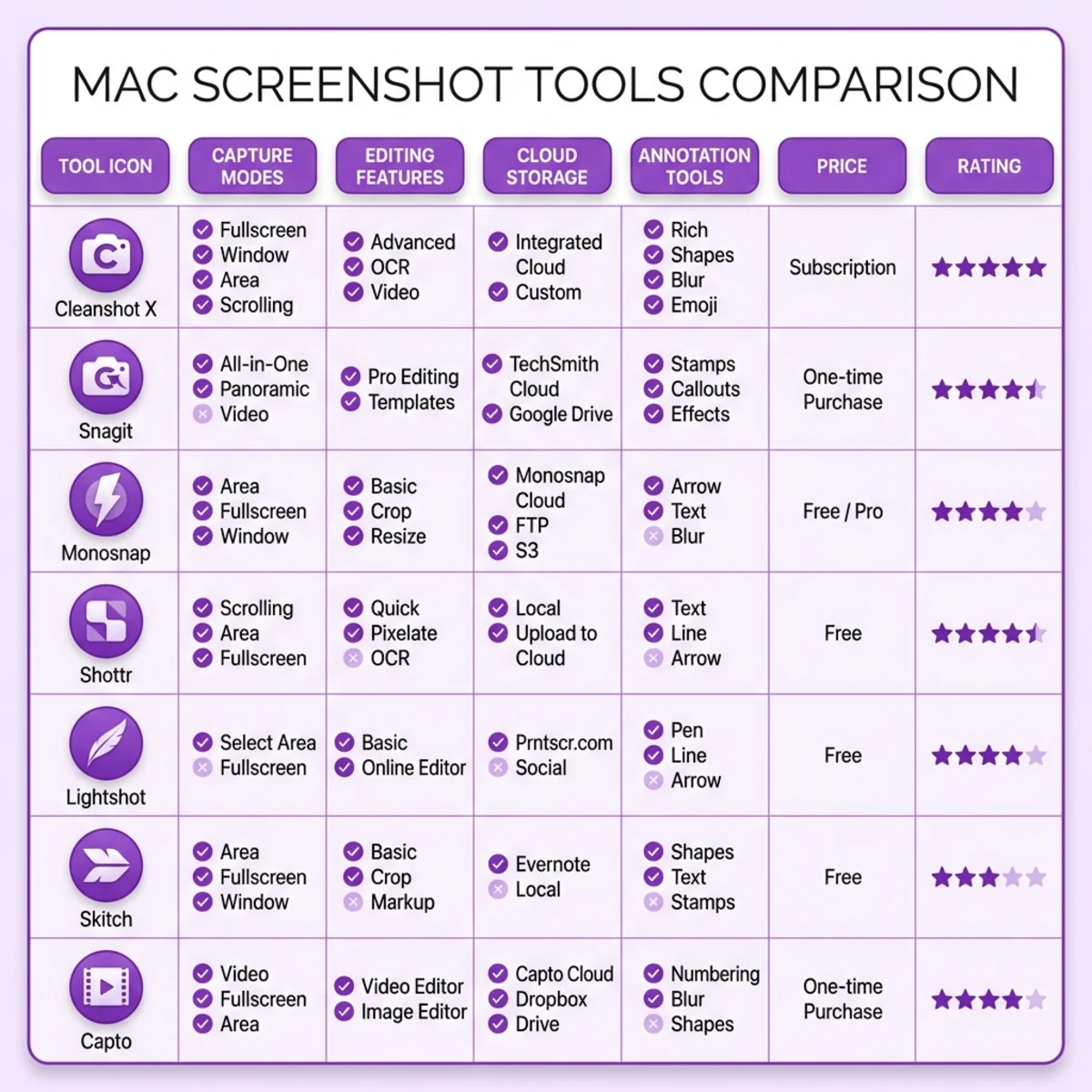
| Feature | Gyazo Free | ScreenSnap Pro | Shottr | CleanShot X | Lightshot | Monosnap |
|---|---|---|---|---|---|---|
| Price | Free / $3.99/mo | One-time | Free | $29 + cloud | Free | Free / $5/mo |
| GIF Recording | 7 sec | ✅ Unlimited | ❌ | ✅ | ❌ | ✅ |
| Watermarks | Yes (free) | ❌ None | ❌ None | ❌ None | ❌ None | ❌ None |
| Cloud Sharing | Required | Optional | ❌ | Paid add-on | Required | ✅ |
| Local Only | ❌ | ✅ | ✅ | ✅ | ❌ | ✅ |
| Markup Tools | Basic (Pro) | 15 tools | ✅ | ✅ | Basic | ✅ |
| OCR | ❌ | ✅ | ✅ | ✅ | ❌ | ❌ |
| Backgrounds | ❌ | 150+ | ❌ | ✅ | ❌ | ❌ |
Which alternative should you choose?
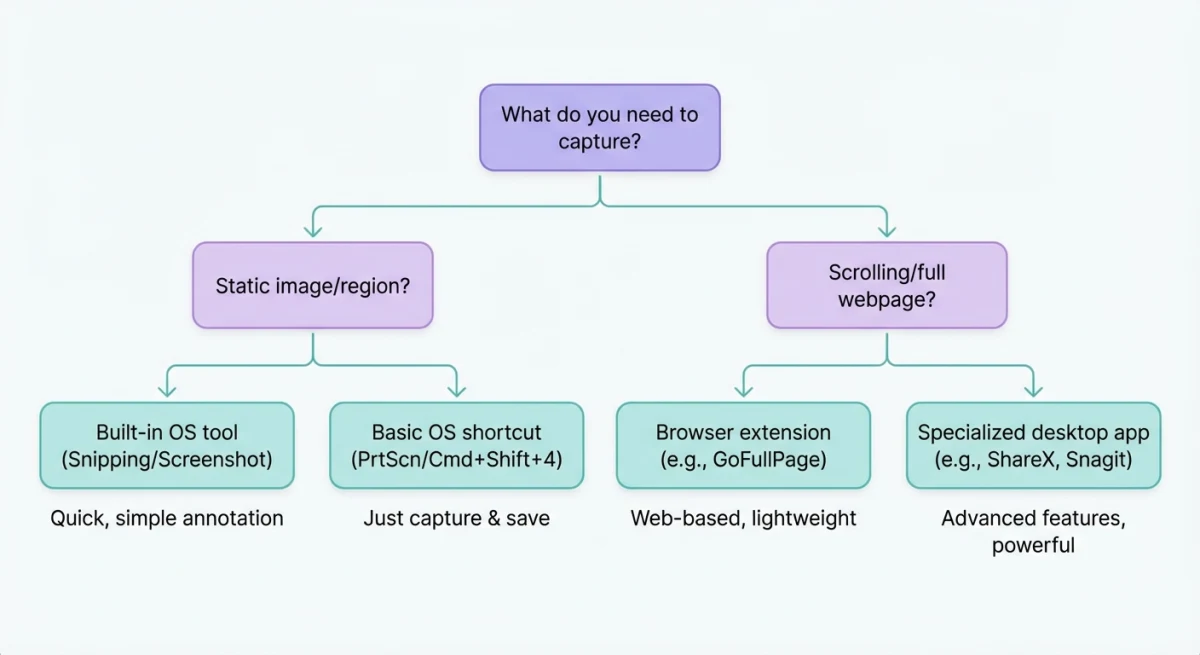
Pick ScreenSnap Pro if:
- You want GIF recording with no limits
- You prefer a one-time price over subscriptions
- Privacy matters and you want optional cloud, not forced
- You need pro backgrounds for your screenshots
- You want solid markup tools
Pick Shottr if:
- You want a fully free tool
- You don't need GIF recording
- You like keeping everything local
- You're a designer who needs pixel rulers
Pick CleanShot X if:
- You need video recording (not just GIFs)
- You want max features and don't mind the learning curve
- Cloud costs don't bother you
Pick macOS built-in if:
- You only take screenshots now and then
- You don't need instant share links
- You don't need markup or editing
Pick Monosnap if:
- Your team needs shared cloud storage now
- You want video recording on a free tier
- Cross-platform matters (Mac + Windows)
Stick with Gyazo if:
- Cross-platform sync is a must (Mac, Windows, mobile)
- Watermarks and fees don't bother you
- You only need the most basic sharing
For most Mac users who want a better Gyazo screenshot experience, ScreenSnap Pro is the move. Better features, more privacy, and a one-time price. If budget is your top priority, Shottr gives you a surprising amount of power at zero cost.
Tips for switching from Gyazo
Leaving Gyazo doesn't mean losing your old screenshots. Here's how to make a clean switch.
Export your Gyazo history. Log in to gyazo.com, open your gallery, and download captures you want to keep. Gyazo doesn't offer a bulk export, so grab the important ones manually or use a browser extension to batch-download images.
Update your shared links. If you've pasted Gyazo links in docs, READMEs, or Slack threads, those links stay active. But if you cancel Pro, watermarks may reappear on older images. Consider re-hosting critical images on your own cloud or using a tool like our free image format converter to save them in the format you need.
Set your new tool's shortcut. Most alternatives let you rebind the capture hotkey. Match it to your Gyazo shortcut so muscle memory still works. In ScreenSnap Pro, go to Preferences > Shortcuts and set your preferred combo.
Uninstall Gyazo last. Keep Gyazo installed until you've confirmed your new tool handles every workflow: screenshots, GIFs, sharing links. Then drag Gyazo to the trash.
Frequently Asked Questions
Wrapping up
Gyazo made instant screenshot sharing popular. But the game has moved on. Today's tools offer better privacy, stronger editing, and fairer pricing, especially on Mac.
Ready to move on from Gyazo? ScreenSnap Pro gives you GIF recording, optional cloud, pro-grade tools, and a one-time price. No watermarks. No subscriptions. No forced uploads.
On a budget? Shottr is solid and free, just without GIFs or cloud sharing.
Either way, you don't have to put up with Gyazo's limits.

Morgan
Indie DeveloperIndie developer, founder of ScreenSnap Pro. A decade of shipping consumer Mac apps and developer tools. Read full bio
@m_0_r_g_a_n_