7 Guidde Alternatives Without Per-Creator Pricing (2026)
Most people looking for a Guidde alternative are not unhappy with the product. They are unhappy with the bill. Guidde prices per creator per month, so the cost of documenting a process grows with the number of people allowed to document it. The seven options below split into three groups: a tool you buy once, seat-based tools that cost less per creator, and free tiers you can genuinely live inside. The short answer: ScreenSnap Pro if you want to stop paying per creator and can write the steps yourself, Scribe or Tango if you want the steps written for you, and Supademo or Arcade if the guide is aimed at customers.
Guidde turns a screen recording into a narrated how-to video with AI voiceover, which is a real and useful trick. The catch shows up when documentation stops being one person's job. Every extra person who needs to create a guide is another seat, and the desktop capture most technical teams actually need sits on the higher tier.

Tired of plain screenshots? Try ScreenSnap Pro.
Beautiful backgrounds, pro annotations, GIF recording, and instant cloud sharing, all in one app. Pay $34 once, own it forever.
See pricing and featuresWhat Guidde costs, and where the ceiling is
Checked against Guidde's pricing page on 11 October 2026:
| Plan | Price per creator, per month | What you get |
|---|---|---|
| Free | $0 | Up to 25 how-to videos, web apps only, voiceover, link sharing |
| Pro | $19 annual, $29 monthly | Unlimited videos, watermark removed, brand kit, export to video, PPT and PDF |
| Business | $39 annual, $59 monthly | Adds desktop app capture, text to voice, analytics, PDF and PPT to video |
| Enterprise | Contact sales | SSO, multi-language, PII redaction, review and version control |
Two details do most of the damage to a budget.
The free tier is web only. Guidde's browser capture is the free and Pro experience. Capturing a desktop application moves you to Business. If you document anything that is not a web app, the realistic entry price is the Business tier.
The watermark sits on the free tier. Removing Guidde branding starts at Pro, so free output is not client-ready.
None of that makes Guidde a bad tool. It makes it an expensive one for a five-person team that each need to record occasionally, which is exactly the situation that sends people looking for alternatives.
The 7 Guidde alternatives compared
| Tool | Pricing model | Desktop capture | Best when |
|---|---|---|---|
| ScreenSnap Pro | One-time, $34 | Yes | You want capture, recording, video editing and GIFs without a subscription |
| Scribe | Per seat, monthly | Paid tiers | You want written step-by-step docs, not video |
| Tango | Per user, monthly | Pro tiers | You want guides that live in the browser and export to PDF |
| Loom | Per creator, monthly | Yes | The "document" is really just a video message |
| Snagit | Per user, yearly subscription | Yes | You need heavy annotation and a step-capture workflow |
| Supademo | Per seat, monthly | Paid tiers | You need a clickable interactive demo, not a video |
| Arcade | Per seat, monthly | Yes | You are building product demos for marketing or sales |
The rest of this guide covers when each one is the right answer, and where each one falls down.
1. ScreenSnap Pro: capture and record once, pay once
ScreenSnap Pro takes the opposite approach to Guidde on pricing. It is a screenshot app and screen recorder for Mac and Windows that you pay for once, with no subscription and no per-creator maths.
Pricing: $34 one time for a licence with 2 seats, in any mix of Mac and Windows. Updates are included for life, and there is a 30-day money-back guarantee.
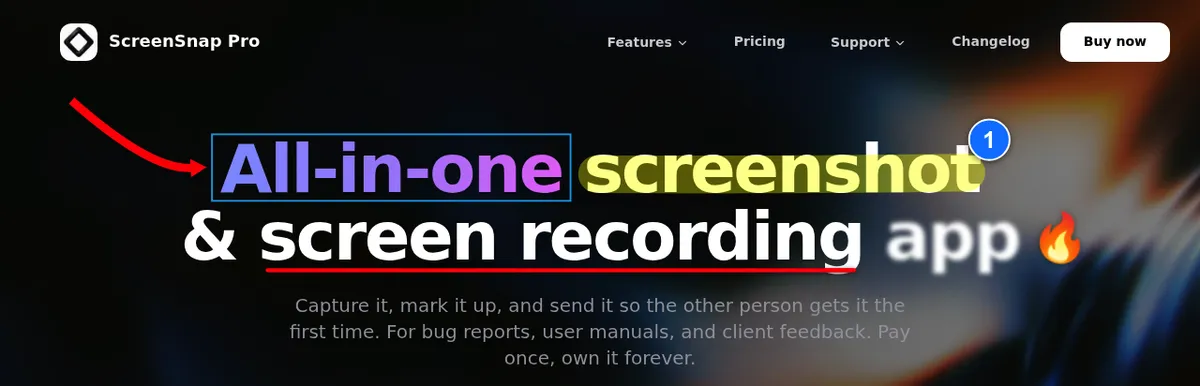
Why it is first: the usual reason to leave Guidde is the per-creator bill, and a narrated walkthrough is mostly a screen recording plus a voice track. ScreenSnap Pro is the only tool on this list you buy once, and it puts screenshots, a screen recorder and a video editor in one app. A five-person team does not pay five times.
What it does that maps onto documentation work:
- Screen recording to MP4 at up to 60fps with webcam, microphone and system audio, so a narrated walkthrough needs no second tool
- A built-in video editor with a multi-track timeline (trim, split, cut, speed), one-click silence removal, and separate voiceover, music and B-roll tracks. It adds cursor-follow auto zoom, a webcam overlay and MP4 or GIF export, and projects reopen, so a walkthrough can be fixed later instead of re-recorded
- GIF recording straight from the screen, which is often the right format for a three-step interface explanation
- 17 annotation tools, including arrows, callouts, a step counter, a spotlight, text, blur and pixelate for redacting anything sensitive before a doc goes out, plus emoji
- Area, window, full-screen and delayed capture, plus full-page captures of a website from its URL
- OCR for pulling text out of a captured screen
- No watermarks at any tier, because there are no tiers
Be clear about what it is not. ScreenSnap Pro does not auto-generate a written step-by-step guide from your clicks, which is Guidde's and Scribe's core trick. It has no AI voiceover, no team workspace, and no shared library. You can record your own voiceover on its own track in the editor, but nothing writes or reads the script for you. It is a capture and recording tool, so the doc itself still gets assembled in whatever wiki or doc tool you already use.
That trade is a good one when your team already has Notion, Confluence or a Google Doc and the missing piece is clean visuals. It is a bad one when the automatic step write-up is the whole reason you were looking at Guidde.
For the workflow around it, see our guide to documenting a process with screenshots and the broader process documentation guide.
2. Scribe: written guides instead of narrated video
Scribe records your clicks and writes the steps for you, producing a text and screenshot document rather than a video. If what you actually need is an SOP that someone can skim, this is a better format than a two-minute narrated clip.
Pricing is per seat, and as of 11 October 2026 Pro Personal is $35 per seat monthly or $25 annual, with Pro Team at $29 per seat monthly or $23 annual on a five-seat minimum. The free Basic plan works in the browser only. Cheaper per seat than Guidde Business, but still per seat.
We have a full breakdown in our Scribe alternatives comparison, including what each option costs at 1, 5 and 25 users.
3. Tango: browser-first guides with a real free tier
Tango sits close to Scribe. It captures a workflow in the browser and turns it into a shareable guide with screenshots and annotations.
The reason it belongs on this list is its free tier, which allows 5 shared workflows, browser capture, link and embed sharing, and up to 10 users in a workspace. For a small team documenting a handful of core processes, that can genuinely be enough. Paid Pro plans start at $15 per user per month for teams of 3 or more, or $22 per user per month for 1 to 2 users, billed annually, and that is where desktop capture, exports and blurring arrive.
4. Loom: when the doc should have been a video message
Plenty of things that get documented as a formal guide would be better served by a two-minute recording sent once. Loom is built for exactly that: record, get a link, move on.
Pricing (checked 11 October 2026): Starter is free, with 25 videos per person, recordings of up to 5 minutes and 720p quality. Business is $15 per user per month billed yearly, or $18 monthly. Business + AI is $20 yearly, or $24 monthly.
It does not produce a structured step-by-step artefact, and it is seat-based like Guidde, so it is not a cost escape so much as a format change. Loom is the right call when the content has a short shelf life. It is the wrong call for a procedure that 40 people will consult over two years, because nobody scrubs through a video to find step 6.
If the format fits but the pricing does not, we compare the options in free Loom alternatives.
5. Snagit: heavy annotation, now on a yearly subscription
Snagit from TechSmith, now branded Camtasia Snagit, was the long-standing one-time-licence answer in this space. That changed with Snagit 2025, when it became subscription only. It is a capture and annotation tool first, with a Step Capture feature that records a sequence of clicks and lays them out as numbered steps.
Pricing (checked 11 October 2026 on TechSmith's US store): Snagit Individual is $39 per user per year, and Snagit Business is $48 per user per year. There is no one-time licence any more.
It is the closest thing on this list to Guidde's output at a fraction of the per-seat cost, though the result is more of an annotated screenshot sequence than a narrated AI video. Unlike ScreenSnap Pro, you pay for it again every year, and the interface carries a lot of features you may never open.
6. Supademo: interactive demos, not videos
Supademo makes clickable, interactive walkthroughs. The viewer clicks through a simulated version of your interface rather than watching someone else click.
Pricing (checked 11 October 2026): Free covers 1 creator and 5 interactive demos, with Supademo branding. Scale is $38 per creator per month billed yearly, or $50 monthly, and paid plans come with a 14-day trial.
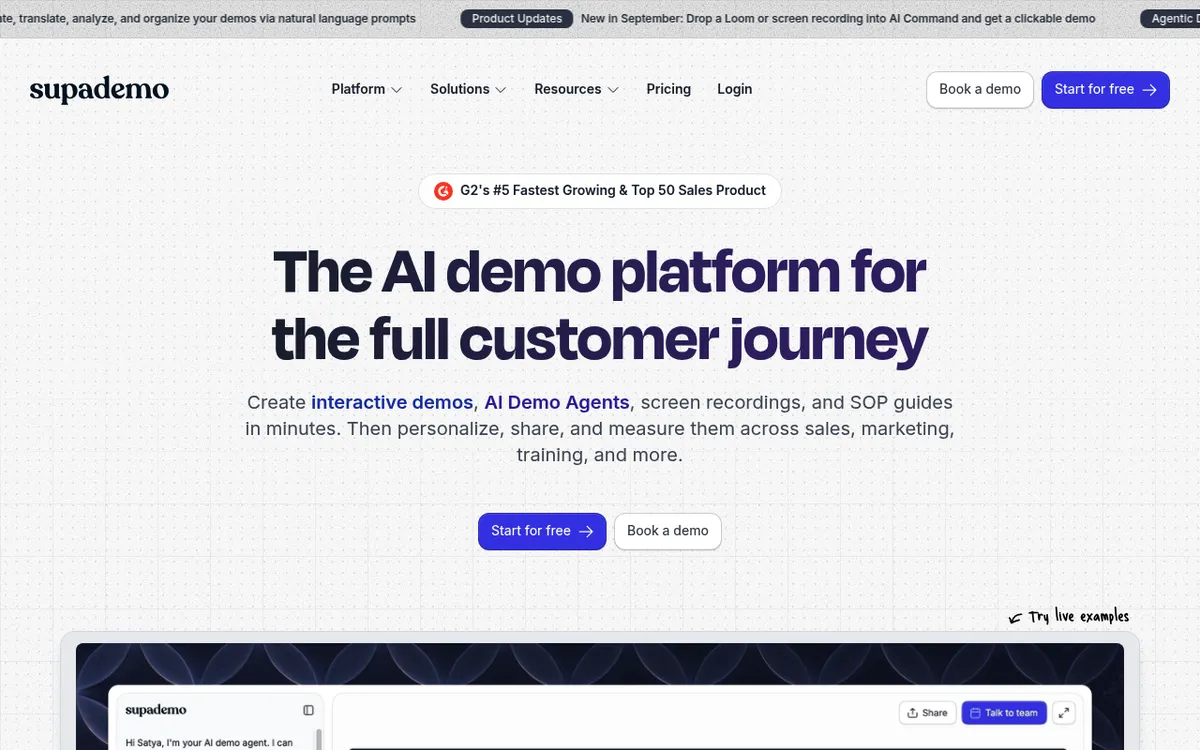
For onboarding and product education this converts better than video, because the person is doing rather than watching. It starts in the browser, with Mac and Windows desktop apps from the Scale plan up, and it bills per creator seat, so it solves a format problem rather than a pricing one. Worth a look when the guide is aimed at customers instead of colleagues.
7. Arcade: demos aimed at buyers
Arcade is the marketing-facing cousin of Supademo, built for polished product demos that sit on a landing page or go out in a sales email. In 2026 it also moved into AI-made product videos.
Pricing (checked 11 October 2026): Free covers 1 user and 1 published demo, with the Arcade watermark. Growth is $42.50 per seat per month billed yearly, or $50 monthly. Enterprise is custom.
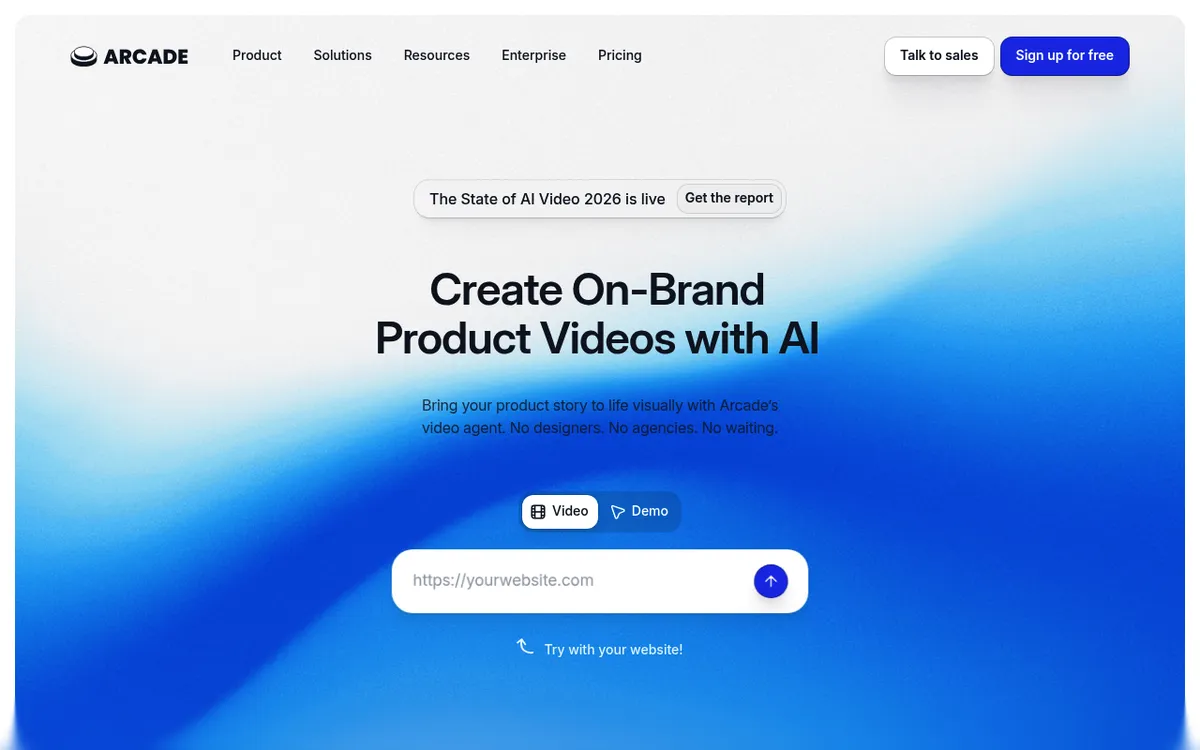
If your Guidde usage is really "show prospects how the product works", Arcade is aimed squarely at that job and its output looks the part. If your usage is internal SOPs, it is the wrong tool and priced accordingly.
How to pick without overbuying
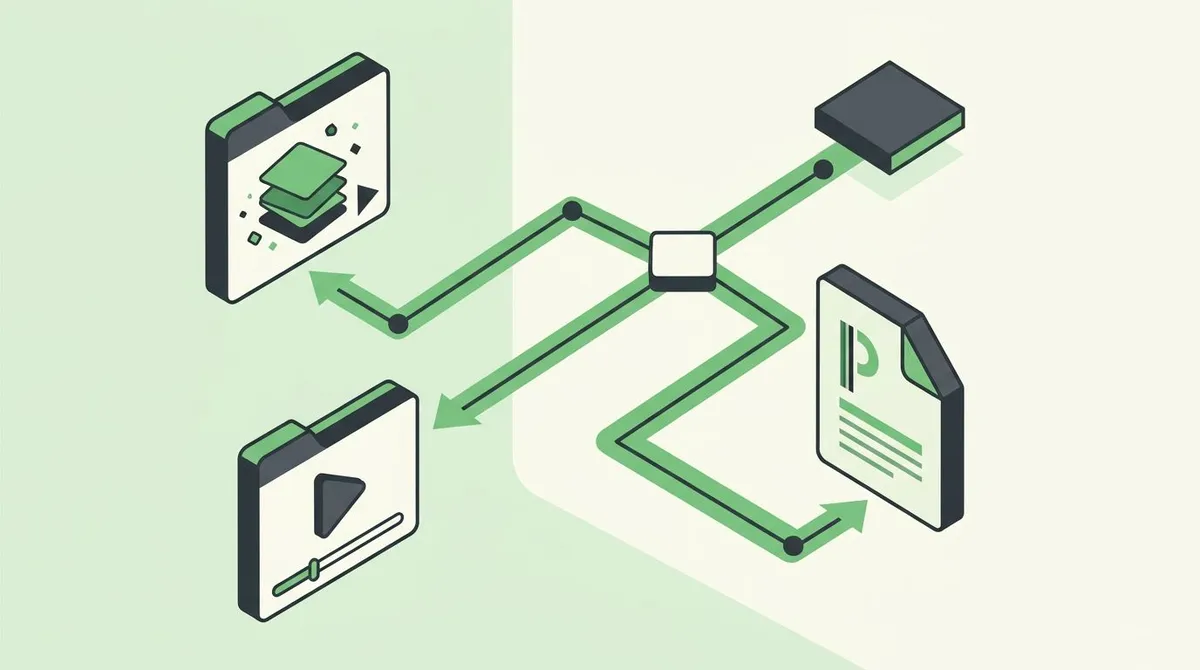
Work backwards from the artefact, not from the tool:
- Is the real problem the monthly bill? Then look for a tool you buy once that covers your formats. On this list that is ScreenSnap Pro, which handles stills, GIFs and narrated video with an editor for $34. Snagit used to share this branch, but it moved to a yearly subscription in 2025.
- Does the reader need to skim it later? Then you want a written guide with screenshots. Look at Scribe, Tango, or capture-and-annotate into the wiki you already pay for.
- Is it a one-off explanation? Record it and send the link. Loom, or any screen recorder you already own.
- Is it three steps in one interface? A GIF beats both. It loops, it needs no player, and it drops into a chat message or a ticket.
- Is the audience a customer, not a colleague? Interactive demos win. Supademo or Arcade.
Most teams over-solve this. They buy a per-seat AI documentation platform to produce artefacts that a screenshot with an arrow on it would have handled. Our process documentation tools roundup goes deeper on matching the format to the job.
The capture-and-annotate route in practice
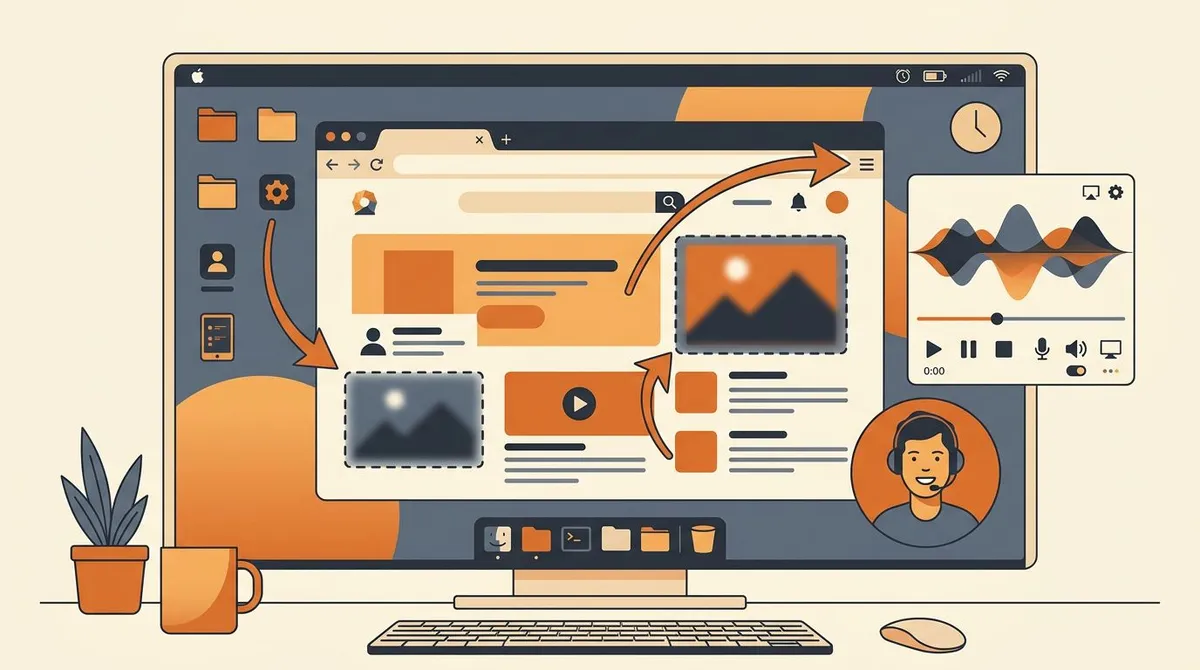
If you land on the one-time-purchase branch, the working loop looks like this:
- Capture the screen or record the flow. Region capture for a single dialog, recording for anything with motion.
- Annotate immediately. Arrow to the control, text label if the control is ambiguous, blur over anything with a real name, email or key in it.
- Choose the format. Still image for a step, GIF for a short sequence, video with narration for anything longer than about 30 seconds.
- Paste it into the doc. The doc lives in your wiki, so it is searchable, versioned and linkable with tools you already run.
Step 2 is the one people skip and later regret. Redacting sensitive data at capture time is much easier than auditing 200 published screenshots afterwards. If you work on a Mac, our guide to annotating screenshots properly covers the conventions that keep a doc set looking consistent.
If you want one app for all four steps, ScreenSnap Pro handles capture, annotation, GIFs and narrated video for a one-time $34.
Frequently Asked Questions

Morgan
Indie DeveloperIndie developer, founder of ScreenSnap Pro. A decade of shipping consumer Mac apps and developer tools. Read full bio
@m_0_r_g_a_n_