7 Scribe Alternatives Without Per-Seat Pricing (2026)
If you want to document a process without paying per seat, the alternatives fall into five groups: a one-time capture app such as ScreenSnap Pro feeding the wiki you already pay for, one-time-license desktop guide builders such as Folge, deliberately capped free tiers, self-hosted open source, and short video or GIF walkthroughs. Each one trades some auto-capture speed for a cost that stops scaling with headcount.
Most Scribe alternatives roundups skip that part. They list eight tools, and every single one is still billed per user per month, which is the exact thing that sent you looking. This article is organised by pricing model instead of by tool ranking: seven ways spread across those five groups, so you pick the billing shape first and the software second.
Why teams leave Scribe: start with the seat math
Scribe is good at the thing it was built for. Turn on the recorder, click through a task, and it writes numbered steps with a screenshot for each click. Its newer Autocapture feature goes further and documents work without a start button. Nothing on this page matches that for raw speed.
The problem shows up on the invoice. Here is what Scribe charges, taken from its own pricing page and checked in October 2026:
| Scribe plan | Monthly | Annual | Seat minimum |
|---|---|---|---|
| Basic | $0 | $0 | 1 |
| Pro Personal | $35 per seat | $25 per seat | 1 |
| Pro Team | $29 per seat | $23 per seat | 5 |
| Enterprise | Custom | Custom | Contact sales |
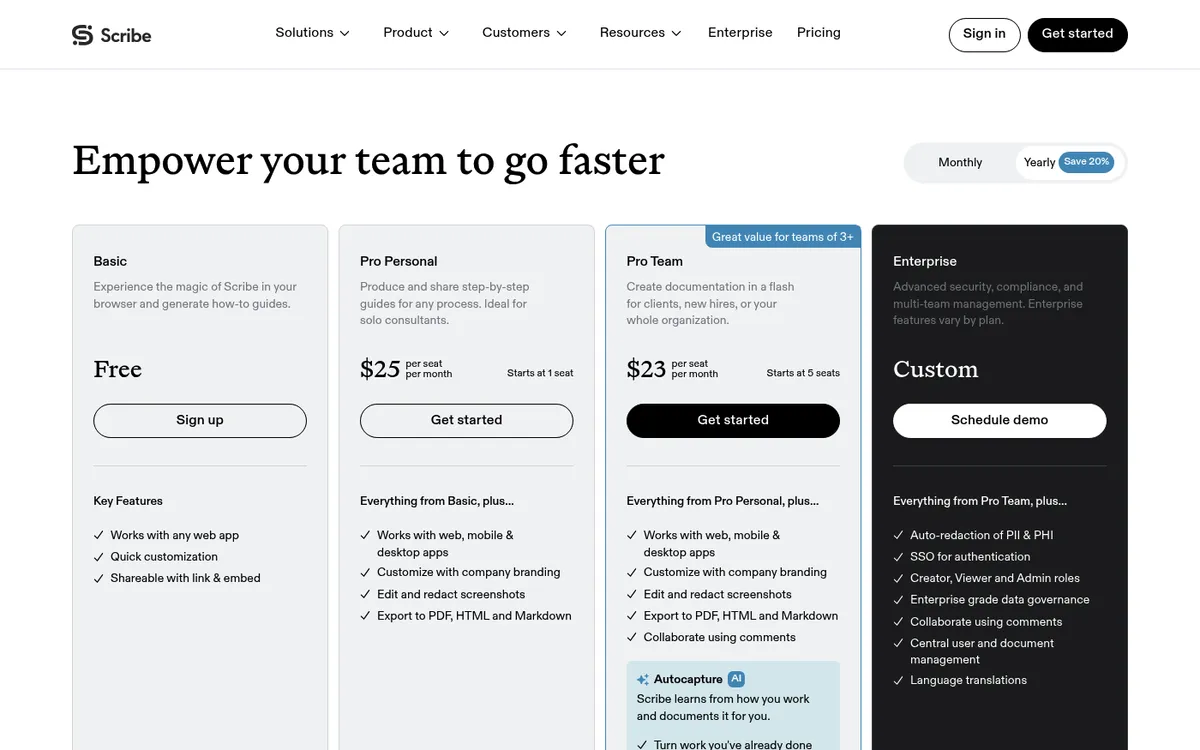
Two details in that table do most of the damage. The cheaper per-seat rate only starts at five seats, so a three-person ops team either overpays for two empty chairs or pays the Pro Personal rate. And the number never stops growing, because a process doc is read by everyone and edited by a handful of people, yet the plan is priced by editor. Scribe also sets plans at the team level, so when one person upgrades to Pro, the whole team is upgraded with them.
There are non-price reasons people switch too:
- Free capture is web only. The Basic tier works with web apps. Desktop and mobile capture sit behind Pro, so anything you do in Excel, a terminal or a native line-of-business app is out of reach without paying.
- Export and branding are paid features. PDF, HTML and Markdown export plus company branding are listed under Pro. On the free tier your guide lives where Scribe puts it, in Scribe's own dressing.
- Unlimited guide creation is a Pro line item, so a free-tier documentation sprint hits a wall partway through.
- Guides go stale silently. Auto-capture writes the guide once. When a vendor redesigns a settings page, every screenshot in that guide is now wrong and nothing tells you.
None of that makes Scribe a bad tool. It makes it a tool whose cost curve and capture scope may not match your team, and that problem has cheaper answers.
Scribe alternatives compared: cost at 1, 5 and 25 users
This is the table no other page on this query publishes. Every figure comes from the vendor's own pricing page and was checked in October 2026. Monthly billing is shown unless the row says otherwise, and "auto-capture" means the tool records your clicks and writes the steps for you.
| Approach | Pricing model | 1 user | 5 users | 25 users | Auto-capture | Free tier limit |
|---|---|---|---|---|---|---|
| ScreenSnap Pro | One-time license, 2 seats | $34 once | $34 per 2-seat license | $34 per 2-seat license | No, manual capture plus screen recording | No free tier, 30-day money-back guarantee |
| Scribe Pro Team | Per seat, monthly | Not available (5 seat minimum) | $145/mo | $725/mo | Yes | Web apps only, capped guides |
| Scribe Pro Personal | Per seat, monthly | $35/mo | $175/mo | $875/mo | Yes | Same as above |
| Tango Pro | Per seat, monthly | $26/mo | $100/mo | $500/mo | Yes | 5 shared workflows, up to 10 users |
| Guidde Pro | Per creator, monthly | $29/mo | $145/mo | Enterprise quote | Yes | 25 how-to videos |
| iorad | Per creator seat | $200/mo (Individual) | $700/mo (Team: $500 plus $50 per extra seat) | $1,700/mo on Team, or an Enterprise quote | Yes | Unlimited public tutorials |
| Loom Business | Per seat, monthly | $18/mo | $90/mo | $450/mo | No, it records video | 25 videos, 5 minute cap |
| Trainual | Quote only | Quote | Quote | Quote | No | None, plus a $1,000 implementation fee |
| Folge Business | One-time, per seat | $155 once | $775 once | $3,875 once | Yes, click capture | 5 guides, 20 online guides |
| Manual capture into your existing wiki | No new line item | $0 extra | $0 extra | $0 extra | No | Whatever your wiki already allows |
| Self-hosted open source | Hosting only | Server cost | Server cost | Server cost | No | Unlimited, you run it |
Read the subscription rows against the rest. The subscriptions bill again every month and grow with every seat. ScreenSnap Pro, Folge, manual capture and self-hosting are paid once or not at all.
One note on the ScreenSnap Pro row: a license covers two computers in any mix of Mac and Windows, so you buy for the people who create documentation, not for everyone who reads it.
Way 1: Capture and annotate into the wiki you already pay for
This is the route most teams overlook, and it is the cheapest one that still produces a professional document.
You already pay for a place to put words: Notion, Confluence, Google Docs, SharePoint, a help desk knowledge base. None of those charge you extra to add images. So the only gap between you and a finished process doc is a capture tool good enough that the screenshots do not look like an afterthought.
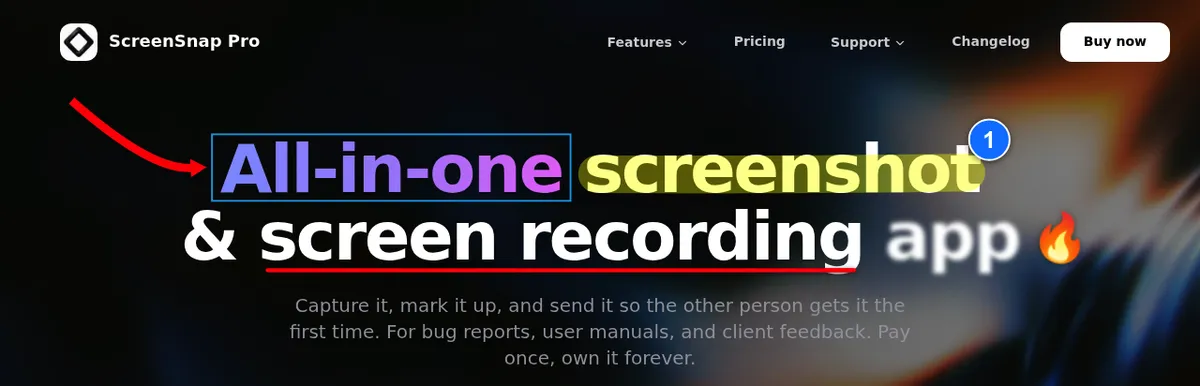
Be clear about the trade before you pick this. ScreenSnap Pro does not auto-capture your clicks and it does not write your step text. Scribe does both, and that is real time saved. What ScreenSnap Pro handles is the capture layer: area, window, full-screen and delayed shots, 17 annotation tools including a step counter, arrows, callouts and blur, and export with no watermark, for $34 one time on a license that covers two computers in any mix of Mac and Windows.
It also records your screen, so one purchase covers more than screenshots. It records GIFs directly and MP4 at up to 60fps with webcam, mic and system audio. The built-in video editor trims, cuts and removes silences in one click, so the GIF and walkthrough routes in ways 5 and 7 need no second tool.
Who it fits: anyone whose documentation cost should not scale with headcount, and anyone who documents native apps, terminals or installers where a browser extension cannot reach.
What it costs: $34 once per license, plus nothing for the document, because the document is a page in a tool you are already billed for. Updates are included for life.
Where it breaks: you write the steps. For a 40 step software rollout, expect to spend real time on it. If you document the same 12 processes over and over and speed is the only metric, an auto-capture tool earns its subscription. There is also no shared team workspace, so version history and permissions live in your wiki.
The mechanics are worth doing properly, and we cover them separately in how to create step-by-step instructions with screenshots. For choosing a markup tool, our best image annotation tools roundup compares the options including free browser ones.
Way 2: Buy a desktop guide builder once
A small category of desktop apps does what Scribe does, captures your clicks and assembles a numbered guide, but sells you a perpetual license instead of a seat.
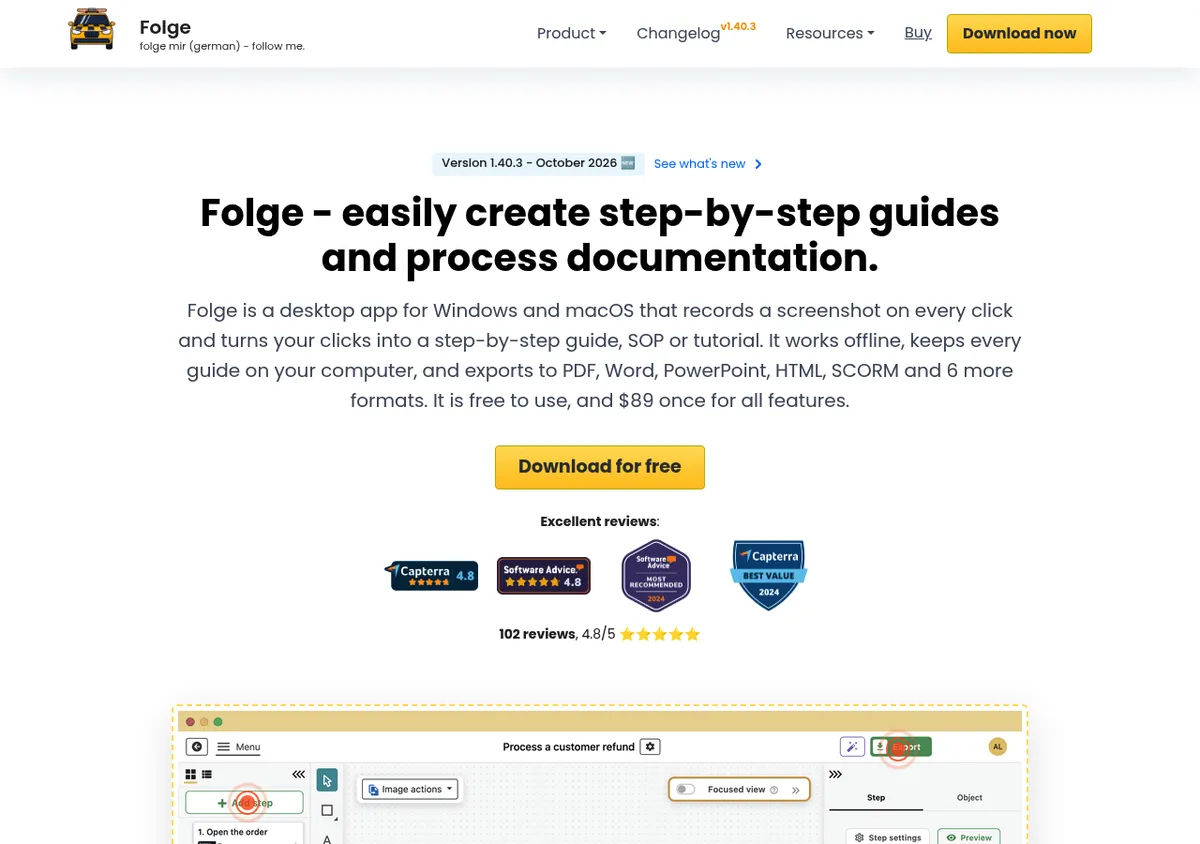
Folge is the clearest example. Its free tier allows 5 guides. The Personal license is $89 one time for a single platform, and the Business license is $155 one time per seat and covers both Mac and Windows. All three tiers include the annotation tools, and the free tier exports to PDF. The paid tiers open up the full set of eight export formats, plus Notion and WordPress on Personal and Confluence on Business.
Who it fits: teams of 2 to 10 who document desktop software, not just browser tabs, and who would rather approve one purchase order than a recurring line item.
What it costs: $155 once per creator at the Business tier. Twenty-five creators is $3,875 paid once, which is a little over five months of Scribe Pro Team at the same headcount on monthly billing.
Where it breaks: there is no shared cloud workspace. Business seats can work on the same guide files from a shared folder such as a network drive or Dropbox, but version control lives in whatever system you paste the guides into. The Personal license is also tied to one platform and one machine.
TechSmith's Snagit used to be the obvious second name here, but TechSmith moved to annual subscriptions starting with its 2025 releases, so it no longer belongs in a one-time-purchase category.
Way 3: Live inside a free tier on purpose
Free tiers are usually treated as trials. Treated as a permanent home instead, several of them are genuinely workable, as long as you design your documentation around the cap rather than discovering it later.
Here is what each free tier actually gives you, checked in October 2026:
| Tool | Free tier ceiling | What is missing |
|---|---|---|
| Scribe Basic | Web app capture, share by link and embed | Desktop capture, export formats, own branding, unlimited guides |
| Tango free | 5 shared workflows, up to 10 users per workspace | Unlimited workflows, desktop capture, branded exports |
| Guidde free | 25 how-to videos per creator | Watermark removal, brand kit, video and PDF export |
| iorad free | Unlimited capture and unlimited public tutorials | Private tutorials, which is the paid part |
| Loom Starter | 25 videos, 5 minute recording cap | Longer recordings, unlimited library |
| Folge free | 5 guides, 20 online guides | Extra export templates, unlimited guides |
Tango has the widest free tier for a small team: 5 shared workflows and up to 10 users. Capture runs in Chrome or Edge, and the desktop app is for paid plans only.
Guidde turns a capture into an AI narrated video guide. The free plan keeps 25 videos with web capture only, and viewers never need a paid seat. Pro is $29 per creator a month, or $19 on annual billing.
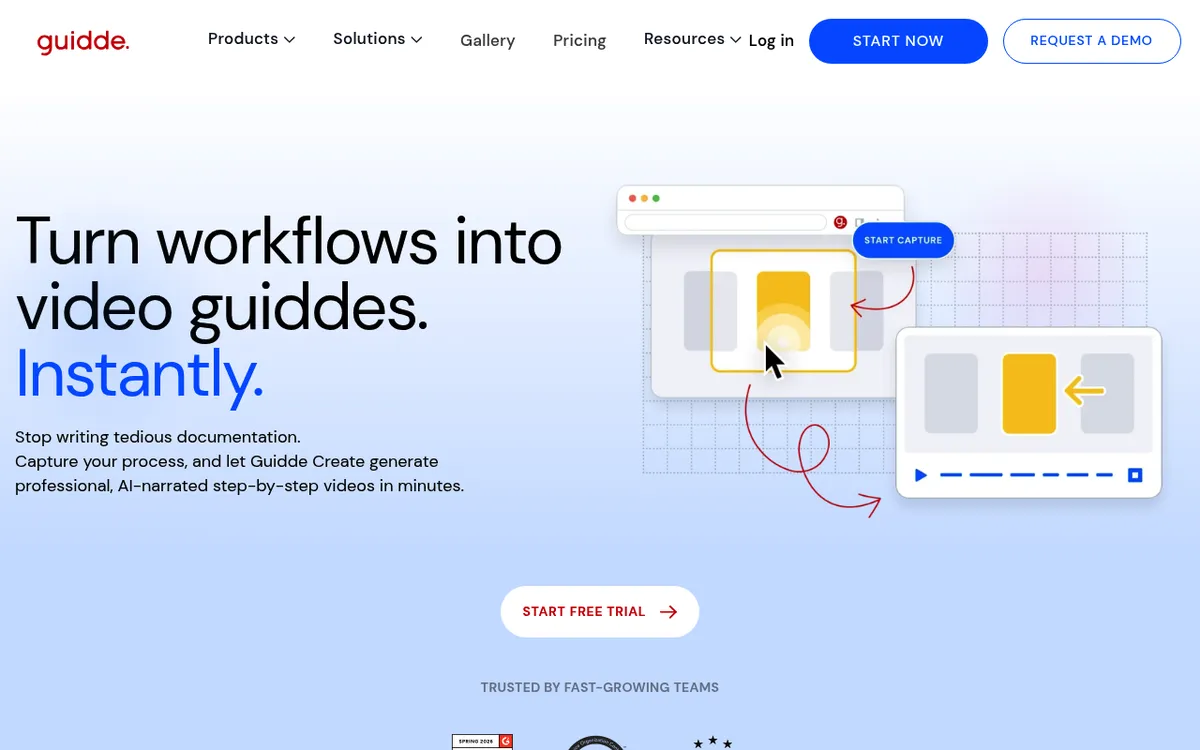
iorad gives you unlimited capture and unlimited public tutorials for free. Private tutorials start at $200 a month on Individual. Team is $500 a month with one seat included, plus $50 for each extra seat.
Who it fits: teams with a small, stable set of core processes. Fifteen well-maintained SOPs beat 200 abandoned ones, and 15 fits inside most of these caps.
What it costs: nothing, plus the discipline to keep the doc count under the ceiling.
Where it breaks: the iorad free tier makes your tutorials public, which is fine for customer help and wrong for anything internal. Loom's 5 minute cap forces you to split a long process across several recordings. And a free tier is a business decision someone else owns, so it can be narrowed at any time.
Way 4: Self-host an open-source knowledge base
If the objection is per-seat pricing rather than software cost in general, self-hosting removes the seat concept entirely. You pay for a server and unlimited people read and edit.
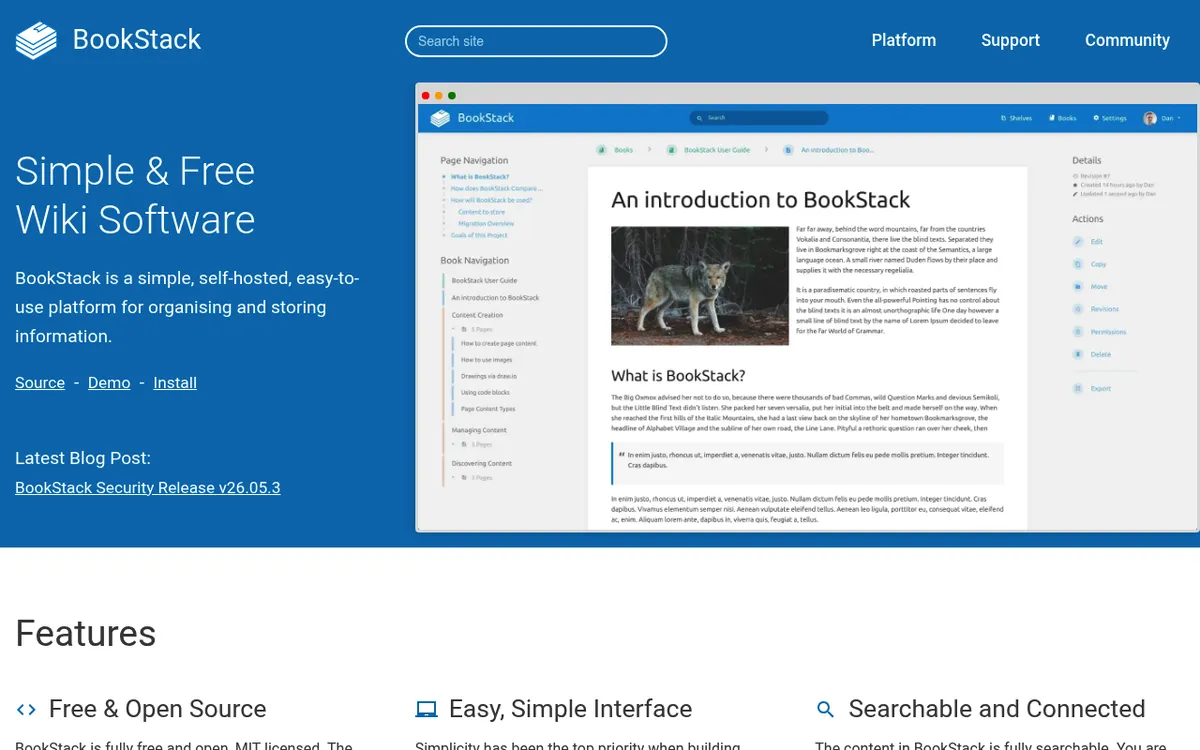
BookStack is the easiest starting point. It describes itself as a simple, self-hosted platform for organising and storing information, it is MIT licensed, and the project notes it runs happily on a very small VPS. Pages take images, so screenshot-heavy SOPs work fine.
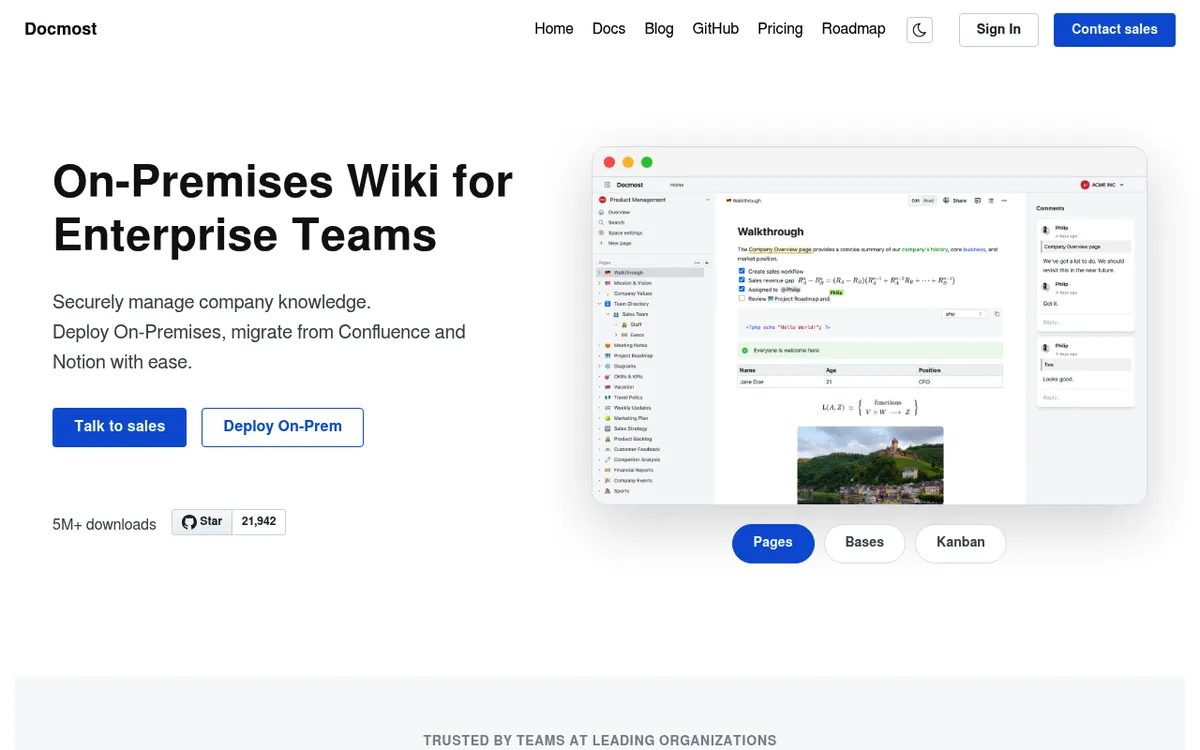
Docmost covers similar ground with a real-time editor, spaces, page history and diagrams in its free Community edition, and Docker is the recommended install. Its paid Business tier is $6 per seat per month with a 10 seat minimum, and it adds extras such as SSO, page-level permissions and AI search.
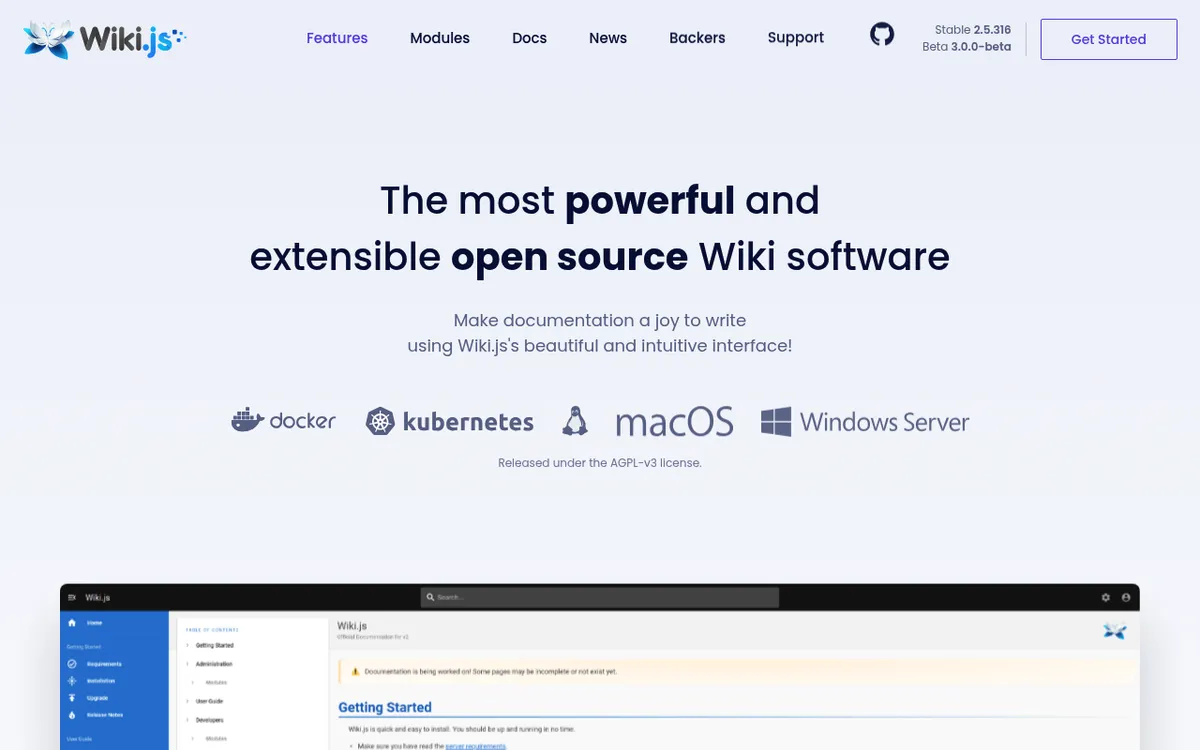
Wiki.js has no paid plans at all. It runs on Node.js, offers Markdown and visual editors, and can sync every page to a Git repository as a backup.
Who it fits: teams with someone who is comfortable running a small server, and teams with data rules that make a US SaaS vendor awkward.
What it costs: a few dollars a month of hosting, at any headcount.
Where it breaks: none of these capture anything, they only store what you produce, which is why way 4 usually pairs with way 1. Backups, updates and certificates are yours now, so budget maintenance hours instead of license fees.

Tired of plain screenshots? Try ScreenSnap Pro.
Beautiful backgrounds, pro annotations, GIF recording, and instant cloud sharing, all in one app. Pay $34 once, own it forever.
See pricing and featuresWay 5: Record a GIF or a short video instead of writing steps
Some processes are not worth a document. A three click setting change takes 20 seconds to demonstrate and 20 minutes to write up with screenshots.
A silent GIF is the underrated format. It loops, it plays inline in Slack and most wikis, and nobody has to find headphones. Under about 15 seconds a GIF often beats a numbered list.
Who it fits: short UI tasks, one-off answers to "how do I do this again", and anything where the click path matters more than the words.
What it costs: nothing beyond a recorder you already have. Both operating systems ship one, and Microsoft now points Windows users at Snipping Tool for screen recording after retiring Steps Recorder. If you want a GIF straight out of the recorder, ScreenSnap Pro from way 1 records GIF directly as well as MP4.
Where it breaks: video is not searchable, not translatable, and not skimmable. Nobody scrubs a recording to find step 7. Video also breaks the moment the UI changes, and unlike a screenshot you cannot patch one frame.
If you want a dedicated recorder without a subscription, our platform guides cover the options: Loom alternatives for Windows and Loom alternatives for Mac.
Way 6: Start from an SOP template and add screenshots
The reason process documentation feels expensive is rarely the software. It is the blank page. A template removes that, and a template plus a screenshot tool covers most of what a per-seat product sells you.
A workable process doc needs six things: purpose, owner, trigger, numbered steps, screenshots at every decision point, and a last-reviewed date. That is it. Our SOP template collection has seven layouts including a step-by-step screenshot format, and how to document a process covers the method behind them.
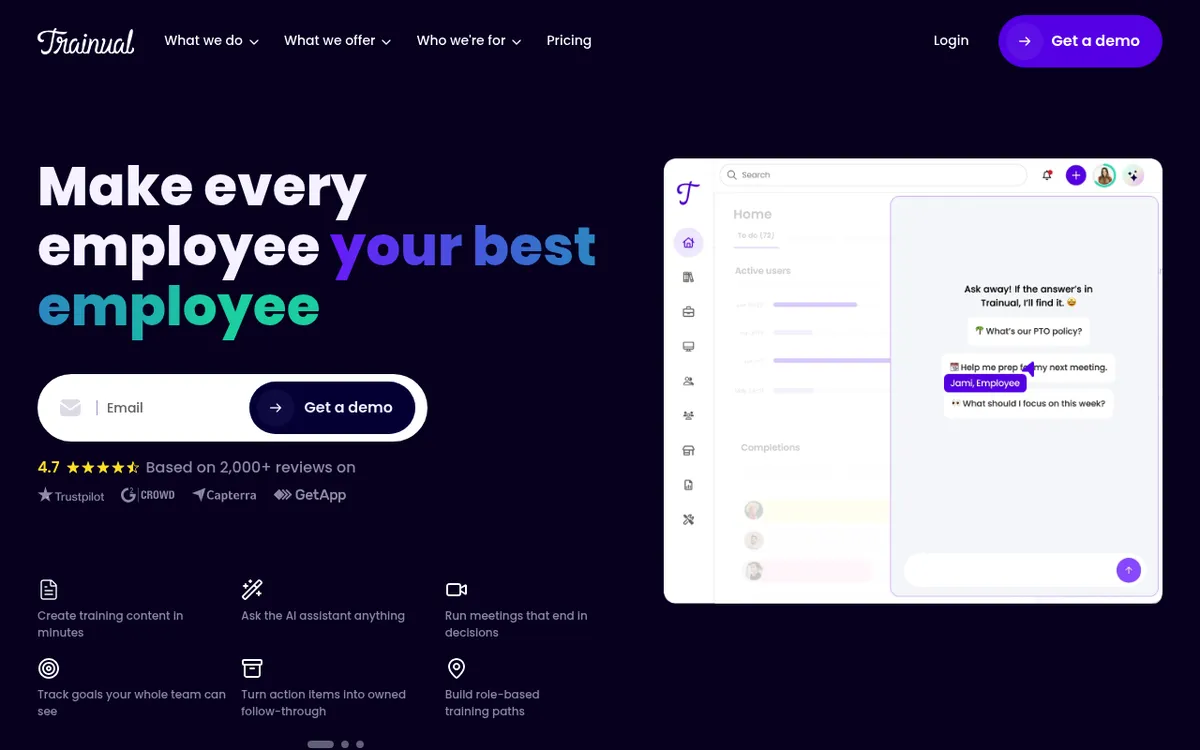
If you would rather buy the template layer, Trainual ships 500+ customizable templates inside a training platform. It is the opposite of a no-seat answer, though. Prices are quote only after a demo, and new customers pay a one-time $1,000 implementation fee.
Who it fits: ops and HR teams who need consistency across dozens of docs written by different people.
What it costs: nothing. Templates live in the wiki you already pay for.
Where it breaks: templates do not enforce themselves. Without an owner and a review date, a template set turns into a folder of half-finished pages within two quarters.
Way 7: Narrate a video walkthrough for processes that keep changing
For a process that changes every month, screenshots are a liability. Each redesign invalidates the whole doc, and updating 30 images costs more than the doc saves.
A narrated walkthrough recorded in one take is cheaper to redo. Screen recording plus a microphone, one pass, no editing. When the UI changes you re-record rather than patch.
ScreenSnap Pro from way 1 covers this too. It records MP4 at up to 60fps with webcam, mic and system audio, and its editor removes silences in one click if the take has pauses.
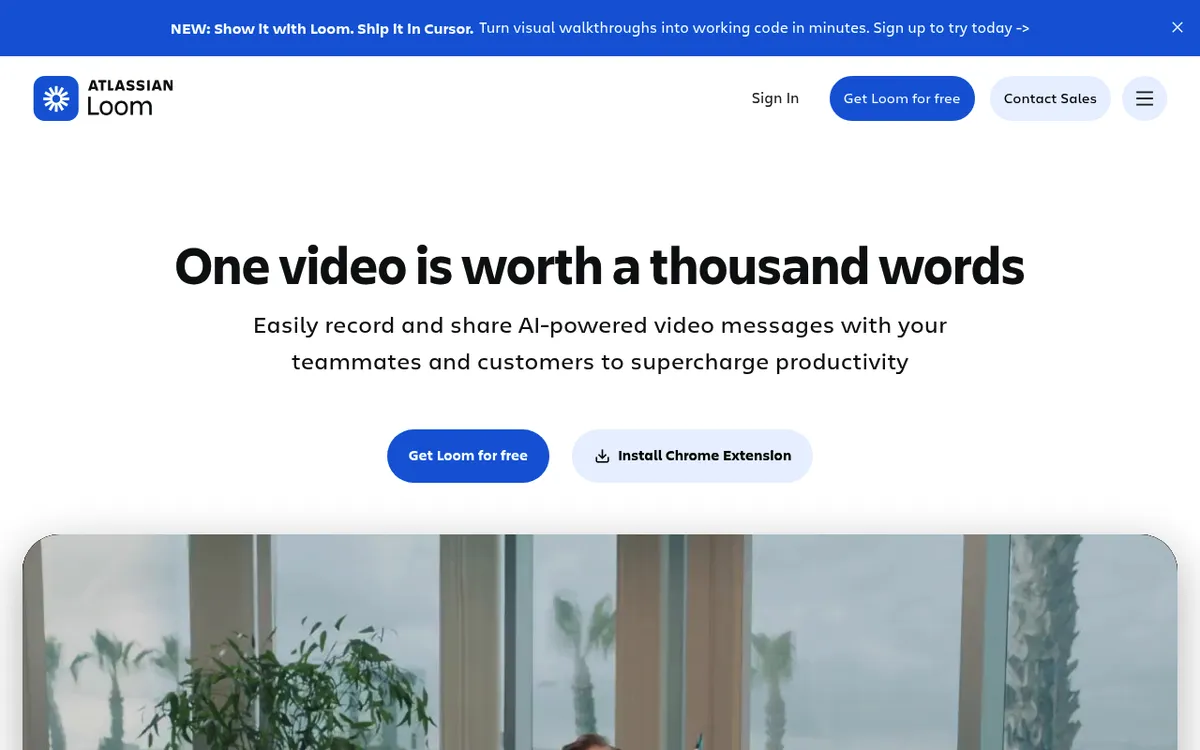
Loom is the default name for this job, but it bills per seat. Business is $18 per user a month, and the free Starter plan caps screen recordings at 5 minutes and 720p.
Who it fits: fast-moving internal tools, seasonal processes, and onboarding sessions where tone matters as much as accuracy.
What it costs: a recorder with microphone and system audio support. Many are one-time or free. Our best training video software comparison covers the category.
Where it breaks: accessibility and search. Put a short written summary of the key steps above the video, or the content is invisible to anyone skimming and anyone who cannot use audio.
The capture-and-annotate loop that keeps a doc set consistent
Every guide above assumes you can produce a clean screenshot. Most teams cannot, not because they lack a tool but because they lack a routine. Here is the loop that makes 40 screenshots look like one document instead of 40 accidents.
Fix the window size before you start. Set your app or browser window to one size and leave it there for the whole doc set. Mixed widths make a page look broken even when every image is fine on its own.
Crop to the decision, not to the screen. A full 27 inch desktop shrunk into a page column is unreadable. Crop to the panel, the dialog, or the button plus enough surrounding UI to locate it.
Number the steps on the image. A step counter places 1, 2, 3 directly on the screenshot, which is what lets one image replace three paragraphs. It is the single biggest quality jump in manual documentation.
Blur before you save, not after. Customer names, email addresses, invoice totals, API keys. Blur them in the editor as part of capture, because redacting after publication is a much worse day. A free browser blur tool handles it if your capture app cannot.
Keep one arrow style. Pick a colour and a weight and use them everywhere. Inconsistent markup reads as carelessness and quietly costs the doc its authority.
For the deeper standards on resolution, file naming and image management across a whole doc set, see our technical documentation screenshots guide.
Shortcut cheat sheet for the capture loop
These are the built-in shortcuts, from Apple Support and Microsoft Support.
| Task | macOS | Windows |
|---|---|---|
| Capture a selected region | Shift + Cmd + 4 | Win + Shift + S |
| Capture one window | Shift + Cmd + 4 then Space | Alt + PrtScn |
| Capture the whole screen | Shift + Cmd + 3 | Win + PrtScn |
| Open capture options and recording | Shift + Cmd + 5 | Win + Shift + S, then pick the record tab |
| Copy instead of saving a file | Add Control to any shortcut | Default behaviour, paste from clipboard |
| Paste into the doc | Cmd + V | Ctrl + V |
The loop: capture with the region shortcut, annotate, copy, paste into the wiki page, type the step text underneath. Once it is muscle memory a 12 step guide takes about 10 minutes.
Sharing a process doc without a seat-based plan
Sharing is where per-seat tools quietly lock you in, so it is worth deciding your format before you write 50 guides.
Embed beats link. A link asks the reader to leave what they were doing. An embedded image or GIF inside the page they are already reading gets followed. Most wikis embed images natively with no plan tier attached.
A link that lives in a vendor account is a dependency. When the person who created a guide leaves and their seat is reclaimed, the guides under that seat can go with it. Ask any vendor what happens to shared links on seat removal, and get the answer in writing.
Exported PDFs are the durable copy. A PDF never breaks and can be attached to a contract or an audit response. Keep one for anything compliance touches, even when the living version is a wiki page.
Watch for branding on free exports. Several tools above put their own branding on free-tier output and sell company branding as a paid feature. For internal docs nobody cares. For anything a customer sees, that is the upgrade trigger, so price it in early.
Screenshots pasted into your own wiki have none of these problems. The image sits in your workspace, the permissions are your existing permissions, and nothing expires when a subscription does.
Troubleshooting the five things that actually go wrong
A vendor redesign broke every screenshot. Do not rewrite the guide. Note which steps changed and recapture only those images at the original window size, which is why fixing that size in advance pays off. Then update the last-reviewed date.
Screenshots look blurry in the doc. That is a scaling problem, not a capture problem. Captures from a high-density display carry twice the pixel dimensions, and wikis often downscale them badly. Export at the size you intend to display, or set one standard width for the whole doc set.
You published something you should have redacted. Delete the image from the page and from the wiki's file store, because most tools keep the original file after you remove it from a page. Then recapture with blur applied and check whether anyone exported the page in the meantime.
Export lost the step numbering. Numbers added by a tool's step feature are often layout rather than content, so PDF and Markdown exports can drop them. Numbers burned onto the image survive every export. That is the argument for annotating the screenshot instead of relying on list formatting.
You want your guides out of a tool you are cancelling. Export before the last day of the billing period. Take the most portable format offered, usually Markdown or HTML plus an image folder, and confirm the images came out as files rather than remote URLs that stop resolving. Spot check one guide before you cancel.
Frequently asked questions
Picking your route
Work backwards from the constraint that sent you here. If per-seat billing is the problem, ways 1, 2 and 4 remove it entirely: ScreenSnap Pro plus your wiki, Folge, or a self-hosted wiki. If your budget is zero, way 3 and way 6 cost nothing today. If your processes change constantly, way 5 and way 7 are cheaper to maintain than any screenshot doc.
The one thing worth being honest about: nothing on this list matches Scribe's auto-capture speed. What the alternatives buy you is a cost that stops growing when your team does.
If your plan is to keep the documents in the tools you already pay for and stop renting the capture layer, ScreenSnap Pro is a one-time $34 purchase for Mac and Windows. It has 17 annotation tools including a step counter, blur and arrows, watermark-free export, and a screen recorder with a built-in video editor for the GIF and walkthrough routes. For a wider look at the category rather than the billing model, our process documentation tools roundup compares the software side by side.

Morgan
Indie DeveloperIndie developer, founder of ScreenSnap Pro. A decade of shipping consumer Mac apps and developer tools. Read full bio
@m_0_r_g_a_n_