iLoveIMG Upscale: Limits, Pricing, and Alternatives
iLoveIMG upscale is the AI enlarging tool at iloveimg.com/upscale-image. You pick 2x or 4x, and it raises the resolution of a photo without the smearing you get from a plain resize. Two things catch people out. A Premium crown badge sits on the page even though the free plan covers the tool, and your image has to be smaller than 6MP.
This page answers the brand question. What the tool does, where it stops, what Premium costs, and what to reach for when your file does not fit. If you want a ranked comparison of upscalers instead, our roundup of AI image upscalers tests eight of them side by side.
What iLoveIMG upscale actually does
iLoveIMG is a suite of browser image tools: compress, resize, crop, convert, watermark, blur faces, remove backgrounds. Upscale image is one tile in that grid, and it is the AI one.
The workflow has exactly two decisions. Upload a file, then choose a size multiplier. The tool page offers 2x and 4x, and nothing in between. A 500 x 500 photo comes back as 1000 x 1000 or 2000 x 2000.
There are no models to pick, no denoise slider, no face restoration toggle, no before and after comparison view. That is the whole appeal. The iLoveIMG upscaler is deliberately the plainest one in its category, and compared to tools that hand you six settings and a credit balance, it gets you from upload to download with the fewest clicks.
If you want the general background on how this works under the hood, we cover how AI image upscaling predicts missing detail separately.
The three limits that stop most uploads
Every complaint about iLoveIMG upscale traces back to one of three numbers. All three are printed on iLoveIMG's own pages, checked in August 2026.
1. Your image must be under 6MP
The instruction on the tool page reads: upscale any image smaller than 6MP. That is megapixels, not megabytes, and it is a ceiling on the input.
6MP is roughly 3000 x 2000 pixels. Plenty of things blow straight past it:
- A photo from any recent phone camera (12MP and up is normal)
- A full screen capture from a 4K monitor (about 8.3MP)
- A Retina MacBook screenshot at 2x scaling
- Anything you already upscaled once and want to push further
The irony is worth naming: files big enough to break the limit rarely need upscaling in the first place. The limit only bites when you want to enlarge a large but soft image, and that is exactly the case where AI upscaling helps least anyway.
2. The file size cap is 6 MB, and paying does not lift it
This is the one that surprises people. On iLoveIMG's pricing page, the "Filesize per task" table lists 6 MB for Upscale image on Basic, Premium, and Business alike.
Look at what happens to the other tools across those same three columns:
| Tool | Basic | Premium | Business |
|---|---|---|---|
| Compress IMAGE | 200 MB | 4 GB | 4 GB |
| Resize IMAGE | 200 MB | 4 GB | 4 GB |
| Crop IMAGE | 90 MB | 4 GB | 4 GB |
| Watermark IMAGE | 200 MB | 4 GB | 4 GB |
| IMAGE Editor | 50 MB | 50 MB | 50 MB |
| Upscale image | 6 MB | 6 MB | 6 MB |
| Remove background | 6 MB | 6 MB | 6 MB |
Compressing goes from 200 MB to 4 GB when you subscribe. Upscaling stays at 6 MB forever. Remove background is the only other tool held at 6 MB, and 6 MB is the lowest cap in the table. (The IMAGE Editor row is frozen too, but at 50 MB.)
So if a 9 MB PNG is being rejected, upgrading will not fix it. What does fix it: run the file through a free image compressor to get under 6 MB first, then upscale. Converting a bloated PNG to JPG or WebP usually clears the cap in one step.
3. One file per task on the free plan
The pricing page's "Batch processing" table lists 1 for Upscale image on Basic and 3 on Premium and Business.
Compare that to 30 files per task for compressing on the free plan, or 120 on Premium. Crop and the IMAGE Editor sit at 1 file on every plan, so upscale is not the strictest row on that axis. It is the one that pairs the lowest file size cap with a batch ceiling that never passes 3, no matter how much you pay.
If you have forty product photos to enlarge, iLoveIMG is the wrong shape of tool for the job. A desktop app that reads a folder will finish while you are still dragging batches into the browser.
About that Premium badge
A crown badge marked Premium sits twice on the tool page: once above the "Upscale image" heading, once in the Upscale options panel. No other iLoveIMG tool page carries it. So people reasonably assume the upscaler is paywalled.
iLoveIMG's own pages say otherwise. The plan comparison ticks Upscale image in the Basic column. The Basic batch value for it is 1 file per task. And the tool page itself is titled "Free AI Image Upscaling Tool". Read together, that is a free tool with a tight free ceiling, not a locked one. The badge points at the upgrade.
The comparison table does label Basic "Limited tools", and the Basic plan card promises only "Access to essential iLoveIMG tools" with "Limited document processing". Read that as a warning about volume, not about access.
One thing the public pages never state: which input formats are accepted. The upscale page lists none. Other iLoveIMG tools handle JPG, PNG, and more, so convert to a common format if you hit an error.
What iLoveIMG Premium costs
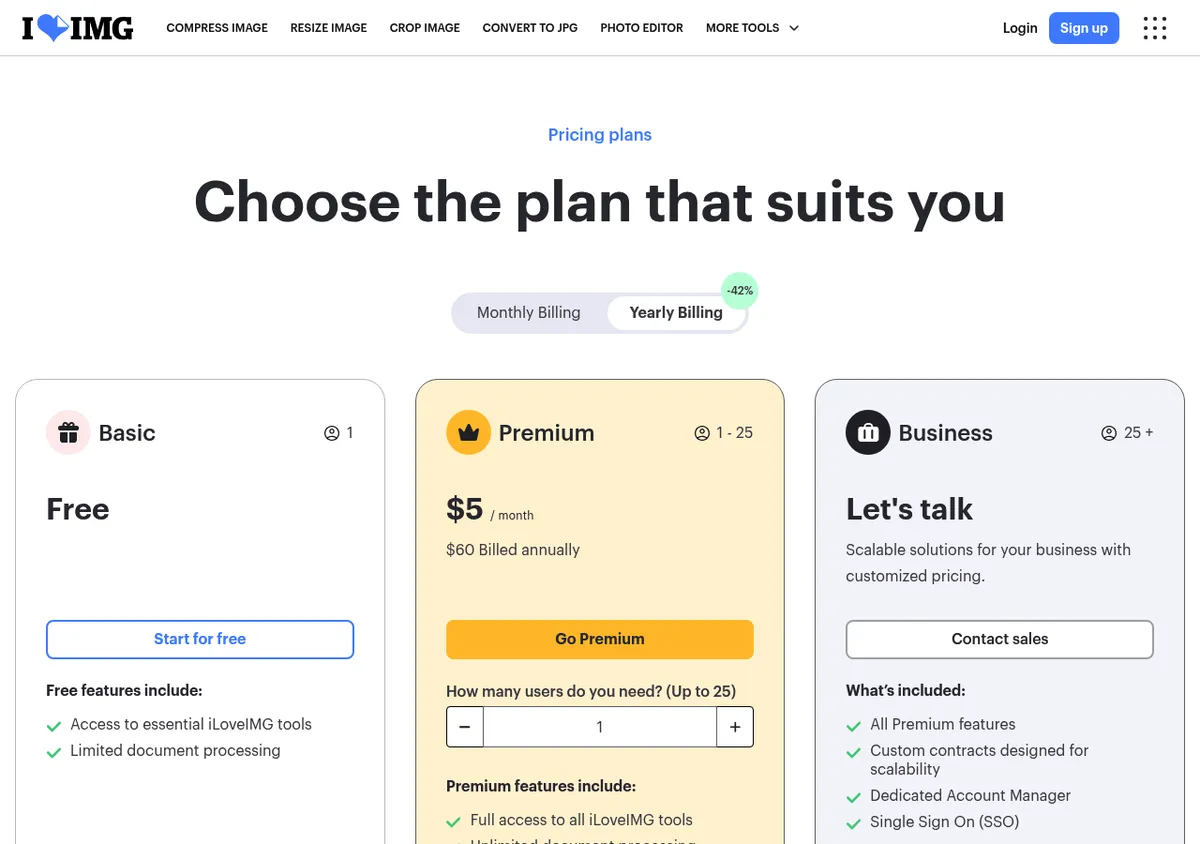
Three plans, as listed today:
| Plan | Users | Price | Headline |
|---|---|---|---|
| Basic | 1 | Free | "Access to essential iLoveIMG tools", limited processing |
| Premium | 1 to 25 | 9 per month, or 60 for a year | Full tool access, ad free, 2,000 AI credits |
| Business | 25 and up | "Let's talk" | Premium plus SSO and a dedicated account manager |
The 60 per year figure works out to 5 per month, which is the number the page shows by default because the yearly toggle is preselected. That toggle advertises 42% off. Our checks from Europe returned euros, and the currency symbol you see depends on your region.
Premium also unlocks 4 GB uploads on most of the non AI tools, batch limits of 120 files, and removes ads. For the upscaler specifically, you are paying to go from one file at a time to three. That is the honest summary.
Worth it if: you already lean on iLoveIMG for compressing and converting all day, and the ad free experience plus the 4 GB ceiling earns its keep across the whole suite.
Not worth it if: upscaling is the only reason you are considering it. Three files per task and a fixed 6 MB cap is a thin upgrade.

Tired of plain screenshots? Try ScreenSnap Pro.
Beautiful backgrounds, pro annotations, GIF recording, and instant cloud sharing, all in one app. Pay $34 once, own it forever.
See pricing and featuresHow to upscale an image on iLoveIMG
- Check your source first. Under 6MP and under 6 MB, or the upload will not go through. Compress or convert before you start rather than after a failed attempt.
- Open the Upscale image tool and click Select images, or drag your file onto the drop zone. Google Drive and Dropbox pickers sit next to the button.
- Pick 2x or 4x. Start with 2x. It is cleaner on nearly every source, and you can always run the result through again if the size is still short.
- Run it and inspect at 100% zoom. Look at edges, text, and skin. Halos around high contrast lines and a waxy plastic look are the two artifacts to watch for.
- Resize down to your exact target. A 4x output is almost never the dimension you actually need. Our free image resizer hits precise pixel dimensions without another upload cycle.
Printing the result? The pixel count changes but the DPI tag often does not, which is why a sharp file still prints soft. Here is how to change image DPI properly before you send it off.
When iLoveIMG upscale is not enough
A few situations push you off iLoveIMG, and each has a clear answer.
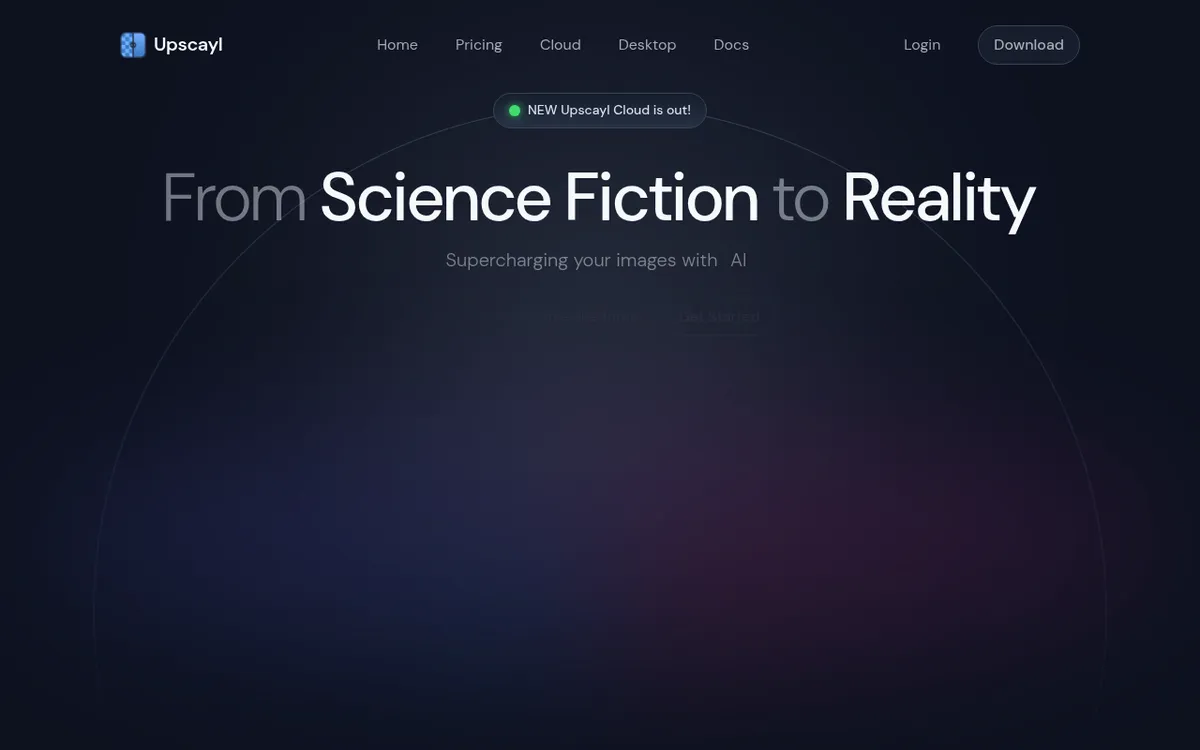
Your file is too big. Nothing on iLoveIMG lifts the 6 MB or 6MP ceilings. Upscayl is the usual escape hatch: an open source desktop upscaler for macOS, Windows, and Linux, described on its own site as "Download once, forever yours." It runs on your own machine, so file size is bounded by your hardware rather than a plan tier. There is a separate paid Upscayl Cloud offering, but the desktop app is the free one.
You have a queue to get through. Three files per task is the hard ceiling. A desktop tool that points at a folder is the right shape here, and Upscayl handles batches natively.
The images are sensitive. Client work, medical scans, anything under NDA: iLoveIMG processes on their servers. Local processing keeps the file on your disk. That is a workflow decision, not a quality one.
You need detail that was never captured. iLoveIMG and Upscayl both enlarge what you handed them. Generative upscalers work differently: they reconstruct texture and detail as they scale, which is the difference between a bigger soft image and a genuinely sharper one. Magnific is built around that reconstruction step, with control over how much detail it adds. That is the catch as well as the point. The output is an interpretation, not a recovery, so it is the wrong tool for anything where the pixels have to be faithful to the original. It is paid, and now part of Freepik.
You want to compare quality across tools. That is what the full AI upscaler comparison is for. It covers eight tools with the same test images, including where iLoveIMG lands against them, so there is no point repeating the ranking here.
The cheaper fix: never need the upscale
A large share of upscale attempts are screenshots. Someone cropped a UI detail too tightly, dropped it into a doc, and now it looks soft on a big display. AI can sharpen that a little. It cannot invent the pixels that were never captured.
Capturing at the right resolution the first time beats any upscaler, every time. On a Retina or high DPI display, a native capture already lands at 2x, which is sharper than a 2x AI enlargement of a standard capture. Our guide to high quality screenshots on Mac walks through the settings that matter, and cropping without shrinking your source covers the other half of the problem.
To be straight about it: ScreenSnap Pro is a screenshot and screen recording app, not an AI upscaler. It has no upscaling feature and will not rescue an image you already have. What it does is capture at full display resolution with no watermark, then annotate and share, which removes the reason you went looking for an upscaler. It is $34 one time, with 17 annotation tools and 500 or more backgrounds. If soft screenshots are the actual problem, that is where to start.
Frequently Asked Questions

Morgan
Indie DeveloperIndie developer, founder of ScreenSnap Pro. A decade of shipping consumer Mac apps and developer tools. Read full bio
@m_0_r_g_a_n_