How to Annotate a PDF Free: Mac & Windows (2026)
You can annotate a PDF free on both platforms without installing anything. On a Mac, open the file in Preview and click the Markup toolbar button to get highlighting, text boxes, shapes and signatures. On Windows, open the PDF in Microsoft Edge and use the Draw and Highlight tools in the top bar, then save. Both are built in, and both keep your file on your own machine.
Most guides for this send you straight to a paid PDF editor. You rarely need one. The tools that ship with macOS and Windows cover highlighting, comments, drawing and signing, which is the whole job for a contract, an essay draft or a set of review notes.
This guide covers the free built-in route on each platform, when a browser tool makes sense, and the shortcut worth knowing when you only need to comment on a single page.
What does it mean to annotate a PDF?
Annotating means adding a layer on top of the page without changing the underlying text. Highlights, sticky notes, arrows, freehand ink and signatures all sit in that layer. Editing, by contrast, rewrites the actual content of the document, and that is the part that usually needs paid software.
The distinction matters because it decides which tool you need:
- Annotating (highlight, comment, draw, sign) is free on both Mac and Windows.
- Editing (rewriting a paragraph, changing a number in a table, swapping an image) needs a real PDF editor.
Almost every "how do I write on a PDF" question is the first kind. Start there before you pay for anything.
How to annotate a PDF on Mac (Preview)
Preview is installed on every Mac and handles the full annotation set. Apple documents the toolbar in its Preview user guide.
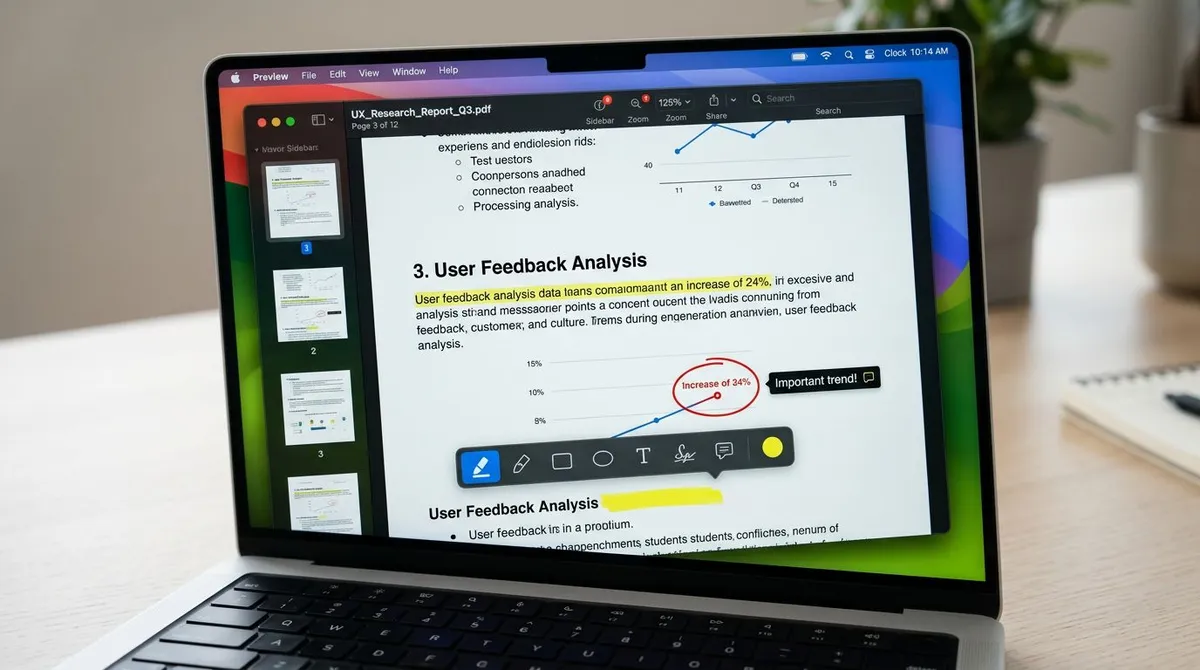
- Open the PDF. Double-click it. Preview is the default PDF app unless you have changed it.
- Show the Markup toolbar. Click the pen-tip icon near the search box, or press
⌘ + Shift + A. A second row of tools appears. - Highlight text. Click the highlighter icon, then drag across any text. Click the small arrow beside it to change colour or switch to underline or strikethrough.
- Add a note or text box. Click the text icon (
T) to drop an editable box anywhere, or use Tools → Annotate → Note for a collapsible sticky note. - Draw shapes and arrows. The shapes menu covers rectangles, ovals, lines and arrows. Drag the green handles to reshape a line into a curve.
- Sign it. Click the signature icon, then Create Signature. You can sign with the trackpad, hold a signed piece of paper up to the camera, or use an iPhone. The signature is saved for reuse.
- Save. Press
⌘ + S. Preview writes the annotations into the same file.
Useful Preview details
- Annotations stay editable. Click any highlight or shape later to move, recolour or delete it. Nothing is flattened until you export.
- Keep an untouched copy.
⌘ + Soverwrites the original. Use File → Duplicate first if you need the clean version. - Redaction is not the same as a black rectangle. Drawing a filled box over text leaves the text underneath, and anyone can copy it out. To genuinely remove it, use Tools → Redact, which deletes the content.
How to annotate a PDF on Windows (Microsoft Edge)
Windows has no Preview equivalent, but Microsoft Edge is a capable PDF annotator and it is the default PDF handler on Windows 10 and 11.
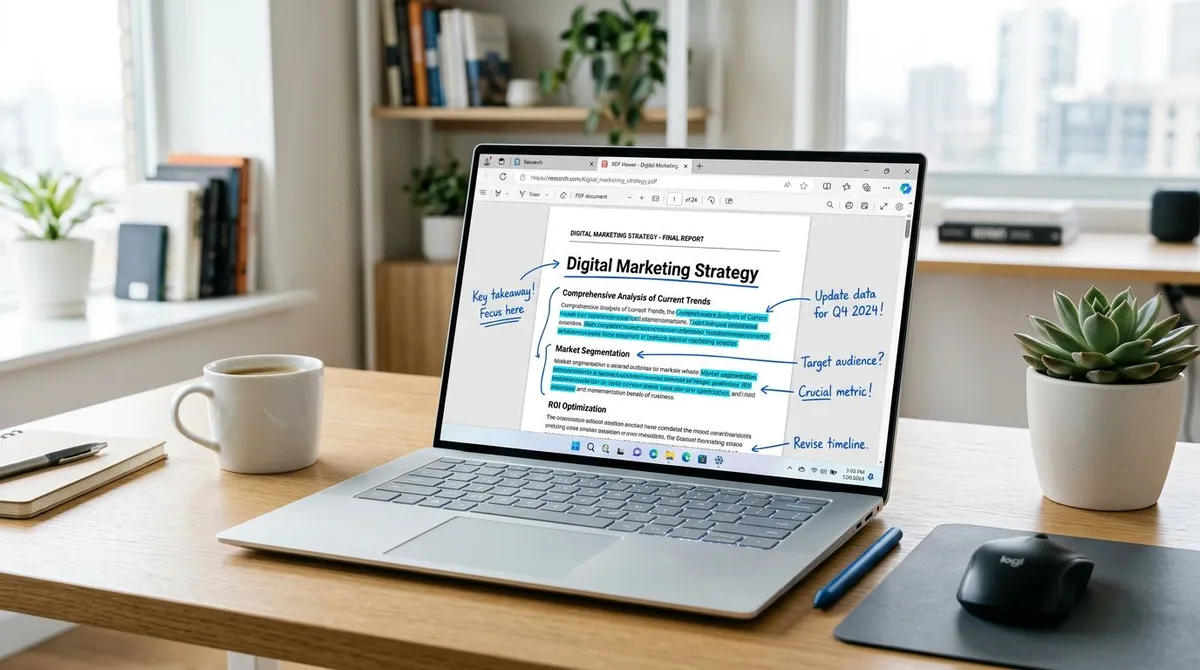
- Open the PDF in Edge. Double-click it, or right-click and choose Open with → Microsoft Edge.
- Highlight text. Select any text, then pick Highlight from the small pop-up menu and choose a colour.
- Add a comment. With text selected, choose Add comment, type your note, and click the tick. Comments show as small markers you can click to reopen.
- Draw freehand. Click Draw in the top toolbar. Change ink colour and thickness from the dropdown. A stylus or touchscreen works well here; a mouse is workable for circling things.
- Erase. The eraser removes whole ink strokes rather than parts of them.
- Save. Click Save in the toolbar, or press
Ctrl + S. Choose Save as to keep the original intact.
What Edge cannot do
Edge covers highlighting, comments and ink. It does not do shapes, arrows, text boxes placed anywhere on the page, or signatures. If you need an arrow pointing at a specific chart, or a typed label in a blank margin, you need something else. That is where the next section comes in.
The fastest route when you only need one page
Here is the case the standard guides skip. Often you do not need to annotate the PDF at all. You need to show one person one thing on one page, in a chat thread or an email, with an arrow pointing at it.
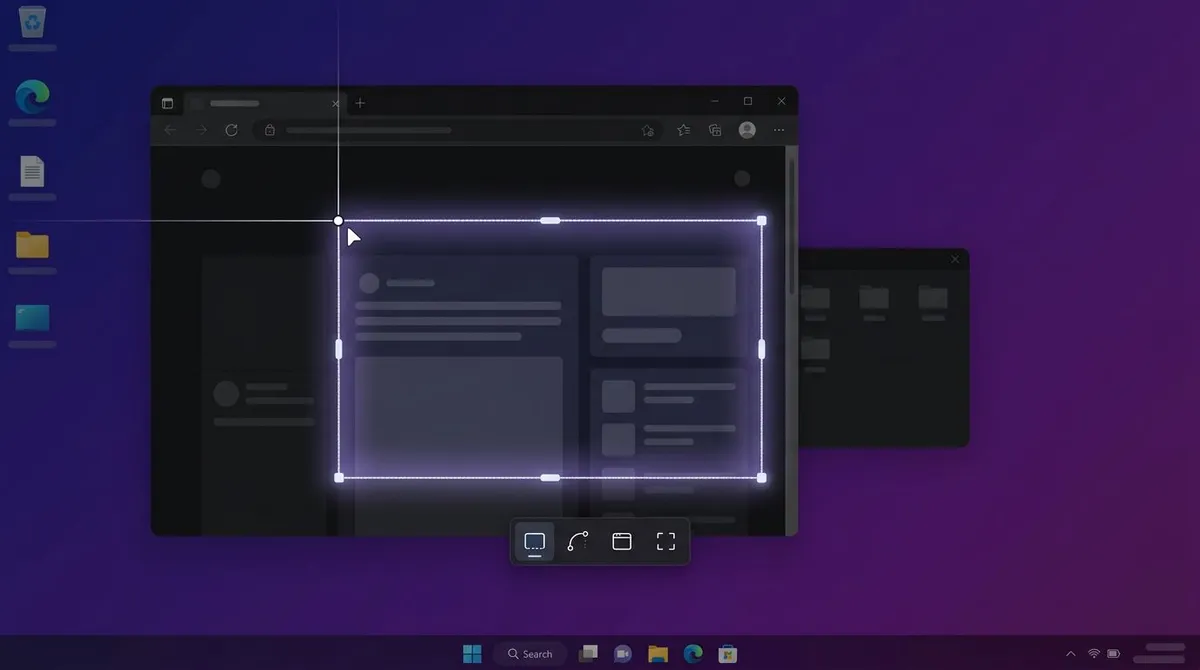
Opening a PDF editor, marking it up, saving a new file and attaching a multi-megabyte document is a lot of work for that. Screenshotting the page and marking up the image is faster, and the recipient sees your point immediately in the thread rather than downloading an attachment.
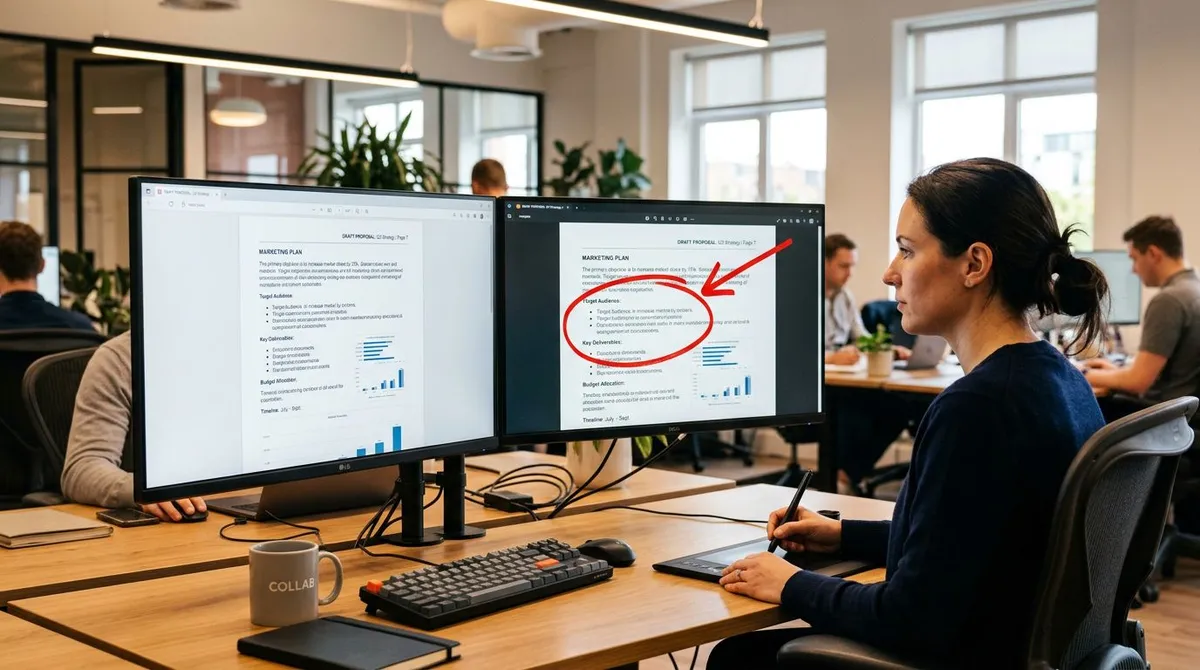
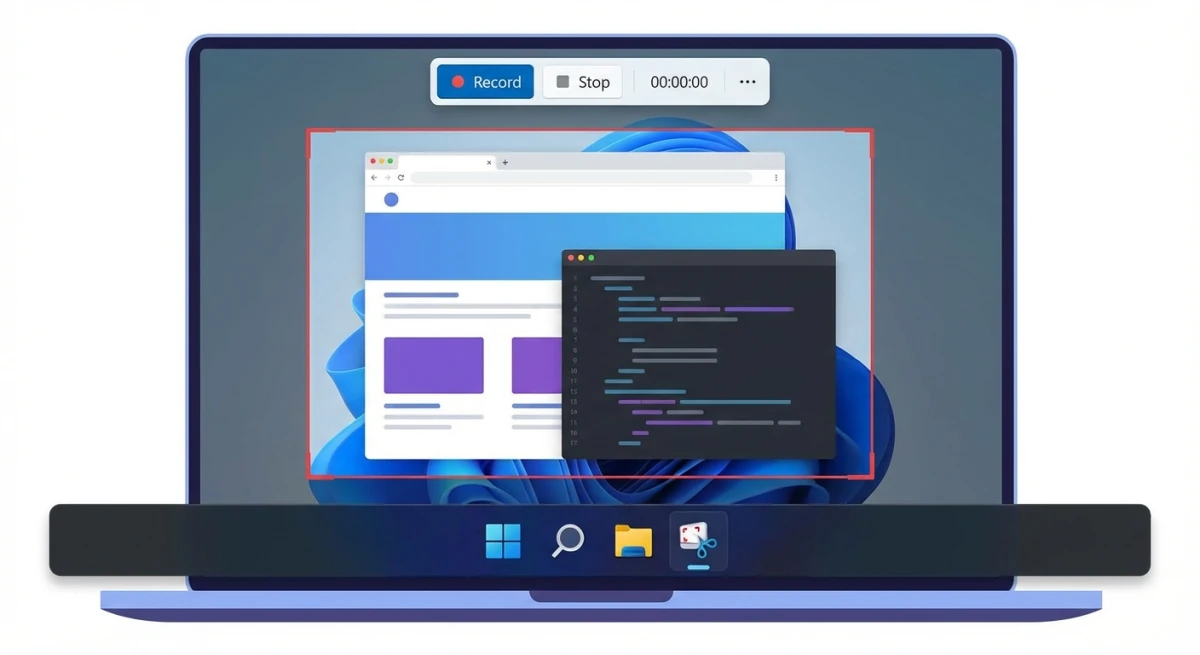
ScreenSnap Pro is built for exactly that loop: capture the region, add arrows, boxes, text, blur or a step counter from 17 annotation tools, then copy a share link or paste the image straight into Slack. It works the same way on Mac and Windows, which matters if your team is split across both. It is $39 once rather than a subscription.
It annotates images, not PDF pages directly, so this is the right tool when you are commenting on a page and the wrong one when you need marks embedded in the PDF itself for a formal review. For that, stay with Preview or a full editor.
If you prefer to work from files rather than a screenshot, our free PDF to image converter turns every page of a PDF into images in your browser, with a quality slider and support for several files at once. To pull out just the pages you care about first, the PDF splitter can split a document into separate files, drop pages you do not need, or rotate them, then hand you the result as a single PDF or a ZIP. Both run locally in the browser, so the document is never uploaded.
For the marking-up part itself, our guides to annotating screenshots on Mac and editing screenshots on Windows cover the technique in more depth.

Tired of plain screenshots? Try ScreenSnap Pro.
Beautiful backgrounds, pro annotations, GIF recording, and instant cloud sharing, all in one app. Pay $39 once, own it forever.
See pricing and featuresOnline PDF annotators, and the privacy catch
Browser-based annotators are convenient on a machine you do not control, such as a library or hotel computer. The trade-off is real: your file is uploaded to somebody else's server.
That is fine for a public document. It is not fine for a signed contract, a medical letter, a payslip or anything with a client's details in it. Free services vary widely in how long they keep uploads and what they do with them, and the answer is usually in a privacy policy nobody reads.
A simple rule: if the document contains information you would not post publicly, use the built-in tool on your own machine instead. Preview and Edge are both offline, and neither costs anything.
If you do need to hide something before sharing, do it properly. Our guide to blurring and pixelating sensitive information covers what actually removes data versus what only looks like it does, and how to redact text goes into the difference in detail.
Annotating a PDF on a phone or tablet
- iPhone and iPad. Open the PDF in Files or Books, tap the Markup icon (a pen tip), and you get the same toolset as Preview. An Apple Pencil on iPad is the most comfortable way to annotate anything.
- Android. Google Drive's PDF viewer supports basic highlighting and comments. For ink, most people install a dedicated reader.
- Signing on mobile is genuinely good on iOS. Tap the markup pen, then the plus button, then Signature.
Which method should you use?
| Situation | Use | Cost |
|---|---|---|
| Highlight and comment on a Mac | Preview | Free |
| Highlight and comment on Windows | Microsoft Edge | Free |
| Arrows, labels and shapes anywhere on the page | Preview (Mac) or a PDF editor | Free / paid |
| Sign a document | Preview, or Markup on iPhone | Free |
| Comment on one page in a chat thread | Screenshot and annotate the image | $39 once |
| Rewrite the actual text | A full PDF editor | Paid |
| Someone else's computer, non-sensitive file | Online annotator | Free |
Common problems
The PDF will not let me highlight. The page is a scan, so it is an image with no text layer. You cannot select what is not there. Run it through OCR first; our guide to OCR on a PDF on Mac walks through the free options, and OCR software for Windows covers the other platform.
My annotations disappeared. Some viewers only display annotations they wrote themselves, particularly older or unusual PDF readers. Open the file in Preview, Edge or Acrobat to check they are really gone before redoing the work.
The file got much bigger. Freehand ink and inserted images add weight. Flattening on export usually shrinks it again.
The highlight is in the wrong place. In a scanned document with a poor text layer, the invisible text can be misaligned with the visible page. Draw a rectangle outline instead of using the highlighter.
Frequently Asked Questions
The short version
Reach for Preview on a Mac and Edge on Windows before you consider anything paid. Between them they handle highlighting, comments, ink, shapes and signatures, offline and for free, which is the entire job for most documents.
Pay for a PDF editor only when you genuinely need to change the content rather than mark it up. And when the real task is showing one colleague one thing on one page, skip the PDF workflow altogether: screenshot the page, put an arrow on it, and paste it into the conversation.

Morgan
Indie DeveloperIndie developer, founder of ScreenSnap Pro. A decade of shipping consumer Mac apps and developer tools. Read full bio
@m_0_r_g_a_n_