Internal Documentation Guide 2026: Structure + Tips
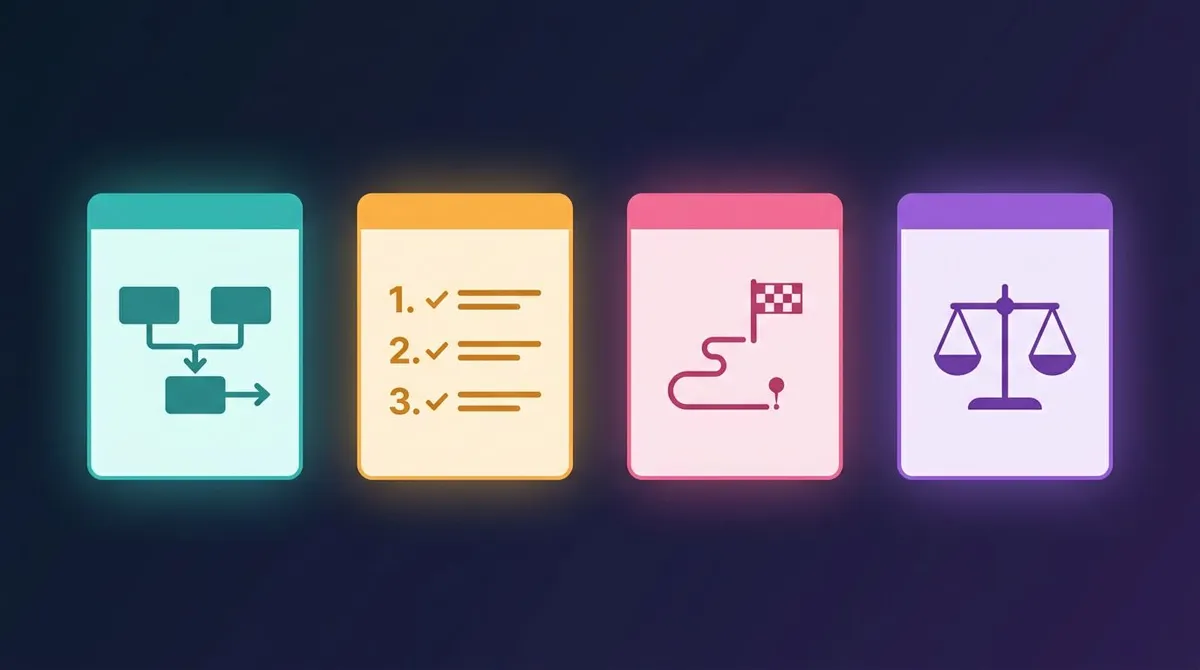
Internal documentation is the written knowledge a team keeps for itself: how work gets done, why decisions were made, and what new people need to know. Most of it falls into four types. Those are process docs, standard operating procedures (SOPs), onboarding guides, and decision records. Good internal docs are short, owned, visual, and easy to find.
Most teams do not have a documentation problem. They have a trust problem. Someone wrote a wiki page two years ago, the tool changed, and now nobody believes anything in the wiki. So they ask in chat instead, and the same question gets answered for the fifth time this month.
This guide shows you how to fix that: a structure that scales, an ownership model, copy-paste templates, maintenance habits, and a section on visual docs. If you want the deep dive on one type first, start with this process documentation guide.
What is internal documentation?
Internal documentation is any doc written for people inside your company, not for customers. It covers the "how" and the "why" of your work. Think setup guides, checklists, runbooks, meeting decisions, policies, and the onboarding plan for a new hire.
The key word is internal. These internal docs can assume context that a customer would not have. They can name internal tools, link to private dashboards, and skip the marketing polish. That freedom is useful, but it is also why internal docs rot so fast: nobody outside the team ever reads them and complains.
Here is how internal docs differ from the external kind:
| Internal documentation | External documentation | |
|---|---|---|
| Audience | Employees, contractors, future you | Customers, partners, the public |
| Goal | Do the work the same way every time | Help people use the product |
| Tone | Direct, informal, assumes context | Polished, assumes nothing |
| Sensitivity | Can include private data and links | Must be safe to publish |
| Typical home | Internal wiki, shared drive, repo | Help center, docs site |
| Biggest risk | Going stale without anyone noticing | Confusing customers |
Why internal documentation matters
Every question that lives only in someone's head costs time twice. First the asker waits. Then the expert stops what they were doing to answer.
The numbers back this up. In the 2024 Stack Overflow Developer Survey, 61% of respondents said they spend more than 30 minutes a day searching for answers at work. The same survey found that 30% of developers hit knowledge silos ten or more times a week. That is not a developer-only problem. Sales, support, finance, and ops teams live with the same friction.
Good internal documentation pays off in a few clear ways:
- Faster onboarding. New hires read before they ask, so they reach full speed in weeks instead of months.
- Fewer repeat questions. You answer once, in writing, and then send a link.
- Less risk when people leave. Knowledge stays when the one person who "knows how billing works" moves on.
- Better decisions. When the reasoning behind past choices is written down, the team stops reopening settled debates.
- Remote work that works. Written docs let people in other time zones move without waiting for a call.
GitLab is the well-known example here. Its handbook-first approach means changes get written into the handbook before they get announced. You do not need to go that far, but the principle is sound: if it is not written down, it did not happen.
The 4 types of internal documentation
Most teams need all four. Each answers a different question, so mixing them creates docs nobody can use.
1. Process documentation
Process docs describe how a piece of work flows from start to finish. They answer "how does this get done here?" A process doc for content publishing might cover who writes, who reviews, where drafts live, and what "done" means.
Process docs work best as a mix of a short overview and a flowchart or numbered list. Keep them at the level of stages and handoffs, not every click. The process documentation guide walks through a five-step framework for writing them.
2. Standard operating procedures (SOPs)
An SOP is the zoomed-in version. It covers one task, step by step, so anyone can do it the same way. "How to issue a refund" is an SOP. "How the support team handles billing tickets" is a process.
SOPs need precision. Every step should be one action, in order, with the expected result. This is where screenshots earn their place, because "click the gear icon in the top right" is much clearer with an arrow on a picture. You can grab a ready-made structure from this set of standard operating procedure templates.
3. Onboarding and training docs
Onboarding docs answer "what do I need to know to be useful here?" They include a first-week checklist, access requests, a glossary of internal terms, and links to the most important process docs and SOPs.
A good trick from David Nunez, Uber's first dedicated docs hire and later Stripe's first Head of Docs Content, is to have every new hire improve the onboarding guide. They are the only people who see it with fresh eyes. His full playbook is in this First Round Review interview on internal documentation. For training that works better on video, see how to make a tutorial video people will finish.
4. Decision records
A decision record captures one important choice: what you decided, what else you considered, and why. Engineering teams call these architecture decision records, or ADRs. The format was popularized by Michael Nygard's post on documenting architecture decisions, and the ADR community site collects templates and tools.
Decision records are not only for engineers. Pricing changes, vendor picks, and hiring plans all benefit from the same format. The rule is simple: write it once, never edit the reasoning, and mark it "superseded" when a newer decision replaces it. That history is the whole point.
Other docs that sit around the four types
Your knowledge base will also hold reference material. That includes release notes, runbooks, bug reports, and policies. They follow the same rules for ownership and freshness. If your team ships software, a consistent release notes template and a shared bug report template are two quick wins.
How to make a knowledge base your team can navigate
Structure is what separates a team knowledge base from a pile of pages. If people cannot guess where a doc lives, they will not look for it. They will ask in chat.
Here is how to make a knowledge base that holds up as it grows:
- Pick one home. Choose a single tool as the source of truth. Docs spread across a wiki, three shared drives, and pinned chat messages are docs nobody trusts.
- Organize by team or area first. Create a top-level space for each team, such as Engineering, Support, Sales, and People Ops. People know which team owns a problem even when they do not know the doc title.
- Add a landing page to each space. A short page that lists the ten most-used docs in that area does more than any folder tree.
- Separate doc types inside each space. Use the same sub-sections everywhere: Processes, SOPs, Onboarding, Decisions, Reference.
- Use clear, searchable titles. "How to issue a refund in Stripe" beats "Refunds v2 (final)". Start with the task and include the tool name.
- Keep a glossary. One page for acronyms and project code names saves a lot of confusion.
If you want a proven mental model, look at Diátaxis. It splits docs into four kinds based on what the reader needs: tutorials for learning, how-to guides for tasks, reference for facts, and explanation for context. It maps well onto internal docs. Onboarding is tutorial, SOPs are how-to, a glossary is reference, and decision records are explanation.
An ownership model that survives reorgs
Docs without owners die. Yet many internal wikis have no owner field at all, so nobody feels responsible when a page goes wrong.
The fix is to make ownership visible and boring. Every doc gets three fields at the top:
- Owner: a team name, not only a person.
- Last verified: the date someone confirmed the doc is still correct.
- Review by: the next date it needs a check.
Why a team and not a person? People change roles and leave. When the owner is "Support Ops" instead of "Dana", the doc still has a home after Dana moves on.
Here is how the common ownership models compare:
| Model | How it works | Works well for | Weak spot |
|---|---|---|---|
| Individual owner | One named person maintains the doc | Small teams, single-expert topics | Breaks when that person leaves |
| Team owner | A team is accountable, any member can update | Most process docs and SOPs | Can turn into "everyone and no one" |
| Service or repo owner | Whoever owns the system owns its docs | Runbooks, API and system docs | Only fits technical docs |
| Rotating steward | One person each week checks the whole set | Keeping the full knowledge base tidy | Needs a schedule and a checklist |
Most teams do best with a mix. Use team owners for the docs themselves. Then add a rotating steward, sometimes called a "docs czar", who spends an hour a week on flagged pages, broken links, and orphaned docs. The steward routes problems to the right owner rather than rewriting everything.
Internal documentation templates you can copy
Templates remove the blank-page problem and make every doc look familiar. Keep them short. A template with fifteen required sections gets ignored.
Knowledge base article template
Use this for SOPs, how-to guides, and most everyday docs:
# [Task-first title: How to do X in Tool Y]

**Owner:** [Team name] | **Contact:** [Person]
**Last verified:** [YYYY-MM-DD] | **Review by:** [YYYY-MM-DD]

## Summary
[One or two sentences: what this doc helps you do and when to use it.]

## Before you start
- [Access or permissions needed]
- [Tools or files you need open]

## Steps
1. [One action per step. Add a screenshot if the UI is involved.]
2. [Next action. Say what you should see when it works.]
3. [Final action.]

## If something goes wrong
- [Common error] → [Fix]

## Related docs
- [Link to the parent process doc]
- [Link to a related SOP]
Decision record template
Use this any time a choice will be hard to reverse or likely to be questioned later:
# Decision: [Short name of the decision]

**Status:** Proposed | Accepted | Superseded by [link]
**Date:** [YYYY-MM-DD] | **Decided by:** [Names or team]

## Context
[What problem or pressure led to this decision?]

## Options considered
1. [Option A] with its main pros and cons
2. [Option B] with its main pros and cons

## Decision
[What we chose, in one or two sentences.]

## Consequences
[What gets easier, what gets harder, and what we will watch.]
For longer process docs and SOPs, reuse the layouts in the linked guides above instead of inventing new ones.

Tired of plain screenshots? Try ScreenSnap Pro.
Beautiful backgrounds, pro annotations, GIF recording, and instant cloud sharing, all in one app. Pay $39 once, own it forever.
See pricing and featuresWhy internal docs die, and how to fix each cause
Almost every dead wiki died from the same few causes. Each one has a practical fix.
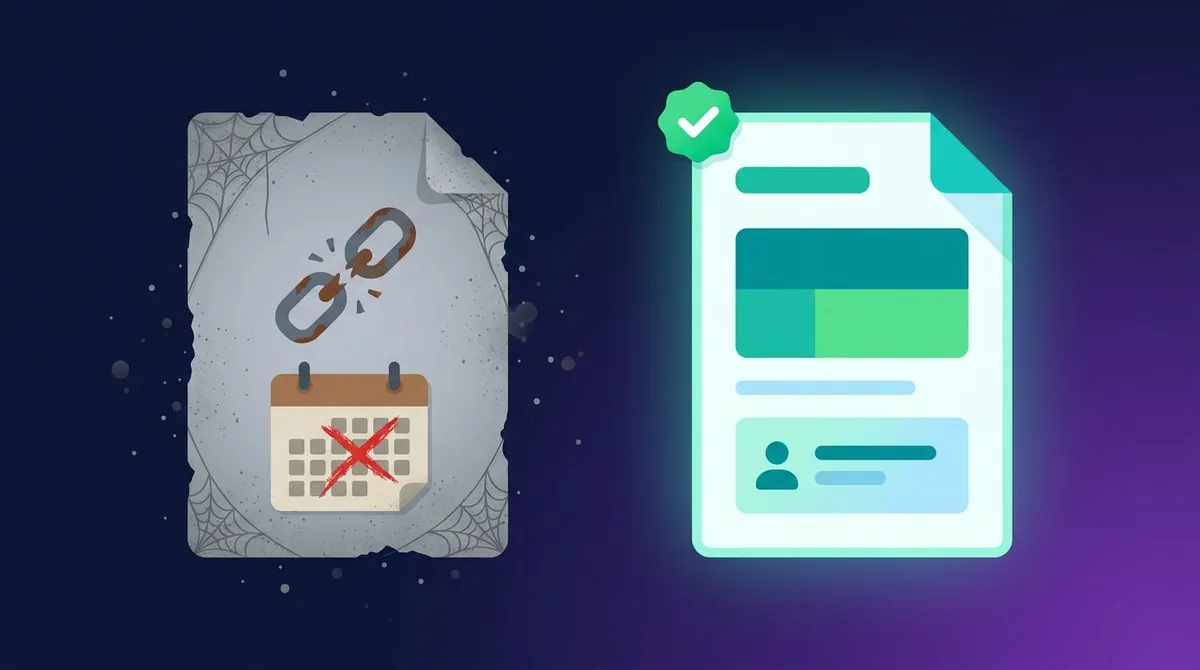
Cause 1: Staleness
The tool changes, the process changes, and the doc does not. After one bad experience, readers stop trusting the whole knowledge base.
The fix: add "Last verified" and "Review by" dates to every doc, as shown above. Many wiki tools can remind owners when a review date passes. When a doc is wrong and nobody can fix it today, add a warning banner at the top rather than leaving it silently broken.
Cause 2: No visuals
A wall of text is hard to scan and easy to misread. Steps like "open the second tab in the settings panel" leave too much to guess.
The fix: add an annotated screenshot to any UI step and a short GIF for anything that moves. The next section shows how.
Cause 3: No owner
When everyone can edit and nobody is accountable, nobody fixes anything. Pages pile up, duplicates appear, and the search results fill with noise.
The fix: use the team-owner model plus a rotating steward. Also give people permission to delete. Nunez compares a docs set to a garden: pruning is part of the job, not a failure.
Cause 4: Hard to find
If search returns five pages with similar titles, readers give up and ask a colleague. That trains the whole team to skip the docs.
The fix: use task-first titles, one landing page per space, and a single source of truth. Answer chat questions with a link to the doc.
Cause 5: Written for the writer
Experts skip steps they no longer notice. The result is a doc that makes sense only to the person who wrote it.
The fix: have someone new follow the doc while you watch, without helping. Every place they pause is a missing step. The Google developer documentation style guide is a solid reference for plain, clear writing, even outside engineering.
Visual documentation: annotated screenshots and short GIFs
Visuals are the most underused part of internal documentation. A reader can confirm "am I in the right place?" in one glance at a screenshot. The same check takes a paragraph of text and still leaves doubt.
Pick the right format for the job
| Situation | Best format | Why |
|---|---|---|
| Showing where a button or setting lives | Annotated screenshot | Fast to scan, easy to update |
| A sequence of 3 to 6 clicks | Numbered screenshot or short GIF | Shows order without a long read |
| Drag-and-drop or anything that animates | Short GIF (under 15 seconds) | Motion is hard to describe in words |
| A full walkthrough with context and voice | Screen recording | Explains the "why" as well as the "how" |
| A system or process overview | Diagram or flowchart | Shows relationships, not screens |
Annotation rules that keep screenshots useful
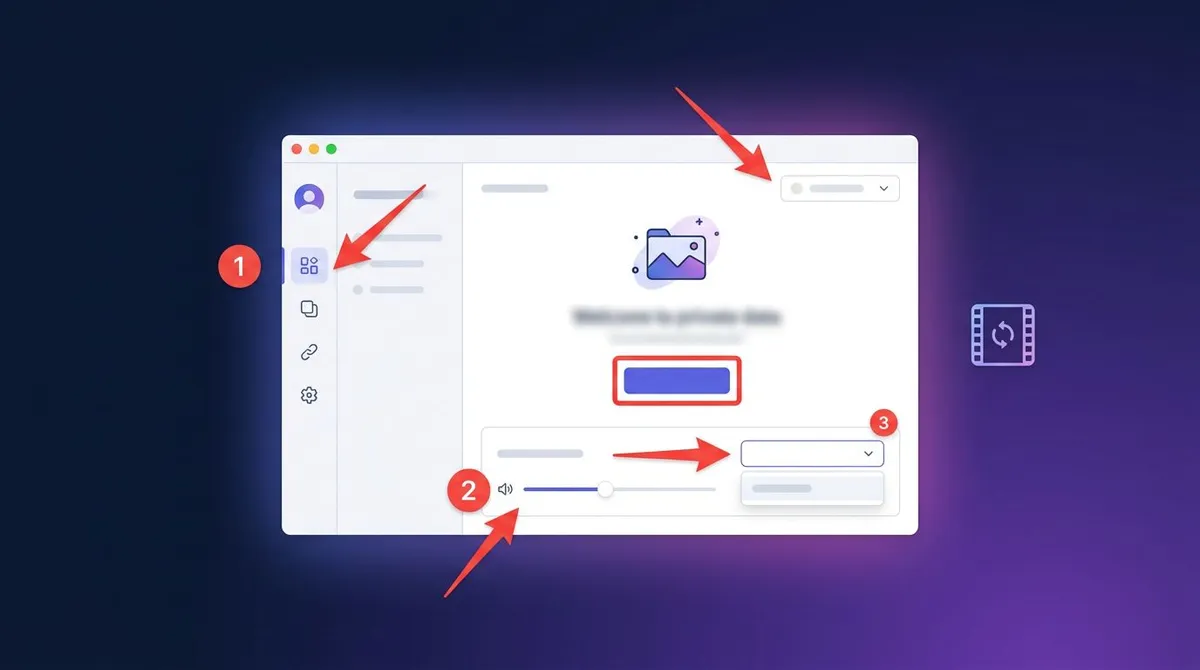
- Crop tight. Show the part of the screen that matters plus enough context to orient the reader. A full-screen capture of a 4K monitor is unreadable in a wiki.
- Point at one thing. Use one arrow or one box per screenshot where you can. If you need several, number them to match the steps.
- Number the steps. Numbered markers on the image that match the numbered list in the text let readers follow along without losing their place.
- Blur private data. Customer names, emails, API keys, and internal revenue figures should never sit in plain view, even in internal docs. Docs get shared further than you expect.
- Keep sizes consistent. Capture the same window at the same size across a doc so screenshots do not jump around.
- Write alt text. Describe what the image shows and why it matters. The W3C images tutorial covers how to do this well.
For a deeper walkthrough of these habits, see the guide to screenshots in technical documentation and the tutorial on step-by-step instructions with screenshots.
Keep GIFs short and light
A GIF should show one action, loop cleanly, and stay small enough to load fast in a wiki page. Aim for under 15 seconds and under a few megabytes. If a GIF is too heavy, you can shrink it with a free GIF compressor that lets you lower quality, scale, and frame rate in your browser. For a one-off markup job without installing anything, a free online image annotation tool handles arrows, shapes, text, highlights, and blur.
The capture step is where the time goes
Writing the steps is rarely the slow part. Capturing, cropping, annotating, blurring, and uploading each image is. If your team writes a lot of SOPs, a dedicated capture tool pays off quickly.
ScreenSnap Pro is one option that covers that loop on Mac and Windows. It captures a region, window, or full screen, and it has 15 annotation tools, including arrows, text, blur, pixelate, and a counter for numbered steps. It also records the screen straight to GIF, with no video conversion step. Optional cloud upload gives you a shareable link to paste into any wiki. It is a one-time $39 purchase rather than a subscription, and one license with 2 seats covers two computers. You can see the pricing here.
Choosing an internal wiki or documentation tool
There is no single right tool for internal docs. The right one is the tool your team already opens every day, with good search, and with the features your maintenance habits need. Picking a new wiki will not fix a culture that does not write things down.
Use these questions to judge any internal wiki or knowledge base tool:
- Search: Can people find a doc by the words they would type, not only the exact title?
- Ownership and review dates: Can you mark an owner and set reminders for reviews?
- Permissions: Can you restrict sensitive docs, like HR or finance, without a separate tool?
- Images and video: Can you paste a screenshot or GIF directly, and does it display inline?
- Templates: Can you save your templates so new docs start with the right sections?
- Version history: Can you see who changed what and roll back a bad edit?
- Exit path: Can you export everything if you switch later?
Engineering teams often keep technical docs in the repo as Markdown, next to the code. Business teams usually do better in a wiki with a visual editor. Mixing both is fine, as long as each area has one clear home and the landing pages link across. If you are comparing options, this roundup of process documentation tools lays out the trade-offs by use case.
Maintenance rituals that keep docs alive
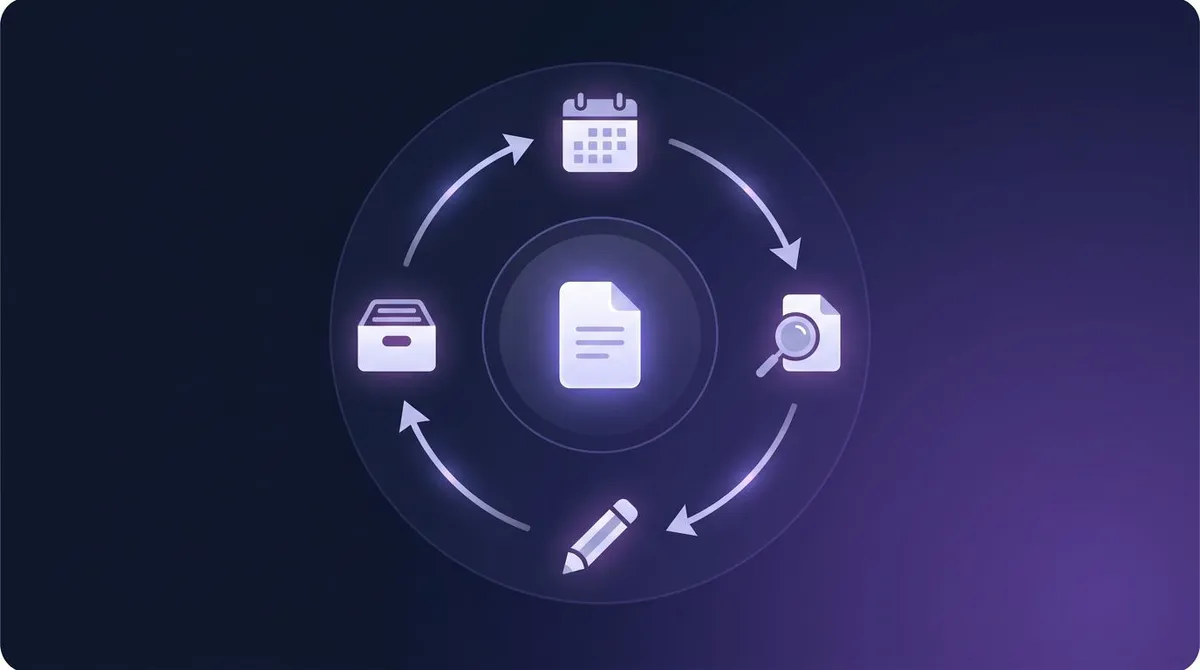
Writing docs is a project. Keeping them useful is a habit. These rituals are small on purpose, so they survive busy weeks.
Weekly
- Steward sweep (30 to 60 minutes). The rotating steward checks flagged pages, broken links, and docs past their review date, then pings owners.
- Answer with a link. Every time someone answers a question in chat, they link the doc. If no doc exists, they write a short one first.
With every change
- Docs in the definition of done. A feature, process change, or tool switch is not done until the affected docs are updated. Add a checkbox to your ticket or pull request template.
- Snapshot docs while you work. Write down the real steps as you do a task for the first time. It takes minutes and becomes the first draft of the SOP.
- Refresh screenshots when the UI changes. Keep a note of which docs show which screens, so a redesign triggers a quick recapture.
Monthly
- Review the most-viewed docs. A small share of docs gets most of the traffic. Nunez estimates that about 10% of docs earn about 90% of views. Make sure that 10% is flawless.
- Check search logs. Searches with no results show you which docs are missing.
Quarterly
- Prune. Archive anything nobody has viewed in six months and anything that has been superseded. Fewer, better docs beat a large, noisy wiki.
- Onboarding pass. Ask the most recent new hire to update the onboarding guide with everything that confused them.
Internal documentation best practices checklist
Use this checklist before you publish any new internal doc:
- Title starts with the task and names the tool
- Owner, last verified, and review-by fields are filled in
- Steps are numbered, one action per step
- UI steps have a cropped, annotated screenshot, and motion gets a short GIF
- Private data is blurred and every image has alt text
- Doc links to its parent process doc and related SOPs
- Someone who did not write it has followed it once
Frequently Asked Questions
Start small, then keep it alive
You do not need a documentation overhaul to see results. Pick the ten questions your team answers most often, write one short doc for each, give each an owner, and link to them every time the question comes up.
Then build the habits: review dates, a rotating steward, docs in the definition of done, and visuals for every UI step. If capturing and annotating screenshots is the slow part of your docs work, ScreenSnap Pro handles it on Mac and Windows for a one-time $39.

Morgan
Indie DeveloperIndie developer, founder of ScreenSnap Pro. A decade of shipping consumer Mac apps and developer tools. Read full bio
@m_0_r_g_a_n_