Scan a QR Code From a Picture or Screenshot (2026)
Yes, you can scan a QR code from a picture or screenshot, and you do not need a second phone to point at the screen. On iPhone, open the image in Photos and long-press the code. On Android, open it in Google Photos and tap the Lens button. On a computer, upload the image to Google Lens in your browser. Each takes about five seconds.
That "point one phone at another screen" trick is the thing almost everyone tries first, and it is the one method that does not need to exist. Every major platform can now read a code out of a file you already have.
This guide covers every device, then the fixes for when a code refuses to read.
Can you scan a QR code from a screenshot?
Yes. A QR code is just a pattern of squares, and a scanner does not care whether that pattern arrives from a camera or from a saved file. A screenshot is often easier to read than a photo, because there is no camera shake, no angle, and no glare.
There are only two things that stop a saved code from scanning, and both are about the image rather than the code:
- Too few pixels. A code cropped down to a 60 pixel thumbnail loses the fine detail the scanner needs.
- A missing quiet zone. QR codes need a margin of blank space around all four sides. Crop that away and many scanners give up.
Both are fixable, and the troubleshooting section below covers how.
How to scan a QR code from a picture on iPhone
Apple built this into Photos, so no app download is needed.
- Open the Photos app and tap the picture or screenshot containing the code.
- Touch and hold the QR code itself.
- A banner appears with the link. Tap it to open, or tap the arrow for more options.
If the long-press does nothing, use Live Text instead. Tap the Live Text button in the bottom-right of the photo, which looks like three lines inside a bracket, then tap the code. Apple's guide to scanning a QR code covers the camera version of the same feature.
A third route works when the other two fail: add the Code Scanner to Control Center from Settings, open it, then tap the photo icon in its bottom-left corner to pick an image from your library.
How to scan a QR code from an image on Android
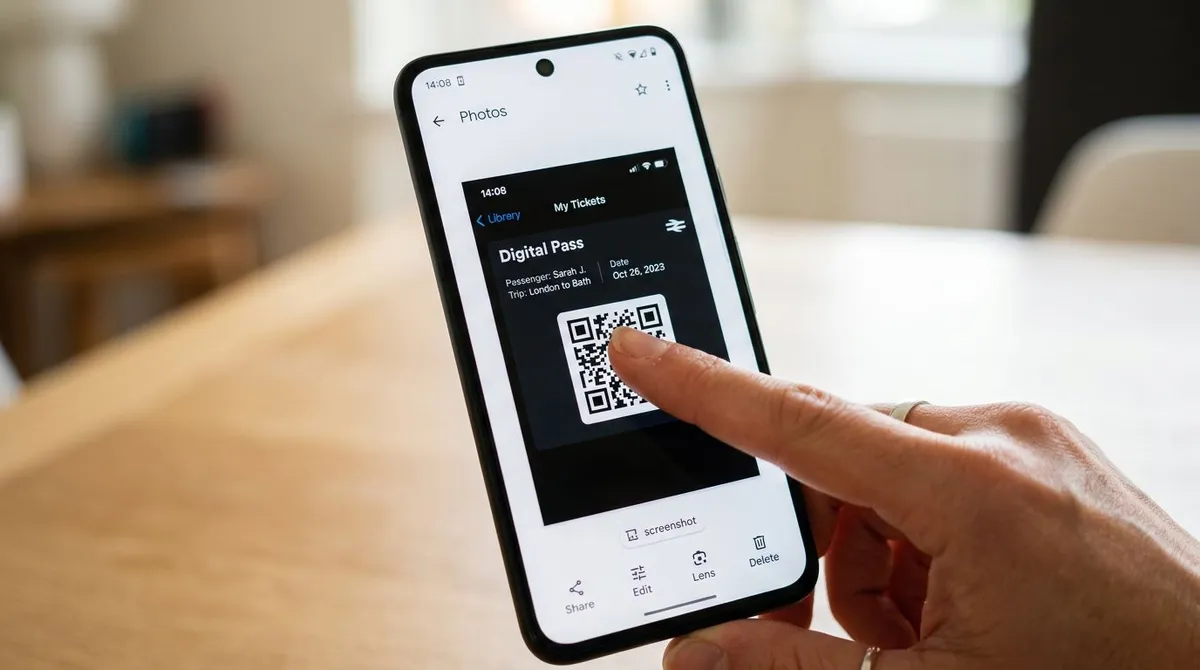
Google Lens is built into Photos on essentially every modern Android phone.
- Open Google Photos and tap the image.
- Tap the Lens icon in the toolbar at the bottom.
- Lens reads the code and shows the link. Tap it to open.
If your phone puts Lens somewhere else, the Google app works just as well: open it, tap the Lens camera icon in the search bar, then tap the gallery icon to choose a saved picture. Google's own guide to scanning QR codes on Android walks through both routes.
Samsung phones have a third option. Bixby Vision and the Gallery app both offer a scan action on images that contain a code, so if Lens is unavailable, check the three-dot menu while viewing the picture.
How to scan a QR code from a picture on Mac
macOS has no built-in image scanner for QR codes, so the browser is the fastest route.
- Go to Google Lens in Chrome, Safari, or any browser.
- Click the camera icon in the search box, then Upload a file, or simply drag the image onto the page.
- The decoded link appears alongside the result.
In Chrome there is an even shorter path. Right-click any image already on a web page and choose Search image with Google, and Lens reads the code without a download step.
Preview can help before you get that far. If the code is buried inside a larger screenshot, open the file in Preview, drag a selection around the code with a generous margin, and press Command + C. You can paste that crop straight into Lens. If you find yourself doing this often, capturing a tighter region in the first place saves the step, and our guide to taking high-quality screenshots on Mac covers getting sharp captures at full resolution.
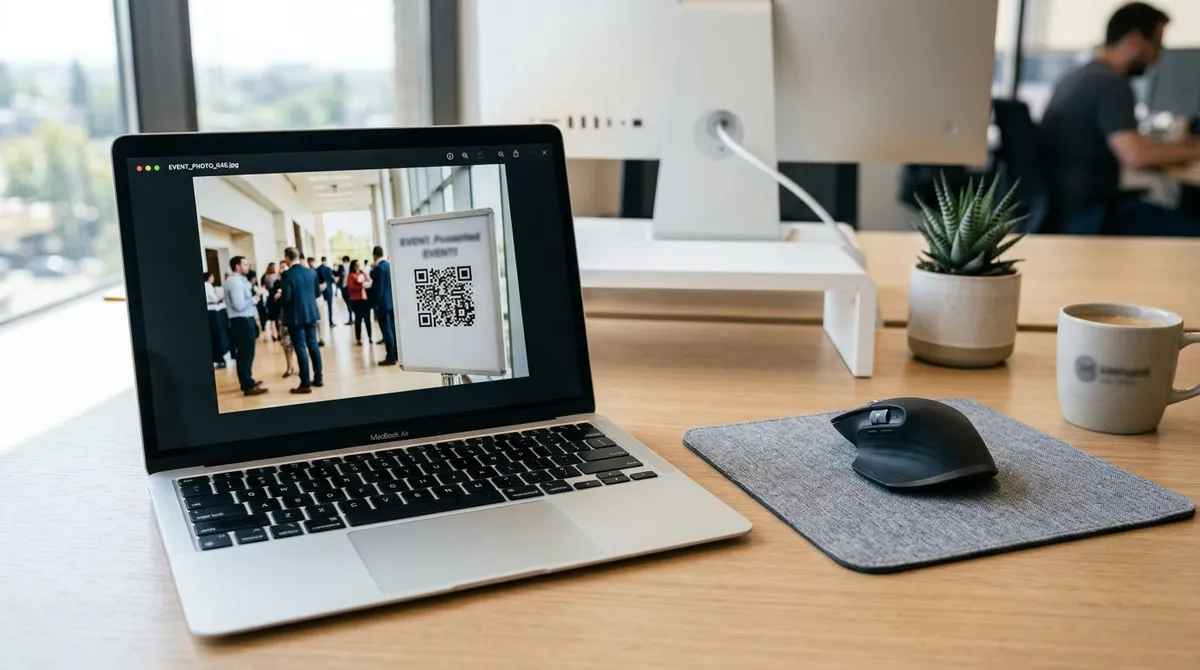

Tired of plain screenshots? Try ScreenSnap Pro.
Beautiful backgrounds, pro annotations, GIF recording, and instant cloud sharing, all in one app. Pay $34 once, own it forever.
See pricing and featuresHow to scan a QR code from a picture on Windows
Windows also has no native file-based scanner, so the browser method is the one to use.
- Open Google Lens in Edge or Chrome and upload the image, exactly as on Mac.
- Or, if the code is on a web page already, right-click it and pick Search image with Google in Chrome, or Search the web for image in Edge.
The built-in Camera app can read codes, but only through the webcam, so it is no help for a file sitting on your drive. Windows also has Snipping Tool, which is worth combining with the browser route: press Win + Shift + S, drag a box around the code, and paste it directly into the Lens upload area with Ctrl + V. No file is saved to disk at all.
If you are not sure where a capture ended up, where screenshots are saved on Windows explains the default folder and how to change it. The Mac version covers the same ground for macOS.
Online QR decoders, and the privacy catch
Plenty of websites will decode an uploaded image in a browser tab. They work, and on an old device without Lens they may be the only option.
Read the fine print first. Uploading an image to a decoder site means handing that file to a third party, and QR codes routinely carry Wi-Fi passwords, payment links, event tickets, and account invitations. A ticket barcode uploaded to a random site is a ticket someone else can now use.
Two rules keep this safe:
- Prefer a decoder that states it runs in your browser rather than on its server.
- For anything private, use the built-in Photos or Lens methods above instead.
Quick comparison of every method
| Device | Fastest method | Works offline | Needs an app |
|---|---|---|---|
| iPhone | Long-press the code in Photos | Yes | No |
| Android | Lens button in Google Photos | Partly | No |
| Mac | Upload to Google Lens in a browser | No | No |
| Windows | Upload to Google Lens in a browser | No | No |
| Any device | Online decoder site | No | No |
When the QR code will not scan
Most failures come down to four causes, in rough order of how often they show up.
The image is too small or too blurry
Scanners need to resolve the individual squares. A code that has been screenshotted, shrunk to fit a chat window, then screenshotted again may simply not have the detail left. Zoom into the original picture and take a fresh capture at full size, or ask the sender for the original file.
The quiet zone was cropped away
That blank margin around a QR code is part of the specification, not decoration. If the crop cuts right up to the edge of the pattern, many readers fail. Recrop with a clear border on all four sides, roughly the width of four of the small squares.
Glare, screen reflections, or an angle
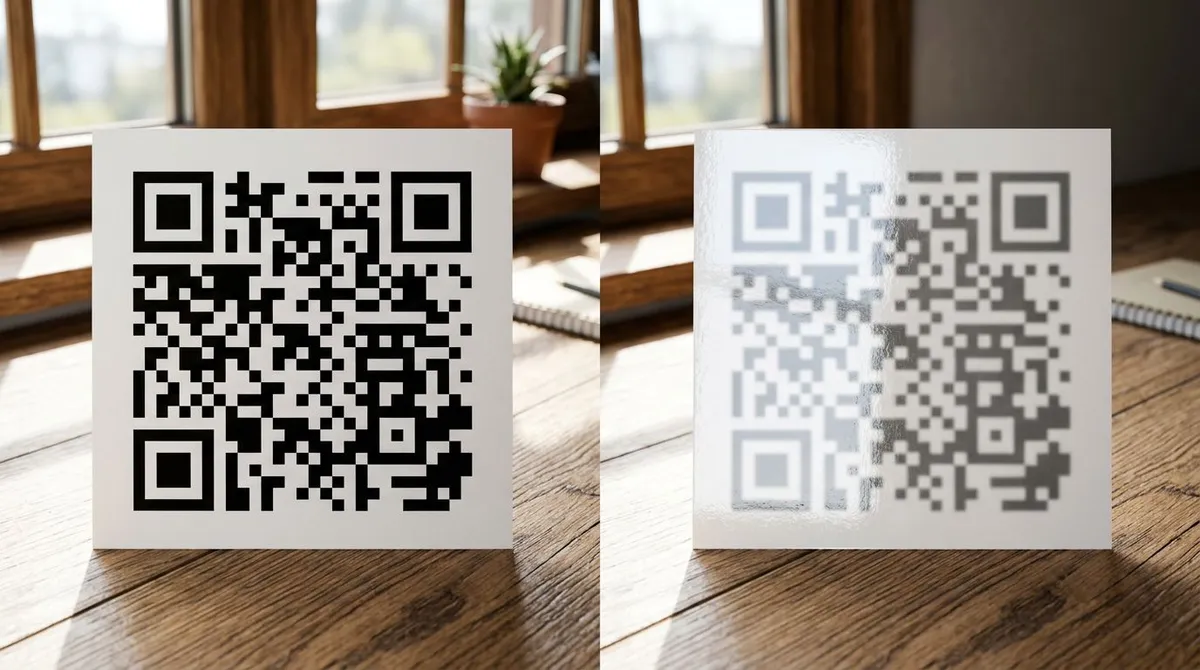
This one only affects photos of a code, not screenshots. A window reflection across the middle of a code can wipe out enough of the pattern to break it. Retake the photo straight on, in even light. Screenshots avoid the problem entirely, which is why they are the more reliable format.
The colors are inverted
Some designers produce light codes on dark backgrounds. Older scanners assume dark-on-light and see nothing at all. Open the image in any editor and invert the colors, then scan again.
Still nothing?
Try a second scanner before concluding the code is broken. Lens, Apple's Code Scanner, and a browser decoder use different decoding libraries, and a marginal image often reads in one but not another.
Making your own QR code
If you landed here because you want to create a code rather than read one, that is the other half of the job. Our free QR code generator builds one from a link or text in the browser, with nothing uploaded to a server.
One tip that prevents the exact problem this article solves: generate at a larger size than you think you need. A code that will end up printed on a flyer or shown on a projector should start well above the size it will be displayed at, because every downscale costs detail.
When you need to capture a code that is on your screen right now, capturing a clean region beats photographing the monitor. ScreenSnap Pro grabs a precise region at full resolution, so the crop you send is one that scanners can actually read. Related: taking a partial screenshot on Mac and cropping a screenshot on Windows.
Frequently Asked Questions

Morgan
Indie DeveloperIndie developer, founder of ScreenSnap Pro. A decade of shipping consumer Mac apps and developer tools. Read full bio
@m_0_r_g_a_n_