Screenshot on a Lenovo Laptop (2026): Fix Fn Lock First
If PrtSc does nothing on your Lenovo, Fn lock is almost certainly on, because Lenovo turns it on at the factory. Press Fn + Esc to flip it, then use Windows + PrtSc to save the whole screen, or Windows + Shift + S to drag out a region.
Not certain your laptop is a Lenovo? Identify your computer first. On a different brand? Jump to HP, Dell, ThinkPad, Asus, Acer, or Surface.
That one factory default is why how to screenshot on a Lenovo laptop is its own question. Plenty of brands offer an Fn lock. Lenovo is the brand that ships it enabled across whole product lines and puts the indicator on a key nobody thinks to check.
Then there is the part that brings people back to search a second time. Lenovo Vantage, the app preloaded on almost every Lenovo, keeps its own copy of the same setting. When the app and the keyboard disagree, the app wins, and the toggle you flipped this morning is back on after the next reboot.
If you have a ThinkPad, read our ThinkPad screenshot guide instead. A ThinkPad is a Lenovo, but its PrtSc sits down in the bottom row rather than the shared top row, so the fix below is not the one you need.
Why PrtSc does nothing on a Lenovo: the Fn lock default
Here is the quick fix. On many Lenovo laptops, the top row fires the printed icons (volume, brightness, microphone mute, airplane mode) instead of F1 through F12. That behavior is controlled by Fn lock, and Lenovo enables it out of the box on a large share of IdeaPad, Yoga, ThinkBook, and Legion machines.
When Fn lock sits in the wrong state for you, the PrtSc key sends the wrong signal, so Windows never receives a capture command. Nothing appears on screen. Nothing lands in your clipboard. The key is not broken.
How to tell which state your Lenovo is in
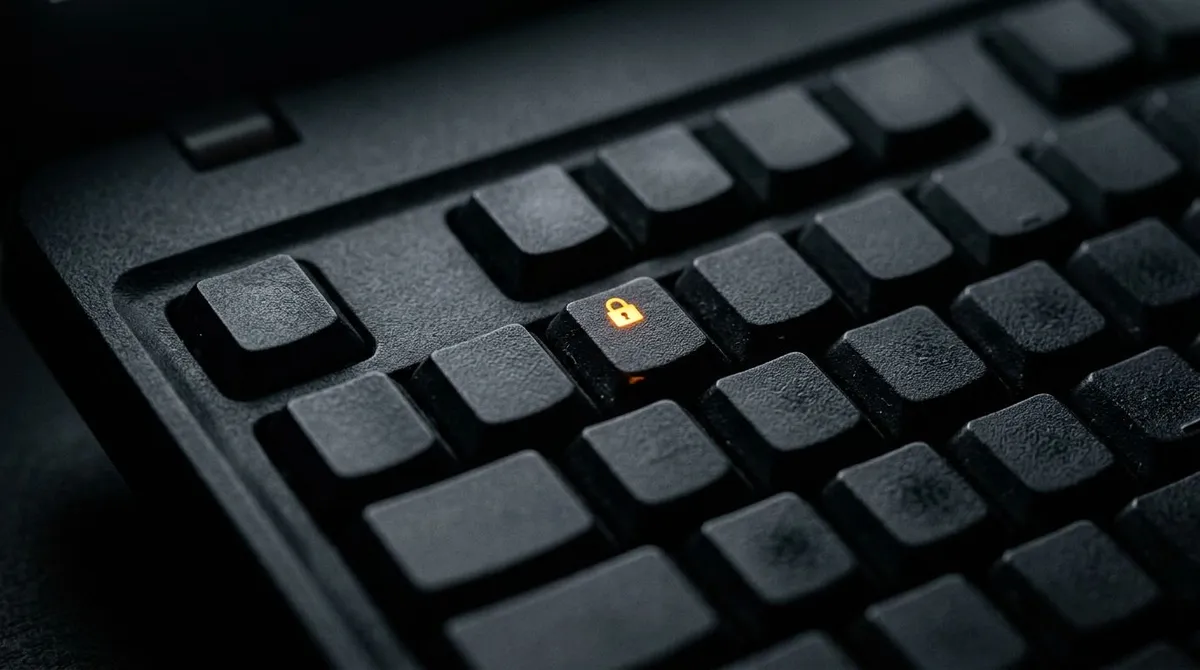
Look at the Esc key in the top left corner. Lenovo puts the FnLock switch on that key, and most models carry a tiny LED right there to show the state. Lenovo's own FnLock documentation spells out that the switch "reverses the default and hidden function of a hotkey."
Which LED state means what is not consistent across Lenovo lines, so test it instead of guessing:
- Tap
F1on its own inside an app that responds to it. - If the app opens Help, your top row is acting as
F1throughF12, and the printed media icons needFn. - If the sound mutes instead, your top row is acting as media keys, and
F1throughF12needFn.
That second state is the one that makes PrtSc look dead, because on most Lenovo keyboards Print Screen sits in that same shared top row.
How to toggle Fn lock on a Lenovo
Press Fn + Esc. That is the entire toggle, and the indicator on the Esc key flips with it. Several Legion models use Fn + Space for the keyboard backlight, so do not reach for that one by mistake.
Once you know your state, the fix is three steps:
- Press
PrtScon its own. If a screenshot happens, you are done. - If nothing happens, hold
Fnand pressPrtSctogether. - If the
Fnversion works, pressFn+Esconce to make that behavior the default and stop holdingFnevery time.
Lenovo explains the broader idea in its glossary entry on the F-Lock key. Now for the part most guides skip: making the change survive a restart.
When the Fn lock keeps coming back: Lenovo Vantage
Fn + Esc changes what the keyboard is doing right now. Lenovo Vantage decides what the keyboard goes back to. That is the whole reason the setting seems to reset on its own: Vantage re-applies its stored value when you sign in, and it does not care what you pressed yesterday.
Vantage is also not one app, which is why two Lenovo owners can follow the same instructions and find different menus.
- Vantage from the Microsoft Store is the version on IdeaPad, Yoga, Legion, and most ThinkBook machines. Recent builds put the control under Device, then Input & Accessories, as a Hotkey Mode or
Fnkey priority switch. - Older Vantage builds, plus the Lenovo Settings and Lenovo Companion apps that came before them, keep the same switch under Hardware Settings, then Input. If you followed a guide and the menu it described did not exist, this is usually why. Updating Vantage from the Microsoft Store moves you to the newer layout.
- Commercial Vantage is the ThinkBook and ThinkPad build aimed at managed fleets. On a work laptop, your IT team can push the function key policy from a console, and a local change gets overwritten at the next policy refresh.
Set the value inside Vantage, not on the keyboard, and the reboot stops undoing your work. Some Lenovo models also let Vantage remap a key outright, which is worth a look if PrtSc does something odd rather than nothing at all.
Pin it in the BIOS when Vantage is not an option
Vantage can only hold a setting while it is installed and running. If it has been removed, blocked by IT, or it keeps losing an argument with a driver update, move the behavior into firmware, where nothing in Windows can touch it.
- Shut the laptop down fully. On models with fast startup, a restart is not enough.
- Power on and tap the setup key. ThinkBook models use
F1. IdeaPad, Yoga, and Legion models useF2, and many IdeaPads also have a pinhole Novo button next to the power jack that opens the same menu. - Open the Config tab and choose Keyboard/Mouse. On IdeaPad and Legion firmware the tab is called Configuration instead.
- Find Hotkey Mode. Set it to Disabled so
F1throughF12fire first and the printed icons needFn. - Press
F10to save and exit.
The naming is the part that catches people out. Lenovo's hotkey mode reference confirms that Enabled means the media icons fire directly, which is exactly the state that makes PrtSc look dead. Enabled sounds like the helpful choice and is the one you want off.
Still stuck after Vantage and the BIOS? Our guide to Print Screen not working on Windows covers the causes that have nothing to do with Lenovo, like a background app grabbing the key.
The rest of the shortcuts work as normal
With Fn lock settled, your Lenovo behaves like any other Windows machine, so Windows + PrtSc, PrtSc alone, Alt + PrtSc, Windows + Shift + S, the Snipping Tool app, and Game Bar all do what they do everywhere else. Our Windows 11 screenshot guide breaks down what each one captures and where it puts the file, so this page can stay on the Lenovo part.
One exception. A Lenovo Chromebook runs ChromeOS, so none of these keys, apps, or menus exist on it, and the ChromeOS capture shortcuts are covered in our guide to screenshots on a Chromebook.
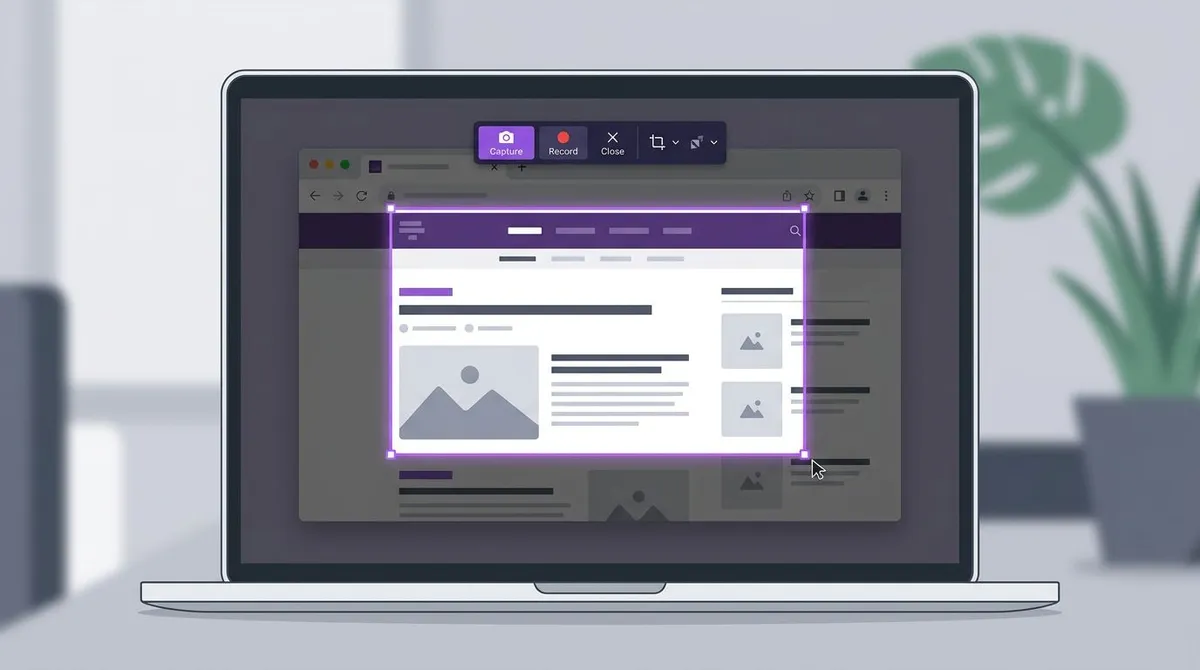

Tired of plain screenshots? Try ScreenSnap Pro.
Beautiful backgrounds, pro annotations, GIF recording, and instant cloud sharing, all in one app. Pay $39 once, own it forever.
See pricing and featuresWhere Lenovo screenshots save
Here is the Lenovo version of that question, because the usual answer sends you looking in the wrong place.
An empty Screenshots folder, or no Screenshots folder at all, is a symptom of Fn lock rather than a lost file. Windows creates Pictures, then Screenshots the first time a Windows + PrtSc press actually lands. If your top row has been firing brightness and mute icons since the day you unboxed the laptop, that press never landed, so the folder was never created and there is nothing to recover. Fix the toggle, press Windows + PrtSc once, and the folder appears.
Two Lenovo footnotes:
- While you are still holding
Fnas a workaround,Fn+Windows+PrtScwrites to that same Screenshots folder. It is the one command with an extra key on the front, not a separate feature, so there is no second location to hunt for. - Lenovo Vantage never stores captures. It handles keys, drivers, power, and updates, so nothing you take will turn up inside it.
Everything else about Windows save paths, including how to move the default folder, is in where screenshots go on Windows.

Cropping and marking up your Lenovo capture
You have spent enough of today inside keyboard settings, so the last thing you want is another install. The free image annotation tool opens your capture in a browser tab and gives you arrows, boxes, text, and a blur for anything private.
Resizing and format changes belong to Windows itself, and our guide to editing screenshots on Windows covers the built-in options. Trimming dead desktop off the edges gets its own walkthrough in cropping a screenshot on Windows.
A web page taller than your display is a different job, and no key on a Lenovo keyboard does it. See full-page screenshots on Windows for that one.
When Windows capture is not enough on a Lenovo
Notice the shape of the problem you have been fixing. Your capture shortcut is only as stable as the setting sitting underneath it, and that setting belongs to a preloaded app, a firmware menu, and sometimes an IT policy. A Vantage update or a reimaged work laptop can put it back, and you are troubleshooting a keyboard again instead of sending a picture.
ScreenSnap Pro steps around that by carrying its own hotkey. You bind capture to a combination that has nothing to do with the shared top row, so Fn lock cannot reach it, and the shot opens straight into markup with a link or a file waiting at the end. It runs on Windows and Mac from one $39 one-time purchase with a two-computer license, so nothing renews. Get ScreenSnap Pro and the license key and installer arrive by email right after checkout.
Worth being straight about it: this is a paid app with no free tier. If you grab a screenshot once a month, Windows + Shift + S is genuinely enough, and it never touches PrtSc in the first place. For a wider look at the field, see our roundup of the best screenshot tools for Windows.

Frequently Asked Questions

Morgan
Indie DeveloperIndie developer, founder of ScreenSnap Pro. A decade of shipping consumer Mac apps and developer tools. Read full bio
@m_0_r_g_a_n_