How to Screenshot on an Asus Laptop (2026): 6 Ways
On most Asus laptops the top row is a hotkey row by default, so PrtSc and F1 to F12 only fire when you hold Fn. Press Fn + Esc to flip that. Then Windows + Shift + S snips any area, and Windows + PrtSc saves the whole screen to Pictures, then Screenshots.
Not certain your laptop is an Asus? Identify your computer first. On a different brand? Jump to HP, Dell, Lenovo, ThinkPad, Acer, or Surface.
That is how to screenshot on an Asus laptop in one breath. The keystrokes are plain Windows keystrokes, and they behave the same on a VivoBook, a ZenBook, a TUF or an ROG. What is genuinely different on Asus is the layer underneath: the Fn lock, Asus's own capture hotkey, and the MyASUS setting that quietly overrides both. Get those three right and every shortcut below starts working.
Every way to screenshot on an Asus laptop
Most guides hand you the same six Windows shortcuts and stop. Here is the shorter, Asus-filtered version, with the column that decides whether your keystroke does anything at all.
| Method | Keys | Does the top row get a vote? | Where it goes |
|---|---|---|---|
| Snip a region | Windows + Shift + S | No, it never touches the function row | Clipboard, then Snipping Tool |
| Asus capture hotkey | F11 on ZenBook, F12 on ROG | Yes, and Fn may be required | Clipboard, then Snipping Tool |
| Save the whole screen | Windows + PrtSc | Yes, on models where PrtSc shares a key | Pictures, then Screenshots |
| Copy screen or window | PrtSc or Alt + PrtSc | Yes, same shared key problem | Clipboard only |
| Game Bar, handy on TUF and ROG | Windows + G | No, it is an overlay rather than a key | Videos, then Captures |
Two things follow from that middle column. First, if you want a route that ignores the function row entirely, use Windows + Shift + S or open the Snipping Tool app from the Start menu; Microsoft's own Snipping Tool guide covers its modes. Second, anything that lands on the clipboard is not a file yet, so paste it with Ctrl + V into Paint, a document or a chat window to keep it.
Which of those rows fire on your machine comes down to three Asus layers stacked on top of each other: the Fn lock, Asus's own capture hotkey, and MyASUS sitting over both of them.
The Asus Fn lock is why your keys do nothing
This is the number one reason a screenshot shortcut fails on an Asus.
Asus ships most notebooks with the top row in hotkey mode. Press F11 and you get the hotkey printed on the key, not F11. Press PrtSc on a model where it shares a key and you get the secondary function instead. Your keystroke was correct. The keyboard was in the other mode.
Hold Fn with the key to get the printed function once. Press Fn + Esc to flip the whole row for good. Asus describes this toggle in its official keyboard hotkeys guide: with the function key feature enabled you press F1 to F12 for real F keys and add Fn for the hotkeys, and with it disabled you get the reverse.

Two Asus details that almost nobody mentions:
- Not every Asus model supports
Fn+Esc. Asus says you can tell at a glance by looking for a tiny LED in the upper right corner of theFnkey itself. No light means no toggle on that machine. - That LED is your state indicator. Tap
Fn+Escand watch it switch. Checking the light is much faster than testing shortcuts one by one to work out which mode you are in.
If PrtSc still refuses to respond after all this, our guide on Print Screen not working on Windows covers the driver and background app causes.
Asus has its own capture hotkey, and it is not PrtSc
Here is the part that makes an Asus keyboard genuinely different from a Dell or an HP. Asus assigns a dedicated screen capture hotkey on the top row, separate from PrtSc, and the key it sits on changes by product line.
Asus's own hotkey documentation is not consistent about it, which tells you a lot:
| Asus line | Example model | Capture hotkey |
|---|---|---|
| ZenBook | UX325JA | Fn + F11 |
| ROG | GA403 (Zephyrus G14) | F12 |
Read that table twice, because it explains most of the confusion in Asus owner forums. On one machine the capture key needs Fn. On another it fires on its own. Same brand, similar era, different row behavior.
The printed icon is your guide. Scan the top row for a small camera or scissors style symbol on the key face. That is the capture hotkey, and pressing it opens the same snip overlay as Windows + Shift + S.
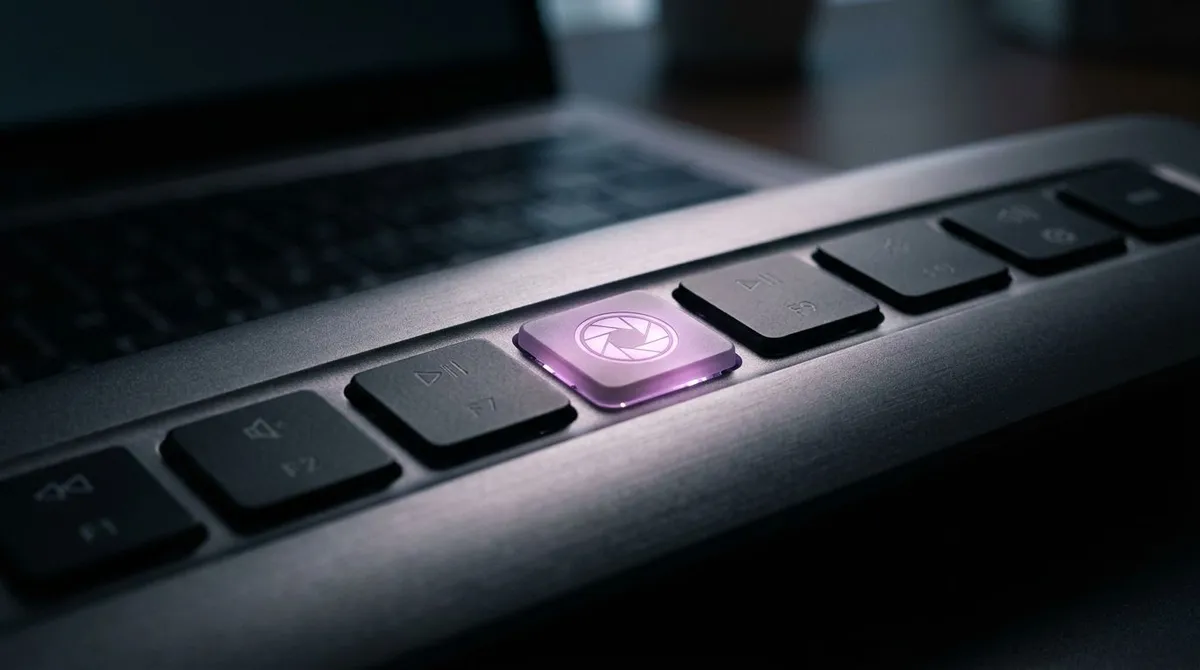
On compact ROG Zephyrus and TUF keyboards there is often no key labelled PrtSc anywhere, which is why owners of those machines assume screenshots are broken on their laptop. They are not. Use the top row capture hotkey or Windows + Shift + S and forget PrtSc entirely.
Set it permanently in MyASUS
If Fn + Esc does nothing on your machine, the setting still exists. It just lives in software instead.
- Open MyASUS from the Start menu.
- Go to Device Settings.
- Open Input Device Settings.
- Choose Hotkeys or F1 to F12.
Picking F1 to F12 makes the top row behave like a normal desktop keyboard, so PrtSc and the F keys fire directly and the Asus hotkeys move behind Fn. Asus notes in its MyASUS device settings guide that the Fn + Esc shortcut and this menu stay in sync, so changing one changes the other.
One gotcha for older machines: Asus used to ship a separate utility called Asus Keyboard Hotkey, sometimes listed as the ATK Package. On current models it has been folded into MyASUS, so if you go hunting for the old utility and cannot find it, nothing is missing. It moved.

Tired of plain screenshots? Try ScreenSnap Pro.
Beautiful backgrounds, pro annotations, GIF recording, and instant cloud sharing, all in one app. Pay $39 once, own it forever.
See pricing and featuresModel notes: VivoBook, ZenBook, TUF, ROG and Copilot+
- VivoBook and ZenBook. Usually a
PrtSckey at the right end of the function row, with the capture hotkey aroundF11. HoldFnwith it until you flip the lock. - TUF and ROG. Often no
PrtSclabel at all. Newer ROG boards put capture onF12with noFnneeded, so tryF12before you assume the key is missing. - Asus Copilot+ PCs. These get Perfect Screenshot inside the Snipping Tool, which tightens the selection box automatically around whatever is under your cursor. It is a Microsoft feature rather than an Asus one, but Asus documents it for its own Copilot+ models.
On an Asus Chromebook none of this applies, because ChromeOS has no Fn lock and no PrtSc key. The shortcuts in our Chromebook screenshot guide work the same on an Asus.
Where Asus laptop screenshots are saved
The save location depends on the method you used, not on the brand.
Windows+PrtScwrites a PNG to This PC, then Pictures, then Screenshots, named Screenshot (1), Screenshot (2) and so on.PrtScandAlt+PrtScsave nothing at all. They only copy to the clipboard, so paste and save the image yourself.Windows+Shift+Sand the Asus capture hotkey copy to the clipboard and show a Snipping Tool preview, where you pick the folder.- Game Bar captures land in Videos, then Captures.

If a capture has vanished, our guide to where screenshots go on Windows walks through every save path and how to change the default folder.
What happens after the Asus capture hotkey fires
Both Asus routes end in the same window. The top row capture key and Windows + Shift + S hand the image to the Snipping Tool preview, so your first edit happens there. Nothing is on disk at that point. The image sits on the clipboard, and the preview is where you turn it into a file.
That preview does a rough mark up and little else, so anything further is a separate step. Resizing the capture or swapping a PNG for a JPG is covered in editing screenshots on Windows. On a company-issued Asus, where MyASUS is greyed out and IT blocks new installs, our image annotation tool sidesteps the whole problem by running in a browser tab, so arrows, boxes and a blur over an account number cost you clicks instead of a support ticket. And when the Game Bar overlay or half the desktop ends up inside the frame, the crop a screenshot on Windows steps cut it back fastest.
Dual screen ZenBook Duo owners have another route in. Asus ships ScreenXpert on those machines, and its Control Center carries Print Screen, the Snipping Tool and a screen recorder as Quick Functions: buttons you click instead of keys you press. Asus describes the panel in its ScreenXpert introduction and notes the contents vary by model, so check what yours actually shows.

Making capture independent of the function row
Look at what every fix above has in common. The Fn lock, the MyASUS menu, the capture key that sits on F11 here and F12 there: the top row keeps deciding what your keystroke means. Replace the laptop and you learn the row all over again.
A capture app with its own hotkey takes the row out of the decision. You choose the combination, it fires in either Fn mode, and it moves with you from a TUF to a ZenBook.
ScreenSnap Pro works that way, and it covers the steps Windows hands back to you: 15 annotation tools, 500+ backgrounds, screen and webcam recording, GIF capture, OCR text extraction, and no watermarks on anything. One $39 purchase covers two computers on Windows or Mac, so nothing renews.
Honest limit: if the Fn lock was your whole problem, you are already done. Fn + Esc costs nothing and the Snipping Tool covers the rest. The app pays off when annotating and sending captures is a daily task, not a monthly one. Our roundup of the best screenshot tools for Windows puts it next to the alternatives.
Frequently Asked Questions

Morgan
Indie DeveloperIndie developer, founder of ScreenSnap Pro. A decade of shipping consumer Mac apps and developer tools. Read full bio
@m_0_r_g_a_n_