How to Screenshot on a Dell Laptop: Find the PrtSc Key First
The Dell shortcut is Fn + Windows + PrtSc. The hard part is finding PrtSc. It shares F10 on most Latitudes, folds into Insert on others, vanishes into a touch strip on recent XPS models, and slides sideways on any Inspiron with a number pad. Once you know which key is yours, Fn + Esc makes it fire on its own. Saved files go to Pictures, then Screenshots.
Not certain your laptop is a Dell? Identify your computer first. On a different brand? Jump to HP, Lenovo, ThinkPad, Asus, Acer, or Surface.
Every Dell runs Windows, so the shortcuts are the ordinary Windows ones. That is not where people get stuck. They get stuck because Dell stretches one keyboard idea across Latitude, XPS, Inspiron, Vostro, and Precision, and the capture key does not sit in the same spot on any two of them.
So the useful question on this brand is not which keys to press. It is where your particular Dell put them.
Find the Print Screen key on your Dell
Match your machine to a row, then press what the last column says. If nothing happens, that is the Fn layer talking, and the section after this one deals with it.
| Your Dell | Where the capture key sits | Press |
|---|---|---|
| Latitude, Precision | Small PrtSc label sharing F10 | Fn + F10 |
Latitude, Precision with no PrtSc label | Folded into Insert, and Insert wins by default | Fn + Insert |
| XPS and Dell Premium, recent models | Capacitive touch strip, no key to press down | Hold fn, then tap PrtSc on the strip |
| Inspiron, Vostro, 13 and 14 inch | Function row, far right of the F keys | Fn + PrtSc |
| Inspiron, Vostro, 15 and 16 inch | Number pad shoves the top right cluster over | Read the labels, then Fn + that key |
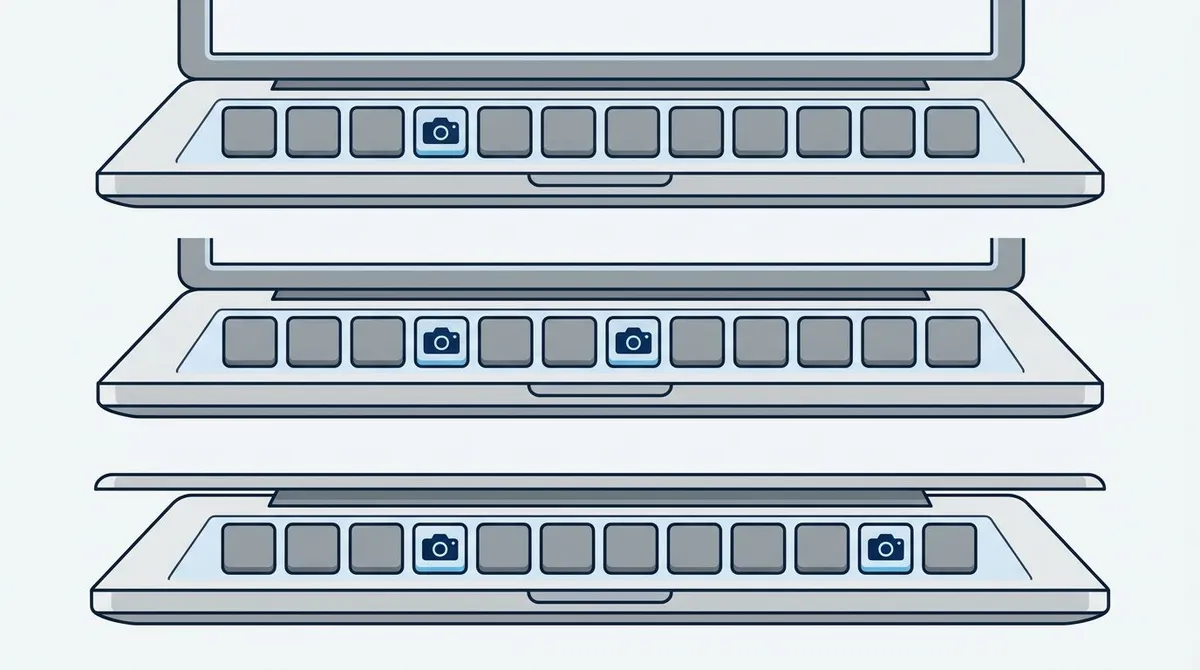
Latitude and Precision: look at Insert before you give up
On most Latitudes the label is there, printed in type so small it is easy to miss, tucked under or beside F10. Bring a light to it.
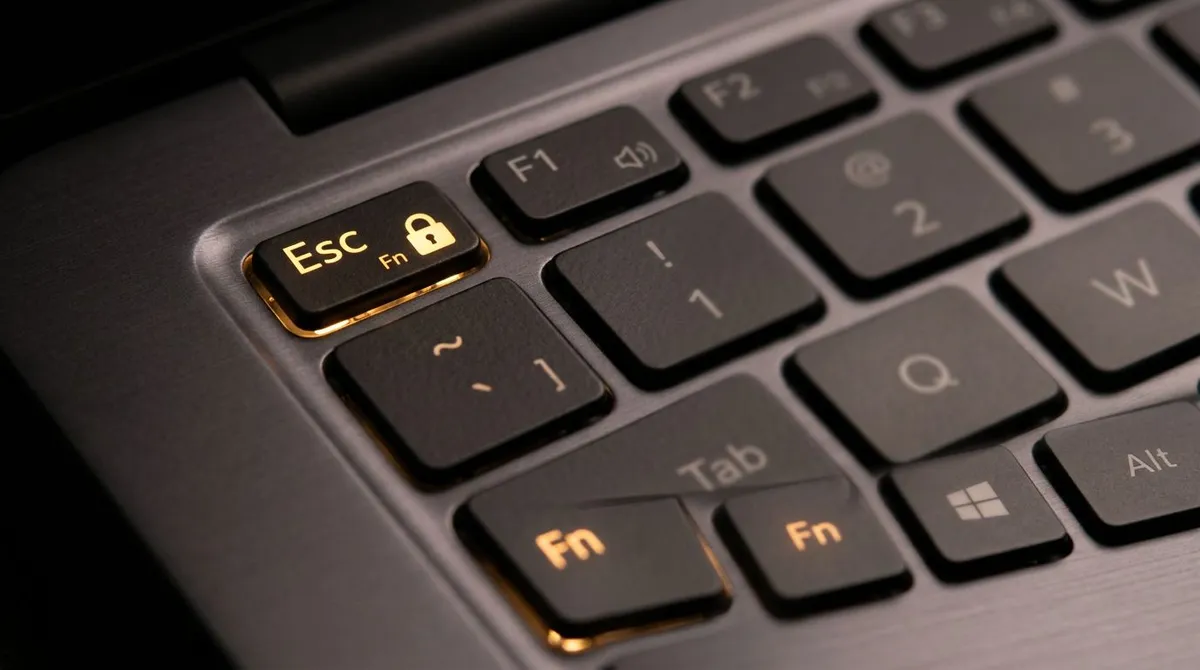
On a good number of the business models there is no dedicated capture key at all. Dell folds the function into Insert, and Insert is what the key does when you tap it alone. Hold Fn and it becomes Print Screen. That single detail, Fn + Insert, solves more Latitude complaints than anything else on this page.
Inspiron and Vostro: the number pad moves everything
Print Screen normally sits in the function row here too. The trouble starts at 15 inches, where Dell adds a number pad and the whole top right cluster shifts left to make room.
If your last laptop was a 14 inch Dell, muscle memory will land you one or two keys off target. Look before you press. Nothing is broken, the key just moved.
XPS: there is nothing to press down
Newer XPS and Dell Premium models dropped the physical top row for a capacitive touch strip. No travel, no click, just icons on glass.
By default the strip shows media controls. Hold fn and it flips to F1 through F12, which is where Print Screen lives. Tap it while fn is held. Press fn + esc to lock the strip in function key mode, and unlike the toggle on older Dells, that choice carries over the next time you start the laptop.
Dell also sells Chromebooks, which run ChromeOS and have no Print Screen key at all, so none of this applies to them. Our Chromebook screenshot guide covers the ChromeOS capture keys.
The Fn layer: why the right key still does nothing
Found your key, pressed it, and the volume changed instead? That is the second Dell trap, and it is the reason people conclude their Print Screen key is broken.
On current Dell laptops the top row acts as media and system controls first: volume, brightness, keyboard backlight, mute. The F1 to F12 labels and that tiny PrtSc marking are the secondary layer. Hold Fn and the two swap places. So the working combinations on a stock Dell are:
Fn+Windows+PrtScsaves a full screen fileFn+PrtSccopies the full screen to the clipboardFn+Alt+PrtSccopies just the active window
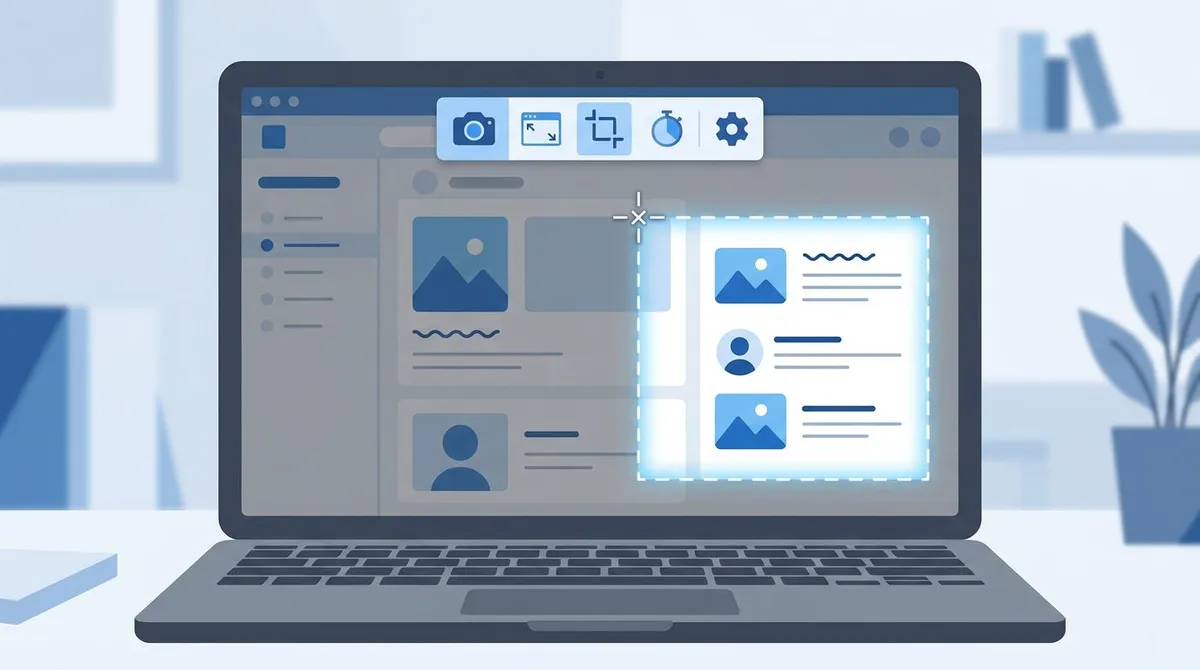
Two shortcuts skip the argument entirely. Windows + Shift + S opens the snipping overlay and never touches the function row, so the Fn question never comes up: the screen dims, you drag a box, and the snip goes to your clipboard. Windows + G opens Game Bar, which has its own capture button. Both behave identically on a Latitude, an XPS, and a numpad Inspiron, which is exactly why they are worth memorizing on this brand.
Make the swap stick
Holding Fn forever gets old. Dell gives you three ways to flip the layer permanently, in rising order of effort.
- Fn Lock. Look at your
Esckey. Dell prints a small padlock withFnbeside it. PressFn+Escand the layers trade places, soPrtScfires alone and the media keys needFn. On many models this is only a session toggle and resets when you restart. - Windows Mobility Center. Right click the Start button and open Mobility Center. Dell adds a tile called Function Key Row that stock Windows does not have. Set it to Function key and the choice survives a reboot.
- BIOS setup. Restart and tap
F2at the Dell logo. Depending on your BIOS version, look for Fn Lock Options under POST Behavior or Function Key Behavior under System Configuration. Choose Function Key First.
Dell documents the same behavior in its Print Screen key article and its keyboard usage guide.
Where the file actually landed
Your keyboard has no say in this part. The destination is decided by which of the shortcuts you got working, and since Dell owners tend to settle on whichever one their key layout cooperated with, the answer moves around.
Fn+Windows+PrtScwrites a PNG to This PC, then Pictures, then Screenshots, numbered Screenshot (1) and up.Fn+PrtScandFn+Alt+PrtScwrite nothing at all. The image waits on the clipboard until you paste it withCtrl+V.Windows+Shift+Salso stops at the clipboard, but click the preview that pops up in the corner and Save as lets you pick any folder.- Game Bar drops its captures in Videos, then Captures.
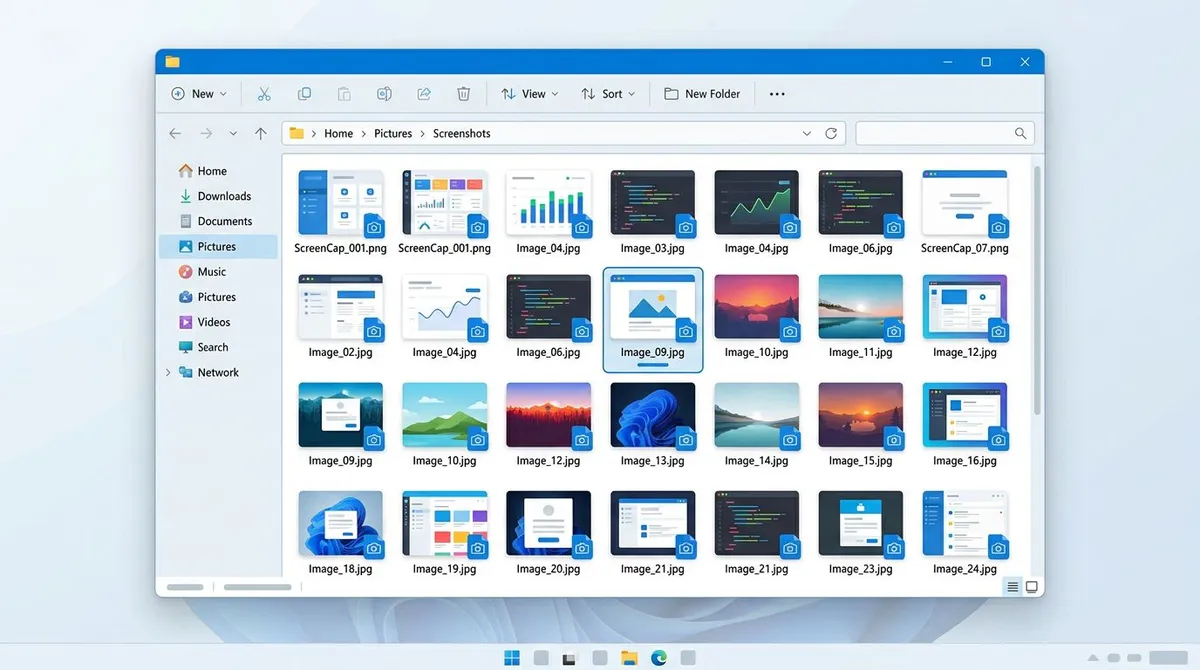
One Dell quirk worth knowing: plenty of Dell machines ship with OneDrive backup switched on, which quietly redirects the Pictures folder to the cloud copy. If a file is missing from the local path, check there. Our guide on where screenshots go on Windows maps every location and shows how to change the default folder.

Tired of plain screenshots? Try ScreenSnap Pro.
Beautiful backgrounds, pro annotations, GIF recording, and instant cloud sharing, all in one app. Pay $39 once, own it forever.
See pricing and featuresAfter the capture: crop, arrow, blur
Arrows and blur boxes come first for most people. The browser based image annotation tool handles both with nothing to install, which is the point on a locked down work Latitude where you cannot add software.
If the frame itself is too wide, and full screen grabs usually are, cropping a screenshot on Windows covers the trim in Photos and the Snipping Tool. And when the file has to shrink or change format before it goes into a ticket, editing screenshots on Windows has those steps.
Print Screen still dead on your Dell?
Worked through the key location and the Fn layer and still nothing? Run these in order.
- Tap the key on its own. If your volume or brightness changes, the hardware is fine and the layer is the problem.
- Try
Fn+Insert. Worth a shot even if your keyboard does have aPrtSclabel, because some Latitude and Precision layouts keep both. - Test with
Windows+Shift+S. If snipping works, the machine is fine and it really is the function row. - Check what
PrtScis bound to. Since the Windows 11 24H2 update, pressing it alone opens the Snipping Tool instead of quietly copying the screen. Our guide to Print Screen not working on Windows covers how to switch that back. - Update the Dell keyboard driver from Dell SupportAssist, then restart.
Microsoft keeps a current list of keyboard shortcuts in Windows if you want to confirm the combination itself, and the full Snipping Tool walkthrough if you want its timer and freeform modes.
One hotkey that works on every Dell you own
The real annoyance with this brand is not learning a shortcut. It is relearning it. The Latitude at work wants Fn + Insert. The XPS at home wants a strip of glass. The Inspiron with the number pad wants the key two positions over from where your hand goes.
ScreenSnap Pro takes the function row out of the decision. You assign the capture hotkey once, pick a combination Print Screen has no say in, and it fires the same way on every machine you set it up on. Captures collect in one place instead of scattering by whichever shortcut happened to work that day. It is a $39 one-time purchase covering two computers on Windows or Mac, so the Latitude and the XPS are both handled and there is nothing to renew.
If you would rather stay with free options, a dedicated screenshot tool for Windows can also give you a custom hotkey and skip the function row.
Frequently Asked Questions

Morgan
Indie DeveloperIndie developer, founder of ScreenSnap Pro. A decade of shipping consumer Mac apps and developer tools. Read full bio
@m_0_r_g_a_n_