How to Screenshot on a ThinkPad (2026): Every Method
On a ThinkPad, the PrtSc key is not in the top right corner. It sits down in the bottom row, right next to the space bar, immediately to the right of the right Alt key. Once you know that, Windows + PrtSc saves your whole screen to Pictures, then Screenshots. Windows + Shift + S grabs just a region instead.
Not certain your laptop is a ThinkPad? Identify your computer first. On a different brand? Jump to HP, Dell, Lenovo, Asus, Acer, or Surface.
That one detail is why how to screenshot on a ThinkPad is its own question. ThinkPad keyboards are laid out differently from every other Windows laptop, and those differences land on the keys you need for a capture. This guide covers every built-in method, then the keyboard quirks that make people think their Print Screen key is broken, including what Lenovo changed on 2024 and newer models.
How to screenshot on ThinkPad laptops: every method
Windows hands every laptop the same capture shortcuts. What a ThinkPad changes is how much hunting each one costs you, so the table is sorted by that rather than by what each shortcut grabs.
| Method | Keys | Affected by the ThinkPad layout? |
|---|---|---|
| Snip a region | Windows + Shift + S | No. Not one key in this combo has moved in a decade |
| Save the full screen to a file | Windows + PrtSc | Yes. PrtSc sits in the bottom row, or on F9 on the newest models |
| Copy the full screen | PrtSc | Yes. Same key hunt, plus FnLock on the F9 machines |
| Copy the active window | Alt + PrtSc | Yes. Reach for the left Alt, because the right one sits beside PrtSc |
Everything here is free and built into Windows 10 and Windows 11. When a key hunt is going badly, the top row of that table is your escape hatch: Windows + Shift + S has never depended on where Lenovo put PrtSc. The Snipping Tool app in the Start menu and the Game Bar (Windows + G, for game and app windows) are keyboard independent for the same reason. Microsoft documents the Snipping Tool workflow if you want the official reference.
One exception: a ThinkPad Chromebook is a different machine underneath, and ChromeOS ignores all of these shortcuts. Our Chromebook screenshot guide covers the ChromeOS keys.
Want a broader comparison of capture apps? See our roundup of the best screenshot tools for Windows.
The ThinkPad keyboard is the real story
Skip this section on any other laptop. On a ThinkPad it is the whole ballgame, because Lenovo's layout choices land on exactly the keys you press to capture a screen.
1. PrtSc lives in the bottom row, not the top right

Look at the bottom right of your keyboard, past the space bar. The order runs right Alt, then PrtSc. Use right Alt as your landmark, because that key has stayed put for over a decade.
For years the key on the far side of PrtSc was right Ctrl. On 2024 and newer ThinkPads it is often the Copilot key instead, so do not go hunting for right Ctrl to find your way.
This layout arrived with the six row keyboard redesign around the T430 and X230. Older ThinkPads such as the T420 and X220 kept PrtSc in the top right block. If you upgraded from one of those, that shift is why the key feels missing.
The upside is real. Because PrtSc is a standalone bottom row key, you press it on its own. No Fn needed, which is the opposite of most HP and Dell laptops.
2. Fn and Ctrl in the bottom left: check yours before changing anything

Most laptops put Ctrl in the outermost bottom left position. ThinkPads put Fn there for years and moved Ctrl one slot to the right. That is the trait that wrecks muscle memory.
It is not universal any more. Lenovo flipped the two keys into the standard order on the ThinkPad X1 Carbon Gen 12 in 2024, and newer models followed. On those machines Ctrl already sits in the corner where you expect it.
For screenshots the old layout bites at the paste step. You copy a capture with PrtSc, open Paint, reach for the corner key and hit Fn + V. Nothing pastes, so it looks like the capture failed when the clipboard was fine.
Look at your own bottom left corner before you touch BIOS. The setting below swaps the two keys in whichever direction you are currently in, so it can just as easily create the problem.
If the corner key reads Fn and you want Ctrl there: reboot, tap F1 at startup to open BIOS setup, go to Config, then Keyboard/Mouse, and set Fn and Ctrl Key swap to Enabled. Lenovo covers the full Fn and Ctrl swap steps for both BIOS and Lenovo Vantage, so you can also do it without a reboot.
If the corner key already reads Ctrl, leave that setting alone. Turning it on there moves your keys into the old ThinkPad order and takes Ctrl out of the corner.
3. What changed on 2024 and newer ThinkPads
Three things moved on recent models, and all three touch screenshots.
- The bottom right corner. Copilot+ ThinkPads replaced the right
Ctrlkey with a Copilot key.PrtScstill sits beside rightAlt, but its other neighbour is new. - Fn and Ctrl. The X1 Carbon Gen 12 put
Ctrlback in the outer corner, matching every other brand. - A snip key in the function row. On the ThinkPad X1 Carbon Gen 13,
F9is Print screen andF10opens the Snipping Tool. Both are listed in Lenovo's keyboard shortcut guide for that model.
So if a new ThinkPad has nothing useful in the bottom row, look up at F9 and F10. Assignments differ by model, so trust the icons printed on your own function row. On a T14 Gen 5, for example, F9 through F11 handle notifications and calls, not captures.
4. A few ThinkPads have no PrtSc key at all
The ThinkPad X1 Carbon 2nd Generation shipped with the Adaptive Keyboard, a touch strip where the function row normally sits. There is no physical PrtSc on it. Lenovo's answer is Fn + T, confirmed in their X1 Carbon Print Screen note.
On any other ThinkPad without a visible PrtSc, use Windows + Shift + S. It never touches the Print Screen key.
FnLock: the `Fn` + `Esc` toggle
Press Fn + Esc and a tiny padlock indicator lights up on the Esc key. That toggle decides whether your top row acts as F1 through F12 or as media and settings keys.
On a ThinkPad with a bottom row PrtSc, it does not affect your captures. On the newest models it matters a lot, because Print screen and Snipping Tool sit on F9 and F10 in that row.
Why your ThinkPad Print Screen key seems dead
Five causes cover almost every case, and only one of them is a real fault.
- You are looking in the wrong corner. Check the bottom row, immediately right of right
Alt, before assuming anything is broken. - Your ThinkPad is a 2024 or newer model. Check
F9andF10in the function row instead. - You pressed
Fn+Vto paste. On older ThinkPads the bottom left corner key isFn, notCtrl. Move one key right. - You are on an external keyboard. A full size USB keyboard puts
PrtScback in the top right, so the ThinkPad rules stop applying. - Windows 11 remapped the key. Newer machines open the snip toolbar when you press
PrtScinstead of copying the screen. Change it under Settings, then Accessibility, then Keyboard.
Still stuck? Our guide to Print Screen not working on Windows walks through driver and background app conflicts.

Tired of plain screenshots? Try ScreenSnap Pro.
Beautiful backgrounds, pro annotations, GIF recording, and instant cloud sharing, all in one app. Pay $39 once, own it forever.
See pricing and featuresWhere ThinkPad screenshots save
Every route below starts with a key you may have just relearned, so it helps to pair each key with where its file actually lands.
Windows+PrtSc, pressed as two keys in the bottom row, writes a PNG straight to This PC, then Pictures, then Screenshots. NoFnin the middle, which is the ThinkPad advantage over most HP and Dell machines.Windows+F9does the same job on the newest ThinkPads, where Print screen moved into the function row. If it does nothing, your FnLock is on the media layer: pressFn+Escand try again.PrtScon its own,Alt+PrtSc, andFn+Ton the Adaptive Keyboard all stop at the clipboard. Nothing is saved until you paste, and that paste is the step the cornerFnkey ruins on older models.Windows+Shift+Shands you a Snipping Tool preview and lets you choose the folder, on every generation, with no key hunt attached.
Cannot find a capture? Our full guide to where screenshots go on Windows covers every save location and how to change the default folder.
Marking up a ThinkPad capture
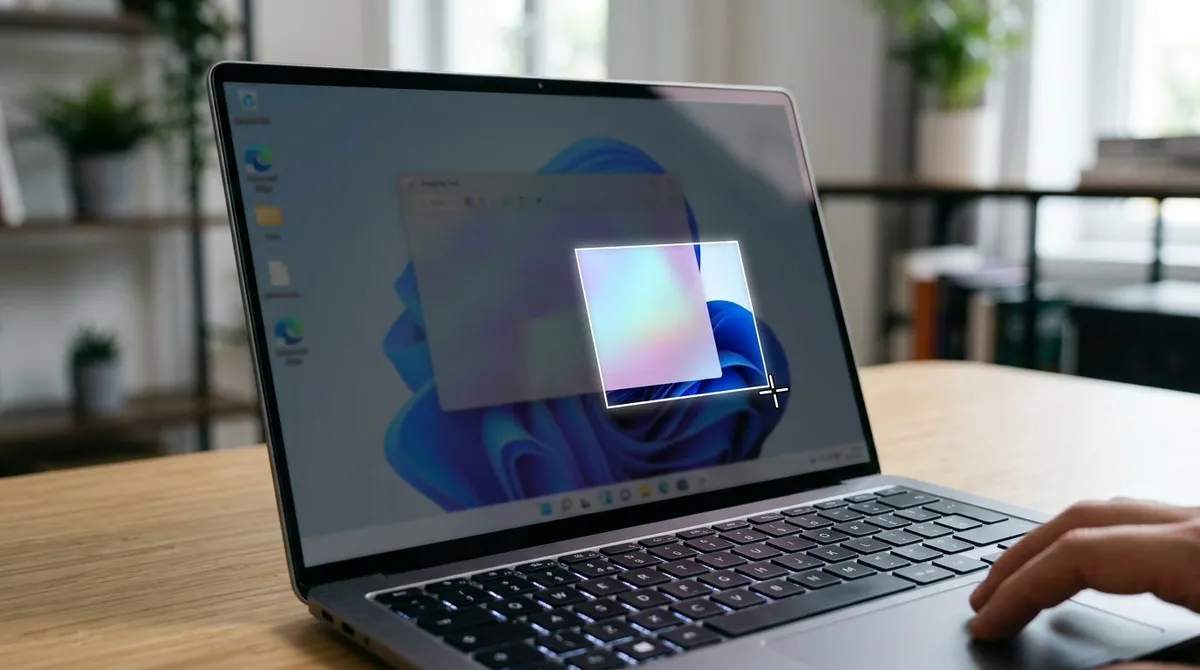
A fair share of ThinkPad captures are pictures of a keyboard corner or a BIOS page, sent to someone who has to follow along on their own model. Those are worthless without an arrow on the exact key or the exact line.
That is what our free image annotation tool is for. Arrows, boxes, and blur, all in the browser, so there is nothing to install on a locked down work ThinkPad. Need the shot resized or saved in another format before it goes into a ticket? Editing screenshots on Windows walks through the built-in options. And if you grabbed the whole screen because you were still hunting for the key, cropping a screenshot on Windows cuts it back to the part that matters.
One shortcut that survives your next ThinkPad
Notice what every method above has in common: it is tied to where Lenovo happened to put a key that year. Move from a T430 to an X1 Carbon Gen 13, or pick up an old X220 from the spares cupboard, and you are back to squinting at the bottom row and testing whether Ctrl is in the corner.
A dedicated capture app is the way off that treadmill. With ScreenSnap Pro you set the capture shortcut yourself, once, and it fires the same way on every machine you get issued, Windows or Mac, because it never cares what is printed on PrtSc. The capture opens straight into markup and a share link rather than sitting in the clipboard, so the corner Fn key cannot swallow your paste either. It is a $39 one-time purchase covering two computers, which is handy when the work ThinkPad gets replaced and your own laptop does not.
To be straight about it: if you take a screenshot once a week, Windows + Shift + S already ignores the layout for free, and that is enough.
Frequently Asked Questions

Morgan
Indie DeveloperIndie developer, founder of ScreenSnap Pro. A decade of shipping consumer Mac apps and developer tools. Read full bio
@m_0_r_g_a_n_