How to Screenshot on an iPad (2026): Every Model
Every iPad can take a screenshot, but the buttons you press depend on which iPad you own. Here is the short version, then every other method, model by model.
To take a screenshot on an iPad, quickly press and release the top button and either volume button at the same time. If your iPad has a round Home button below the screen, press the top button and the Home button together instead. The image saves to the Photos app, under Collections, then Screenshots.
That covers most people. The rest of this guide explains how to tell which iPad you have, how to screenshot with an Apple Pencil or even your finger, how to capture a whole webpage as a PDF, and what to check when nothing happens. If you also need the steps for other devices, see our guides for Android phones and tablets and Surface tablets.
How to screenshot on iPad: the button combo for every model
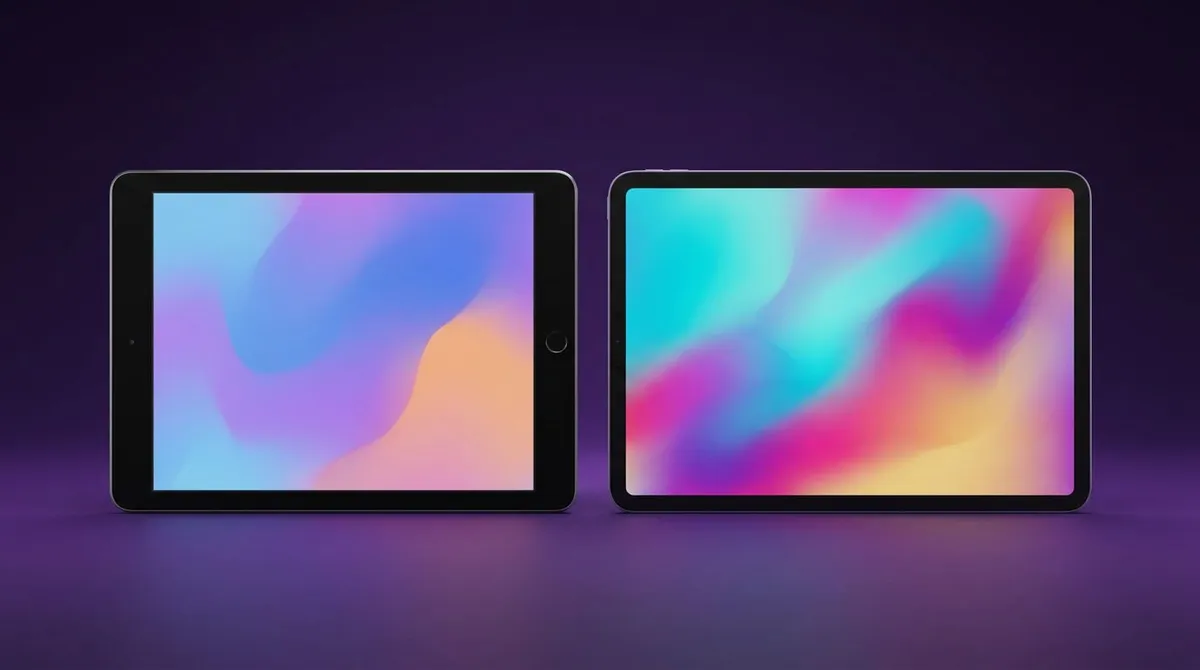
There are only two button combos. Which one you use depends on a single thing: whether your iPad has a Home button.
Hold the iPad upright and look below the screen. A round button there means you have a Home button iPad. A plain, even bezel means you do not. It does not matter whether your iPad uses Face ID or Touch ID. Touch ID on newer models lives inside the top button, so those iPads use the same combo as Face ID models.
| iPad family | Home button? | Screenshot combo |
|---|---|---|
| iPad Pro 11-inch (all generations), 12.9-inch (3rd generation and later), 13-inch (M4, M5) | No | Top button + either volume button |
| iPad Pro 9.7-inch, 10.5-inch, 12.9-inch (1st and 2nd generation) | Yes | Top button + Home button |
| iPad Air (4th and 5th generation), iPad Air 11-inch and 13-inch (M2, M3, M4) | No | Top button + either volume button |
| iPad Air (3rd generation and earlier) | Yes | Top button + Home button |
| iPad (10th generation), iPad (A16) | No | Top button + either volume button |
| iPad (9th generation and earlier) | Yes | Top button + Home button |
| iPad mini (6th generation), iPad mini (A17 Pro) | No | Top button + either volume button |
| iPad mini (5th generation and earlier) | Yes | Top button + Home button |
Still not sure? Apple's Identify your iPad model page matches the model number on the back of the device to its name. One useful detail: iPad (9th generation) is the only Home button model on Apple's list of iPads that run iPadOS 27. Every iPad Apple sells today uses the top button and volume combo.
Method 1: Top button and volume button (no Home button)
This is the method for every current iPad Pro, iPad Air, iPad mini, and the standard iPad from the 10th generation on.
- Open the screen you want to capture.
- Press the top button and either volume button at the same time.
- Release both buttons right away.
- Look for the screen to flash and a preview to appear.
The volume buttons sit on the side or the top edge, depending on the model. Either one works, so use whichever is easier to reach.
Timing matters more than force. If you hold the two buttons down for a second or two, iPadOS reads it as a request to power off and shows the slide to power off screen instead. Press, release, done.
Method 2: Top button and Home button (older iPads)
Use this on any iPad with a round Home button below the screen.
- Open the screen you want to capture.
- Press the top button and the Home button at the same time.
- Release both right away.
The top button is on the top edge when you hold the iPad upright. If you press the Home button a fraction too early, you may jump to the Home Screen before the screenshot fires. Try pressing the top button a hair before the Home button and it usually lands every time. Apple lists both combos on its own Take a screenshot on your iPad page.
What happens right after you take the screenshot
In iPadOS 26 and later, the screenshot opens in a full screen preview by default. In earlier versions, a small thumbnail appears in the lower-left corner for a few seconds instead.
From the preview you can:
- Crop by dragging the handles at the edges.
- Annotate with the Markup tools (more on those below).
- Capture the full page with the Full Page option, where the app supports it.
- Save by tapping the checkmark (Done on older versions), then picking where it goes.
- Delete the screenshot if you only needed a quick look.
Prefer the old thumbnail? Go to Settings > General > Screen Capture and turn off Full-Screen Previews. Apple documents this setting in its guide to changing the screen capture settings.
If you ignore the thumbnail, it slides away and the screenshot saves to Photos on its own.
Method 3: Screenshot with Apple Pencil (or your finger)
If you have an Apple Pencil paired, you never need the buttons. Swipe the Pencil up diagonally from the lower-left or lower-right corner of the screen. The screenshot opens straight into Markup, so you can start drawing on it right away.
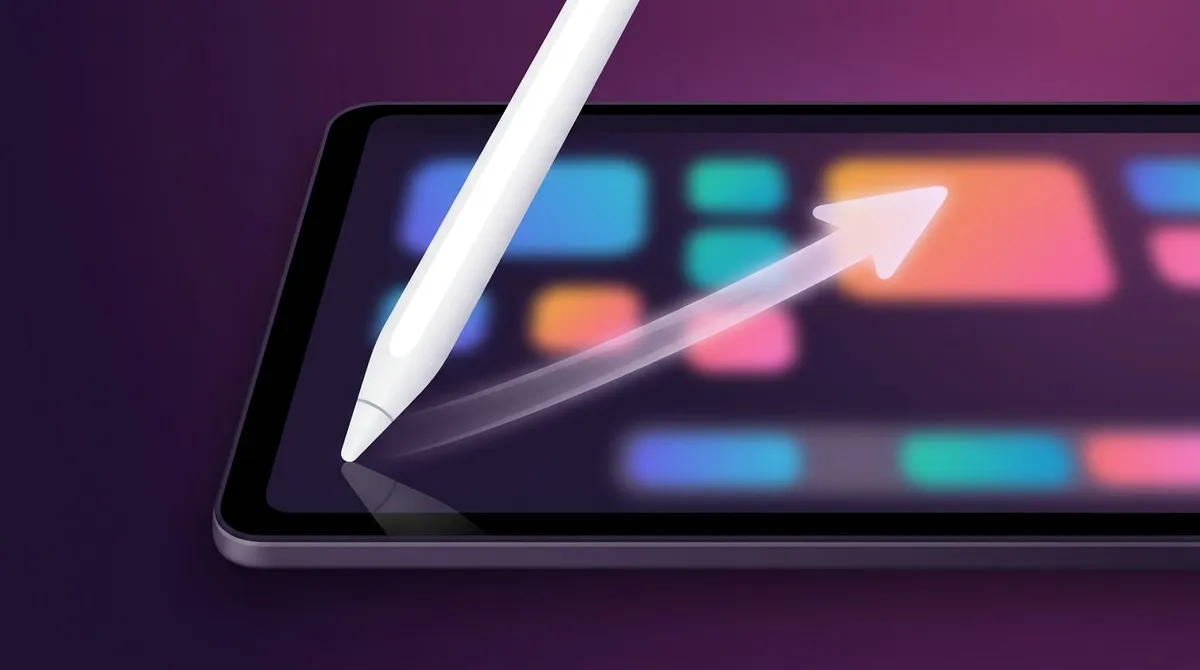
Each corner can do one of two things: take a screenshot or open a Quick Note. If your swipe opens a note instead, that corner is set to Quick Note. To change it:
- Go to Settings > Apps > Notes.
- Tap Corner Gestures.
- Tap Left Corner Swipe or Right Corner Swipe and choose Screenshot.
The same screen has a setting most people miss: Allow Finger to Swipe from Corner. Turn it on and you can take a screenshot on iPad with a finger swipe from the corner, no Pencil required. It is the fastest button-free method there is. Apple covers these options in its Quick Notes guide.
Method 4: Keyboard shortcuts
With a Magic Keyboard, Smart Keyboard, or most Bluetooth keyboards, you can screenshot without touching the iPad at all:
Command+Shift+3takes a screenshot of the whole screen.Command+Shift+4takes a screenshot and opens it in Markup right away.
They use the same key combos as the Mac screenshot shortcuts, so they are easy to remember if you use both. Apple lists them in its iPad keyboard shortcuts reference. On a third-party keyboard, if nothing happens, check which key acts as Command under Settings > General > Keyboard > Hardware Keyboard > Modifier Keys.

Tired of plain screenshots? Try ScreenSnap Pro.
Beautiful backgrounds, pro annotations, GIF recording, and instant cloud sharing, all in one app. Pay $39 once, own it forever.
See pricing and featuresMethod 5: AssistiveTouch and Siri (no buttons at all)
A broken button or a stiff case does not have to stop you. AssistiveTouch adds a floating on-screen button that can take screenshots for you.
- Go to Settings > Accessibility > Touch > AssistiveTouch.
- Turn on AssistiveTouch. A gray menu button appears on the screen.
- Under Custom Actions, set Double-Tap to Screenshot.
Now a double tap on the floating button takes a screenshot. The button itself does not show up in the image. You can also add Screenshot to the top-level menu if you prefer a single tap plus a menu choice. See Apple's AssistiveTouch guide for the full list of options.
Siri works too. Say "Take a screenshot" and Siri captures the screen behind it.
How to take a full page screenshot on iPad (save as PDF)
A normal screenshot stops at the edge of the screen. For a long webpage, an article, or a receipt, use Full Page instead.
- Open the page in Safari.
- Take a screenshot with any method above.
- Open the preview, then tap Full Page at the top.
- Drag the scroll bar on the right to check the whole page was captured.
- Crop if you only need part of it.
- Tap the checkmark (or Done) and save it to the Files app as a PDF.

Full Page only appears in apps that support it, mostly Safari and some of Apple's own apps. If the option is missing, the app does not offer it. In that case, take several normal screenshots and combine them.
Treat the result as a picture of the page, because the text in the saved PDF may not be selectable. If you work on a Mac as well, our guide to full page screenshots on a Mac covers the desktop side.
How to edit and mark up an iPad screenshot
Markup is built into the preview. Tap the pen icon (or start drawing with Apple Pencil) and you get a pen, highlighter, pencil, eraser, lasso, and ruler. Tap the plus button for text, a signature, shapes, and stickers. Apple walks through each tool in Add drawings and text to screenshots with Markup.
One gap to know about: Markup has no blur or pixelate tool. To hide an email address or account number, draw a filled shape over it. Do not use the highlighter, because it is see-through and the text stays readable.
Where are screenshots saved on iPad?
Screenshots go straight to your photo library. To find them:
- Open the Photos app.
- Tap Collections.
- Scroll to Media Types and tap Screenshots.

The Screenshots album fills itself, so you never have to sort anything by hand. If iCloud Photos is on, the same screenshots show up on your iPhone and Mac within a few minutes. Full page captures saved as PDFs are the exception: they live in the Files app, wherever you chose to save them.
Deleted one by mistake? Check Recently Deleted in Photos. Items stay there for 30 days before they are gone for good.
iPad screenshot not working? Try these fixes
Most failures come down to timing or a setting. Work down this list:
- You held the buttons too long. A long press opens the power-off screen or Siri. Press and release quickly.
- You used the wrong combo. Check the model table above. A Home button iPad ignores top button plus volume.
- The buttons were not pressed together. Press the top button a fraction first, then the other button.
- The Pencil swipe opens a Quick Note. That corner is set to Quick Note. Change it under Settings > Apps > Notes > Corner Gestures.
- The screenshot is black. Streaming apps block screen capture of protected video. This is by design, not a fault.
- Nothing happens at all on a school or work iPad. Managed iPads can have screen capture turned off by the administrator. Only they can switch it back on.
- Your storage is full. Free up space in Settings > General > iPad Storage, then try again.
- A button is broken or stuck. Use AssistiveTouch or the finger corner swipe while you get it repaired.
If none of these help, restart the iPad. A restart clears most one-off glitches with the capture system.
Editing iPad screenshots on your Mac or PC
To be clear up front: ScreenSnap Pro does not run on iPad. It is a Mac and Windows app, so on the iPad itself, the built-in tools above are the whole toolkit, and they are good ones.
Where it can help is if you also take screenshots on a computer. Plenty of iPad owners write docs, file bug reports, or build slides on a Mac or PC. On those machines, ScreenSnap Pro adds 15 annotation tools, including blur and pixelate, plus OCR text extraction, 500+ backgrounds, and GIF recording. It is a $39 one-time purchase: one license with 2 seats, so you can activate it on 2 computers, Mac or Windows.
If you only need to annotate an image now and then on your computer, the free image annotation tool adds arrows, shapes, text, and a pixelate box in the browser. For the keyboard side of things, see our guides on how to screenshot on a Mac, how to screenshot on any computer, and how to screenshot on a Chromebook. To hide private details before you share, our guide to blurring sensitive information on a Mac walks through each option.
Frequently Asked Questions

Morgan
Indie DeveloperIndie developer, founder of ScreenSnap Pro. A decade of shipping consumer Mac apps and developer tools. Read full bio
@m_0_r_g_a_n_