How to Screenshot on an Acer Laptop (2026): 6 Ways
Check your keyboard first: Acer ships several laptops, including the Aspire Lite line, with no PrtSc key at all. That is the quirk behind most searches for how to screenshot on an Acer laptop. If yours has no PrtSc, press Windows + Shift + S and drag a box. If it does, Windows + PrtSc saves the whole screen to Pictures.
Not certain your laptop is an Acer? Identify your computer first. On a different brand? Jump to HP, Dell, Lenovo, ThinkPad, Asus, or Surface.
Everything else on an Acer runs the standard Windows toolkit, so the shortcuts match any other Windows 10 or Windows 11 machine. The Acer parts are the two that generic guides skip: a keyboard that may have no Print Screen key, and a PrtSc key that looks dead because Acer parks it on the Fn layer.
Both have a fix, and Acer publishes both of them. Here is the full method list first, then the Acer specific troubleshooting that actually solves this.
Every way to screenshot on an Acer laptop
Six built-in methods, what each one grabs, and where the file ends up. Nothing here needs an install.
| Method | Keys | What it captures | Where it saves |
|---|---|---|---|
| Save full screen | Windows + PrtSc | Whole display | Pictures, then Screenshots |
| Copy full screen | PrtSc | Whole display | Clipboard only |
| Copy active window | Alt + PrtSc | Window in focus | Clipboard only |
| Snip a region | Windows + Shift + S | Any area you drag | Clipboard, then Snipping Tool |
| Snipping Tool app | Start menu, then New | Region, window, or full screen | Folder you pick |
| Game Bar | Windows + G | Games and app windows | Videos, then Captures |
If your Acer has no PrtSc key, the first three rows are off the table from the keyboard. Rows four to six still work exactly as listed. Microsoft's own guide to the Snipping Tool covers the app side of rows four and five.
The Acer catch: your laptop may not have a Print Screen key
This is the part that sets Acer apart from other Windows brands, and it wastes a lot of people's time.
Check the keyboard before you troubleshoot anything
Look in two places. First the top row, to the right of F12. Then the bottom right corner, near the arrow keys. The label reads PrtSc or PrtScn, often printed in a second color next to another function.
If it is in neither spot, your Acer does not have one. Acer says as much in its support article on taking screenshots without a Print Screen key, which names the Aspire Lite models directly. Owners of the Aspire Lite 14, the Aspire Spin 14, and the Aspire AL 14-32P have all asked the same thing in Acer's forums.
It is not a fault, and no Windows setting adds the key back. So stop hunting and use one of the two routes below.
No PrtSc key? Snip, then borrow one from the On-Screen Keyboard
Windows + Shift + S is the direct replacement. The screen dims and a small toolbar appears at the top. Pick rectangular, freeform, window, or full screen mode, then drag.
The snip lands on your clipboard and a preview pops up in the corner. Click that preview to open the Snipping Tool, mark the image up, and save it wherever you want.
That covers most jobs. What it does not cover is Alt + PrtSc, the shortcut that copies one window with no desktop around it. For that, put a PrtScn button on screen.
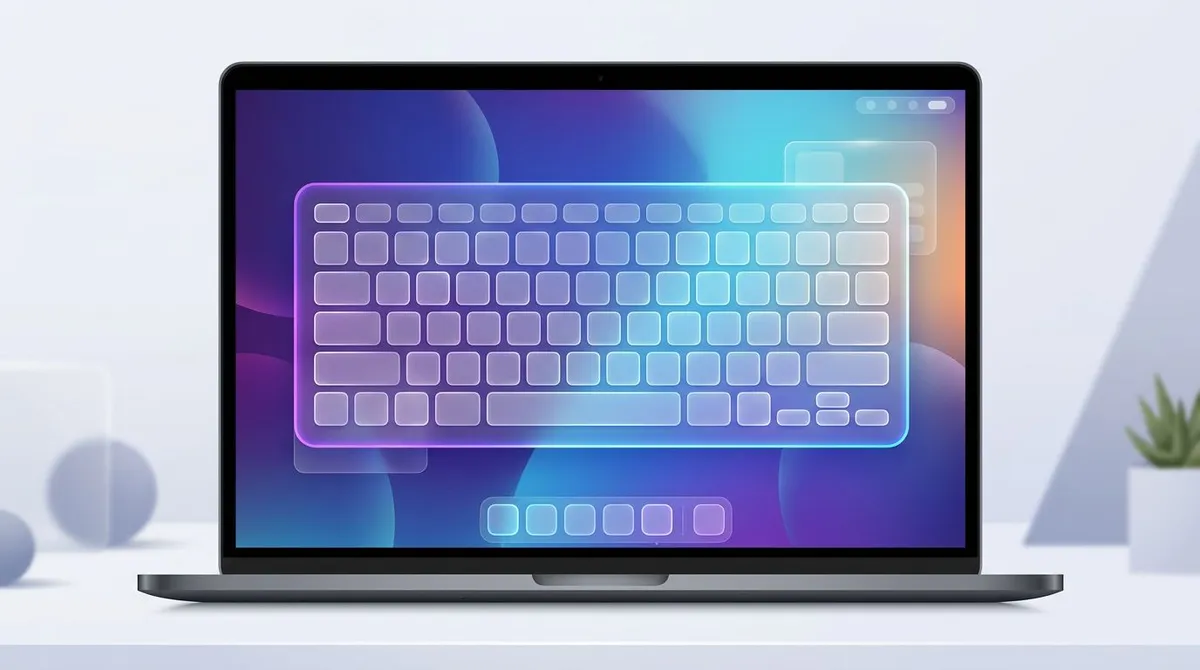
Press Windows + Ctrl + O to open the Windows On-Screen Keyboard. Its PrtScn button behaves like a real one, so you can hold Alt on the physical keyboard and click PrtScn with the mouse. It is clumsy, but it is the only way to get a window-only copy on an Acer with no Print Screen key.
Found a PrtSc label but nothing happens? You are in the easy case
The keyboard check above sorts you into one of two Acer situations, and they have opposite fixes. Getting this wrong is why people spend an hour on the wrong problem.
No label anywhere. That is the Aspire Lite case, and there is no Fn trick waiting for you. Firmware cannot reveal a key that was never printed. Stay with the snip and On-Screen Keyboard routes above.
Label found. Then the key works and Acer has simply buried it. On these keyboards the top row fires media actions first, so pressing PrtSc alone nudges your volume or brightness instead. Hold Fn with the shortcut and everything returns: Fn + PrtSc for a clipboard copy, add Windows to write a file, or swap in Alt for the active window.
Rule out one Windows 11 change while you are here. PrtSc now opens the Snipping Tool overlay rather than copying in silence, so a perfectly healthy key can still look broken. Settings, then Accessibility, then Keyboard controls that. If the key still refuses on an Acer that definitely has one, Print Screen not working on Windows lists the causes that are nothing to do with Acer.
Acer's BIOS setting is not called what you expect
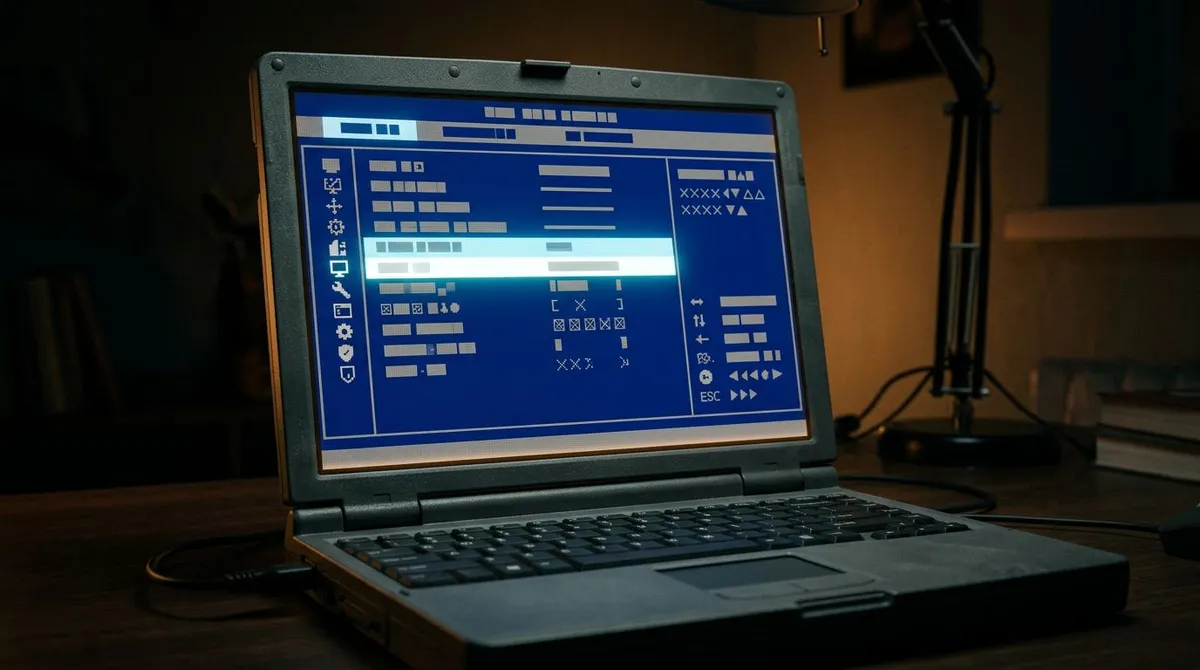
Here is where guides written for other brands send Acer owners in circles. Most Acer laptops have no Fn Lock padlock on the Esc key, and their firmware has no Action Keys Mode entry to find. Acer named the setting Function Key Behavior and put it on the Main tab.
- Shut the laptop down, then power it on and tap
F2repeatedly to reach the BIOS. - Stay on the Main tab. Do not go hunting under Advanced or System Configuration.
- Arrow down to Function Key Behavior and press
Enter. - Switch it from Media Key to Function Key.
- Press
F10to save and exit.
PrtSc now fires on its own, and the media controls move to the Fn layer. Those are Acer's own steps, from its adjust function keys in BIOS article.
Two caveats. Some older Acer models hide the entry until you install a newer BIOS from Acer's support site. And on an Aspire Lite the setting is useless even when present, because the layer it swaps has no Print Screen on it to expose.
Where Acer laptop screenshots are saved
On an Acer the save question splits along the same line as everything else in this guide: whether your keyboard has a PrtSc key.
With a PrtSc key, one shortcut writes a file by itself. Windows + PrtSc drops a PNG into This PC, then Pictures, then Screenshots, named Screenshot (1), Screenshot (2) and so on. Hold Fn with it until you have changed Function Key Behavior, or you get a volume change and no file. PrtSc and Alt + PrtSc only fill the clipboard, so paste with Ctrl + V into Paint or a document and save from there.
Without a PrtSc key, your Screenshots folder stays empty forever, and that is normal rather than a fault. Every capture runs through Windows + Shift + S or the Snipping Tool, which means it starts life on the clipboard and only becomes a file when you use Save As. Choose one folder the first time and the Snipping Tool keeps offering it.
Game Bar is the exception on both keyboards. Its captures go straight to Videos, then Captures with no prompt.
A capture still missing? Where screenshots go on Windows maps each folder Windows reaches for, and how to point the default somewhere you will actually look.


Tired of plain screenshots? Try ScreenSnap Pro.
Beautiful backgrounds, pro annotations, GIF recording, and instant cloud sharing, all in one app. Pay $39 once, own it forever.
See pricing and featuresMarking up an Acer capture
If your Acer has no PrtSc key, every shot you take already lands in the Snipping Tool, so marking it up there feels like the obvious move. The pen and highlighter cope with a quick circle. What you will not find are arrows, boxes, or a blur for the email address sitting in the corner.
The free browser based image annotation tool covers all three, with no install and no account. Once the shapes are down, tidy the frame using our steps for cropping a screenshot on Windows. Need a resize or a PNG to JPG swap instead? Editing screenshots on Windows walks the built-in routes.
Screenshots on an Acer Chromebook
Acer sells Chromebooks by the million, so plenty of people reading this are holding one. None of the Windows advice above applies. The good news: no Chromebook has a Print Screen key to go missing, because ChromeOS never used one.
The Show Windows key does the job instead. It sits in the top row, roughly where F5 lives on a Windows keyboard, and it looks like a rectangle with two lines stacked behind it.
| What you want | Keys |
|---|---|
| Whole screen | Ctrl + Show Windows |
| Capture toolbar: region, window, or recording | Ctrl + Shift + Show Windows |
| Same two shortcuts on an external keyboard | Use F5 in place of Show Windows |
| Tablet mode with the keyboard folded away | Power + Volume Down |
The toolbar in row two is the one to learn. It stays on screen between shots, so you can switch between full screen, region, and window modes, or flip over to screen recording, without typing the shortcut again.
Files save to Downloads as PNGs named with the date and time, and a thumbnail appears in the corner for a few seconds. Click it to open the Gallery app, where ChromeOS gives you crop and rotate. Every capture is copied to the clipboard at the same time, so Ctrl + V pastes it straight into a chat or a doc. To send them somewhere else by default, open the toolbar, click the settings gear, and pick Select folder. Google lists the Chromebook capture shortcuts in full, and our Chromebook screenshot guide covers tablet mode and external keyboards.
One trap if you move between an Acer Chromebook and an Acer Windows laptop: the muscle memory does not transfer. Windows + Shift + S does nothing on ChromeOS, and Ctrl + Show Windows does nothing on Windows. Neither machine will tell you why, so check which one you are holding before you blame the keyboard.
When the Acer keyboard is the bottleneck
Notice what every fix above has in common: it works around the keyboard Acer handed you. Holding Alt while your mouse hunts for a floating on-screen PrtScn button. Rebooting into firmware so a single key stops changing the volume. That is fine once. It grinds if capturing is part of your day.
A dedicated capture app steps around the whole thing, because it never touches PrtSc. ScreenSnap Pro binds its own shortcut, so a region, a window, or the full screen is one combination that behaves the same on an Aspire Lite with no Print Screen key as it does on a Nitro that has one. Captures open straight into markup, arrows and blur included, instead of waiting on the clipboard for you to rescue them. They also land in a folder you set once, not wherever the shortcut felt like putting them.
Straight about what it is not: a paid app at $39 one-time for two computers on Windows and Mac, with no free tier. Take a screenshot once a week and Windows + Shift + S is genuinely enough. Want to survey the options before you decide anything? The best screenshot tools for Windows roundup lines them up.
Frequently Asked Questions

Morgan
Indie DeveloperIndie developer, founder of ScreenSnap Pro. A decade of shipping consumer Mac apps and developer tools. Read full bio
@m_0_r_g_a_n_