How to Screenshot Spotify on Mac & Mobile (2026)
Want to capture that perfect Spotify screenshot to share on social media? Whether you're showing off your Spotify Wrapped stats, saving a playlist cover, or capturing lyrics, this guide covers every method to screenshot Spotify on Mac and mobile devices, plus how a dedicated capture app like ScreenSnap Pro cleans up the desktop versions.
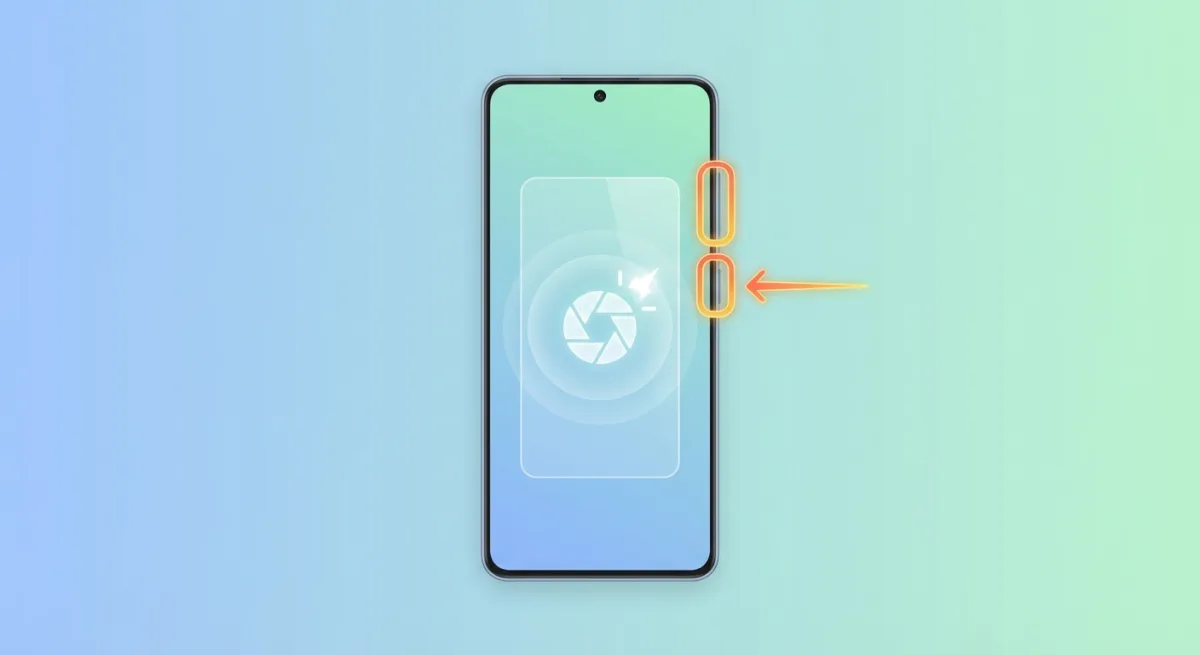
Quick Answer: Press⌘ + Shift + 4on Mac, thenSpacebarand click the Spotify window. On iPhone: Side + Volume Up. On Android: Power + Volume Down. These shortcuts work for playlists, Wrapped, lyrics, and any Spotify content.
How to Screenshot Spotify on Mac
Taking a Spotify screenshot on Mac is quick and easy. Mac has built-in screenshot tools, and each one works better for different content. Here's what to use:
Full Screen Screenshot
Press ⌘ + Shift + 3 to capture your entire screen, including the Spotify window. This works great when Spotify is in full-screen mode.
Capture Just the Spotify Window
For a cleaner capture without desktop clutter:
- Press
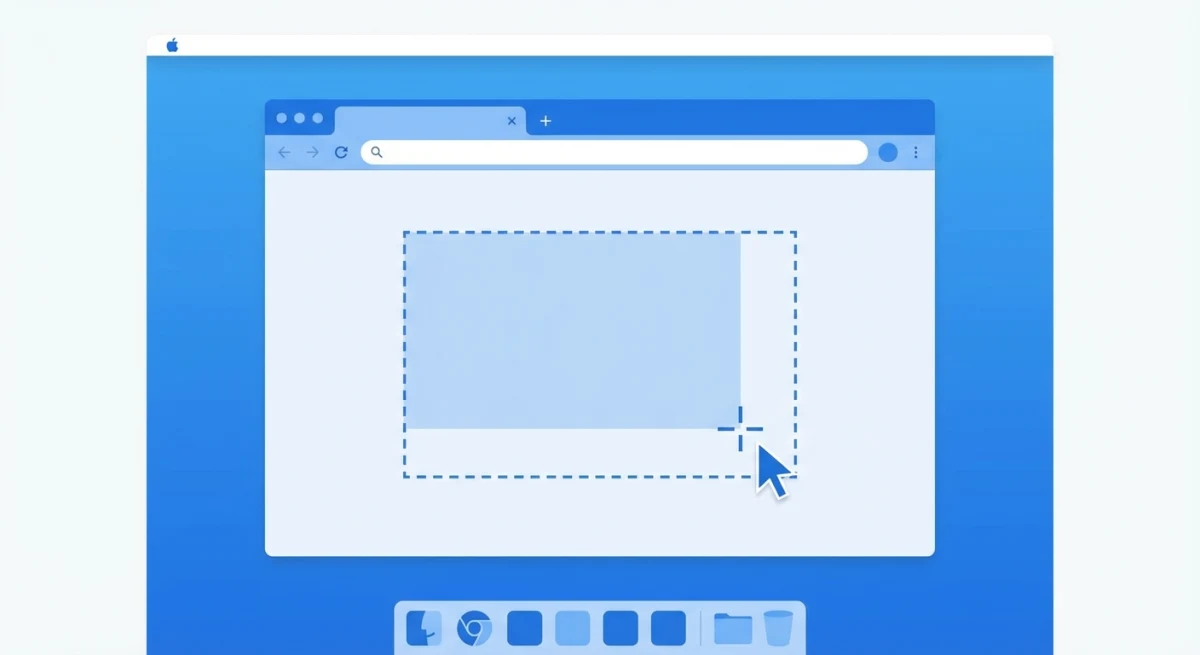
⌘ + Shift + 4 - Press
Spacebarto switch to window mode - Click on the Spotify window
Your screenshot saves to your Desktop by default. Need to change that? Check out our guide on how to change screenshot location on Mac.
Selection Screenshot
For capturing a specific part of Spotify (like just the album art):
- Press
⌘ + Shift + 4 - Click and drag to select the area
- Release to capture
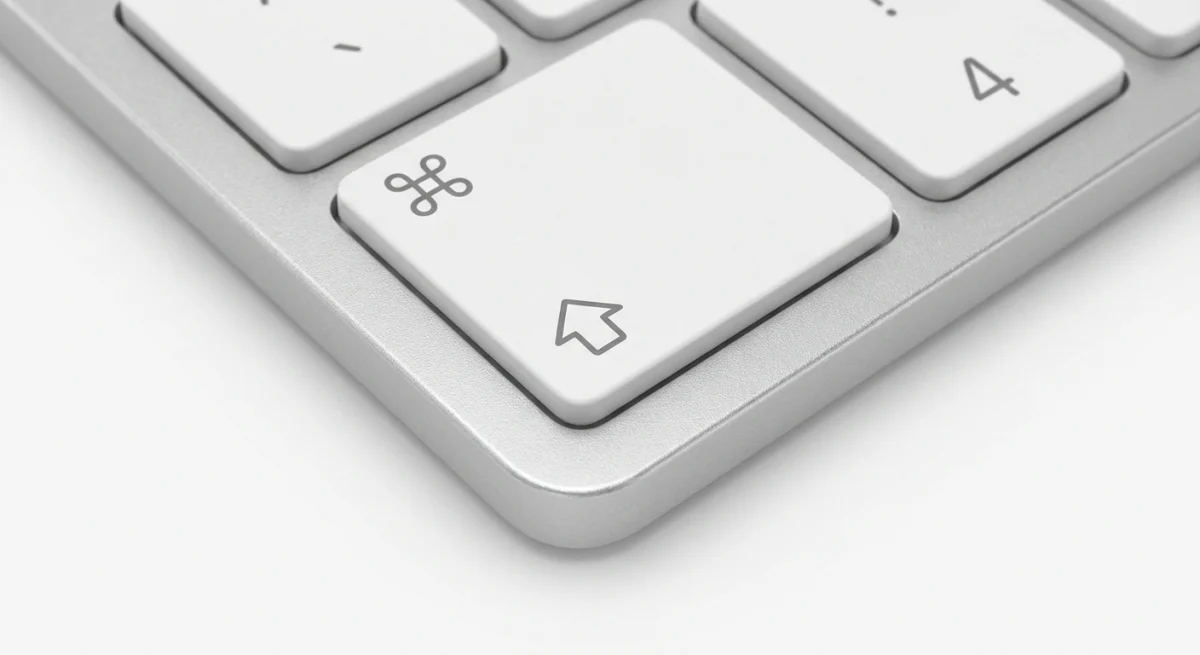
Pro tip: Add Control to any shortcut to copy the screenshot directly to your clipboard instead of saving it. This is perfect when you want to paste directly into Messages, Slack, or social media apps. Learn more about this in our screenshot to clipboard guide.
Screenshot Spotify on Mobile
On iPhone:
- Face ID models: Press
Side Button + Volume Upsimultaneously - Touch ID models: Press
Home Button + Power Buttontogether
On Android:
- Press
Power + Volume Downat the same time - Some Android phones have swipe gestures for screenshots (check Settings > Advanced features)
Mobile screenshots are great for features you can only get on your phone. These include Car Mode, group listening sessions, and the full Wrapped story.
Screenshot Spotify Playlists (Full View and Scrolling)
Playlists can be long. Most won't fit on one screen. Here are your options:
Method 1: Screenshot the Visible Portion
Use ⌘ + Shift + 4, then Spacebar, and click the Spotify window. This captures what's currently visible.
Method 2: Scrolling Screenshot for Full Playlist
Mac's built-in tools can't capture scrolling content. To get a full playlist in one image, you'll need a third-party app.
Tools like CleanShot X or Shottr can capture scrolling content in one long image. You can also use our free image combiner tool to join multiple screenshots, or annotate and share them instantly with ScreenSnap Pro.
Method 3: Export Playlist as Image
Spotify has no "export as image" option. But you can:
- Take a screenshot of the playlist header (shows cover + title)
- Screenshot the track list in sections
- Combine them using an image editor
Screenshot Spotify Wrapped
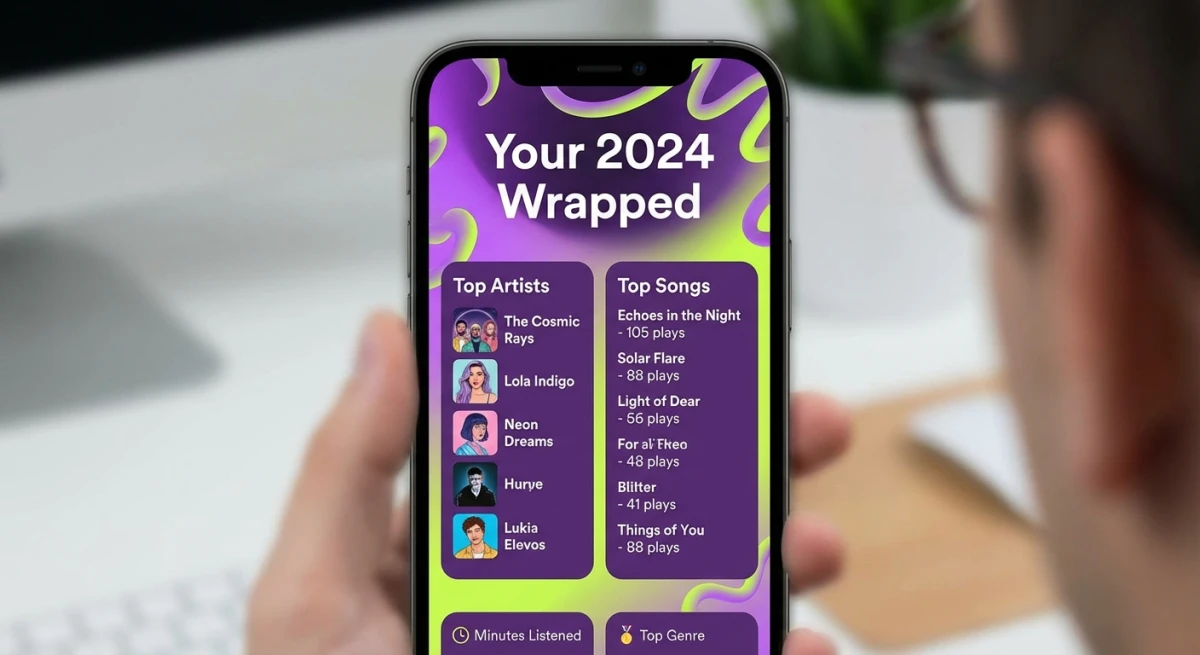
Every December, Spotify Wrapped takes over social media. Everyone wants to share their stats. Here's how to capture yours:
On Mobile (iPhone/Android)
- Open Spotify and navigate to your Wrapped story
- On iPhone: Press
Side Button + Volume Upsimultaneously - On Android: Press
Power + Volume Downat the same time - Swipe through each card and screenshot the ones you want
On Mac Desktop
Wrapped works best on mobile, but you can also view it at spotify.com/wrapped on your computer:
- Log into your Spotify account
- Go to your Wrapped stats
- Press
⌘ + Shift + 4to capture each card
Don't wait too long: Wrapped is only live from late November through January. After that, it goes away. Save your screenshots before it's gone!
Best Wrapped Cards to Screenshot
Focus on these shareable stats:
- Your top 5 artists
- Top songs of the year
- Total minutes listened
- Top genres
- Your "listening personality" card
- The final summary card with all highlights
Each card has unique colors based on your music taste. The bright colors and bold fonts are made for sharing on social media.
Screenshot Spotify Lyrics
Spotify's lyrics scroll in time with the music. They look great as screenshots. Here's how to capture them:
Mobile Lyrics Screenshot
- Play a song with lyrics available
- Tap the "Lyrics" button at the bottom
- Wait for the lyrics you want to appear
- Take a screenshot using your device's shortcut
Desktop Lyrics Screenshot
- Click the microphone icon in the bottom-right corner
- Use
⌘ + Shift + 4and drag to select just the lyrics panel - Release to capture
Why lyrics screenshots go viral: Full-screen lyrics with the album art behind them look amazing. They're perfect for Instagram Stories and TikTok.
Tips for Better Lyrics Screenshots
- Pause at the right time. Stop on a lyric that means something to you
- Go full-screen. Tap the lyrics to make them fill the whole screen
- Pick colorful songs. Bright album art makes better backgrounds
- Check the font. Some songs have fancy text that looks more artistic
Mobile-Specific Lyrics Tips
On mobile, Spotify's lyrics feature has extra options worth knowing:
- Swipe down on the lyrics screen to see the album art behind the text
- Tap once to toggle between small and full-screen lyrics
- Turn off battery saver. It can make the lyrics animation choppy in screenshots
- Use portrait mode for taller lyrics captures, landscape for wider album art focus
iPhone users should also disable True Tone before taking screenshots. This keeps the colors accurate. Go to Settings > Display > True Tone and toggle it off.
Not all songs have lyrics. Spotify gets lyrics from Musixmatch. Newer or rare tracks might not have them yet.
Screenshot Spotify Codes for Sharing
Spotify Codes are like QR codes for music. They link right to songs, albums, or playlists. They're a fun way to share music with friends.
How to Get a Spotify Code
- Open the song, album, or playlist you want to share
- Tap the three dots (•••) menu
- The Spotify Code appears at the bottom of the share card
- Screenshot to save it
High-Resolution Spotify Codes
For higher quality codes (great for printing), visit spotifycodes.com. You can make codes in different colors and sizes.
Scanning Spotify Codes
Your friends can scan your screenshot:
- Open Spotify
- Tap the search bar
- Tap the camera icon
- Point at the Spotify Code
This works even with screenshots, so you do not need the original screen.

Tired of plain screenshots? Try ScreenSnap Pro.
Beautiful backgrounds, pro annotations, GIF recording, and instant cloud sharing, all in one app. Pay $39 once, own it forever.
See pricing and featuresHow to Make Spotify Screenshots Look Amazing
Plain screenshots can look dull on social media. A few quick edits make them pop. Here's how:
Add a Gradient Background
Plain screenshots look flat on Instagram. A colorful background makes them stand out. ScreenSnap Pro has 500+ wallpapers you can add with one click.
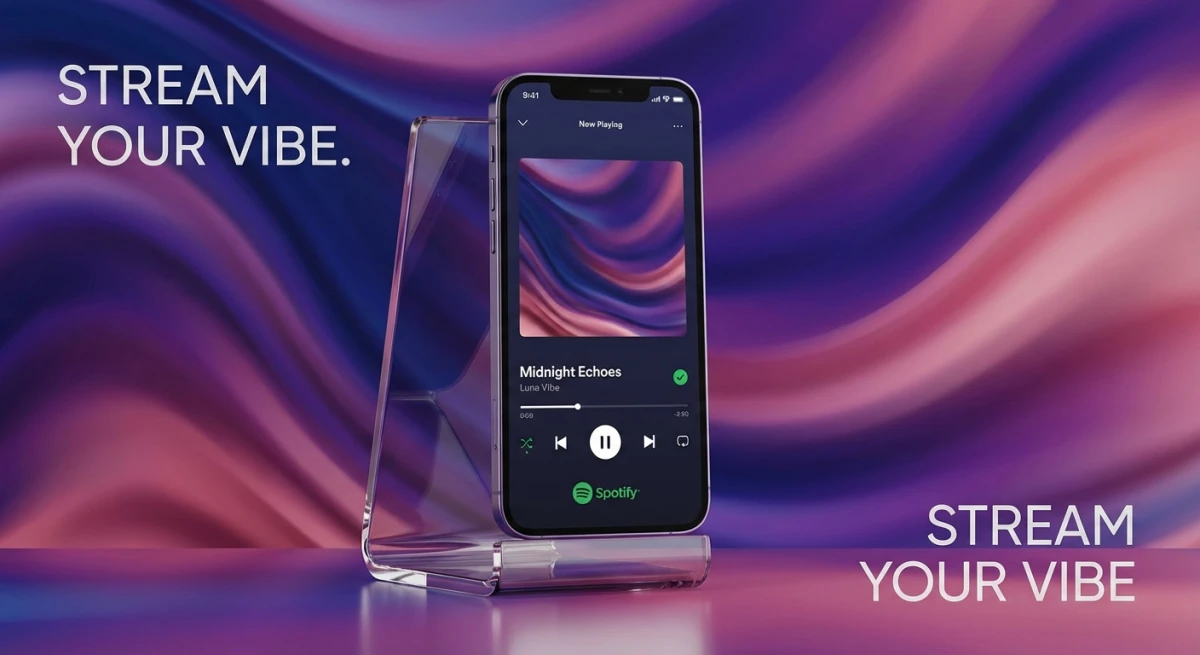
Learn more about this technique in our guide on how to add backgrounds to screenshots.
Crop to the Essential Content
Cut out the parts you don't need. Our free image cropper tool makes this easy.
Resize for Social Platforms
Each platform has its own ideal image size:
- Instagram Story: 1080 x 1920px
- Instagram Post: 1080 x 1080px
- Twitter: 1200 x 675px
Use our social media image resizer to get the perfect dimensions.
Hide Personal Information
Before sharing, you might want to blur private info like your email or username.
Add Annotations
Want to point out your top song or add a note? Screenshot tools let you add arrows, text, and highlights. This helps when sharing music tips, because you can show friends which tracks to check out.
Can Spotify See If You Screenshot?
No, Spotify can't tell when you take screenshots. Unlike Snapchat, Spotify doesn't detect or notify anyone when you capture the screen.
You can freely screenshot:
- Your own playlists and stats
- Public playlists
- Song lyrics
- Album artwork
- Spotify Codes
Spotify wants you to share. That's why they built Spotify Codes, which make sharing music easier. Check out Spotify's official guide to sharing for all the built-in options.
Share Spotify Screenshots on Social Media
Here's how to share your Spotify screenshots on each platform:
Instagram Stories
- Screenshot your Spotify content
- Add a background using ScreenSnap Pro or similar
- Open Instagram Stories
- Upload and add stickers or text if desired
Pro tip: Add the music sticker too. Then your followers can tap to hear the song.
Twitter/X
- Take your screenshot
- Crop to focus on the essential content
- Tweet with context ("My most-played artist this year" works better than just an image)
TikTok
For TikTok, video works better than screenshots:
- Screen record yourself scrolling through Wrapped or playlists
- Add trending audio
- Use the green screen effect with your Spotify screenshots
Best Apps for Spotify Screenshots
While built-in screenshot tools work fine, dedicated apps give you better results. Here are your best options for capturing Spotify content:
ScreenSnap Pro (Mac)
ScreenSnap Pro is ideal for Spotify screenshots because:
- One-click backgrounds. 500+ wallpaper options that match Spotify's aesthetic
- Window capture. Grab just Spotify without desktop clutter
- Instant annotation. Add arrows and text to highlight your favorite tracks
- Cloud sharing. Get a shareable link in seconds for social media
Built-in macOS Screenshot (Mac)
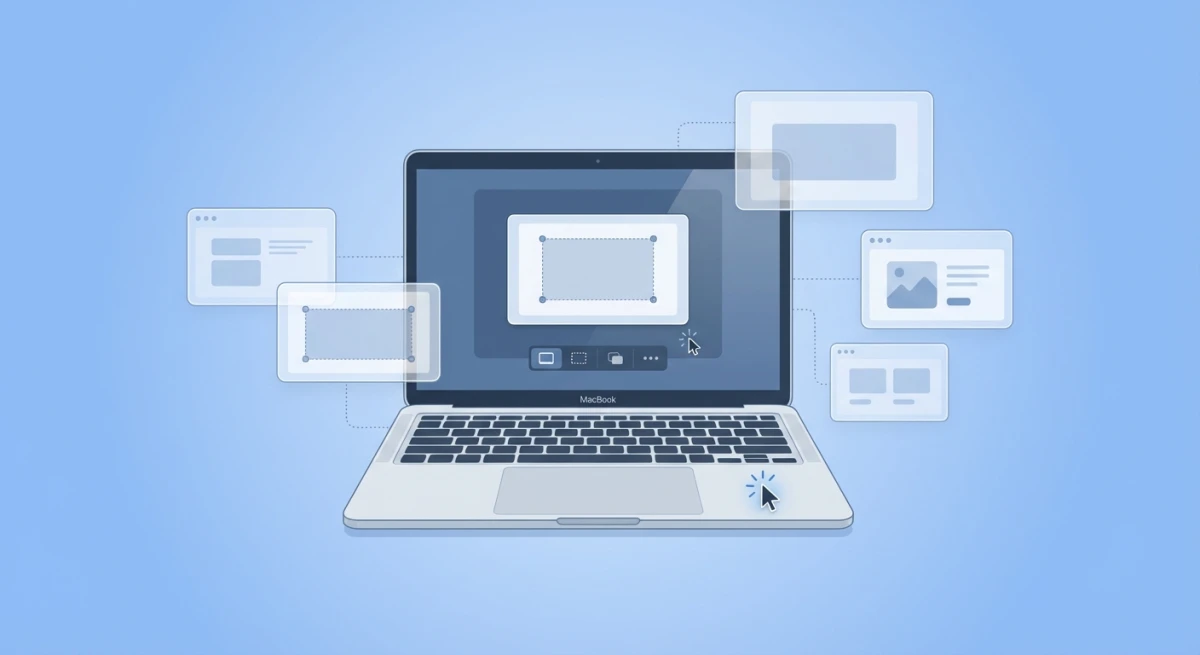
Apple's built-in tool works for basic captures. Press ⌘ + Shift + 5 to access the Screenshot toolbar. This gives you access to timer options and screen recording. It's free and already on your Mac.
Samsung Screen Capture (Android)
Samsung phones have palm swipe and scroll capture built in. Go to Settings > Advanced features > Motions and gestures. Enable "Palm swipe to capture" for easier Spotify screenshots.
iPhone Built-in Screenshot
The iOS screenshot tool includes basic editing. After taking a screenshot, tap the thumbnail to crop and annotate. You can also use the "Copy" option to paste directly into apps without saving to your Photos.
Troubleshooting Spotify Screenshot Issues
Screenshots Look Blurry
This happens when images get compressed. Here's how to fix it:
- Don't zoom in before taking the screenshot
- Share the original file, not a resized copy
- Use PNG format, because it keeps text sharper than JPEG
If your Mac shortcuts aren't working, check our guide on fixing Mac screenshot not working.
Can't Screenshot Lyrics
Some songs don't have lyrics on Spotify. If the microphone icon is gray, lyrics aren't ready for that song yet.
Wrapped Not Showing
Wrapped only shows up from late November through January. After that, it's gone unless you saved screenshots.
Screenshots Save in Wrong Format
By default, Mac saves screenshots as PNG files. If you need JPG instead (smaller file size for social media), you can convert them using our free image format converter. Alternatively, change the default format with this Terminal command: defaults write com.apple.screencapture type jpg.
Spotify Freezes When Screenshotting
If Spotify becomes unresponsive when you take screenshots, try these fixes:
- Update Spotify. Older versions can conflict with macOS screenshot tools
- Restart the app. Close Spotify completely and reopen it
- Check for overlays. Close other apps that might interfere (Discord overlay, streaming software)
- Use window capture. Sometimes
⌘ + Shift + 4with Spacebar works better than full-screen capture
Frequently Asked Questions
Wrapping Up
Taking Spotify screenshots is easy once you know the shortcuts. Whether you're saving Wrapped stats, sharing playlists, or capturing lyrics, Mac's built-in tools work great. For better looking results, such as adding backgrounds for social media, ScreenSnap Pro adds polish with just a few clicks.
Want all the Mac screenshot shortcuts in one place? Check out our Mac screenshot shortcuts guide.

Morgan
Indie DeveloperIndie developer, founder of ScreenSnap Pro. A decade of shipping consumer Mac apps and developer tools. Read full bio
@m_0_r_g_a_n_