Support Ticket Response Examples: 25 Copy-Paste Templates
The best support ticket response examples do four things: they acknowledge the problem in the customer's words, give the answer or the next step, set a time for the next update and close with one clear action. Below are 25 copy-paste templates grouped by ticket type, from the first reply to the closing note, technical tickets included.
Each of these customer support response templates has a when-to-use line and [square brackets] for what you fill in.
What makes a good support ticket response
A good reply answers the question the customer asked, in their words, and leaves nothing to guess. It has six parts:
- Greeting by first name. Skip "Dear valued customer".
- Acknowledgment in their words. Show that a person read the ticket.
- The answer or the next step. Lead with it.
- A visual when it helps. An annotated screenshot beats a paragraph of directions, as in step-by-step instructions with screenshots.
- A time for the next update. A day, a time and a time zone.
- One clear action. The one thing you need, or "nothing to do".
Here are all six parts in one reply:
[1] Hi Priya,

[2] Thanks for the clear report. When you export the Q3 invoices report
as CSV, you get "Export failed (413)", and your team needs it by Friday.

[3] This happens above 50 columns. Until we raise the limit, export it
in two parts: the first 50 columns, then the rest.

[4] The attached screenshot marks the Columns button (1) and the limit (2).

[5] Your ticket is linked to the fix. Next update: Thursday, 17:00 CET.

[6] Could you try the two-part export today and tell me if both files open?

Sam, Support
It works because Priya can act today, knows when Sam returns and has one thing to do.

25 support ticket response examples by ticket type
Find the ticket type, then the template. Replace every [placeholder] and add one line that shows you read this ticket.
| Ticket type | Templates |
|---|---|
| First response | 1. New ticket, 2. After hours or busy |
| Asking for details | 3. Missing details, 4. Screenshot or recording, 5. Logs or HAR file |
| How-to answers | 6. Annotated screenshot, 7. Short GIF, 8. Help article |
| Bugs and technical issues | 9. Workaround, 10. Can't reproduce, 11. Escalated, 12. Fixed in a release, 13. Outage |
| Account and billing | 14. Refund approved, 15. Refund declined, 16. Failed payment, 17. License key, 18. Cancellation |
| Feature requests | 19. Logged, 20. Not planned, 21. Shipped |
| Difficult conversations | 22. Angry customer, 23. Our mistake |
| Closing | 24. Resolved, 25. No reply |
First response and acknowledgment
Send the first reply fast, and promise a time you can keep.
1. New ticket received
When to use: your first reply when you can't solve the ticket yet. Cut it to two lines for your ticket acknowledgment email.
Subject: Re: [ticket subject] [#ticket ID]

Hi [first name],

Thanks for writing in. I've got your ticket about [the issue in their words]
and I'm looking into it now.

You'll hear from me by [day, time, time zone], even without the full answer.
Reply here to add anything; it lands on the same ticket.

[agent name], [company] Support
2. After hours, weekend or high volume
When to use: the queue is closed or slower than usual. Schedule it as your out-of-hours auto-reply.
Hi [first name],

Thanks for your message. [Keep one line:]
Our team is offline until [Monday, 09:00 CET].
We're busier than usual, so replies take up to [24 hours].

Your ticket is [#ID]. You'll hear from us by [day, time, time zone].
Meanwhile, see [help center link] or [status page link].

Locked out or charged twice? [Urgent route, e.g. call (number)].

[company] Support
Templates for asking for more information
Ask once and number what you need: a numbered list gets a numbered answer.
3. Missing details and steps to reproduce
When to use: the ticket says "it doesn't work" and you can't act on it yet.
Hi [first name],

Thanks for reporting this. To fix it in one go, could you reply with:

1. The steps you took, starting from the page you were on.
2. What you expected, and what happened instead.
3. The exact error message (pasted, or a screenshot).
4. The browser or app version and your operating system.
5. Your workspace name or sign-in email.

A short screen recording covers 1 to 3, if that's easier.

[agent name]
If the same customers send thin tickets often, link a guide on how to write a support ticket in your auto-reply.
4. Asking for a screenshot or short screen recording
When to use: you need to see what the customer sees.
Hi [first name],

A picture would help. Here's the quickest way:

Screenshot: Cmd + Shift + 4 (Mac) or Windows + Shift + S (Windows),
then drag over the area.
Recording: Cmd + Shift + 5, then Record Selected Portion (Mac), or
Windows + Shift + R (Windows). Select the area and start.

Cover emails, names and card or account numbers with a solid box
first. Please don't blur them: blur can be undone.

Attach the file here, not a link, so it stays with this ticket.
We'll never ask for your password or a sign-in code.

[agent name]
5. Asking for logs or a HAR file
When to use: a web app fails in one customer's browser, and you need the network requests behind it.
Hi [first name],

To see what your browser sends to our servers, I need a network log
called a HAR file. In Chrome it takes about 2 minutes:

1. Open the page with the problem.
2. Press F12 (Cmd + Option + I on a Mac) and click the Network tab.
3. Tick Preserve log, then repeat your steps until the error appears.
4. Click Export HAR (sanitized), the download arrow, and save the file.
5. Attach the .har file to your reply.

The sanitized file leaves out cookies and sign-in headers but can still
hold visited pages and form data, so use test data if you can.

[agent name]
Chrome documents the sanitized HAR export, which leaves out headers such as Cookie and Authorization. Never ask for the version "with sensitive data".
HAR files in a help desk are a target: in 2023, an attacker used session tokens from HAR files in Okta's support system to hijack the sessions of 5 customers (Okta's root cause analysis). Delete the file once you've read it, if your help desk allows.
How-to answers that show instead of tell
Put the steps in text and the picture under them, in case images are blocked.
6. Step-by-step answer with an annotated screenshot
When to use: the answer takes three or more clicks on one screen, or the control is hard to find.
Hi [first name],

Yes, you can [change the due date on new invoices]. The attached
screenshot shows each click:

1. Open [Settings > Billing] (1 in the screenshot).
2. Click [Edit] next to [Payment terms] (2).
3. Choose [Net 30] and click [Save] (3).

This changes [new invoices only]. Want me to check it on your account
once you've saved it?

[agent name]
7. Answer with a short GIF
When to use: the step involves motion, like a drag or a hover menu.
Hi [first name],

This is easier to watch than to read, so I've attached a 6-second clip
of how to [reorder columns]:

1. Hover over the [column header] until the grip icon appears.
2. Drag it left or right, then let go.

If the clip won't play in your email app, tell me and I'll send
screenshots.

[agent name]
Tip: start the clip one step before the action. For tools, see GIF screen capture on Mac and GIF screen capture on Windows.
8. Pointing to a help article without sounding dismissive
When to use: a help article already answers the question.
Hi [first name],

Yes, you can [connect a second calendar]. The short version:

1. Go to [Settings > Integrations].
2. Click [Add calendar] and sign in with the second account.

The full guide, with fixes for common errors: [article title] ([link])
If a step doesn't match what you see, send a screenshot and I'll help.

[agent name]
Tip: answer first, link second. A reply that is only a link reads as "go away".
Bug and technical issue replies
Be exact about what you saw, and never guess a fix date.
9. Bug confirmed, with a workaround
When to use: you reproduced it, it's on your side and there's a way around it for now.
Hi [first name],

Thanks for the clear steps. I reproduced it: [the CSV export fails above
50 columns]. It's a bug on our side, not your setup.

Until the fix ships, this gets the same result:
1. [Workaround step]
2. [Workaround step]

Your ticket is linked to the bug, so you'll hear when it's fixed. I won't
guess a date. Next update: [day, time, time zone].

[agent name]
Keep each workaround in a tested runbook and paste from there, so every agent sends the same steps.
10. Can't reproduce
When to use: you followed the customer's steps and everything worked.
Hi [first name],

I followed your steps on [version, browser and OS], and [the export
worked each time]. Something in your setup must differ, so let's find it:

1. Your [app or browser] version: [where to find it].
2. Does it happen in a private window or another browser?
3. A short screen recording from one step before the error.

If it happens again, reply with the time and time zone so I can check
our logs.

[agent name]
Tip: never send "works on my end" alone. It reads as "your problem".
11. Escalated to engineering
When to use: the ticket goes to developers. This escalation response template pairs with the internal note below.
Hi [first name],

Thanks for the steps and the recording. I've passed them to our
engineering team with the error text and your workspace name, so nobody
will need to ask you again.

I'm still your contact here. Next update: [day, time, time zone], even
if the news is "still on it".

[agent name]
12. Fixed in a release
When to use: the fix has shipped, and the customer needs to update or check.
Subject: Fixed in [version]: [the issue in their words]

Hi [first name],

Good news: the fix for [the export error] is live in version [5.2.1].
To get it: [update steps / nothing to do].
Release notes: [link to the entry]

Could you try [the export] once more and tell me how it goes? I'll keep
the ticket open until [date] in case it isn't right.

[agent name]
Link the entry in your release notes that names the fix, not a page of fifty changes.
13. Outage or incident update
When to use: many customers hit the same problem. Send it to every linked ticket, on a fixed schedule.
Subject: [Service] incident: update [number], [time, time zone]

Hi [first name],

Since [time], [file uploads] have been [failing for some users]. Your
data is [safe], and [what still works].

What we know: [one line, no guesses].
What we're doing: [one line].
Workaround: [steps, or "none yet"].
Next update: by [time], or sooner if it's fixed. Status: [link]

No need to reply; the all-clear will come here.

[agent name]
Afterwards, send a short note on what happened and what you changed. The internal write-up belongs in a root cause analysis template.
Account and billing replies
Billing replies need exact facts: the amount, the date and what happens next.
14. Refund approved
When to use: you've issued the refund and want to head off the "where's my money?" follow-up.
Hi [first name],

I've refunded [amount and currency] for [invoice number] to your [card
ending 1234]. Banks usually take [5 to 10 business days] to show it.

If it isn't there by [date], reply and I'll send the refund reference
for your bank. Your [plan] [stays active until (date) / is now closed].

Sorry it didn't work out.
[agent name]
15. Refund declined
When to use: the request falls outside your policy. State the rule once, then focus on what you can do.
Hi [first name],

Thanks for explaining. I've checked, and I can't refund this one: [the
purchase was on (date), outside our (number)-day refund window]. I know
that's not the answer you hoped for.

Here's what I can do instead:
1. [Turn off auto-renew so you aren't charged again.]
2. [Move you to a cheaper plan from your next billing date.]

Would either help? If I've misread the dates, tell me and I'll recheck.
[agent name]
16. Failed payment
When to use: a renewal was declined and the account is at risk.
Subject: Your [product] payment didn't go through

Hi [first name],

Your [plan] payment of [amount] on [date] was declined by your bank.
Your account is still active, and nothing is lost.

Update your card on the billing page: [link]. We'll retry on [date].
If that fails too, [what happens and when].

Please don't email card numbers. The billing page is the safe place.
[agent name]
17. License key or activation problem
When to use: a customer bought your desktop app or plugin, and the key won't activate.
Hi [first name],

Let's get you in:

1. Copy the key from your purchase email instead of typing it
   (hand-typed keys often swap O and 0).
2. Use the email you bought with: [email used at checkout].
3. [If the limit was reached:] I've reset your activations, so you
   can activate on the new computer now.

Still stuck? Send a screenshot of the error, with the key covered by
a solid box, and the version from [Help > About].

[agent name]
18. Cancellation
When to use: the customer asked to cancel. Confirm first, then ask why, never as a condition.
Hi [first name],

Done: your [plan] is cancelled, and you won't be charged again. You keep
access until [end date]; after that, [what happens to their data].

Export your data before then: [steps or link].
Changed your mind? [How to restart].

If you have a minute, what made you leave? One line helps our product team.

Thanks for being a customer.
[agent name]
Tired of plain screenshots? Try ScreenSnap Pro.
Beautiful backgrounds, pro annotations, GIF recording, and instant cloud sharing, all in one app. Pay $39 once, own it forever.
See pricing and featuresFeature request replies
Say what you logged, what you can't promise and what to do until then.
19. Feature request logged
When to use: you've passed the idea on, with no promise attached.
Hi [first name],

Thanks for the idea. You'd like [to export reports to Google Sheets] so
that [your finance team stops re-importing CSV files]. I've logged it
with your use case and linked this ticket to it.

I can't promise if or when it ships, but if it does, you'll hear from me.
Until then, [the closest workaround] gets you part of the way.

[agent name]
Tag these tickets by feature. When the feature reaches beta testing, the people who asked for it are your first testers.
20. Not planned (saying no kindly)
When to use: it won't happen, and a vague "maybe" would waste the customer's time.
Hi [first name],

Thanks for asking about [offline mode]. A straight answer beats a maybe:
it isn't on our roadmap, because [one honest reason].

What might help instead: [workaround, integration or another tool].

I've still recorded your use case, so if plans change, you'll hear from me.
[agent name]
21. Feature shipped
When to use: a feature someone asked for is live. This reply turns a request into loyalty.
Subject: [Feature] is live

Hi [first name],

In [month], you asked for [export to Google Sheets]. It's live today in
version [5.3]. How to use it: [two steps or a help article link].
[Attach a short GIF of the feature in use.]

Thanks for the push. Your use case shaped [one part of the feature].
[agent name]
Replies for difficult conversations
Hard tickets need fewer words: agree with what's true, say what you've done and give a time.
22. Angry customer
When to use: the customer is upset, and they have a point.
Hi [first name],

You're right to be frustrated. You've [waited four days for an answer],
and that's not okay.

What I've done so far: [specific actions].
Next: [next step] by [day, time, time zone].

I'll stay on this ticket until it's fixed, so you won't need to explain
it again.
[agent name]
Tip: answer each point in their order, and if they're wrong on the facts, drop "you're right".
23. Apology for our mistake
When to use: your product or your team caused the problem.
Hi [first name],

We got this wrong, and I'm sorry. [What happened, in one sentence.]

What we've done: [the fix].
What you need to do: [nothing / one step].
What we're changing: [how you'll prevent a repeat].
[Goodwill gesture if your policy allows, e.g. a month of credit.]

If anything still looks wrong, reply and I'll fix it myself.
[agent name]
Tip: say "we" for the mistake and "I" for the fix. Leave out "if", as in "sorry if this caused trouble".
Closing and follow-up templates
A good ticket closing message confirms the fix and leaves the door open.
24. Resolved: check in and ask for feedback
When to use: you think it's fixed and want the customer to confirm. Drop the survey line if your help desk sends one.
Hi [first name],

[The issue] should be fixed: [what changed]. Could you try [the action
that failed] when you have a minute?

If it works, there's nothing to do, and I'll mark this solved on [date].
If not, reply here and the ticket reopens with its history.

One question, about 10 seconds: how did we do? [survey link]
[agent name]
25. Closing after no reply
When to use: you asked for something and heard nothing. Send the reminder first, then the close.
Reminder (after [3] business days):
Hi [first name], checking in on [the issue]. I still need [the missing
item]. If it's sorted, tell me and I'll close the ticket.

Close (after [7] business days):
Hi [first name], I haven't heard back, so I'm closing this for now.
Nothing is lost: reply any time and it reopens with the full history.
How to add screenshots and GIFs to replies
A visual helps when the answer lives on a screen, and does harm when it shows another customer's data.
| The customer needs to see | Send |
|---|---|
| One setting or a yes or no | Text only |
| Three or more clicks on one screen | Annotated screenshot |
| A drag, hover or animation | GIF under 10 seconds |
| A flow across several pages | Short video or help article |
| Proof that a fix worked | Before and after screenshots |
- Capture your own screen. Use a demo account, so no other customer's data gets in.
- Crop tight. Keep only the panel that matters, so it reads on a phone.
- Number the clicks to match the numbered steps in your text.
- Cover data with a solid box. Blur and pixelate can be reversed, so redact text the safe way.
- Keep GIFs under 10 seconds. Too big to attach? Use a free GIF compressor.
- Attach the file, not a link. Customers come back to tickets months later, and a share link can expire or get forwarded.
- Keep the steps in text too, for blocked images and screen readers.
Treat a recording as something you can't redact: record with test data and mute notifications first.
ScreenSnap Pro covers the capture side in one app on Mac and Windows: region screenshots, Counter numbers and arrows that match your steps, a Filled Rectangle for anything sensitive and silent GIF recording.
Escalation handoff note for engineering
Template 11 tells the customer. This note tells engineering, so an engineer can start without reading the thread.
ESCALATION: [one line: what is broken, for whom]
Ticket: [link] · Customer: [company] · Plan: [plan or tier]
Impact: [who is blocked, what they can't do] · Since: [date, time UTC]
Severity (support view): [P1 to P4, and why]

Steps to reproduce:
1. [step]
2. [step]
Expected: [what should happen]
Actual: [what happens, with the exact error text]

Environment: [app version · browser · OS · API or integration]
Evidence: [annotated screenshot · GIF or video · sanitized HAR · logs]
Already tried: [what the customer and support tried]
Question for engineering: [the one thing support needs answered]
Next customer update: [day, time, time zone]- Copy the error text exactly, with OCR rather than retyping.
- Use UTC for time stamps, since logs are searched in UTC.
- End with one question. A note without one tends to sit in the queue.
- Match the tracker. Paste the fields into Jira or GitHub in the order of your bug report template.
How to manage your support macros
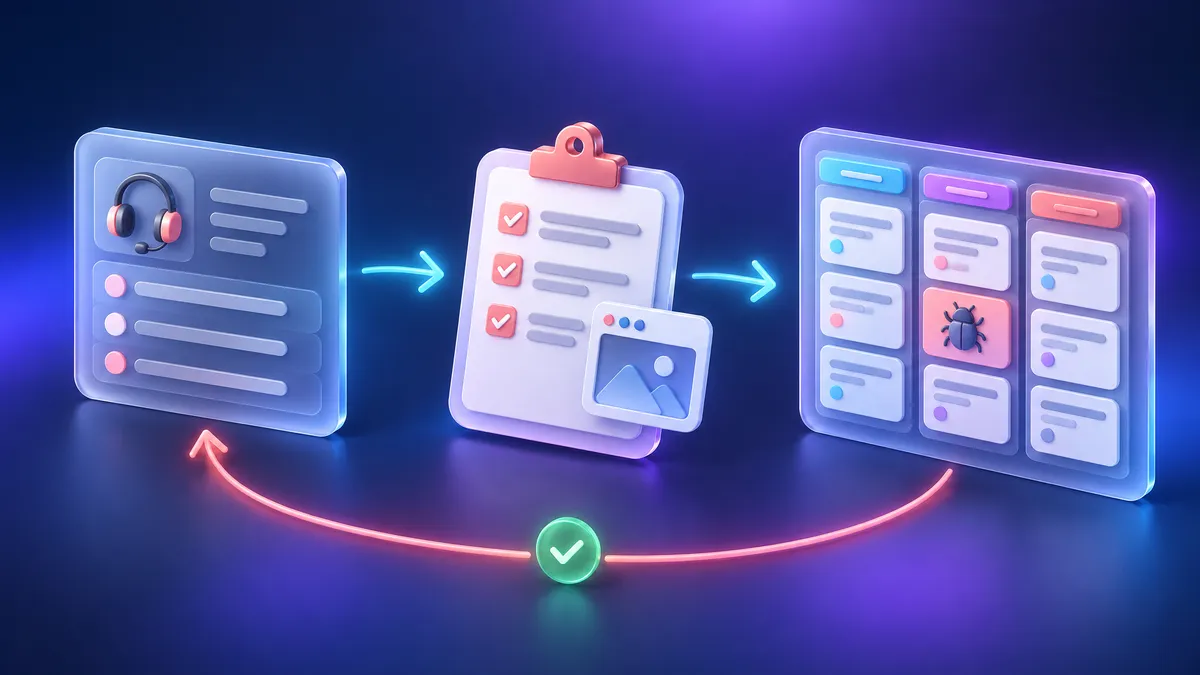
Each help desk ticket response template above becomes a macro, canned response or saved reply once it's in your help desk. Without an owner, the library goes stale.
- Name them so they sort: "Area · Ticket type · Stage", such as "Billing · Refund · Declined".
- Split placeholders by who fills them. The help desk fills names and ticket numbers; [square brackets] are for agents. Search for "[" before you send.
- Give each macro an owner and a review date. Review quarterly and after releases that change a screen it shows, and retire macros unused for 90 days.
- Write a one-page tone guide: first names, "I" for actions you own, no "we apologize for any inconvenience". Keep it in your internal documentation.
- Track the reopen rate per macro. Frequent reopens mean the macro or the product is wrong.
Placeholders have quirks. In Zendesk, {{ticket.requester.name}} fills in when you apply the macro, so on a Problem ticket one requester's name can go to every linked ticket. Zendesk's macro guide shows how to escape it with a backslash.
Frequently Asked Questions
Build your reply library this week
Start with the five ticket types you answer most, load those templates as macros and add a screenshot where one helps. After a month, check their reopen rates and rewrite the weakest.
If your replies lean on annotated screenshots and short GIFs, ScreenSnap Pro is a one-time $39 purchase: 1 license, 2 seats (2 computers, Mac or Windows). See pricing.

Morgan
Indie DeveloperIndie developer, founder of ScreenSnap Pro. A decade of shipping consumer Mac apps and developer tools. Read full bio
@m_0_r_g_a_n_