How to Write a Support Ticket: Template + Examples (2026)
Here's how to write a support ticket that gets solved fast. Put the problem and where it happens in the subject line. Say what you were doing, what you expected and what happened instead. Paste the exact error text, list your device, app and browser versions, and attach an annotated screenshot or short recording. Keep one issue per ticket.
How to write a support ticket in 6 steps
Step 1: Check the help center and status page
Search the help center and check the status page or IT outage notices. A posted outage saves a ticket.
Step 2: Use the right channel and request type
Use the portal or form first, then email. Chat is for quick questions. Pick the closest category, one issue per ticket. A service request asks for something new, like access. An incident reports something broken.
Step 3: Write a subject line with what, where and since when
The desk routes tickets from this line. Bad: URGENT!!! Need help. Good: CSV export fails with error E-4012 in Reports > Invoices since 9:40.
Step 4: Describe what happened in four parts
Cover what you were doing, what you expected, what happened instead and what you tried (a restart, another browser). Add the page URL or screen name and the steps that cause it. Stay calm and factual: no capitals, no blame.
Step 5: Add evidence and your setup
Screenshot only the window or region with the error (Mac guide, Windows guide). Add your device, OS, app and browser versions.
Step 6: State the impact and when you're available
Say who is affected (you, your team or customers), any deadline, and your hours and time zone. Don't mark it all urgent. Most desks set priority from impact and urgency (the ITIL approach).
Support ticket or bug report?
A support ticket asks support or IT for help: access, how-to questions, billing, outages or a possible bug. A bug report documents a reproducible defect for developers, and support may turn a ticket into one. Writing to your own developers? Use a bug report template.
Support ticket template (copy and paste)
Paste the template into a form, chat or email and keep the subject format. Fill any matching form fields first.
Subject: [What's wrong] in [where] since [when]

What I was trying to do:
What I expected:
What happened instead (exact error text):
Where: [page URL or screen name]

Steps to reproduce:
1.
2.
3.

When it started / how often:
What I already tried: [restart, another browser or device]
Impact: [just me / my team / customers] · Deadline: [date, if any]
Environment: [device and OS version] · [app or browser and version] · [network: office, home or VPN]
Account: [username, workspace or customer ID; never a password]
Attachments: [annotated screenshot] · [10 to 30 second recording] · [log file, if asked]
Best way to reach me: [channel, hours, time zone]
Support ticket examples: bad vs good
Made-up details: an employee writing to IT at work or school, then a customer writing to a vendor.
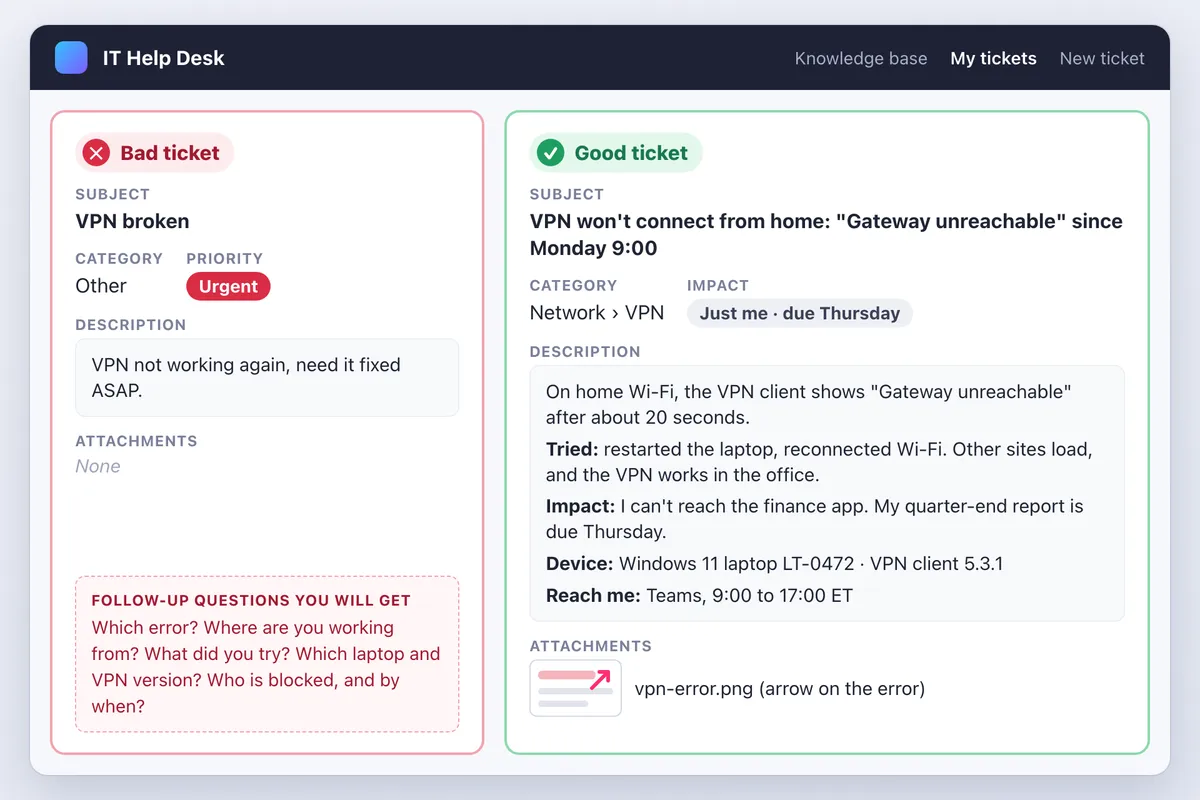
IT ticket example
Bad:
Subject: VPN broken
VPN not working again, need it fixed ASAP.
Good:
Subject: VPN won't connect from home: "Gateway unreachable" since Monday 9:00

On home Wi-Fi the VPN client fails after 20 seconds: "Gateway unreachable".
Tried: restart, Wi-Fi reconnect. Other sites load. It works in the office.
Impact: no finance app access; my quarter-end report is due Thursday.
Device: Windows 11 laptop LT-0472, VPN client 5.3.1. Annotated screenshot attached.
Reach me: Teams, 9:00 to 17:00 ET
Why it works: IT can isolate the gateway, client or home network fast.
Customer ticket example
Bad:
Subject: Export doesn't work!!!
Fix it, we pay for this.
Good:
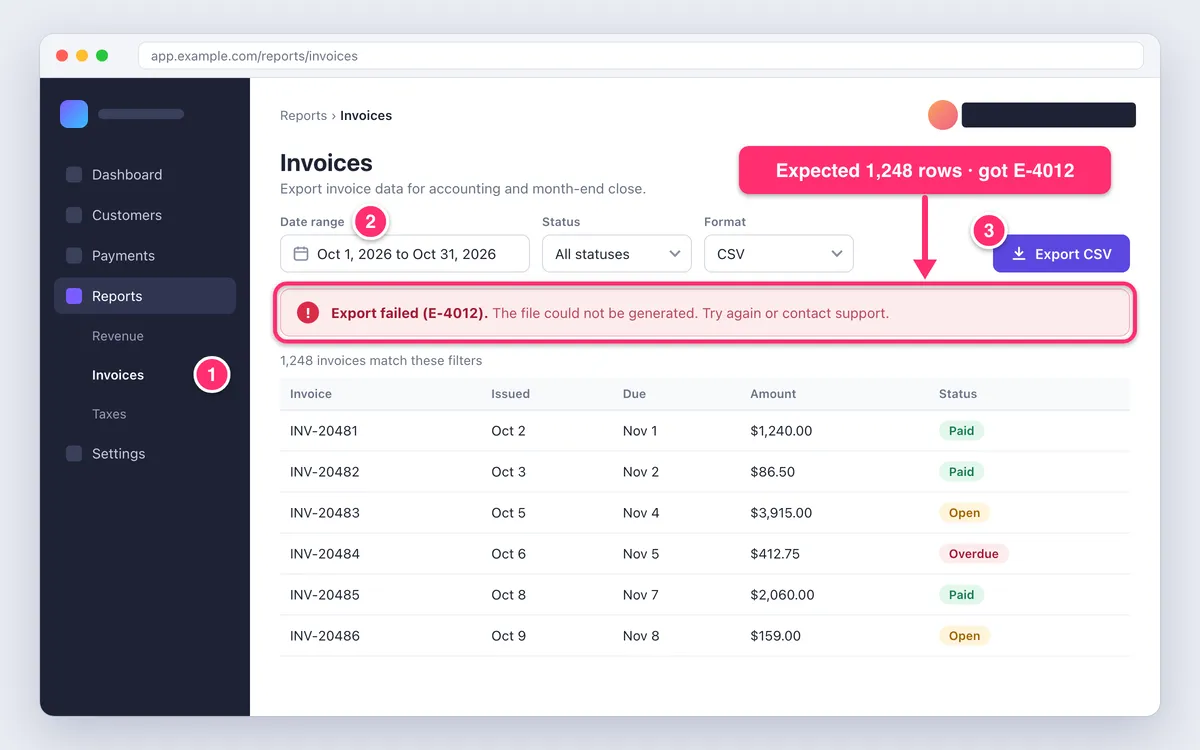
Subject: CSV export fails with error E-4012 in Reports > Invoices since Nov 3, 09:40 UTC

1. Open Reports > Invoices.
2. Set the dates to Oct 1 to Oct 31.
3. Click Export CSV.

Expected a CSV with 1,248 rows; got a red "Export failed (E-4012)" banner.
Fails in Chrome and Edge. Under 1,000 rows exports fine.
Workspace 48213 (no password). 20-second recording and annotated screenshot attached.
Impact: month-end close Friday; 3 people blocked.
Why it works: support can reproduce it, and the 1,000-row detail narrows the cause.
What to attach to a support ticket
- An annotated screenshot of the window or region, with numbers that match your steps and an arrow plus a callout on the wrong value. Web app? See how to annotate a website.
- A 10 to 30 second recording, starting one step before the problem and trimmed with the free video trimmer. Use a GIF for silent clicks and an MP4 to narrate. Too big to upload? Reduce the GIF file size.
- The exact error text, copied with OCR (see the table, or use this free image to text tool) and pasted as searchable text.
- Your browser version: Help > About Google Chrome (steps), Help and feedback > About Microsoft Edge, or Safari > About Safari.
| Evidence | Mac | Windows |
|---|---|---|
| Window or region | ⌘ + Shift + 4, then Space | Win + Shift + S or Alt + PrtScn |
| Narrated video | ⌘ + Shift + 5 · recording guide | Win + Shift + R · recording guide |
| Silent GIF | Not built in · GIF guide | Snipping Tool, up to 30 seconds · GIF guide |
| Error text | Live Text · OCR guide | Text actions · OCR guide |
| Long list | No scrolling mode · scrolling guide | No scrolling mode · scrolling guide |
| OS version | About This Mac · Apple | Settings > System > About · Microsoft |
Built-ins cover the basics. Snipping Tool and Markup both draw filled boxes, and Snipping Tool's Quick redact hides emails and phone numbers, though not tokens or names.
ScreenSnap Pro keeps capture, markup and recording in one app on Mac and Windows. It adds numbered counters that match your steps and Scrolling Capture for long error lists (you scroll down manually). It also records silent GIFs directly, or videos with your mic that you trim in its video editor and export as MP4 or GIF.

Tired of plain screenshots? Try ScreenSnap Pro.
Beautiful backgrounds, pro annotations, GIF recording, and instant cloud sharing, all in one app. Pay $39 once, own it forever.
See pricing and featuresHow to share screenshots and files safely
- Keep secrets out. Never send passwords, MFA codes, full card numbers or API keys; real support never asks for your password. Cover tokens, emails, customer names and account numbers with solid boxes, because blur and pixelate can be reversed (how to redact text). Check tabs and notifications too.
- Send logs or HAR files only when asked, and clean them first. They can hold session tokens: in 2023, tokens from HAR files in Okta's support system were used to hijack sessions at 5 customers (Okta's analysis). Ask support how if unsure.
- Attach files to the ticket itself, not a share link. The ticket keeps the evidence with the case, and anyone with a public link can open it. Share links suit a quick heads-up in chat, not a record.
How to follow up on a support ticket
- Reply on the same thread with the ticket number. A duplicate splits the history.
- Wait for the stated response time, or one to two business days if none is given.
- When you nudge, add something new, like a new error or a closer deadline. If the impact grows, ask for a higher priority.
- Stalled or closed unfixed? Reply on the thread, restate the impact and ask who owns it now. Reopen, don't refile.
- Confirm the fix. If it returns, quote the old number.
For support teams: build a form that gets good tickets
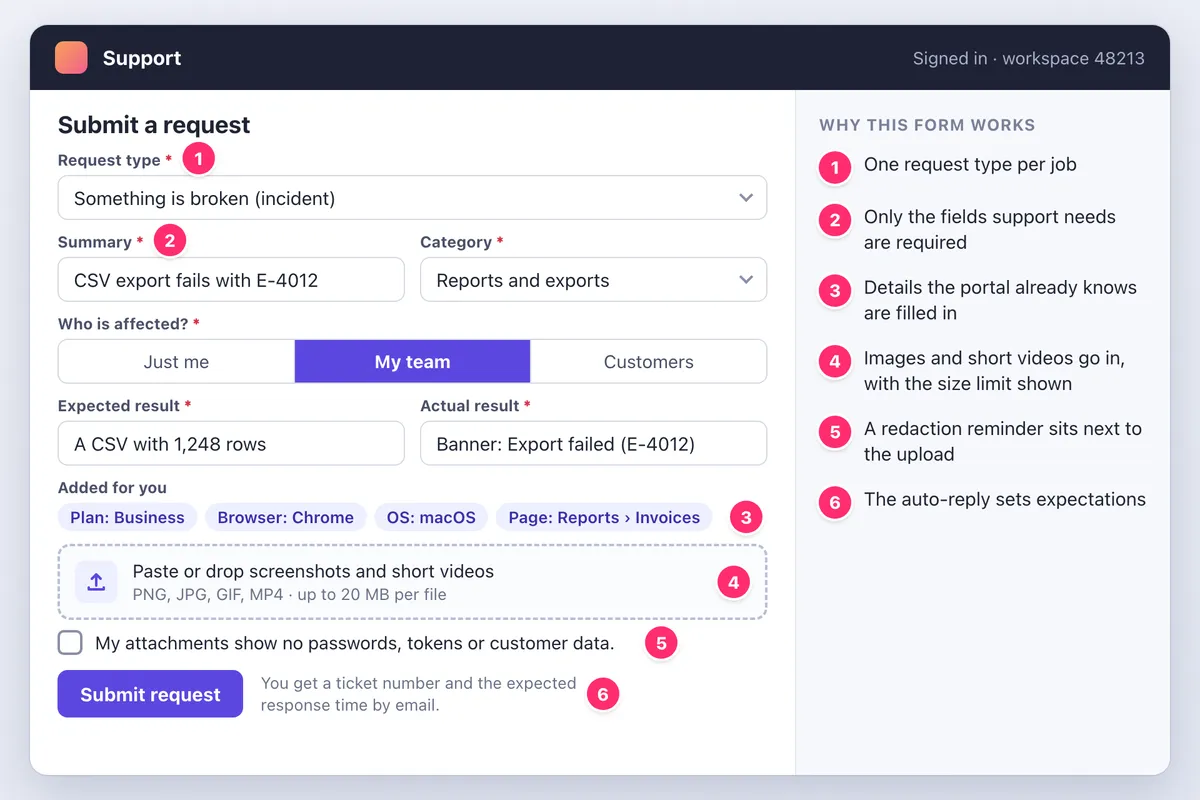
- One form or request type per job, like Zendesk ticket forms or Jira Service Management request types.
- Require only summary, category, impact, steps, and expected vs actual result. Pre-fill user, plan, browser and OS.
- Accept pasted images and short videos, show the size limit, and add a reminder by the upload: "My attachments show no passwords, tokens or customer data."
- Auto-reply with the ticket number and response time; link a ticket-writing guide.
- Map frequent categories to runbooks or known fixes. On GitHub, add contact links to your GitHub issue template chooser.
Frequently Asked Questions
Get it fixed in one reply
For annotated screenshots with numbered steps, scrolling captures and short recordings in one app, ScreenSnap Pro is a one-time $39 purchase: 1 license, 2 seats (2 computers, Mac or Windows). See pricing.

Morgan
Indie DeveloperIndie developer, founder of ScreenSnap Pro. A decade of shipping consumer Mac apps and developer tools. Read full bio
@m_0_r_g_a_n_