Test Case Template: Free Format and Examples (2026)
A test case template is a reusable format for documenting one test: a unique ID, title, preconditions, test data, numbered steps, expected result, actual result, status and evidence. Filling the same fields every time means anyone on the team can run the test the same way and agree on whether it passed.
Below you get the template in three formats, a guide to each field, five filled examples, and a way to add screenshot evidence when a step fails.
What is a test case (and what a template adds)
In simple terms, a test case is a short script for checking one behavior. It says where to start, what to do, which data to use, and what you should see. The ISTQB glossary defines it as a set of preconditions, inputs, actions, expected results and postconditions.
A shared template makes three things easier:
- Reproducibility. A new tester, or a client running UAT, gets the same result you did.
- Handoff. A failed case already holds most of what a developer needs.
- Audit trail. Status, build and evidence show what was tested, when, and where.
Test cases are step-by-step instructions written for testers, so the rules for writing step-by-step instructions with screenshots apply: one action per step, and show the expected result. The test documentation standard ISO/IEC/IEEE 29119-3 uses the same core fields, so this format maps cleanly to formal test case documentation.
Free test case template (copy and paste)
All three formats hold the same fields.
Markdown version
Use this in a repo, a wiki or any docs-as-code setup. GitHub's guide to organizing information with tables covers the syntax if you add columns.
## [ID] · [Title: the outcome you expect]

| Field | Value |
| --- | --- |
| Requirement | [Story or ticket ID] |
| Priority | [High, Medium or Low] |
| Environment | [Build · browser · OS] |
| Preconditions | [State of the system before step 1] |
| Test data | [Exact inputs] |
| Author · last reviewed | [Name · YYYY-MM-DD] |

| # | Step | Expected result |
| --- | --- | --- |
| 1 | [One action] | [What you should see] |
| 2 | [One action] | [What you should see] |
| 3 | [One action] | [What you should see] |

- **Actual result:** [Fill in during the run]
- **Status:** Not run / Pass / Fail / Blocked
- **Evidence:** [File names of screenshots, GIFs or logs]
Each step gets its own expected result. When step 3 fails, you know exactly where things broke.
Google Sheets or Excel version
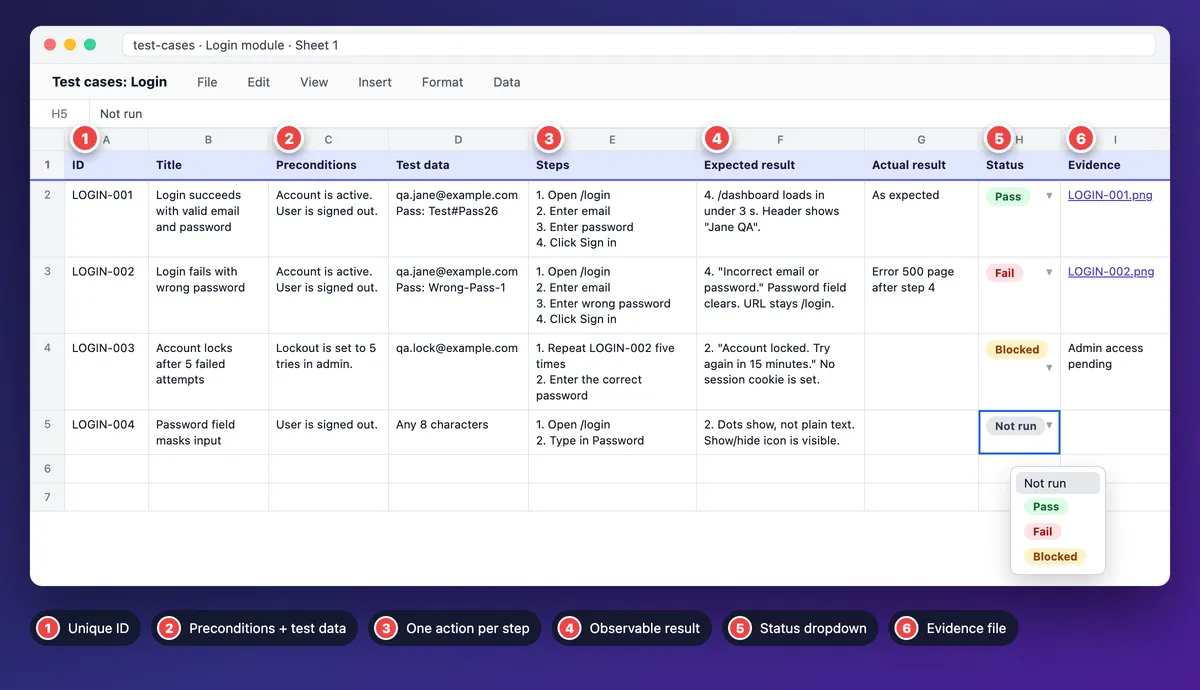
Save this block as test-cases.csv. In Google Sheets, use File > Import > Upload. In Excel, use Data > From Text/CSV. You get the header row plus one filled case.
ID,Title,Requirement,Priority,Preconditions,Test data,Steps,Expected result,Actual result,Status,Environment,Evidence,Author,Last reviewed
LOGIN-002,Login fails with wrong password,AUTH-12,High,"Account is active. User is signed out.","qa.jane@example.com / Wrong-Pass-1","1. Open /login 2. Enter email 3. Enter wrong password 4. Click Sign in","4. ""Incorrect email or password."" shows, password field clears, URL stays /login",,Not run,"Build 2.8.1, Chrome, Windows 11",,J. Doe,2026-10-01
Then set up the sheet:
- Freeze the header row. In Sheets, use View > Freeze > 1 row. In Excel, use View > Freeze Panes > Freeze Top Row.
- Make Status a dropdown. In Sheets, select the column, open Data > Data validation, add a Dropdown rule, and enter Not run, Pass, Fail and Blocked (Google's steps). In Excel, open Data > Data Validation, set Allow to List, and type
Not run,Pass,Fail,Blockedin Source, with semicolons if your region uses them (Microsoft's steps). - Color the status. Add conditional formatting: green for Pass, red for Fail, amber for Blocked.
- Use a readable ID scheme. A feature prefix plus three digits: LOGIN-001, CHECKOUT-014. Never reuse an ID.
Gherkin variant for BDD teams
If your team writes behavior-driven tests, the same case fits Given, When and Then. Save it in a .feature file. The Cucumber Gherkin reference lists every keyword.
Feature: Login

  @LOGIN-002 @priority-high
  Scenario: Login fails with wrong password
    Given an active account "qa.jane@example.com"
    And I am signed out
    When I open the login page
    And I sign in with the password "Wrong-Pass-1"
    Then I see the message "Incorrect email or password."
    And the password field is empty
    And I am still on the login page
Gherkin reads well, but it has no slot for evidence or status. Keep the ID in a tag, as above, and store run results in your test tool.
What each field in a test case means
Here is what to write in each field, with a weak and a strong example.
| Field | What to write | Weak example | Strong example |
|---|---|---|---|
| Test case ID | A unique, stable key | 1, 2, 3 | LOGIN-002 |
| Title | The outcome you expect | Test login | Login fails with wrong password |
| Requirement | The story or spec it proves | (blank) | AUTH-12 |
| Priority | The risk if this breaks | Normal | High: blocks all sign-ins |
| Preconditions | The state before step 1 | User exists | Account active, not locked, signed out |
| Test data | Exact inputs | Some email | qa.jane@example.com, Wrong-Pass-1 |
| Steps | One action per step | Log in and check | 1. Open /login. 2. Enter the email. |
| Expected result | Something you can see or measure | Works correctly | "Incorrect email or password." shows |
| Actual result | What happened in this run | Failed | Error 500 page after step 4 |
| Status | Not run, Pass, Fail or Blocked | Done | Fail |
| Environment | Build, browser, OS, device | Chrome | Build 2.8.1, Chrome 129, Windows 11 |
| Evidence | File names of screenshots, GIFs, logs | See Slack | LOGIN-002_run1.png |
| Author and review date | Owner and last review | (blank) | J. Doe, 2026-10-01 |
Preconditions and expected result do most of the work. Without them, the same steps give different results and nobody can say whether the test passed. Keep test data in its own field, since data changes more often than steps.
How to write test cases in 7 steps
Writing test cases gets faster once you follow the same order every time.
- Start from a requirement. Pick one user story, spec line or bug fix, and note its ID.
- List the scenarios. A scenario is one user goal, such as "sign in". Cover the happy path, error paths and edges.
- Split each scenario into cases. One case checks one outcome. "Sign in" becomes valid login, wrong password, locked account and empty fields.
- Write steps a stranger can run. See below.
- Write expected results you can verify. See below.
- Ask a peer to review. Someone who did not write the case runs it cold. Each question they ask is a gap.
- Maintain it. Update the case when the feature changes, and stamp the review date.
Write steps a stranger can run
Picture a tester who joined yesterday and knows none of the "obvious" setup.
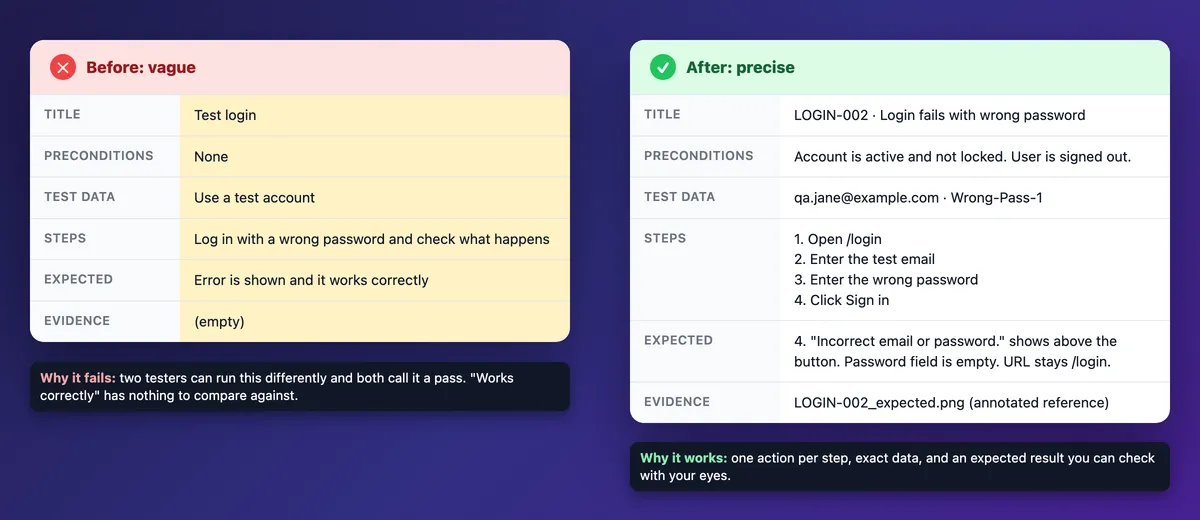
- Before: "Log in with a bad password and check the error."
- After: "1. Open /login. 2. Enter qa.jane@example.com. 3. Enter Wrong-Pass-1. 4. Click Sign in."
Name the exact control: "Sign in button", not "submit". Put setup in Preconditions. With one action per step, a failure points at one step.
Write expected results you can verify
Two people should check an expected result the same way. Quote exact text, name the URL and give numbers.
- Before: "An error is shown and it works correctly."
- After: "'Incorrect email or password.' shows above the button. The password field is empty. The URL stays /login."
For visual checks, attach an annotated reference screenshot and write "Matches LOGIN-002_expected.png".
Test case examples (filled in)
Each sample test case below is complete, so you can paste it into your own sheet.
Positive test case: login with valid credentials
- ID and priority: LOGIN-001 · High
- Preconditions: account is active, user is signed out
- Test data: qa.jane@example.com, Test#Pass26
| # | Step | Expected result |
|---|---|---|
| 1 | Open /login | The form shows Email, Password and Sign in. |
| 2 | Enter the test email | The field shows qa.jane@example.com. |
| 3 | Enter the password | The input is masked. |
| 4 | Click Sign in | /dashboard loads in under 3 seconds. The header shows "Jane QA". |
Negative test cases: wrong password and locked account
Negative test cases check that the app fails safely.
LOGIN-002: login fails with wrong password (High). Preconditions: account is active, user is signed out. Test data: qa.jane@example.com, Wrong-Pass-1.
| # | Step | Expected result |
|---|---|---|
| 1 | Open /login | The sign in form shows. |
| 2 | Enter the test email | The field shows the email. |
| 3 | Enter Wrong-Pass-1 | The input is masked. |
| 4 | Click Sign in | "Incorrect email or password." shows above the button. The password field is empty. The URL stays /login. |
The error never says which field is wrong, so attackers can't learn which emails have accounts.
LOGIN-003: account locks after 5 failed attempts (High). Preconditions: lockout is set to 5 tries. Account qa.lock@example.com is active. Test data: qa.lock@example.com, Wrong-Pass-1 (5 times), then the correct password Test#Pass26.
| # | Step | Expected result |
|---|---|---|
| 1 | Sign in with a wrong password 5 times | Each try shows "Incorrect email or password." |
| 2 | Sign in with the correct password | "Account locked. Try again in 15 minutes." No session is created. |
Boundary value test case: email and password validation
Bugs cluster at limits, so test each limit and the closest value just outside it: 7 and 8 at the bottom, 64 and 65 at the top. This sign-up form needs a valid email and a password of 8 to 64 characters.
SIGNUP-007: sign-up rejects invalid email and password length (Medium). Preconditions: user is signed out and on /signup. Steps: 1. Enter the email. 2. Enter a password of the listed length. 3. Click Create account. Run once per row.
| Password length | Expected result | |
|---|---|---|
| jane.example.com | 8 | "Enter a valid email address." No account is created. |
| qa.new1@example.com | 7 | "Use 8 to 64 characters." No account is created. |
| qa.new2@example.com | 8 | The account is created and the welcome page loads. |
| qa.new3@example.com | 64 | The account is created. |
| qa.new4@example.com | 65 | "Use 8 to 64 characters." No account is created. |
| (empty) | 8 | "Email is required." No account is created. |
In a spreadsheet, give each row its own ID so a failure points to one input.
UI and layout test case with a reference screenshot
For layout checks, the expected result is an annotated baseline image.
PRICE-004: pricing page matches the approved baseline (Medium). Preconditions: build 2.8.1 is live and the window is 1280 px wide. Steps: 1. Open the public /pricing page. 2. Compare the full page with PRICE-004_baseline.png. Expected: the page matches callouts 1 to 3 on the baseline.
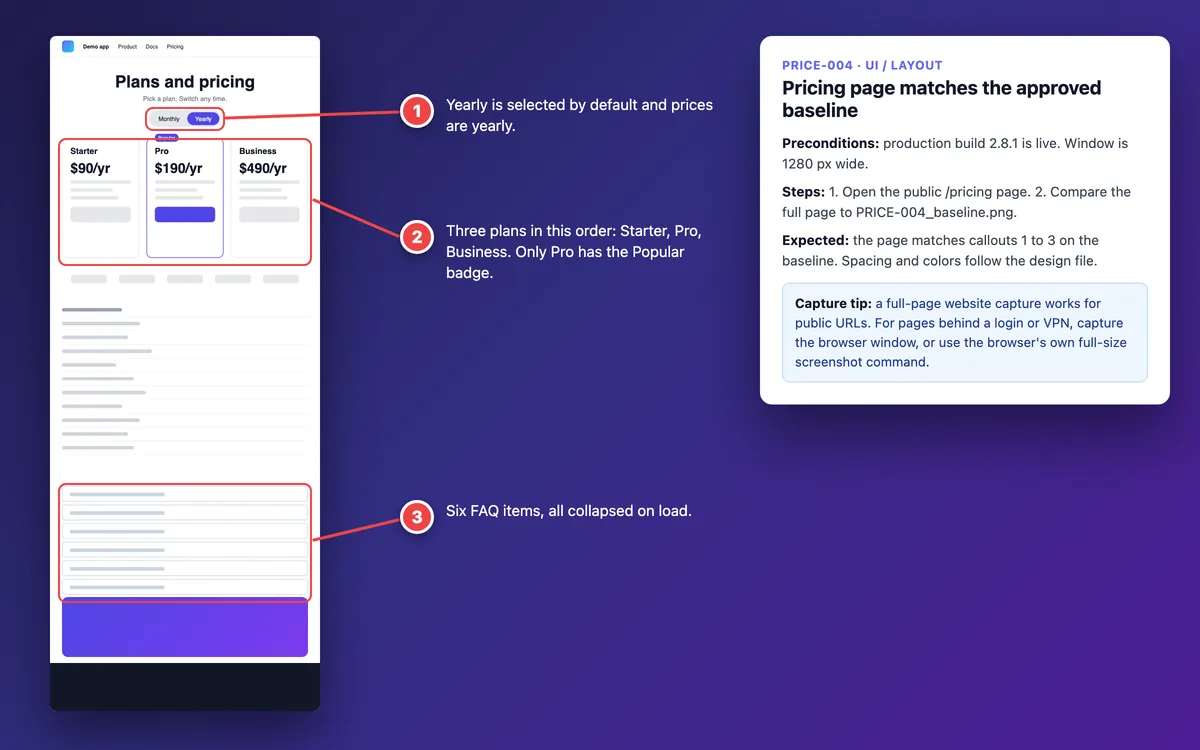
Capture the baseline as one full-page image so nothing below the fold is missed. The guides to full-page screenshots on Mac and on Windows cover browser and tool options.
API test case: reject an order with zero quantity
API cases use the same template. The request is the step, and the status code plus body is the expected result.
ORDER-API-003: API rejects an order with quantity 0 (High). Preconditions: a valid QA API token. SKU TEST-100 is in stock.
POST /api/v1/orders
Content-Type: application/json
Authorization: Bearer <QA token from the test vault>

{"sku": "TEST-100", "quantity": 0}
Expected result: status 422 with the body {"error": "quantity must be at least 1"}. A follow-up GET /api/v1/orders shows no new order. When the real response is long, paste both versions into a text compare tool to spot the difference.

Tired of plain screenshots? Try ScreenSnap Pro.
Beautiful backgrounds, pro annotations, GIF recording, and instant cloud sharing, all in one app. Pay $34 once, own it forever.
See pricing and featuresTest case vs test scenario vs test plan vs test script
| Document | Scope | Detail level | Who writes it | Example |
|---|---|---|---|---|
| Test scenario | One user goal | One line | QA or product owner | "User signs in" |
| Test case | One outcome of a scenario | Steps, data, expected result | QA engineer | LOGIN-002: wrong password |
| Test script | One case as code or a fixed manual script | Runs step by step | Developer or test engineer | An automated test for LOGIN-002 |
| Test plan | A release or project | Scope, approach, schedule, risks | Test lead | Plan for release 2.8 |
In short, a scenario says what to test. A test case says how to test it and what counts as a pass. The plan says which cases run, who runs them, and when.
Add visual evidence to your test cases
Screenshots and short recordings make a case faster to run and a failure faster to understand. This section covers evidence for one run of one case.
Reference screenshots for expected results
Capture the expected state once, then number it so each callout matches a step: callout 3 marks what you touch in step 3. A tester glances at it and knows where to click and what to check.
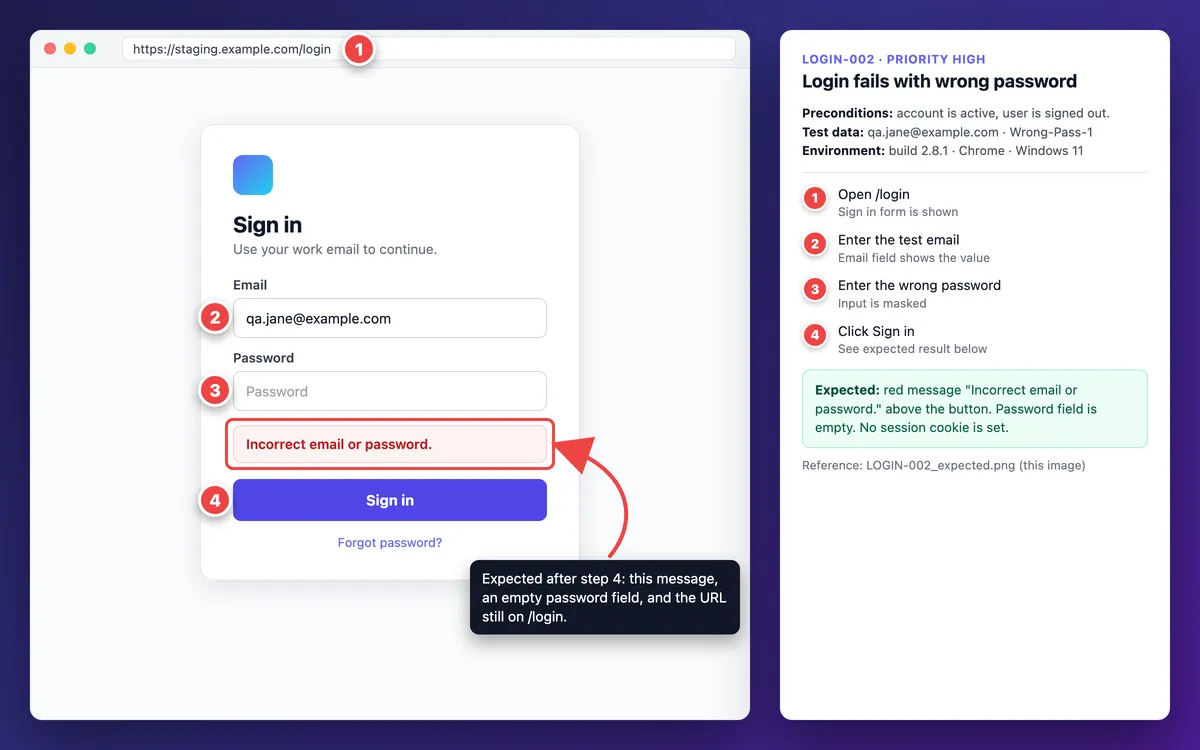
Any editor with numbered markers works. ScreenSnap Pro has a counter tool that numbers callouts as you click, plus arrows, highlights and text. You can also pin the reference screenshot so it floats above other windows while you run the case. The annotation guides for Mac and Windows cover the techniques.
Capturing the actual result when a step fails
When a step fails, capture the screen right away, before you retry. Then mark it up:
- Draw a box around the wrong result.
- Add a short callout: "Expected: X. Actual: Y."
- Keep details that help debugging, such as a request ID or error code.
- Cover personal data with a solid box (see the next section).
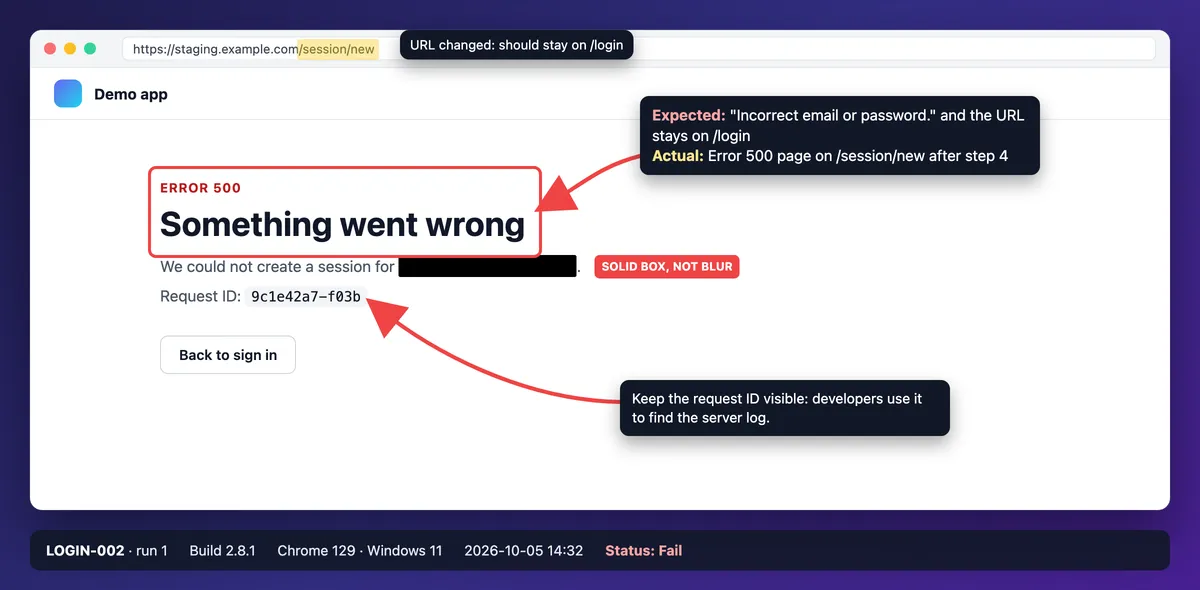
Built-in tools are fine for the capture itself: see Apple's guide to Mac screenshots and Snipping Tool on Windows.
Some failures are about timing: a spinner that never ends, or a button that fires twice. A still image can't show that. Record a 5 to 10 second GIF instead, using the steps for a GIF screen capture on Mac or on Windows.

For the Actual result field, copy the exact error text instead of retyping it. OCR pulls text out of a screenshot: use Live Text on a Mac, OCR software on Windows, or a free extract text from image tool.
Redact test data and PII before you attach anything
Evidence travels into tickets, chats and client reports. Scan every screenshot for emails, names, tokens and customer data first.
- Cover secrets and personal data with a solid, opaque box. Blur and pixelate can be reversed, as the guide to redacting text in screenshots explains.
- Use blur or pixelate only for low-risk details, such as a browser tab title. The blur and pixelate guide for Mac shows how to apply both.
- Better still, test with fake data from the start: example.com emails, seeded accounts and your payment provider's test mode.
Where evidence should live
Attach the image file itself to the test run or the Jira issue. Atlassian explains how to add files and images to a work item, and the Jira screenshot guide shows a fast workflow. Name files after the case and run, such as LOGIN-002_run1.png, so they sort together.
Cloud share links are handy for a quick handoff in Slack or Teams, but uploads can be removed after a while. Evidence you need for an audit trail should be the attached file.
From failed test case to bug report
A failed case is most of a bug report already. Map the fields across and file it.
| Test case field | Bug report field |
|---|---|
| Test case ID | Related test case |
| Title | Summary, rewritten as the defect: "Wrong password returns Error 500" |
| Preconditions and test data | Preconditions |
| Steps | Steps to reproduce |
| Expected result | Expected result |
| Actual result | Actual result |
| Environment | Environment |
| Evidence | Attachments |
| Priority | A starting point for severity |
Two things need fresh thought: a summary that names the defect, and a severity that reflects the real impact. The bug report template guide covers the rest, with formats for Jira and GitHub. Then link the bug ID back into the case, so the next run knows a fix is pending.
Common test case mistakes and how to fix them
- Vague steps. "Check the settings page." Fix: name the page, the control and the action.
- Several checks in one case. A case that tests login, profile edit and logout can fail for three reasons. Fix: split it so each case has one outcome.
- Missing test data. "Use a valid user" leads to different accounts and results. Fix: list exact values.
- "Works correctly" as the expected result. Nobody can fail a test against that. Fix: quote text, name URLs and give numbers.
- Cases that depend on each other. If CHECKOUT-005 needs the cart from CHECKOUT-004, one failure blocks both. Fix: set up state in Preconditions or with a seed script.
- Stale expected results after a redesign. The case says "blue Save button", but the button now says Publish. Fix: update cases in the same sprint as the UI change, and retake the reference screenshots.
- Screenshots with real customer data. That is a data leak. Fix: test on seeded data, and use solid boxes when real data slips in.
Keeping your test cases from going stale
- Review per release. Skim the cases for changed features before each release, and update the "Last reviewed" date.
- Keep the requirement link. When a story changes, you can find every case that proves it.
- Retire and merge. Delete cases for removed features. Merge cases that check the same outcome in different words.
- Add a case for every escaped bug. If a bug reached users or turned up in a bug bash, write the case that would have caught it.
- Automate stable, repeated checks. A case that runs every release and rarely changes is a good fit for automation, and pixel-level layout checks belong in visual regression testing. Manual cases still cover what pixel diffs miss, such as error handling and odd user paths.
Frequently Asked Questions
Make every test case easy to run and easy to prove
Start small: copy the template, write five cases for your riskiest flow, and attach an annotated reference screenshot to each one.
If you capture evidence every day, ScreenSnap Pro puts the counter tool, solid-box redaction, OCR, GIF recording and full-page website capture for public URLs in one app on Mac and Windows. It is a one-time $34 purchase: 1 license, 2 seats (2 computers, Mac or Windows). See pricing.

Morgan
Indie DeveloperIndie developer, founder of ScreenSnap Pro. A decade of shipping consumer Mac apps and developer tools. Read full bio
@m_0_r_g_a_n_